




 Sophie Carter
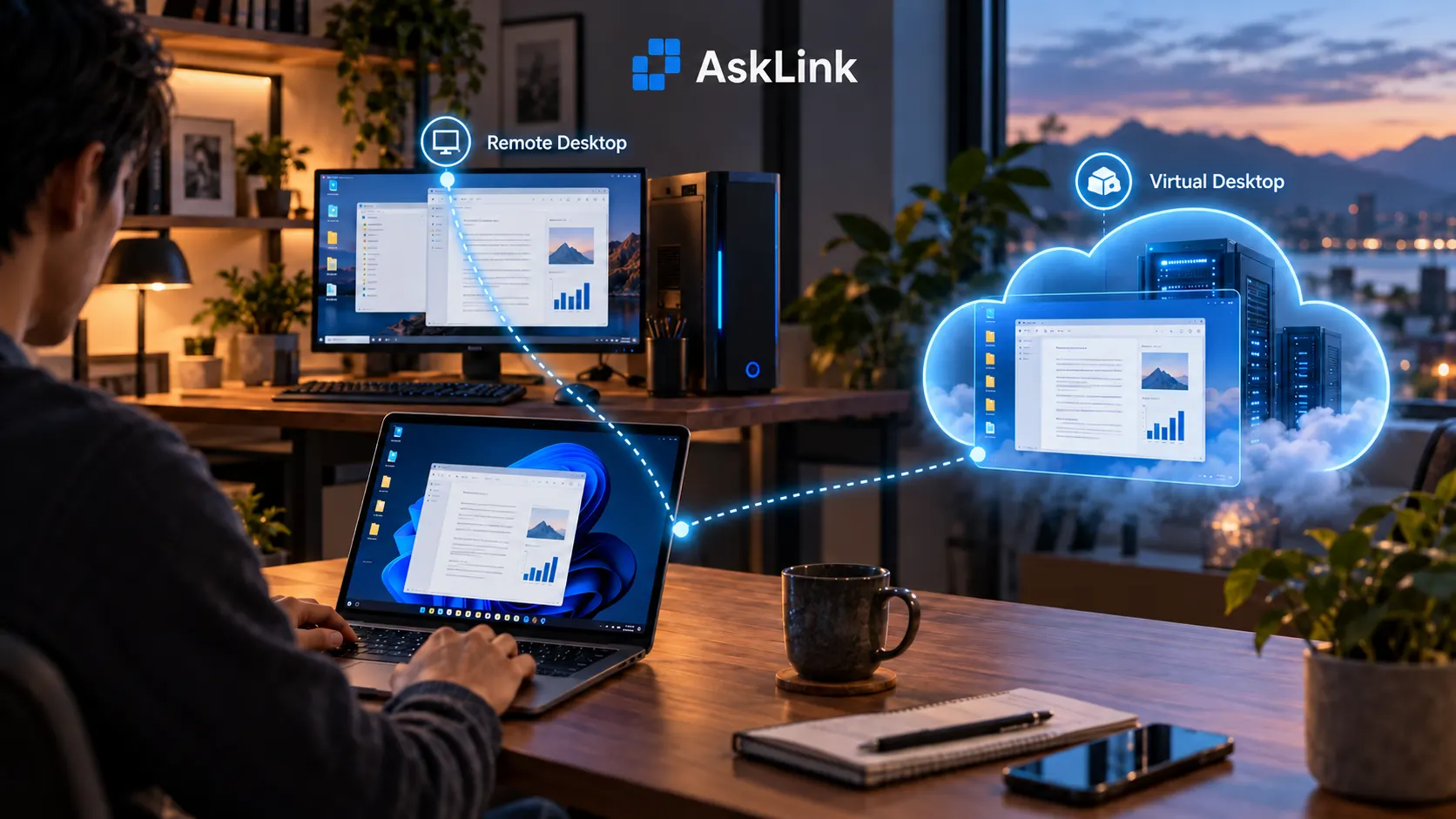
Remote desktop lets you access another computer. A virtual desktop provides a desktop environment that runs on virtualized infrastructure. They can work together: you can use a remote desktop connection to access a virtual desktop.
For most buyers, the practical choice is whether to keep using an existing computer or get a separately hosted workspace. In this article, we'll discuess remote desktop vs virtual desktop, and compare those setups by cost, performance, maintenance, and everyday use.
What Are Remote Desktop and Virtual Desktop?
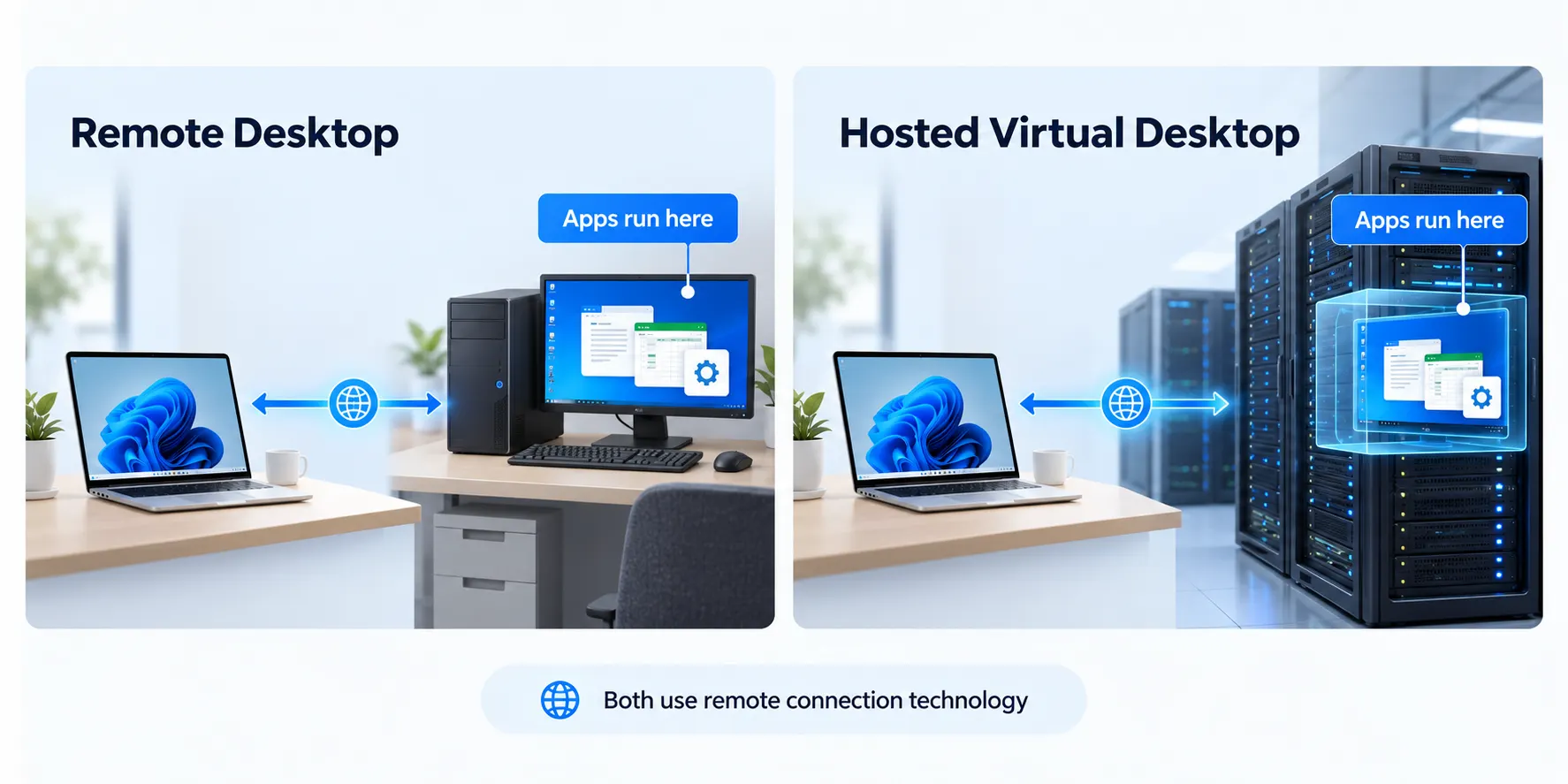
Remote desktop lets you use another computer from your own device. When you open an app or edit a file, the work happens on that remote computer. You could, for example, use your office PC's software from a laptop at home. Our remote desktop explainer covers how the connection works.
A hosted virtual desktop is a desktop environment running on virtualized servers in a data center or the cloud. Your company or service provider sets up its apps and computing resources, and you log in from a supported device. In this article, "virtual desktop" refers to a hosted desktop environment, such as VDI (virtual desktop infrastructure) or a desktop-as-a-service offering. The management features and infrastructure responsibilities vary by platform.
The two can work together: remote desktop can connect to physical computers or virtual machines, including hosted desktops. The comparison below focuses on accessing an existing work computer versus using a hosted virtual desktop.
Here, "virtual desktop" does not mean the extra workspaces in Windows Task View or the Virtual Desktop app for VR headsets.
Remote Desktop vs Virtual Desktop: Key Differences
| What matters | Remote desktop: access to an existing computer | Virtual desktop: hosted workspace |
|---|---|---|
| Connection target | A specific office PC, workstation, or existing VM you have permission to use. | A desktop assigned through a virtual desktop platform or Cloud PC service, using dedicated or shared host resources. |
| Where apps run | On the remote computer, using its installed software, CPU, GPU, and memory. | On a hosted VM or session host, using the computing resources allocated to that desktop or session. |
| Dependence on an existing PC | The computer you connect to must be available. Power or network loss on that computer interrupts access. | Your office PC can be off, but the hosted environment and your connection to it must remain available. |
| Deployment work | Install or enable remote access, grant permissions, and configure network and power settings. Each host computer still needs maintenance. | Provision desktops, assign users, deploy apps, and set access policies. Managed Cloud PC services handle more infrastructure work than self-managed VDI. |
| Best suited to | People who need existing apps, files, running tasks, or a particular workstation; IT teams supporting those computers. | Organizations that need to provide standardized desktops for employees or contractors and manage those workspaces centrally. |
Performance depends on the host hardware, the remote access software, and the network connection. A powerful workstation can still feel slow over a poor connection; an undersized cloud desktop can struggle even with excellent internet.
Security also depends on configuration. Compare authentication, access permissions, session controls, and data-transfer policies.
Which Desktop Setup Fits Your Work?
Remote Desktop Use Cases: Keep Working on Your Existing Computer
Remote desktop is a practical choice when the computer you already use has what you need. With AskLink remote desktop tool, you can access that computer in situations such as these:
- Working between Windows and Mac: Use AskLink to access a Windows business app from your Mac, or open a project on your Mac from a Windows PC. Your apps and files stay on the computer where you normally use them.
- Designing on a powerful workstation from a lighter laptop: Open the CAD project or video tools already installed on your studio computer. AskLink Pro's 4:4:4 color mode helps preserve color detail in small text, icons, and other interface elements during remote sessions. It requires a supported NVIDIA GPU on the remote computer. Higher frame rates can make model rotation and video playback look smoother when the host and connection can support them. The workstation still does the demanding processing.
- Making a quick change while travelling: Connect from your phone or tablet to update a spreadsheet, check a running task, or open a document on your computer. This works well for urgent changes when you do not have your laptop with you. AskLink's file transfer lets you bring back the file you need, while clipboard sync saves retyping text between devices.
- Supporting several office computers: AskLink's Monitor Wall brings computer screens together, helping technicians spot which machine needs attention and open it for troubleshooting. For Windows-based team deployments, AskLink Business adds role-based permissions and session logs to manage access and follow up on recurring issues.
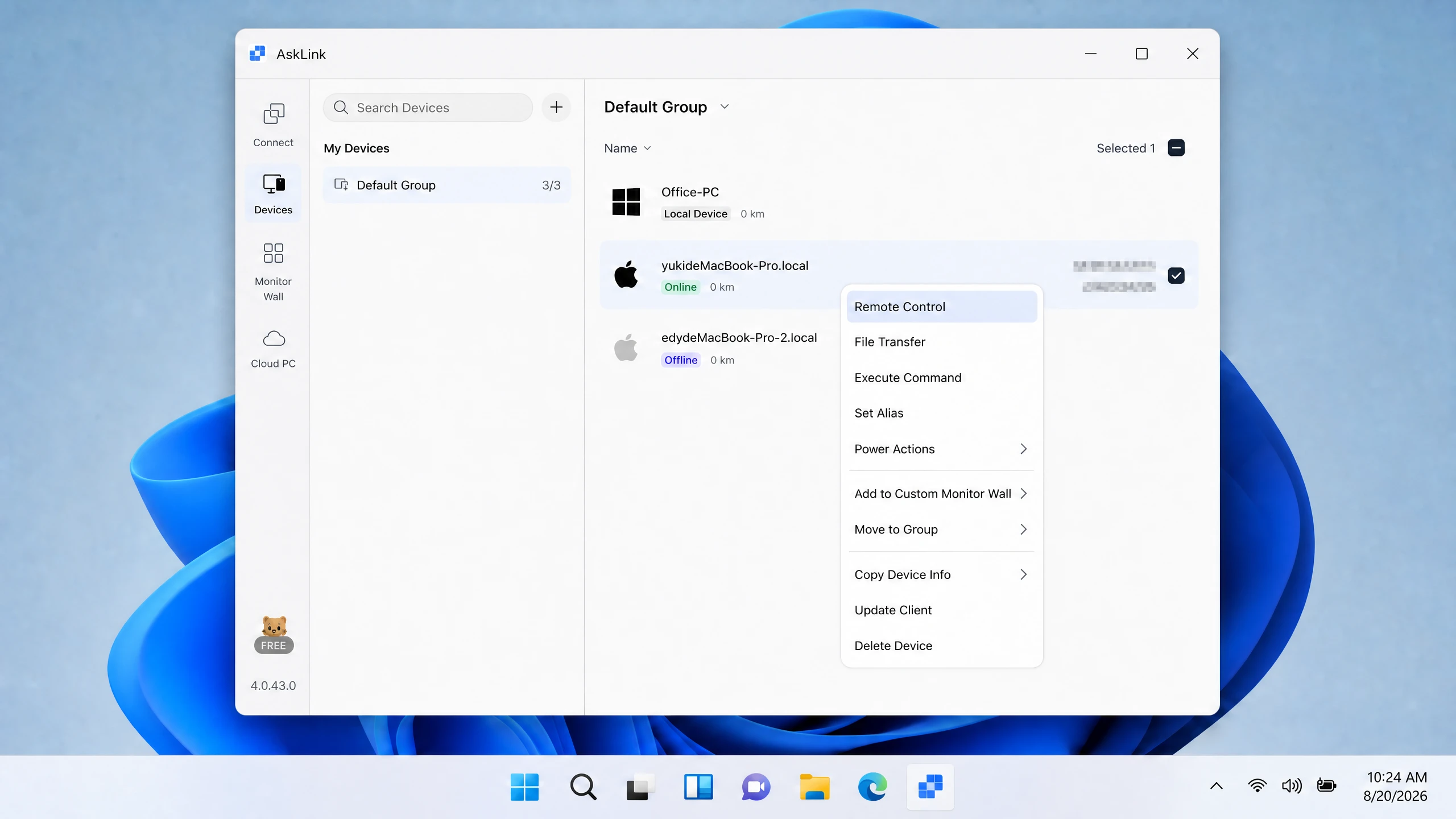
AskLink Free includes basic remote access with no time limit, plus 50 hours of high-speed access per month. Paid plans add higher connection speeds and display options for more demanding workflows.
Virtual Desktop Use Cases: Use a Separately Hosted Workspace
You may need a cloud computer for your own projects, or a platform that provides managed desktops for a team.
- Getting a cloud computer for your own projects: If your laptop cannot handle the work, or you have no office PC to connect to, AskLink Cloud PC lets you choose a hosted computer instead of buying another local machine. After you activate a plan, it appears in your AskLink device list, ready to connect from a supported computer, phone, or tablet. You will need to install your apps and move or share the files your project requires.
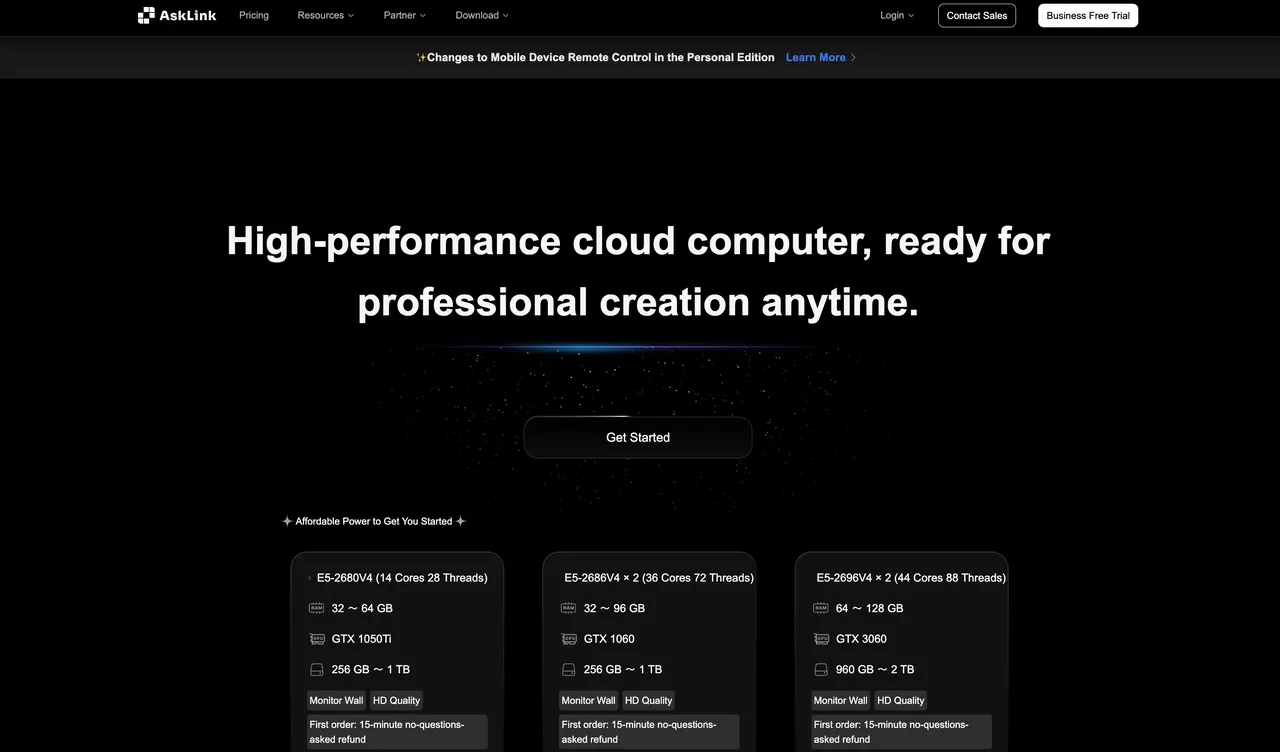
For a team, access to a cloud computer is only part of the requirement. You may also need desktop templates, user assignment, and centralized policies. Check whether the platform includes the tools your IT team needs.
- Onboarding employees or contractors: IT can assign a hosted desktop with the required apps and permissions, so new users can access a prepared workspace from an approved device.
- Keeping software consistent across a team: IT can use preconfigured desktop templates on platforms that support them, giving users the approved apps and settings. This helps when everyone needs the same software version and troubleshooting many different local setups has become difficult.
- Supporting shifts, training labs, or seasonal teams: Pooled computing resources can serve changing groups of users. You still need enough capacity and the right licenses for the busiest periods, but you can plan around active users rather than a dedicated office PC for every person.
Windows 365 Business provides individually assigned Cloud PCs with simpler provisioning. Azure Virtual Desktop supports more configurable deployments, including personal desktops and pooled, multi-session environments.
Remote Desktop vs Virtual Desktop: Costs, Performance, and Downtime
Compare the full running cost for the same number of users, apps, and working hours.
| Cost to budget for | Remote access to an existing PC | Hosted virtual desktop |
|---|---|---|
| Hardware and computing power | Upkeep, repairs, and eventual replacement of the PC you already own. | Server hardware, cloud compute, or a Cloud PC subscription. Graphics-heavy work may need a higher-cost GPU configuration. |
| Storage and backups | Local disks and a backup plan for the computer's files. | Included storage capacity, additional space, and backup charges. |
| Software and licenses | Remote access software, existing app licenses, and any separately purchased add-ons. | Windows and app licenses, plus desktop-platform or management fees where applicable. |
| Setup and ongoing IT work | Configure access and permissions, install updates, and troubleshoot each computer. | Configure desktops, deploy apps, manage users, and maintain the environment. Check which tasks the provider handles. |
| Power, networking, and idle time | Electricity and office internet to keep the computer reachable, including between sessions. | Network charges and any compute or storage costs that continue after users log out. |
A managed Cloud PC may bundle several of these items into one subscription; other deployments bill resources separately. Reusing a suitable PC can lower the initial spend. Hosted desktops may be worth the recurring cost when IT needs to provision the same apps for many users, replace workspaces quickly, or manage access for changing teams.
Performance: The host's CPU, GPU, and memory determine how well apps run. Your connection adds latency—the delay between an action and its response. Video playback and frequent screen changes generally require more bandwidth than a mostly static spreadsheet. If you already use specialist software, check whether its license and required peripherals will work in the proposed environment before moving it. Higher picture-quality settings can use more bandwidth; they cannot compensate for a slow connection. Test your actual apps and screen settings.
What Happens If Your Office PC Goes Offline?
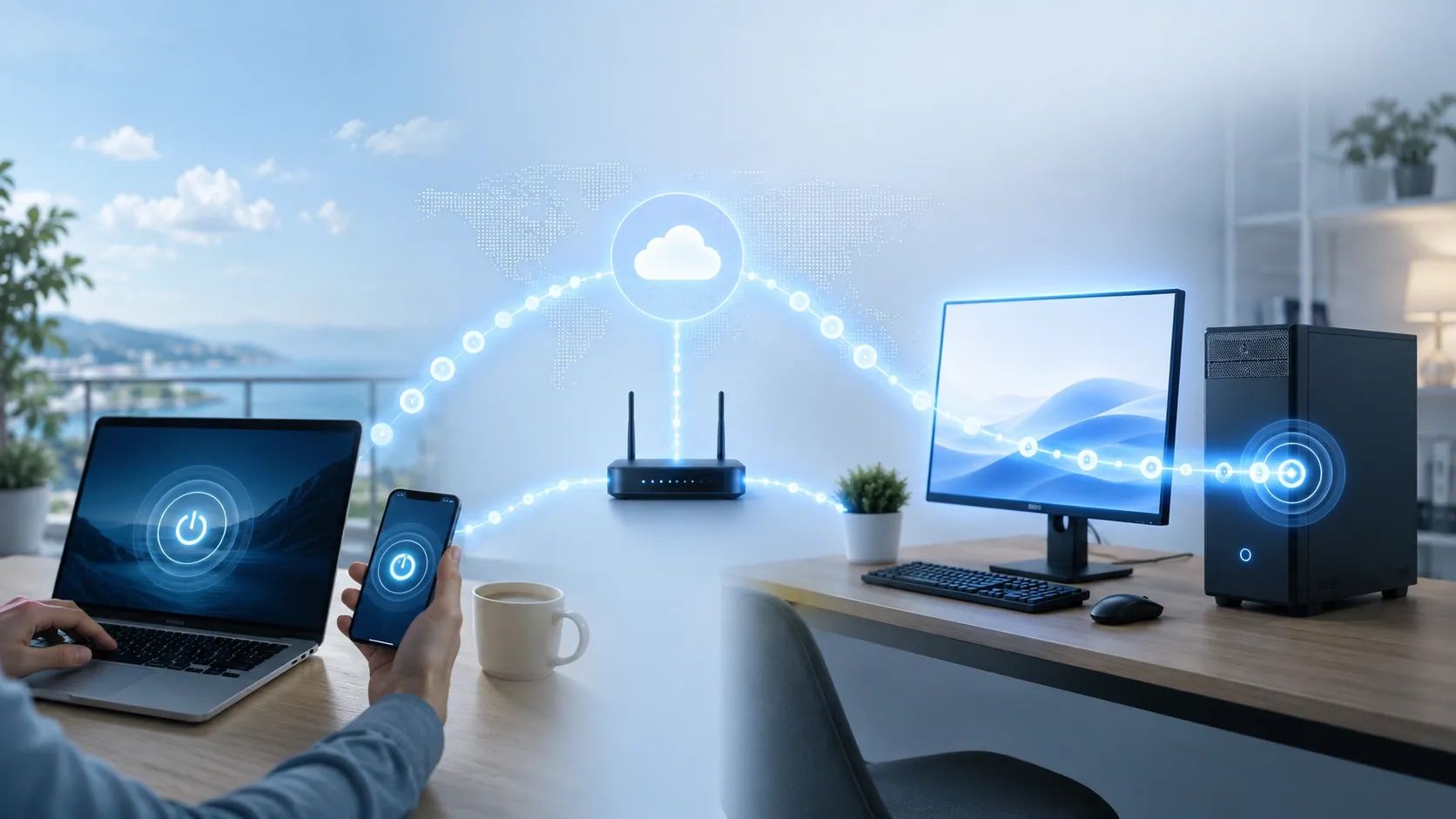
Access to that PC stops until it is reachable again. AskLink's Wake-on-LAN can wake supported Windows or Linux computers after proper setup, but needs another online AskLink device on the same local network. It cannot fix a power cut or failed internet connection. A separately hosted desktop does not depend on your office PC being online, but it still depends on the host environment and your connection to it. Before choosing, check who can restart the host, recover files, and restore access after an outage.
Conclusion
Remote access is a practical starting point when you already have a computer with the apps, files, and performance you need. A hosted desktop is worth considering when you need a separate computer in the cloud or a platform for providing workspaces to a team. Some organizations use both.
Already have a computer to connect to? Download AskLink and follow our remote desktop setup guide to access it from another device.
Need a cloud computer? Explore AskLink Cloud PC configurations for a separate hosted workspace that you can access through AskLink.