'%3e%3cpath%20d='M7.48145%2024H3.74023C1.67456%2023.9999%204.09854e-05%2022.3467%200%2020.3076V16.6152H7.48145V24ZM15.8955%2024H8.41406V16.6152H15.8955V24ZM7.48145%2015.6924H0V8.30762H7.48145V15.6924ZM24%2015.6924H16.5195V8.30762H24V15.6924ZM15.5859%207.38477H8.10547V0H15.5859V7.38477ZM20.2598%200C22.3256%200%2024%201.65318%2024%203.69238V7.38477H16.5195V0H20.2598Z'%20fill='white'/%3e%3cpath%20d='M108.786%2019.0507L105.767%2014.2636H104.397L108.397%208.80874H111.915L108.119%2013.9483V12.3155L112.544%2019.0507H108.786ZM101.527%2019.0507V5.5061H104.897V19.0507H101.527Z'%20fill='white'/%3e%3cpath%20d='M88.8242%2019.0505V8.80858H91.4908V13.2059H91.3421C91.3421%2012.1422%2091.4779%2011.264%2091.7499%2010.5712C92.0214%209.86618%2092.4224%209.34052%2092.953%208.99418C93.4965%208.64778%2094.1506%208.47461%2094.9158%208.47461H95.0644C96.2245%208.47461%2097.1193%208.86427%2097.7488%209.64353C98.3911%2010.4104%2098.7117%2011.5917%2098.7117%2013.1874V19.0505H95.342V13.0946C95.342%2012.6246%2095.2001%2012.2411%2094.9158%2011.9443C94.6443%2011.635%2094.2679%2011.4804%2093.7864%2011.4804C93.3049%2011.4804%2092.9162%2011.635%2092.6202%2011.9443C92.3358%2012.2411%2092.194%2012.6369%2092.194%2013.1317V19.0505H88.8242Z'%20fill='white'/%3e%3cpath%20d='M82.4214%2019.0506V8.80875H85.7912V19.0506H82.4214ZM81.125%2011.2579V8.80875H85.7912V11.2579H81.125ZM83.81%207.99232C83.1928%207.99232%2082.7359%207.83773%2082.4398%207.5285C82.1561%207.2069%2082.0137%206.79872%2082.0137%206.30388C82.0137%205.80913%2082.1561%205.40713%2082.4398%205.09789C82.7359%204.77628%2083.1866%204.61548%2083.7916%204.61548C84.4088%204.61548%2084.8595%204.77628%2085.1433%205.09789C85.427%205.40713%2085.5688%205.80913%2085.5688%206.30388C85.5688%206.79872%2085.427%207.2069%2085.1433%207.5285C84.8595%207.83773%2084.4149%207.99232%2083.81%207.99232Z'%20fill='white'/%3e%3cpath%20d='M71.1328%2019.0507V5.5061H74.5769V19.0507H71.1328ZM74.2065%2019.0507V16.0449H79.6876V19.0507H74.2065Z'%20fill='white'/%3e%3cpath%20d='M65.4458%2019.0507L62.428%2014.2636H61.0576L65.0571%208.80874H68.5755L64.7795%2013.9483V12.3155L69.2049%2019.0507H65.4458ZM58.1875%2019.0507V5.5061H61.5578V19.0507H58.1875Z'%20fill='white'/%3e%3cpath%20d='M51.2917%2019.3845C49.8103%2019.3845%2048.6438%2019.0814%2047.7921%2018.4753C46.9403%2017.8568%2046.4836%2016.991%2046.4219%2015.8777H49.3844C49.4339%2016.1869%2049.6252%2016.4529%2049.9585%2016.6755C50.2918%2016.8982%2050.7608%2017.0095%2051.3657%2017.0095C51.7978%2017.0095%2052.1681%2016.9477%2052.4767%2016.824C52.7977%2016.6879%2052.9581%2016.4715%2052.9581%2016.1745C52.9581%2015.9148%2052.8347%2015.7045%2052.5878%2015.5437C52.3409%2015.3705%2051.8903%2015.2531%2051.2361%2015.1912L50.5325%2015.117C49.224%2014.9809%2048.2611%2014.6222%2047.6439%2014.0408C47.0267%2013.4595%2046.7181%2012.7297%2046.7181%2011.8515C46.7181%2011.0969%2046.9033%2010.4784%2047.2736%209.99603C47.6439%209.50126%2048.1562%209.13018%2048.8105%208.8828C49.4647%208.63541%2050.2115%208.51172%2051.0509%208.51172C52.4211%208.51172%2053.526%208.81473%2054.3653%209.42089C55.2048%2010.0146%2055.6492%2010.8743%2055.6986%2011.9999H52.7359C52.6866%2011.6907%2052.5199%2011.4309%2052.236%2011.2206C51.9521%2010.998%2051.5447%2010.8867%2051.0139%2010.8867C50.6312%2010.8867%2050.3164%2010.9547%2050.0696%2011.0907C49.835%2011.2268%2049.7178%2011.4185%2049.7178%2011.6659C49.7178%2011.9257%2049.8289%2012.1174%2050.0511%2012.2411C50.2856%2012.3648%2050.6559%2012.4576%2051.162%2012.5194L51.8657%2012.5936C53.1741%2012.7297%2054.1802%2013.0946%2054.8838%2013.6883C55.5998%2014.2697%2055.9578%2015.0366%2055.9578%2015.989C55.9578%2016.6941%2055.7664%2017.3002%2055.3838%2017.8073C55.0134%2018.3145%2054.4764%2018.7041%2053.7728%2018.9763C53.0816%2019.2484%2052.2545%2019.3845%2051.2917%2019.3845Z'%20fill='white'/%3e%3cpath%20d='M31.0117%2019.0507L35.3445%205.5061H40.8624L45.3434%2019.0507H41.7882L38.3072%207.91816L39.2885%208.28924H36.8444L37.8442%207.91816L34.4558%2019.0507H31.0117ZM34.5483%2015.915L35.5853%2013.0948H40.7143L41.7512%2015.915H34.5483Z'%20fill='white'/%3e%3c/g%3e%3cdefs%3e%3cclipPath%20id='clip0_5596_142775'%3e%3crect%20width='113'%20height='24'%20fill='white'/%3e%3c/clipPath%3e%3c/defs%3e%3c/svg%3e "AskLink")
 Daniel Brooks
Most remote desktop guides make it sound like a two-minute job: enable the setting, enter a PC name, and connect. In practice, the right setup depends on your device, Windows edition, network, and how you plan to connect. A Windows Home PC, for example, cannot accept incoming Remote Desktop (RDP) connections, as it does not include the required host functionality in Microsoft's implementation of Remote Desktop Services. A connection that works on home Wi-Fi may require additional configuration when you connect from another network.
Before changing any network settings, decide which remote access method fits your situation. Windows Remote Desktop (RDP) works well when the host PC supports it and you can manage the required network and security settings. If you need easier access across Windows, Mac, or mobile devices, a third-party remote desktop software like AskLink may be a better fit.
This guide explains how to use remote desktop from another computer or mobile device, choose between Windows RDP and AskLink, how to set up each option step by step and fix common connection problems. Read on to find the best remote access solution!
What You Need Before Using Remote Desktop
Check these basics before you change any settings:
- Keep the remote computer powered on, awake, and connected to the internet.
- Use an account you are allowed to access.
- Find out whether both computers are on the same network.
- Have the connecting computer or phone ready.
AskLink calls the remote computer the Controlled Device. Built-in RDP requires Windows Professional, Enterprise, Education, or Server on the remote PC. If your computer is running Windows Home, it cannot receive RDP connections.
Choose Your Method: Windows Remote Desktop or AskLink?
Both methods control another computer. What changes is the setup around the connection.
| Comparison | Windows Remote Desktop (RDP) | AskLink |
|---|---|---|
| Supported devices / operating systems | Remote PC: supported Windows edition. Connecting apps: Windows, macOS, iOS/iPadOS, and Android. | Controller: Windows, macOS, Linux, Android, and iOS/iPadOS. Controlled Device: Windows, macOS, Linux, or Android; iOS is view-only. |
| Windows edition requirement | Pro, Enterprise, Education, or Server. Windows Home cannot receive RDP. | No Pro-only RDP requirement. Install the supported AskLink client. |
| Cost to start | Included with eligible Windows editions; Home cannot receive RDP. | AskLink Free is $0, with no time limit, no forced interruption, 50 high-speed hours monthly, and up to 4K/30 FPS at 8 Mbps. |
| Same network / outside network | Direct on the same network. Outside access usually needs a managed VPN, gateway, or router setup. | ID-and-password flow over the internet. No RDP port 3389 setup. |
| Connection method | PC name or network address plus a Windows account. | AskLink ID plus a temporary or persistent password; authorized devices are also supported. |
| Cross-platform support | The remote PC must be Windows. | Desktop and mobile Controllers with several Controlled Device platforms. |
| Remote support | Possible after the account and network are prepared. | Temporary password for one-time support. |
| Unattended remote access | Yes, after account, power, and network setup. | Persistent password or trusted device authorization. |
| Setup difficulty | Easy on a LAN; harder outside it. | One-click installation |
| Best for | A Windows-only network you manage. | Cross-platform support and outside access without RDP networking! |
See Microsoft's current client options and AskLink's platform details for current support.
If both PCs share a network and the remote one is Windows Pro, try RDP. For cross-platform access without VPN or router work, AskLink usually takes fewer steps. Get AskLink from the App Store.
How to Use Remote Desktop Connection on Windows 11
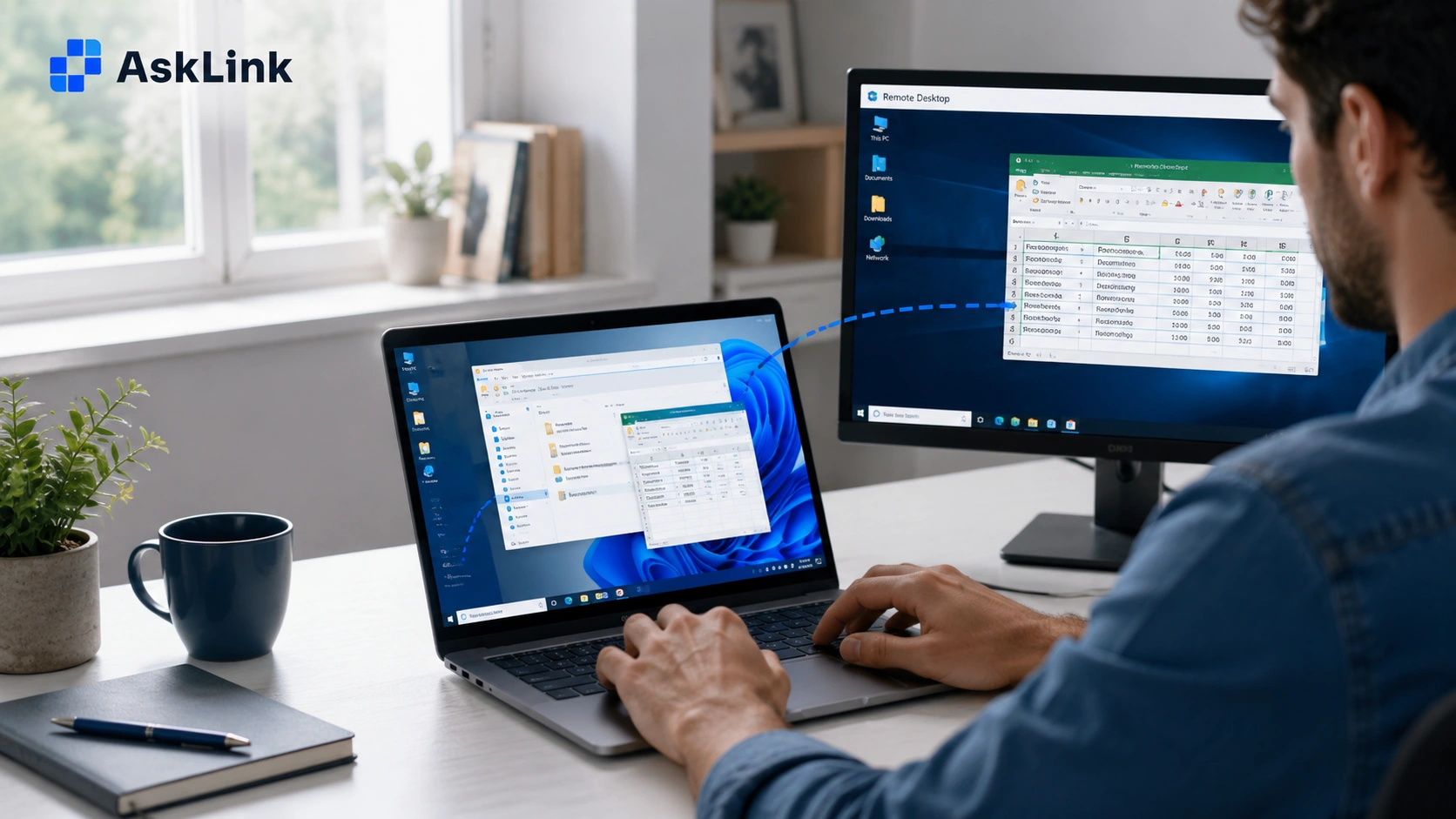
To learn how to use remote desktop on Windows 11, follow these steps. They show how to use remote desktop connection and how to enable remote desktop. Test locally first.
- On the remote PC, open Start > Settings > System > About.
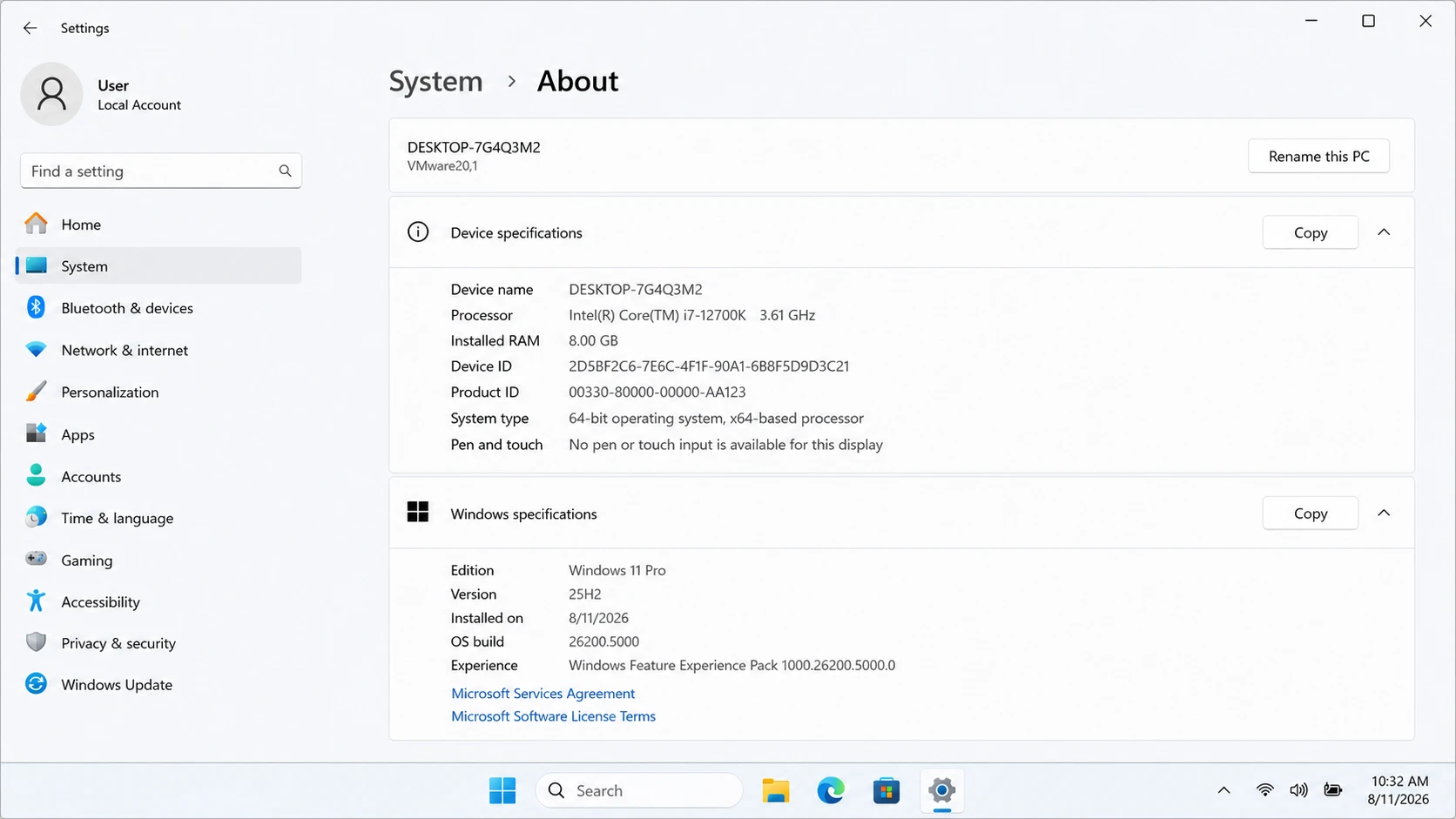
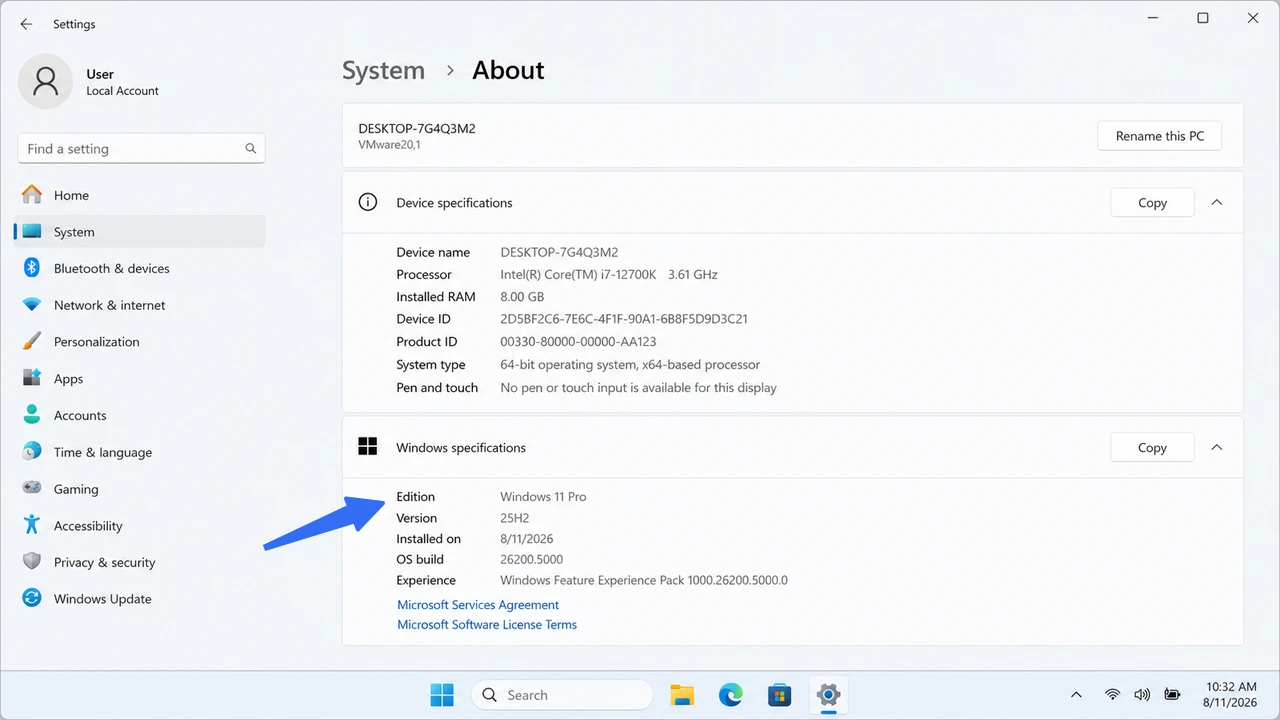
- Under Windows specifications, confirm that the edition supports incoming Remote Desktop connections.
- Go back to Settings > System > Remote Desktop.
- Turn on Remote Desktop, then confirm the change.
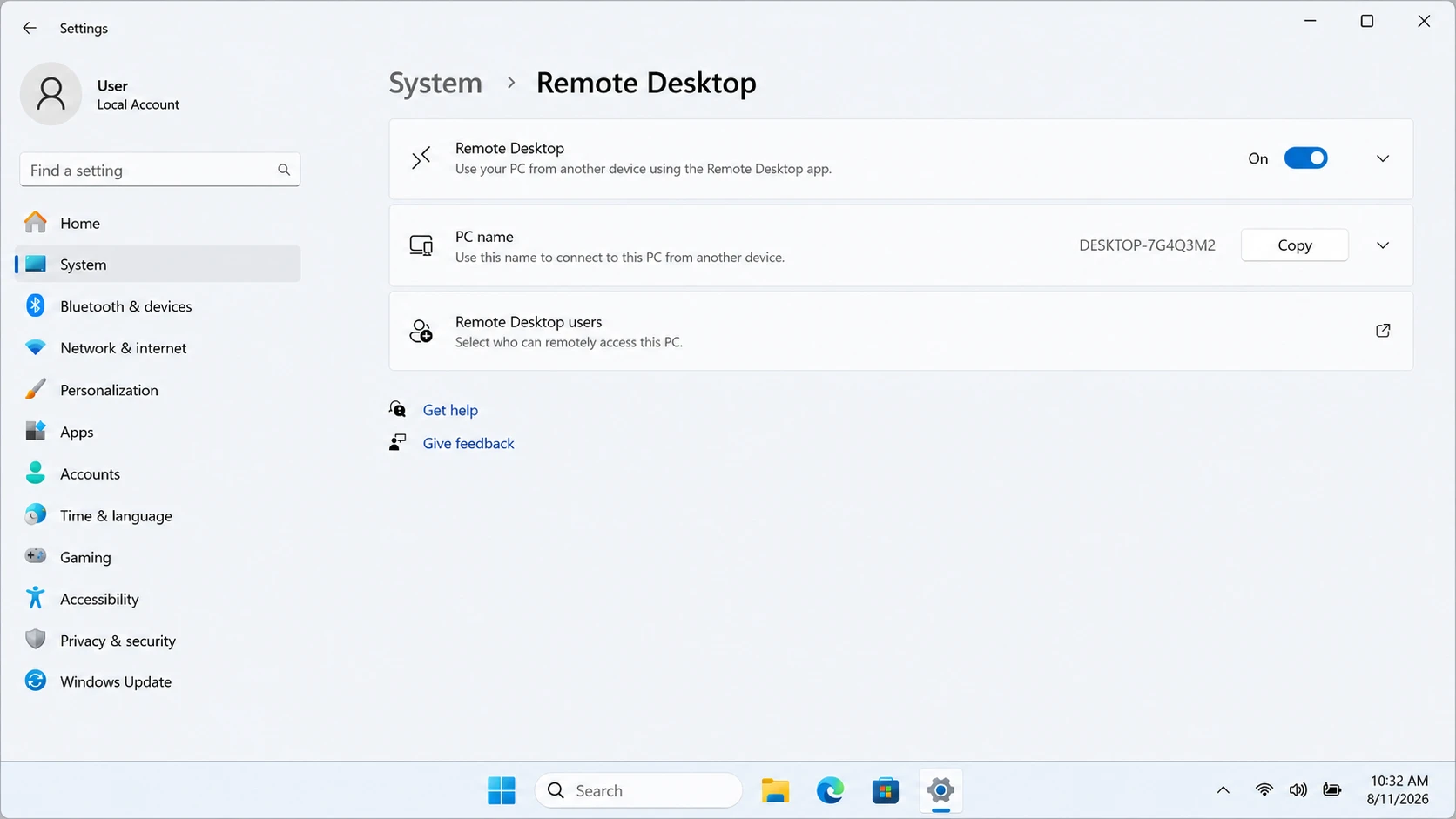
- Copy the PC name shown on the page.
- Make sure the Windows account has a strong password and permission to connect.
- On the connecting computer, search for and open Remote Desktop Connection.
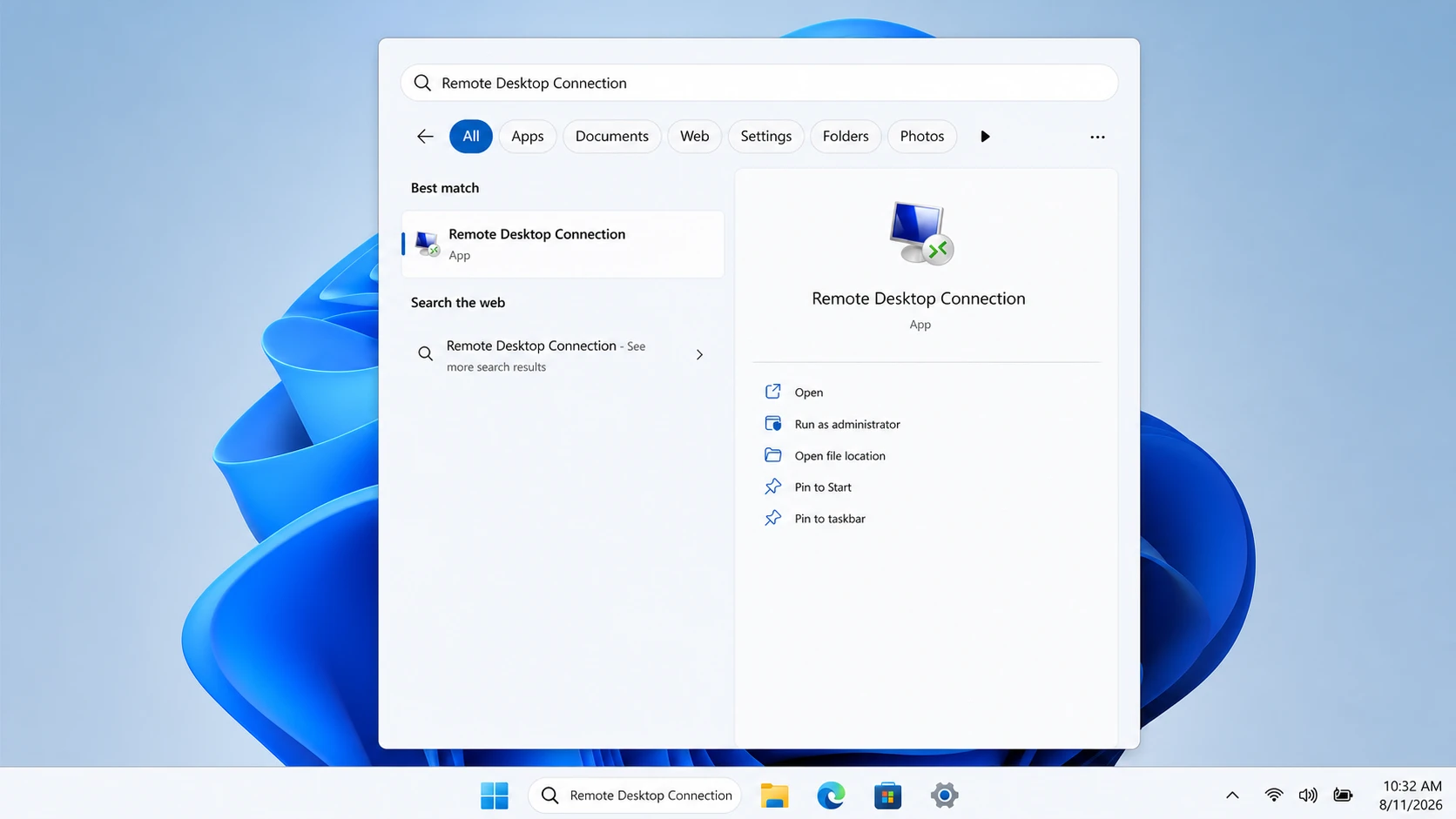
- Open the app, enter the PC name, select Connect, and sign in.
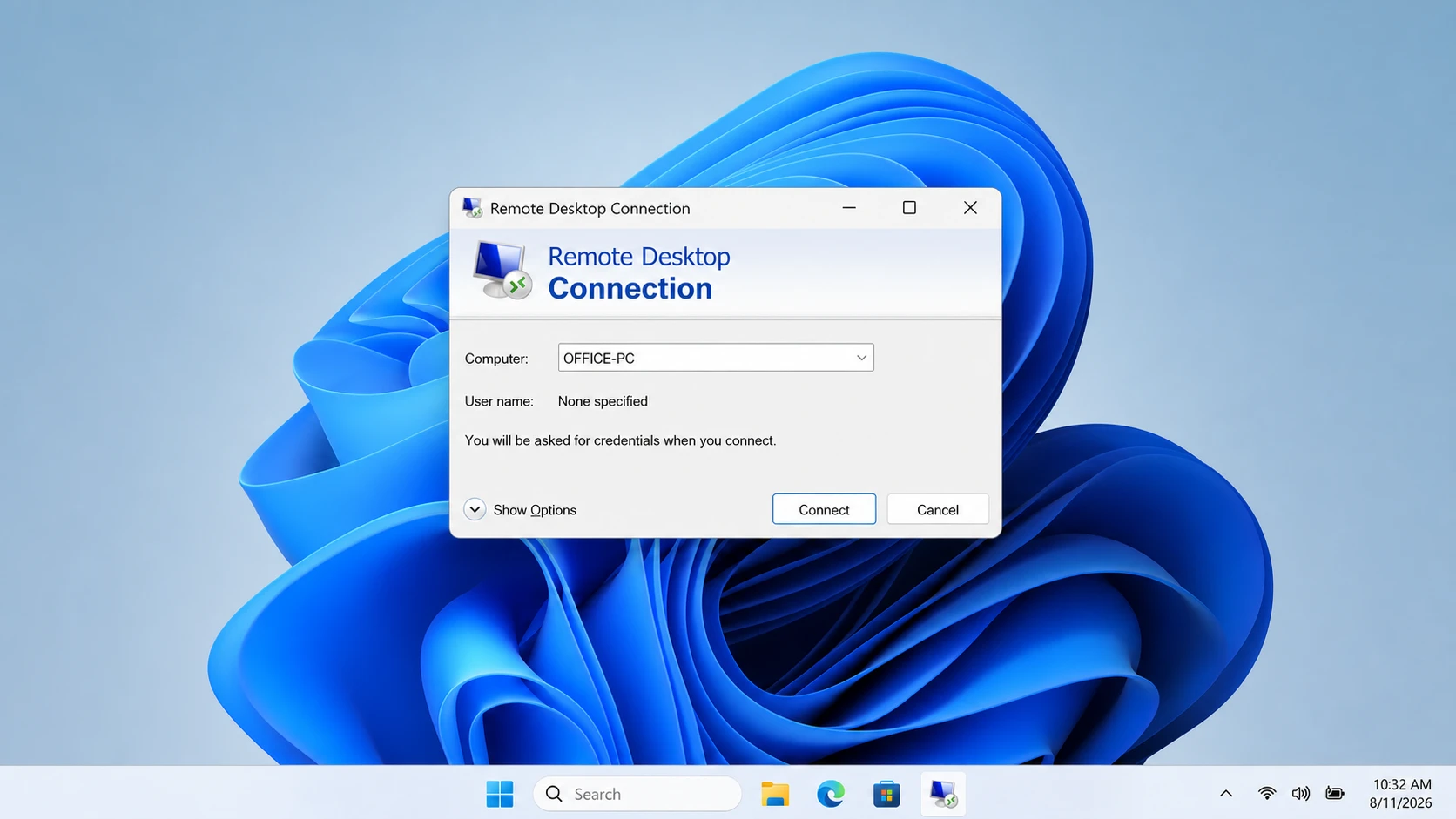
That is how to set up remote desktop locally and how to use Windows Remote Desktop from another PC. If it fails, check the edition, account, firewall, and power state before touching the router.
How to Use Remote Desktop Outside Your Network
For how to use remote desktop outside network, choose the row that matches your setup.
| Your situation | What to do next |
|---|---|
| Same network | Test RDP with the PC name. |
| Different network + managed VPN | Connect to the VPN, then use RDP. |
| Different network + no VPN or router changes | Use AskLink or a similar managed remote access tool. |
| Planning to forward TCP port 3389 | Not recommended for beginners. Choose a safer route. |
Microsoft documents VPN and port forwarding as possible RDP routes, but its outside-network guidance warns that opening a port exposes the PC to the internet and says a VPN is preferable.
Use RDP locally or through a managed VPN. If you find that method too complex or prefer not to use it, AskLink allows for direct use without needing to open RDP port 3389.
How to Set Up Remote Desktop with AskLink
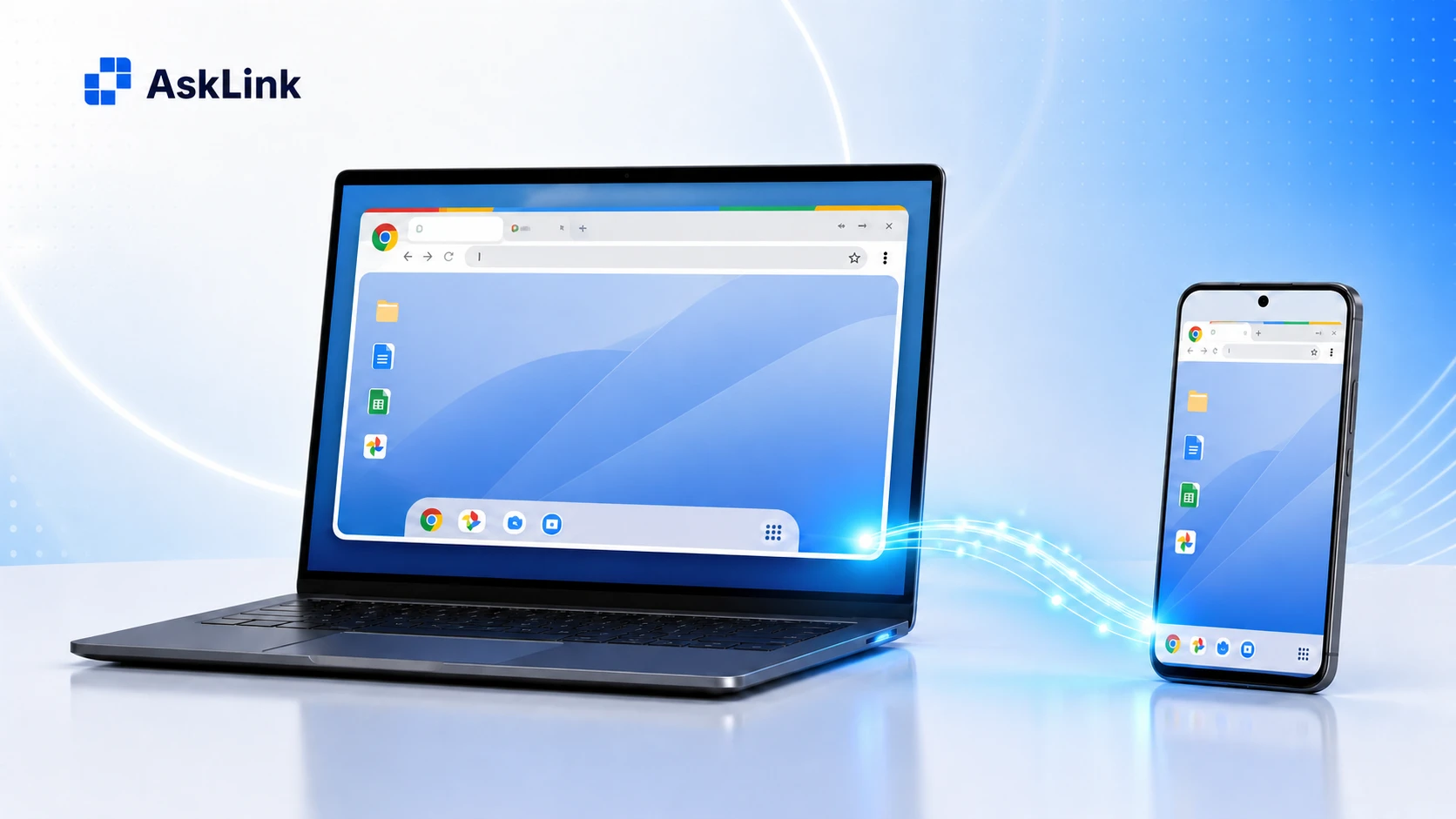
Want to know how to remote into a computer more easily? Try AskLink! In AskLink, you connect from the Controller to the Controlled on the Controlled Device. You do not need the PC name. There is no relay server to build or maintain, ready to use immediately after downloading.
- Download AskLink Personal on both devices. The current installation guide covers Windows, macOS, Linux, Android, and iOS/iPadOS.
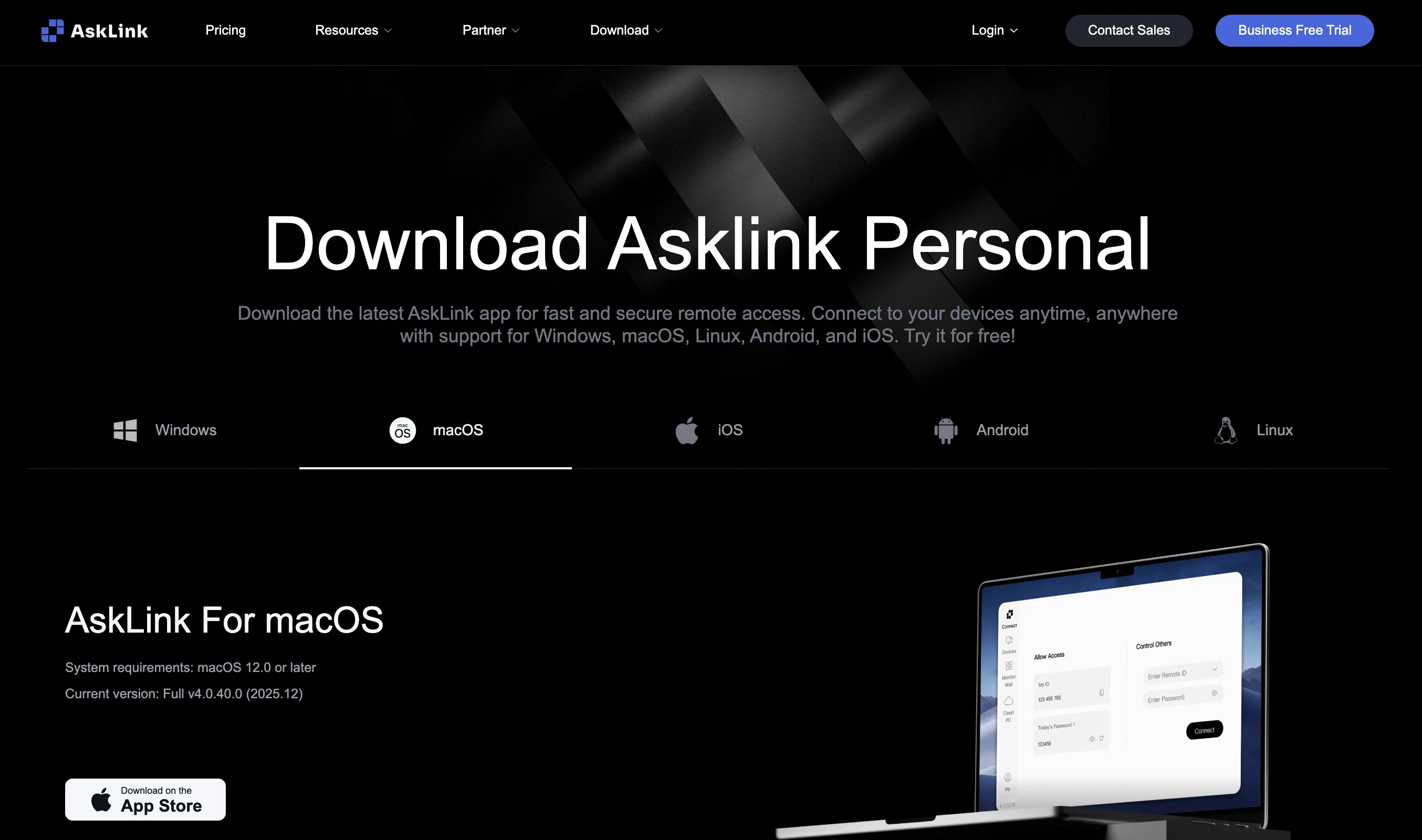
- On the Controlled Device, find its AskLink ID and temporary password. Keep them private.
- On the Controller, open 「Connect」 and enter the AskLink ID and password under 「Control others」. See the ID connection guide for screenshots.
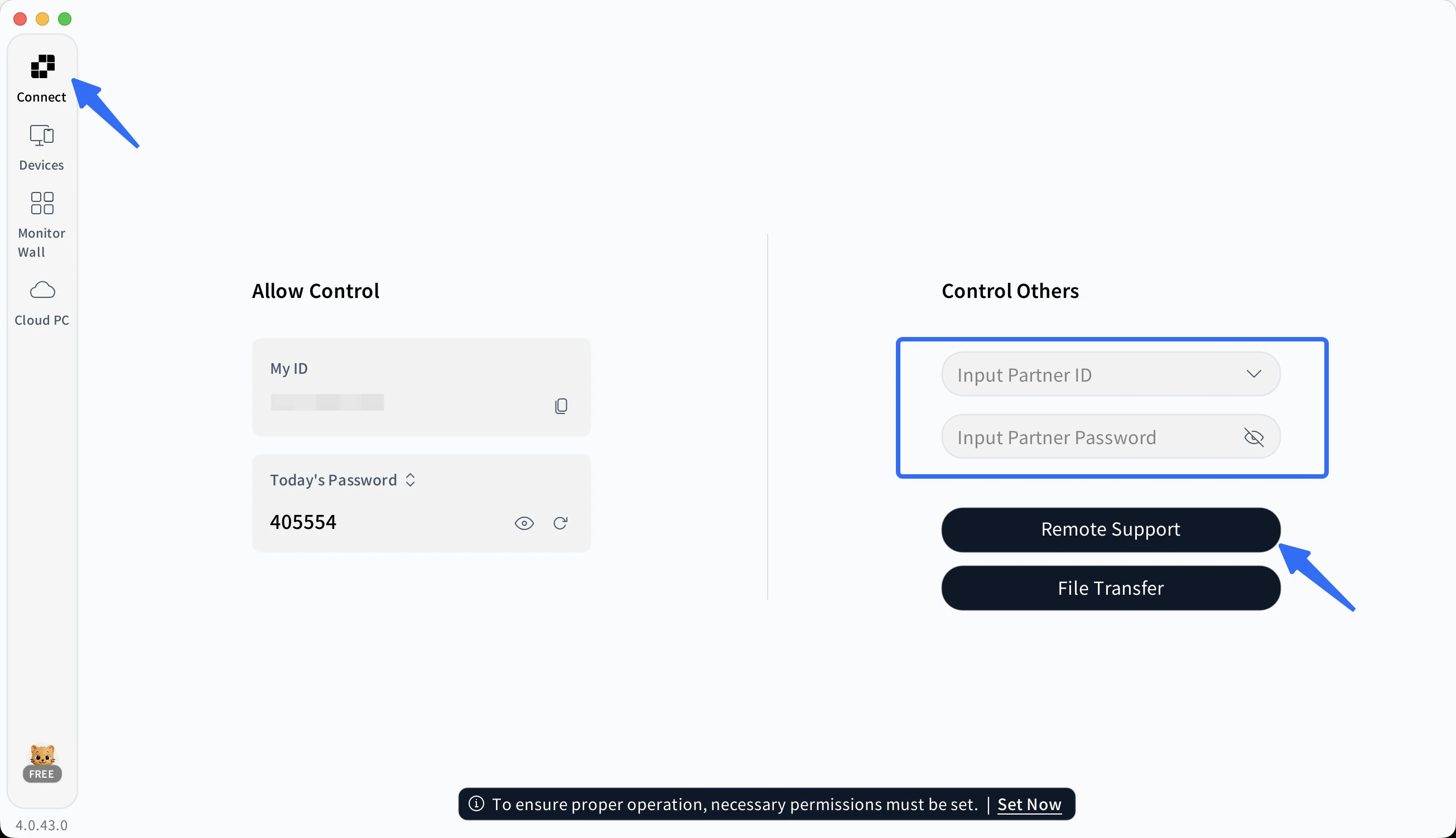
- Select Remote Support to begin the session.
- When the work is finished, end the session and review whether that Controller should retain access.
For regular access to your own PC, set a persistent password. Use a temporary password for one-time help. See AskLink's password guide. Only need to grab a document? Open File Transfer and send it directly—no need to control the entire desktop. No physical monitor on the Controlled Device? Virtual Display can create a usable remote screen for it. Availability depends on your plan and operating system.
Remote Desktop Connection Not Working? Common Fixes
When a remote desktop connection is not working, start with the simple checks. Most fixes do not require changing the router.
| Problem | Try this first |
|---|---|
| Windows has no Remote Desktop switch | Check whether the remote PC runs Windows Home. |
| The remote PC appears offline | Wake it, connect it to the internet, and stop it from sleeping during the test. |
| RDP works on Wi-Fi but not elsewhere | You are missing an outside-network route. Use a managed VPN or AskLink. |
| Windows rejects the login | Check the username, password, and Remote Desktop Users permission. |
| AskLink rejects the password | Ask for a new temporary password. The old one may have refreshed. |
| Control from macOS or mobile is incomplete | Check screen recording, accessibility, input, and local-network permissions. |
| The picture lags or looks soft | In AskLink, enable Adaptive Quality. Otherwise, lower resolution or frame rate and retest the network. |
How to Use Remote Desktop Safely
Learning how to use remote desktop safely belongs in the initial setup.
- Keep Windows and remote access clients updated.
- Use unique account passwords and temporary credentials for one-time support.
- Avoid exposing RDP directly to the public internet.
- Remove Controller authorizations you no longer recognize or use.
- End unexpected sessions immediately and change the relevant credentials.
- For business systems, enable MFA, account lockouts, and connection logging where available.
- Never grant remote control to an unsolicited caller claiming to be support staff.
CISA's StopRansomware Guide recommends limiting RDP and closing unused port 3389. AskLink makes these safety basics easier. Use a temporary password for one-time help. Then turn on Refresh Password After Session, and AskLink will replace it automatically when the session ends. You can also review authorized Controllers and remove old access in a few clicks. The standard AskLink connection does not require you to open RDP port 3389. Quick setup. Clear control over who can connect. See AskLink's security guide for the exact settings.
Ready to Connect?
Now you know how to use remote desktop. Choose Windows RDP for a supported Windows PC on a network you manage. Want an easier way to connect across devices or provide remote support? Choose AskLink. Download AskLink Personal on both devices, enter the AskLink ID and temporary password, and you are ready to connect. No PC name. No RDP port forwarding. Just simple remote access when you need it.