'%3e%3cpath%20d='M7.48145%2024H3.74023C1.67456%2023.9999%204.09854e-05%2022.3467%200%2020.3076V16.6152H7.48145V24ZM15.8955%2024H8.41406V16.6152H15.8955V24ZM7.48145%2015.6924H0V8.30762H7.48145V15.6924ZM24%2015.6924H16.5195V8.30762H24V15.6924ZM15.5859%207.38477H8.10547V0H15.5859V7.38477ZM20.2598%200C22.3256%200%2024%201.65318%2024%203.69238V7.38477H16.5195V0H20.2598Z'%20fill='white'/%3e%3cpath%20d='M108.786%2019.0507L105.767%2014.2636H104.397L108.397%208.80874H111.915L108.119%2013.9483V12.3155L112.544%2019.0507H108.786ZM101.527%2019.0507V5.5061H104.897V19.0507H101.527Z'%20fill='white'/%3e%3cpath%20d='M88.8242%2019.0505V8.80858H91.4908V13.2059H91.3421C91.3421%2012.1422%2091.4779%2011.264%2091.7499%2010.5712C92.0214%209.86618%2092.4224%209.34052%2092.953%208.99418C93.4965%208.64778%2094.1506%208.47461%2094.9158%208.47461H95.0644C96.2245%208.47461%2097.1193%208.86427%2097.7488%209.64353C98.3911%2010.4104%2098.7117%2011.5917%2098.7117%2013.1874V19.0505H95.342V13.0946C95.342%2012.6246%2095.2001%2012.2411%2094.9158%2011.9443C94.6443%2011.635%2094.2679%2011.4804%2093.7864%2011.4804C93.3049%2011.4804%2092.9162%2011.635%2092.6202%2011.9443C92.3358%2012.2411%2092.194%2012.6369%2092.194%2013.1317V19.0505H88.8242Z'%20fill='white'/%3e%3cpath%20d='M82.4214%2019.0506V8.80875H85.7912V19.0506H82.4214ZM81.125%2011.2579V8.80875H85.7912V11.2579H81.125ZM83.81%207.99232C83.1928%207.99232%2082.7359%207.83773%2082.4398%207.5285C82.1561%207.2069%2082.0137%206.79872%2082.0137%206.30388C82.0137%205.80913%2082.1561%205.40713%2082.4398%205.09789C82.7359%204.77628%2083.1866%204.61548%2083.7916%204.61548C84.4088%204.61548%2084.8595%204.77628%2085.1433%205.09789C85.427%205.40713%2085.5688%205.80913%2085.5688%206.30388C85.5688%206.79872%2085.427%207.2069%2085.1433%207.5285C84.8595%207.83773%2084.4149%207.99232%2083.81%207.99232Z'%20fill='white'/%3e%3cpath%20d='M71.1328%2019.0507V5.5061H74.5769V19.0507H71.1328ZM74.2065%2019.0507V16.0449H79.6876V19.0507H74.2065Z'%20fill='white'/%3e%3cpath%20d='M65.4458%2019.0507L62.428%2014.2636H61.0576L65.0571%208.80874H68.5755L64.7795%2013.9483V12.3155L69.2049%2019.0507H65.4458ZM58.1875%2019.0507V5.5061H61.5578V19.0507H58.1875Z'%20fill='white'/%3e%3cpath%20d='M51.2917%2019.3845C49.8103%2019.3845%2048.6438%2019.0814%2047.7921%2018.4753C46.9403%2017.8568%2046.4836%2016.991%2046.4219%2015.8777H49.3844C49.4339%2016.1869%2049.6252%2016.4529%2049.9585%2016.6755C50.2918%2016.8982%2050.7608%2017.0095%2051.3657%2017.0095C51.7978%2017.0095%2052.1681%2016.9477%2052.4767%2016.824C52.7977%2016.6879%2052.9581%2016.4715%2052.9581%2016.1745C52.9581%2015.9148%2052.8347%2015.7045%2052.5878%2015.5437C52.3409%2015.3705%2051.8903%2015.2531%2051.2361%2015.1912L50.5325%2015.117C49.224%2014.9809%2048.2611%2014.6222%2047.6439%2014.0408C47.0267%2013.4595%2046.7181%2012.7297%2046.7181%2011.8515C46.7181%2011.0969%2046.9033%2010.4784%2047.2736%209.99603C47.6439%209.50126%2048.1562%209.13018%2048.8105%208.8828C49.4647%208.63541%2050.2115%208.51172%2051.0509%208.51172C52.4211%208.51172%2053.526%208.81473%2054.3653%209.42089C55.2048%2010.0146%2055.6492%2010.8743%2055.6986%2011.9999H52.7359C52.6866%2011.6907%2052.5199%2011.4309%2052.236%2011.2206C51.9521%2010.998%2051.5447%2010.8867%2051.0139%2010.8867C50.6312%2010.8867%2050.3164%2010.9547%2050.0696%2011.0907C49.835%2011.2268%2049.7178%2011.4185%2049.7178%2011.6659C49.7178%2011.9257%2049.8289%2012.1174%2050.0511%2012.2411C50.2856%2012.3648%2050.6559%2012.4576%2051.162%2012.5194L51.8657%2012.5936C53.1741%2012.7297%2054.1802%2013.0946%2054.8838%2013.6883C55.5998%2014.2697%2055.9578%2015.0366%2055.9578%2015.989C55.9578%2016.6941%2055.7664%2017.3002%2055.3838%2017.8073C55.0134%2018.3145%2054.4764%2018.7041%2053.7728%2018.9763C53.0816%2019.2484%2052.2545%2019.3845%2051.2917%2019.3845Z'%20fill='white'/%3e%3cpath%20d='M31.0117%2019.0507L35.3445%205.5061H40.8624L45.3434%2019.0507H41.7882L38.3072%207.91816L39.2885%208.28924H36.8444L37.8442%207.91816L34.4558%2019.0507H31.0117ZM34.5483%2015.915L35.5853%2013.0948H40.7143L41.7512%2015.915H34.5483Z'%20fill='white'/%3e%3c/g%3e%3cdefs%3e%3cclipPath%20id='clip0_5596_142775'%3e%3crect%20width='113'%20height='24'%20fill='white'/%3e%3c/clipPath%3e%3c/defs%3e%3c/svg%3e "AskLink")
 Daniel Brooks
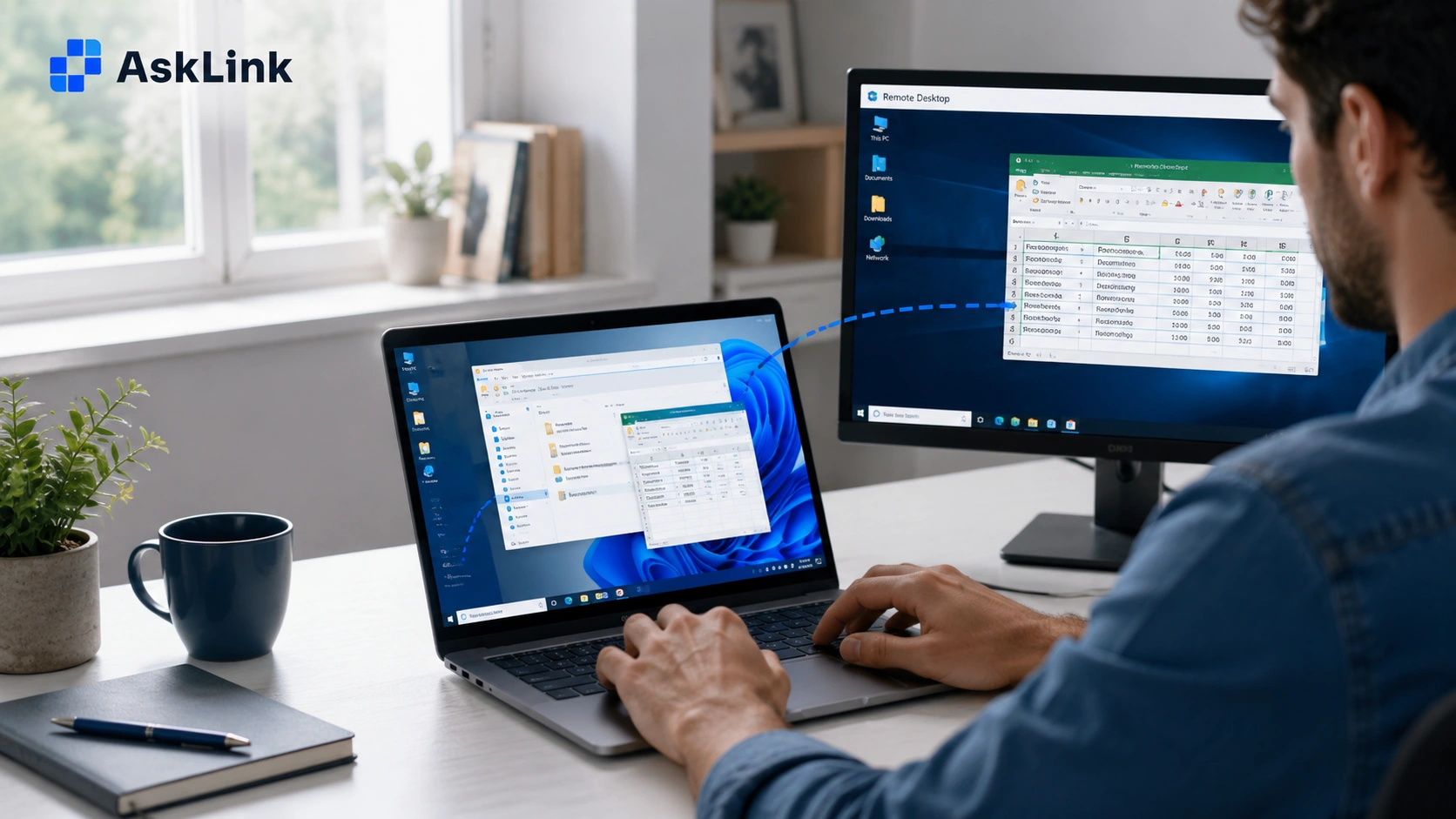
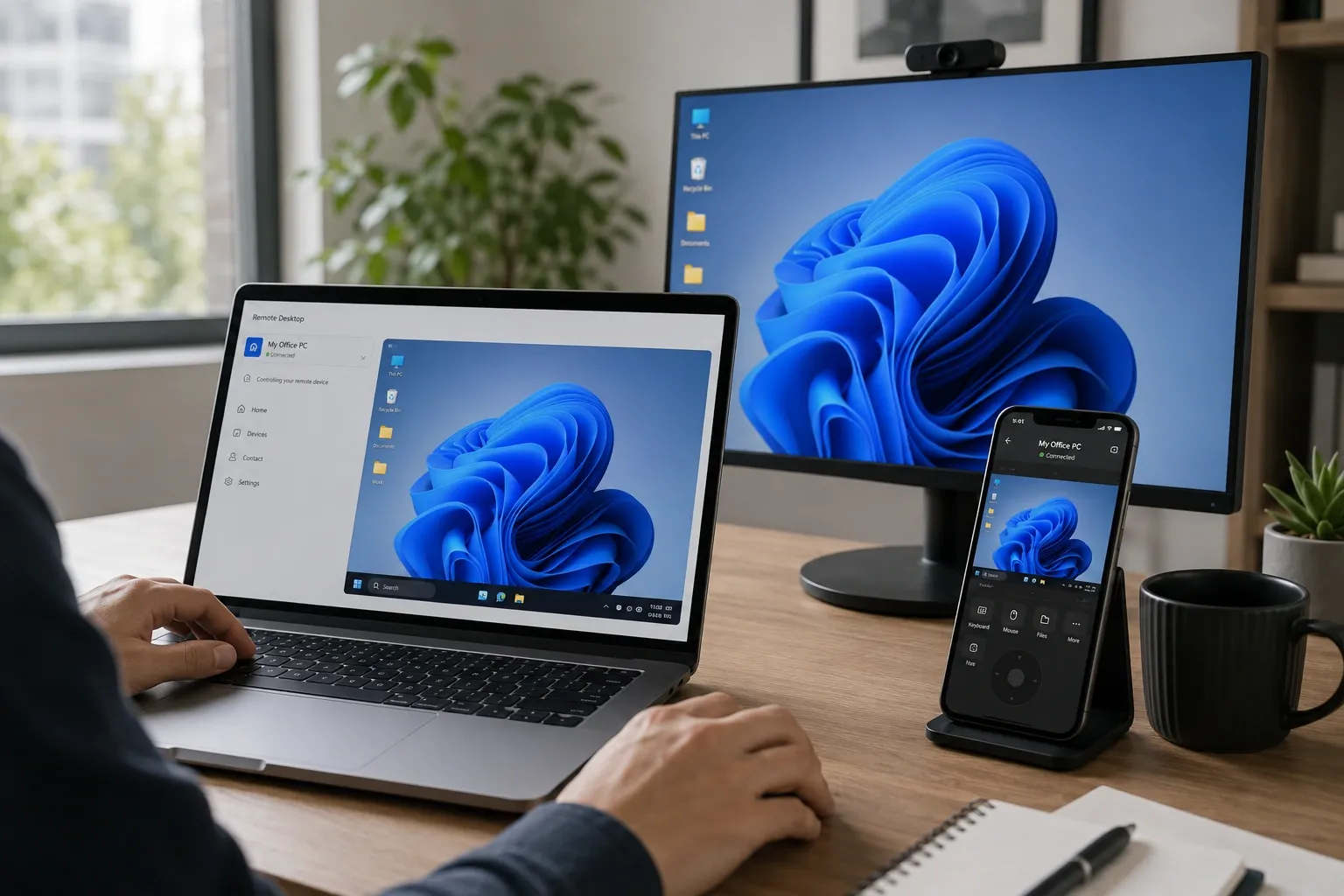
You might be using a lightweight laptop or tablet, while the software you need is running on a more powerful computer somewhere else. With remote desktop, you can see that computer’s desktop, open its apps, and control it as if you were sitting in front of it.
The remote computer does most of the actual processing. Your local device mainly displays the result and sends your keyboard, mouse, or touch input back.
So how does that remote desktop work, what does the remote computer need, and what affects the experience? This blog will explain it step by step.
What Is Remote Desktop?
Remote desktop is a technology that lets you view and control the desktop of another computer from a different device.
For example, you might sit at home with a laptop while using an office PC several miles away. The programs, files, and settings you see belong to the office PC. You are simply interacting with them from another device.
Your local device does not copy the entire remote computer. Instead, the two devices exchange screen data and user input over a network connection.
Remote desktop is related to remote access, but the two terms are not identical. Remote access is the broader concept of reaching computers, networks, applications, servers, or other resources from somewhere else. Remote desktop is one type of remote access focused on a specific computer and its desktop.
If you want to know what remote access is, see our guide and figure out how different remote access methods work.
| Term | What It Means |
|---|---|
| Remote desktop | Lets you view and control a specific remote computer or desktop environment |
| Remote access | The broader concept of accessing remote computers, networks, apps, servers, or other resources |
| RDP | A remote desktop protocol developed by Microsoft |
| Screen sharing | Primarily shows another screen; control and unattended access depend on the tool |
| Virtual desktop / VDI | A desktop environment that may run on a virtual machine or in a data center instead of an existing physical PC |
One common source of confusion is Remote Desktop Connection in Windows. That name refers to Microsoft's remote desktop implementation. Remote desktop itself is a much broader category and is not limited to Microsoft RDP.
How Does Remote Desktop Work?
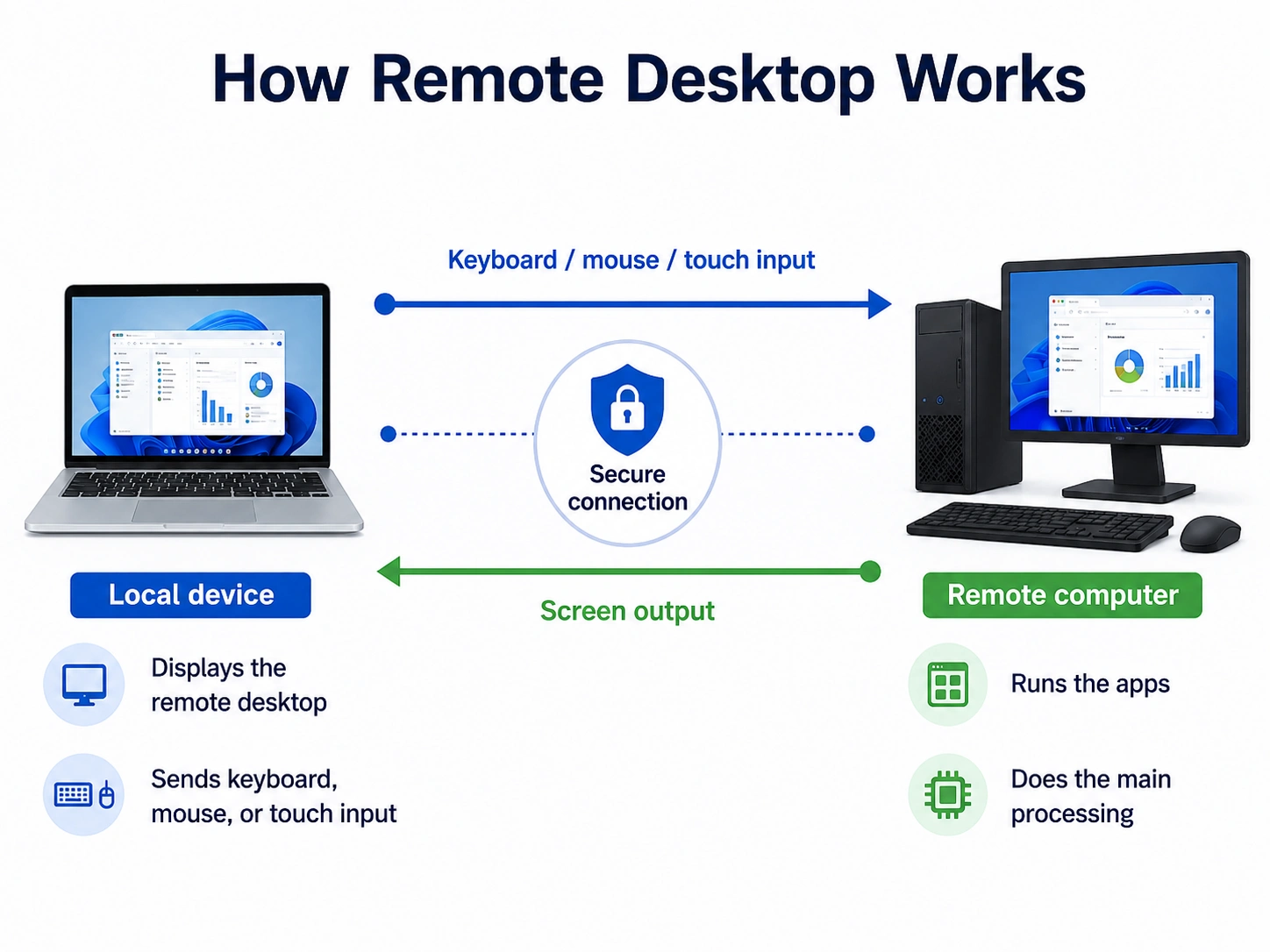
Different remote desktop products use different protocols and connection methods, but the basic process is similar.
1. The remote computer becomes available.
The computer you want to access must normally be powered on or in a supported wake state, connected to a network, and ready to accept a remote connection.
2. Your identity and permissions are checked.
You may sign in with an account, enter a password or temporary connection code, approve a device, or use another authentication method. The software checks whether you are allowed to connect.
3. The remote computer captures its desktop.
The remote system captures the visual output of the desktop and prepares that data for transmission.
4. The screen is sent to your local device.
Visual data travels across the network. Your local device receives it and displays the remote desktop.
5. Your input travels in the other direction.
Mouse movements, keyboard presses, and touch input are sent from your local device back to the remote computer.
6. The remote computer performs the action.
If you open a file, start an application, or change a setting, that action normally happens on the remote computer. The updated screen is then sent back to you.
Where does the processing happen?
In a typical remote desktop session, the applications run on the remote computer.
If you open Photoshop on a remote workstation, for example, the remote computer's CPU, GPU, and memory do most of the application processing. Your laptop, tablet, or phone mainly receives the visual result, displays it, and sends your input back. That is why a lightweight device can sometimes be used to work with software installed on a much more powerful computer.
The local device still has work to do. It needs enough processing power to decode and display the remote session smoothly, and the quality of the network connection also matters.
What happens on the remote computer's physical screen?
There is no single answer for every remote desktop setup.
Some remote desktop sessions mirror the physical screen, so someone sitting in front of the remote computer may be able to see what the remote user is doing.
Other systems can create a separate session. Some remote desktop tools like AskLink also provide a privacy screen or similar feature that hides or blocks the physical display during a remote session.
The exact behavior depends on the operating system, remote desktop software, connection type, and settings. Do not assume that a remote session is hidden from the physical screen unless the product specifically supports that behavior.
What Is Remote Desktop Used For?
Remote work and personal computer access.
You can connect to a work or home computer to use the files, apps, and settings already on that device. It is very useful when working from home, traveling, or using a lighter device away from your main computer.
IT support and device management.
IT teams can remotely view and control authorized computers to troubleshoot problems, change settings, install software, or maintain devices across different locations. Unattended access can also help manage computers when no user is sitting in front of them.
Creative work and high-performance workstations.
Designers, video editors, 3D artists, and other creative professionals often rely on powerful computers and specialized software. Remote desktop lets them use tools such as Photoshop, video-editing software, CAD, or 3D applications on a remote workstation while accessing it from another device.
Software development and testing.
Developers and testers can connect to development machines, run builds, or test software on computers with different operating systems and configurations without needing physical access to every device.
Education and computer labs.
Students and educators can remotely access campus or lab computers that already have licensed or specialized software installed. IT staff can also maintain those computers without visiting each machine in person.
Industry-specific workstations.
Some jobs depend on software or data that stays on a particular authorized computer. Healthcare staff may need access to a clinical workstation, financial professionals may use dedicated trading or analysis tools, while engineers may connect to CAD or other specialized systems. In these cases, remote desktop provides access to the workstation itself rather than moving the entire working environment to the local device.
What Do You Need for Remote Desktop to Work?
A remote desktop depends on more than having two computers.
In most setups, you need:
- a supported remote computer;
- remote desktop software or a remote desktop service;
- a network connection on both sides;
- a way to authenticate the user or device;
- the correct system and software permissions; and
- a compatible local device to start the connection.
The remote computer also needs to be available.
If it is powered on, connected to the network, and running the required remote desktop service, you can normally connect when authentication and permissions are correct.
If the computer is sleeping, the situation depends on the hardware, operating system, network, and remote desktop setup. Wake-on-LAN (WoL) may be able to wake a supported computer before you connect.
A computer that is fully powered off is usually unavailable to remote desktop software unless the environment includes a supported remote wake or power-on method.
Wake-on-LAN is not the remote desktop connection itself. It only helps wake a compatible computer. You still need remote desktop software after the computer becomes available.
Is Remote Desktop Safe?
Remote desktop can be safe when the software and connection are configured correctly. But encryption alone does not make every remote desktop setup secure.
Security also depends on who can connect, how they prove their identity, what permissions they receive, and how the remote computer is exposed to the network.
A safer remote desktop setup should include basic practices such as:
- use remote desktop software from a trusted source;
- use strong, unique passwords;
- enable multi-factor authentication when available;
- keep the operating system and remote desktop software updated;
- limit permissions to what the user actually needs;
- review unattended access and remove it when it is no longer required;
- avoid unnecessarily exposing remote management services directly to the public internet; and
- follow your organization's IT and security policies when accessing work devices.
Remote desktop software can also be misused by scammers. A legitimate remote access tool does not make an unexpected request for control trustworthy. If someone you do not know asks you to install software, share a connection code, or give them control of your computer, do not approve the session.
How to Choose Remote Desktop Software
Remote desktop software manages the connection between your local device and the remote computer. Different tools can offer very different experiences, so the best option depends on what you actually need to do.
Cross-Platform Compatibility
Check which operating systems can start a connection and which can be controlled remotely. Support may not be identical in both directions.
Attended vs. Unattended Access
Remote support often starts with someone approving the session. Regular access to your own PC or workstation may require unattended access instead.
Permissions And Security
Look at authentication options, permission controls, device authorization, and how unattended connections are managed.
Performance for Your Workload
Basic office work has different requirements from design, video editing, 3D applications, or other visually demanding tasks. Consider how the software handles changing network conditions as well as the maximum quality it supports.
Useful Features And Privacy Controls
Depending on your setup, you may care about file transfer, Wake-on-LAN, virtual displays, clipboard access, device management, or a privacy-screen feature. The most useful feature set is the one that solves your actual remote task.
Where AskLink Fits
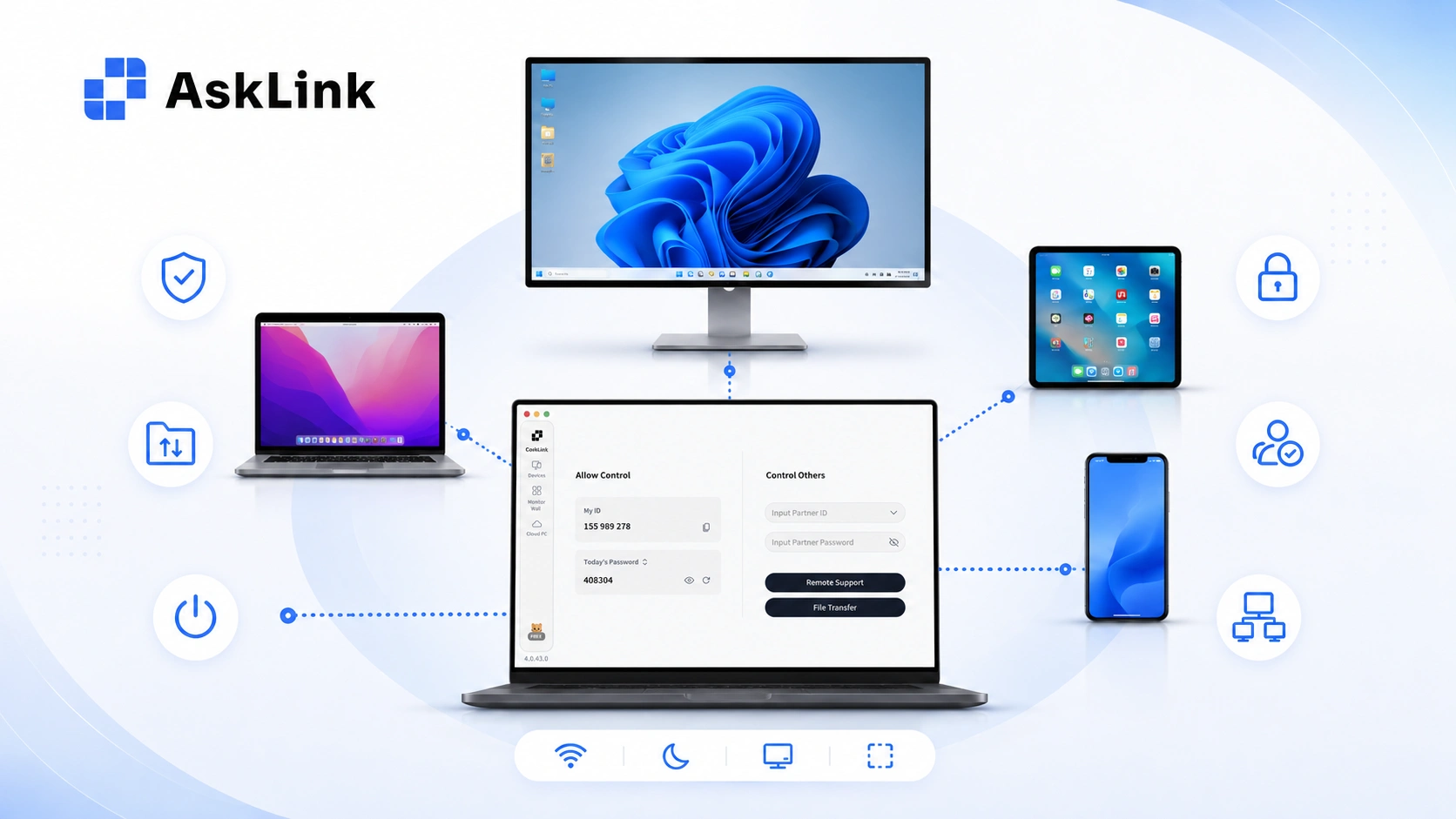
AskLink is designed for device-level remote desktop and remote control. It's a perfect choice when you need to connect to and control an authorized computer from another supported device.
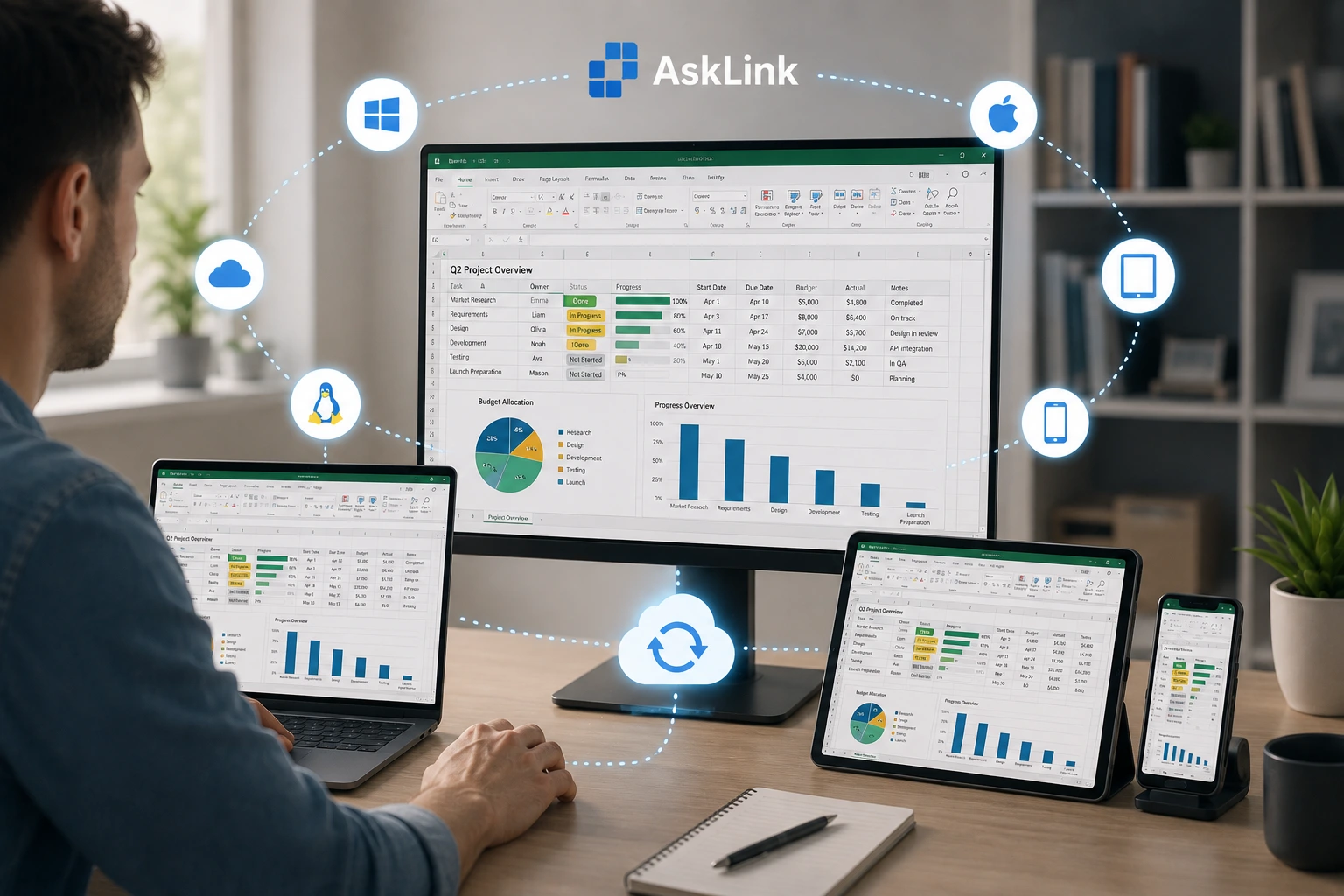
AskLink supports remote connections across Windows, macOS, Linux, Android, iOS, and iPadOS. Most platforms are covered.
For regular remote access, AskLink supports unattended connections to authorized devices. We also offer features such as file transfer, Wake-on-LAN, virtual displays, adaptive image quality, and privacy-screen support on compatible setups. Your security is our top priority. With client-side encryption, SSL-secured channels, and RSA key exchange used to protect remote sessions, AskLink makes remote sessions risk-free.
If you're looking for a remote desktop tool for personal computer access, remote work, remote support, and workloads where the remote computer needs to stay available from another location, try AskLink.
Final Thoughts
Remote desktop allows you to work with another computer from almost anywhere, but the experience depends on more than just the software. The remote device, network quality, permissions, and security settings all play a part.
If you need a reliable way to access and control an authorized computer across supported devices, try AskLink and see how it fits your remote desktop needs in no time!