'%3e%3cpath%20d='M7.48145%2024H3.74023C1.67456%2023.9999%204.09854e-05%2022.3467%200%2020.3076V16.6152H7.48145V24ZM15.8955%2024H8.41406V16.6152H15.8955V24ZM7.48145%2015.6924H0V8.30762H7.48145V15.6924ZM24%2015.6924H16.5195V8.30762H24V15.6924ZM15.5859%207.38477H8.10547V0H15.5859V7.38477ZM20.2598%200C22.3256%200%2024%201.65318%2024%203.69238V7.38477H16.5195V0H20.2598Z'%20fill='white'/%3e%3cpath%20d='M108.786%2019.0507L105.767%2014.2636H104.397L108.397%208.80874H111.915L108.119%2013.9483V12.3155L112.544%2019.0507H108.786ZM101.527%2019.0507V5.5061H104.897V19.0507H101.527Z'%20fill='white'/%3e%3cpath%20d='M88.8242%2019.0505V8.80858H91.4908V13.2059H91.3421C91.3421%2012.1422%2091.4779%2011.264%2091.7499%2010.5712C92.0214%209.86618%2092.4224%209.34052%2092.953%208.99418C93.4965%208.64778%2094.1506%208.47461%2094.9158%208.47461H95.0644C96.2245%208.47461%2097.1193%208.86427%2097.7488%209.64353C98.3911%2010.4104%2098.7117%2011.5917%2098.7117%2013.1874V19.0505H95.342V13.0946C95.342%2012.6246%2095.2001%2012.2411%2094.9158%2011.9443C94.6443%2011.635%2094.2679%2011.4804%2093.7864%2011.4804C93.3049%2011.4804%2092.9162%2011.635%2092.6202%2011.9443C92.3358%2012.2411%2092.194%2012.6369%2092.194%2013.1317V19.0505H88.8242Z'%20fill='white'/%3e%3cpath%20d='M82.4214%2019.0506V8.80875H85.7912V19.0506H82.4214ZM81.125%2011.2579V8.80875H85.7912V11.2579H81.125ZM83.81%207.99232C83.1928%207.99232%2082.7359%207.83773%2082.4398%207.5285C82.1561%207.2069%2082.0137%206.79872%2082.0137%206.30388C82.0137%205.80913%2082.1561%205.40713%2082.4398%205.09789C82.7359%204.77628%2083.1866%204.61548%2083.7916%204.61548C84.4088%204.61548%2084.8595%204.77628%2085.1433%205.09789C85.427%205.40713%2085.5688%205.80913%2085.5688%206.30388C85.5688%206.79872%2085.427%207.2069%2085.1433%207.5285C84.8595%207.83773%2084.4149%207.99232%2083.81%207.99232Z'%20fill='white'/%3e%3cpath%20d='M71.1328%2019.0507V5.5061H74.5769V19.0507H71.1328ZM74.2065%2019.0507V16.0449H79.6876V19.0507H74.2065Z'%20fill='white'/%3e%3cpath%20d='M65.4458%2019.0507L62.428%2014.2636H61.0576L65.0571%208.80874H68.5755L64.7795%2013.9483V12.3155L69.2049%2019.0507H65.4458ZM58.1875%2019.0507V5.5061H61.5578V19.0507H58.1875Z'%20fill='white'/%3e%3cpath%20d='M51.2917%2019.3845C49.8103%2019.3845%2048.6438%2019.0814%2047.7921%2018.4753C46.9403%2017.8568%2046.4836%2016.991%2046.4219%2015.8777H49.3844C49.4339%2016.1869%2049.6252%2016.4529%2049.9585%2016.6755C50.2918%2016.8982%2050.7608%2017.0095%2051.3657%2017.0095C51.7978%2017.0095%2052.1681%2016.9477%2052.4767%2016.824C52.7977%2016.6879%2052.9581%2016.4715%2052.9581%2016.1745C52.9581%2015.9148%2052.8347%2015.7045%2052.5878%2015.5437C52.3409%2015.3705%2051.8903%2015.2531%2051.2361%2015.1912L50.5325%2015.117C49.224%2014.9809%2048.2611%2014.6222%2047.6439%2014.0408C47.0267%2013.4595%2046.7181%2012.7297%2046.7181%2011.8515C46.7181%2011.0969%2046.9033%2010.4784%2047.2736%209.99603C47.6439%209.50126%2048.1562%209.13018%2048.8105%208.8828C49.4647%208.63541%2050.2115%208.51172%2051.0509%208.51172C52.4211%208.51172%2053.526%208.81473%2054.3653%209.42089C55.2048%2010.0146%2055.6492%2010.8743%2055.6986%2011.9999H52.7359C52.6866%2011.6907%2052.5199%2011.4309%2052.236%2011.2206C51.9521%2010.998%2051.5447%2010.8867%2051.0139%2010.8867C50.6312%2010.8867%2050.3164%2010.9547%2050.0696%2011.0907C49.835%2011.2268%2049.7178%2011.4185%2049.7178%2011.6659C49.7178%2011.9257%2049.8289%2012.1174%2050.0511%2012.2411C50.2856%2012.3648%2050.6559%2012.4576%2051.162%2012.5194L51.8657%2012.5936C53.1741%2012.7297%2054.1802%2013.0946%2054.8838%2013.6883C55.5998%2014.2697%2055.9578%2015.0366%2055.9578%2015.989C55.9578%2016.6941%2055.7664%2017.3002%2055.3838%2017.8073C55.0134%2018.3145%2054.4764%2018.7041%2053.7728%2018.9763C53.0816%2019.2484%2052.2545%2019.3845%2051.2917%2019.3845Z'%20fill='white'/%3e%3cpath%20d='M31.0117%2019.0507L35.3445%205.5061H40.8624L45.3434%2019.0507H41.7882L38.3072%207.91816L39.2885%208.28924H36.8444L37.8442%207.91816L34.4558%2019.0507H31.0117ZM34.5483%2015.915L35.5853%2013.0948H40.7143L41.7512%2015.915H34.5483Z'%20fill='white'/%3e%3c/g%3e%3cdefs%3e%3cclipPath%20id='clip0_5596_142775'%3e%3crect%20width='113'%20height='24'%20fill='white'/%3e%3c/clipPath%3e%3c/defs%3e%3c/svg%3e "AskLink")
 Maya Chen
There's no single best remote desktop tool for everyone. What works well for quick personal access may not be the right choice for a support team, a creative workstation, or a self-hosted setup.
We compared 10 popular options by platform support, free-plan limits, everyday features, performance, and pricing. AskLink offers one of the most balanced combinations of free access, cross-platform support, performance, and room to scale, while other tools on this list are stronger fits for specific needs — Splashtop is a strong paid all-rounder, Chrome Remote Desktop keeps personal access simple, Parsec is built for gaming and creative work, RustDesk is the self-hosting option, and Microsoft's native route makes sense in Windows-first environments.
Best Remote Desktop Software at a Glance: Find Your Best Fit in 60 Seconds
Here's the quick version before we get into the details: what you can use for free, what's worth paying for, and the small catches that are easy to miss until you need them.
Prices below were checked on August 25, 2026. They may vary by country, promotion, tax, billing term, number of users, and number of managed computers. “Per month” sometimes means a monthly equivalent billed annually.
| Product | Best for | Free option | Starting price | Platform overview: controller & remote computer | Key limitation |
|---|---|---|---|---|---|
| AskLink | best overall for free-to-pro remote access | Yes; 50 high-speed hours per month, then standard routing | $0; Standard from $5/month | Connect from: Windows, macOS, Linux, Android, iOS Connect to: Windows, macOS, Linux, Android, iOS(view-only) | No self-hosting; smaller integration ecosystem |
| AnyDesk | Lightweight cross-platform support | Free for personal, non-commercial use | Solo $28.90/month, billed annually | Connect from: Windows, macOS, Linux, Android, iOS Connect to: Windows, macOS, Linux, and supported Android devices | High paid entry price and annual billing |
| Chrome Remote Desktop | Simplest free personal access | Yes | $0 | Connect from: Web, Android, iOS Connect to: Windows, macOS, Linux | Minimal team administration and support controls |
| Parsec | Gaming and creative interaction | Free for personal gaming; work requires a license | Warp $8.33/user/month, billed annually | Connect from: Desktop and mobile devices Connect to: Mainly Windows and macOS computers | Not designed as a traditional help desk or device-management suite |
| RustDesk | Open-source self-hosting | Yes | $0; Server Pro from $9.90/month | Connect from: Windows, macOS, Linux, Android, iOS, web Connect to: Windows, macOS, Linux, Android | You own the deployment and maintenance work |
| Zoho Assist | Structured IT support | Limited free plan | Paid Remote Support from about $12/technician/month | Connect from: Desktop, mobile, and web Connect to: Desktop and supported mobile devices Support varies by product | Pricing and licensing need careful reading |
| TeamViewer | Enterprise support ecosystem | Free for personal, non-commercial use | Business about $50.90/month, billed annually | Connect from: Windows, macOS, Linux, Android, iOS, web Connect to: Desktop and supported mobile devices | Expensive and comparatively complex licensing |
| RemotePC | Low-cost access to several computers | 7-day trial | Monthly plans from about $2.95; promotions may be lower | Connect from: Desktop, mobile, and web Connect to: Windows, macOS, Linux | Introductory, renewal, and device-based prices are easy to confuse |
| Splashtop | Best paid all-rounder | Trial; limited Personal use on a home network | $6/month, billed annually | Connect from: Windows, macOS, Linux, ChromeOS, Android, iOS Connect to: Windows, macOS, Linux | Better multi-monitor, recording, and performance features require higher plans |
| Microsoft Remote Desktop / Windows App | Windows-native and Microsoft environments | Client apps are free | $0 client; Windows or cloud licensing may apply | Connect from: Windows, macOS, iOS/iPadOS, Android/ChromeOS, web Connect to: Windows Pro PCs, RDS, and Microsoft cloud desktops | Windows-host focus and more networking/configuration work |
How We Compared the Best Remote Desktop Software
We looked at the moments that usually decide whether a remote session feels easy or frustrating: setup, first connection, attended support, unattended access, reconnecting after a restart, clipboard and file transfer, display controls, multi-monitor use, and a normal working session. We also checked what vendors actually say about their free plans, commercial-use rules, platform roles, users, devices, concurrent sessions, and entry pricing. For cross-platform remote desktop software, this matters: Supporting an OS does not always mean that OS can act as the remote computer.
We compared each option across six practical areas:
- Platform support: Which devices can start a connection, and which can be accessed remotely?
- Access and core features: Does it cover attended support, unattended access, remote restart, file transfer, clipboard sync, and multi-monitor use?
- Free plan and pricing: Is free use ongoing or just a trial, who can use it, and what does the paid plan cost?
- Performance: What do vendors state about resolution, frame rate, image quality, responsiveness, and hardware acceleration?
- Security and administration: What options are available for authentication, permissions, session logs, and device management?
- Best-fit use case: Is it better for personal access, gaming or creative work, IT support, enterprise teams, or self-hosted setups?
High-refresh claims need context. A vendor-stated maximum such as 165 FPS or 240 FPS depends on your display, GPU, plan, network, and connection route. It can matter a lot for a game or visual work, but it is not a must-have for checking a spreadsheet from your phone.
10 Best Remote Desktop Software in 2026
AnyDesk — Best for Lightweight, Cross-Platform Support
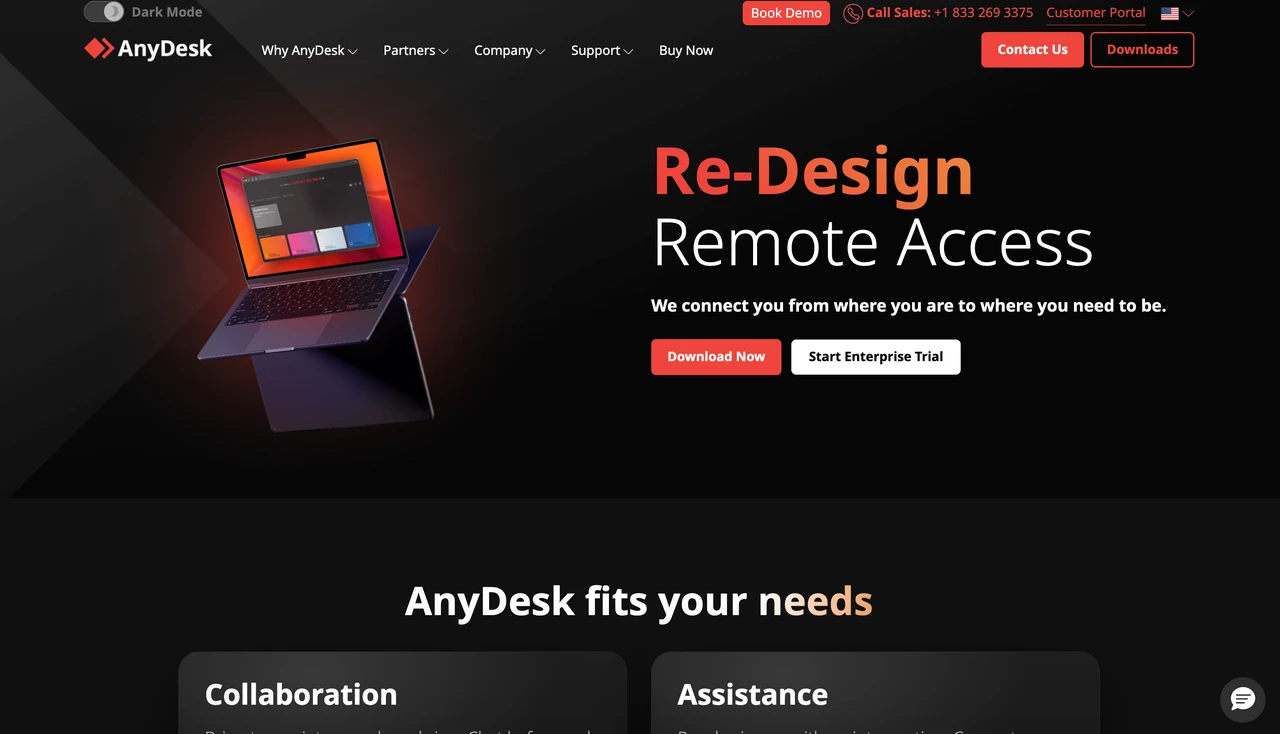
Best for: Quick, one-off support across a mix of desktop devices.
Why we picked it: AnyDesk works best when you need to get connected quickly, solve a problem, and move on. Its lightweight client and familiar workflow make it a natural fit for ad-hoc support. It supports both attended sessions and unattended access, so it can handle a one-time fix as well as occasional access to a known computer.
The main thing to check is platform support on the receiving side. Windows and macOS can receive remote connections, while Linux incoming sessions require Xorg rather than Wayland. iPhone and iPad cannot be fully controlled because of platform restrictions. The supported operating systems page is worth checking before you roll it out to a mixed-device team.
Main limitation: The commercial price is no longer lightweight. Its Solo plan is currently $28.90/month billed annually, making it relatively expensive for a single commercial user.
Free-plan reality: AnyDesk remains free for personal use, but commercial use requires a paid license.
Who should choose it: It makes the most sense for people who value quick support and broad desktop compatibility. Budget-conscious commercial users, or anyone who needs full iPhone/iPad remote control, may want to look elsewhere.
AskLink — Best Overall Remote Desktop Software
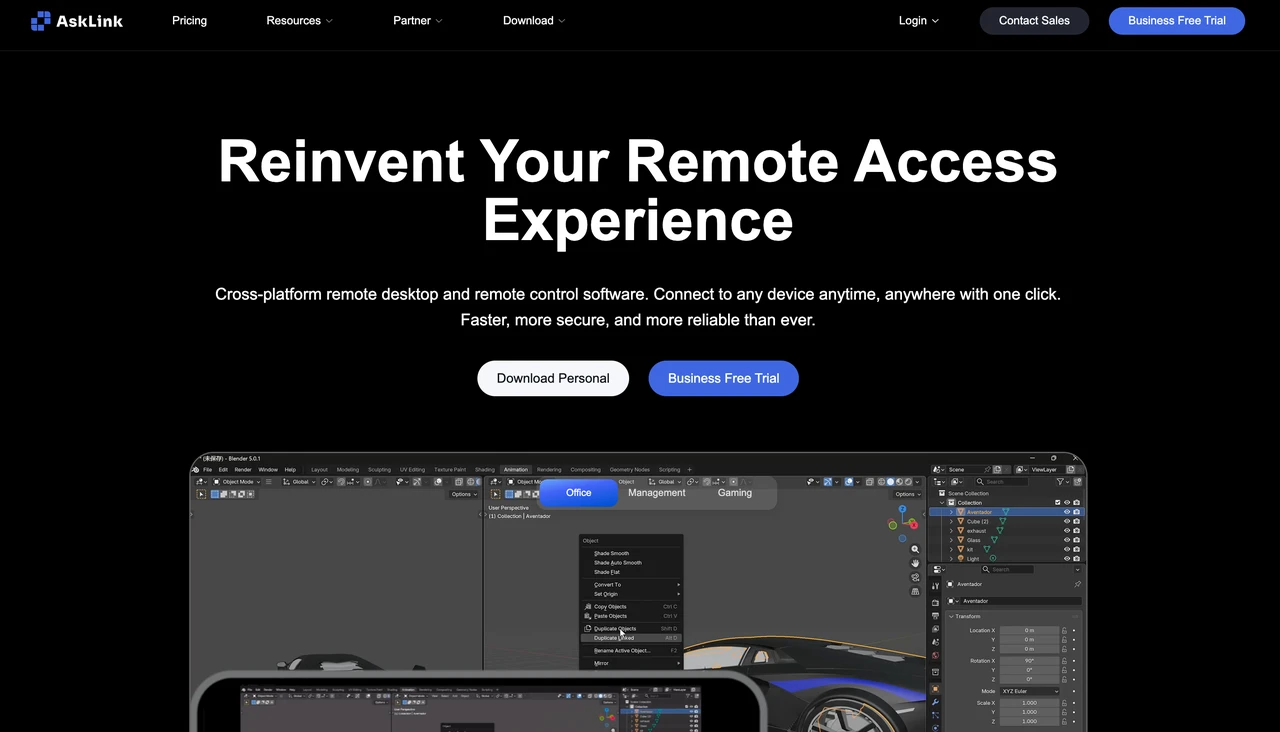
Best for: People who want one flexible remote desktop tool that can grow from free everyday access to high-performance work and broader device management.
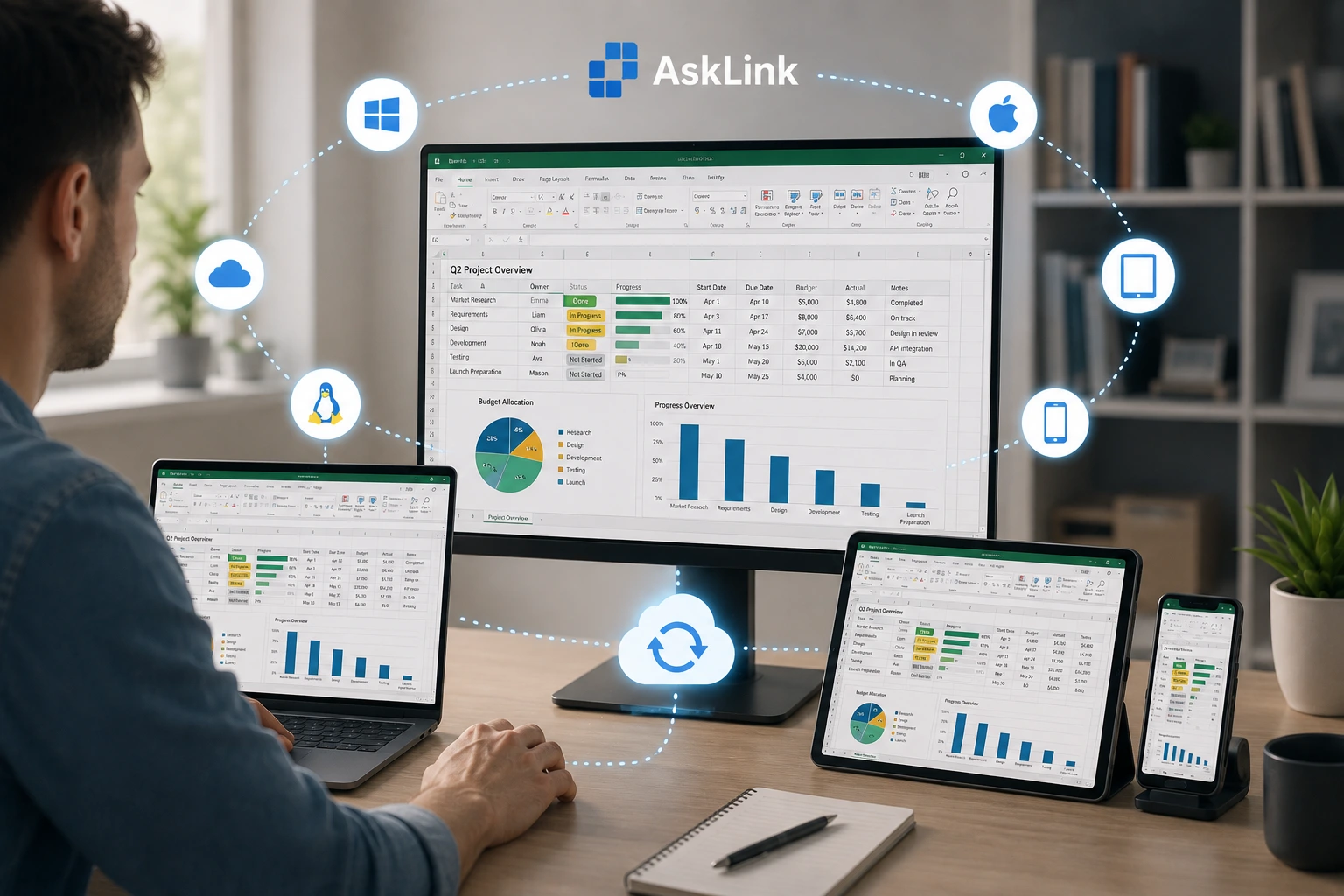
Why we picked it: AskLink stands out for covering a broad range of remote-access needs in one product. It handles everyday remote access and file transfer, works across a mix of devices, and can scale to high-performance remote control and broader device management as your needs change. AskLink calls the device you connect from the Controller and the remote device the Controlled device. Controllers are available on Windows, macOS, Linux, Android, and iOS. Controlled devices can run Windows, macOS, Linux, or Android; iOS is view-only.
You also do not need to switch to a different product as your setup becomes more demanding. Paid plans extend performance with 4K, higher refresh rates, and 4:4:4 color support on compatible hardware, while higher tiers add broader device-management capabilities such as Monitor Wall and batch commands.
Main limitation: AskLink does not offer self-hosted deployment, and its integration ecosystem is smaller than some long-established enterprise platforms.
Free-plan reality: The permanent Free plan costs $0, allows commercial use, and has no forced session interruption.
Who should choose it: AskLink is a strong fit if you want to start simple without giving up room to grow. If self-hosting is mandatory or your organization is deeply tied to an established enterprise ecosystem, another option may fit better.
Chrome Remote Desktop — Best Simple Free Option
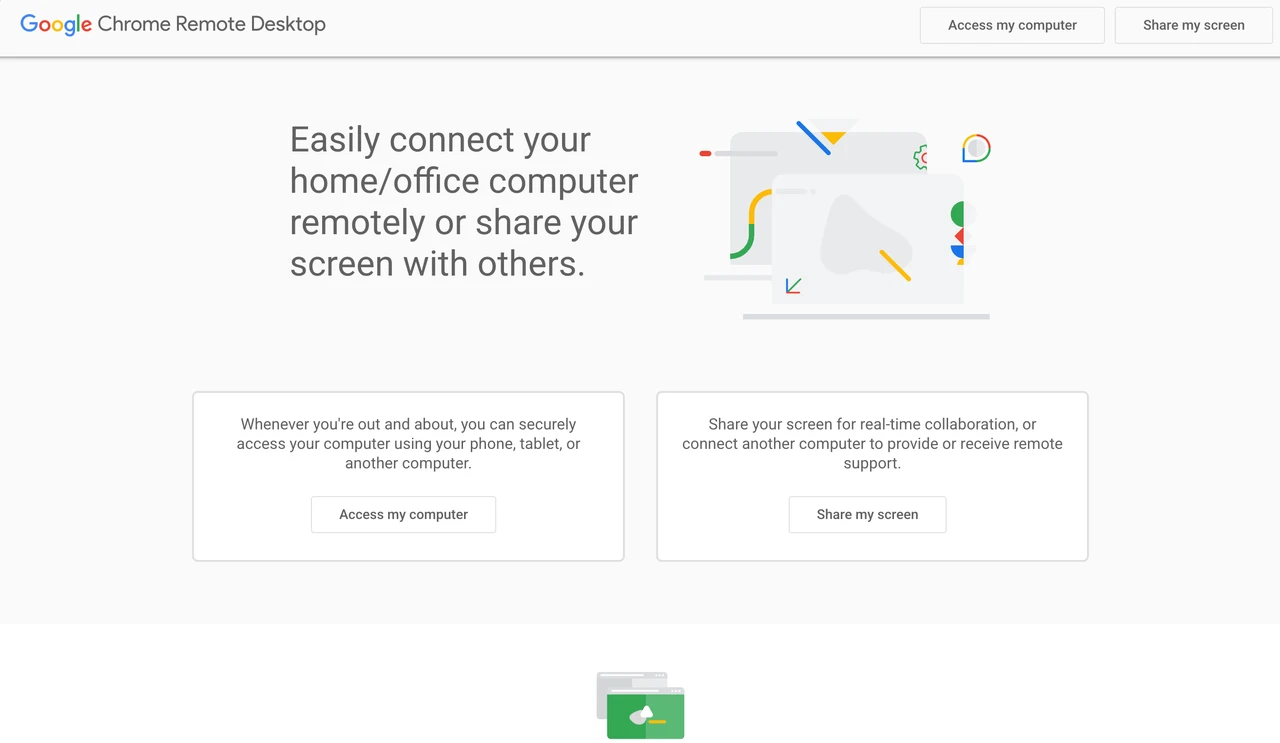
Best for: Occasional access to a personal computer, with almost nothing new to learn.
Why we picked it: Chrome Remote Desktop keeps remote access simple: set up a PIN for ongoing access or share a one-time code when someone needs help. You can connect from a browser or mobile app to a Windows, macOS, or Linux computer.
Main limitation: That simplicity is also the ceiling. It does not offer the deeper roles, device management, audit logs, or performance controls that teams and power users usually need.
Free-plan reality: It is free to use, with no paid tier for expanded management features.
Who should choose it: It is a good fit if you want basic personal access in a familiar Google-account workflow. If you need reliable multi-monitor work, team controls, or high-performance streaming, you will likely outgrow it. Google's setup guide explains both access methods.
Parsec — Best Remote Desktop Software for Gaming and Creative Work
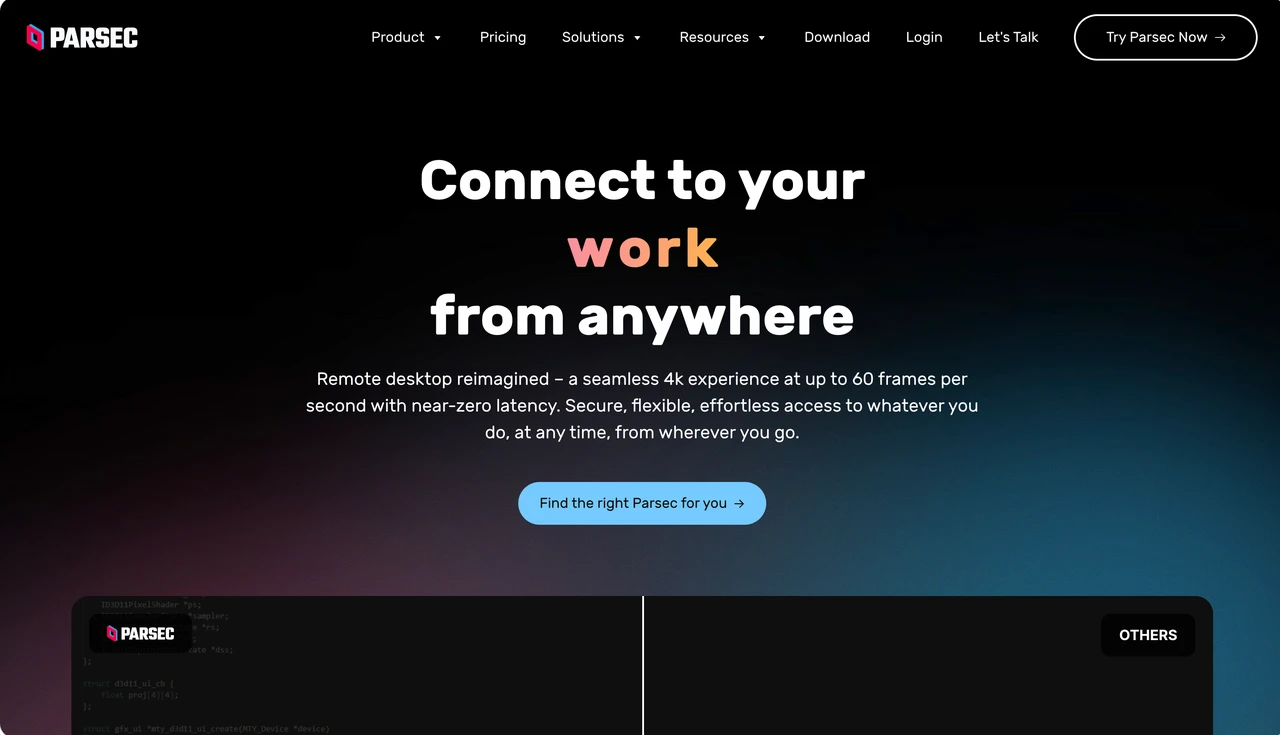
Best for: Gaming and visual work where a responsive remote session matters as much as getting connected.
Why we picked it: Parsec is built around interactive streaming rather than traditional help-desk support. Its Warp plan adds useful creative tools, including 4:4:4 color, virtual displays, multi-monitor support, and Wacom tablet support.
Main limitation: It is less suited to customer support, routine IT administration, or managing a large device fleet.
Free-plan reality: Personal gaming can start free, but work use requires a license. Parsec Warp is listed at $8.33 per user per month on annual billing.
Who should choose it: Choose Parsec when gaming, video, 3D, or tablet-driven creative work is the main reason you need remote access. For a support desk or a simple personal tool, a more general remote desktop app is usually a better fit.
RustDesk — Best Open-Source and Self-Hosted Remote Desktop Software
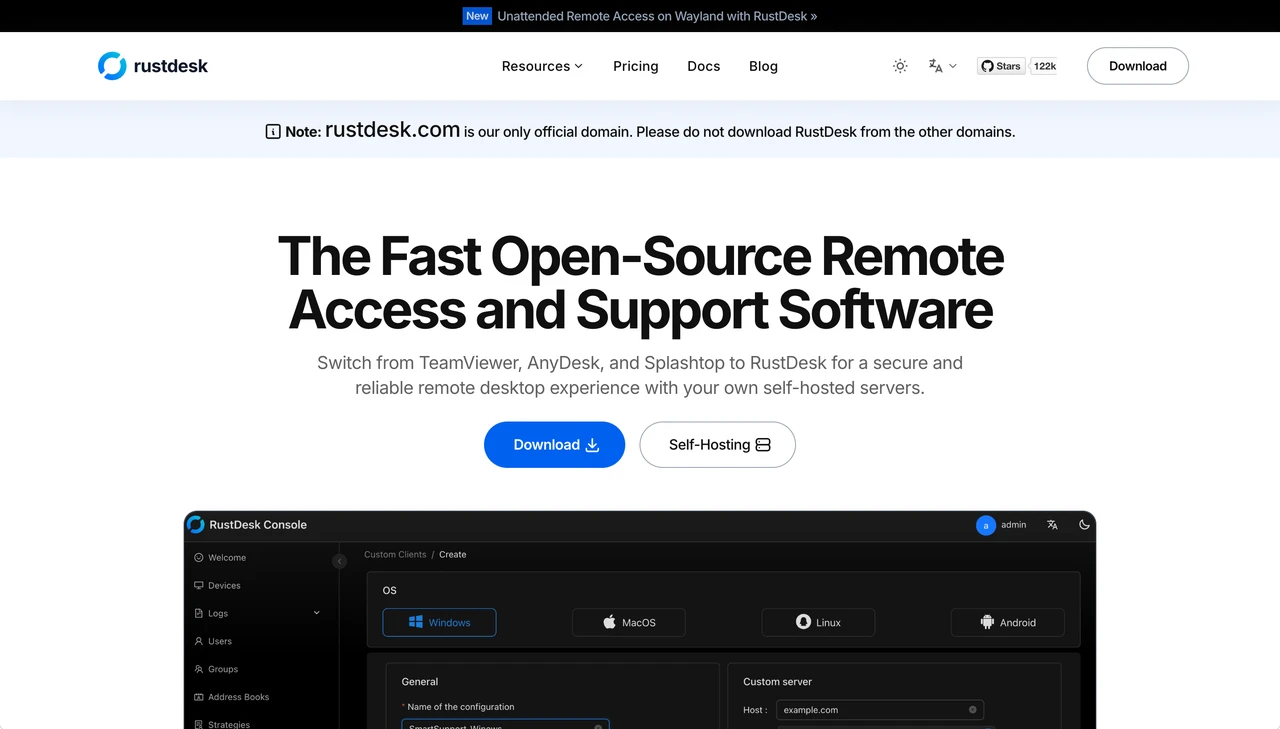
Best for: Technical users and organizations that want to operate their own remote-access infrastructure.
Why we picked it: RustDesk lets you run your own ID and relay servers instead of relying only on a vendor-hosted service. Its open-source client and server offer a self-hosted route, while Server Pro adds centralized controls for teams.
Main limitation: Self-hosting does not remove cost; it changes where the cost lives. Someone still has to deploy, secure, update, monitor, back up, and troubleshoot the server.
Free-plan reality: The open-source self-hosted route is free. RustDesk Server Pro starts at $9.90 per month on annual billing.
Who should choose it: RustDesk makes sense when control of the server and relay layer is a real requirement, and you have someone who can own that work. If you want a managed service with minimal setup, look elsewhere.
Zoho Assist — Best for IT Support Teams
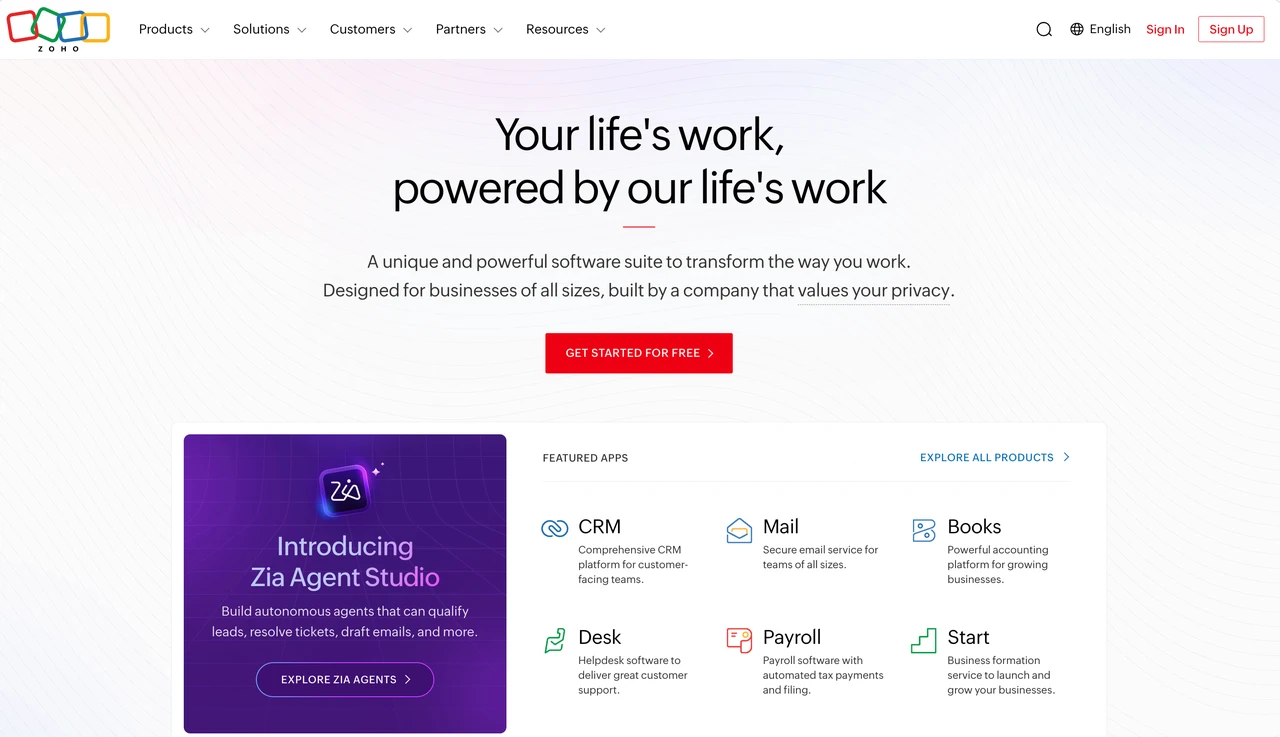
Best for: Support teams that need both on-demand help sessions and unattended access to managed computers.
Why we picked it: Zoho Assist makes a useful split between Remote Support for technician-led sessions and Unattended Access for devices your team needs to reach without someone present. File transfer, multi-monitor navigation, and reboot-and-reconnect cover the day-to-day tasks that matter most in a support session.
Main limitation: Its support and unattended products are priced and licensed differently, so the plan structure takes a little time to understand.
Free-plan reality: Zoho offers a limited free edition and a 15-day trial. Remote Support pricing starts at about $12 per technician per month before volume differences.
Who should choose it: It is a strong choice for teams buying a support workflow rather than a high-performance remote session, especially if they already use Zoho. It is less compelling for simple personal access or creative work.
TeamViewer — Best for Enterprise Support Ecosystems
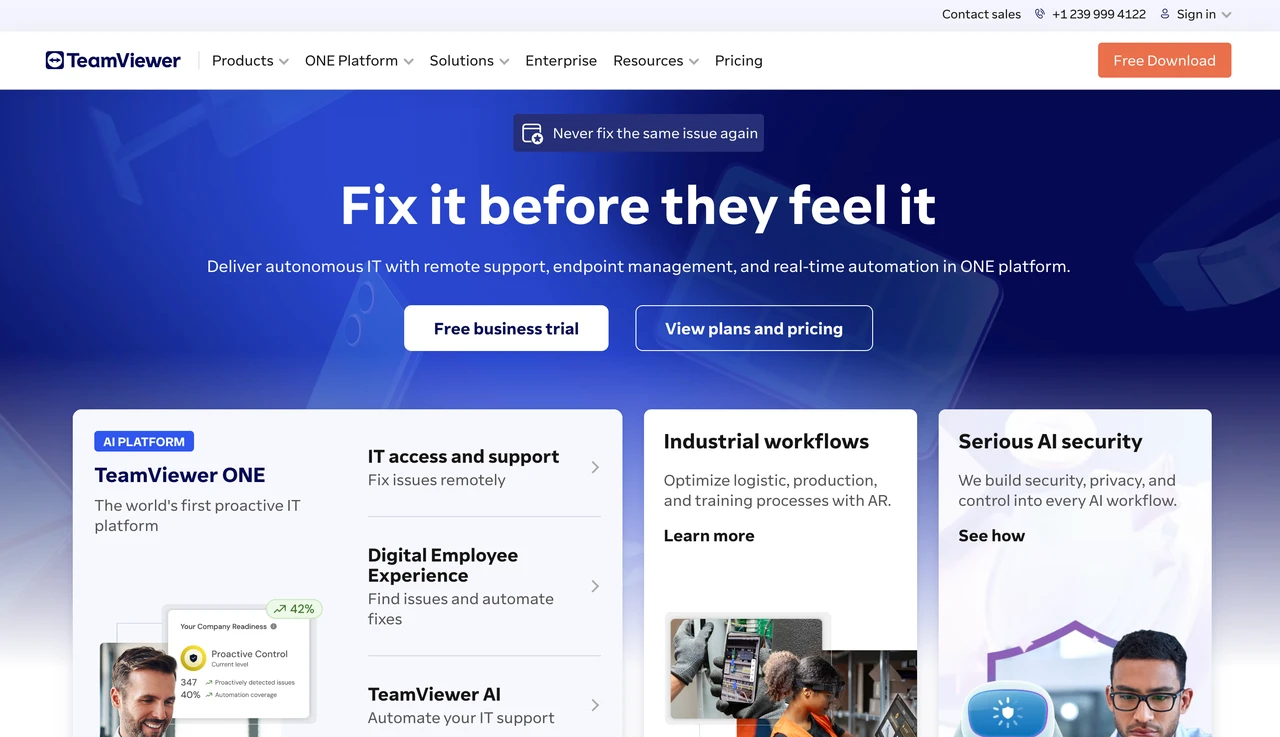
Best for: Larger organizations that need remote support to work with an established IT stack.
Why we picked it: TeamViewer is more than a remote-control app. Its value is the broader enterprise ecosystem, including managed-device tools and integrations with platforms such as Microsoft Intune, ServiceNow, Jira, and Salesforce.
Main limitation: Price and licensing can get complicated. Licensed users, managed devices, concurrent connections, add-ons, and annual terms all affect the final cost.
Free-plan reality: TeamViewer Free is for personal use. Its US Business plan is listed at about $50.90 per month before tax on annual billing.
Who should choose it: Choose TeamViewer when its integrations, enterprise administration, and vendor maturity solve a real operational need. For one computer or a smaller budget, it is often more platform than you need.
RemotePC — Best Value for Accessing Multiple Computers
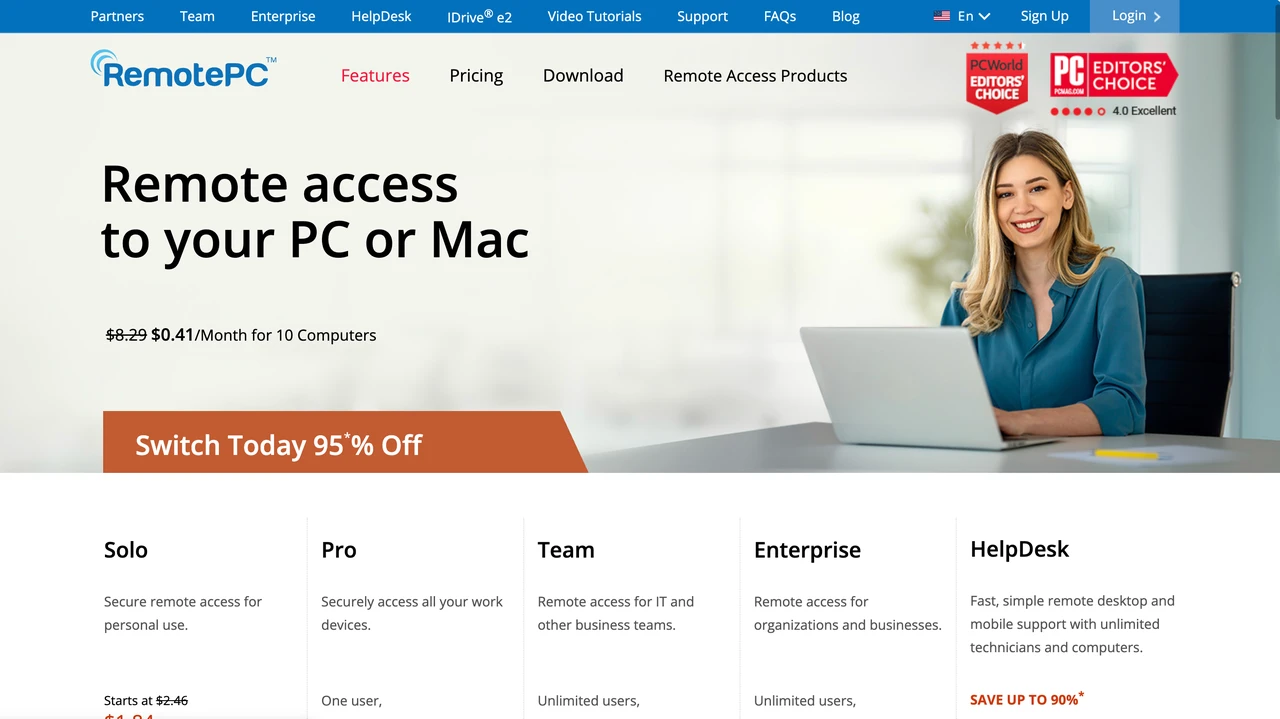
Best for: Individuals and small offices that want always-on access to several computers at a low monthly cost.
Why we picked it: RemotePC focuses on value per device. It includes the everyday essentials—always-on access, file transfer, remote printing, multi-monitor viewing, and web access—then scales plans by computer count.
Main limitation: The pricing page can be easy to misread because it shows monthly, annual, first-year, and longer-term promotional prices together.
Free-plan reality: There is no permanent general free plan. The RemotePC pricing page lists a seven-day trial and monthly Solo access from about $2.95.
Who should choose it: It is worth a look if you need practical access to several computers and recurring cost is your main concern. Skip it if you want free ongoing use, self-hosting, or a deeper enterprise ecosystem.
Splashtop — Best Paid All-Rounder
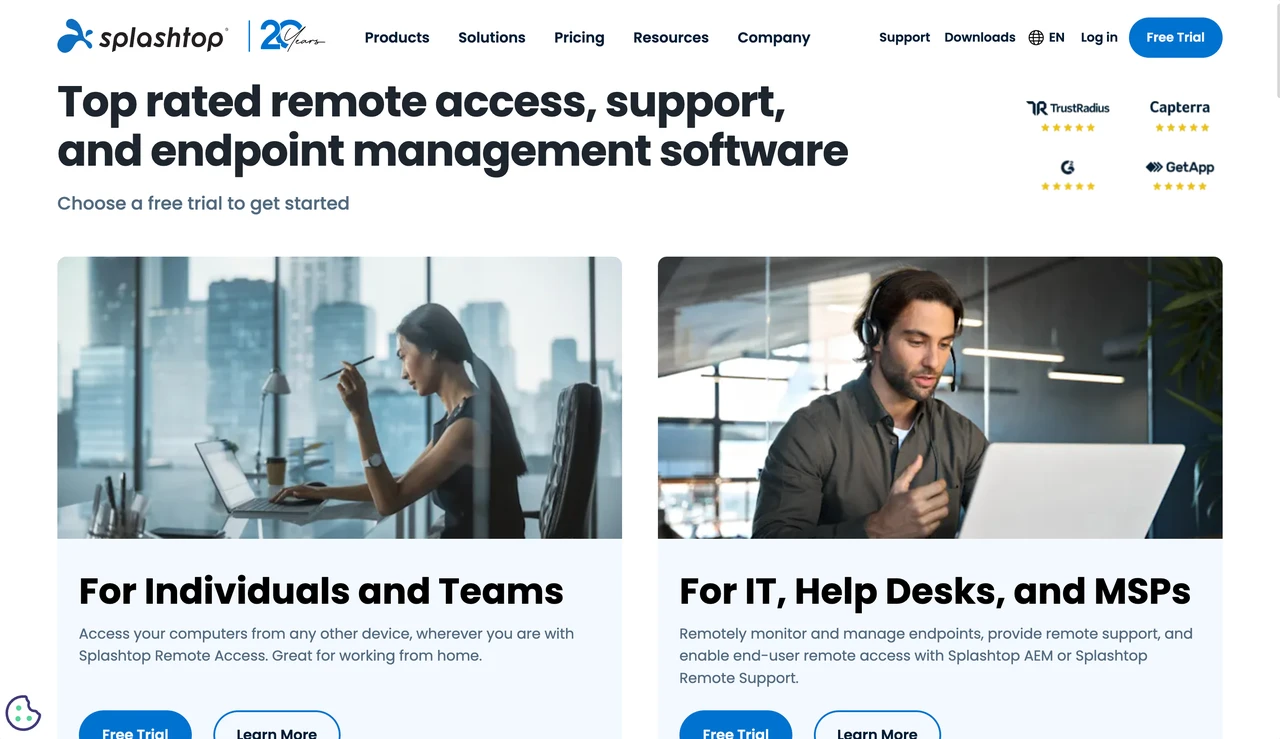
Best for: Individuals and small teams that want a polished, proven paid remote-access service without moving straight to an enterprise plan.
Why we picked it: Splashtop covers everyday remote work well, then gives you a clear path to more advanced needs. Solo handles unattended access, file transfer, and remote printing, while higher plans add multi-monitor work, session recording, team controls, and creative features such as 4:4:4 color or stylus input.
Main limitation: The entry plan does not include everything. Multi-monitor work, recording, and higher-end visual features sit on more expensive plans.
Free-plan reality: Splashtop offers trials, and Splashtop Personal is free only for a limited home-network use case. Remote Access starts at $6 per month on annual billing.
Who should choose it: Splashtop is a strong paid all-rounder if you already know you want a mature service for day-to-day remote work, with room to upgrade for professional use. If free ongoing access or self-hosting is essential, it is not the right fit.
Microsoft Remote Desktop / Windows App — Best for Windows-Native and Microsoft Environments
Best for: Organizations that already manage Windows PCs and want remote access to stay inside the Microsoft environment.
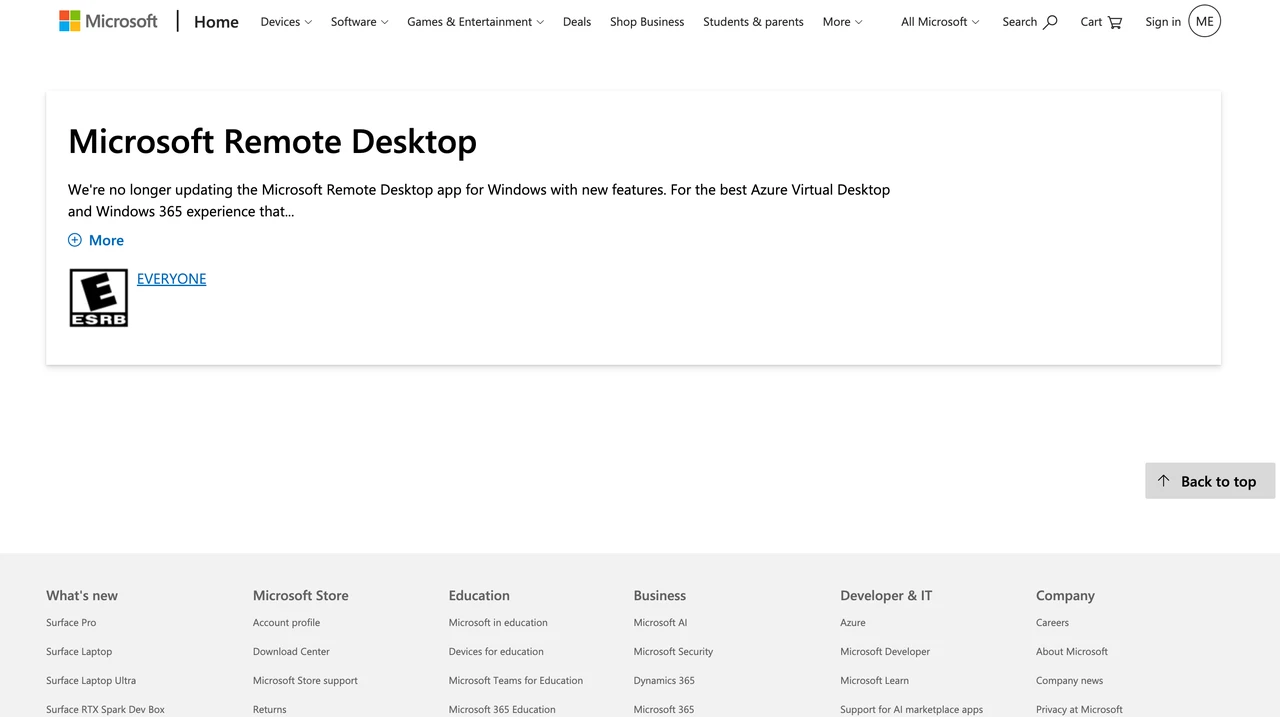
Why we picked it: A native RDP setup can be the most direct route when your remote PCs, user accounts, and administration already sit in Microsoft. Windows App is the client experience, not a replacement for RDP; Microsoft has retired the old Store Remote Desktop app, but RDP itself has not gone away.
Main limitation: It is not the easiest way to reach a random home PC over the internet. External access can still require a VPN, gateway, or other network and policy setup, and remote hosts are Windows-focused.
Free-plan reality: Client apps are free, but the remote PC usually needs Windows Pro and other Microsoft or infrastructure costs may apply.
Who should choose it: Microsoft's route is a sensible choice for an already configured Windows environment with the right IT skills. If you need quick ad-hoc support, easy NAT traversal, or a Mac or Linux remote host, a general remote-access tool will be simpler. See Microsoft's client overview and Windows App guide for the current client options.
When AskLink Is the Better Fit—and When It Isn't
AskLink Is the Better Fit If…
- You want to start free without a session timer. AskLink Free gives you 50 high-speed hours each month, then keeps the session running on the standard route instead of cutting you off. When you need more speed or more features, you can upgrade without switching to a different remote desktop tool.
- You need one tool for everyday access and higher-performance work. Use AskLink for quick file access and regular remote work today, then step up to 4K, higher refresh rates, and 4:4:4 color support when a faster, clearer remote session matters.
- Your setup may grow beyond one or two computers. Start with the devices you use now. As your needs grow, higher plans add more managed PCs and practical tools such as Privacy Screen, Virtual Display, Monitor Wall, and batch commands.
AskLink May Not Be the Better Fit If…
- You require complete self-hosting. RustDesk gives you more direct control over the server and relay layer.
- Everything is already Microsoft-native. A properly configured RDP, RDS, or Windows App environment may be the more direct route.
- You need the largest established enterprise ecosystem. TeamViewer or Splashtop may be a stronger fit when deep integrations, mature procurement processes, and enterprise support infrastructure matter more than price or high-refresh performance.
- You only need the simplest personal connection. Chrome Remote Desktop may already be enough. Which AskLink Plan Should You Choose?
Which AskLink Plan Should You Choose?
| AskLink plan | Best fit | Main allowance |
|---|---|---|
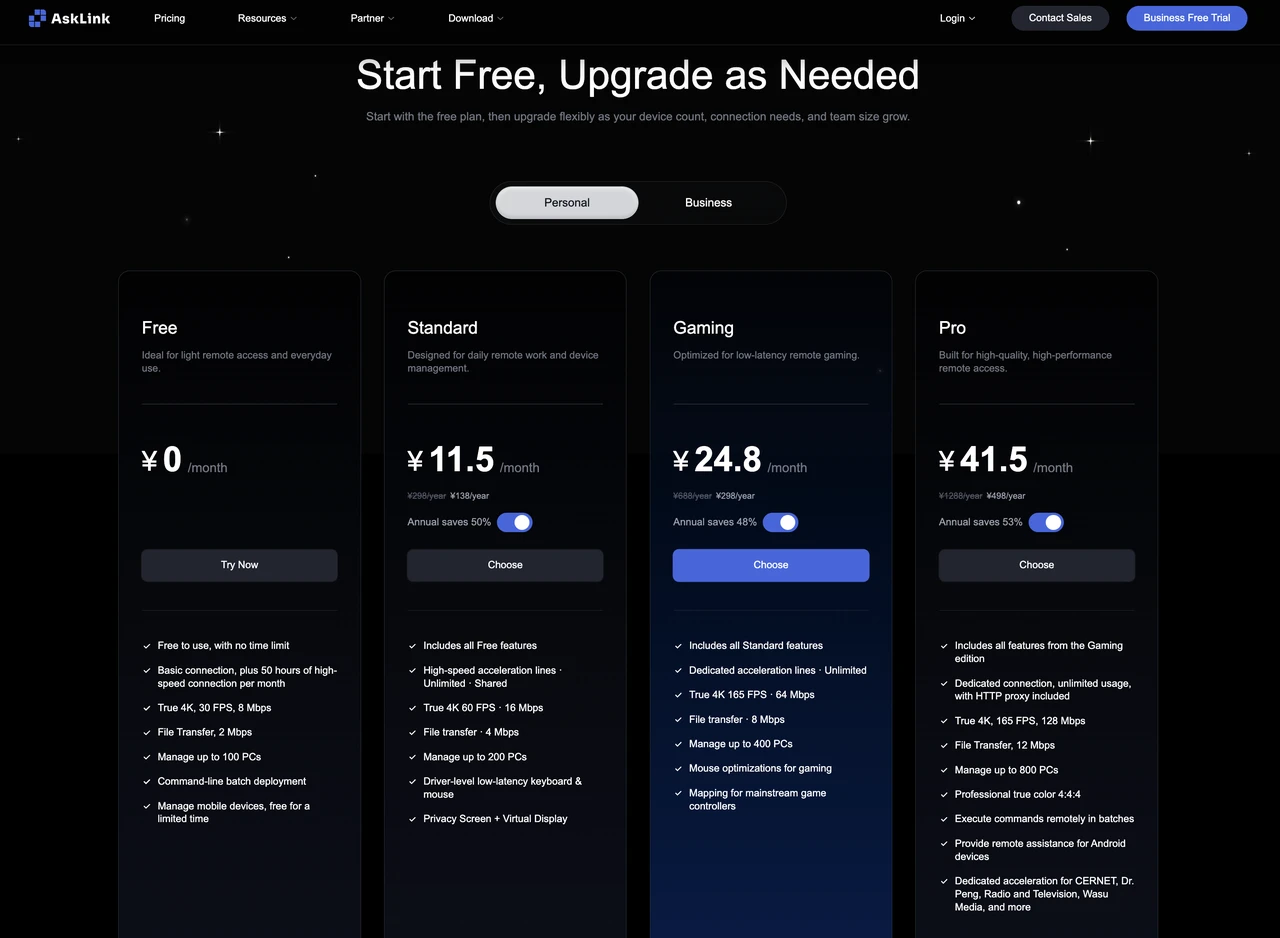
| Free | Light personal or commercial remote access | $0, no total time limit, 50 high-speed hours/month, up to 4K/30 FPS |
| Standard | Frequent remote work | From $5/month, unlimited shared high-speed routing, up to 4K/60 FPS, Privacy Screen and Virtual Display |
| Gaming | Remote gaming and high-refresh interaction | From $10/month, dedicated acceleration, up to 4K/165 FPS, gaming input features |
| Pro | Professional visual work and heavier device use | From $16.70/month, up to 165 FPS, vendor-stated 6K support, 4:4:4 on compatible hardware, batch commands |
Start with AskLink Free and try it on the devices you already use. See how it fits into your real day-to-day setup. When you need smoother 4K work, higher refresh rates, or more device control, you can upgrade from the same account without starting over.
Which Remote Desktop Software Should You Choose?
Chrome Remote Desktop is enough for simple personal access, RustDesk is the better fit for self-hosting, Parsec stands out for gaming-first use, and TeamViewer or Splashtop make more sense when an established business ecosystem matters.
AskLink is our best overall pick for users who want one tool that can start with free everyday access and scale into higher-performance remote work and broader device management.
The best way to choose is to try the tool with the computers, displays, and network you actually use. Set up one real connection, move a file, switch screens, and see how it feels. If you are new to remote access, download AskLink and get a working connection before deciding whether you need anything more.