'%3e%3cpath%20d='M7.48145%2024H3.74023C1.67456%2023.9999%204.09854e-05%2022.3467%200%2020.3076V16.6152H7.48145V24ZM15.8955%2024H8.41406V16.6152H15.8955V24ZM7.48145%2015.6924H0V8.30762H7.48145V15.6924ZM24%2015.6924H16.5195V8.30762H24V15.6924ZM15.5859%207.38477H8.10547V0H15.5859V7.38477ZM20.2598%200C22.3256%200%2024%201.65318%2024%203.69238V7.38477H16.5195V0H20.2598Z'%20fill='white'/%3e%3cpath%20d='M108.786%2019.0507L105.767%2014.2636H104.397L108.397%208.80874H111.915L108.119%2013.9483V12.3155L112.544%2019.0507H108.786ZM101.527%2019.0507V5.5061H104.897V19.0507H101.527Z'%20fill='white'/%3e%3cpath%20d='M88.8242%2019.0505V8.80858H91.4908V13.2059H91.3421C91.3421%2012.1422%2091.4779%2011.264%2091.7499%2010.5712C92.0214%209.86618%2092.4224%209.34052%2092.953%208.99418C93.4965%208.64778%2094.1506%208.47461%2094.9158%208.47461H95.0644C96.2245%208.47461%2097.1193%208.86427%2097.7488%209.64353C98.3911%2010.4104%2098.7117%2011.5917%2098.7117%2013.1874V19.0505H95.342V13.0946C95.342%2012.6246%2095.2001%2012.2411%2094.9158%2011.9443C94.6443%2011.635%2094.2679%2011.4804%2093.7864%2011.4804C93.3049%2011.4804%2092.9162%2011.635%2092.6202%2011.9443C92.3358%2012.2411%2092.194%2012.6369%2092.194%2013.1317V19.0505H88.8242Z'%20fill='white'/%3e%3cpath%20d='M82.4214%2019.0506V8.80875H85.7912V19.0506H82.4214ZM81.125%2011.2579V8.80875H85.7912V11.2579H81.125ZM83.81%207.99232C83.1928%207.99232%2082.7359%207.83773%2082.4398%207.5285C82.1561%207.2069%2082.0137%206.79872%2082.0137%206.30388C82.0137%205.80913%2082.1561%205.40713%2082.4398%205.09789C82.7359%204.77628%2083.1866%204.61548%2083.7916%204.61548C84.4088%204.61548%2084.8595%204.77628%2085.1433%205.09789C85.427%205.40713%2085.5688%205.80913%2085.5688%206.30388C85.5688%206.79872%2085.427%207.2069%2085.1433%207.5285C84.8595%207.83773%2084.4149%207.99232%2083.81%207.99232Z'%20fill='white'/%3e%3cpath%20d='M71.1328%2019.0507V5.5061H74.5769V19.0507H71.1328ZM74.2065%2019.0507V16.0449H79.6876V19.0507H74.2065Z'%20fill='white'/%3e%3cpath%20d='M65.4458%2019.0507L62.428%2014.2636H61.0576L65.0571%208.80874H68.5755L64.7795%2013.9483V12.3155L69.2049%2019.0507H65.4458ZM58.1875%2019.0507V5.5061H61.5578V19.0507H58.1875Z'%20fill='white'/%3e%3cpath%20d='M51.2917%2019.3845C49.8103%2019.3845%2048.6438%2019.0814%2047.7921%2018.4753C46.9403%2017.8568%2046.4836%2016.991%2046.4219%2015.8777H49.3844C49.4339%2016.1869%2049.6252%2016.4529%2049.9585%2016.6755C50.2918%2016.8982%2050.7608%2017.0095%2051.3657%2017.0095C51.7978%2017.0095%2052.1681%2016.9477%2052.4767%2016.824C52.7977%2016.6879%2052.9581%2016.4715%2052.9581%2016.1745C52.9581%2015.9148%2052.8347%2015.7045%2052.5878%2015.5437C52.3409%2015.3705%2051.8903%2015.2531%2051.2361%2015.1912L50.5325%2015.117C49.224%2014.9809%2048.2611%2014.6222%2047.6439%2014.0408C47.0267%2013.4595%2046.7181%2012.7297%2046.7181%2011.8515C46.7181%2011.0969%2046.9033%2010.4784%2047.2736%209.99603C47.6439%209.50126%2048.1562%209.13018%2048.8105%208.8828C49.4647%208.63541%2050.2115%208.51172%2051.0509%208.51172C52.4211%208.51172%2053.526%208.81473%2054.3653%209.42089C55.2048%2010.0146%2055.6492%2010.8743%2055.6986%2011.9999H52.7359C52.6866%2011.6907%2052.5199%2011.4309%2052.236%2011.2206C51.9521%2010.998%2051.5447%2010.8867%2051.0139%2010.8867C50.6312%2010.8867%2050.3164%2010.9547%2050.0696%2011.0907C49.835%2011.2268%2049.7178%2011.4185%2049.7178%2011.6659C49.7178%2011.9257%2049.8289%2012.1174%2050.0511%2012.2411C50.2856%2012.3648%2050.6559%2012.4576%2051.162%2012.5194L51.8657%2012.5936C53.1741%2012.7297%2054.1802%2013.0946%2054.8838%2013.6883C55.5998%2014.2697%2055.9578%2015.0366%2055.9578%2015.989C55.9578%2016.6941%2055.7664%2017.3002%2055.3838%2017.8073C55.0134%2018.3145%2054.4764%2018.7041%2053.7728%2018.9763C53.0816%2019.2484%2052.2545%2019.3845%2051.2917%2019.3845Z'%20fill='white'/%3e%3cpath%20d='M31.0117%2019.0507L35.3445%205.5061H40.8624L45.3434%2019.0507H41.7882L38.3072%207.91816L39.2885%208.28924H36.8444L37.8442%207.91816L34.4558%2019.0507H31.0117ZM34.5483%2015.915L35.5853%2013.0948H40.7143L41.7512%2015.915H34.5483Z'%20fill='white'/%3e%3c/g%3e%3cdefs%3e%3cclipPath%20id='clip0_5596_142775'%3e%3crect%20width='113'%20height='24'%20fill='white'/%3e%3c/clipPath%3e%3c/defs%3e%3c/svg%3e "AskLink")
 Maya Chen
You are working from home and need a file on your office PC. Or maybe you need to open an internal company tool, manage a server, or help someone troubleshoot a device from somewhere else.
These tasks all involve remote access, but they do not necessarily use the same technology. The right method depends on what you need to reach and what you need to do once connected.
If you are wondering what is remote access, you've come to the right place. Keep reading to learn how it works, the main types of remote access, and which method fits different tasks.
What Is Remote Access?
Remote access is the ability to connect to a computer, network, app, or other digital resource from another location.
For example, you might use remote access to:
- control your office PC from home;
- open files stored on your home computer while traveling;
- help another person troubleshoot a device;
- access resources inside a private company network;
- manage a remote server.
A simple remote access definition is access from somewhere else. But remote access is a broad term. It does not refer to one tool or one technology.
The remote access meaning also changes slightly depending on what you are trying to reach. If you want to see and control a specific computer, remote desktop software is usually the closest match. If you need resources inside a private network, you may use a VPN. If you only need to manage a server through commands, SSH may be more direct.
In other words, remote desktop is one type of remote access, not another name for remote access itself.
How Does Remote Access Work?
So, how does remote access work?
Different remote access methods work in different ways, but the basic process is similar.
First, you choose the computer, network, application, or server you want to reach. The system verifies your identity and checks whether you have permission to access that resource.
Once you are approved, the tool establishes the connection. What happens next depends on the type of remote access you are using.
With remote desktop, you can view and control a specific computer. A VPN can give your device access to resources inside a private network. SSH lets you log in to a remote server and run commands.
If you want to know how screen streaming, keyboard and mouse input, and the remote computer itself work during a desktop session, read our guide to what remote desktop is and how it works.
What Are the Main Types of Remote Access?
There are several types of remote access. The easiest way to tell them apart is by what you need to access.
| What you need to access | Common approach | Example |
|---|---|---|
| A specific computer and its desktop | Remote desktop software | Use your office PC from home |
| Resources inside a private network | VPN | Reach an internal file server |
| A specific private application or resource | ZTNA or application-level access | Open an approved internal business app |
| A remote server through commands | SSH | Manage a Linux server |
| Someone else's computer for help | Remote support software | Troubleshoot another user's PC |
Device-Level Remote Access
Device-level access connects you to a specific computer. You can usually see its desktop, use the mouse and keyboard, open apps, and work with files. Remote desktop software is used for this type of access.
Device access can also be attended or unattended.
With attended access, someone at the remote computer starts or approves the connection. This is common in remote support.
So, what is unattended remote access?
It means an authorized user can connect without someone at the remote computer approving every session. This kind of unattended access is useful when you need regular access to your own PC, a remote workstation, or an authorized work device.
Network-Level Remote Access
Sometimes you do not need to control another computer. You need to reach resources inside a private network.
For example, an employee working from home may need to open an internal company website or use a private file server.
A remote access VPN is one common option. Businesses may also use other secure network-access tools.
This is different from remote desktop access. A network-access tool helps your device reach a private network. Remote desktop software lets you operate a specific computer.
Server Access
Developers and system administrators may only need a command line. SSH is commonly used for this task. It lets an authorized user log in to a remote server and run commands.
If you only need a server shell, a full remote desktop may be unnecessary.
Application-Level Remote Access
Sometimes you only need access to one approved application rather than an entire computer or network.
An organization may provide access to an internal business application through a secure portal, virtual application environment, or identity-based access service. This can keep access limited to the resource the user actually needs.
Remote Access vs. Remote Desktop, VPN, RDP, and SSH
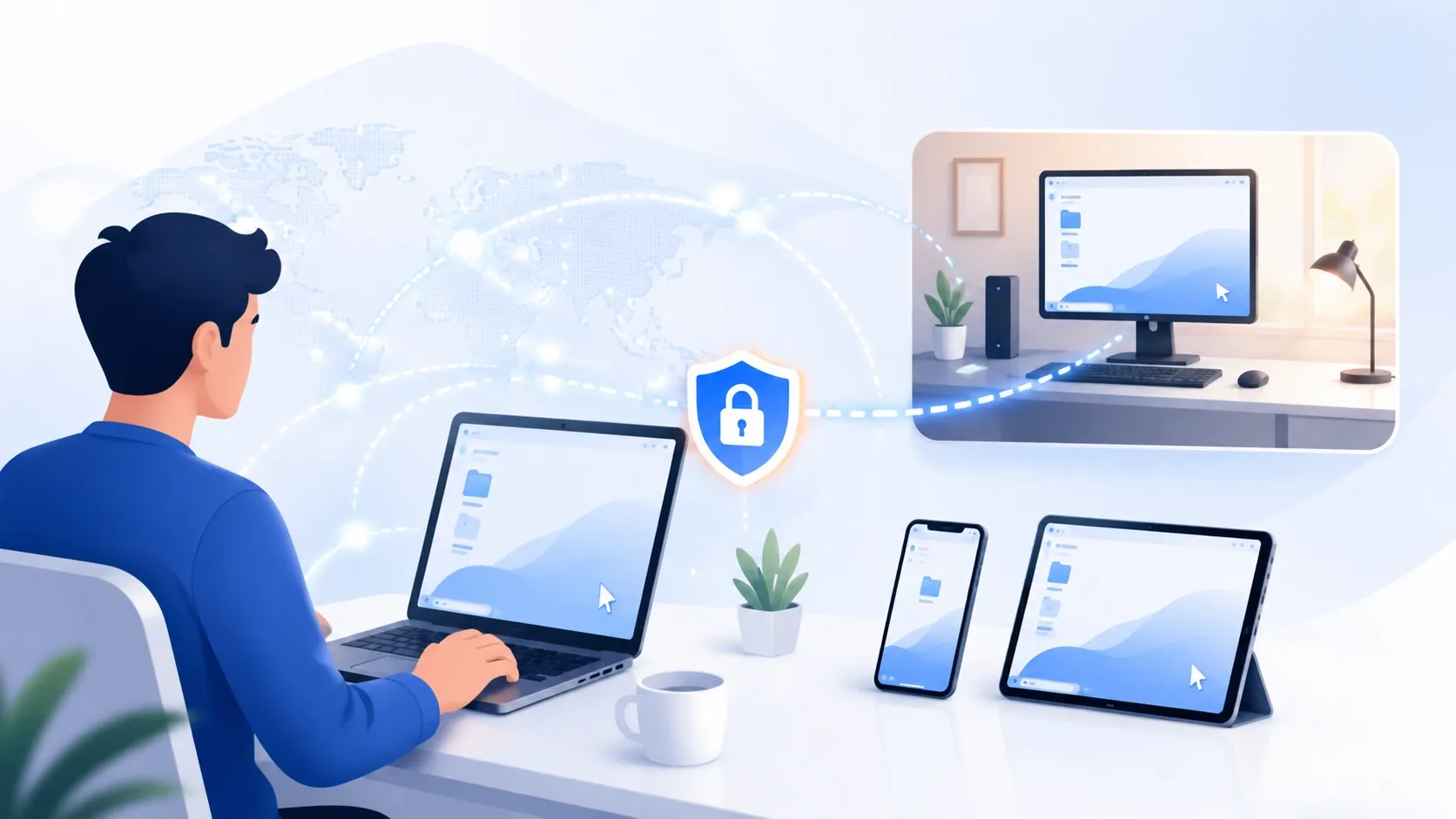
These terms often appear together, but they solve different tasks.
| Term | What it is | Main purpose |
|---|---|---|
| Remote access | The broad concept | Reach remote computers, networks, apps, or other resources |
| Remote desktop | Device-level remote access | See and control another computer |
| VPN | Network-level access | Reach a private network or its resources |
| RDP | Microsoft's Remote Desktop Protocol | Remote display and input, mainly for Windows remote desktop |
| SSH | Secure remote login protocol | Manage remote servers through commands |
Remote access is the broad concept. Remote desktop, VPN, RDP, and SSH describe different technologies or methods used for different remote-access tasks. If you want to see and control another computer, remote desktop software is usually the closest match.
What Is Remote Access Used For? Common Examples
Remote access is useful in many everyday situations.
Access a Specific Computer
You may need an application, file, or work setup that already exists on another computer. Remote desktop software can let you use that authorized computer from home, while traveling, or from another supported device.
If the computer belongs to your employer, you should still follow your company's IT and security rules.
Reach Company Networks and Applications
Remote access is not always about controlling another computer. Employees may need to reach an internal website, private file server, database, or business application from outside the office.
Depending on the resource, an organization may use a VPN, ZTNA service, secure portal, or another approved access method.
Provide Remote IT Support
A technician, colleague, or trusted person can use remote support software to view a screen and, with permission, control another device.
This can make it easier to check settings, diagnose an error, or guide someone through a task without being physically next to the device.
Manage Servers Remotely
Developers and system administrators may need to update software, review logs, change configurations, or maintain systems without being physically near the server.
SSH is commonly used when command-line access is enough, while some systems also provide graphical management tools.
These examples also show some of the main benefits of remote access. It can help you reach the computers, applications, networks, and systems you need without being in the same location.
The key is to match the level of access to the task. If you only need one application or server command line, giving someone control of an entire computer or network may add unnecessary complexity.
What Is Remote Access Software?
Remote access can rely on different types of software and services. A VPN may provide access to a private network, SSH can provide command-line access to a server, and remote desktop software can let you use another computer from somewhere else.
In everyday use, remote access software often refers to tools that let you connect to and use a remote computer.
Depending on the product, these tools may support:
- remote control;
- file transfer;
- remote support;
- unattended access;
- saved devices;
- device management;
- remote wake-up;
- virtual displays.
The right tool depends on what you need to access and how much control you need once connected.
Where AskLink Fits
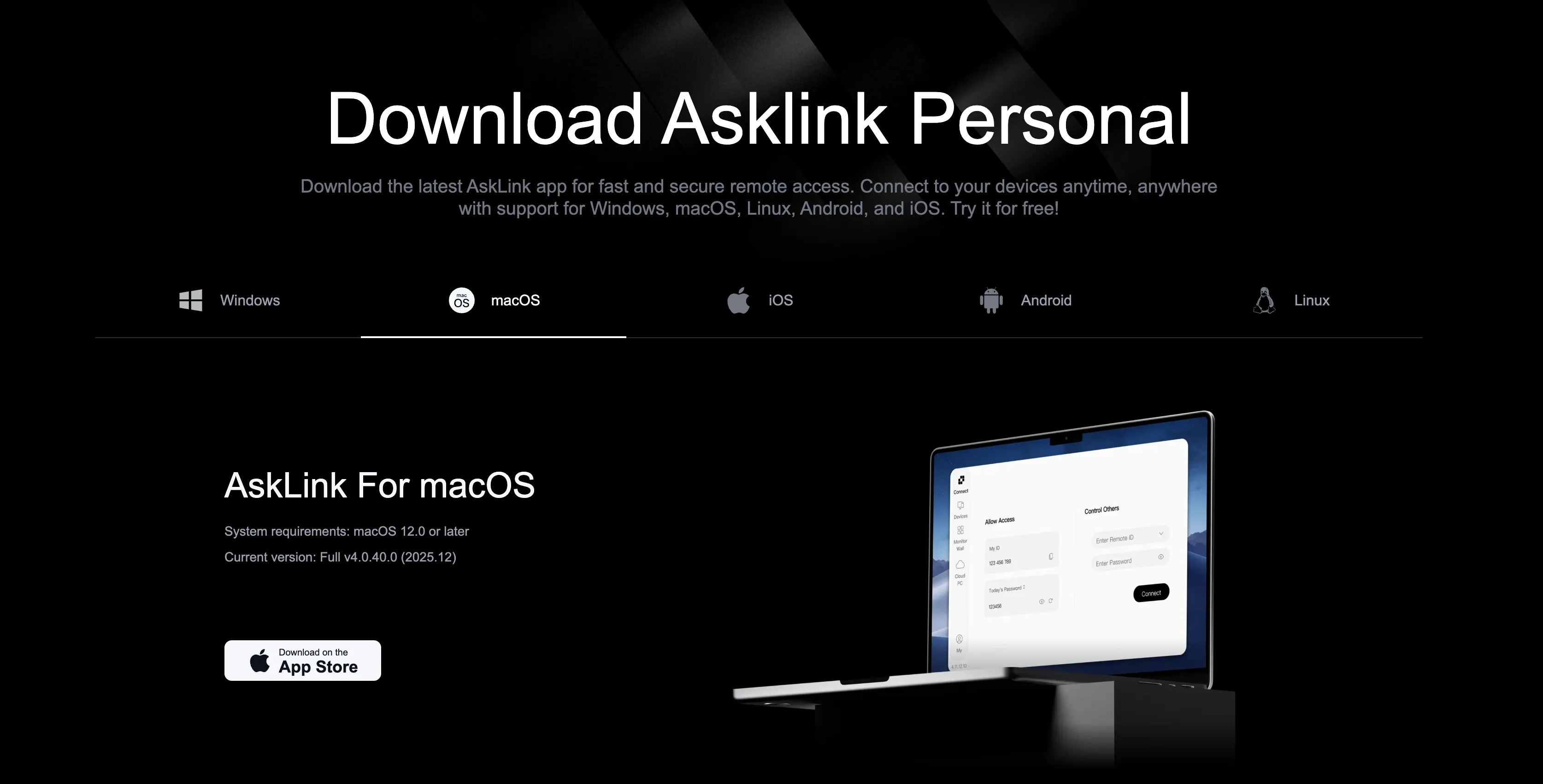
AskLink is built for device-level remote access. It is useful when you want to see and control another authorized computer from somewhere else.
It works across Windows, macOS, Linux, Android, iOS, and iPadOS on supported setups. In AskLink, the device you use to start the connection is called the Controller, while the remote device is the Controlled device.
AskLink also supports features such as unattended access, file transfer, Wake-on-LAN, and virtual displays, making it useful for personal computer access, remote work, and remote support.
For personal users, AskLink provides 50 hours of high-speed access each month. When that allowance is used up, the connection can still continue instead of being forcibly disconnected.
AskLink also offers business features for teams that need to manage and support multiple remote devices.
AskLink focuses on device-level remote access. It is not a VPN or an enterprise network gateway.
Is Remote Access Safe?
Remote access can be safe, but the software is only one part of security.
Your password, permissions, device settings, and the people you trust with access also matter.
A few basic steps can lower the risk:
- use remote access software from a trusted source;
- use strong, unique passwords;
- turn on multi-factor authentication when available;
- keep your operating system and remote access software updated;
- only give access to people and devices you trust;
- remove unattended access when you no longer need it;
- avoid exposing RDP directly to the public internet.
These steps are important for a secure remote access setup.
People matter too.
Scammers can misuse legitimate remote access tools. If someone you do not know contacts you and asks you to install a remote access app or give them control of your computer, do not approve the connection.
Good remote access security is not only about encryption. It is also about who can connect and what they are allowed to do. AskLink is designed with security and privacy in mind, with client-side encryption, an SSL-secured channel, and 2048-bit RSA key exchange for remote sessions.
Final Thoughts
Remote access is a broad concept, not a single technology. The right method depends on what you need to reach and how much access you actually need.
Remote desktop software is usually the right fit when you want to see and control a specific computer. A VPN can help you reach resources inside a private network, while SSH is often more direct when you only need a server command line.
AskLink focuses on the device-level side of remote access. If you need to access and control an authorized computer from another supported device, try AskLink.