'%3e%3cpath%20d='M7.48145%2024H3.74023C1.67456%2023.9999%204.09854e-05%2022.3467%200%2020.3076V16.6152H7.48145V24ZM15.8955%2024H8.41406V16.6152H15.8955V24ZM7.48145%2015.6924H0V8.30762H7.48145V15.6924ZM24%2015.6924H16.5195V8.30762H24V15.6924ZM15.5859%207.38477H8.10547V0H15.5859V7.38477ZM20.2598%200C22.3256%200%2024%201.65318%2024%203.69238V7.38477H16.5195V0H20.2598Z'%20fill='white'/%3e%3cpath%20d='M108.786%2019.0507L105.767%2014.2636H104.397L108.397%208.80874H111.915L108.119%2013.9483V12.3155L112.544%2019.0507H108.786ZM101.527%2019.0507V5.5061H104.897V19.0507H101.527Z'%20fill='white'/%3e%3cpath%20d='M88.8242%2019.0505V8.80858H91.4908V13.2059H91.3421C91.3421%2012.1422%2091.4779%2011.264%2091.7499%2010.5712C92.0214%209.86618%2092.4224%209.34052%2092.953%208.99418C93.4965%208.64778%2094.1506%208.47461%2094.9158%208.47461H95.0644C96.2245%208.47461%2097.1193%208.86427%2097.7488%209.64353C98.3911%2010.4104%2098.7117%2011.5917%2098.7117%2013.1874V19.0505H95.342V13.0946C95.342%2012.6246%2095.2001%2012.2411%2094.9158%2011.9443C94.6443%2011.635%2094.2679%2011.4804%2093.7864%2011.4804C93.3049%2011.4804%2092.9162%2011.635%2092.6202%2011.9443C92.3358%2012.2411%2092.194%2012.6369%2092.194%2013.1317V19.0505H88.8242Z'%20fill='white'/%3e%3cpath%20d='M82.4214%2019.0506V8.80875H85.7912V19.0506H82.4214ZM81.125%2011.2579V8.80875H85.7912V11.2579H81.125ZM83.81%207.99232C83.1928%207.99232%2082.7359%207.83773%2082.4398%207.5285C82.1561%207.2069%2082.0137%206.79872%2082.0137%206.30388C82.0137%205.80913%2082.1561%205.40713%2082.4398%205.09789C82.7359%204.77628%2083.1866%204.61548%2083.7916%204.61548C84.4088%204.61548%2084.8595%204.77628%2085.1433%205.09789C85.427%205.40713%2085.5688%205.80913%2085.5688%206.30388C85.5688%206.79872%2085.427%207.2069%2085.1433%207.5285C84.8595%207.83773%2084.4149%207.99232%2083.81%207.99232Z'%20fill='white'/%3e%3cpath%20d='M71.1328%2019.0507V5.5061H74.5769V19.0507H71.1328ZM74.2065%2019.0507V16.0449H79.6876V19.0507H74.2065Z'%20fill='white'/%3e%3cpath%20d='M65.4458%2019.0507L62.428%2014.2636H61.0576L65.0571%208.80874H68.5755L64.7795%2013.9483V12.3155L69.2049%2019.0507H65.4458ZM58.1875%2019.0507V5.5061H61.5578V19.0507H58.1875Z'%20fill='white'/%3e%3cpath%20d='M51.2917%2019.3845C49.8103%2019.3845%2048.6438%2019.0814%2047.7921%2018.4753C46.9403%2017.8568%2046.4836%2016.991%2046.4219%2015.8777H49.3844C49.4339%2016.1869%2049.6252%2016.4529%2049.9585%2016.6755C50.2918%2016.8982%2050.7608%2017.0095%2051.3657%2017.0095C51.7978%2017.0095%2052.1681%2016.9477%2052.4767%2016.824C52.7977%2016.6879%2052.9581%2016.4715%2052.9581%2016.1745C52.9581%2015.9148%2052.8347%2015.7045%2052.5878%2015.5437C52.3409%2015.3705%2051.8903%2015.2531%2051.2361%2015.1912L50.5325%2015.117C49.224%2014.9809%2048.2611%2014.6222%2047.6439%2014.0408C47.0267%2013.4595%2046.7181%2012.7297%2046.7181%2011.8515C46.7181%2011.0969%2046.9033%2010.4784%2047.2736%209.99603C47.6439%209.50126%2048.1562%209.13018%2048.8105%208.8828C49.4647%208.63541%2050.2115%208.51172%2051.0509%208.51172C52.4211%208.51172%2053.526%208.81473%2054.3653%209.42089C55.2048%2010.0146%2055.6492%2010.8743%2055.6986%2011.9999H52.7359C52.6866%2011.6907%2052.5199%2011.4309%2052.236%2011.2206C51.9521%2010.998%2051.5447%2010.8867%2051.0139%2010.8867C50.6312%2010.8867%2050.3164%2010.9547%2050.0696%2011.0907C49.835%2011.2268%2049.7178%2011.4185%2049.7178%2011.6659C49.7178%2011.9257%2049.8289%2012.1174%2050.0511%2012.2411C50.2856%2012.3648%2050.6559%2012.4576%2051.162%2012.5194L51.8657%2012.5936C53.1741%2012.7297%2054.1802%2013.0946%2054.8838%2013.6883C55.5998%2014.2697%2055.9578%2015.0366%2055.9578%2015.989C55.9578%2016.6941%2055.7664%2017.3002%2055.3838%2017.8073C55.0134%2018.3145%2054.4764%2018.7041%2053.7728%2018.9763C53.0816%2019.2484%2052.2545%2019.3845%2051.2917%2019.3845Z'%20fill='white'/%3e%3cpath%20d='M31.0117%2019.0507L35.3445%205.5061H40.8624L45.3434%2019.0507H41.7882L38.3072%207.91816L39.2885%208.28924H36.8444L37.8442%207.91816L34.4558%2019.0507H31.0117ZM34.5483%2015.915L35.5853%2013.0948H40.7143L41.7512%2015.915H34.5483Z'%20fill='white'/%3e%3c/g%3e%3cdefs%3e%3cclipPath%20id='clip0_5596_142775'%3e%3crect%20width='113'%20height='24'%20fill='white'/%3e%3c/clipPath%3e%3c/defs%3e%3c/svg%3e "AskLink")
 Sophie Carter
Managing a homelab from home is easy. Remote access is where things get more complicated.
Maybe you need a project file from one PC, want to restart a Docker container, check Home Assistant, or reach several private services while you are away. Those jobs call for different setups.
The safest choice is usually the one that gives you no more access than you need. A VPN makes sense for several private resources. A tunnel may be enough for one Web app. If all you need is one computer, remote desktop software such as AskLink can keep the scope much smaller.
This guide will help you choose the right approach and secure it properly.
First, Decide What You Actually Need to Access
Before choosing a tool, narrow down what needs to be reachable.
Three things usually determine the answer:
1. What are you trying to reach: one computer, one app, a server shell, or several private services?
2. Who needs access: only you, or other people too?
3. What will you connect from: a laptop, phone, or just a Web browser?
The last question matters because some methods require a client app, while others can work through a browser.
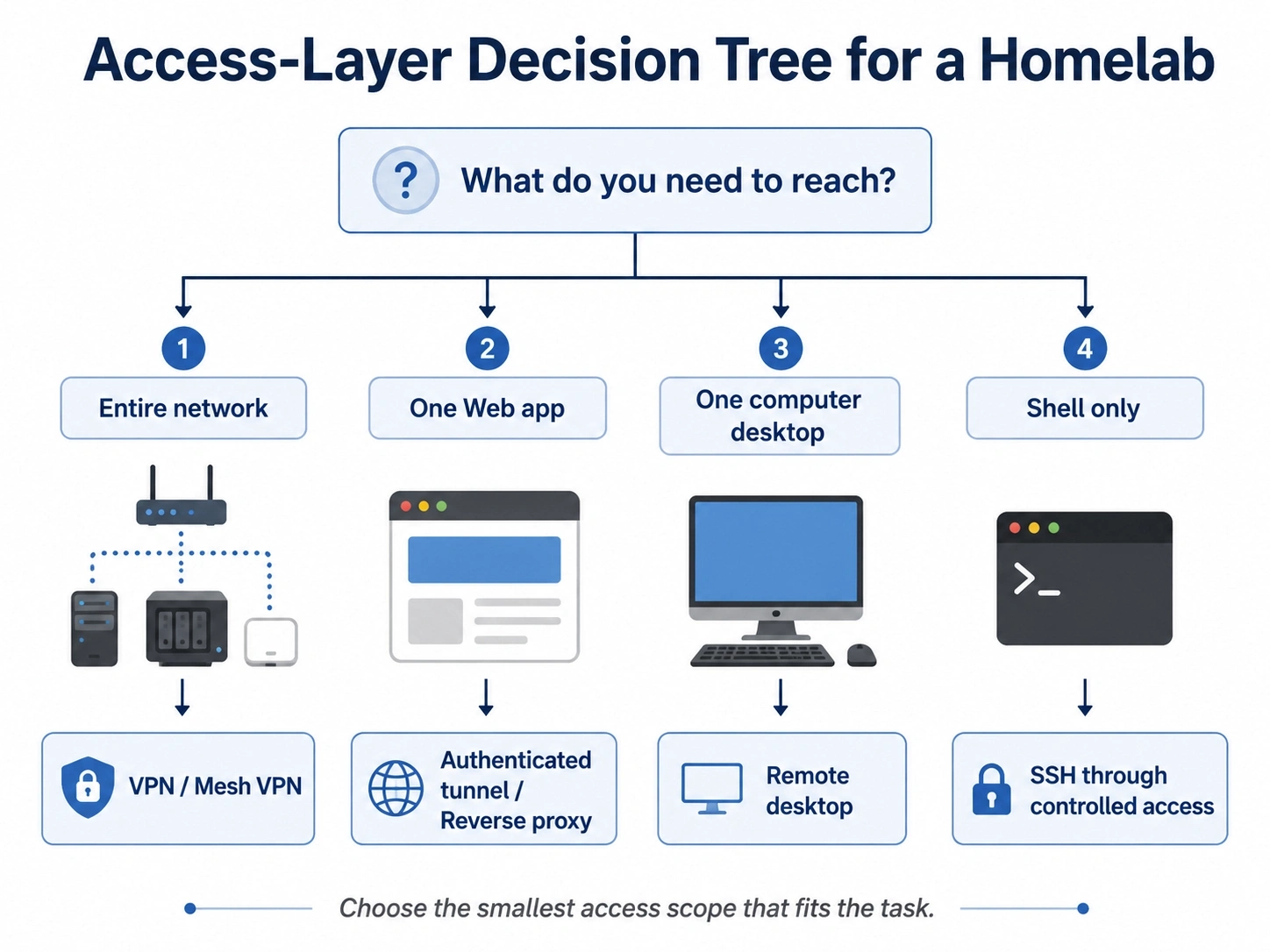
Use this as a quick guide:
| What you need to reach | Usually the best fit |
|---|---|
| Several devices or private services inside your home network | VPN or mesh VPN |
| One self-hosted Web app | Authenticated tunnel or reverse proxy with access controls |
| One homelab computer | Remote desktop |
| A server command line | SSH, ideally behind a VPN/tunnel or strict access controls |
What Are the Main Ways to Access a Homelab Remotely?
VPN or Mesh VPN for Network-Level Access
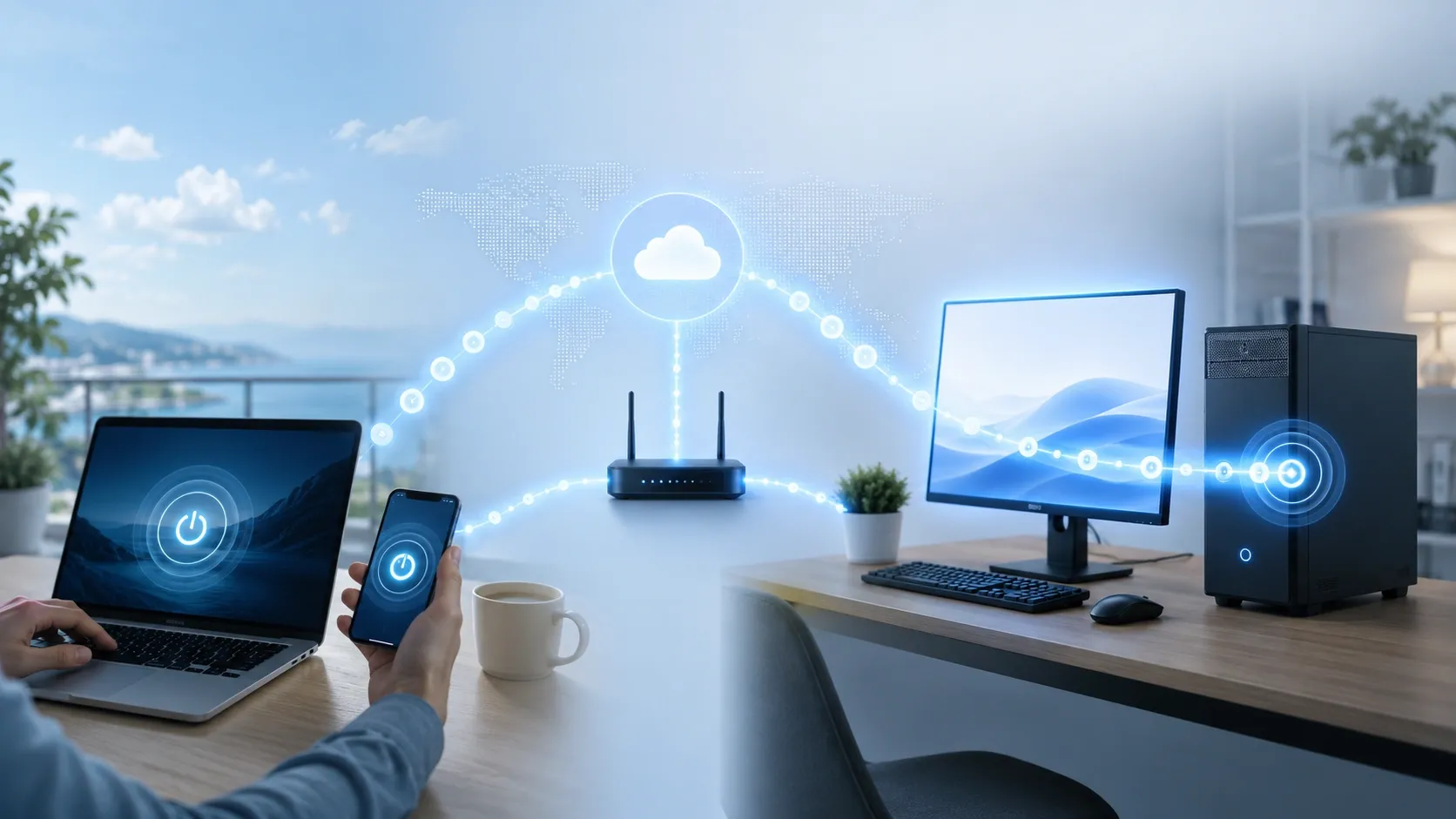
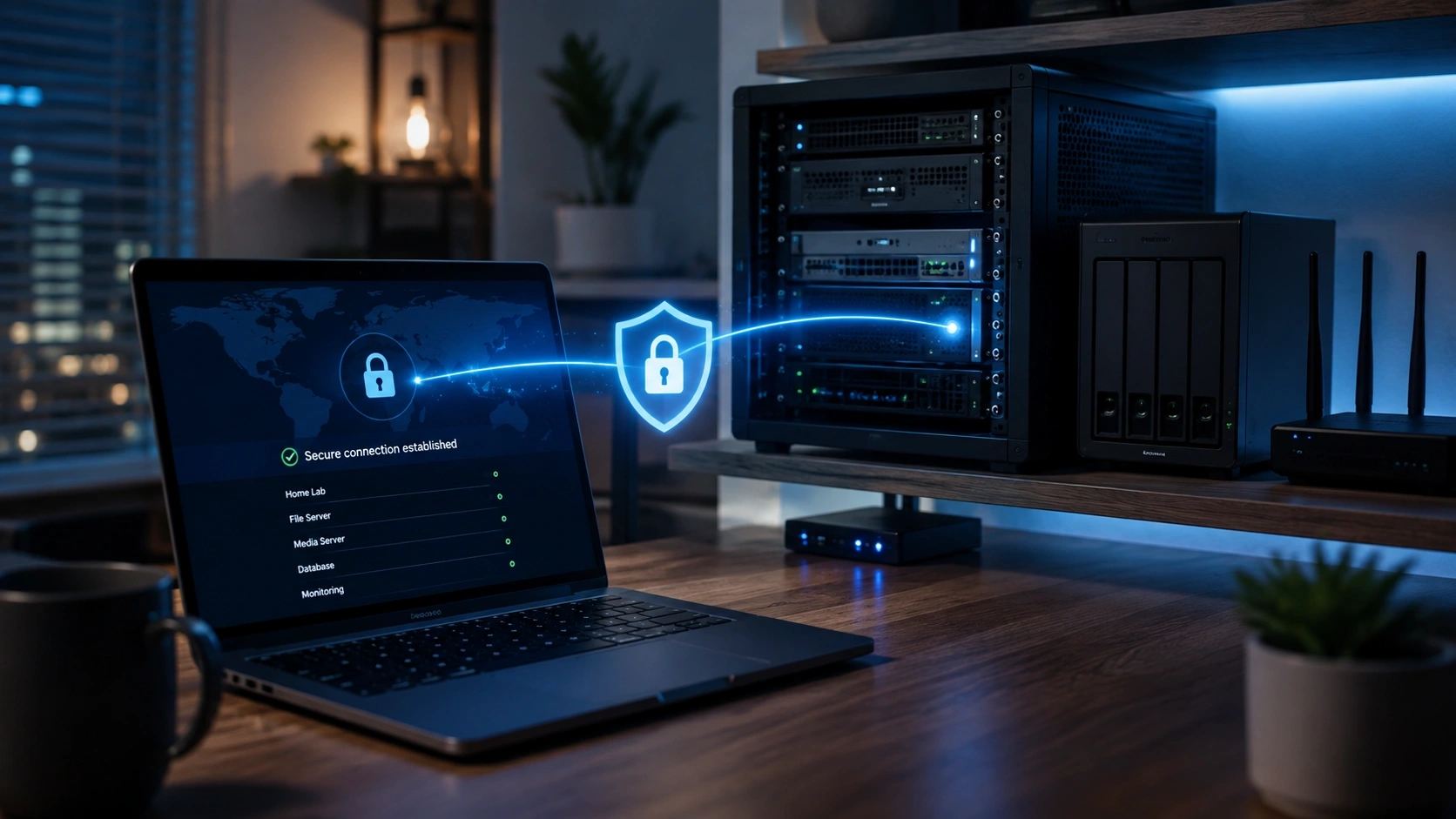
Need your NAS, a Proxmox dashboard, Home Assistant, and several other private services while you are away? That is where a VPN usually makes sense.
WireGuard is a common traditional option, while services such as Tailscale build a mesh VPN between your devices. Once connected, the remote device can reach the private resources you have allowed it to reach.
But a VPN can also be more access than the task requires. If all you really want is Photoshop running on one workstation, remote desktop may be the simpler fit.
VPN access does not have to mean full LAN access either. Rules can limit a user or device to specific machines, services, or ports.
Tailscale, for example, recommends using least-privilege access policies so users and devices only receive the access they need.
Tunnel or Reverse Proxy for a Self-Hosted Web App
A single Web app does not usually justify access to the whole home network.
For something like Jellyfin, Immich, or Home Assistant, an authenticated tunnel or reverse proxy can give users a direct route to that service.
This matters even more when other people need access. If your family only needs Jellyfin, giving every device VPN access to the rest of your homelab is probably more access than they need.
An app-level route can also be more convenient when someone is connecting from a browser or a device where installing a VPN client would be awkward.
Some tunnel services avoid a public inbound listener on the homelab side. Cloudflare Tunnel, for example, creates outbound connections from the origin.
The tunnel itself is only part of the setup. The app still needs authentication and sensible access rules. HTTPS encrypts the connection; it does not decide who is allowed to sign in.
Remote Desktop for One Homelab Computer
Sometimes the whole job is simply getting back to one PC.
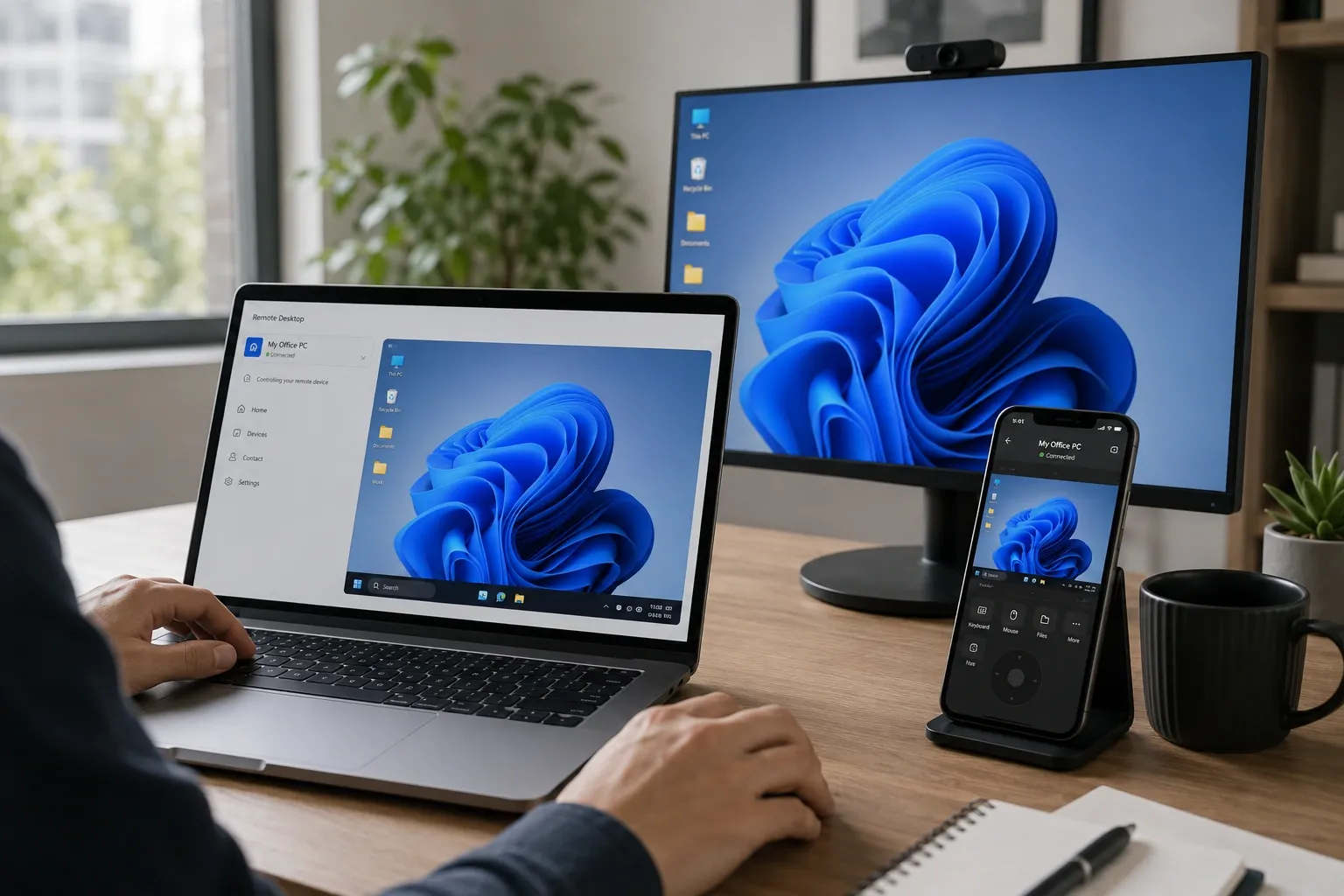
Remote desktop lets you use that machine's screen, apps, and files from somewhere else.
Maybe the workstation already has Photoshop or Blender, your project files, local development tools, and the browser sessions you use to manage Proxmox or Home Assistant. In that case, it may be easier to work on the computer that is already set up than recreate the same environment on your travel laptop.
Unlike a VPN, remote desktop does not place that laptop inside your home network by default. You are controlling the workstation itself.
For a homelab where that one machine is all you need, the narrower scope can be an advantage.
SSH for Server Administration
If all you need is to restart a Docker container, check a log, or edit a config file on a Linux server, SSH is usually more direct than opening a full graphical desktop.
Use key-based authentication and appropriate firewall rules, or keep SSH behind a VPN or tunnel rather than exposing it more broadly than necessary.
SSH and remote desktop solve different jobs: one gives you a shell, while the other gives you the graphical environment of the computer itself.
How to Secure Remote Access to Your Homelab
Choosing the access method is only half of the setup. The accounts, devices, permissions, and services around it also need protection.
NIST's remote access guidance similarly recommends protecting both remote access technologies and the devices used to connect to them.

Minimize Exposure and Access
Keep services local unless you have a clear reason to access them remotely. It is especially important for router admin pages, hypervisor dashboards, databases, and other management interfaces.
If RDP, SSH, VNC, or an admin panel is public, anyone on the internet can access and probe that service. CISA's Internet Exposure Reduction Guidance recommends identifying internet-facing assets and removing or restricting unnecessary exposure.
The same principle applies after someone signs in. Give each user or device only the access it needs. A VPN user who needs one NAS, for example, does not necessarily need access to the entire LAN.
In a larger homelab, firewall rules or network segmentation can keep a public-facing service from reaching everything else.
Protect Accounts and Keep Systems Updated
A secure network path does not help much if the account behind it is easy to take over. Use a unique password for each service and enable MFA where the product supports it. Avoid shared credentials, especially when several people use the homelab.
The same goes for software. Your router, operating system, VPN or tunnel client, remote desktop tool, and exposed applications all become part of the remote-access path. Keep them patched, and remove services you stopped using instead of leaving them running indefinitely.
Review and Revoke Access
Old access tends to accumulate. A laptop you replaced months ago may still be authorized, or an SSH key may belong to a device you no longer use.
Check your authorized devices, accounts, SSH keys, and permissions occasionally. Remove anything that is no longer needed, and look through available connection or login records when something does not look familiar.
How to Securely Access One Homelab Computer Remotely
Use Remote Desktop Instead of Exposing RDP Directly
Windows RDP can provide remote access, but exposing its login service directly to the internet increases the public attack surface.
CISA recommends avoiding direct internet exposure of RDP where possible and using controls such as MFA when remote access is required.
A remote desktop service can give you another path to that computer without publishing its RDP login page directly.
This does not mean remote desktop is always safer than a VPN or SSH setup. It simply fits a different task: controlling one computer instead of accessing the whole network.
Use AskLink for Device-Level Homelab Access
For a homelab PC or workstation, AskLink keeps the connection focused on that device. The Controller does not automatically gain general access to the rest of the home network.
After installing AskLink on the homelab computer, you can connect from another supported device and use the environment that is already set up there.
That may include project files stored on the PC, desktop software that is already installed, or the browser sessions and local tools you normally use to manage the homelab. You do not need to recreate the same setup on the device you are traveling with. Unattended access is also available for computers that need to remain reachable while nobody is home.
There is an extra verification step when a new Controller is authorized from an untrusted device. If you sign in with a password, AskLink requires identity verification before that device can receive Controller permissions. Verification can be completed by QR code, phone, or email code.
Authorized Controllers can also be reviewed and removed later.
That makes AskLink a good fit for device-level homelab access. For full private-network access, a Web app, or command-line server administration, VPNs, tunnels, and SSH still solve different problems.
Common Homelab Remote Access Security Mistakes
Some of the riskiest homelab setups are not obviously broken. They connect successfully, but leave more exposed than the owner realizes.
- Exposing management services directly to the internet. RDP, SSH, VNC, router admin pages, and hypervisor dashboards need strong protection if they are publicly reachable.
- Assuming HTTPS means an app is secure. HTTPS protects data in transit, but the app still needs proper authentication and access control.
- Giving remote users more access than they need. A VPN user who only needs one service does not necessarily need access to the whole LAN.
- Leaving old devices or credentials active. Unused Controller devices, SSH keys, VPN permissions, and accounts can become forgotten access paths.
- Assuming no open ports means no risk. A mesh VPN, outbound tunnel, or remote desktop service may work without traditional inbound port forwarding, but the account and authorized devices still become access paths. A stolen account or compromised laptop can matter even when a port scan shows nothing open.
How to Check Whether Your Homelab Remote Access Is Actually Secure
A setup isn't finished just because the connection works. Check what is actually reachable from outside your home network.
1. Test from another network. Turn off home Wi-Fi and connect through cellular data or another network.
2. Check what is reachable. Confirm that the computer, app, or service you intended to expose works, while private resources that should stay local do not.
3. Make sure revocation works. Remove a test device, Controller authorization, SSH key, or VPN permission and confirm that access stops.
4. Review recent activity. Check available login or connection records for devices or access you do not recognize.
If possible, also test that your backups can actually be restored.
Which Remote Access Setup Should You Choose?
There is no single best homelab remote access setup.
Use a VPN when you need several private resources, a tunnel for a specific Web app, SSH for command-line administration, and remote desktop when the computer itself is what you need to use.
For that last case, AskLink provides a device-level option without automatically giving the Controller general access to the rest of your LAN. Whichever route you choose, keep access limited and make sure you can revoke it when you no longer need it.