'%3e%3cpath%20d='M7.48145%2024H3.74023C1.67456%2023.9999%204.09854e-05%2022.3467%200%2020.3076V16.6152H7.48145V24ZM15.8955%2024H8.41406V16.6152H15.8955V24ZM7.48145%2015.6924H0V8.30762H7.48145V15.6924ZM24%2015.6924H16.5195V8.30762H24V15.6924ZM15.5859%207.38477H8.10547V0H15.5859V7.38477ZM20.2598%200C22.3256%200%2024%201.65318%2024%203.69238V7.38477H16.5195V0H20.2598Z'%20fill='white'/%3e%3cpath%20d='M108.786%2019.0507L105.767%2014.2636H104.397L108.397%208.80874H111.915L108.119%2013.9483V12.3155L112.544%2019.0507H108.786ZM101.527%2019.0507V5.5061H104.897V19.0507H101.527Z'%20fill='white'/%3e%3cpath%20d='M88.8242%2019.0505V8.80858H91.4908V13.2059H91.3421C91.3421%2012.1422%2091.4779%2011.264%2091.7499%2010.5712C92.0214%209.86618%2092.4224%209.34052%2092.953%208.99418C93.4965%208.64778%2094.1506%208.47461%2094.9158%208.47461H95.0644C96.2245%208.47461%2097.1193%208.86427%2097.7488%209.64353C98.3911%2010.4104%2098.7117%2011.5917%2098.7117%2013.1874V19.0505H95.342V13.0946C95.342%2012.6246%2095.2001%2012.2411%2094.9158%2011.9443C94.6443%2011.635%2094.2679%2011.4804%2093.7864%2011.4804C93.3049%2011.4804%2092.9162%2011.635%2092.6202%2011.9443C92.3358%2012.2411%2092.194%2012.6369%2092.194%2013.1317V19.0505H88.8242Z'%20fill='white'/%3e%3cpath%20d='M82.4214%2019.0506V8.80875H85.7912V19.0506H82.4214ZM81.125%2011.2579V8.80875H85.7912V11.2579H81.125ZM83.81%207.99232C83.1928%207.99232%2082.7359%207.83773%2082.4398%207.5285C82.1561%207.2069%2082.0137%206.79872%2082.0137%206.30388C82.0137%205.80913%2082.1561%205.40713%2082.4398%205.09789C82.7359%204.77628%2083.1866%204.61548%2083.7916%204.61548C84.4088%204.61548%2084.8595%204.77628%2085.1433%205.09789C85.427%205.40713%2085.5688%205.80913%2085.5688%206.30388C85.5688%206.79872%2085.427%207.2069%2085.1433%207.5285C84.8595%207.83773%2084.4149%207.99232%2083.81%207.99232Z'%20fill='white'/%3e%3cpath%20d='M71.1328%2019.0507V5.5061H74.5769V19.0507H71.1328ZM74.2065%2019.0507V16.0449H79.6876V19.0507H74.2065Z'%20fill='white'/%3e%3cpath%20d='M65.4458%2019.0507L62.428%2014.2636H61.0576L65.0571%208.80874H68.5755L64.7795%2013.9483V12.3155L69.2049%2019.0507H65.4458ZM58.1875%2019.0507V5.5061H61.5578V19.0507H58.1875Z'%20fill='white'/%3e%3cpath%20d='M51.2917%2019.3845C49.8103%2019.3845%2048.6438%2019.0814%2047.7921%2018.4753C46.9403%2017.8568%2046.4836%2016.991%2046.4219%2015.8777H49.3844C49.4339%2016.1869%2049.6252%2016.4529%2049.9585%2016.6755C50.2918%2016.8982%2050.7608%2017.0095%2051.3657%2017.0095C51.7978%2017.0095%2052.1681%2016.9477%2052.4767%2016.824C52.7977%2016.6879%2052.9581%2016.4715%2052.9581%2016.1745C52.9581%2015.9148%2052.8347%2015.7045%2052.5878%2015.5437C52.3409%2015.3705%2051.8903%2015.2531%2051.2361%2015.1912L50.5325%2015.117C49.224%2014.9809%2048.2611%2014.6222%2047.6439%2014.0408C47.0267%2013.4595%2046.7181%2012.7297%2046.7181%2011.8515C46.7181%2011.0969%2046.9033%2010.4784%2047.2736%209.99603C47.6439%209.50126%2048.1562%209.13018%2048.8105%208.8828C49.4647%208.63541%2050.2115%208.51172%2051.0509%208.51172C52.4211%208.51172%2053.526%208.81473%2054.3653%209.42089C55.2048%2010.0146%2055.6492%2010.8743%2055.6986%2011.9999H52.7359C52.6866%2011.6907%2052.5199%2011.4309%2052.236%2011.2206C51.9521%2010.998%2051.5447%2010.8867%2051.0139%2010.8867C50.6312%2010.8867%2050.3164%2010.9547%2050.0696%2011.0907C49.835%2011.2268%2049.7178%2011.4185%2049.7178%2011.6659C49.7178%2011.9257%2049.8289%2012.1174%2050.0511%2012.2411C50.2856%2012.3648%2050.6559%2012.4576%2051.162%2012.5194L51.8657%2012.5936C53.1741%2012.7297%2054.1802%2013.0946%2054.8838%2013.6883C55.5998%2014.2697%2055.9578%2015.0366%2055.9578%2015.989C55.9578%2016.6941%2055.7664%2017.3002%2055.3838%2017.8073C55.0134%2018.3145%2054.4764%2018.7041%2053.7728%2018.9763C53.0816%2019.2484%2052.2545%2019.3845%2051.2917%2019.3845Z'%20fill='white'/%3e%3cpath%20d='M31.0117%2019.0507L35.3445%205.5061H40.8624L45.3434%2019.0507H41.7882L38.3072%207.91816L39.2885%208.28924H36.8444L37.8442%207.91816L34.4558%2019.0507H31.0117ZM34.5483%2015.915L35.5853%2013.0948H40.7143L41.7512%2015.915H34.5483Z'%20fill='white'/%3e%3c/g%3e%3cdefs%3e%3cclipPath%20id='clip0_5596_142775'%3e%3crect%20width='113'%20height='24'%20fill='white'/%3e%3c/clipPath%3e%3c/defs%3e%3c/svg%3e "AskLink")
 Sophie Carter
You are away from home and need a file from your PC. The computer is offline, and no one is there to turn it on. Do you need to leave it running all day just in case?
Not always. Wake-on-LAN (WOL) lets a supported computer wake when it receives a special network message. It is useful for remote work, support, and home setups where a PC does not need to stay on all the time.
However, WOL only works when the PC and network are set up correctly. It wakes the computer; it does not give you remote control by itself. After the PC starts, you still need a remote-access app such as AskLink to use it.
What Is Wake-on-LAN (WOL)?
Wake-on-LAN is a feature that wakes a computer from a supported low-power state. Another device sends a small network message, called a Magic Packet, to the target PC. Its network adapter recognizes the message and tells the computer to start.
You can use it to:
- access a home or office PC
- retrieve files
- start a gaming computer before a remote session
- wake a workstation for support.
Wake-on-LAN is not remote desktop. It turns on or wakes a PC, but it does not sign in to Windows, unlock the screen, or start a remote-control session.
How Does Wake-on-LAN Work?
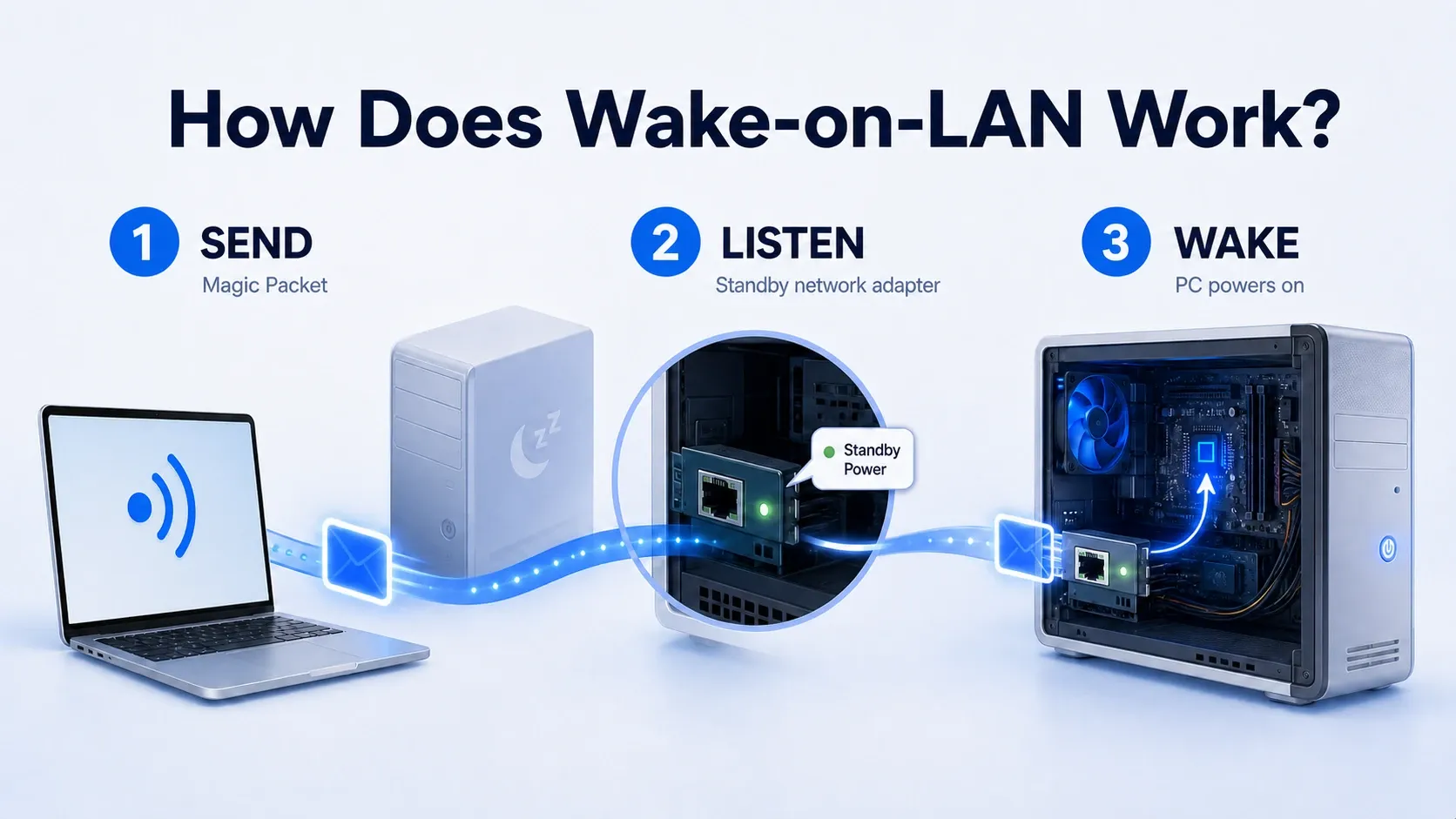
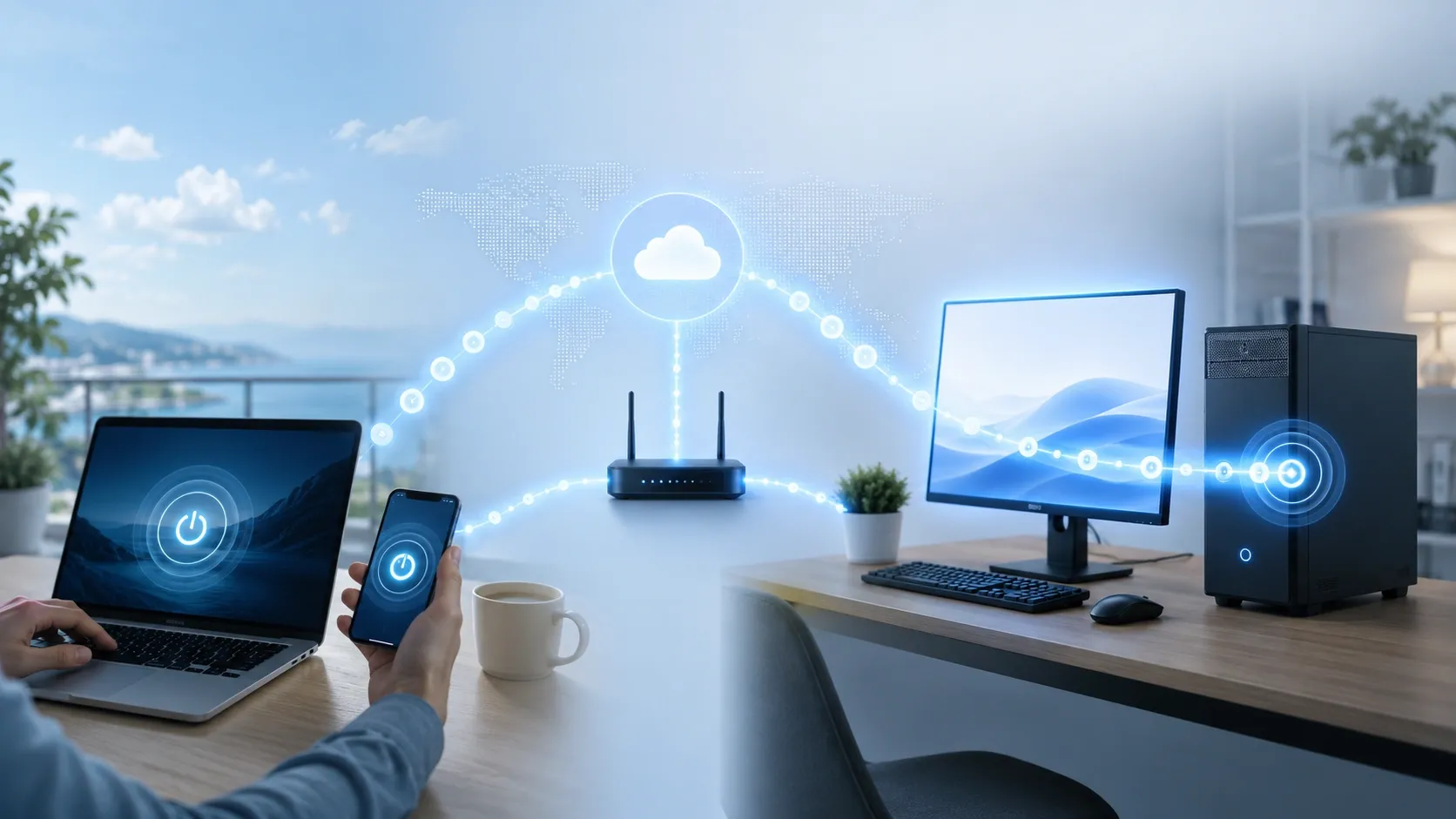
Think of it as sending a remote “power-on” message to your PC.
The process has three simple steps:
1. Send: A phone, computer, router, or online device sends a Magic Packet to the target PC. It contains the target PC's MAC address (Media Access Control address)—the unique address of its network adapter, not an Apple Mac.
2. Listen: The PC's network adapter receives the packet while the computer is asleep or in another supported power state.
3. Wake: If the packet matches the adapter's MAC address and WOL is enabled, the adapter signals the motherboard to wake the PC.
The target and sending device are easiest to set up on the same local network. Waking a PC from outside your home or office needs an additional way to reach that local network.
What Do You Need for Wake-on-LAN to Work?
Check these basics before you start:
- Compatible hardware: The motherboard and network adapter must support WOL. In BIOS or UEFI, the setting may be called Wake on LAN, Power On by PCI-E, Resume by LAN, or PME Event Wake Up.
- Standby power: The PC must stay plugged in so the network adapter can keep listening. An unplugged PC cannot wake over the network. Some laptops support WOL only when connected to AC power.
- Correct settings: Enable Wake-on-LAN BIOS or UEFI and in the Windows network-adapter settings.
- A device that can send the packet: Another device must deliver the Magic Packet to the target PC's network.
A wired Ethernet connection is the most reliable choice. Wi-Fi wake needs specific hardware support, often called Wake on Wireless LAN (WoWLAN), so it is not available on every PC.
Can Wake-on-LAN Turn On a Fully Shut Down PC?
Windows distinguishes between a PC that is hibernating and one that has been shut down. Both can involve the S4 label, but Windows handles WOL differently depending on how the PC entered that state.
| PC state | Windows WOL behavior |
|---|---|
| Sleep (S3) | Normally supported when the device supports WOL and is configured correctly. |
| Hibernate (S4) | Supported when the device supports WOL and is configured correctly. |
| Fast Startup / Hybrid Shutdown (S4) | Not officially supported by Windows. Windows does not arm the network adapter for WOL in this state. |
| Full shutdown / Classic Shutdown (S5) | Not officially supported by Windows. Some hardware and firmware may still wake the PC, but that is outside standard Windows WOL behavior. |
| Power disconnected | Impossible because the network adapter has no standby power. |
Start by testing Sleep, then test Hibernate. If both work, the core WOL settings are in place.
Treat wake from Shut down as a hardware-specific capability rather than a guaranteed Windows feature.
If you are troubleshooting, you can temporarily turn off Fast Startup to see whether it changes your PC's behavior. This does not make shutdown WOL a Windows-supported feature: with Fast Startup on, Windows uses Hybrid Shutdown (S4); with it off, a normal shutdown uses Classic Shutdown (S5). Windows does not officially support WOL from either shutdown state.
How to Enable Wake-on-LAN on Windows 11
The setup normally has three parts.
1. Enable Wake-on-LAN in BIOS or UEFI
Restart the computer and enter its BIOS or UEFI interface. Depending on the model, you may need to press Delete, F2, F10, or another key while the computer starts.
Find and enable the relevant setting. Common names include:
- Wake on LAN
- Power On by PCI-E
- PCIe/Networking Device Wake Up
- Resume by LAN
- PME Event Wake Up
Also look for ErP, EuP, Deep Sleep, or similar energy-saving options. These settings may remove standby power from the network adapter. If WOL does not work, check the manufacturer's instructions before changing them.
Save the settings and restart the PC.
For more detailed, device-specific instructions, see AskLink's Remote Power-On setup guide, which includes BIOS examples for ASUS, MSI, Intel, Supermicro, Lenovo, Dell, and HP devices.
2. Configure the network adapter in Windows 11
After Windows starts:
1. Launch Settings on your Windows 11 PC.
2. Select Network & internet from the left-hand menu.
3. Scroll down and open Advanced network settings.
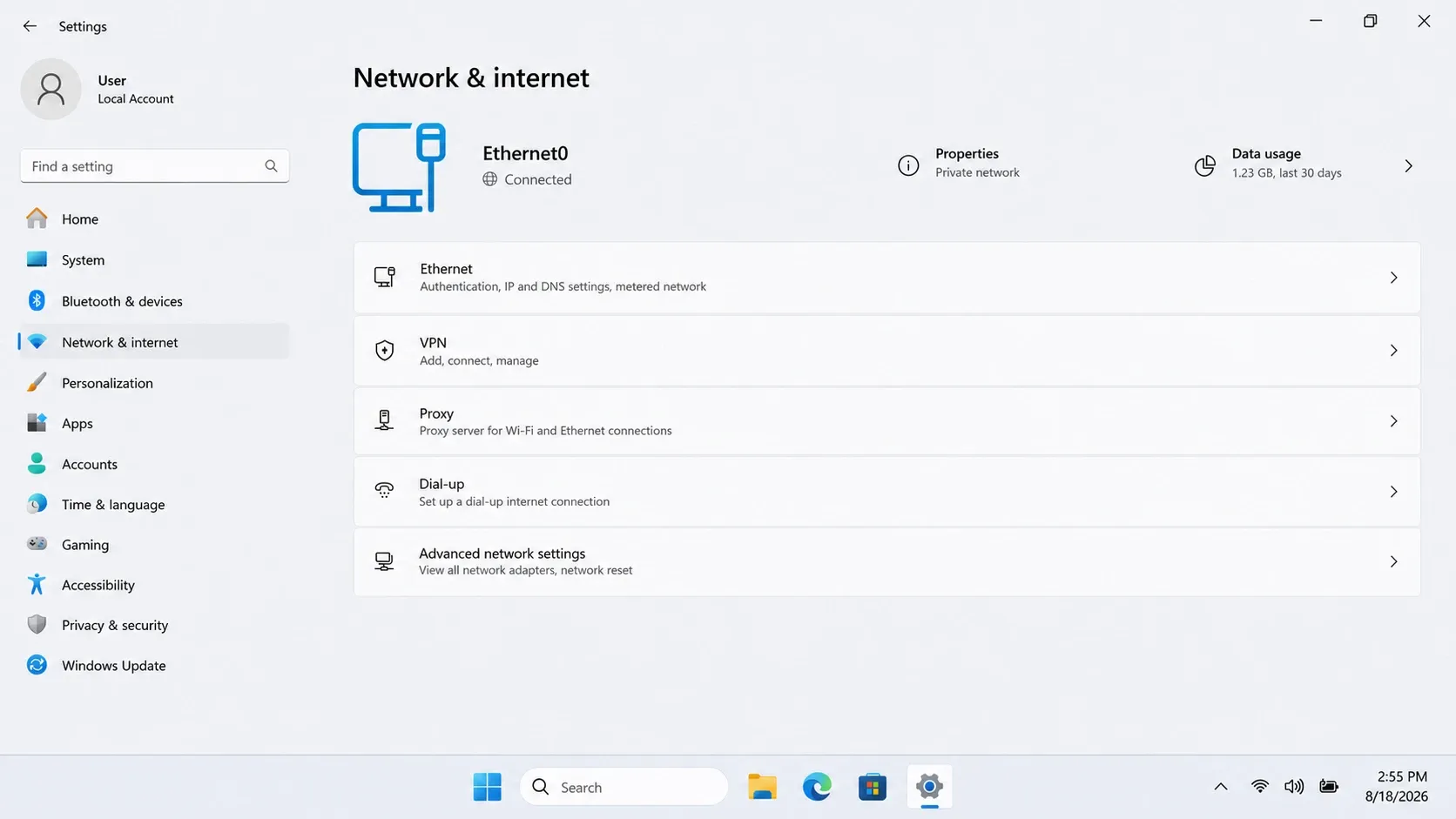
4. Under Network adapters, select the adapter you want to configure.
5. In More adapter options, click Edit to open its settings.
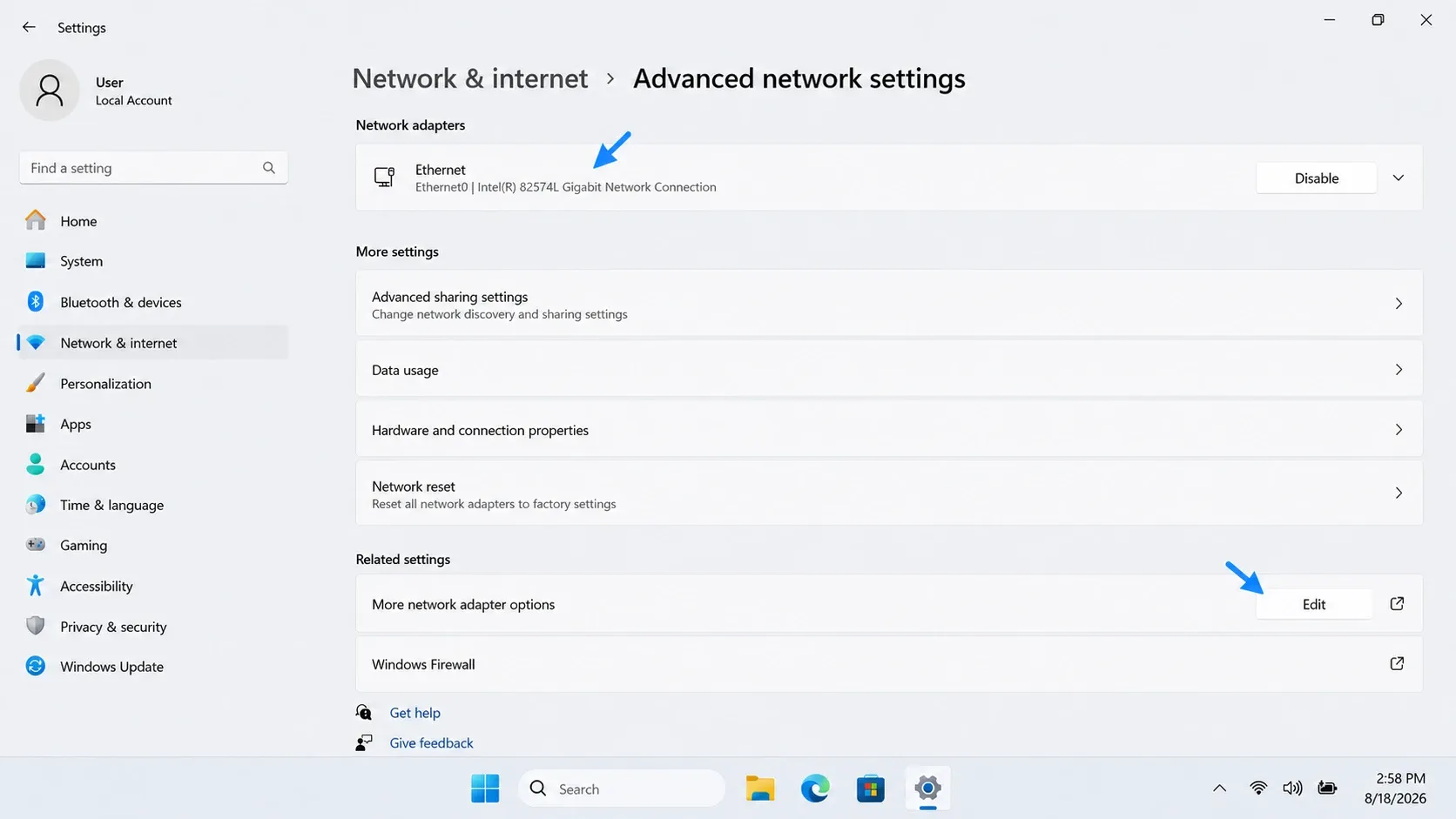
6. Click Configure... next to the network adapter name.
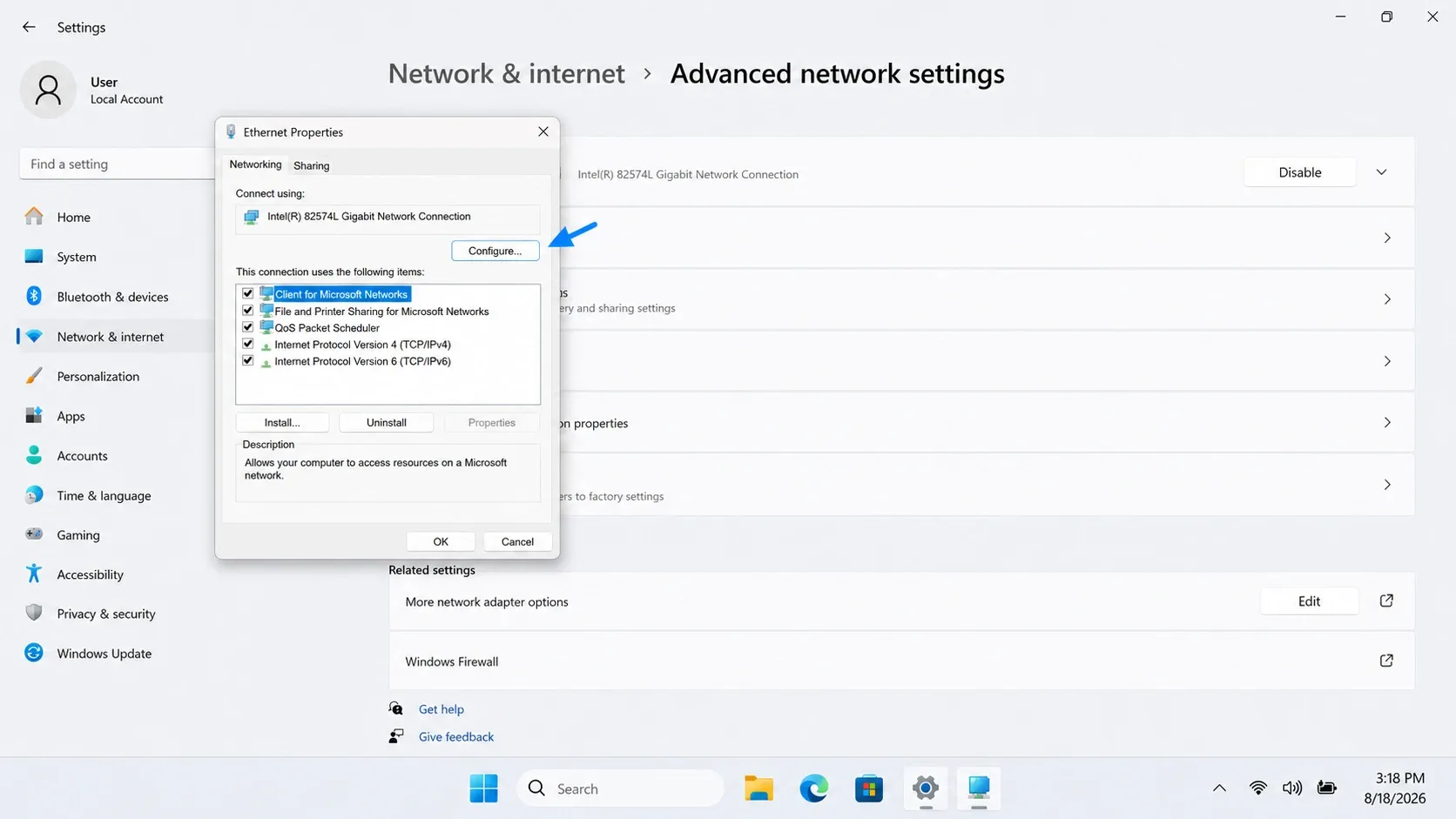
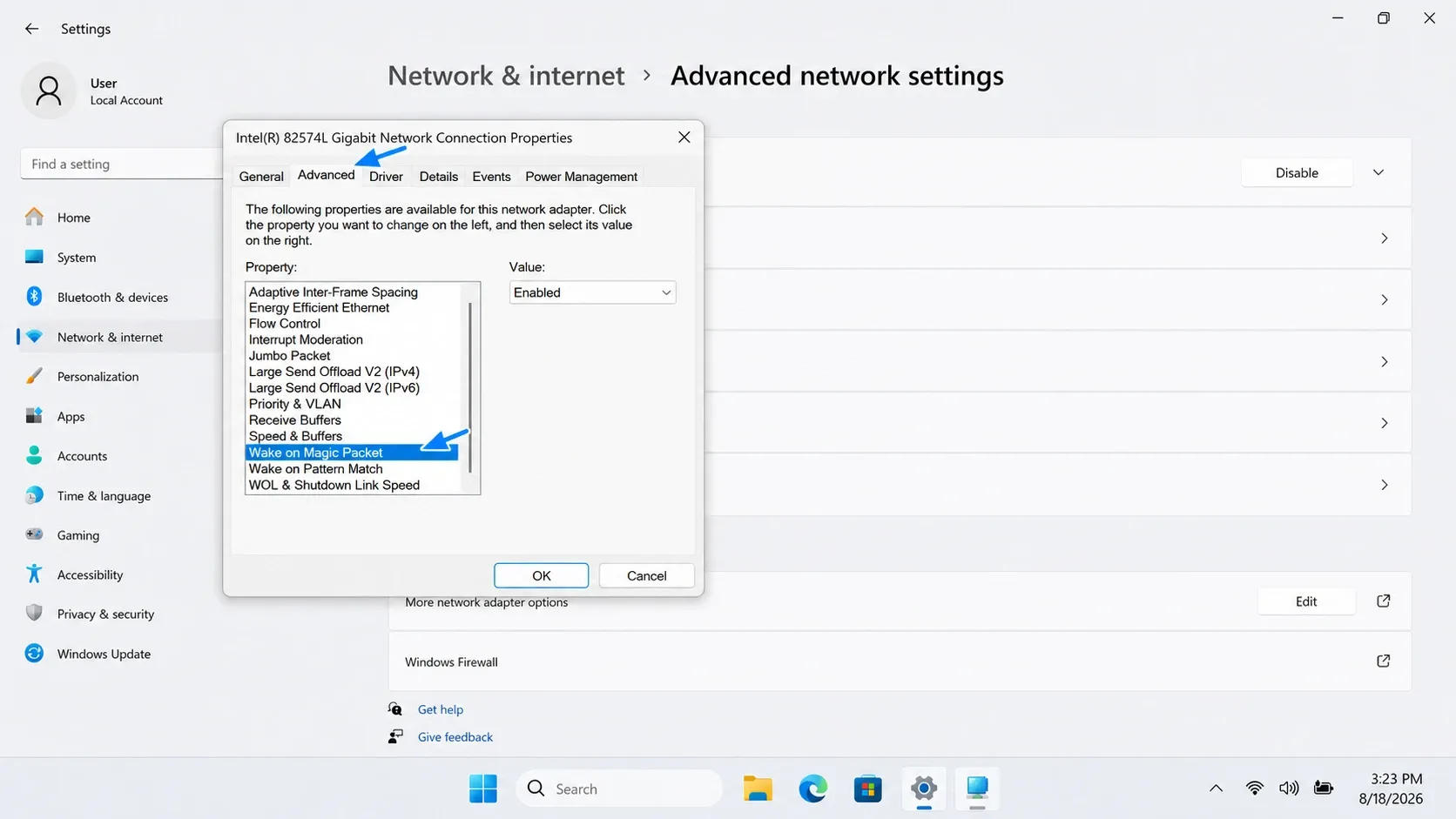
7. Click the Advanced tab.
8. Find Wake on Magic Packet and set it to Enabled.
Quick note: The option name varies by manufacturer. Here, it appears as Wake on Magic Packet. If you can't find it, check your PC or motherboard manufacturer's support documentation.
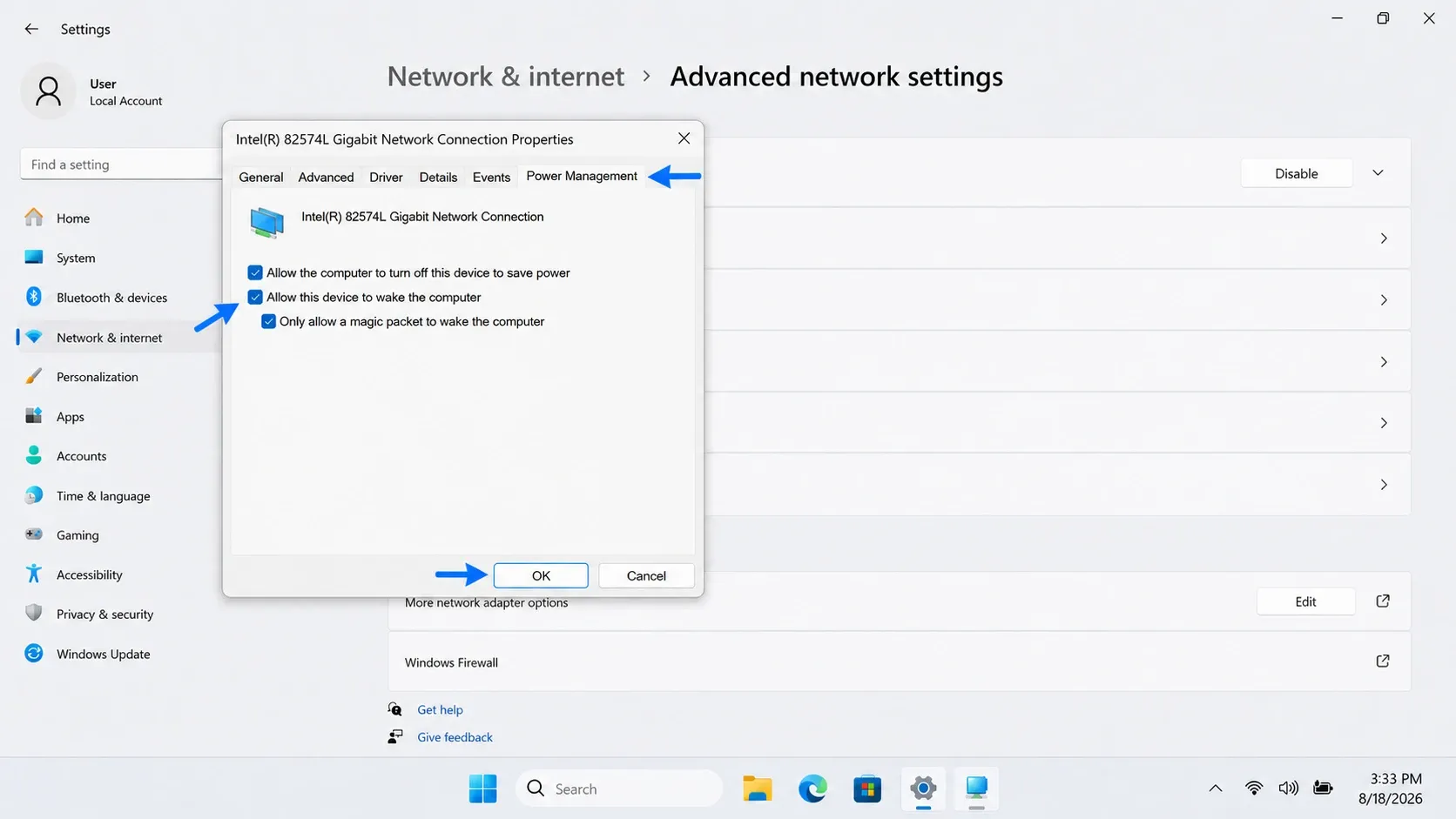
9. Open the Power Management tab, enable these options:
- Enable Allow the computer to turn off this device to save power option.
- Enable Allow this device to wake the computer option.
- Enable Only allow a magic packet to wake the computer option.
10. Select OK.
3. Test WOL inside the local network
Put the PC to sleep. From another device on the same network, send a wake command.
- If it does not wake locally, check the BIOS or UEFI setting, adapter settings, Ethernet cable, driver, and MAC address.
- If local wake works but remote wake does not, focus on how the command reaches your home or office network.
To turn off Fast Startup for a troubleshooting test, go to Control Panel → Hardware and Sound → Power Options → Choose what the power buttons do. Select Change settings that are currently unavailable, then clear Turn on fast startup. Microsoft does not recommend disabling it without a specific reason.
How to Use Wake-on-LAN Over the Internet
A Magic Packet is easy to send within a local network. Sending it from outside that network is the harder part.
Common ways to solve this include:
- Connecting to the home network through a VPN.
- Using a router with built-in remote WOL support.
- Running a WOL gateway or another always-online device inside the LAN.
- Using remote access software that can ask an online LAN device to send the packet.
Direct UDP port forwarding can work, but it requires extra router setup and can be unreliable. Router restarts, expired address mappings, changing public IP addresses, and blocked broadcast traffic can also cause it to fail.
For most people, the simpler approach is to have an authenticated device already online in the same network as the target PC. That device receives the remote request and sends the wake command locally.
AskLink uses this approach.
How to Wake and Access a PC Remotely with AskLink
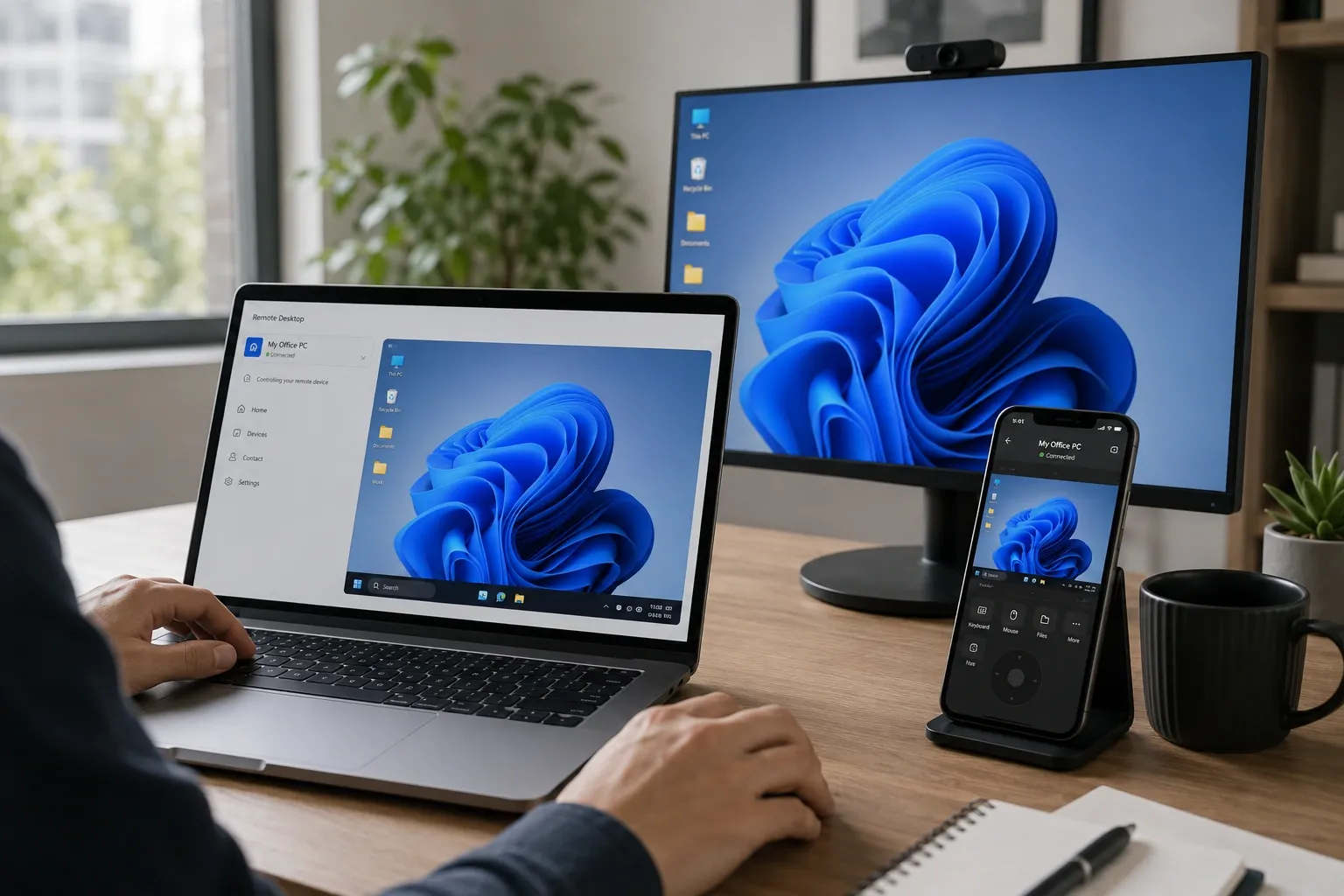
AskLink keeps remote power-on and remote control in the same Device List. The offline PC remains visible, so you can send the wake command and start a remote session from one place.
To use it:
1. Enable WOL in the target computer's BIOS or UEFI.
2. Enable the required network adapter settings.
3. Add the target Windows or Linux computer to your AskLink Device List.
4. Keep at least one signed-in AskLink device online on the same LAN as the target.
5. From another location, open AskLink and find the offline target.
6. Right-click it and select Remote Power-On.
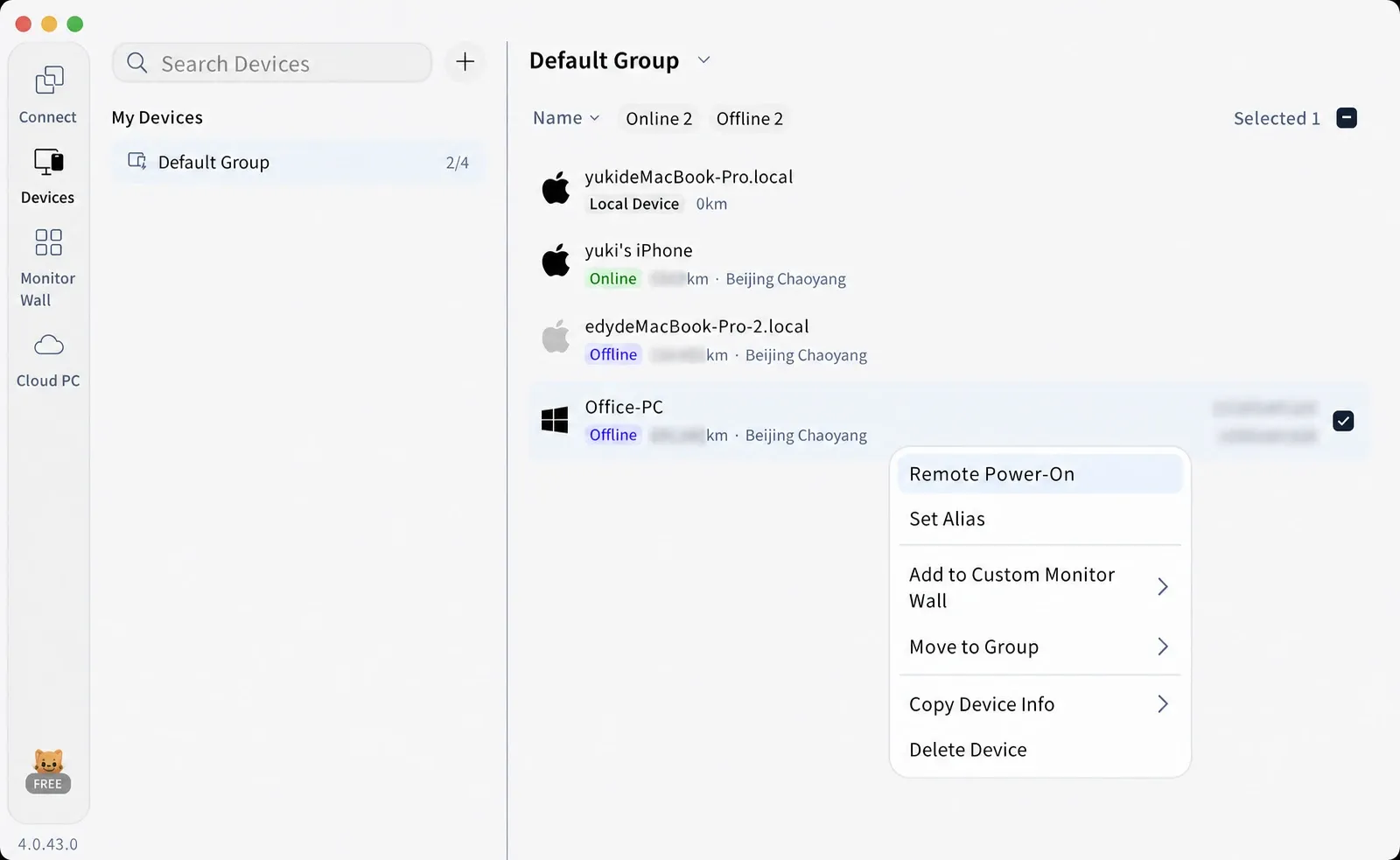
7. The online AskLink device inside the LAN sends the wake command for you.
8. Wait for the target computer to boot and appear online.
9. Start a remote-control session from the Device List.
Need help with the setup? Download AskLink and follow the Remote Power-On guide. Remote Power-On is included on every plan, even Free.
Wake-on-LAN Not Working? Follow This Checklist
WOL failures are easier to solve when you check them in the right order.
| Problem | What to check |
|---|---|
| The Ethernet light turns off | Confirm that the PC is plugged in. Review ErP, Deep Sleep, and similar BIOS settings, which may cut standby power. |
| The PC will not wake on the same network | Check BIOS or UEFI, Wake on Magic Packet, the Power Management settings, the cable, the MAC address, and the network driver. |
| Sleep works, but Shut down does not | This is expected on many PCs. Windows does not officially support WOL from Fast Startup or a full shutdown. Check whether the hardware documentation explicitly supports firmware wake from S5; otherwise, use Sleep or Hibernate. |
| Local wake works, but remote wake does not | Check the VPN, router, gateway, or online AskLink device that should send the command inside the local network. |
| The PC wakes by itself | Enable Only allow a magic packet to wake the computer. Disable pattern-match wake if you do not need it. |
| Wi-Fi wake is unreliable | Confirm that the PC supports WoWLAN. If possible, use wired Ethernet instead. |
| AskLink cannot send the wake command | Keep at least one signed-in AskLink device online on the target PC's local network. |
Dell also recommends checking standby power, driver settings, Deep Sleep, and Energy-Efficient Ethernet when WOL fails.
Is Wake-on-LAN Safe?
Wake-on-LAN sends a wake signal. It does not sign in to Windows or create a remote-control session.
Keep the rest of the setup secure:
- Avoid exposing broadcast services directly to the internet.
- Allow only Magic Packets to trigger wake events.
- Keep Windows, network drivers, and AskLink updated.
- Use strong account and unattended-access passwords.
- Remove Controller authorizations you no longer use.
- Keep the Windows lock screen enabled.
Conclusion
Wake-on-LAN solves one part of remote access: getting a compatible PC online. It does not give you remote control by itself.
First, complete the hardware and Windows setup, then test WOL on the same local network. If you need to wake a PC from another location and continue with remote control, AskLink can help.
Need to access a PC that's currently offline? Try AskLink Remote Power-On.