'%3e%3cpath%20d='M7.48145%2024H3.74023C1.67456%2023.9999%204.09854e-05%2022.3467%200%2020.3076V16.6152H7.48145V24ZM15.8955%2024H8.41406V16.6152H15.8955V24ZM7.48145%2015.6924H0V8.30762H7.48145V15.6924ZM24%2015.6924H16.5195V8.30762H24V15.6924ZM15.5859%207.38477H8.10547V0H15.5859V7.38477ZM20.2598%200C22.3256%200%2024%201.65318%2024%203.69238V7.38477H16.5195V0H20.2598Z'%20fill='white'/%3e%3cpath%20d='M108.786%2019.0507L105.767%2014.2636H104.397L108.397%208.80874H111.915L108.119%2013.9483V12.3155L112.544%2019.0507H108.786ZM101.527%2019.0507V5.5061H104.897V19.0507H101.527Z'%20fill='white'/%3e%3cpath%20d='M88.8242%2019.0505V8.80858H91.4908V13.2059H91.3421C91.3421%2012.1422%2091.4779%2011.264%2091.7499%2010.5712C92.0214%209.86618%2092.4224%209.34052%2092.953%208.99418C93.4965%208.64778%2094.1506%208.47461%2094.9158%208.47461H95.0644C96.2245%208.47461%2097.1193%208.86427%2097.7488%209.64353C98.3911%2010.4104%2098.7117%2011.5917%2098.7117%2013.1874V19.0505H95.342V13.0946C95.342%2012.6246%2095.2001%2012.2411%2094.9158%2011.9443C94.6443%2011.635%2094.2679%2011.4804%2093.7864%2011.4804C93.3049%2011.4804%2092.9162%2011.635%2092.6202%2011.9443C92.3358%2012.2411%2092.194%2012.6369%2092.194%2013.1317V19.0505H88.8242Z'%20fill='white'/%3e%3cpath%20d='M82.4214%2019.0506V8.80875H85.7912V19.0506H82.4214ZM81.125%2011.2579V8.80875H85.7912V11.2579H81.125ZM83.81%207.99232C83.1928%207.99232%2082.7359%207.83773%2082.4398%207.5285C82.1561%207.2069%2082.0137%206.79872%2082.0137%206.30388C82.0137%205.80913%2082.1561%205.40713%2082.4398%205.09789C82.7359%204.77628%2083.1866%204.61548%2083.7916%204.61548C84.4088%204.61548%2084.8595%204.77628%2085.1433%205.09789C85.427%205.40713%2085.5688%205.80913%2085.5688%206.30388C85.5688%206.79872%2085.427%207.2069%2085.1433%207.5285C84.8595%207.83773%2084.4149%207.99232%2083.81%207.99232Z'%20fill='white'/%3e%3cpath%20d='M71.1328%2019.0507V5.5061H74.5769V19.0507H71.1328ZM74.2065%2019.0507V16.0449H79.6876V19.0507H74.2065Z'%20fill='white'/%3e%3cpath%20d='M65.4458%2019.0507L62.428%2014.2636H61.0576L65.0571%208.80874H68.5755L64.7795%2013.9483V12.3155L69.2049%2019.0507H65.4458ZM58.1875%2019.0507V5.5061H61.5578V19.0507H58.1875Z'%20fill='white'/%3e%3cpath%20d='M51.2917%2019.3845C49.8103%2019.3845%2048.6438%2019.0814%2047.7921%2018.4753C46.9403%2017.8568%2046.4836%2016.991%2046.4219%2015.8777H49.3844C49.4339%2016.1869%2049.6252%2016.4529%2049.9585%2016.6755C50.2918%2016.8982%2050.7608%2017.0095%2051.3657%2017.0095C51.7978%2017.0095%2052.1681%2016.9477%2052.4767%2016.824C52.7977%2016.6879%2052.9581%2016.4715%2052.9581%2016.1745C52.9581%2015.9148%2052.8347%2015.7045%2052.5878%2015.5437C52.3409%2015.3705%2051.8903%2015.2531%2051.2361%2015.1912L50.5325%2015.117C49.224%2014.9809%2048.2611%2014.6222%2047.6439%2014.0408C47.0267%2013.4595%2046.7181%2012.7297%2046.7181%2011.8515C46.7181%2011.0969%2046.9033%2010.4784%2047.2736%209.99603C47.6439%209.50126%2048.1562%209.13018%2048.8105%208.8828C49.4647%208.63541%2050.2115%208.51172%2051.0509%208.51172C52.4211%208.51172%2053.526%208.81473%2054.3653%209.42089C55.2048%2010.0146%2055.6492%2010.8743%2055.6986%2011.9999H52.7359C52.6866%2011.6907%2052.5199%2011.4309%2052.236%2011.2206C51.9521%2010.998%2051.5447%2010.8867%2051.0139%2010.8867C50.6312%2010.8867%2050.3164%2010.9547%2050.0696%2011.0907C49.835%2011.2268%2049.7178%2011.4185%2049.7178%2011.6659C49.7178%2011.9257%2049.8289%2012.1174%2050.0511%2012.2411C50.2856%2012.3648%2050.6559%2012.4576%2051.162%2012.5194L51.8657%2012.5936C53.1741%2012.7297%2054.1802%2013.0946%2054.8838%2013.6883C55.5998%2014.2697%2055.9578%2015.0366%2055.9578%2015.989C55.9578%2016.6941%2055.7664%2017.3002%2055.3838%2017.8073C55.0134%2018.3145%2054.4764%2018.7041%2053.7728%2018.9763C53.0816%2019.2484%2052.2545%2019.3845%2051.2917%2019.3845Z'%20fill='white'/%3e%3cpath%20d='M31.0117%2019.0507L35.3445%205.5061H40.8624L45.3434%2019.0507H41.7882L38.3072%207.91816L39.2885%208.28924H36.8444L37.8442%207.91816L34.4558%2019.0507H31.0117ZM34.5483%2015.915L35.5853%2013.0948H40.7143L41.7512%2015.915H34.5483Z'%20fill='white'/%3e%3c/g%3e%3cdefs%3e%3cclipPath%20id='clip0_5596_142775'%3e%3crect%20width='113'%20height='24'%20fill='white'/%3e%3c/clipPath%3e%3c/defs%3e%3c/svg%3e "AskLink")
 Ethan Miller
When something goes wrong with a computer, explaining the problem over the phone is not always easy. The person helping you may need to see the same screen, check a setting, or take control long enough to fix the issue.
Remote support is a way to provide technical help from another location. In a typical session, a technician or trusted helper uses remote support software to view or control a device, diagnose a problem, change settings, install software, or guide the user through a fix.
Remote support is about solving a technical problem, not simply creating a remote connection. The remote connection is the means, not the goal. In this blog, we'll explore what remote support is, how it works, its benefits and limits, and how to request or provide remote support with AskLink.
How Does Remote Support Work?
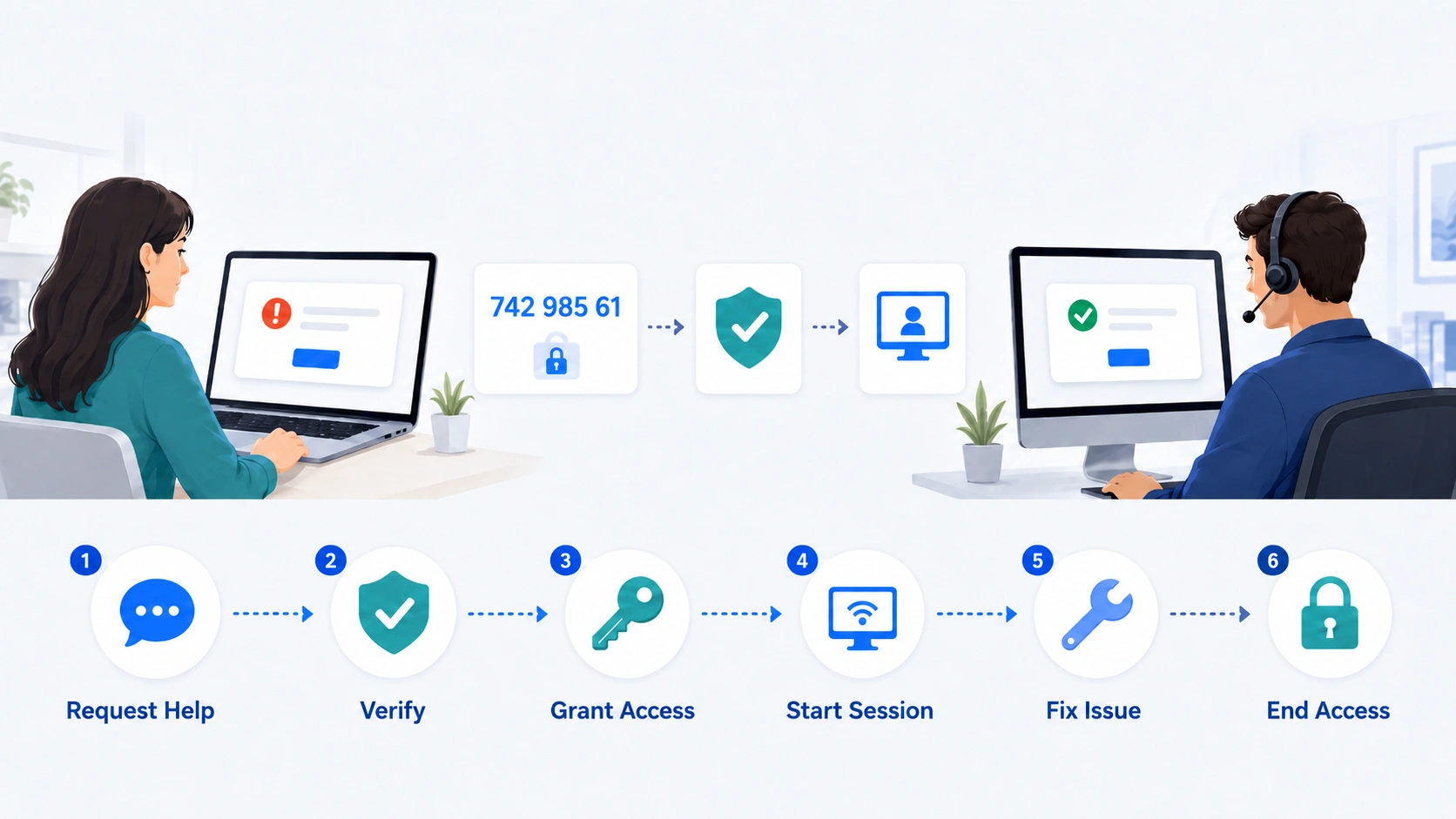
Most remote support sessions follow a similar flow:
Request help → Verify the helper → Grant access → Start the session → Diagnose and fix → End access
First, the user reports a problem. This could be an app that will not open, a setting that needs to be changed, or a device that is not working as expected.
Before granting access, the user should verify who is providing the support. It matters especially when the session involves remote control rather than screen sharing alone.
The user then approves the connection. Depending on the remote support tool, it may involve a session code, device ID, temporary password, invitation link, or another form of approval.
Once the session starts, the technician can inspect the problem. Some tools only allow screen viewing, while others support remote control, file transfer, chat, or other assistance features.
The technician can then work on the issue by changing a setting, reinstalling software, updating a driver, or guiding the user through a task.
When the problem is resolved, the session should end and any temporary access should be removed or refreshed. A successful connection is only part of remote support; the process is complete when the issue is addressed and access is properly closed.
Attended vs. Unattended Remote Support
Remote support is usually delivered in two ways: attended support and unattended support.
| Attended Remote Support | Unattended Remote Support | |
|---|---|---|
| Is the user usually present? | Yes | Not always |
| How is access granted? | Usually for a specific session | Usually set up in advance |
| Typical use | One-time troubleshooting, help desk, customer support | Ongoing maintenance and support for managed devices |
| Setup | Often temporary | Usually requires prior configuration |
| Main access concern | User consent and helper identity | Long-term authorization and access control |
With attended remote support, the person receiving help is usually at the device. They may give the technician a temporary code or approve the connection when help is needed.
With unattended support, access is usually configured in advance. An authorized technician can then connect without someone being present at the device each time.
The difference is not only whether someone is present. It also changes how long access lasts, how permissions are managed, and what security controls are needed.
For example, a one-time session protected by a temporary password is managed differently from a device that remains available for ongoing remote access.
Remote Support vs. Remote Access vs. Remote Desktop
Remote support, remote access, and remote desktop are related, but they describe different things.
| Term | Main idea | Example |
|---|---|---|
| Remote support | Solving another user's technical problem remotely | IT fixes an employee's software issue |
| Remote access | Connecting to a device or resource from another location | Accessing your office PC from home |
| Remote desktop | Viewing and interacting with another computer's desktop | Using another computer's desktop from a different device |
Put it simply, remote support describes the purpose, remote access describes the connection capability, and remote desktop describes one common way to interact with the remote computer.
Remote support often relies on remote access or remote desktop technology, but not every remote connection is a support session.
If you connect to your own office computer from home to finish a document, that is remote access. If an IT technician connects to your computer because Photoshop stopped opening after an update, that is remote support.
Remote support tools may also work alongside RMM, help desk, or VPN systems, but they are not the same thing. Remote control alone does not include ticketing, device monitoring, patching, or network-level access.
Common Remote Support Examples
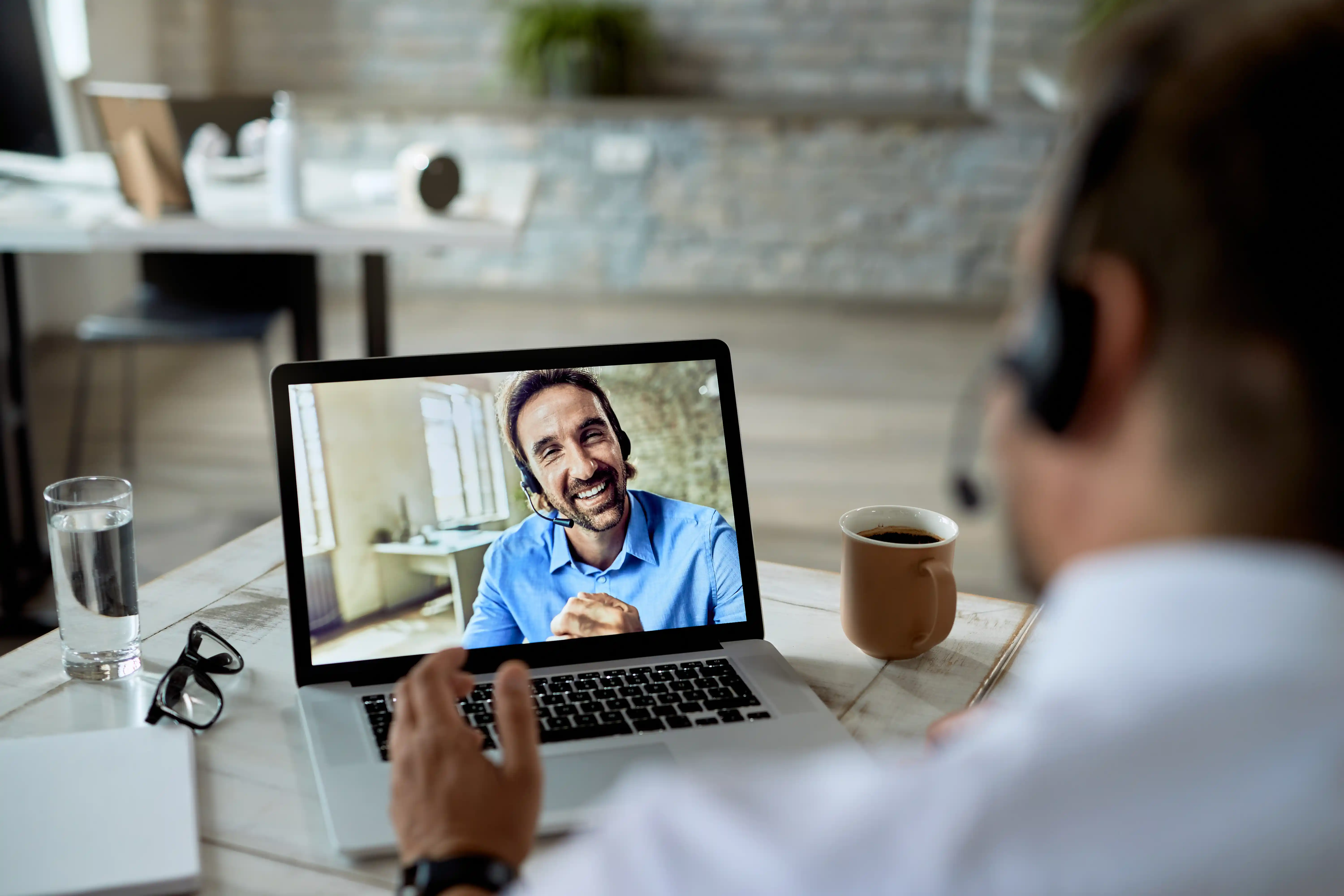
Remote support is commonly used when a helper needs to see what is happening on a device or interact with it directly.
Fixing software problems. An employee cannot open Photoshop after an update. Instead of asking the employee to describe every message over the phone, IT can inspect the device remotely and check the installation, settings, or permissions.
Installing or configuring software. A technician may install a new application, set up a printer, configure permissions, or adjust system settings for the user.
Helping a customer use a product. Remote support is not limited to internal IT teams. A software company may help a customer complete setup, find a feature, or fix a configuration problem while seeing the same screen.
Supporting managed devices. IT teams may also help with office computers, kiosks, or other authorized devices that are not always near the technician. These setups may require access to be configured in advance.
Benefits and Limits of Remote Support
Many of the benefits of remote support come from allowing the person solving the problem to work with the actual device rather than relying only on instructions from a distance.
Faster Troubleshooting
With remote support, the technician can see error messages, settings, and application behavior directly. This can make it easier to identify the real problem.
Fewer for On-Site Visits
Many software, account, and configuration problems do not require someone to physically visit the device.
A remote session can handle tasks such as changing settings, installing software, checking an error, or guiding a user through a process.
Support Users in Different Locations
A support team does not need to be in the same office as the people it helps. The same team can assist employees working from home, customers in another city, or devices installed at another site.
This makes remote support solutions useful for distributed teams as well as traditional help desks.
When Remote Support Is Not Enough
Remote support still depends on the device being reachable and usable.
It may not work when:
- the device has no network connection
- the computer cannot power on
- physical hardware needs to be repaired or replaced
- operating-system permissions block the required action
- company policies do not allow the needed level of access
In these cases, remote support may help identify the issue, but someone may still need to work with the device in person.
Is Remote Support Safe?
Remote support can be safe when access is granted to a trusted person and controlled properly, but the same access can be abused in a scam or unauthorized session.
Safety depends on more than whether a remote support solution uses encryption. It also depends on who is connecting, what access they have, and when that access ends.
For People Receiving Remote Support
Only accept remote support from a person or organization you trust. A session requested by your own IT team is very different from an unexpected caller, message, or pop-up claiming that your computer has a problem.
The U.S. Federal Trade Commission warns that tech support scams often use unexpected phone calls, messages, or fake security pop-ups to convince people to provide remote access.
Before sharing a session code, device ID, or password:
- Verify who the helper is.
- Make sure you understand why they need access.
- Only grant the access required for the task.
- Pay attention to what happens on screen when possible.
- End the connection when the support session is finished.
- Refresh temporary credentials or remove access that is no longer needed.
If someone you did not contact tells you to install a remote access app immediately, treat that as a warning sign rather than a normal support process.
For Businesses Using Remote Support Tools
Businesses need to look beyond whether the software can connect successfully.
CISA and other security agencies note that remote access software can support legitimate IT work but can also be abused by attackers. Because these tools may have broad access to a device, the way access is controlled matters.
When evaluating a remote support tool, useful questions include:
- How are technicians and users authenticated?
- Does the user need to approve attended sessions?
- Can access be limited by user, device, or role?
- Can access be revoked when it is no longer needed?
- Is connection or session history available?
There is no single security feature that makes every support session safe. Good security depends on both the software and the way people use it.
What Is Remote Support Software?
Remote support software is a tool that helps a technician or trusted helper assist another user or device from a different location.
Depending on the product, it may support:
- screen viewing
- remote control
- temporary or approved access
- file transfer
- session history or communication features
The exact feature set varies between products.
Remote support technology usually handles the connection and control part of the support process, but it does not automatically include ticketing, asset tracking, patching, or full RMM or ITSM capabilities.
The right remote support software depends on how support is delivered. One-time troubleshooting may need simple session approval, while ongoing support for managed devices may require stronger authentication, permission controls, and access history.
How AskLink Supports Remote Assistance
AskLink supports remote assistance when a trusted person needs to view or control another device to help solve a problem.
For a temporary support session, the person receiving help can open AskLink and find the Device ID and Temporary Password on the Connect screen. They can then share those details with a trusted helper. (Read our tutorial on Request Remote Assistance)
The helper enters those details in AskLink to start the connection. Once connected, they can view and control the authorized device to investigate the problem and help fix it.
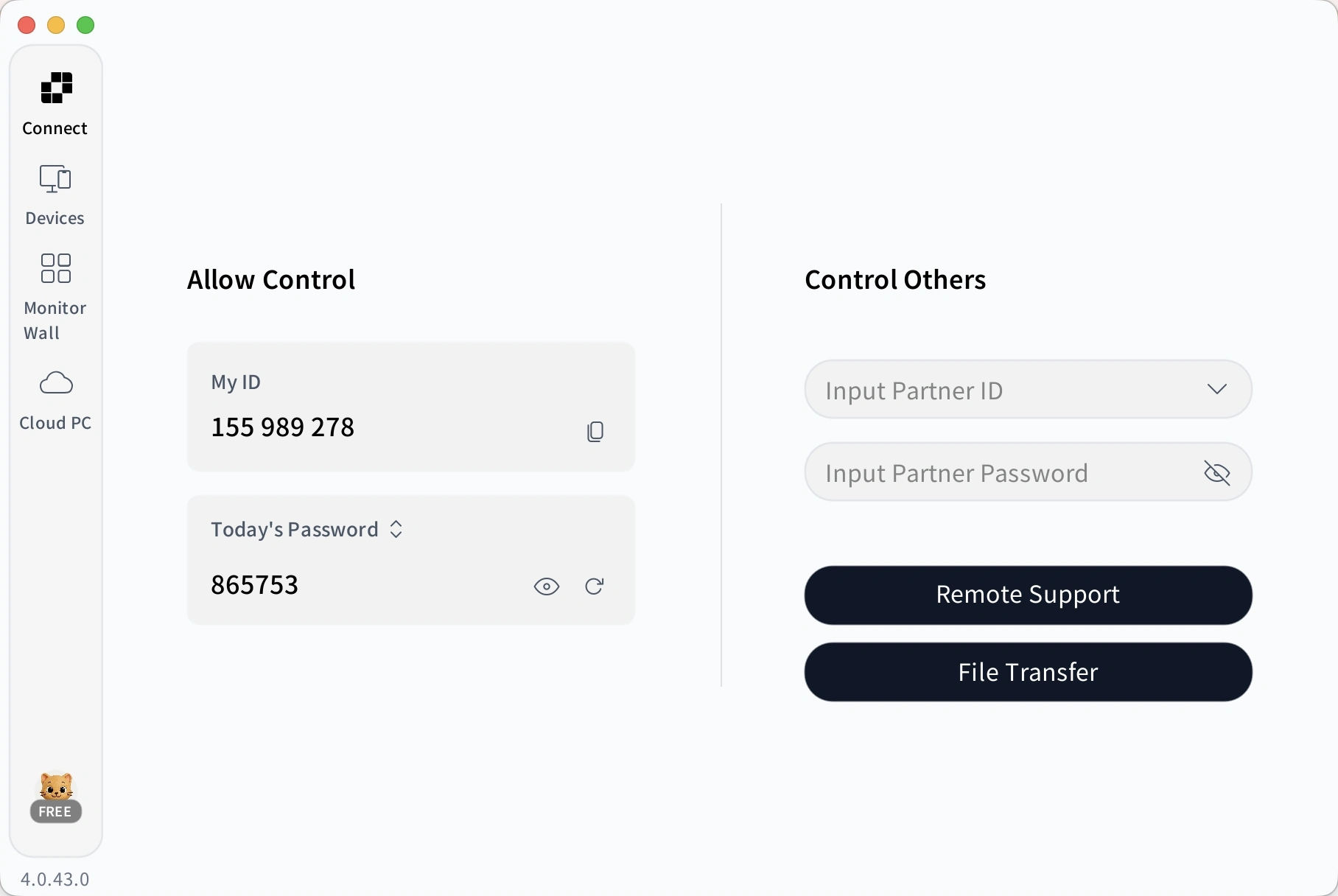
After the session, the temporary password can be refreshed so the previous details cannot be reused for another connection. This setup works well for one-time troubleshooting because the user can share temporary access only when help is needed.
AskLink can also support unattended remote support when long-term access has been set up in advance. If the person receiving support has provided a Persistent Password, an authorized helper can connect later without needing a new Temporary Password for each session. This can be useful for ongoing support or maintenance, but persistent access should only be shared with people who are trusted to access the device over time.
AskLink also allows users to connect to authorized devices from the device list. This can make repeated access easier when the same device needs support again, depending on the account setup, permissions, and platform.
For teams, AskLink Business also supports managing Controlled devices and assigning device access to members.
Need to help someone troubleshoot a device remotely? Download AskLink and easily start a temporary support session in seconds.
Conclusion
Remote support is about solving a technical problem from another location, not simply creating a connection. Remote access provides the connection, while remote desktop is one way to interact with another computer during that session.
With AskLink, users can start a temporary remote support session with a Device ID and Temporary Password, or set up longer-term access with a Persistent Password when unattended support is needed. Just give it a try!