'%3e%3cpath%20d='M7.48145%2024H3.74023C1.67456%2023.9999%204.09854e-05%2022.3467%200%2020.3076V16.6152H7.48145V24ZM15.8955%2024H8.41406V16.6152H15.8955V24ZM7.48145%2015.6924H0V8.30762H7.48145V15.6924ZM24%2015.6924H16.5195V8.30762H24V15.6924ZM15.5859%207.38477H8.10547V0H15.5859V7.38477ZM20.2598%200C22.3256%200%2024%201.65318%2024%203.69238V7.38477H16.5195V0H20.2598Z'%20fill='white'/%3e%3cpath%20d='M108.786%2019.0507L105.767%2014.2636H104.397L108.397%208.80874H111.915L108.119%2013.9483V12.3155L112.544%2019.0507H108.786ZM101.527%2019.0507V5.5061H104.897V19.0507H101.527Z'%20fill='white'/%3e%3cpath%20d='M88.8242%2019.0505V8.80858H91.4908V13.2059H91.3421C91.3421%2012.1422%2091.4779%2011.264%2091.7499%2010.5712C92.0214%209.86618%2092.4224%209.34052%2092.953%208.99418C93.4965%208.64778%2094.1506%208.47461%2094.9158%208.47461H95.0644C96.2245%208.47461%2097.1193%208.86427%2097.7488%209.64353C98.3911%2010.4104%2098.7117%2011.5917%2098.7117%2013.1874V19.0505H95.342V13.0946C95.342%2012.6246%2095.2001%2012.2411%2094.9158%2011.9443C94.6443%2011.635%2094.2679%2011.4804%2093.7864%2011.4804C93.3049%2011.4804%2092.9162%2011.635%2092.6202%2011.9443C92.3358%2012.2411%2092.194%2012.6369%2092.194%2013.1317V19.0505H88.8242Z'%20fill='white'/%3e%3cpath%20d='M82.4214%2019.0506V8.80875H85.7912V19.0506H82.4214ZM81.125%2011.2579V8.80875H85.7912V11.2579H81.125ZM83.81%207.99232C83.1928%207.99232%2082.7359%207.83773%2082.4398%207.5285C82.1561%207.2069%2082.0137%206.79872%2082.0137%206.30388C82.0137%205.80913%2082.1561%205.40713%2082.4398%205.09789C82.7359%204.77628%2083.1866%204.61548%2083.7916%204.61548C84.4088%204.61548%2084.8595%204.77628%2085.1433%205.09789C85.427%205.40713%2085.5688%205.80913%2085.5688%206.30388C85.5688%206.79872%2085.427%207.2069%2085.1433%207.5285C84.8595%207.83773%2084.4149%207.99232%2083.81%207.99232Z'%20fill='white'/%3e%3cpath%20d='M71.1328%2019.0507V5.5061H74.5769V19.0507H71.1328ZM74.2065%2019.0507V16.0449H79.6876V19.0507H74.2065Z'%20fill='white'/%3e%3cpath%20d='M65.4458%2019.0507L62.428%2014.2636H61.0576L65.0571%208.80874H68.5755L64.7795%2013.9483V12.3155L69.2049%2019.0507H65.4458ZM58.1875%2019.0507V5.5061H61.5578V19.0507H58.1875Z'%20fill='white'/%3e%3cpath%20d='M51.2917%2019.3845C49.8103%2019.3845%2048.6438%2019.0814%2047.7921%2018.4753C46.9403%2017.8568%2046.4836%2016.991%2046.4219%2015.8777H49.3844C49.4339%2016.1869%2049.6252%2016.4529%2049.9585%2016.6755C50.2918%2016.8982%2050.7608%2017.0095%2051.3657%2017.0095C51.7978%2017.0095%2052.1681%2016.9477%2052.4767%2016.824C52.7977%2016.6879%2052.9581%2016.4715%2052.9581%2016.1745C52.9581%2015.9148%2052.8347%2015.7045%2052.5878%2015.5437C52.3409%2015.3705%2051.8903%2015.2531%2051.2361%2015.1912L50.5325%2015.117C49.224%2014.9809%2048.2611%2014.6222%2047.6439%2014.0408C47.0267%2013.4595%2046.7181%2012.7297%2046.7181%2011.8515C46.7181%2011.0969%2046.9033%2010.4784%2047.2736%209.99603C47.6439%209.50126%2048.1562%209.13018%2048.8105%208.8828C49.4647%208.63541%2050.2115%208.51172%2051.0509%208.51172C52.4211%208.51172%2053.526%208.81473%2054.3653%209.42089C55.2048%2010.0146%2055.6492%2010.8743%2055.6986%2011.9999H52.7359C52.6866%2011.6907%2052.5199%2011.4309%2052.236%2011.2206C51.9521%2010.998%2051.5447%2010.8867%2051.0139%2010.8867C50.6312%2010.8867%2050.3164%2010.9547%2050.0696%2011.0907C49.835%2011.2268%2049.7178%2011.4185%2049.7178%2011.6659C49.7178%2011.9257%2049.8289%2012.1174%2050.0511%2012.2411C50.2856%2012.3648%2050.6559%2012.4576%2051.162%2012.5194L51.8657%2012.5936C53.1741%2012.7297%2054.1802%2013.0946%2054.8838%2013.6883C55.5998%2014.2697%2055.9578%2015.0366%2055.9578%2015.989C55.9578%2016.6941%2055.7664%2017.3002%2055.3838%2017.8073C55.0134%2018.3145%2054.4764%2018.7041%2053.7728%2018.9763C53.0816%2019.2484%2052.2545%2019.3845%2051.2917%2019.3845Z'%20fill='white'/%3e%3cpath%20d='M31.0117%2019.0507L35.3445%205.5061H40.8624L45.3434%2019.0507H41.7882L38.3072%207.91816L39.2885%208.28924H36.8444L37.8442%207.91816L34.4558%2019.0507H31.0117ZM34.5483%2015.915L35.5853%2013.0948H40.7143L41.7512%2015.915H34.5483Z'%20fill='white'/%3e%3c/g%3e%3cdefs%3e%3cclipPath%20id='clip0_5596_142775'%3e%3crect%20width='113'%20height='24'%20fill='white'/%3e%3c/clipPath%3e%3c/defs%3e%3c/svg%3e "AskLink")
 Sophie Carter
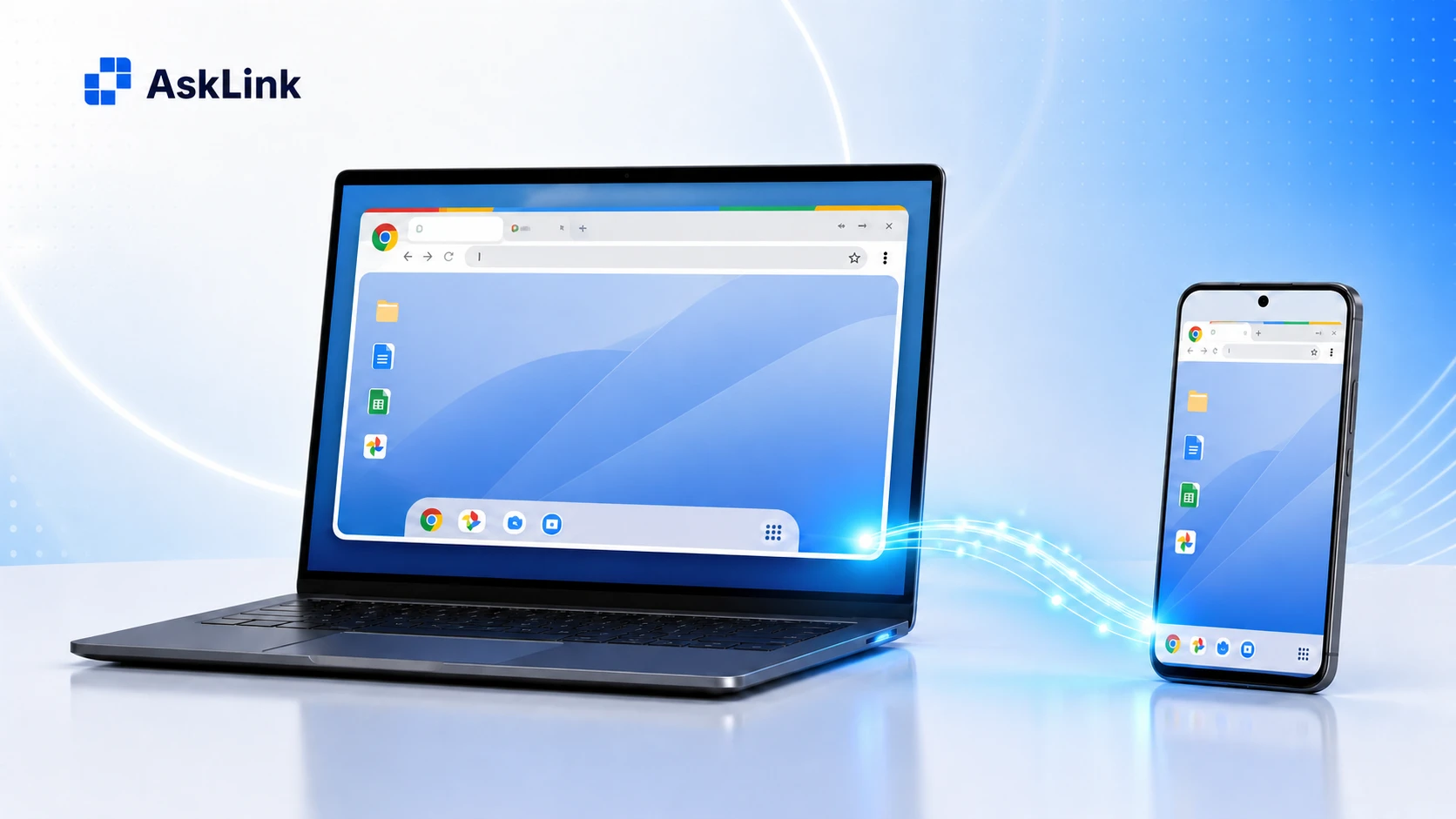
Chrome Remote Desktop lets you control a Windows, Mac, or Linux computer from another computer or mobile device. You can access your own computer from somewhere else or temporarily control another person's computer to help with a problem.
For most people, setup takes only a few minutes. You need a Google Account, Chrome on the computer you want to access, an internet connection, and permission to install the Chrome Remote Desktop Host.
It remains a good choice for free, occasional personal access. The key is choosing the correct connection mode, preparing the host computer properly, and knowing what to check when the device suddenly appears offline. This guide takes you from the first setup to everyday controls, troubleshooting, and understanding when Chrome Remote Desktop may no longer be enough for your needs.
Remote Access or Remote Support: Which One Should You Use?
Chrome Remote Desktop offers two ways to connect. Choose the one that matches your situation.
| Remote Access | Remote Support | |
|---|---|---|
| Best for | Regularly accessing your own computer | Helping another person once |
| Google page | https://remotedesktop.google.com/access | https://remotedesktop.google.com/support |
| Sign-in method | Same Google Account used to register the host | Different accounts can connect |
| Connection credential | A PIN you create during setup | A one-time access code |
| Can you reconnect later? | Yes, while the computer remains registered | No, a new code is required |
| Must someone be at the host? | Not after setup | Yes, to generate and approve the connection |
For regular access to your own home or office computer, choose Remote Access and continue with the setup below.
Remote Support is for one-off help: the person at the host generates a temporary code, sends it to the helper, and approves the connection. The code works once, and sharing should be limited to someone you trust. Google also asks the person sharing the computer to confirm continued sharing every 30 minutes. See Google's official Chrome Remote Desktop instructions for the current support flow.
How to Set Up Chrome Remote Desktop Step by Step
If you want to know how to use Chrome Remote Desktop step by step, start with the computer you plan to access—the host. The basic setup is similar on Windows, macOS, and Linux, although installation prompts and system permissions differ slightly.
Step 1: Set Up the Host Computer on Windows, Mac, or Linux
The host is the computer you want to control remotely.
- Open Chrome, go to remotedesktop.google.com/access, and sign in with the Google Account you want to use.
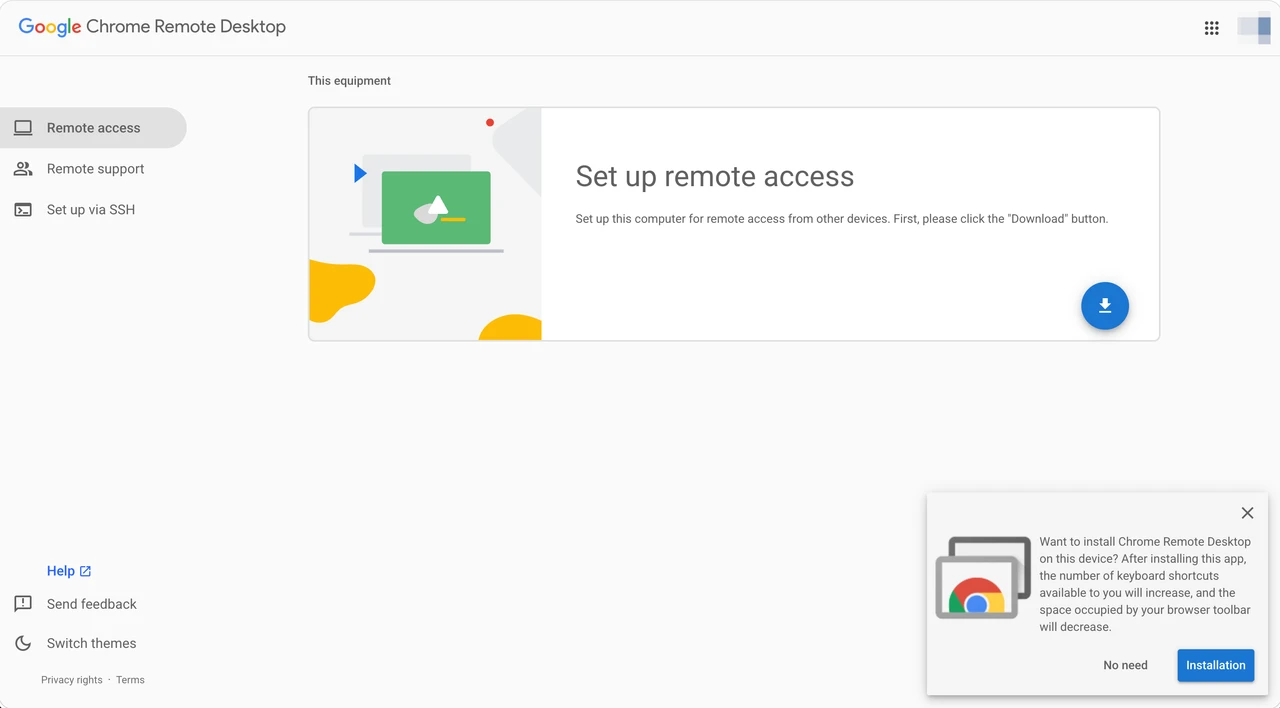
- Under Set up remote access, select Download, then follow the prompts to install Chrome Remote Desktop Host.
- Return to the Remote Access page and give the computer a recognizable name.
- Create a PIN with at least 6 digits.
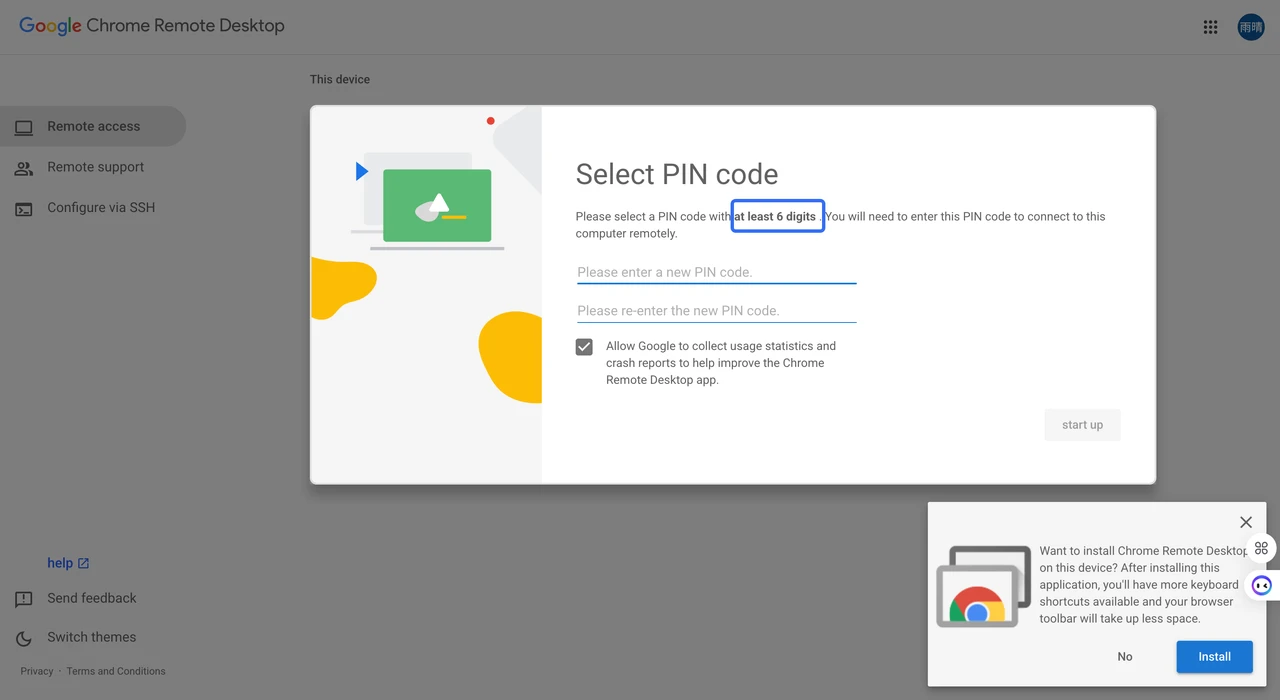
- Select Start or Turn On to finish registration.
Once the computer appears as Online, Chrome Remote Desktop is ready to use. The browser tab does not need to remain open, but the computer must stay powered on, awake, connected to the internet, and running the background host service.
Before leaving the host computer, test the connection from another device. This catches missing permissions or sleep settings while you still have physical access.
Mac permission check
macOS may ask for permission under System Settings → Privacy & Security. Make sure Chrome Remote Desktop Host is allowed under both Accessibility and Screen & System Audio Recording or Screen Recording, depending on your macOS version. Without these permissions, the connection may show a black screen or accept no keyboard and mouse input.
Linux note
Google provides a 64-bit Debian host package. Some Linux desktop environments may not support simultaneous local and remote sessions; if the connection fails, try another desktop environment or sign out of the local session first.
Step 2: Connect from Another Computer
On the computer you want to connect from:
- Open Chrome and visit remotedesktop.google.com/access.
- Sign in with the Google Account used to register the host, then select the computer from the device list.
- Enter the PIN and select the arrow to start the session.
The remote desktop opens inside the browser. Move your pointer into the remote view before typing or using keyboard shortcuts.
To end the session, open the session panel and select Disconnect. The computer remains available for later access.
Step 3: How to Use Chrome Remote Desktop on iPhone or Android
The host computer still needs to be configured first. The phone acts as the controller.
On iPhone or iPad If you already have the Chrome Remote Desktop app, open it and sign in. If the app is not available on your device, Google also supports browser access:
- Open remotedesktop.google.com/access in your browser.
- Follow the page instructions to add Chrome Remote Desktop to the Home Screen.
- Open the Home Screen shortcut.
- Select Remote Access from the menu.
- Choose the host computer and enter its PIN.
Adding the page to the Home Screen hides the browser address bar and provides a more useful full-screen view. See Google's current iPhone and iPad instructions.
On Android Install and open the Chrome Remote Desktop app, sign in, select an online computer, and enter its PIN. Android uses Trackpad mode by default:
- Swipe with one finger to move the pointer.
- Tap to click.
- Swipe with two fingers to scroll.
On a Windows host, open the session menu and go to Input controls → Configure touch input to switch to Direct touch mode. These additional touch modes are not available when the remote host is a Mac or Linux computer. See Google's Android help page for more details.
Chrome Remote Desktop Features You'll Actually Use
Full Screen, Multiple Displays, Files, Clipboard, and Audio
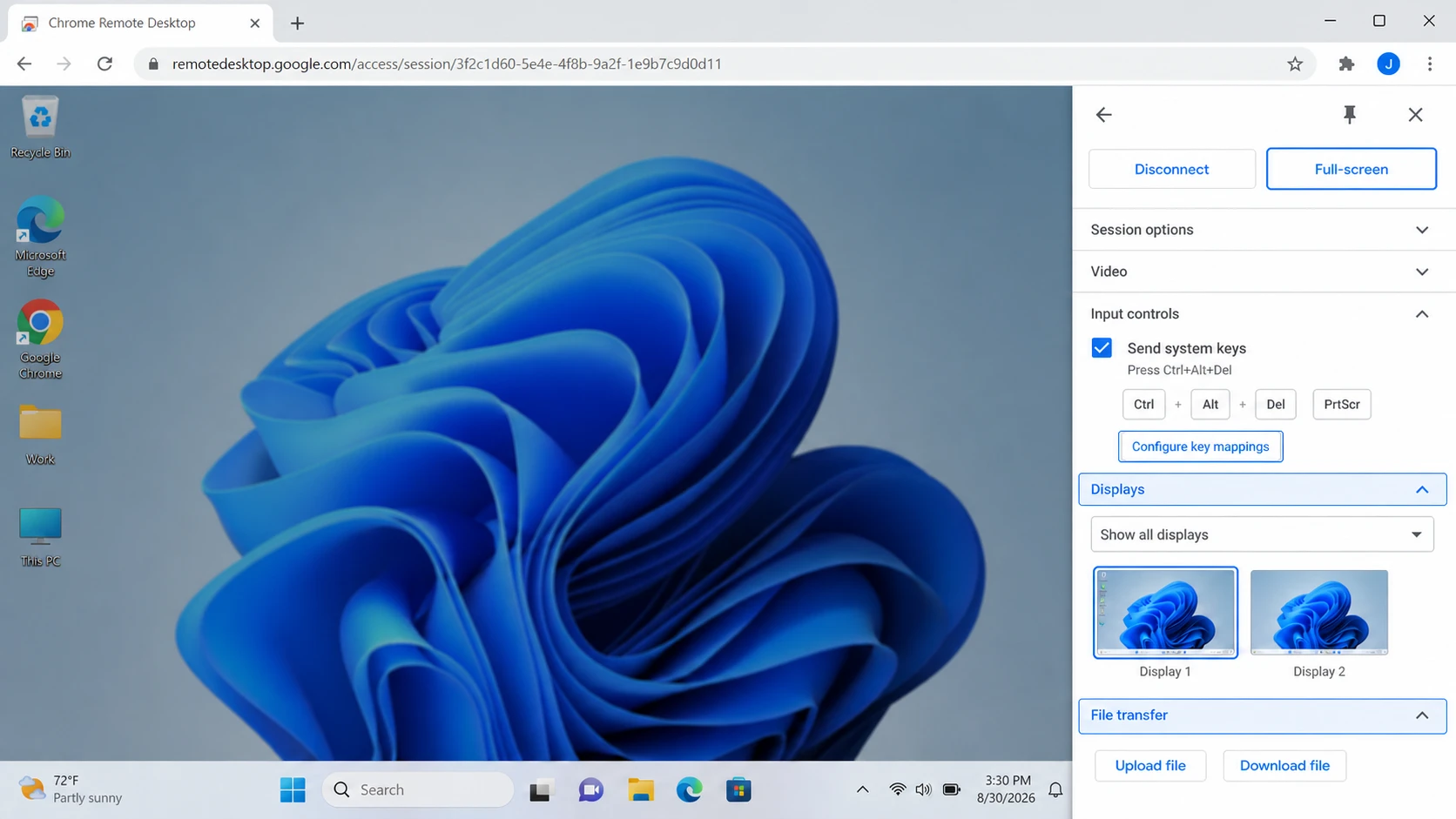
Once connected, knowing how to use Chrome Remote Desktop efficiently comes down to a few session controls. Open the small arrow at the edge of the remote view to display the session panel. Most everyday controls are located there.
| What you want to do | Where to look | What to know |
|---|---|---|
| Use the full screen | Session options → Full-screen | Full-screen mode can also help Chrome send system shortcuts to the remote computer |
| Change displays | Displays | You can choose one remote display or show all displays; multiple screens remain inside one browser session |
| Transfer files | File transfer → Upload file / Download file | Manually upload files to the host or download them back. Available for Remote Access, not Remote Support, and may be disabled by an administrator |
| Copy and paste text | Clipboard synchronization | Chrome may request permission, and managed-device policies can restrict it |
| Hear remote audio | Audio or browser sound settings | Check that the Chrome tab and remote computer are not muted if no sound arrives |
How to Use Alt+Tab in Chrome Remote Desktop By default, your local operating system may capture Alt+Tab before Chrome can send it to the remote computer. Try this sequence:
- Open the Chrome Remote Desktop session panel.
- Enable Full-screen.
- Enable Send system keys.
- Press Alt+Tab again.
If the local computer still switches windows, open Configure key mappings. Map an unused key, such as F1, to Tab, and then use Alt+F1 to send the equivalent of Alt+Tab to the remote computer.
Shortcut behavior can vary by operating system and browser version. If a shortcut previously worked but suddenly stops, exit full-screen mode, reconnect, and enable Full-screen and Send system keys again before changing the mapping.
Chrome Remote Desktop Not Working? Fix It in This Order
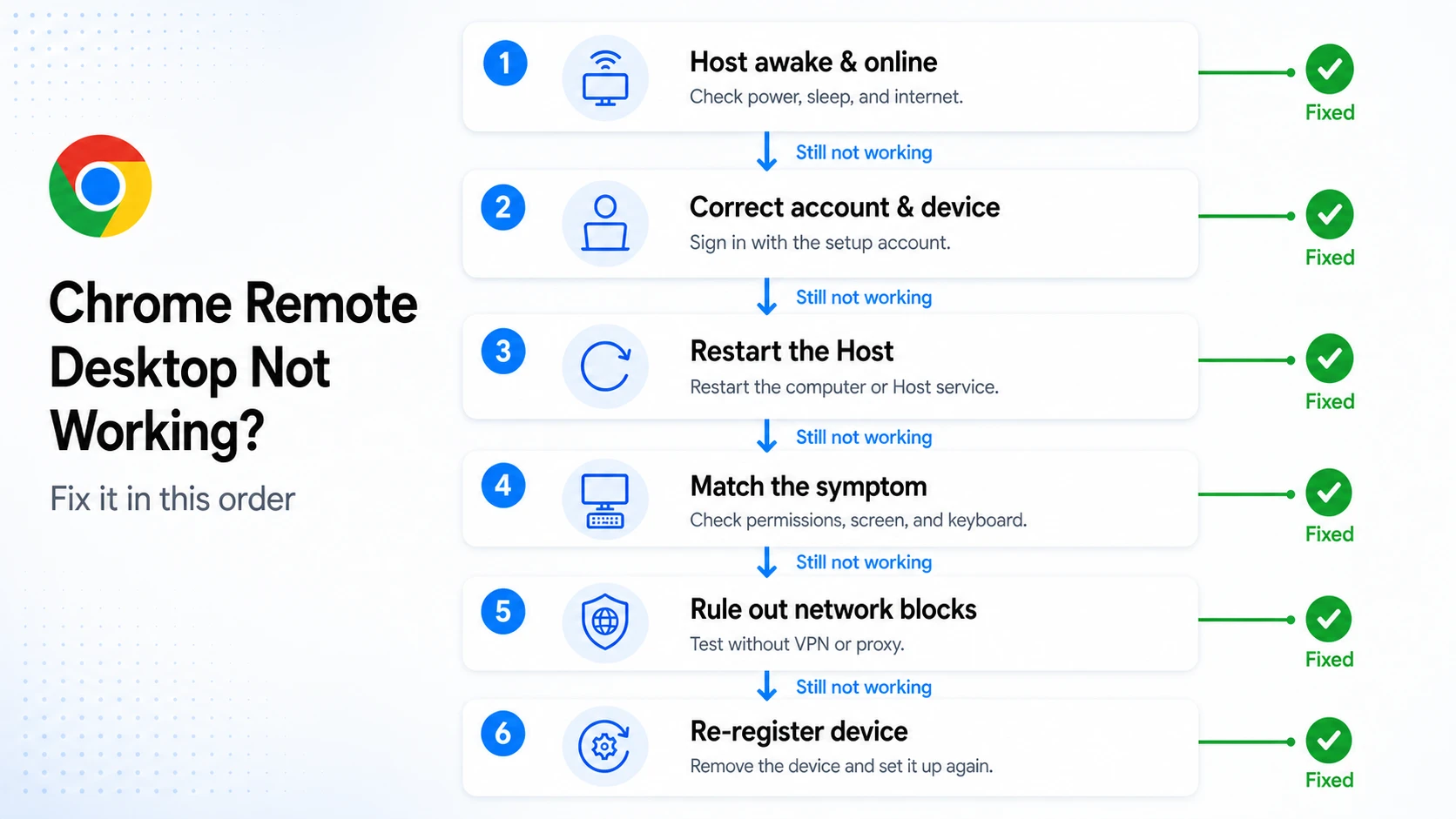
Do not begin by reinstalling everything. Work through these checks in order and stop when the connection starts working.
| Order | What to check | What to do |
|---|---|---|
| Confirm the host is available | The computer appears offline | Wake the host and check its internet connection and power settings. The Chrome Remote Desktop tab does not need to remain open, but the computer and Host service must stay running. |
| Check the account and device | The computer is online but missing from the list | Make sure you are signed in to the Google Account used during setup, then refresh the Remote Access page. If several similarly named devices appear, select the most recent registration. |
| Restart the Host | The session is stuck on “Starting” or immediately disconnects | Restart the host computer. On Windows, you can also open Services, find Chrome Remote Desktop Service, and restart it before trying again. |
| Match the remaining symptom | Black screen or keyboard problems | For a black screen on Mac, re-enable Accessibility and Screen & System Audio Recording for Chrome Remote Desktop in System Settings > Privacy & Security. If keyboard shortcuts do not work, enter full screen and enable Send system keys. |
| Rule out network interference | The connection fails, freezes, or responds slowly | Test once without a VPN or proxy, pause bandwidth-heavy uploads, and try Ethernet if available. On managed corporate networks, firewall or proxy rules may block Chrome Remote Desktop. Ask your administrator to check Google's current network requirements. |
| Re-register the computer | None of the earlier steps worked | Remove the offline device from Chrome Remote Desktop, reinstall or re-enable the Host, and create a new PIN. This replaces a damaged or outdated Host registration. |
Is Chrome Remote Desktop Enough for What You Need?
Chrome Remote Desktop is often enough when the task is simple and occasional.
| Your use case | Is Chrome Remote Desktop usually enough? |
|---|---|
| Occasionally opening a file on your home computer | Yes |
| Helping a friend or family member once | Yes |
| Working from a phone every day | Usable, but less ideal for long mobile sessions |
| Editing high-resolution visuals or video | Evaluate image quality, responsiveness, color detail, and frame rate |
| Moving files throughout the day | Evaluate whether manual uploads and downloads fit your workflow |
| Monitoring several computers | A basic device list may become limiting |
| Managing a team's device access | You may need roles, permissions, logs, and centralized deployment |
Chrome Remote Desktop solves the "Can I connect?" problem well. However, when remote access becomes part of your daily workflow, there are additional factors to consider.
Need More Than Basic Remote Access? See What AskLink Adds
If you need more performance, easier mobile control, smoother file handling, or tools for multiple devices, AskLink goes further in four areas.
Better Visual Performance
AskLink supports up to 4K output, higher frame rates on eligible plans and hardware, and 4:4:4 color on supported configurations for clearer, smoother long sessions.
Native Mobile Apps
Dedicated apps for Windows, macOS, Linux, Android, and iOS provide a consistent experience across desktop and mobile devices.
Easier File Workflows
Dedicated file transfer and clipboard synchronization make frequent file movement easier than manually uploading and downloading files through a browser session.
Multi-Device / Team Management
Monitor Wall helps users group, inspect, control, and transfer files across multiple computers. AskLink Business adds team permissions, device authorization, session visibility, and logs.
Final Thoughts
Chrome Remote Desktop is a practical choice for occasional remote access, quick support, and simple tasks. For many users, it may be all they need.
If remote access becomes part of your daily workflow, however, factors like visual quality, mobile usability, file handling, and device management may start to matter more. In that case, a more full-featured remote desktop tool such as AskLink may be a better fit.
Need more than basic remote access? Explore AskLink Personal or AskLink Business to find the setup that fits your needs.