✨Changes to Mobile Device Remote Control in the Personal Edition

Learn More

Remote Desktop Software for Fast & Secure Access

Access and control devices across Windows, macOS, Linux, iOS, and Android with AskLink remote desktop solution. Enjoy fast, secure, and responsive connections for remote work, IT support, gaming, and more, anytime, anywhere.

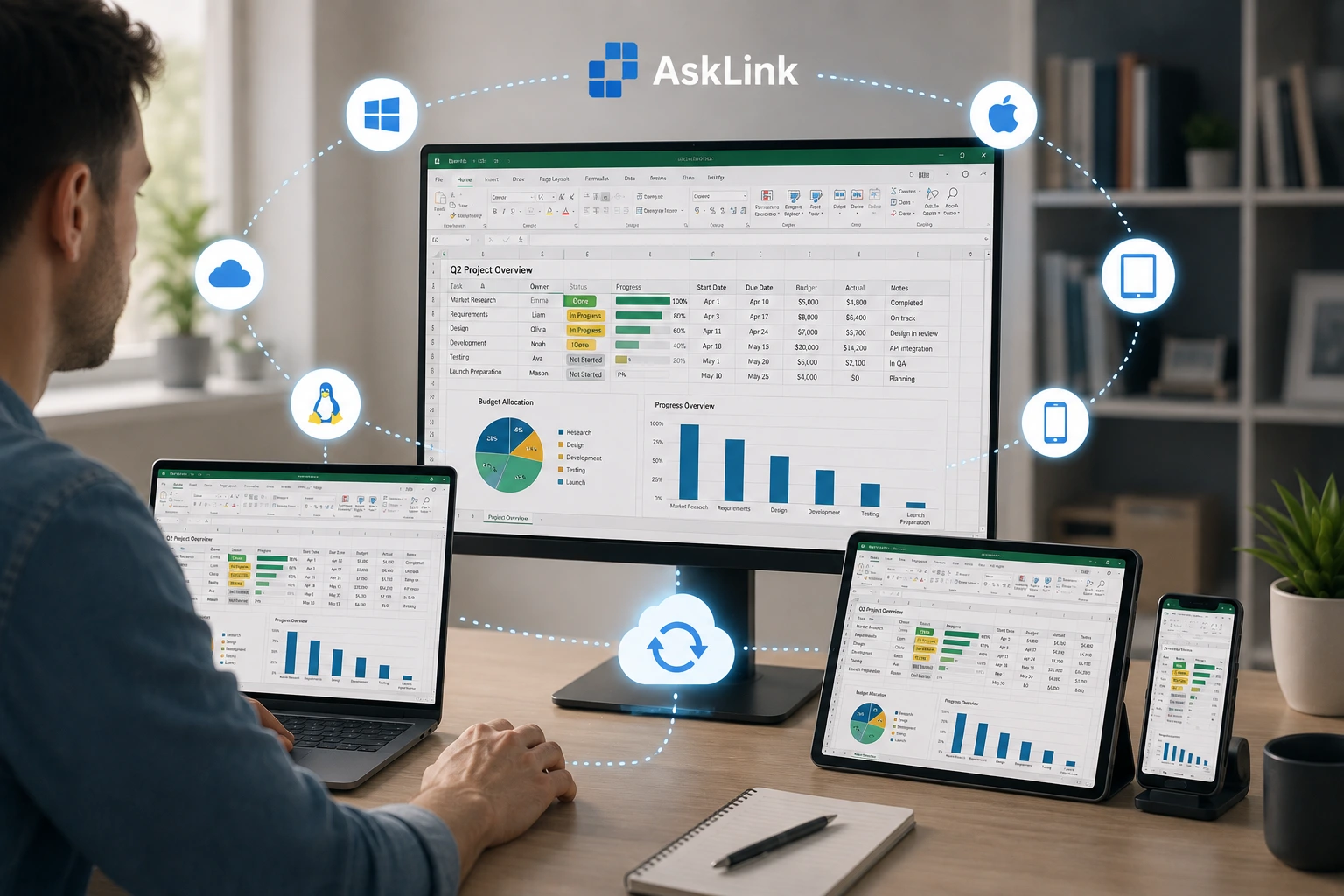
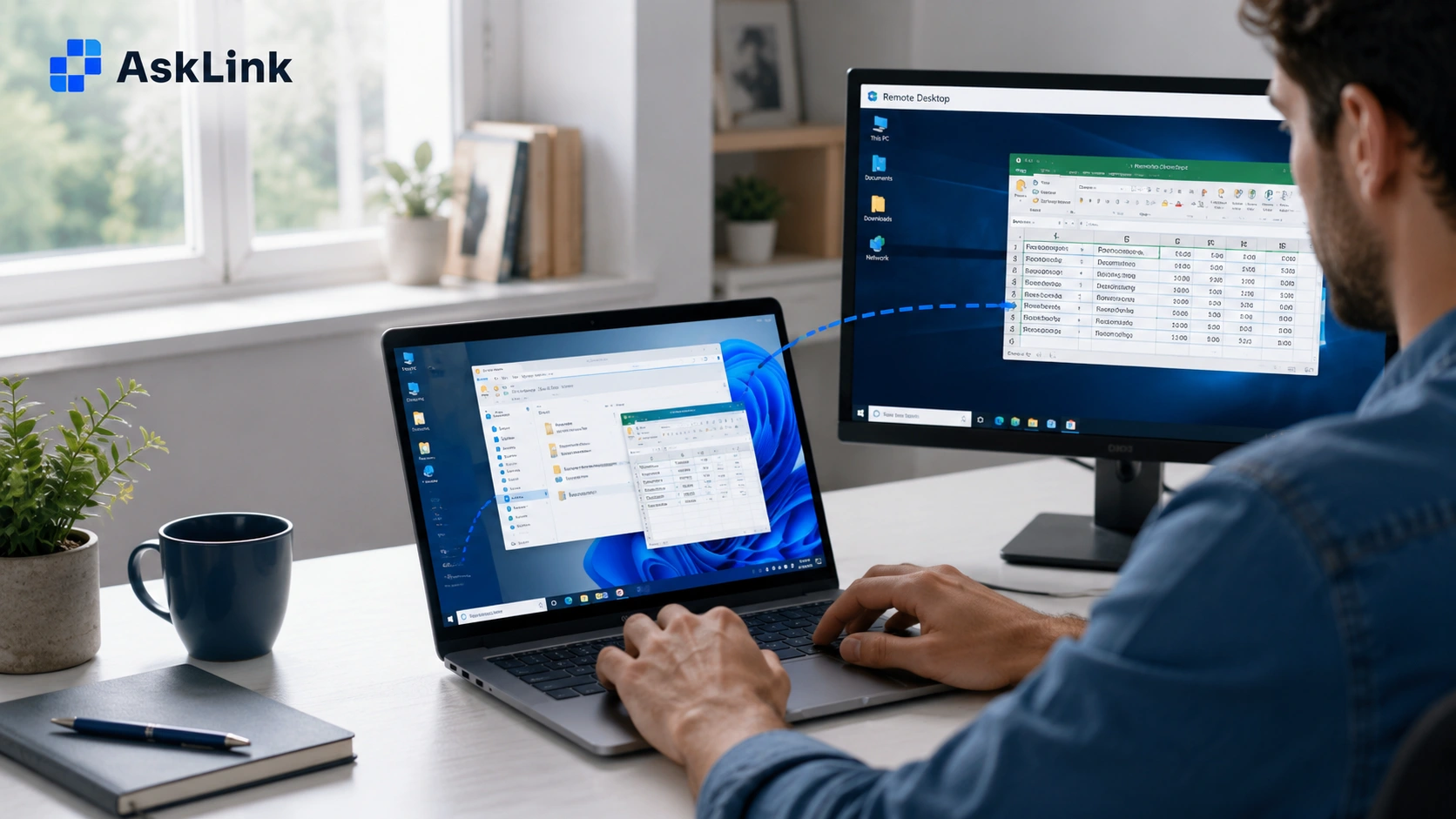
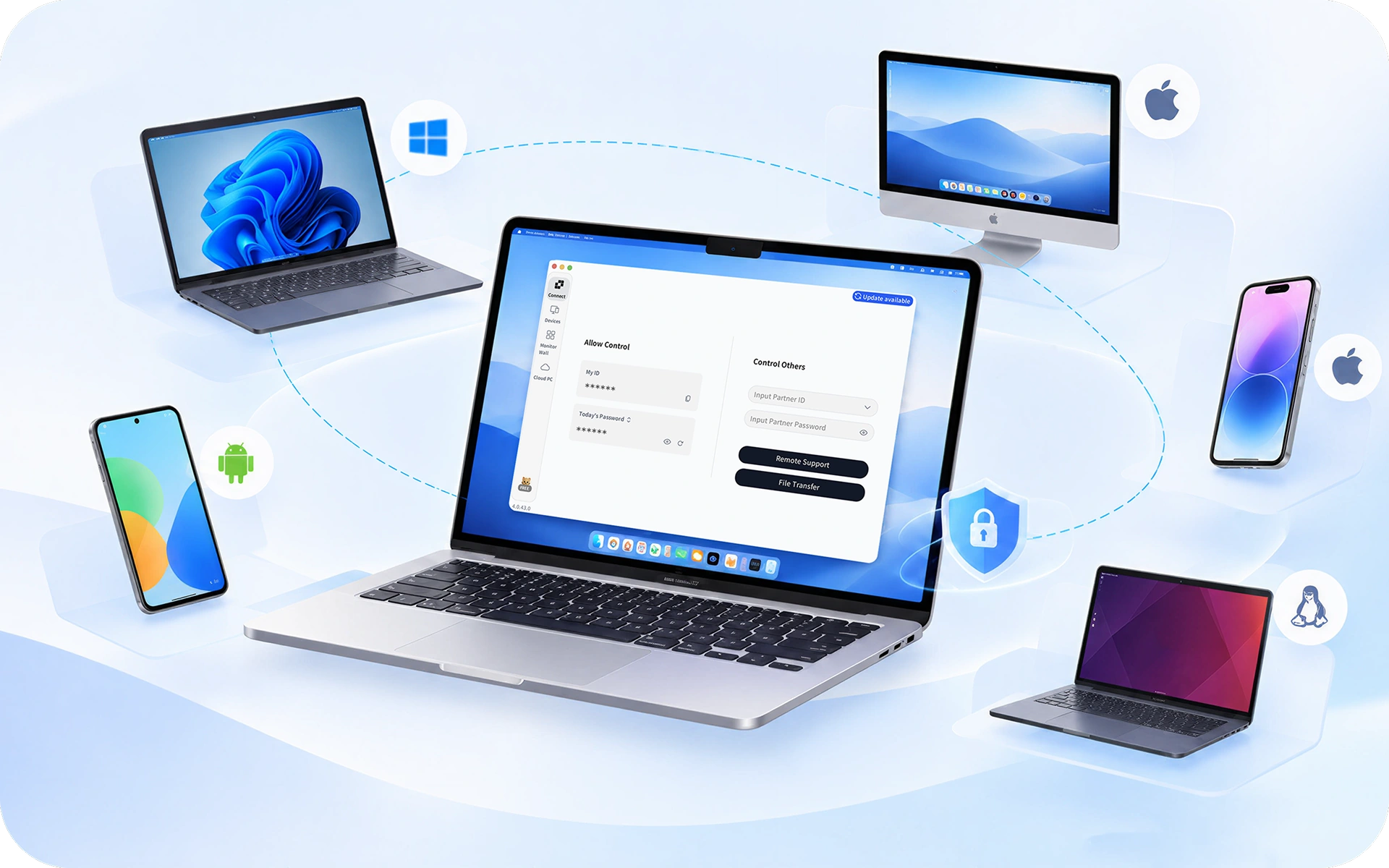
AskLink cross-platform remote desktop connecting Windows, macOS, Linux, Android, and iOS devices
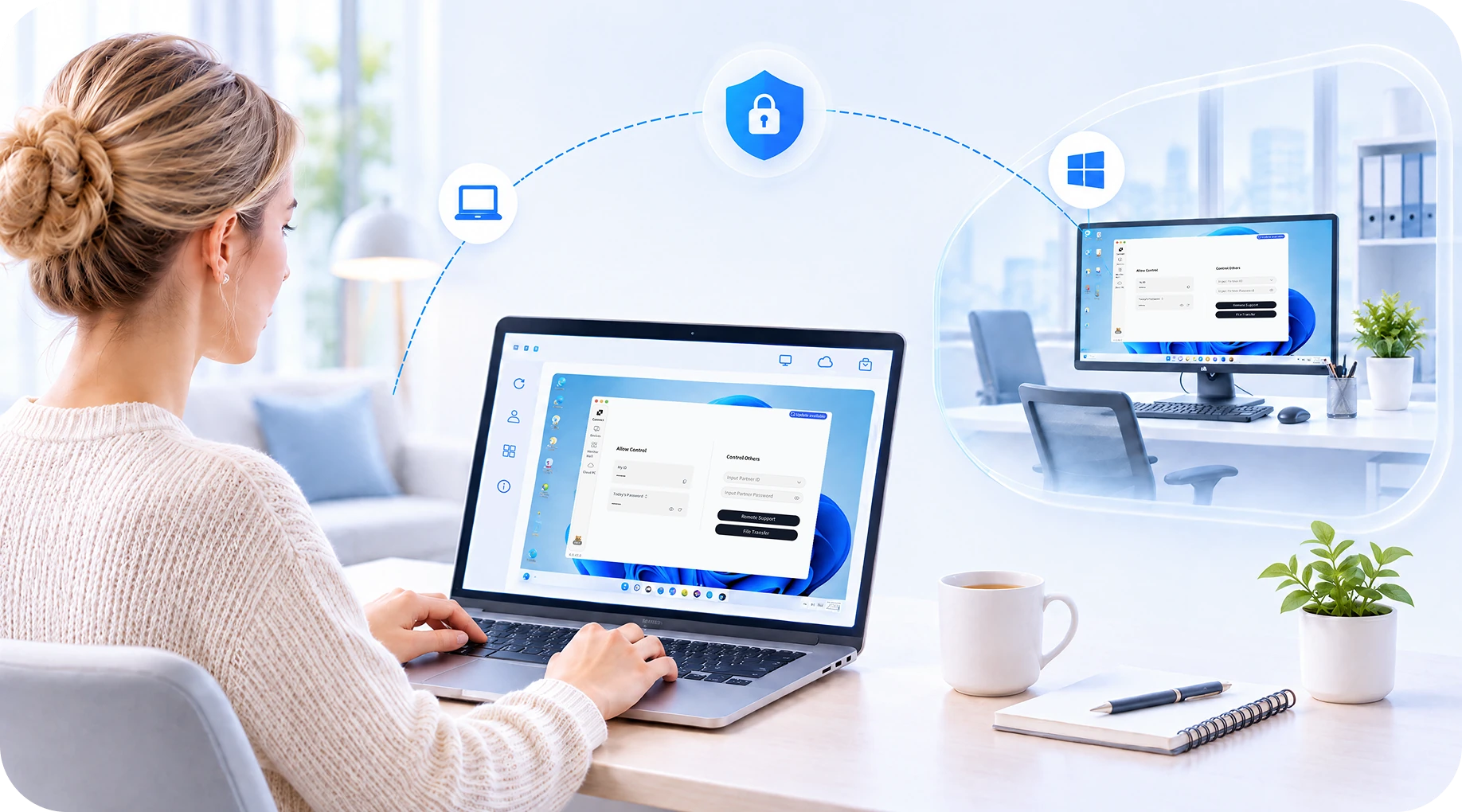
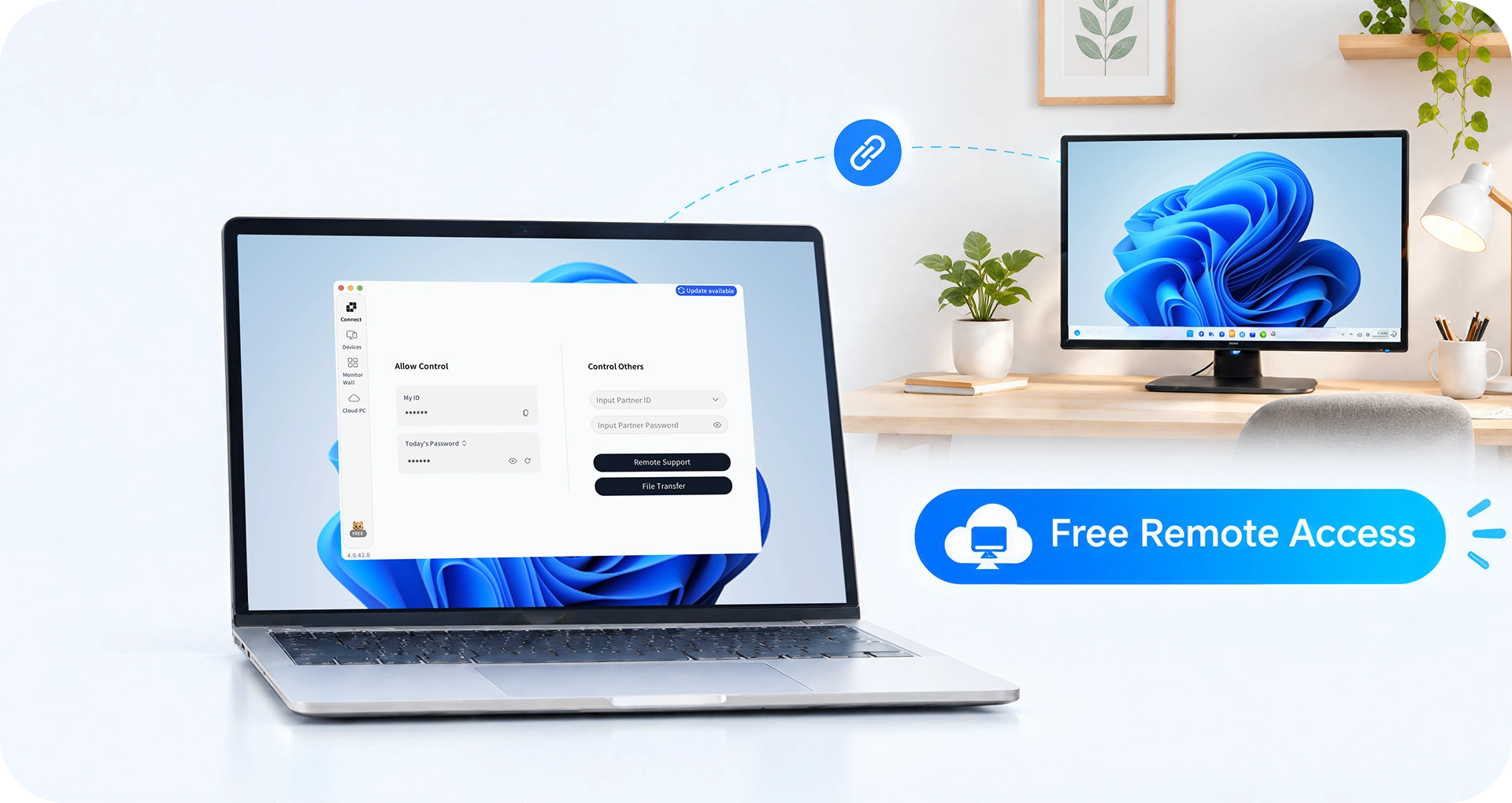
Free remote access to a Windows PC using AskLink remote desktop software

Free Remote Desktop Software for Personal Use

Remote when you need it. Stay connected for as long as you need. AskLink gives you free remote desktop access with no session limits or forced interruptions. You also get up to 50 hours of high-speed channel access every month for smoother remote connections. Afterward, you can still connect as usual without forced interruptions. Whether you're grabbing a file from home, opening an app on another device, or checking in on your computer while you're away, you can simply connect and get on with it.
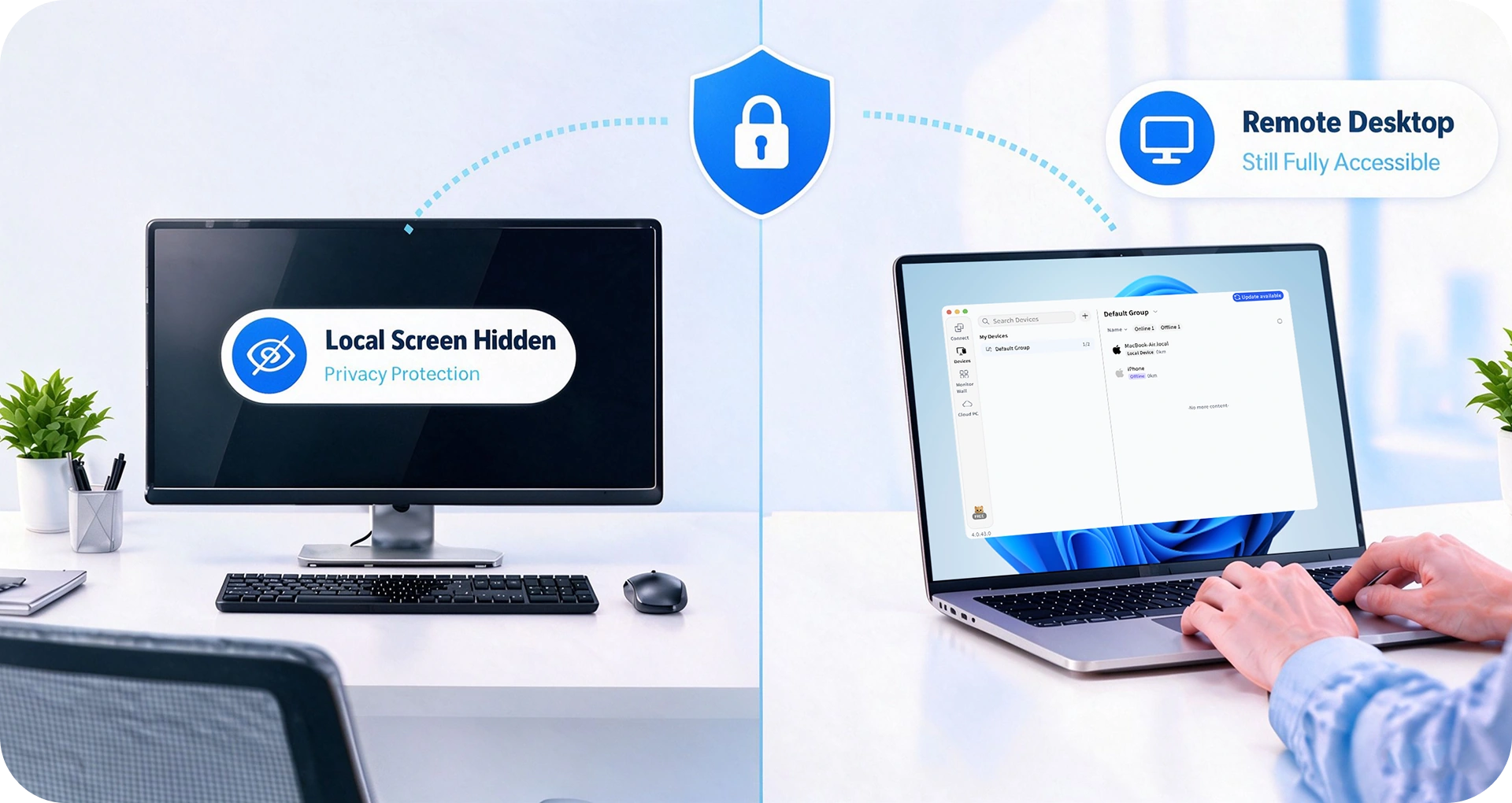
AskLink Privacy Screen hiding the local display while keeping the remote desktop accessible

Built-In Security and Privacy for Remote Desktop Access

Still worried about remote access security? With AskLink, you don't have to be. Your data is encrypted on the client before transmission and sent through a secure SSL channel, with 2048-bit RSA asymmetric encryption used for key exchange.

Need a little more privacy in the real world? Turn on Privacy Screen when connecting to a Windows Controlled device. The local physical display is hidden from people nearby while you can still see and control the desktop from your Controller. It's really useful when the computer you're accessing is sitting in an office, shared space, or anywhere curious eyes might be around.

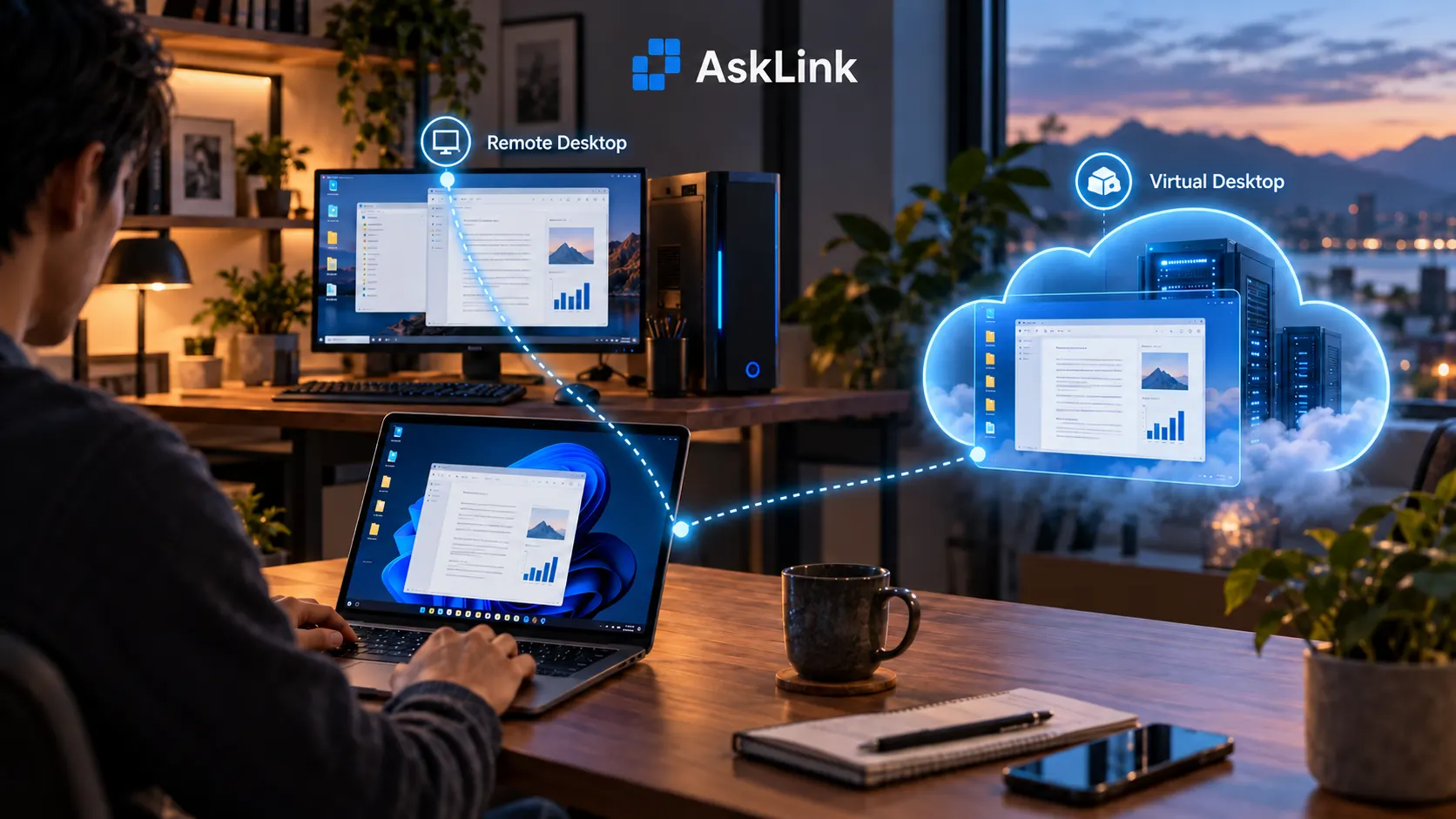
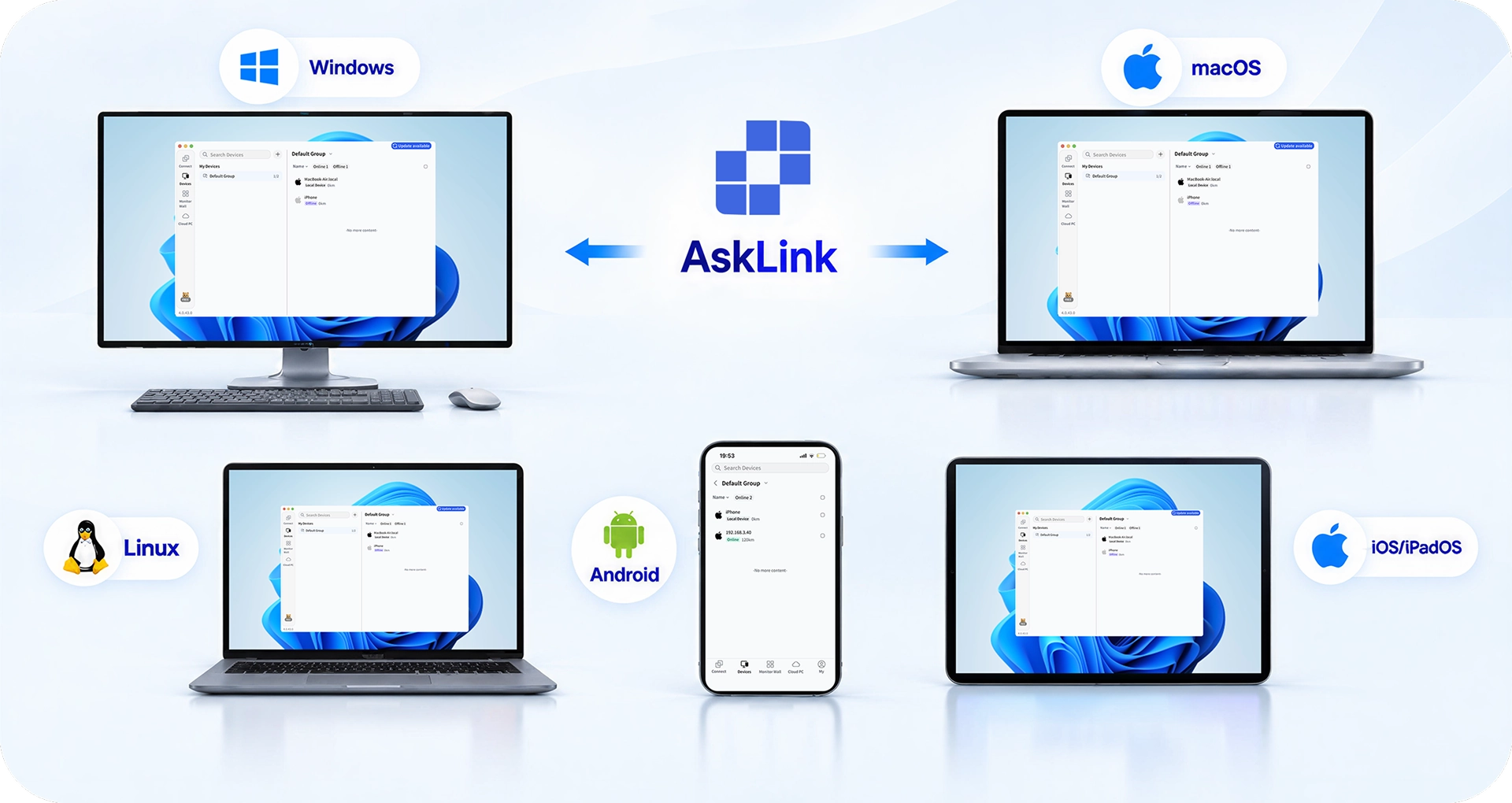
AskLink remote desktop support across Windows, macOS, Linux, Android, and iOS devices

Remote Desktop Across Windows, macOS, Linux, and Mobile Devices

Stay connected across the devices you already use. AskLink supports remote connections across Windows, macOS, Linux, Android, iOS, and iPadOS, so you can build a cross-platform remote desktop setup without switching between separate tools. Whether you need remote desktop software for Windows or Mac, want to reach a Linux computer from another device, or need to connect from your phone while you're away, AskLink keeps your devices within one account.

And here's the good news for Mac users: AskLink works both ways on macOS. Use your Mac as a Controller to access another supported device, or as a Controlled device you can connect back to remotely.

A Remote Desktop Experience That Feels Like You're Right There

165Hz refresh rate for smooth AskLink remote desktop performance

Up to 165Hz for Ultra-Smooth Control

Feel the difference in every move. With refresh rates up to 165Hz, AskLink keeps scrolling, dragging, fast-moving visuals, and precise controls feeling fluid—even when you're working, creating, or gaming from miles away.

6K resolution support for high-quality AskLink remote desktop sessions

6K Clarity for Detail-Rich Work

Small text should stay readable. Fine details should stay fine. With support for resolutions up to 6k, AskLink gives you a clearer view of your remote desktop, whether you're working through a spreadsheet, editing visual content, checking design details, or simply want more room to work.

Adaptive network performance for stable AskLink remote desktop connections

Adaptive Performance on Any Network

Networks change. Your remote session shouldn't fall apart when they do. AskLink adapts connection and image quality in real time, with weak-network optimization, local-network prioritization, automatic link switching, and packet-loss recovery working behind the scenes to keep things smooth and responsive.

165Hz refresh rate for smooth AskLink remote desktop performance

Up to 165Hz for Ultra-Smooth Control

Feel the difference in every move. With refresh rates up to 165Hz, AskLink keeps scrolling, dragging, fast-moving visuals, and precise controls feeling fluid—even when you're working, creating, or gaming from miles away.

6K resolution support for high-quality AskLink remote desktop sessions

6K Clarity for Detail-Rich Work

Small text should stay readable. Fine details should stay fine. With support for resolutions up to 6k, AskLink gives you a clearer view of your remote desktop, whether you're working through a spreadsheet, editing visual content, checking design details, or simply want more room to work.

Adaptive network performance for stable AskLink remote desktop connections

Adaptive Performance on Any Network

Networks change. Your remote session shouldn't fall apart when they do. AskLink adapts connection and image quality in real time, with weak-network optimization, local-network prioritization, automatic link switching, and packet-loss recovery working behind the scenes to keep things smooth and responsive.

Everything You Need for a Better Remote Desktop Connection

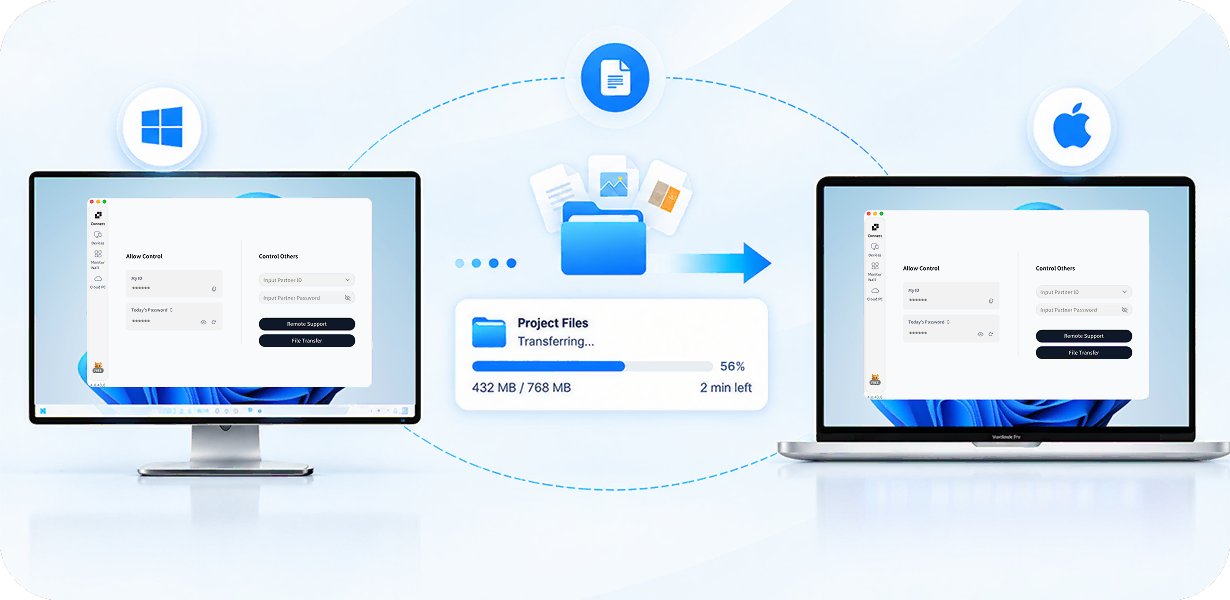
AskLink file transfer between Windows and macOS computers during a remote session

File Transfer

Need that file on the other device? You can move files between connected devices during a remote session without relying on email, cloud storage, or another file-sharing tool.

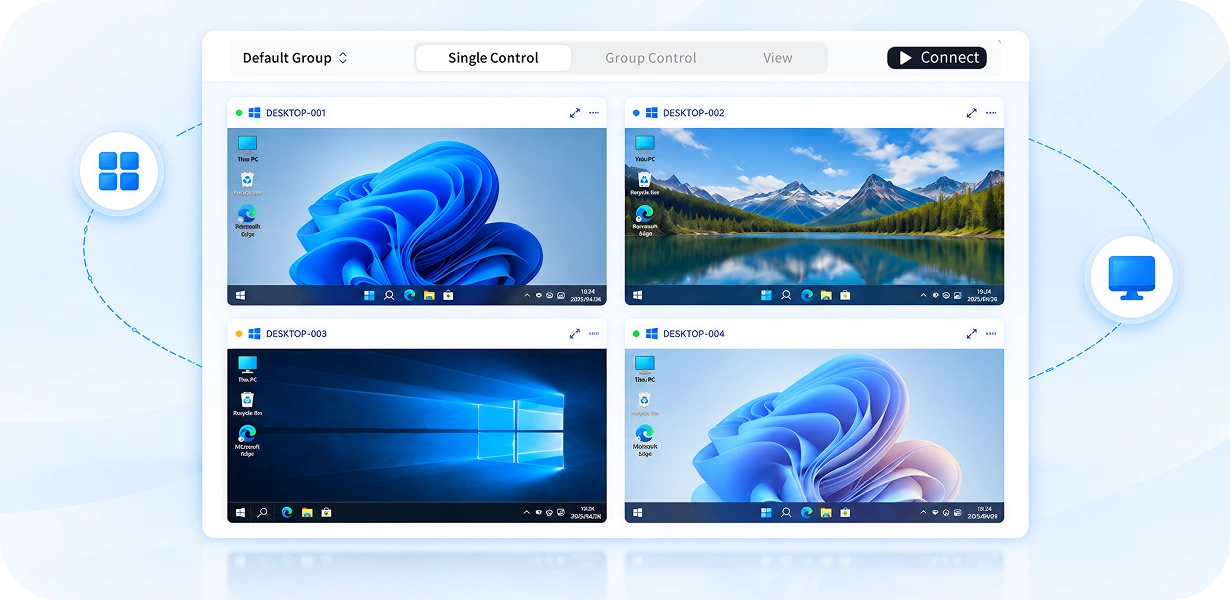
AskLink Monitor Wall displaying multiple remote Windows desktops in one view

Monitor Wall

Keep an eye on multiple remote devices from one place. Monitor Wall lets you view multiple Controlled device screens through a centralized interface, making it easier to monitor and manage larger groups of computers.

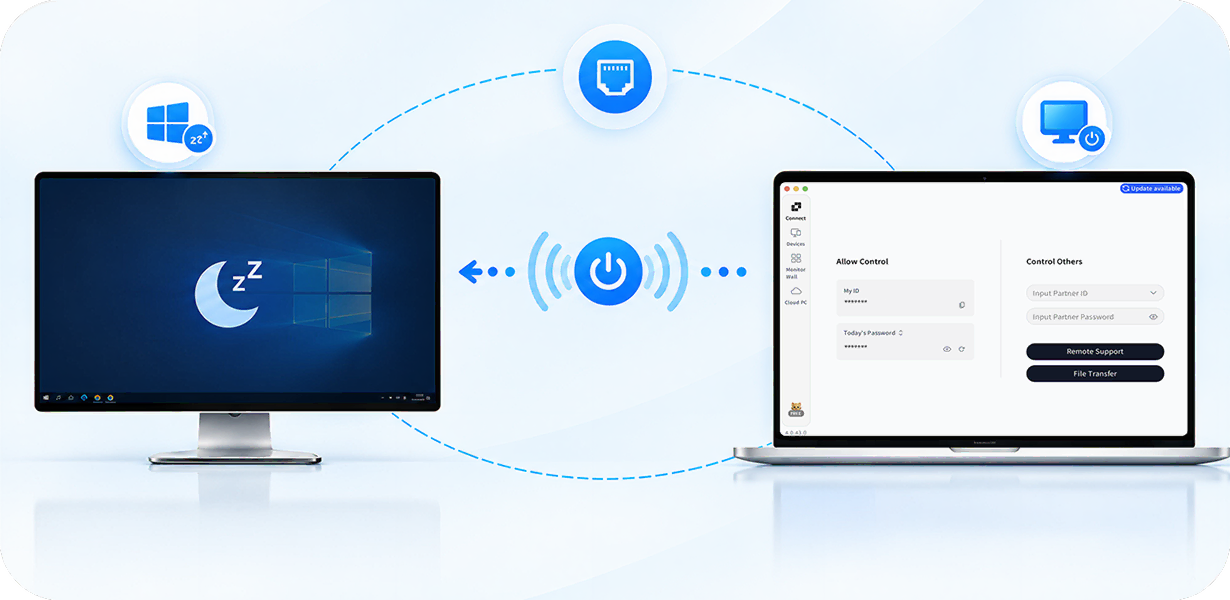
AskLink Wake-on-LAN remotely waking a sleeping Windows PC for remote access

Wake-on-LAN

Need to access a computer that is not currently awake? Wake a properly configured Windows device remotely with Wake-on-LAN, then connect through AskLink once it's available.

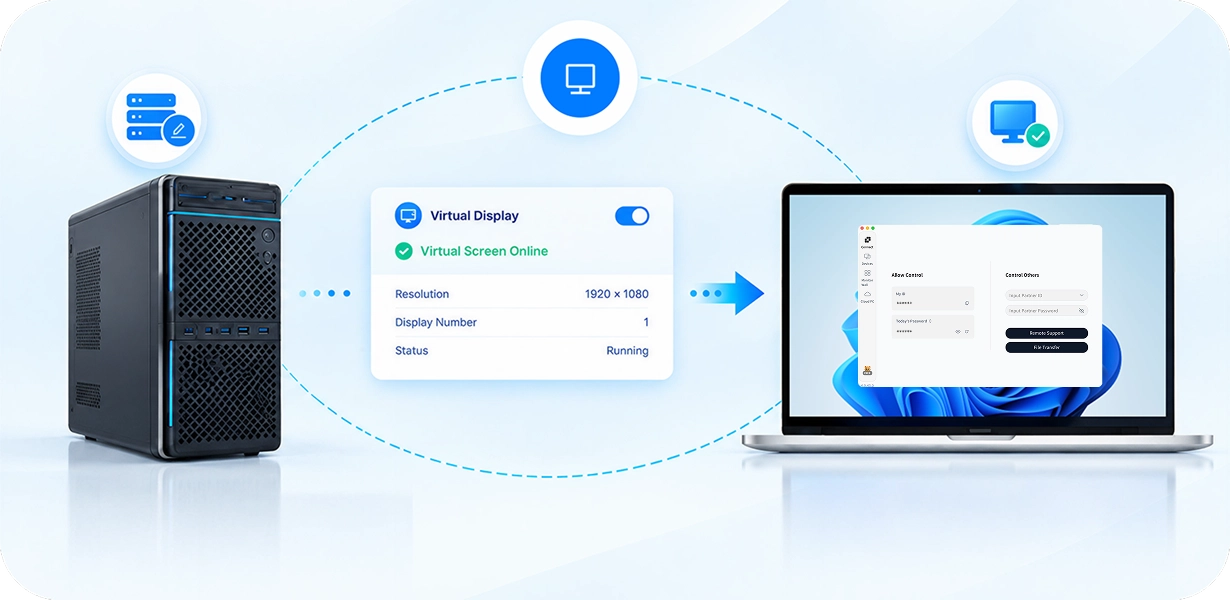
AskLink Virtual Display creating a remote screen for a computer without a physical monitor

Virtual Display

No monitor attached? No problem. Create a virtual display when a remote computer does not have a physical monitor attached. AskLink makes it easier to remotely use headless computers, servers, and other setups where a physical screen may not always be available.

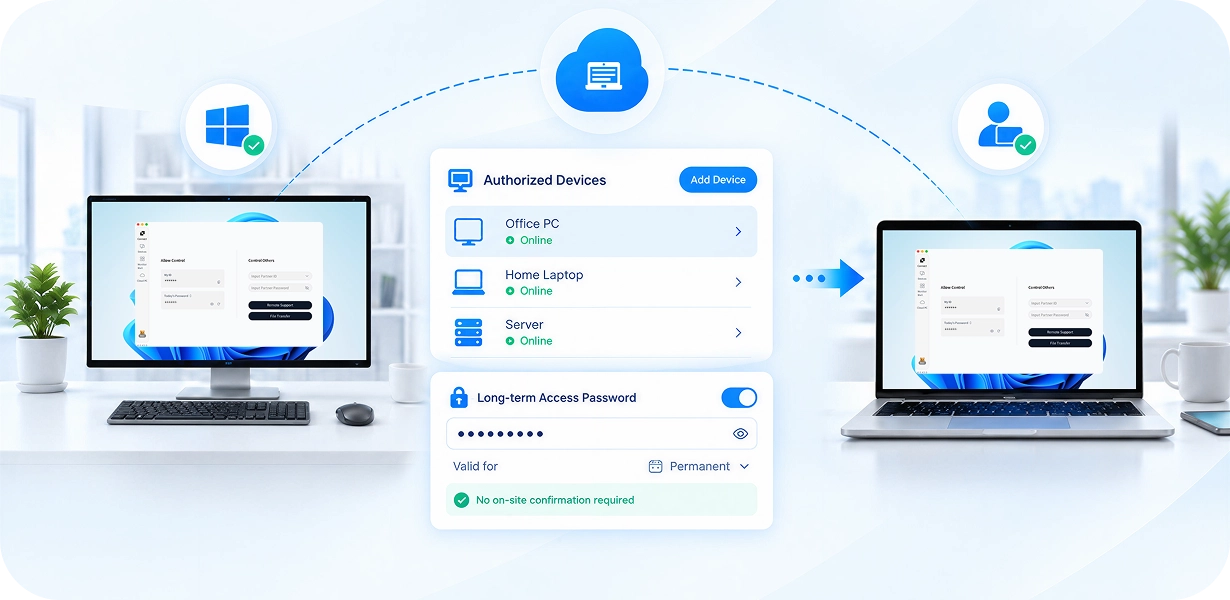
AskLink unattended access with authorized devices and a permanent access password

Unattended Access

Connect to your own authorized devices without requiring someone at the Controlled device to accept every session. Once your devices are prepared, you can reach them whenever you need them.

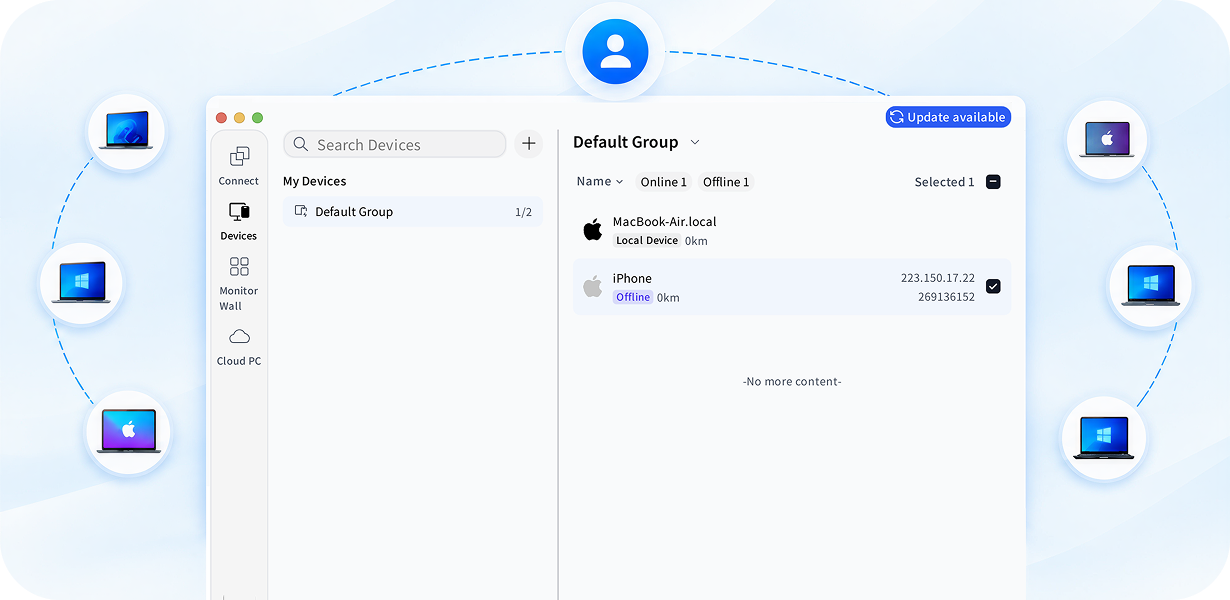
AskLink device management for accessing multiple Windows and Mac computers from one account

Account-Based Device Management

AskLink allows you to manage your remote devices through one AskLink account instead of relying on separate passwords for every computer. Keep devices organized and control access permissions from a centralized account-based system.

AskLink file transfer between Windows and macOS computers during a remote session

File Transfer

Need that file on the other device? You can move files between connected devices during a remote session without relying on email, cloud storage, or another file-sharing tool.

AskLink Monitor Wall displaying multiple remote Windows desktops in one view

Monitor Wall

Keep an eye on multiple remote devices from one place. Monitor Wall lets you view multiple Controlled device screens through a centralized interface, making it easier to monitor and manage larger groups of computers.

AskLink Wake-on-LAN remotely waking a sleeping Windows PC for remote access

Wake-on-LAN

Need to access a computer that is not currently awake? Wake a properly configured Windows device remotely with Wake-on-LAN, then connect through AskLink once it's available.

AskLink Virtual Display creating a remote screen for a computer without a physical monitor

Virtual Display

No monitor attached? No problem. Create a virtual display when a remote computer does not have a physical monitor attached. AskLink makes it easier to remotely use headless computers, servers, and other setups where a physical screen may not always be available.

AskLink unattended access with authorized devices and a permanent access password

Unattended Access

Connect to your own authorized devices without requiring someone at the Controlled device to accept every session. Once your devices are prepared, you can reach them whenever you need them.

AskLink device management for accessing multiple Windows and Mac computers from one account

Account-Based Device Management

AskLink allows you to manage your remote devices through one AskLink account instead of relying on separate passwords for every computer. Keep devices organized and control access permissions from a centralized account-based system.

One Remote Desktop for Work, Support, and More

One day you're opening a file from home. The next you're helping someone fix a PC or working on a project from another city. AskLink is built for all of it.

Work from Anywhere

Leave your work computer where it is and take your desktop with you. Connect from home, another office, or while traveling to use the files, software, and computing resources already available on your remote computer. AskLink makes remote work easier than ever.

Secure remote desktop access to a Windows work computer from another location with AskLink

Trusted and Loved by Thousands of Users

Daniel Brooks headshot

Daniel Brooks

I manage several computers, so I don't want to open them one by one just to see what's going on. Monitor Wall makes that part much easier. I can keep multiple devices in view and jump in when one of them needs attention.

IT Administrator
Emma Carter headshot

Emma Carter

I mainly use AskLink when I'm away from my workstation. The connection feels responsive, and the image quality is good enough that I can still check edits and work with detailed visuals without everything feeling like a compromise.

Video Editor
Ryan Chen headshot

Ryan Chen

What I like most is that I can move between Windows and Mac without changing my whole setup. I often leave my main machine at the office and connect back to it later from my MacBook. It's simple and does what I need.

Software Engineer
Sophia Miller headshot

Sophia Miller

We started using AskLink because we needed an easier way to access office computers when no one was there. Setup was straightforward, and unattended access has saved us quite a few trips back to the office.

Small Business Owner
Liam Foster headshot

Liam Foster

Remote support is much easier when I can see the problem instead of explaining every step over a call. I can connect, check what's happening, and help fix the issue directly. It saves time for both sides.

Technical Support Specialist
Noah Bennett headshot

Noah Bennett

I first tried AskLink for normal remote access, but I ended up using it for games too. The high refresh rate makes a noticeable difference, especially in faster games. It feels much smoother than the remote tools I was used to.

PC Gamer
Daniel Brooks headshot

Daniel Brooks

I manage several computers, so I don't want to open them one by one just to see what's going on. Monitor Wall makes that part much easier. I can keep multiple devices in view and jump in when one of them needs attention.

IT Administrator
Emma Carter headshot

Emma Carter

I mainly use AskLink when I'm away from my workstation. The connection feels responsive, and the image quality is good enough that I can still check edits and work with detailed visuals without everything feeling like a compromise.

Video Editor
Ryan Chen headshot

Ryan Chen

What I like most is that I can move between Windows and Mac without changing my whole setup. I often leave my main machine at the office and connect back to it later from my MacBook. It's simple and does what I need.

Software Engineer
Sophia Miller headshot

Sophia Miller

We started using AskLink because we needed an easier way to access office computers when no one was there. Setup was straightforward, and unattended access has saved us quite a few trips back to the office.

Small Business Owner
Liam Foster headshot

Liam Foster

Remote support is much easier when I can see the problem instead of explaining every step over a call. I can connect, check what's happening, and help fix the issue directly. It saves time for both sides.

Technical Support Specialist
Noah Bennett headshot

Noah Bennett

I first tried AskLink for normal remote access, but I ended up using it for games too. The high refresh rate makes a noticeable difference, especially in faster games. It feels much smoother than the remote tools I was used to.

PC Gamer
Daniel Brooks headshot

Daniel Brooks

I manage several computers, so I don't want to open them one by one just to see what's going on. Monitor Wall makes that part much easier. I can keep multiple devices in view and jump in when one of them needs attention.

IT Administrator
Emma Carter headshot

Emma Carter

I mainly use AskLink when I'm away from my workstation. The connection feels responsive, and the image quality is good enough that I can still check edits and work with detailed visuals without everything feeling like a compromise.

Video Editor
Ryan Chen headshot

Ryan Chen

What I like most is that I can move between Windows and Mac without changing my whole setup. I often leave my main machine at the office and connect back to it later from my MacBook. It's simple and does what I need.

Software Engineer
Sophia Miller headshot

Sophia Miller

We started using AskLink because we needed an easier way to access office computers when no one was there. Setup was straightforward, and unattended access has saved us quite a few trips back to the office.

Small Business Owner
Liam Foster headshot

Liam Foster

Remote support is much easier when I can see the problem instead of explaining every step over a call. I can connect, check what's happening, and help fix the issue directly. It saves time for both sides.

Technical Support Specialist
Noah Bennett headshot

Noah Bennett

I first tried AskLink for normal remote access, but I ended up using it for games too. The high refresh rate makes a noticeable difference, especially in faster games. It feels much smoother than the remote tools I was used to.

PC Gamer

FAQ

Remote desktop software lets you access and control another computer or device from anywhere over a network. You can see its screen, use its apps, access files, and perform tasks as if you were sitting right in front of it. It's useful for remote work, IT support, gaming, and everyday access to your devices.

Getting started with AskLink is simple. Download and install the app on your Controller and Controlled devices, then sign in and set up the devices you want to access. Once they're ready, select a device and start your remote desktop connection.

For more details, check out our How to Use Remote Desktop guide.

Yes! AskLink Personal offers free remote desktop access with no session time limits or forced interruptions. You also get 50 hours of high-speed channel access each month. Afterward, you can still connect remotely without forced interruptions.

Remote desktop software can be secure when it protects transmitted data and restricts unauthorized access. AskLink encrypts data on the client before transmission, uses an SSL-secured channel, and supports 2048-bit RSA key exchange. For extra privacy, you can also enable Privacy Screen on a Windows Controlled device to hide its physical display while you work remotely.

Absolutely. AskLink supports macOS as both a Controller and a Controlled device. You can use your Mac to access a Windows or another supported computer, or connect back to your Mac from another supported device.

Yes. With the AskLink remote desktop app, your iPhone, iPad, or Android device can act as a Controller to access supported computers remotely. You can check files, open applications, and control your desktop even when you're away from your computer.

Yes. Your Controller and Controlled devices don't need to be on the same Wi-Fi or local network. AskLink supports remote connections across different networks using NAT traversal, so you can access your devices from home, work, or while traveling without manually configuring port forwarding.

Yes. AskLink supports unattended access, so you can connect to a previously configured and authorized Controlled device without someone being there to accept each connection. The device must be powered on, reachable, and ready for remote access.

Remote desktop focuses on viewing and controlling another device's desktop, including its apps, files, and on-screen actions. Remote access is a broader term that also covers accessing remote systems, devices, and other resources. Remote desktop is one type of remote access. Learn more about Remote Access Software.