'%3e%3cpath%20d='M7.48145%2024H3.74023C1.67456%2023.9999%204.09854e-05%2022.3467%200%2020.3076V16.6152H7.48145V24ZM15.8955%2024H8.41406V16.6152H15.8955V24ZM7.48145%2015.6924H0V8.30762H7.48145V15.6924ZM24%2015.6924H16.5195V8.30762H24V15.6924ZM15.5859%207.38477H8.10547V0H15.5859V7.38477ZM20.2598%200C22.3256%200%2024%201.65318%2024%203.69238V7.38477H16.5195V0H20.2598Z'%20fill='white'/%3e%3cpath%20d='M108.786%2019.0507L105.767%2014.2636H104.397L108.397%208.80874H111.915L108.119%2013.9483V12.3155L112.544%2019.0507H108.786ZM101.527%2019.0507V5.5061H104.897V19.0507H101.527Z'%20fill='white'/%3e%3cpath%20d='M88.8242%2019.0505V8.80858H91.4908V13.2059H91.3421C91.3421%2012.1422%2091.4779%2011.264%2091.7499%2010.5712C92.0214%209.86618%2092.4224%209.34052%2092.953%208.99418C93.4965%208.64778%2094.1506%208.47461%2094.9158%208.47461H95.0644C96.2245%208.47461%2097.1193%208.86427%2097.7488%209.64353C98.3911%2010.4104%2098.7117%2011.5917%2098.7117%2013.1874V19.0505H95.342V13.0946C95.342%2012.6246%2095.2001%2012.2411%2094.9158%2011.9443C94.6443%2011.635%2094.2679%2011.4804%2093.7864%2011.4804C93.3049%2011.4804%2092.9162%2011.635%2092.6202%2011.9443C92.3358%2012.2411%2092.194%2012.6369%2092.194%2013.1317V19.0505H88.8242Z'%20fill='white'/%3e%3cpath%20d='M82.4214%2019.0506V8.80875H85.7912V19.0506H82.4214ZM81.125%2011.2579V8.80875H85.7912V11.2579H81.125ZM83.81%207.99232C83.1928%207.99232%2082.7359%207.83773%2082.4398%207.5285C82.1561%207.2069%2082.0137%206.79872%2082.0137%206.30388C82.0137%205.80913%2082.1561%205.40713%2082.4398%205.09789C82.7359%204.77628%2083.1866%204.61548%2083.7916%204.61548C84.4088%204.61548%2084.8595%204.77628%2085.1433%205.09789C85.427%205.40713%2085.5688%205.80913%2085.5688%206.30388C85.5688%206.79872%2085.427%207.2069%2085.1433%207.5285C84.8595%207.83773%2084.4149%207.99232%2083.81%207.99232Z'%20fill='white'/%3e%3cpath%20d='M71.1328%2019.0507V5.5061H74.5769V19.0507H71.1328ZM74.2065%2019.0507V16.0449H79.6876V19.0507H74.2065Z'%20fill='white'/%3e%3cpath%20d='M65.4458%2019.0507L62.428%2014.2636H61.0576L65.0571%208.80874H68.5755L64.7795%2013.9483V12.3155L69.2049%2019.0507H65.4458ZM58.1875%2019.0507V5.5061H61.5578V19.0507H58.1875Z'%20fill='white'/%3e%3cpath%20d='M51.2917%2019.3845C49.8103%2019.3845%2048.6438%2019.0814%2047.7921%2018.4753C46.9403%2017.8568%2046.4836%2016.991%2046.4219%2015.8777H49.3844C49.4339%2016.1869%2049.6252%2016.4529%2049.9585%2016.6755C50.2918%2016.8982%2050.7608%2017.0095%2051.3657%2017.0095C51.7978%2017.0095%2052.1681%2016.9477%2052.4767%2016.824C52.7977%2016.6879%2052.9581%2016.4715%2052.9581%2016.1745C52.9581%2015.9148%2052.8347%2015.7045%2052.5878%2015.5437C52.3409%2015.3705%2051.8903%2015.2531%2051.2361%2015.1912L50.5325%2015.117C49.224%2014.9809%2048.2611%2014.6222%2047.6439%2014.0408C47.0267%2013.4595%2046.7181%2012.7297%2046.7181%2011.8515C46.7181%2011.0969%2046.9033%2010.4784%2047.2736%209.99603C47.6439%209.50126%2048.1562%209.13018%2048.8105%208.8828C49.4647%208.63541%2050.2115%208.51172%2051.0509%208.51172C52.4211%208.51172%2053.526%208.81473%2054.3653%209.42089C55.2048%2010.0146%2055.6492%2010.8743%2055.6986%2011.9999H52.7359C52.6866%2011.6907%2052.5199%2011.4309%2052.236%2011.2206C51.9521%2010.998%2051.5447%2010.8867%2051.0139%2010.8867C50.6312%2010.8867%2050.3164%2010.9547%2050.0696%2011.0907C49.835%2011.2268%2049.7178%2011.4185%2049.7178%2011.6659C49.7178%2011.9257%2049.8289%2012.1174%2050.0511%2012.2411C50.2856%2012.3648%2050.6559%2012.4576%2051.162%2012.5194L51.8657%2012.5936C53.1741%2012.7297%2054.1802%2013.0946%2054.8838%2013.6883C55.5998%2014.2697%2055.9578%2015.0366%2055.9578%2015.989C55.9578%2016.6941%2055.7664%2017.3002%2055.3838%2017.8073C55.0134%2018.3145%2054.4764%2018.7041%2053.7728%2018.9763C53.0816%2019.2484%2052.2545%2019.3845%2051.2917%2019.3845Z'%20fill='white'/%3e%3cpath%20d='M31.0117%2019.0507L35.3445%205.5061H40.8624L45.3434%2019.0507H41.7882L38.3072%207.91816L39.2885%208.28924H36.8444L37.8442%207.91816L34.4558%2019.0507H31.0117ZM34.5483%2015.915L35.5853%2013.0948H40.7143L41.7512%2015.915H34.5483Z'%20fill='white'/%3e%3c/g%3e%3cdefs%3e%3cclipPath%20id='clip0_5596_142775'%3e%3crect%20width='113'%20height='24'%20fill='white'/%3e%3c/clipPath%3e%3c/defs%3e%3c/svg%3e "AskLink")
 Maya Chen
OpenAI's September 2026 GPT-6 Astra update is another sign of where AI work is heading. Coding, computer use, and complex multi-step tasks are becoming a bigger part of what AI agents can handle.
That sounds useful if you want to start a task and walk away. But many AI workflows still depend on the computer where they started.
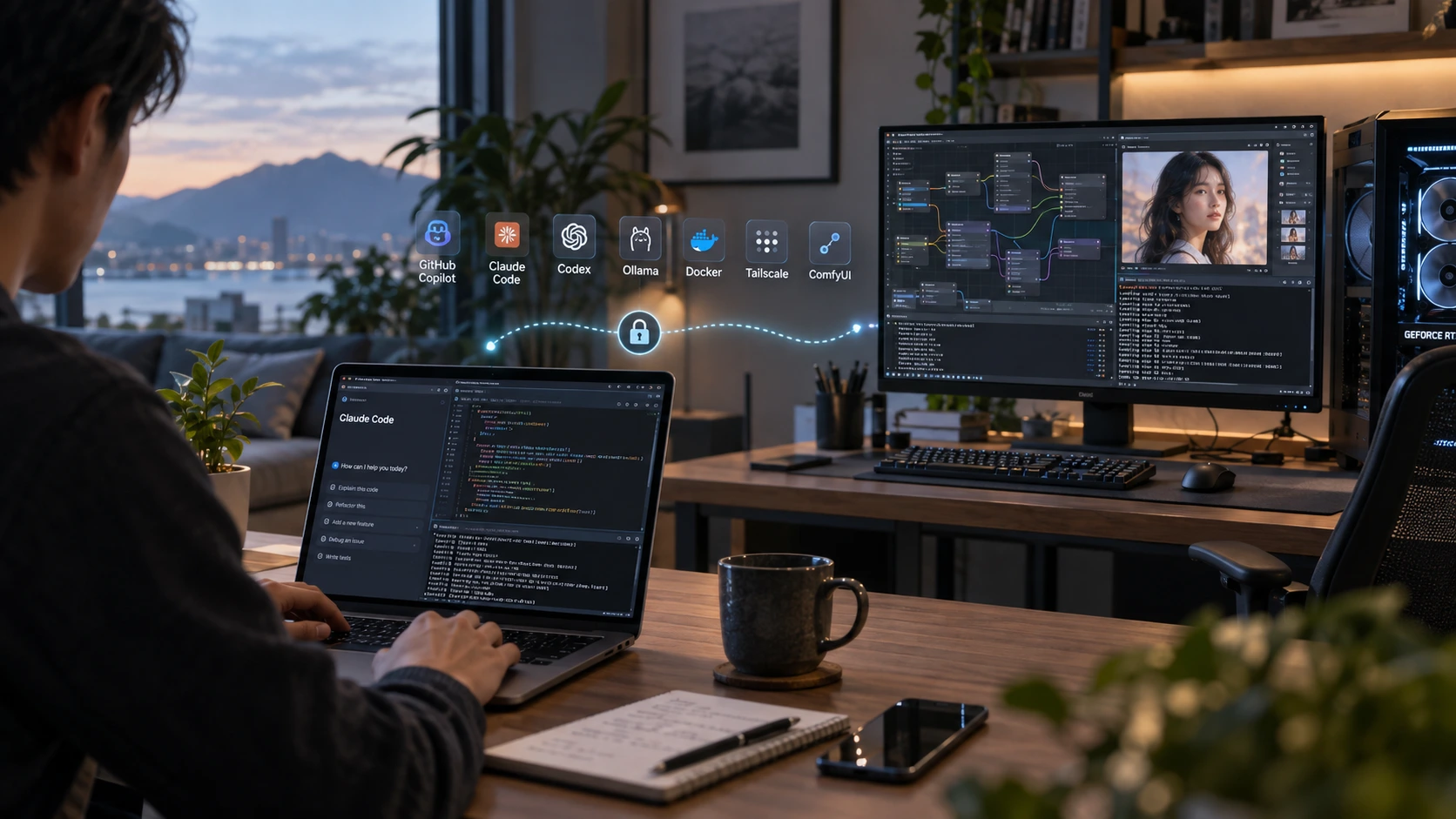
A coding agent may rely on your local IDE, terminal, browser, Docker environment, and project files. ComfyUI may be using the GPU in your desktop PC. A local model may be running through Ollama on a machine you cannot physically reach.
So what happens when you leave your desk before the workflow is finished—or when it stops because a local service crashes, a permission dialog appears, or another app needs your attention?
You may be able to reach the AI tool remotely. That does not always mean you can reach everything around it.
In this article, we'll explore three main levels of remote access: the AI agent itself, a specific local service or development environment, and the full desktop. The right choice depends on how much of the computer you actually need to control.
Why Local AI Workflows Need Different Levels of Access
The remote-access problem starts when an AI task depends on more than the AI tool itself.
Sometimes that dependency barely matters. You may only need to check progress, reply to an agent, or approve an action. The AI tool's own remote features may be enough. In other cases, you only need one local service. That could be ComfyUI, Open WebUI, an Ollama endpoint, a development server, or an SSH session. Browser, API, SSH, or private-network access may be the simpler option.
The situation changes when the workflow crosses several apps or something breaks outside the AI tool.
You might need to test a local frontend, restart a service, handle a permission dialog, move a file, check GPU status, or open Photoshop, Blender, Docker Desktop, or another GUI application.
Accessing the AI tool is not always the same as accessing the environment it works in.
You may be able to check an agent or open a local AI service without needing the whole computer. But once the workflow depends on several apps, local files, system settings, or GUI-only steps, access to the AI tool alone may not give you enough control.
The real question becomes: how much of the local environment do you need to reach when you are away?
Agent, Service, or Full Desktop Access?
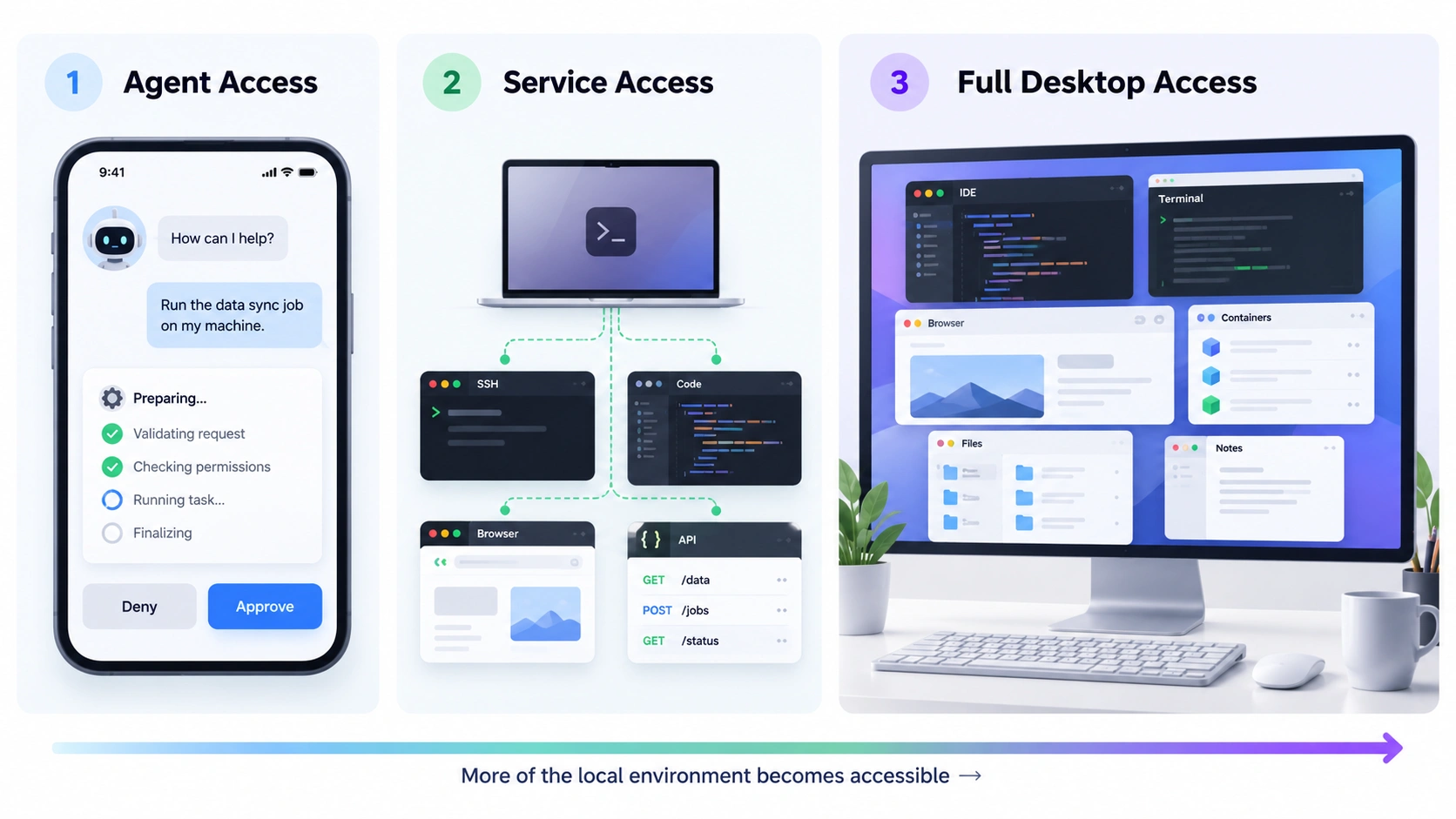
A useful way to choose is to start with the part of the machine you actually need.
| What you need | Best-fit approach |
|---|---|
| Check an AI agent, reply, approve actions, or review progress | Agent-native remote access |
| Reach a terminal, codebase, API, localhost service, or web interface | Tailscale + SSH, VS Code Remote, browser, or API |
| Use several GUI apps, inspect system state, or troubleshoot the whole computer | Full remote desktop |
These approaches can overlap. A developer might use an agent's mobile controls most of the time, SSH when they need the terminal, and remote desktop only when the wider machine needs attention. The difference is the level of access each method gives you.
Option 1: Agent-Native Remote: Best for Steering the AI Session
If most of your workflow stays inside the AI agent, its built-in remote features may be all you need. Codex, Claude Code, and GitHub Copilot CLI all support ways to continue or steer local agent sessions remotely. Depending on the tool, users can check progress, review output, approve actions, inspect changes or test results, and continue a session from another device. That makes agent-native remote access the simplest choice when your task is mainly about supervising the agent. You do not need to stream an entire desktop just to approve one command or see whether a task has finished. The boundary appears when the work extends beyond the session itself. Some agents can use browsers, screenshots, or computer-use tools to interact with parts of a GUI. But that control is still mediated by the agent and limited by the tools and permissions available to it. You may still need direct access when you want to open another app yourself, inspect a browser state, deal with a system dialog, restart something outside the agent's workflow, or troubleshoot the wider machine. If your job is to steer the agent, native remote control is often enough. If you need the environment around the agent, you need a different access layer.
Option 2: Tailscale, SSH, and Remote Dev Tools for Service Access
When you only need part of the local machine, service-level access can be more efficient than opening the entire desktop. Tailscale is commonly used for this. It provides private connectivity between devices, while another tool handles the service you actually want to reach. Tailscale's own documentation also treats remote desktop as a combination with protocols or applications such as RDP or RustDesk rather than as a desktop-control feature of Tailscale itself. Common combinations include:
- Tailscale + SSH for terminal work, logs, and processes;
- Tailscale + VS Code Remote SSH for code, files, terminals, and development ports;
- Tailscale + browser access for ComfyUI, Open WebUI, or a local development server;
- Tailscale + API access for a local service such as Ollama.
This works particularly well when the workflow is focused. If you only want to open ComfyUI from another device, securely reaching its browser interface can be simpler than controlling the whole workstation. The same applies to Ollama if all another device needs is the model API or a Web UI.
The trade-off is fragmentation.
SSH gives you a terminal, but not the GUI. Browser access reaches the Web app, but not another desktop application. VS Code Remote gives you a powerful development environment, but it still focuses on development rather than the entire machine.
Once you start jumping between a local service, files, GUI apps, system settings, and troubleshooting tools, separate service-level connections can become more complicated than the workflow itself.
Option 3: Remote Desktop for the Full Local AI Environment
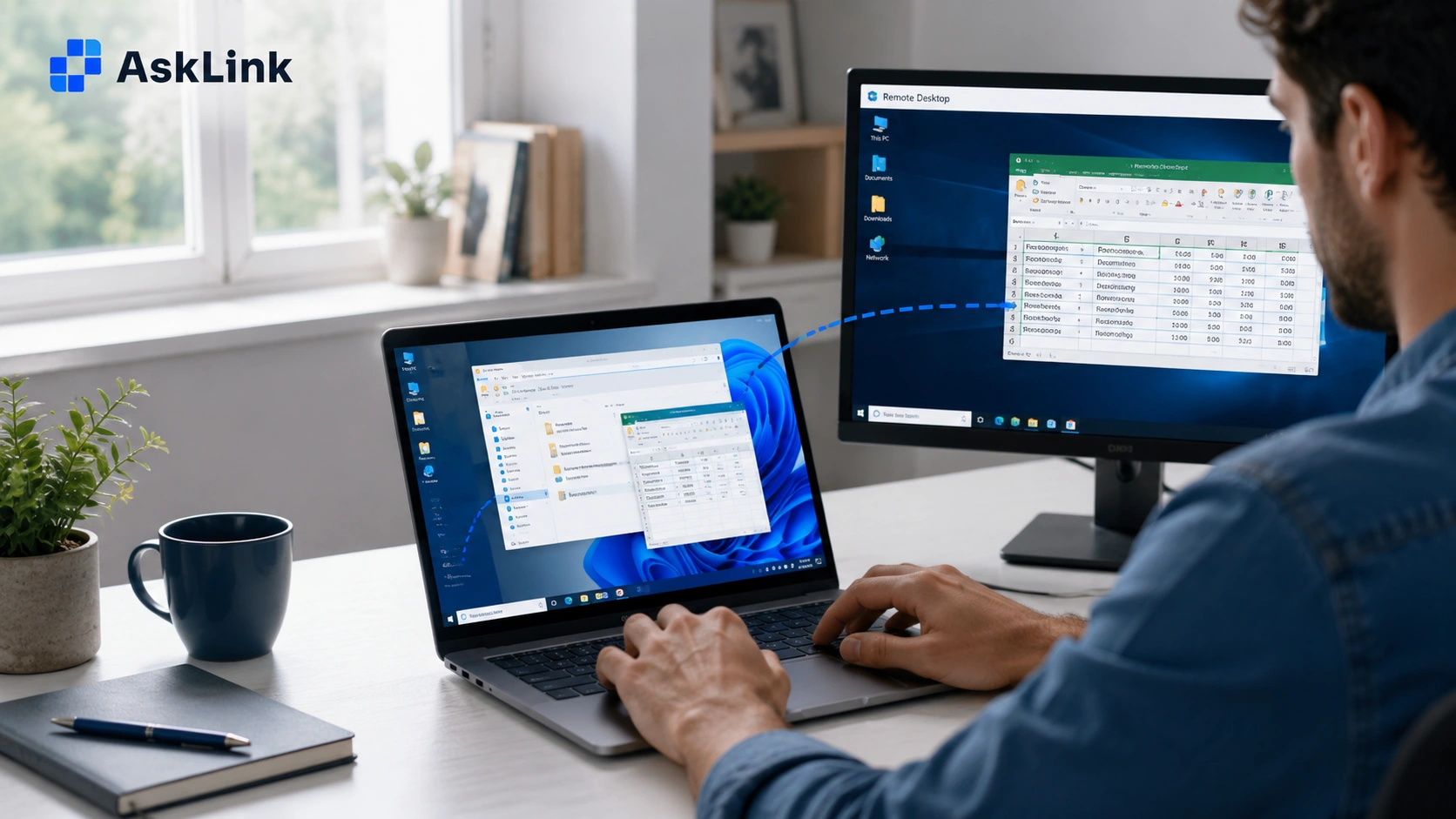
Remote desktop solves a different problem. Instead of connecting to one agent, terminal, port, or Web service, you connect to the machine's graphical environment and work with the apps already running there.
That might include an IDE, terminal, browser preview, Docker Desktop, an emulator, ComfyUI, Photoshop, Blender, file management, GPU monitoring, or system settings. This matters when the workflow crosses several applications.
An AI coding agent may finish updating the code, but you still need to open the local site, test the UI, inspect Docker, or use another desktop tool. A ComfyUI job may finish generating images, but the next step happens in Photoshop, Blender, or the file system.
In these cases, the useful unit of access is no longer one AI tool. It is the workstation around it.
Remote desktop also gives you a recovery path when the problem happens outside the AI workflow. A local service can crash. A permission dialog can block progress. A browser session can require attention. A process may need to be restarted. Full desktop access lets you see the machine's actual state and intervene directly.
That wider control comes with trade-offs. Remote desktop depends more on network quality, the host must remain reachable, and detailed work can be uncomfortable on a small phone screen.
It makes the most sense when you need several local apps, the full GUI, or direct access to the host when something goes wrong. This is also the main area where the research found full desktop access had independent value over agent- or service-level access.
Quick Comparison by AI Workflow
Different local AI workflows naturally favor different access methods.
| Workflow | Agent Remote | Tailscale / Service Access | Remote Desktop |
|---|---|---|---|
| Check or approve a coding agent | Best fit | Sometimes useful | Usually unnecessary |
| Headless development over SSH or terminal | Useful | Best fit | Usually unnecessary |
| Access ComfyUI only | Limited | Best fit | Useful |
| Access Ollama or Open WebUI | Limited | Best fit | Usually unnecessary |
| Coding + browser + Docker + GUI tools | Useful | Useful | Best fit |
| GPU workstation with several desktop apps | Limited | Useful | Best fit |
| Troubleshoot the whole machine remotely | Limited | Limited | Best fit |
A focused workflow usually benefits from a focused access method. The more the task spreads across applications and system-level steps, the more useful full desktop access becomes.
What This Looks Like in Real AI Workflows

Continue an AI Coding Project Away From Your PC
Suppose you ask a coding agent to update a web project. It changes several components, installs a dependency, starts the development server, fixes build errors, updates the styling, and runs tests. If you leave while it is still working, the agent's remote interface may be enough to check progress or approve the next action. If you want to inspect the terminal or code yourself, SSH or remote development tools may be enough.
But the next step may be manual verification. You open the local site, test the interaction, inspect a console error, check Docker Desktop, or compare the result in another GUI tool. At that point, you are no longer just accessing the coding agent. You are accessing the development environment around it.
Check a ComfyUI Workflow From Another Device
ComfyUI is a good example of when remote desktop can be unnecessary. If you only want to submit a workflow, check the queue, change a prompt, or view the output, securely accessing the ComfyUI interface through a browser may be the simpler solution.
But if the next step involves organizing generated files, checking GPU status, restarting a process, or opening the output in Photoshop or Blender, the workstation becomes part of the workflow.
Access Ollama or a Local LLM Remotely
The same distinction applies to Ollama. If another device only needs to send requests to the model or open Open WebUI, service-level access is usually enough. Desktop access becomes more useful when you need to work on the host itself—for example, to restart a service, inspect local files, troubleshoot a container, change a setting, or use another application alongside the model.
Across all three examples, the rule is simple:
Use the smallest level of remote access that still gives you enough control to finish the task.
Before You Leave the Machine: Security and Reliability
Remote access only works if the host stays reachable and the connection does not expose local services carelessly.
Keep the Host Reachable
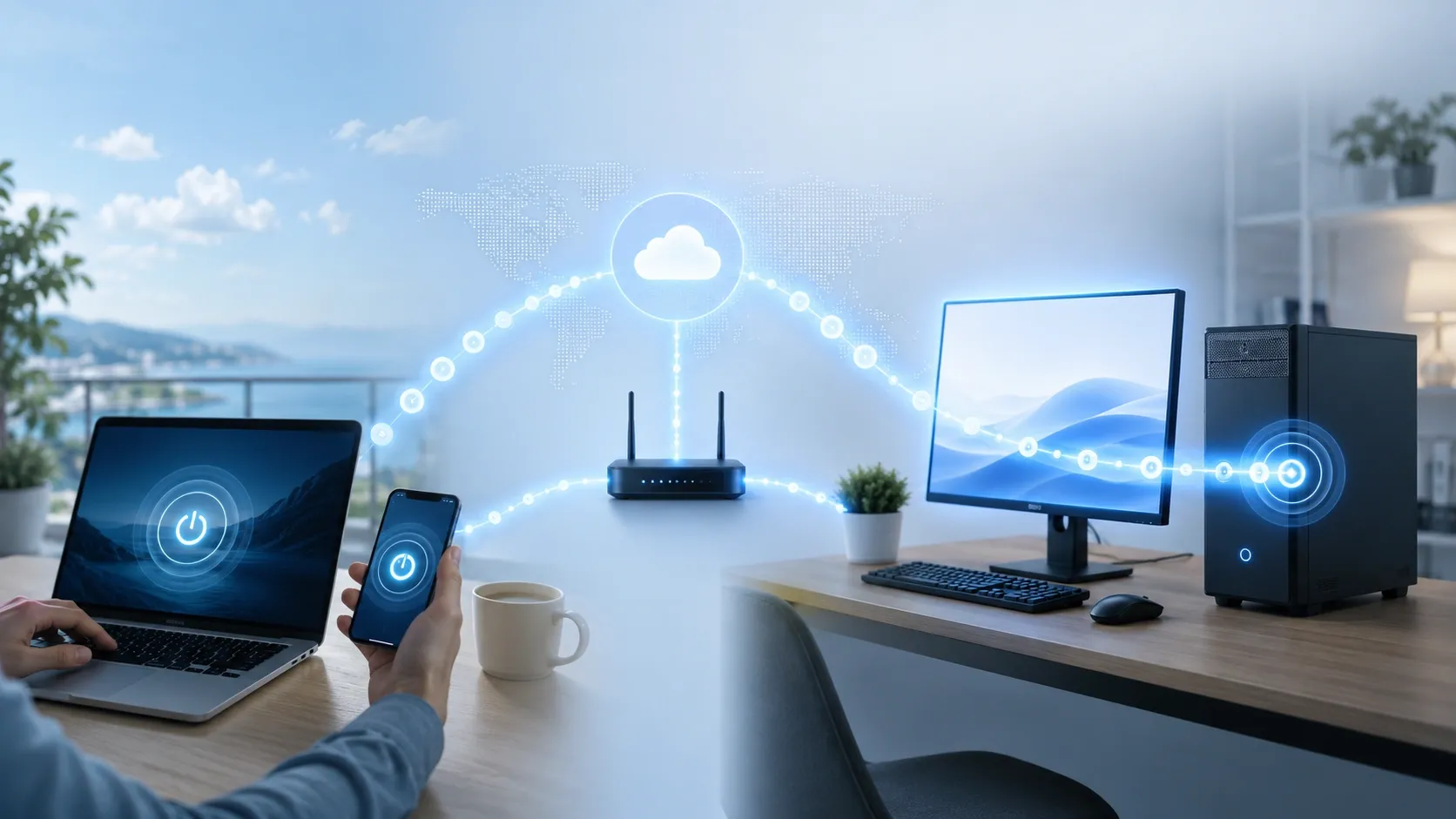
Your development PC or AI workstation needs to remain powered on and connected. If it may sleep or shut down, check whether your remote setup supports an appropriate wake mechanism such as Wake-on-LAN and configure it before you leave.
Do Not Expose Local AI Services Carelessly
Local AI tools often run on ports intended for local or private-network access. Opening those ports directly to the public Internet can create unnecessary risk. Ollama, for example, documents separate options for listening addresses, proxies, and tunnels rather than assuming direct public exposure.
Use an authenticated private-network, tunneling, or remote-access method that controls who can reach the machine or service.
Protect Local Files and Credentials
A local AI workstation may hold source code, documents, API credentials, SSH keys, model files, project assets, and authenticated browser sessions. Remote access should preserve the controls around those resources rather than weakening them.
Plan for Recovery—and Mobile Limits
Remote sessions can fail too. Network changes, suspended sessions, approval synchronization problems, or local service failures may interrupt the workflow. Think about what you would need to recover the task before leaving the machine.
If a terminal or agent is enough, full desktop access may not matter. If recovery could require a GUI, system setting, or another app, wider access becomes more useful.
A phone is also better for supervision than detailed desktop work. Quick approvals, status checks, or urgent fixes fit a small screen better than long sessions involving several windows.
Access the Whole AI Workstation With AskLink

AskLink is designed for the full-environment access side of this workflow.
It becomes most relevant when you need to reconnect to the computer itself rather than one agent or local service.
For example:
AI agent → IDE → Terminal → Browser → Local files
or:
ComfyUI → GPU tools → Output files → Photoshop or Blender
AskLink provides device-level remote control across supported desktop and mobile platforms, so you can reconnect to the local workstation and work with the applications already running there. Wake-on-LAN is also available for compatible setups.
That does not make it a replacement for Codex Remote, SSH, or Tailscale.
If you only need to approve an agent task, the agent's own remote controls may be simpler. If you only need an Ollama endpoint or a ComfyUI page, service-level access may be more direct.
AskLink is most useful when the thing you need to reach is the full local environment behind the AI workflow.
Conclusion
There is no single best way to continue a local AI workflow remotely. If you only need to supervise the AI agent, use its native remote features. If you need a terminal, codebase, API, or one local service, SSH, VS Code Remote, Tailscale, or browser access may be the better fit.
If the task spans several desktop applications—or you need to step in when something outside the AI tool goes wrong—full remote desktop access gives you control over the wider environment.
The most useful question is not simply: "How can I access my AI workflow remotely?" It is: "How much of the computer behind this workflow do I actually need to reach?"
If the answer is the full local environment, AskLink gives you a direct way to reconnect to your workstation and keep working across the apps, files, and tools already running there.
Want full access to your AI workstation when you're away? Try AskLink for free.