'%3e%3cpath%20d='M7.48145%2024H3.74023C1.67456%2023.9999%204.09854e-05%2022.3467%200%2020.3076V16.6152H7.48145V24ZM15.8955%2024H8.41406V16.6152H15.8955V24ZM7.48145%2015.6924H0V8.30762H7.48145V15.6924ZM24%2015.6924H16.5195V8.30762H24V15.6924ZM15.5859%207.38477H8.10547V0H15.5859V7.38477ZM20.2598%200C22.3256%200%2024%201.65318%2024%203.69238V7.38477H16.5195V0H20.2598Z'%20fill='white'/%3e%3cpath%20d='M108.786%2019.0507L105.767%2014.2636H104.397L108.397%208.80874H111.915L108.119%2013.9483V12.3155L112.544%2019.0507H108.786ZM101.527%2019.0507V5.5061H104.897V19.0507H101.527Z'%20fill='white'/%3e%3cpath%20d='M88.8242%2019.0505V8.80858H91.4908V13.2059H91.3421C91.3421%2012.1422%2091.4779%2011.264%2091.7499%2010.5712C92.0214%209.86618%2092.4224%209.34052%2092.953%208.99418C93.4965%208.64778%2094.1506%208.47461%2094.9158%208.47461H95.0644C96.2245%208.47461%2097.1193%208.86427%2097.7488%209.64353C98.3911%2010.4104%2098.7117%2011.5917%2098.7117%2013.1874V19.0505H95.342V13.0946C95.342%2012.6246%2095.2001%2012.2411%2094.9158%2011.9443C94.6443%2011.635%2094.2679%2011.4804%2093.7864%2011.4804C93.3049%2011.4804%2092.9162%2011.635%2092.6202%2011.9443C92.3358%2012.2411%2092.194%2012.6369%2092.194%2013.1317V19.0505H88.8242Z'%20fill='white'/%3e%3cpath%20d='M82.4214%2019.0506V8.80875H85.7912V19.0506H82.4214ZM81.125%2011.2579V8.80875H85.7912V11.2579H81.125ZM83.81%207.99232C83.1928%207.99232%2082.7359%207.83773%2082.4398%207.5285C82.1561%207.2069%2082.0137%206.79872%2082.0137%206.30388C82.0137%205.80913%2082.1561%205.40713%2082.4398%205.09789C82.7359%204.77628%2083.1866%204.61548%2083.7916%204.61548C84.4088%204.61548%2084.8595%204.77628%2085.1433%205.09789C85.427%205.40713%2085.5688%205.80913%2085.5688%206.30388C85.5688%206.79872%2085.427%207.2069%2085.1433%207.5285C84.8595%207.83773%2084.4149%207.99232%2083.81%207.99232Z'%20fill='white'/%3e%3cpath%20d='M71.1328%2019.0507V5.5061H74.5769V19.0507H71.1328ZM74.2065%2019.0507V16.0449H79.6876V19.0507H74.2065Z'%20fill='white'/%3e%3cpath%20d='M65.4458%2019.0507L62.428%2014.2636H61.0576L65.0571%208.80874H68.5755L64.7795%2013.9483V12.3155L69.2049%2019.0507H65.4458ZM58.1875%2019.0507V5.5061H61.5578V19.0507H58.1875Z'%20fill='white'/%3e%3cpath%20d='M51.2917%2019.3845C49.8103%2019.3845%2048.6438%2019.0814%2047.7921%2018.4753C46.9403%2017.8568%2046.4836%2016.991%2046.4219%2015.8777H49.3844C49.4339%2016.1869%2049.6252%2016.4529%2049.9585%2016.6755C50.2918%2016.8982%2050.7608%2017.0095%2051.3657%2017.0095C51.7978%2017.0095%2052.1681%2016.9477%2052.4767%2016.824C52.7977%2016.6879%2052.9581%2016.4715%2052.9581%2016.1745C52.9581%2015.9148%2052.8347%2015.7045%2052.5878%2015.5437C52.3409%2015.3705%2051.8903%2015.2531%2051.2361%2015.1912L50.5325%2015.117C49.224%2014.9809%2048.2611%2014.6222%2047.6439%2014.0408C47.0267%2013.4595%2046.7181%2012.7297%2046.7181%2011.8515C46.7181%2011.0969%2046.9033%2010.4784%2047.2736%209.99603C47.6439%209.50126%2048.1562%209.13018%2048.8105%208.8828C49.4647%208.63541%2050.2115%208.51172%2051.0509%208.51172C52.4211%208.51172%2053.526%208.81473%2054.3653%209.42089C55.2048%2010.0146%2055.6492%2010.8743%2055.6986%2011.9999H52.7359C52.6866%2011.6907%2052.5199%2011.4309%2052.236%2011.2206C51.9521%2010.998%2051.5447%2010.8867%2051.0139%2010.8867C50.6312%2010.8867%2050.3164%2010.9547%2050.0696%2011.0907C49.835%2011.2268%2049.7178%2011.4185%2049.7178%2011.6659C49.7178%2011.9257%2049.8289%2012.1174%2050.0511%2012.2411C50.2856%2012.3648%2050.6559%2012.4576%2051.162%2012.5194L51.8657%2012.5936C53.1741%2012.7297%2054.1802%2013.0946%2054.8838%2013.6883C55.5998%2014.2697%2055.9578%2015.0366%2055.9578%2015.989C55.9578%2016.6941%2055.7664%2017.3002%2055.3838%2017.8073C55.0134%2018.3145%2054.4764%2018.7041%2053.7728%2018.9763C53.0816%2019.2484%2052.2545%2019.3845%2051.2917%2019.3845Z'%20fill='white'/%3e%3cpath%20d='M31.0117%2019.0507L35.3445%205.5061H40.8624L45.3434%2019.0507H41.7882L38.3072%207.91816L39.2885%208.28924H36.8444L37.8442%207.91816L34.4558%2019.0507H31.0117ZM34.5483%2015.915L35.5853%2013.0948H40.7143L41.7512%2015.915H34.5483Z'%20fill='white'/%3e%3c/g%3e%3cdefs%3e%3cclipPath%20id='clip0_5596_142775'%3e%3crect%20width='113'%20height='24'%20fill='white'/%3e%3c/clipPath%3e%3c/defs%3e%3c/svg%3e "AskLink")
 Sophie Carter
Chrome Remote Desktop lets you access your own computer or help someone remotely. It works with Windows, Mac, and Linux computers. You can connect from a computer or mobile device. If it meets your needs, you can keep using it every day.
You may want a Chrome remote desktop alternative for extra features. These include file transfer during support sessions, remote wake, self-hosting, and gamepad support. Below, we compare six options, their free plans, and their main limits.
If you only need to fix a connection problem, start with our Chrome Remote Desktop troubleshooting guide.
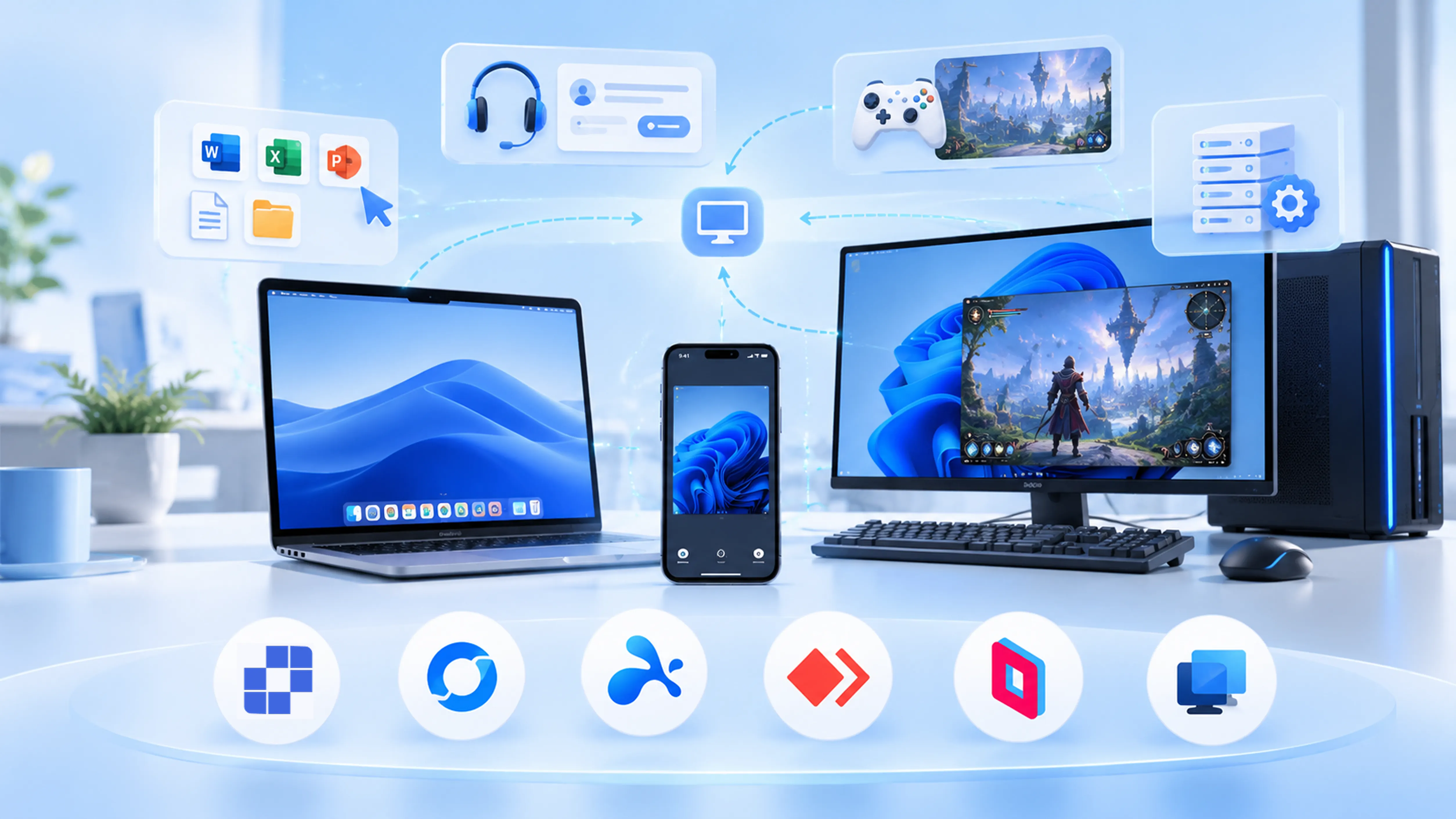
Quick Picks: Compare Features, Free Plans, and Limits
| Tool | Best for | Free or paid | Main limitation |
|---|---|---|---|
| Chrome Remote Desktop | Access your own computer or give one-time help | Free | Regular Remote Support sessions do not include file transfer and other advanced features. |
| AskLink | Transfer files during support; wake a configured PC; use a privacy screen or virtual monitors | AskLink Free has no session time limit. It includes 50 hours of high-speed access each month. After you use those hours, you can stay connected through the basic connection.; some display and privacy tools require a paid plan | Remote wake needs another online AskLink device on the host's LAN; no self-hosting. |
| RustDesk | Run your own ID and relay servers | Free open-source server, with infrastructure and maintenance costs; paid Server Pro for advanced administration | You must set up and maintain the servers. |
| Splashtop | Access your own work PC or run a professional support workflow | Free trials; Remote Access and Remote Support are paid products | You must choose the right product and plan for your use case. |
| AnyDesk | Start portable support sessions and move files | Free for private, non-professional use; paid license for work | Portable mode does not start automatically and has limited privileges. |
| Parsec | Remote gaming and gamepad input | Free for personal, non-commercial use; commercial work requires a Teams or Enterprise plan | No iOS client; hosting is limited to Windows and Mac. |
| Quick Assist | Give someone immediate help on Windows | Free | The helper must sign in; the other person must approve each session. No unattended access. |
The 6 Best Chrome Remote Desktop Alternatives
AskLink: For Remote Support and Everyday Access
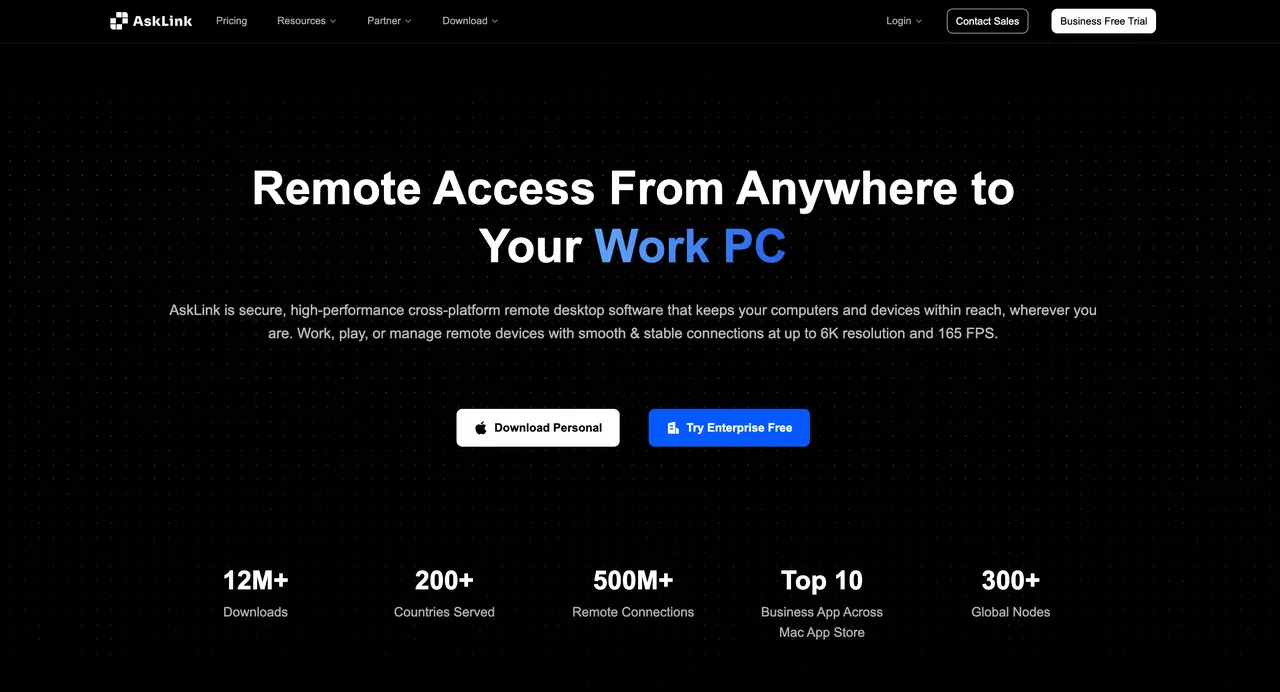
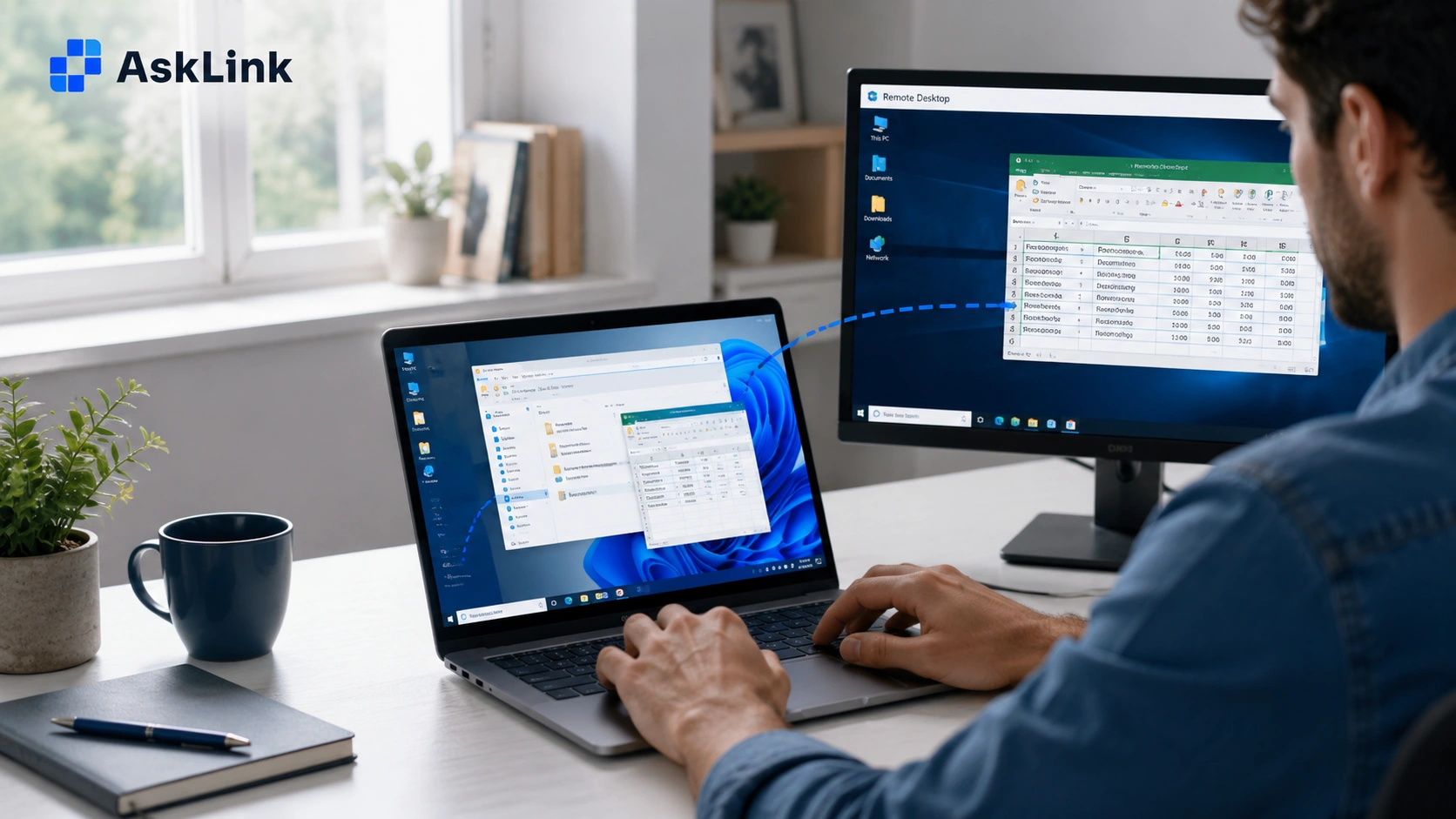
Chrome Remote Desktop can transfer files when you access your own computer. Its regular Remote Support session is different: Google says that mode does not support file transfer. If you often need to send an installer or collect a log while helping someone, AskLink addresses that specific gap. Enter the other person's ID and password in AskLink's Remote Support screen, then open its dedicated File Transfer window.
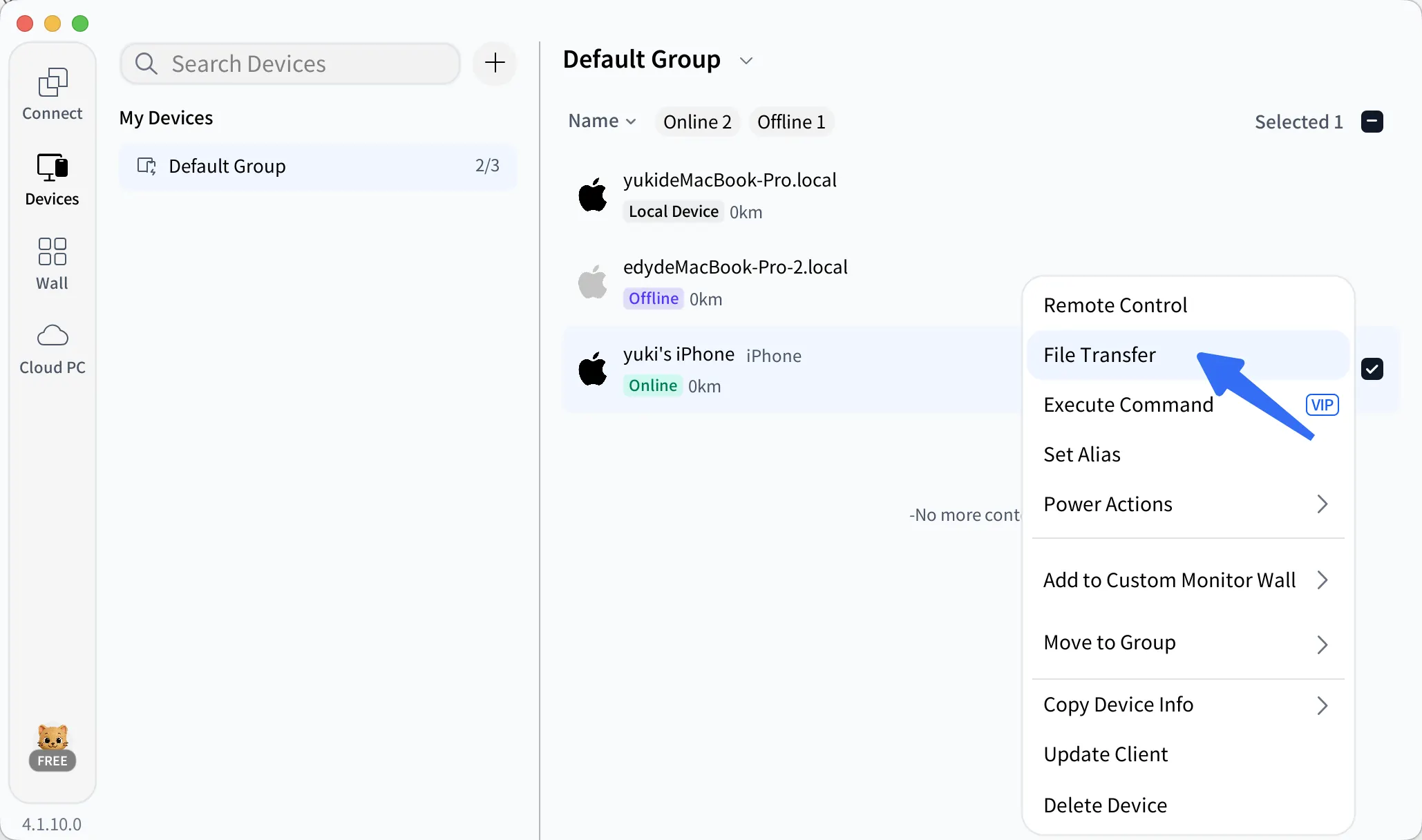
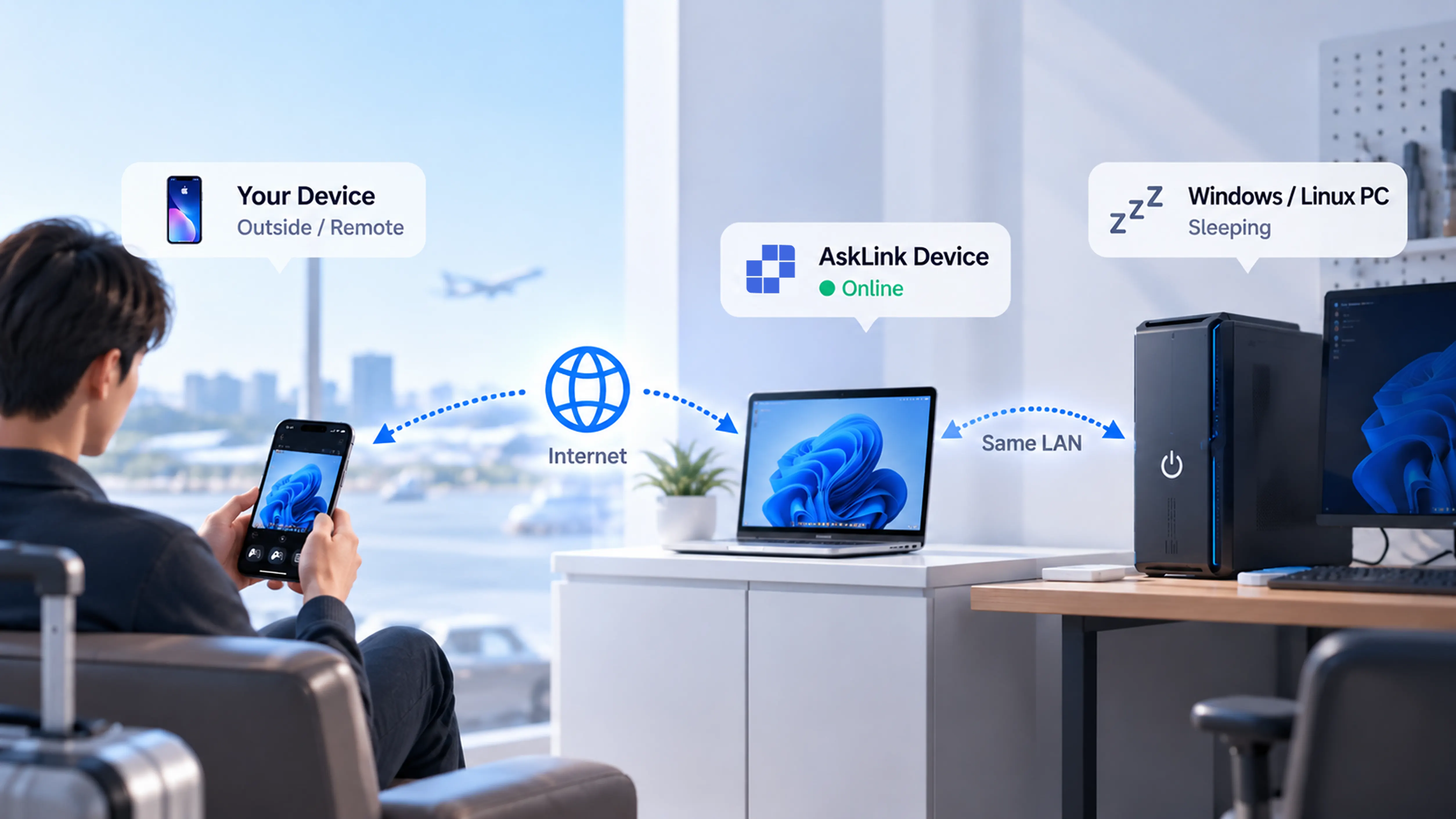
AskLink's Device List can send a wake command to a configured Windows or Linux computer, so you can wake it and then connect. Standard and higher plans include Privacy Screen and Virtual Display. Privacy Screen hides the remote computer’s physical screen from people nearby. Virtual Display adds extra screen space. Both features require a supported Windows remote computer. Those are more useful decision points than a maximum FPS figure for most office tasks.
AskLink Free has no overall session-time limit. It includes 50 hours of high-speed access per month, then continues on the basic route. Check the plan details before choosing paid features. You will need to set up AskLink on the devices you use; remote wake also requires another signed-in AskLink device online on the target's local network. Choose AskLink if you need these tools alongside remote access.
RustDesk: For Self-Hosted Remote Access
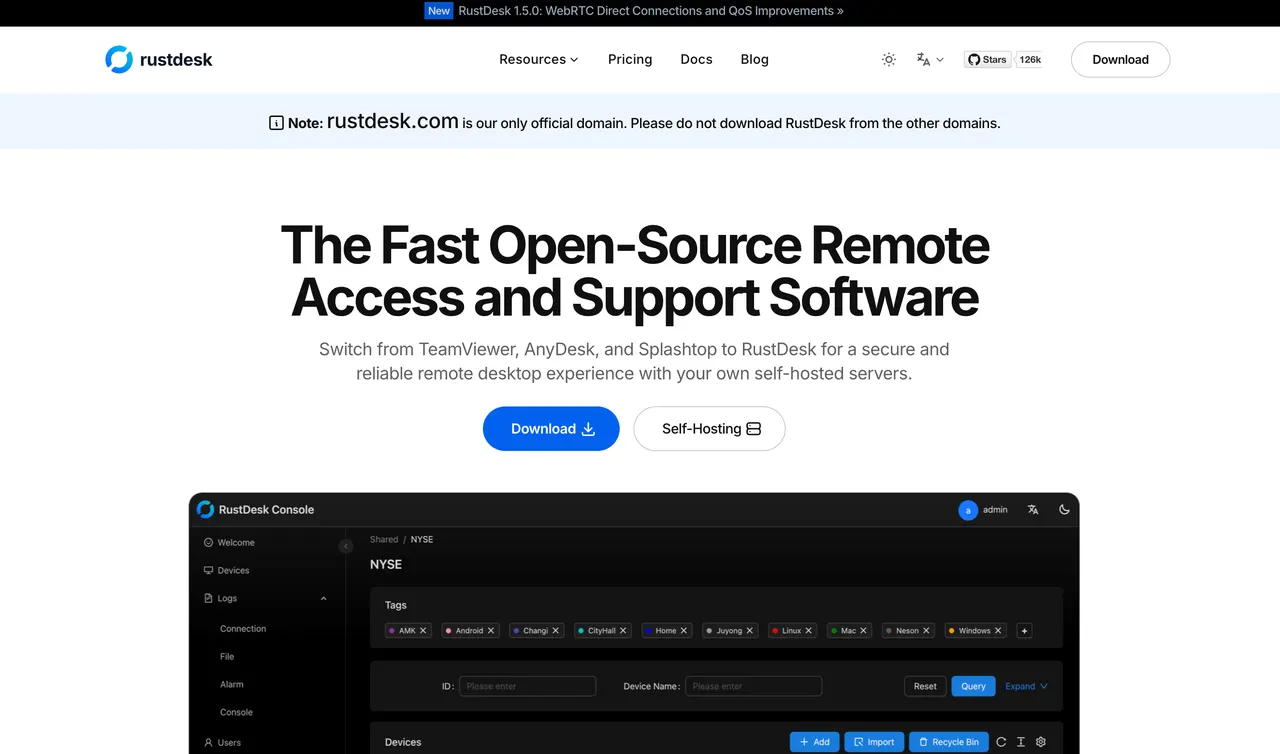
Chrome Remote Desktop gives you a simple Google-managed service. If your requirement is to operate the connection infrastructure yourself, RustDesk offers a different model: its open-source server lets you run the ID and relay services on systems you control.
Self-hosting is optional; RustDesk clients can also use public infrastructure. If you choose the self-hosted route, you must deploy the servers, configure clients, and maintain the network and software. The open-source server has no license fee, but infrastructure and administration still cost something. Server Pro adds paid management features.
If you want to compare self-hosting with a service managed by a provider, our RustDesk alternatives guide compares the paths in more detail.
Splashtop: For Remote Work and IT Support
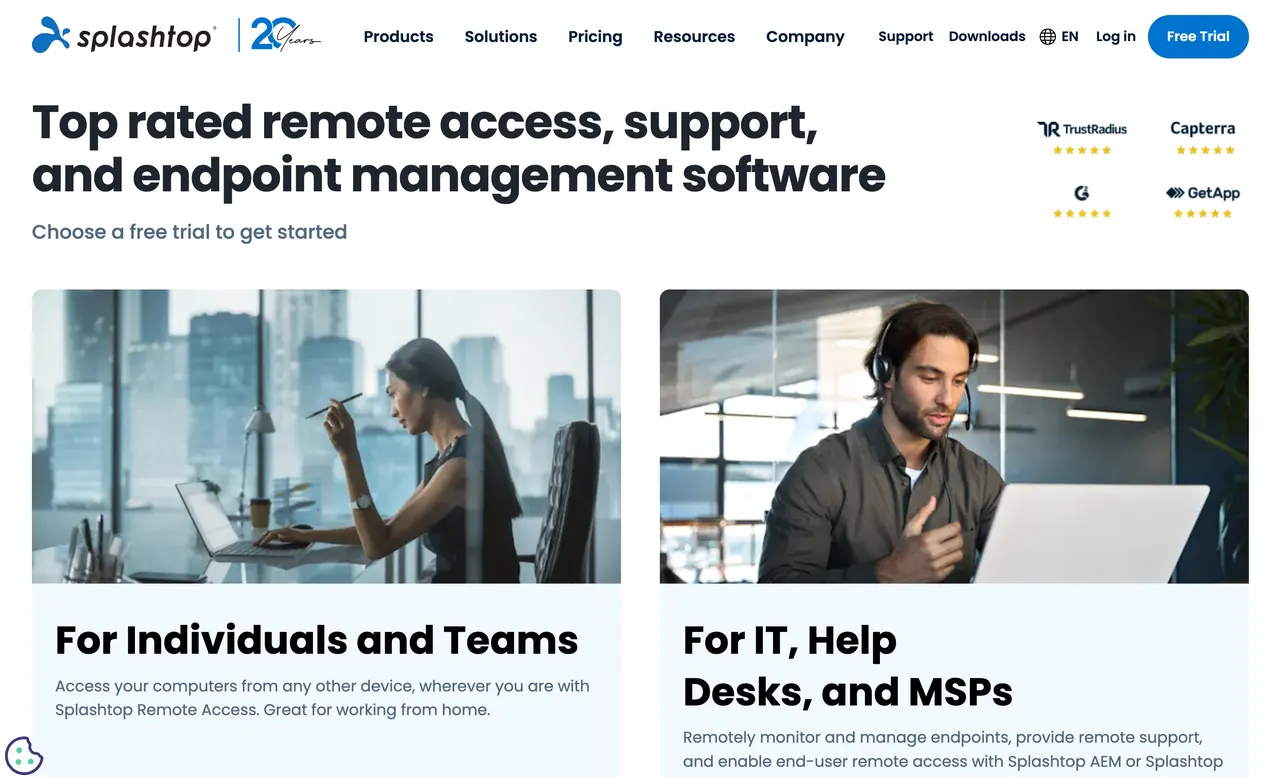
Splashtop offers separate products for remote work and IT support, and which Splashtop product you choose matters.
If you mainly connect to your own work computers and need features such as remote printing, look at Splashtop Remote Access. If technicians support other people's devices, look at Remote Support SOS: it offers on-demand sessions by code, file transfer, chat, and access to computers set up for unattended access.
Both products offer trials and require payment for ongoing use. Managed-device allowances and advanced features depend on the license, so decide whether you are buying access to your PCs or support for other people before comparing plans.
AnyDesk: For Support Without a Full Installation
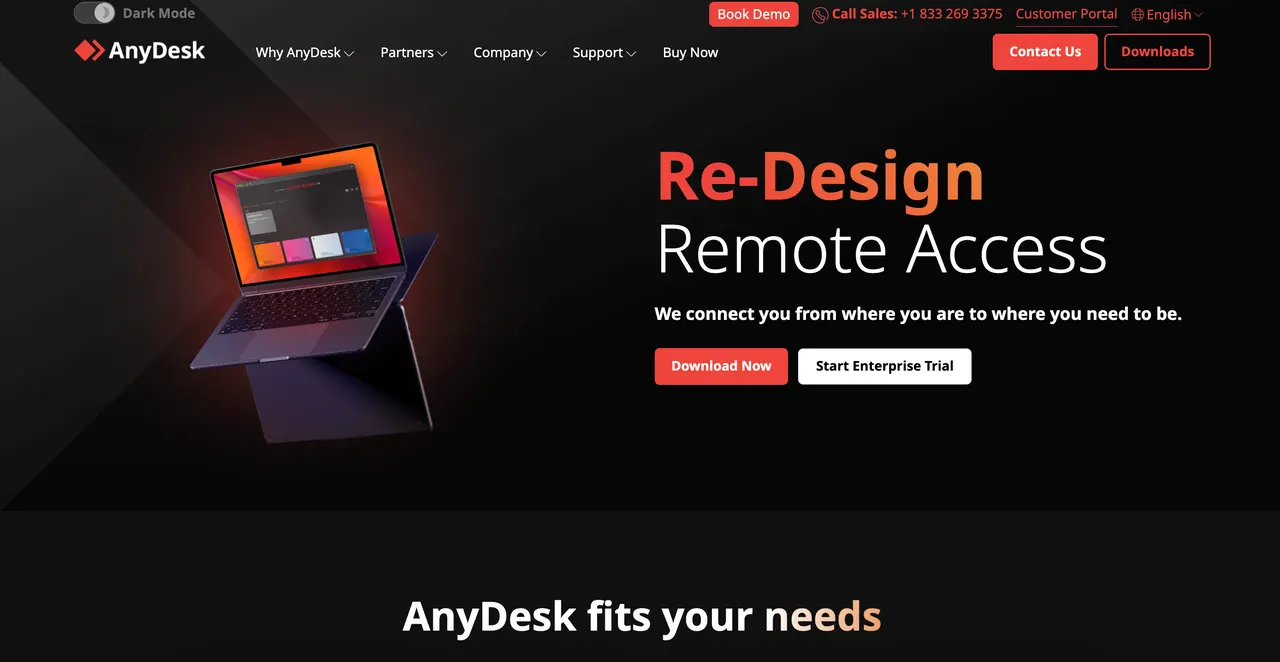
Chrome Remote Desktop can provide one-time help, but the person receiving it must complete Google's host setup. On Windows, Mac, and Linux, AnyDesk offers a portable client that can run without a full installation. The person can open it, share their address, and start an attended session. AnyDesk also provides file transfer during remote work or support.
Portable mode does not start with the computer. It also lacks admin permissions by default. Install AnyDesk if you need reliable unattended access. Its free version is restricted to private, non-professional use, so professional support or remote work needs a paid license. For more options, see our AnyDesk alternatives guide.
Parsec: For Remote Gaming
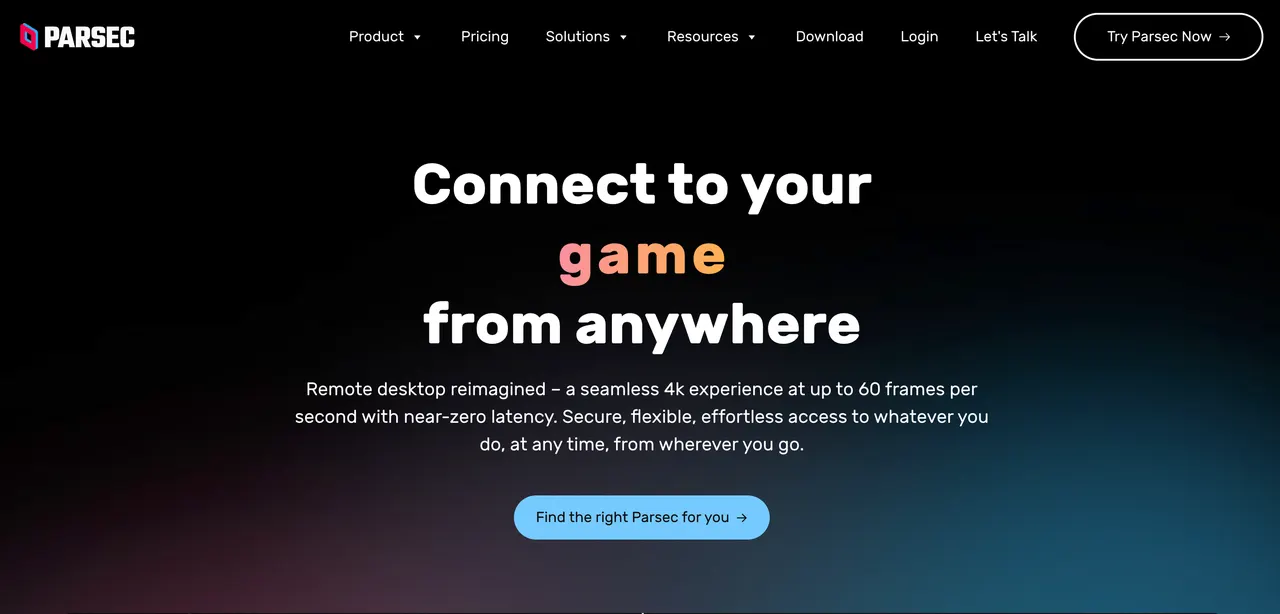
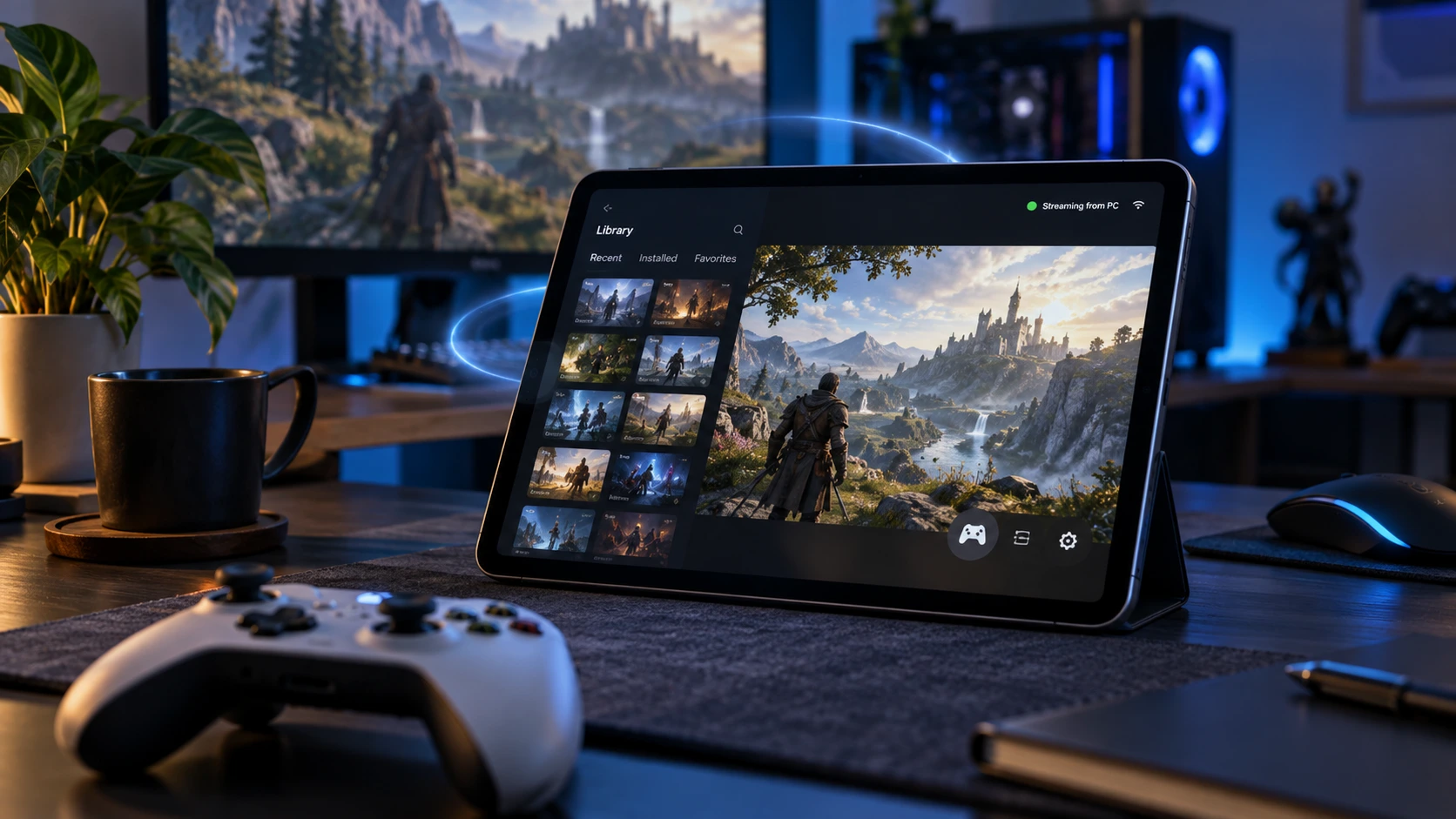
If your main complaint is how a remote game feels, Parsec deserves a look. Its game-focused controls include gamepad support and settings designed for responsive streaming. Parsec also serves creative teams working on demanding applications, with separate commercial plans.
Check device support and license terms before you switch. Parsec hosts on Windows and Mac and does not support iOS or iPadOS clients. Its free plan is for personal, non-commercial use; work requires a Teams or Enterprise license. Test it on your actual network before assuming any remote game will feel faster.
Quick Assist: For One-Time Windows Support
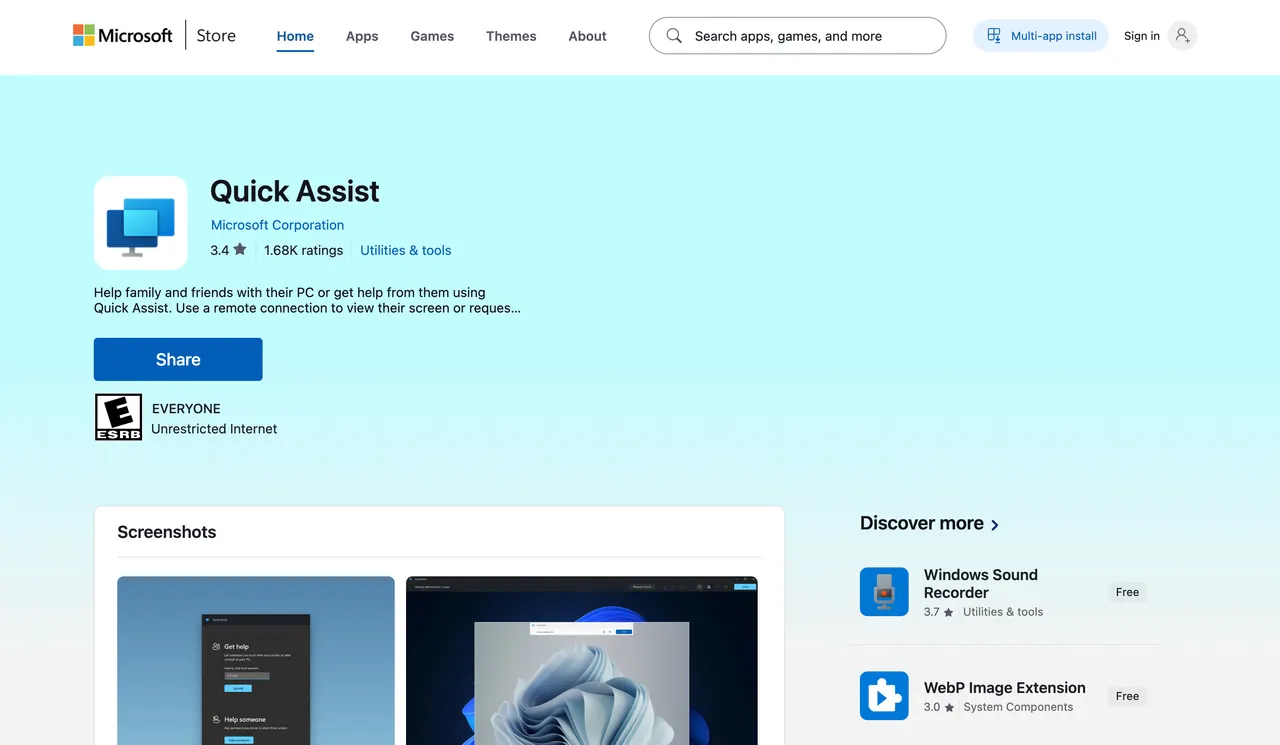
Quick Assist does not add unattended access to Chrome Remote Desktop. It lets you help someone who is at a Windows PC. The helper signs in with a Microsoft account or Microsoft Entra ID, generates a six-digit code, and shares it with the person needing help. That person does not need to sign in, but must approve screen sharing and any request for full control.
Microsoft's Quick Assist instructions cover Windows 10 and 11; the app may need to be installed from the Microsoft Store. Choose it for an immediate, attended Windows fix. If you need to reach your own PC when no one is there, keep Chrome Remote Desktop or choose an unattended alternative.
Before You Switch, Check These Three Things
- Test the exact kind of session you use. File transfer in Chrome Remote Desktop's Remote Access mode does not mean the same feature is available in regular Remote Support. Google's policy description distinguishes the two. When evaluating a replacement, try the task that prompted your search, such as sending an installer during a help session.
- Check both device roles and the license. "Supports iPhone" may mean that an iPhone can control a computer, rather than be fully controlled itself. AskLink supports iOS as a controller, while an iOS device being accessed is view-only. Parsec has no iOS client. Also check whether "free" covers your purpose: AnyDesk and Parsec restrict their free plans to non-commercial use.
- Keep your current tool available until you have tested the new one. Install and authorize the replacement, confirm unattended access if you need it, and reconnect after a restart. If waking the host matters, test it before traveling: AskLink's Wake-on-LAN setup requires compatible host settings and an online device on the same LAN. A remote-access app cannot wake a computer that has no power.
Conclusion
Choose the chrome remote desktop alternative that provides the feature you need. AskLink for support-session file transfer or an integrated remote-wake workflow; RustDesk for self-hosting; Splashtop for a paid remote-work or help-desk product; AnyDesk for portable support; Parsec for game controls; and Quick Assist for attended Windows help. If you want to compare more products, our broader remote desktop software guide covers additional options.
Try AskLink Free on the devices you normally use with Chrome Remote Desktop. Test file transfer, screen quality, and how quickly the remote computer responds. Check whether it meets your needs before choosing a paid plan.