'%3e%3cpath%20d='M7.48145%2024H3.74023C1.67456%2023.9999%204.09854e-05%2022.3467%200%2020.3076V16.6152H7.48145V24ZM15.8955%2024H8.41406V16.6152H15.8955V24ZM7.48145%2015.6924H0V8.30762H7.48145V15.6924ZM24%2015.6924H16.5195V8.30762H24V15.6924ZM15.5859%207.38477H8.10547V0H15.5859V7.38477ZM20.2598%200C22.3256%200%2024%201.65318%2024%203.69238V7.38477H16.5195V0H20.2598Z'%20fill='white'/%3e%3cpath%20d='M108.786%2019.0507L105.767%2014.2636H104.397L108.397%208.80874H111.915L108.119%2013.9483V12.3155L112.544%2019.0507H108.786ZM101.527%2019.0507V5.5061H104.897V19.0507H101.527Z'%20fill='white'/%3e%3cpath%20d='M88.8242%2019.0505V8.80858H91.4908V13.2059H91.3421C91.3421%2012.1422%2091.4779%2011.264%2091.7499%2010.5712C92.0214%209.86618%2092.4224%209.34052%2092.953%208.99418C93.4965%208.64778%2094.1506%208.47461%2094.9158%208.47461H95.0644C96.2245%208.47461%2097.1193%208.86427%2097.7488%209.64353C98.3911%2010.4104%2098.7117%2011.5917%2098.7117%2013.1874V19.0505H95.342V13.0946C95.342%2012.6246%2095.2001%2012.2411%2094.9158%2011.9443C94.6443%2011.635%2094.2679%2011.4804%2093.7864%2011.4804C93.3049%2011.4804%2092.9162%2011.635%2092.6202%2011.9443C92.3358%2012.2411%2092.194%2012.6369%2092.194%2013.1317V19.0505H88.8242Z'%20fill='white'/%3e%3cpath%20d='M82.4214%2019.0506V8.80875H85.7912V19.0506H82.4214ZM81.125%2011.2579V8.80875H85.7912V11.2579H81.125ZM83.81%207.99232C83.1928%207.99232%2082.7359%207.83773%2082.4398%207.5285C82.1561%207.2069%2082.0137%206.79872%2082.0137%206.30388C82.0137%205.80913%2082.1561%205.40713%2082.4398%205.09789C82.7359%204.77628%2083.1866%204.61548%2083.7916%204.61548C84.4088%204.61548%2084.8595%204.77628%2085.1433%205.09789C85.427%205.40713%2085.5688%205.80913%2085.5688%206.30388C85.5688%206.79872%2085.427%207.2069%2085.1433%207.5285C84.8595%207.83773%2084.4149%207.99232%2083.81%207.99232Z'%20fill='white'/%3e%3cpath%20d='M71.1328%2019.0507V5.5061H74.5769V19.0507H71.1328ZM74.2065%2019.0507V16.0449H79.6876V19.0507H74.2065Z'%20fill='white'/%3e%3cpath%20d='M65.4458%2019.0507L62.428%2014.2636H61.0576L65.0571%208.80874H68.5755L64.7795%2013.9483V12.3155L69.2049%2019.0507H65.4458ZM58.1875%2019.0507V5.5061H61.5578V19.0507H58.1875Z'%20fill='white'/%3e%3cpath%20d='M51.2917%2019.3845C49.8103%2019.3845%2048.6438%2019.0814%2047.7921%2018.4753C46.9403%2017.8568%2046.4836%2016.991%2046.4219%2015.8777H49.3844C49.4339%2016.1869%2049.6252%2016.4529%2049.9585%2016.6755C50.2918%2016.8982%2050.7608%2017.0095%2051.3657%2017.0095C51.7978%2017.0095%2052.1681%2016.9477%2052.4767%2016.824C52.7977%2016.6879%2052.9581%2016.4715%2052.9581%2016.1745C52.9581%2015.9148%2052.8347%2015.7045%2052.5878%2015.5437C52.3409%2015.3705%2051.8903%2015.2531%2051.2361%2015.1912L50.5325%2015.117C49.224%2014.9809%2048.2611%2014.6222%2047.6439%2014.0408C47.0267%2013.4595%2046.7181%2012.7297%2046.7181%2011.8515C46.7181%2011.0969%2046.9033%2010.4784%2047.2736%209.99603C47.6439%209.50126%2048.1562%209.13018%2048.8105%208.8828C49.4647%208.63541%2050.2115%208.51172%2051.0509%208.51172C52.4211%208.51172%2053.526%208.81473%2054.3653%209.42089C55.2048%2010.0146%2055.6492%2010.8743%2055.6986%2011.9999H52.7359C52.6866%2011.6907%2052.5199%2011.4309%2052.236%2011.2206C51.9521%2010.998%2051.5447%2010.8867%2051.0139%2010.8867C50.6312%2010.8867%2050.3164%2010.9547%2050.0696%2011.0907C49.835%2011.2268%2049.7178%2011.4185%2049.7178%2011.6659C49.7178%2011.9257%2049.8289%2012.1174%2050.0511%2012.2411C50.2856%2012.3648%2050.6559%2012.4576%2051.162%2012.5194L51.8657%2012.5936C53.1741%2012.7297%2054.1802%2013.0946%2054.8838%2013.6883C55.5998%2014.2697%2055.9578%2015.0366%2055.9578%2015.989C55.9578%2016.6941%2055.7664%2017.3002%2055.3838%2017.8073C55.0134%2018.3145%2054.4764%2018.7041%2053.7728%2018.9763C53.0816%2019.2484%2052.2545%2019.3845%2051.2917%2019.3845Z'%20fill='white'/%3e%3cpath%20d='M31.0117%2019.0507L35.3445%205.5061H40.8624L45.3434%2019.0507H41.7882L38.3072%207.91816L39.2885%208.28924H36.8444L37.8442%207.91816L34.4558%2019.0507H31.0117ZM34.5483%2015.915L35.5853%2013.0948H40.7143L41.7512%2015.915H34.5483Z'%20fill='white'/%3e%3c/g%3e%3cdefs%3e%3cclipPath%20id='clip0_5596_142775'%3e%3crect%20width='113'%20height='24'%20fill='white'/%3e%3c/clipPath%3e%3c/defs%3e%3c/svg%3e "AskLink")
 Ethan Miller
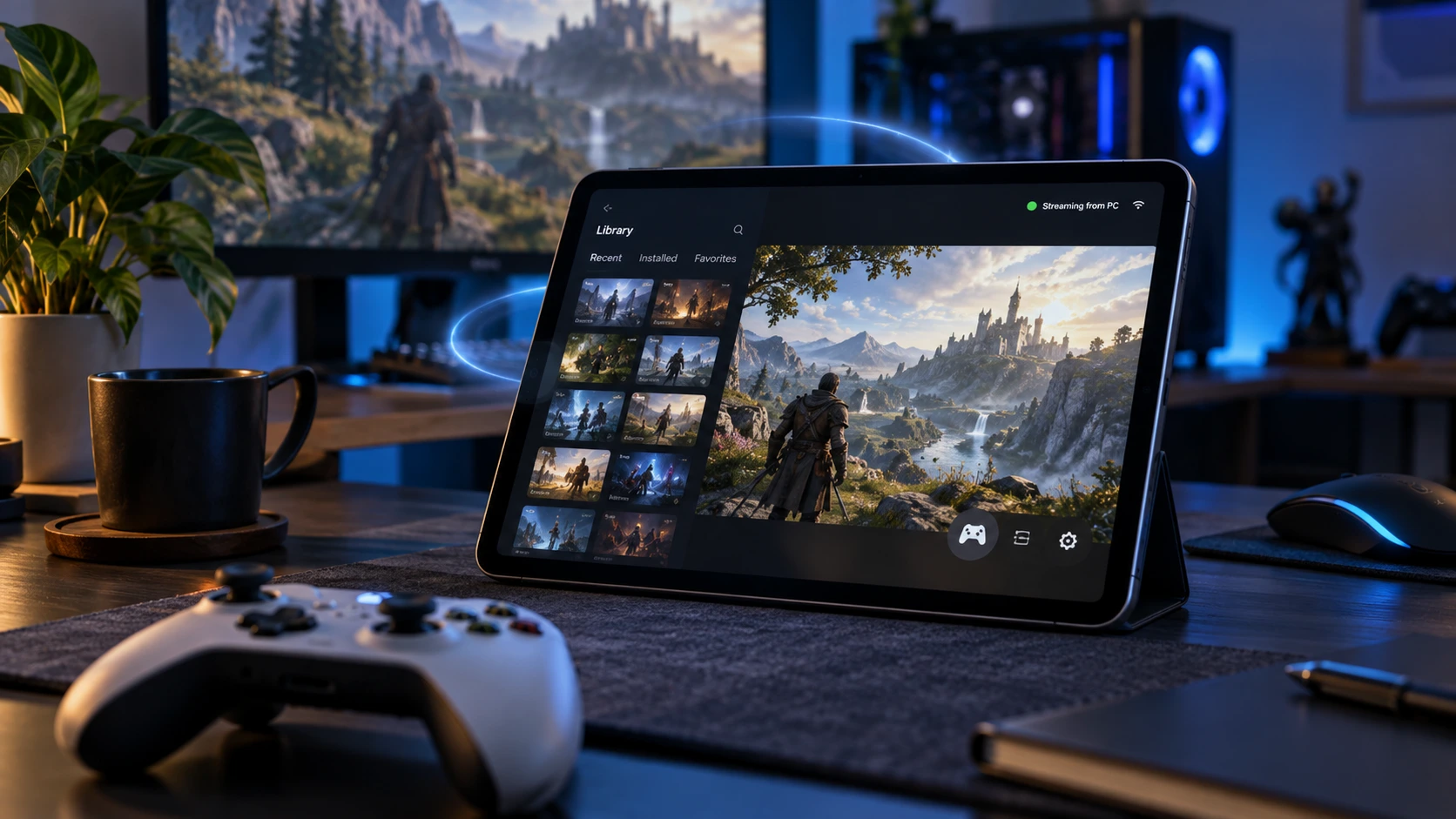
Yes, you can play Steam games on an iPad—but in most cases, the game itself won't run on the iPad. Instead, it runs on your gaming PC or a cloud server, while the iPad displays the game and sends your controls back.
If you already own a gaming PC, Steam Link is usually the easiest place to start. If you need access to the full desktop as well as Steam, a remote desktop tool like AskLink gives you more control. And if you don't own a gaming PC, cloud gaming services such as GeForce NOW are another option.
Below, we'll help you choose the right route in seconds, set it up, and avoid the lag, blurry video, and awkward controls that often ruin the first attempt.
Your iPad Is the Screen—So Where Will the Game Run?
The fastest way to choose a method is to ask where the game will run.
| Your situation | Best place to start | Where the game runs |
|---|---|---|
| You own a gaming PC and mainly want your Steam library | Steam Link | Your PC |
| You need the full desktop for launchers, updates, mods, files, or other PC tasks | AskLink | Your PC |
| You don't own a gaming PC | GeForce NOW | NVIDIA's cloud |
| You want to install desktop Steam directly on iPadOS | Not normally possible | — |
Steam Link and AskLink do not install the PC version of a game on your iPad. They stream the picture and sound from your computer while sending your touch, controller, keyboard, or mouse input back to it.
That also means a newer iPad does not magically make an incompatible PC game run locally. A faster chip, better Wi-Fi, or a 120Hz display may improve streaming, but your PC or cloud server still does the heavy work.
Method 1 — Couch Mode in Five Minutes With Steam Link
If you already own a gaming PC and just want to play your Steam library on an iPad, start with Steam Link.
It is free, built by Valve, and designed specifically for Steam Remote Play. For most people playing at home, it is the simplest answer to play Steam games on iPad.
What You Need Before You Pair
Prepare the following:
- A Windows, macOS, or Linux computer running Steam
- The game installed on that computer
- The Steam Link app for iPad, installed from the App Store
- A stable home network
- An optional Xbox, PlayStation, Steam, or MFi controller
For the best starting setup, connect the gaming PC to your router with Ethernet and put the iPad on a 5GHz Wi-Fi network. The computer should be awake, Steam should be open, and both devices should initially be on the same local network.
Touch controls work for simpler games and menus, but a controller is usually better for action, racing, or longer sessions. Apple provides current instructions for connecting a wireless game controller.
Pair, Test, and Press Play
- Open Steam on your gaming PC.
- Go to Steam > Settings > Remote Play and turn on Remote Play.
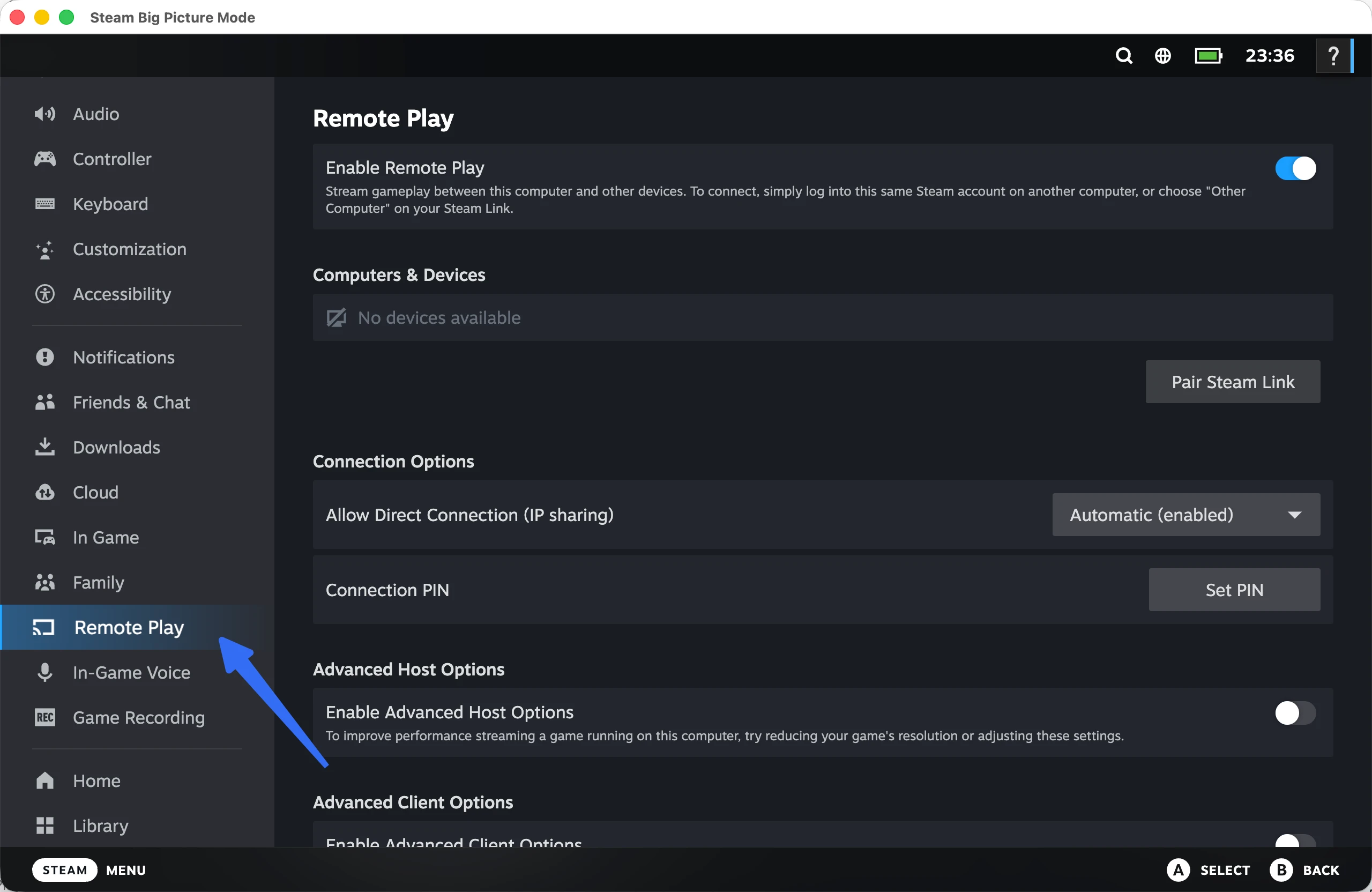
- Install and open Steam Link on your iPad.
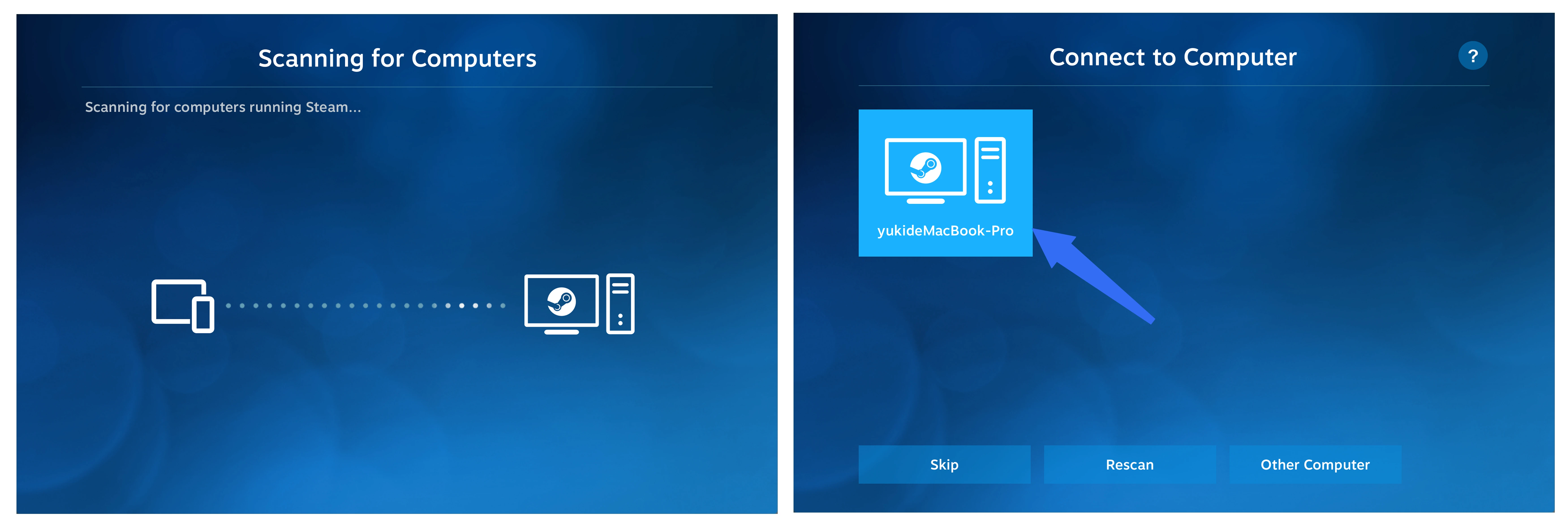
- Let the app find your computer, then select it.
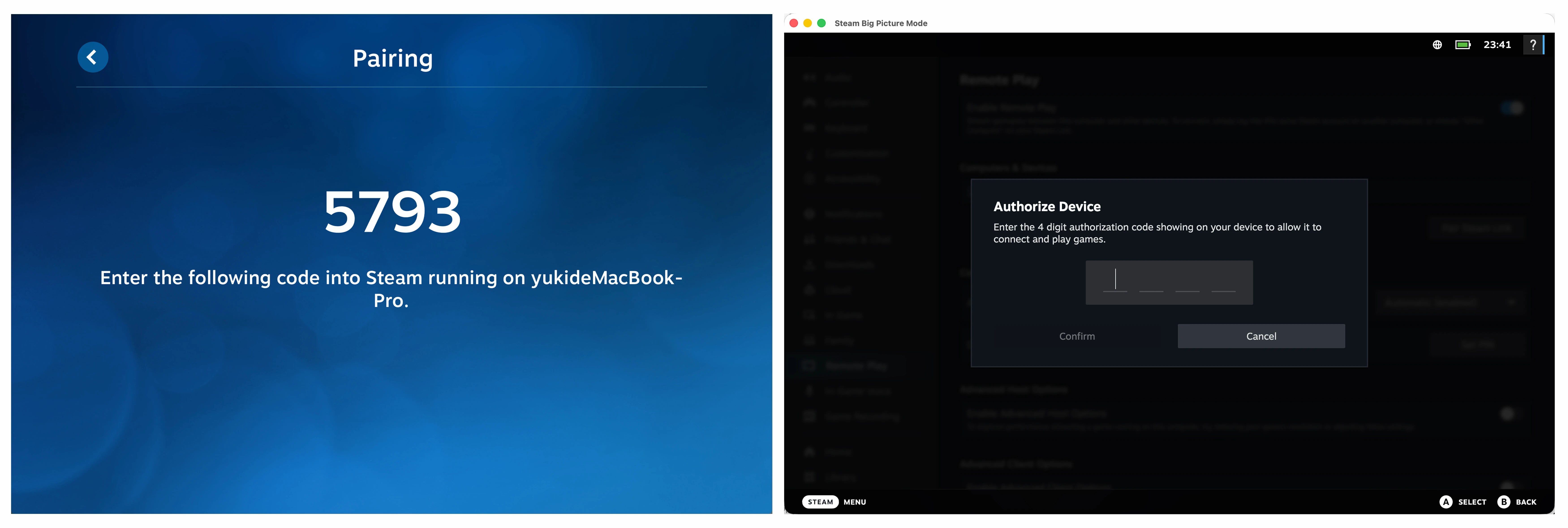
- Enter the PIN shown on the iPad into Steam on your computer.
- Run the network test and tap Start Playing.
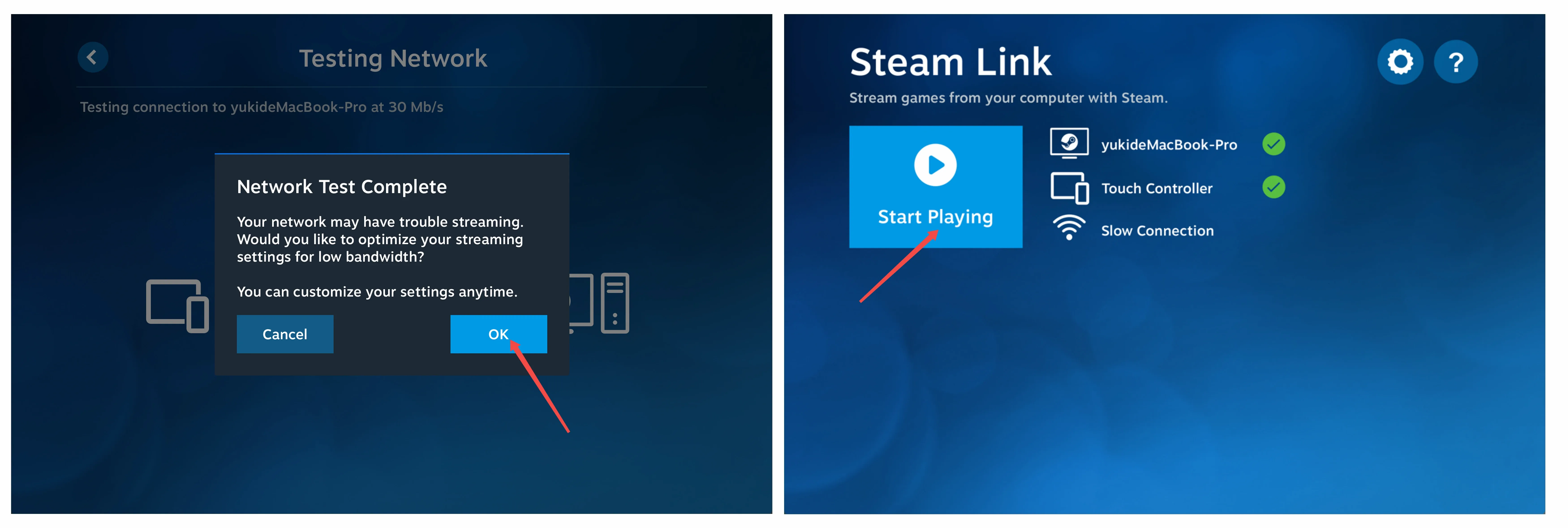
Steam will open in its controller-friendly interface. Select a game from your library and press Play.
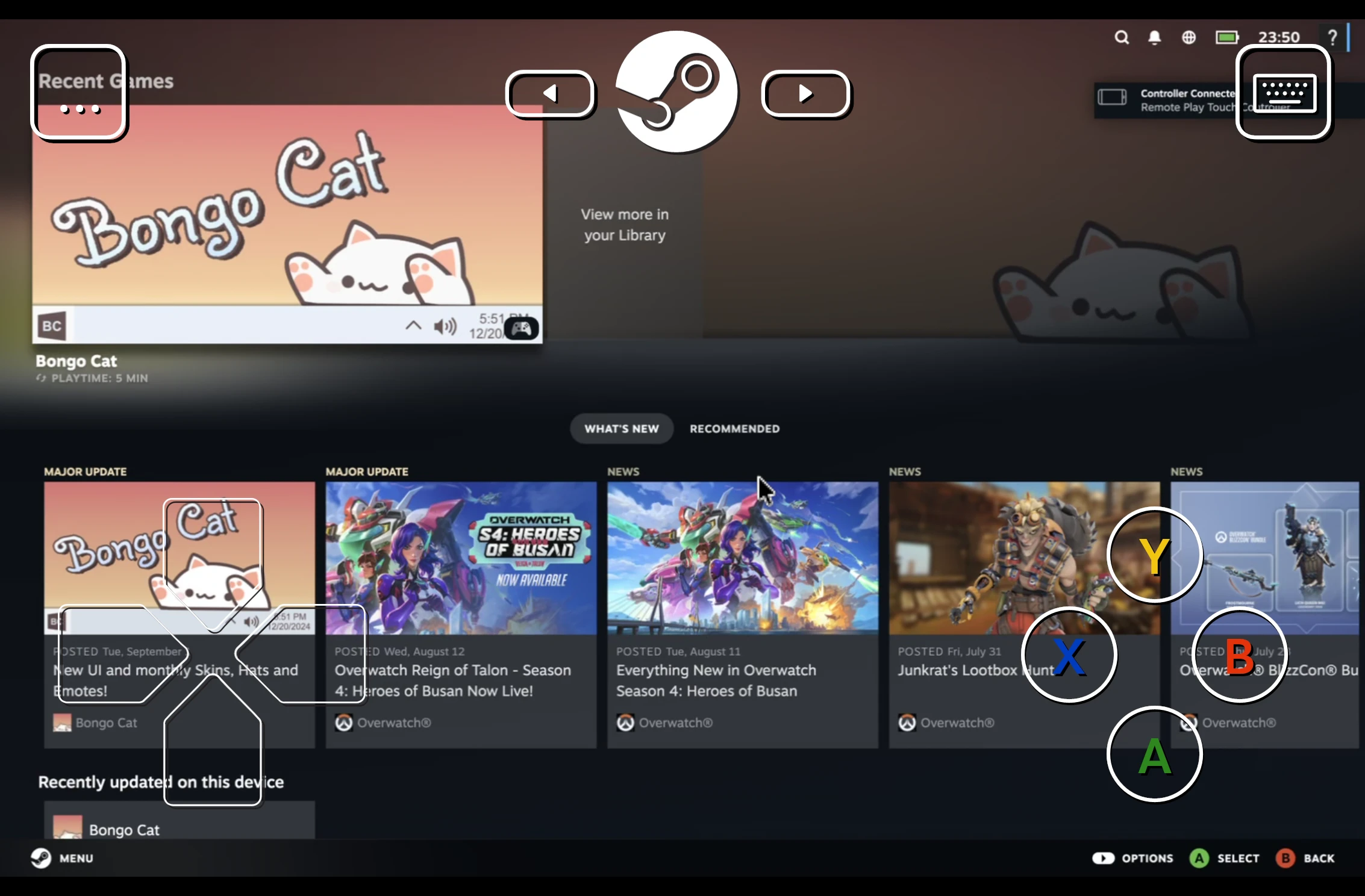
Steam Link also lets you adjust bitrate, frame rate, and resolution. Supported devices can stream at up to 120 FPS with enhanced 1080p or 4K settings, but a stable 1080p/60 FPS stream is often better than pushing higher settings over an unreliable network.
Steam Link for iPad also supports playing away from home through Steam Remote Play once your devices are paired. Steam Link can connect over the internet. Performance then depends on both your home connection and the network used by your iPad.
Steam Link remains the natural first choice when the job is simply "open Steam and play." It becomes less convenient when the task stops being "launch a Steam game" and turns into "manage the PC itself."
Method 2 — Need More Than Steam? Access Your Full PC With AskLink
Sometimes the problem is not the game. It is the computer behind it.
Steam may be waiting for an update. A launcher may show an error. A mod manager may need attention. Windows may be stuck at the login screen, or you may need to move a file before the game can start. In those moments, access to the full desktop is more useful than a game-focused interface.
AskLink lets an iPad remotely access Windows, macOS, or Linux computers. You see and operate the full computer rather than entering directly through the Steam library.
Set It Up Once, Then Reach Your PC From iPad
- Install AskLink on your gaming PC and iPad.
- Sign in and add your gaming PC as a Controlled Device for unattended access.
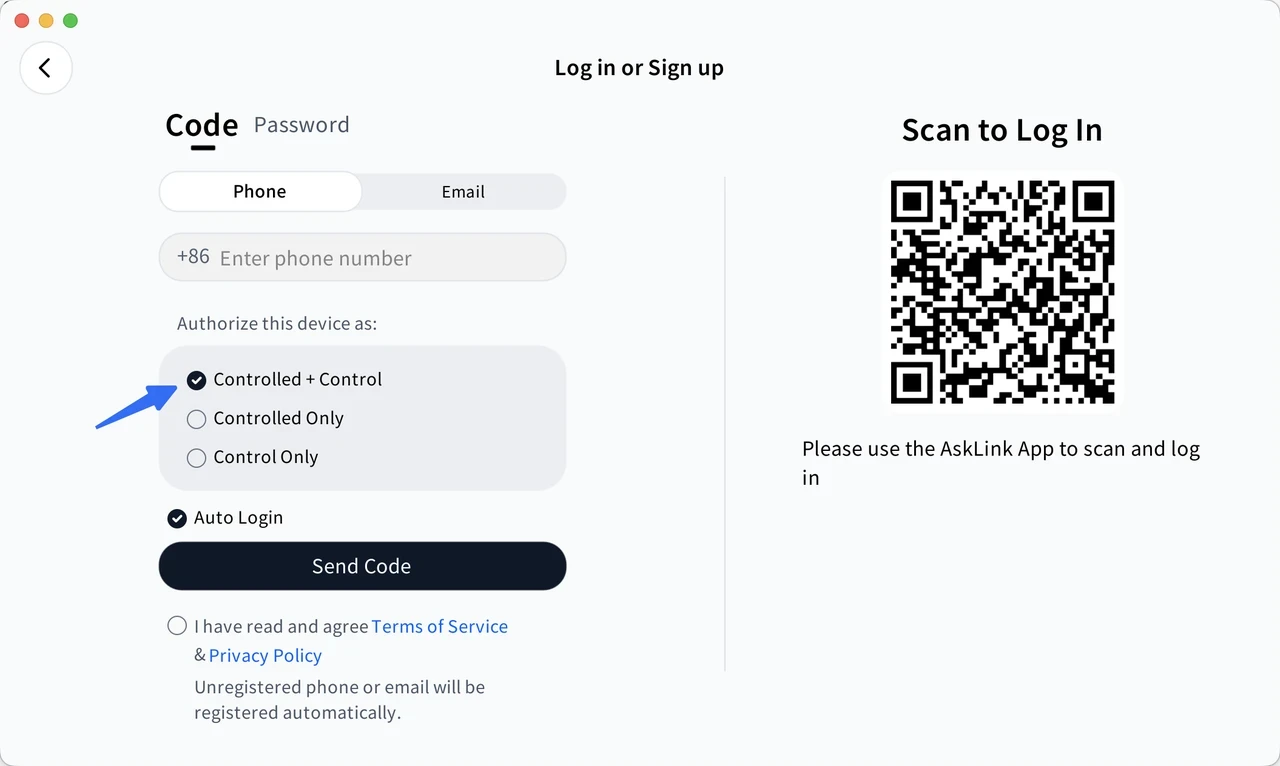
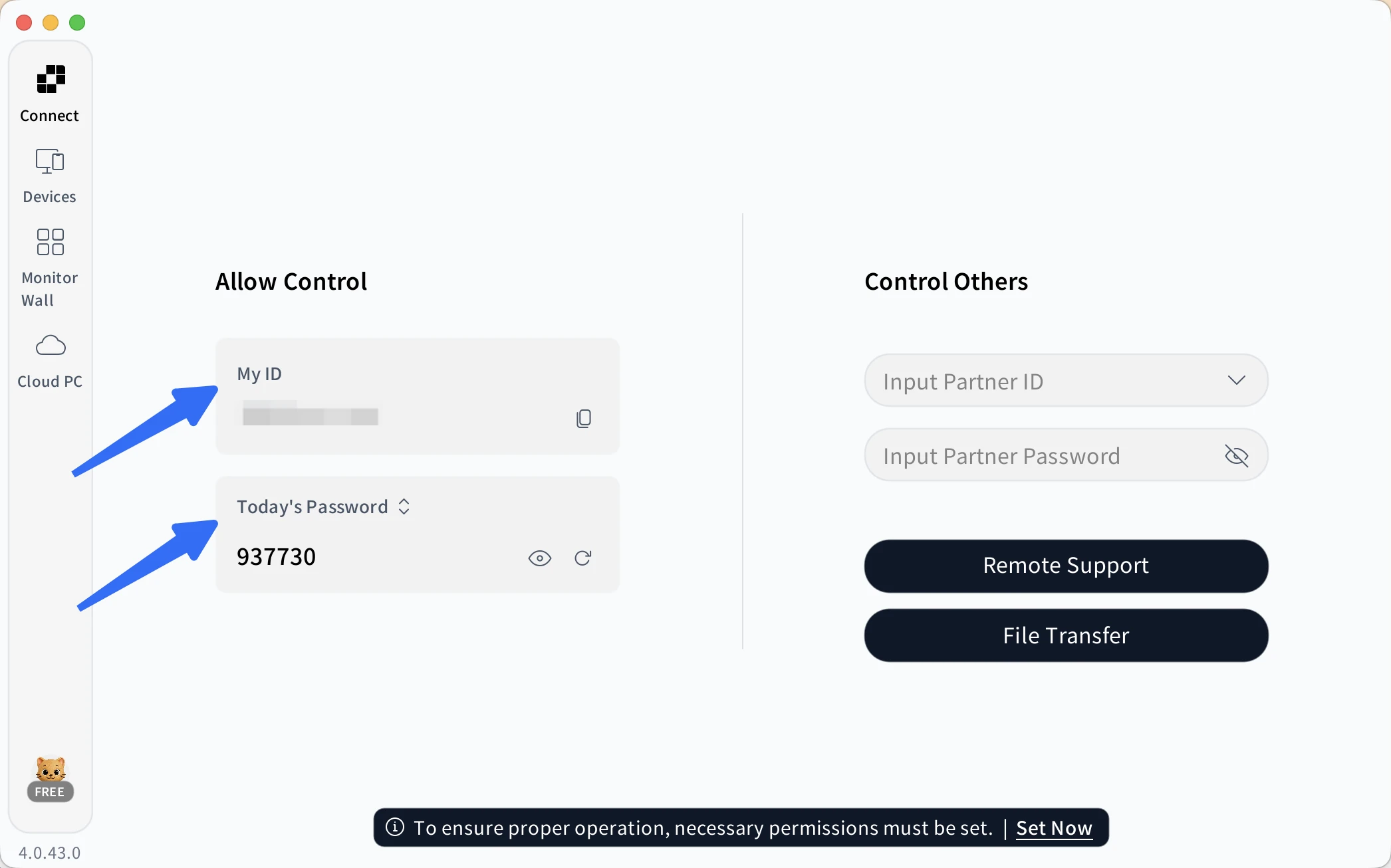
- Authorize your iPad for ongoing access. For a temporary connection, you can also enter the PC's AskLink ID and password from the Remote Support screen.
- Leave the computer awake and connected to the internet.
- Pair your game controller with the iPad.
- Connect to the computer, open Steam from the desktop, and launch your game.
- Adjust the image quality and frame rate to match the current network.
Only enable ongoing remote access on computers you own or manage. Review authorized Controller devices regularly and remove any device you no longer use.
If the gaming PC is asleep, AskLink's Remote Power-On can wake supported Windows and Linux devices after Wake-on-LAN is configured. Hardware and network requirements apply.
When Full-PC Access Makes More Sense
AskLink is useful when you want to play Steam games on an iPad but also need to:
- Handle launchers, updates, desktop dialogs, or game files
- Access non-Steam games and other Windows applications
- Maintain unattended access to the computer
- Reach the same PC from different networks
- Use the iPad for gaming and ordinary remote desktop tasks
The Free plan is a practical way to test whether this workflow suits your network. It has no time limit or forced session interruption and includes 50 hours of high-speed connection each month. After that allowance is used, connections continue on the regular line.
For more demanding remote gaming, the Gaming plan adds dedicated acceleration lines, game-optimized mouse input, and controller mapping for popular Xbox, PlayStation, and Nintendo Switch controllers. It also supports higher frame rates and bitrates on compatible hardware, with up to 4K/165 FPS on supported setups.
Method 3 — No Gaming PC? Let NVIDIA Run the Game
How to Play Steam Games on iPad Without a PC? If you don't own a gaming PC, Steam Link and remote desktop apps have no host computer to connect to. A cloud gaming service such as GeForce NOW solves this by running the game on an NVIDIA server and streaming it to your iPad.
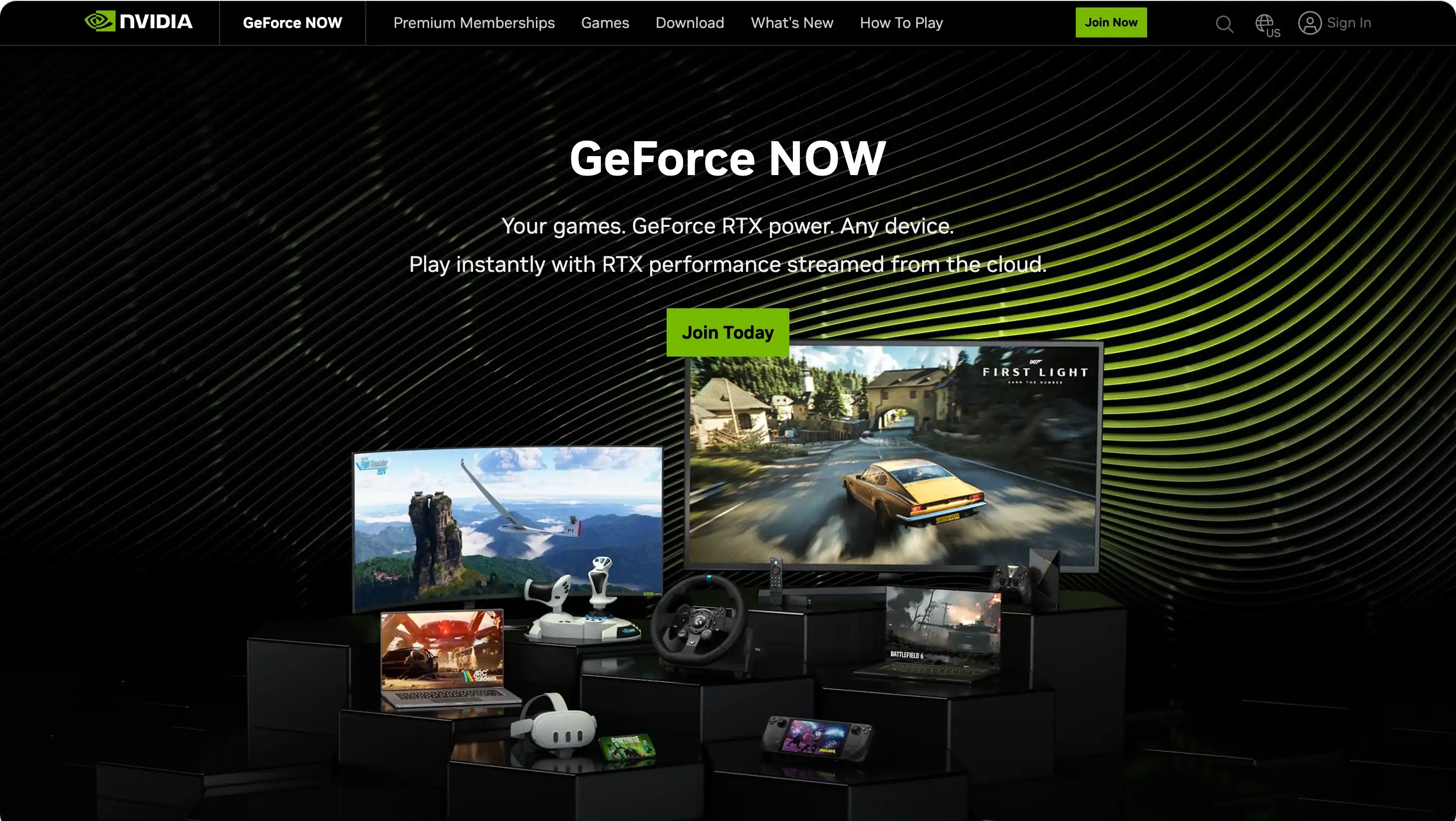
Open GeForce NOW in Safari, connect your Steam account, and choose an available game. You normally still need to own the game unless it is free to play. Only supported Steam games are available, so check GeForce NOW's catalog before subscribing.
GeForce NOW offers free and paid memberships. The free tier may involve queues, while paid plans provide faster access and higher performance but have subscription and monthly playtime conditions. It removes the need for a gaming PC, but it does not guarantee access to every game in your Steam library.
Make It Feel Local: Six Quick Fixes for Lag and Blurry Video
Steam games on iPad feel laggy even with fast internet? Check these six things in order:
- Wire the gaming PC. Connect it to the router with Ethernet to reduce interference.
- Use 5GHz Wi-Fi on the iPad. Stay close to the router and avoid crowded 2.4GHz networks.
- Start at 1080p/60 FPS. Raise the resolution or frame rate only after the stream feels stable.
- Set a reasonable bitrate. If video stutters or drops frames, lower the bitrate or resolution instead of using Unlimited.
- Test the controller. Move it closer, reduce Bluetooth interference, update its firmware, or try a wired connection.
- Check both networks away from home. Before traveling, test the connection through mobile data or another Wi-Fi network. Also confirm that you can reconnect after restarting the PC. Finding out that remote access or Wake-on-LAN was not configured after leaving home is a particularly frustrating failure.
The Better Question: What Happens Before the Game Starts?
Steam Link is a strong choice when all you need is to open Steam and play. Full remote access becomes more useful when your iPad also needs to act as a window into the PC around the game—before launch, after a restart, or when something outside Steam needs attention.
If that sounds like your setup, configure AskLink before leaving home so you can reach the full PC when Steam alone isn't enough.