




 Daniel Brooks
Checking several gaming PCs one by one takes time. One is still updating, another is waiting at the login screen, and a third shows a connection error. You open a remote session on each PC to check its status, then repeat the process a few minutes later.
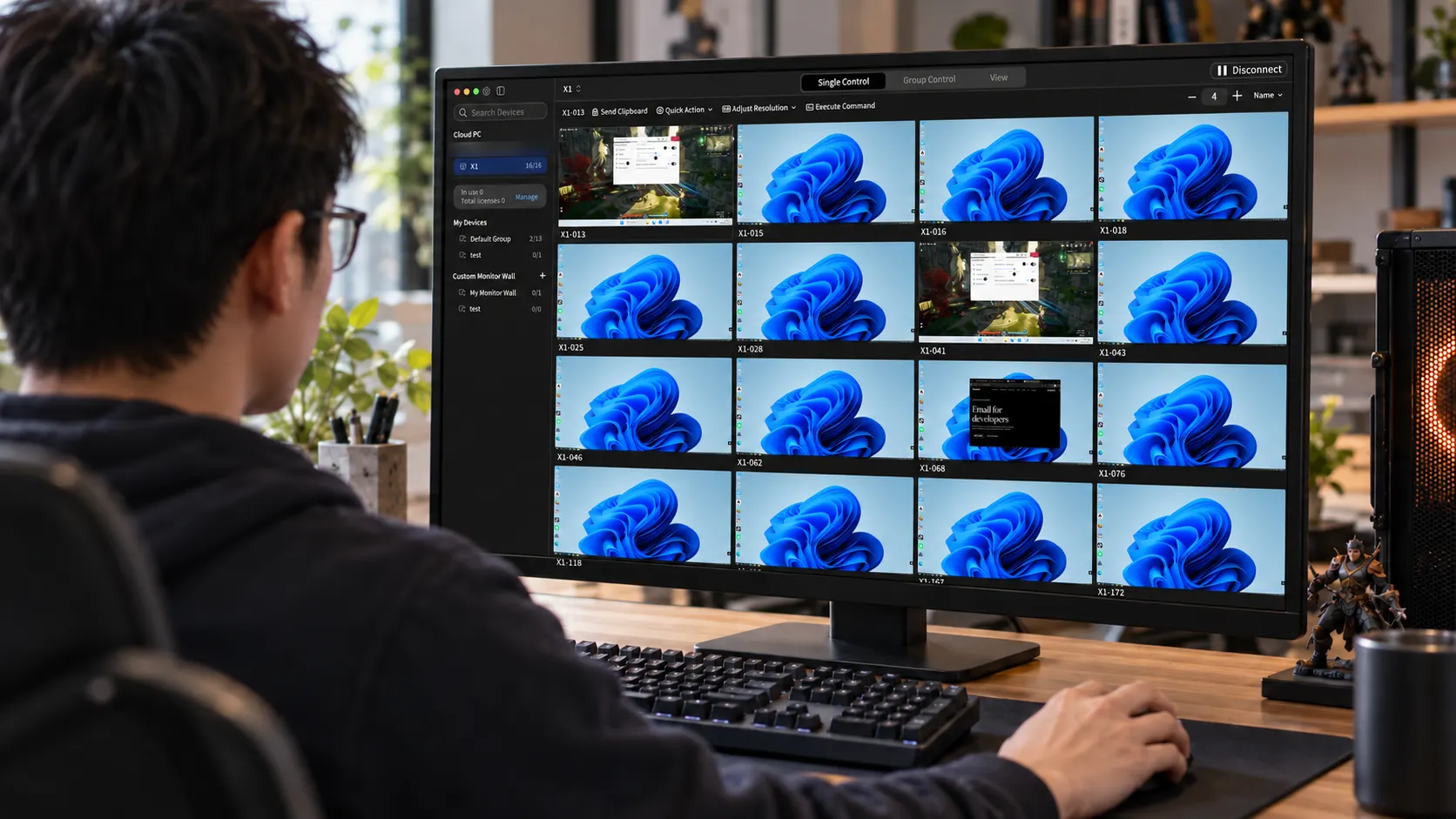
AskLink Monitor Wall shows your gaming PCs together in one live view. When a PC needs attention, you can enlarge its screen or start a separate remote control session. Want to know how to view multiple gaming PCs on one screen? This guide walks you through the setup, with an AION 2 example showing how to check your PCs before playing.
Do You Need to Switch PCs—or See Them All at Once?
| Option | Main use |
|---|---|
| A conventional KVM switch | Usually switches a shared keyboard, monitor, and mouse between PCs. |
| A monitor with Picture-by-Picture (PBP), or Picture-in-Picture (PiP) | Shows video from two or more PCs on one display, depending on the monitor's supported inputs and display modes. |
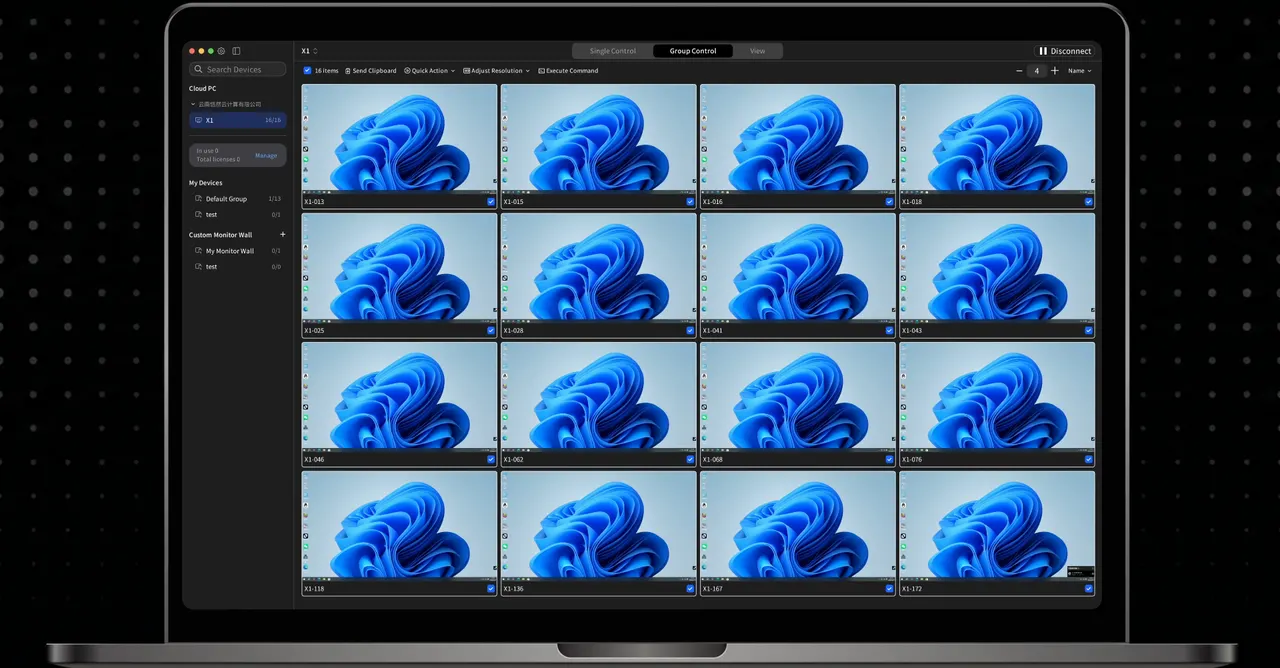
| Monitor Wall | Shows live screens from multiple remote PCs at once. |
Here, each screen in the grid comes from a separate PC connected through AskLink.
View Multiple Gaming PCs on One Screen with AskLink
AskLink Monitor Wall lets you view multiple remote desktops at once. The four steps below use AskLink Personal on a Mac to view Windows gaming PCs. You can also follow them from a Windows PC. Before you begin, purchase enough Monitor Wall licenses for the PCs you want to view at the same time. Monitor Wall is sold separately; no paid membership is required.
Install AskLink and Add Your Gaming PCs
(1) Download AskLink on the computer you'll use to view the screens and on each gaming PC you own or have permission to manage.
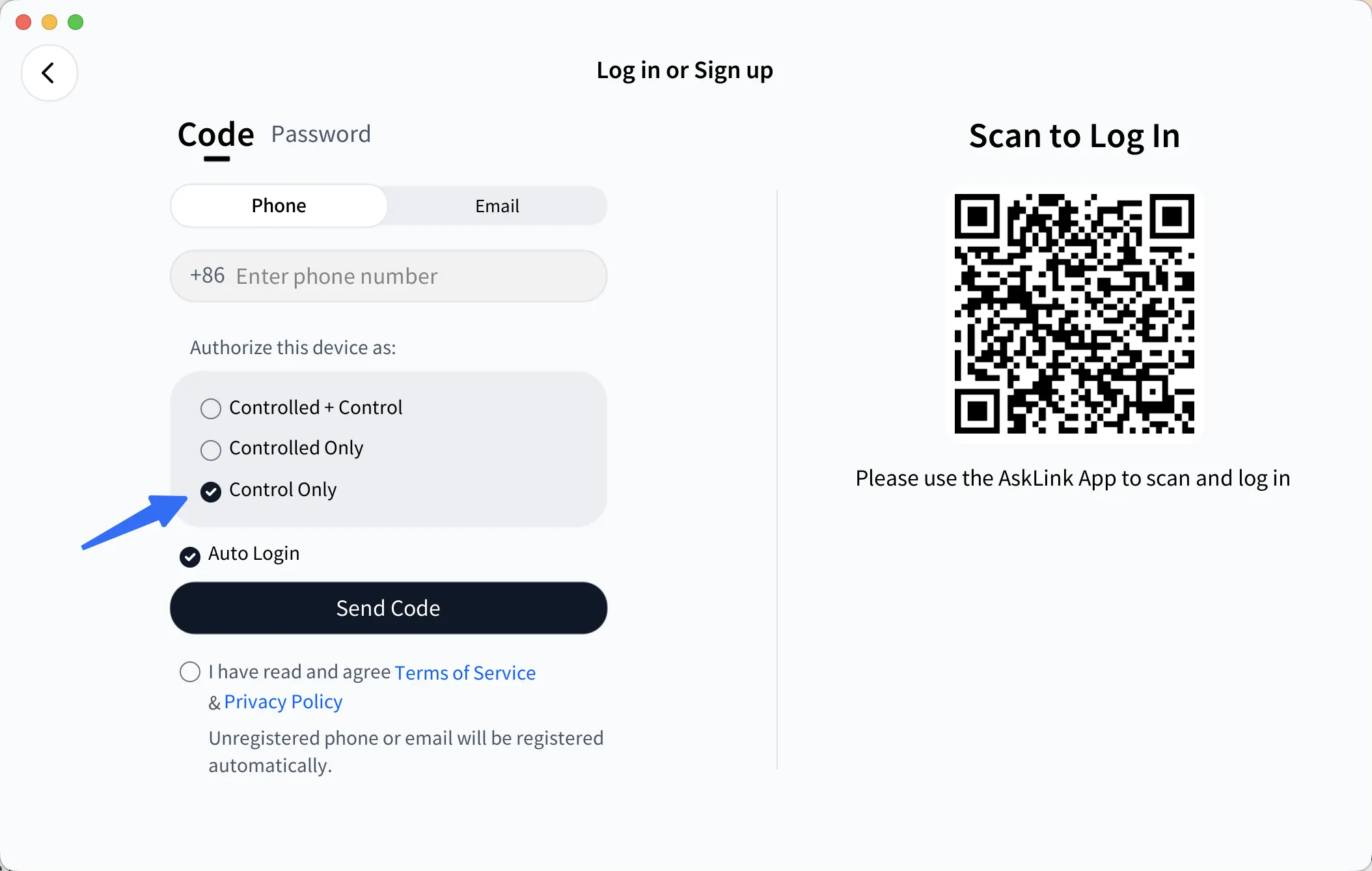
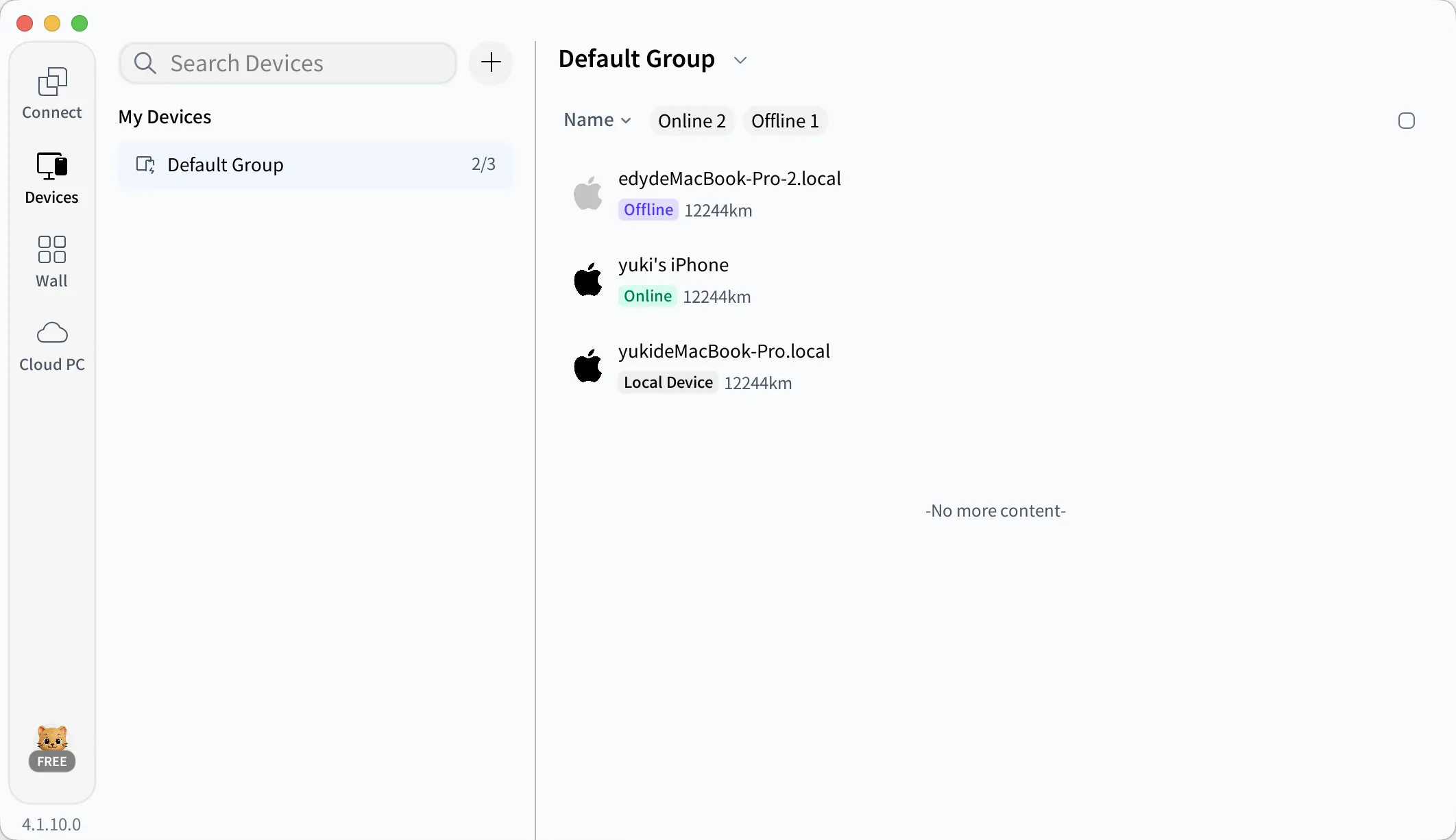
(2) On your Mac, sign in to AskLink and select Control Only. On each Windows gaming PC, open My > Log In, sign in with the same AskLink account, and select Controlled Only. The gaming PCs should then appear in your Mac's device list.
(3) Give each PC a name you can recognize, such as Desk-PC-01 or Desk-PC-02. Keep the PCs awake, connected to the internet, and running AskLink. To add PCs using an ID and Persistent Password instead, see the device setup guide.
Create Your Custom Monitor Wall
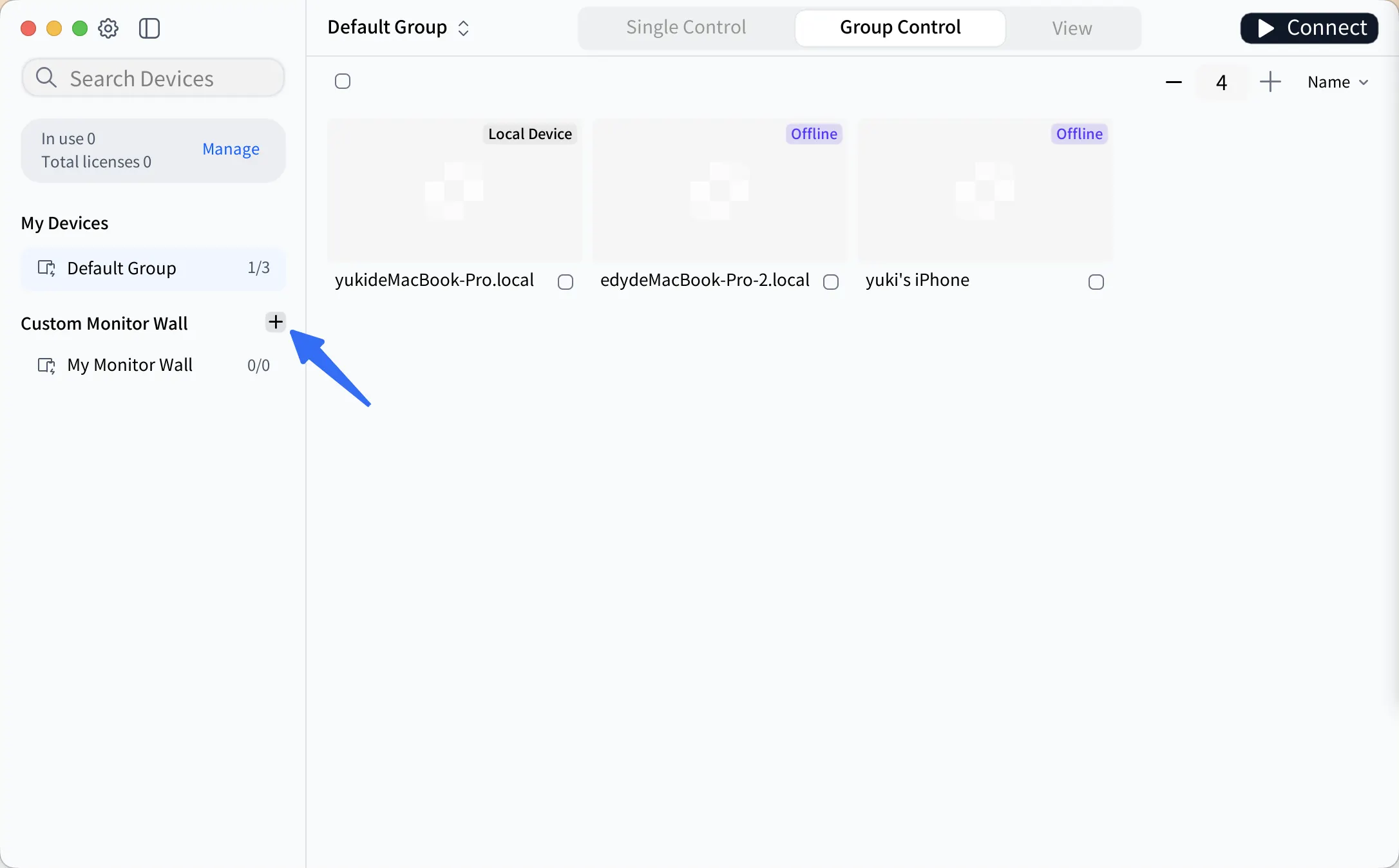
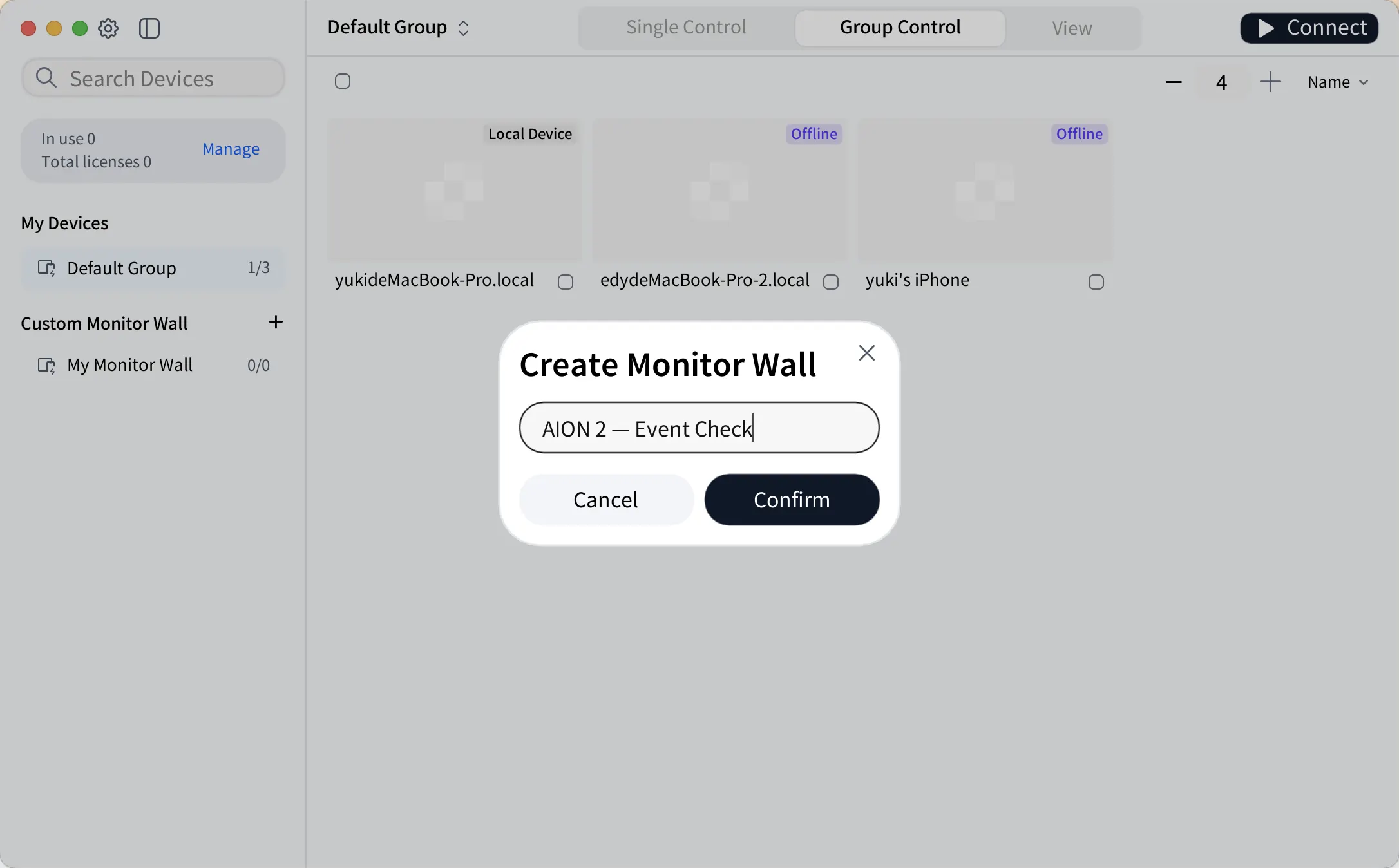
(1) Open Monitor Wall and click + next to Custom Monitor Wall. Name the group AION 2 — Event Check.
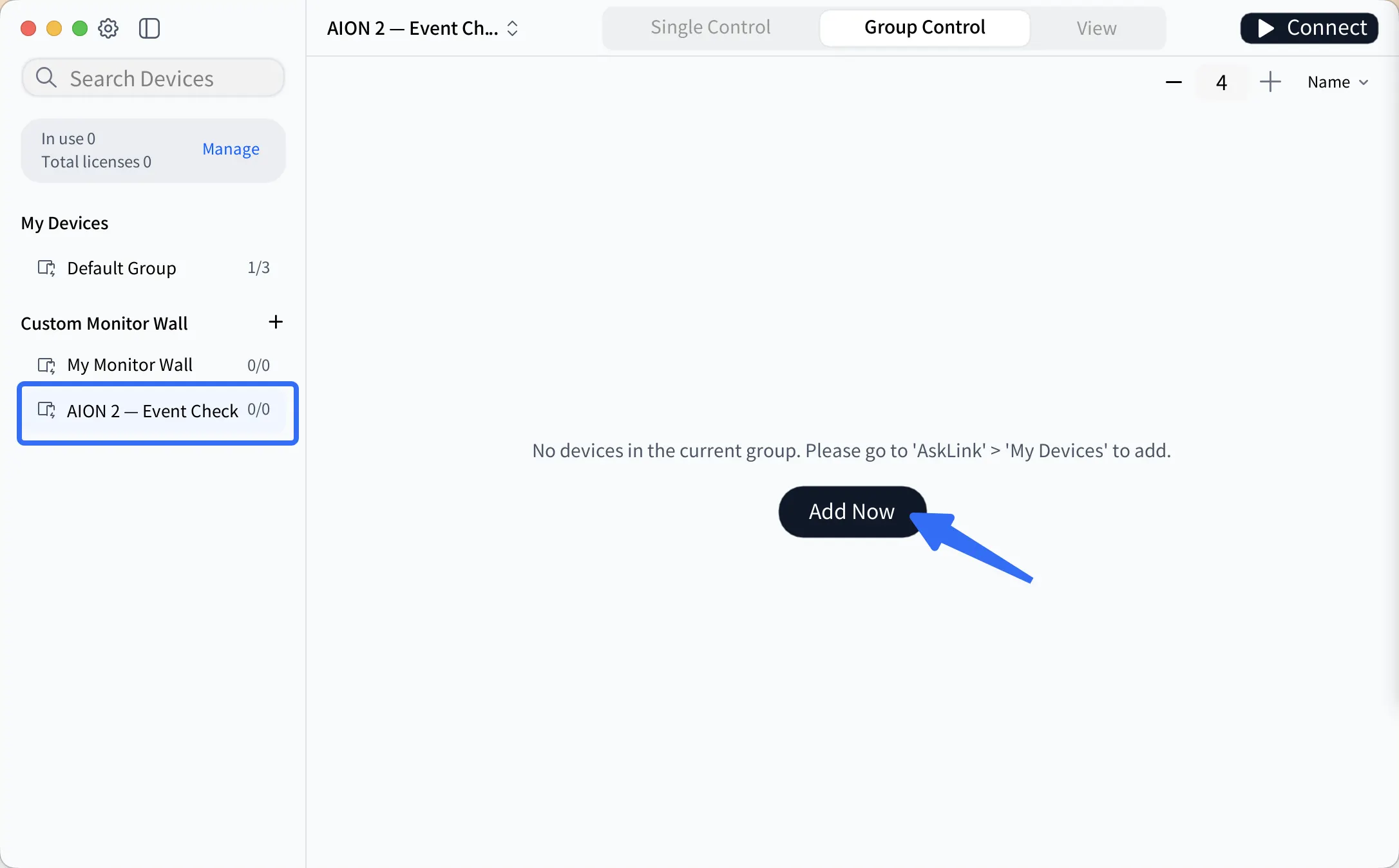
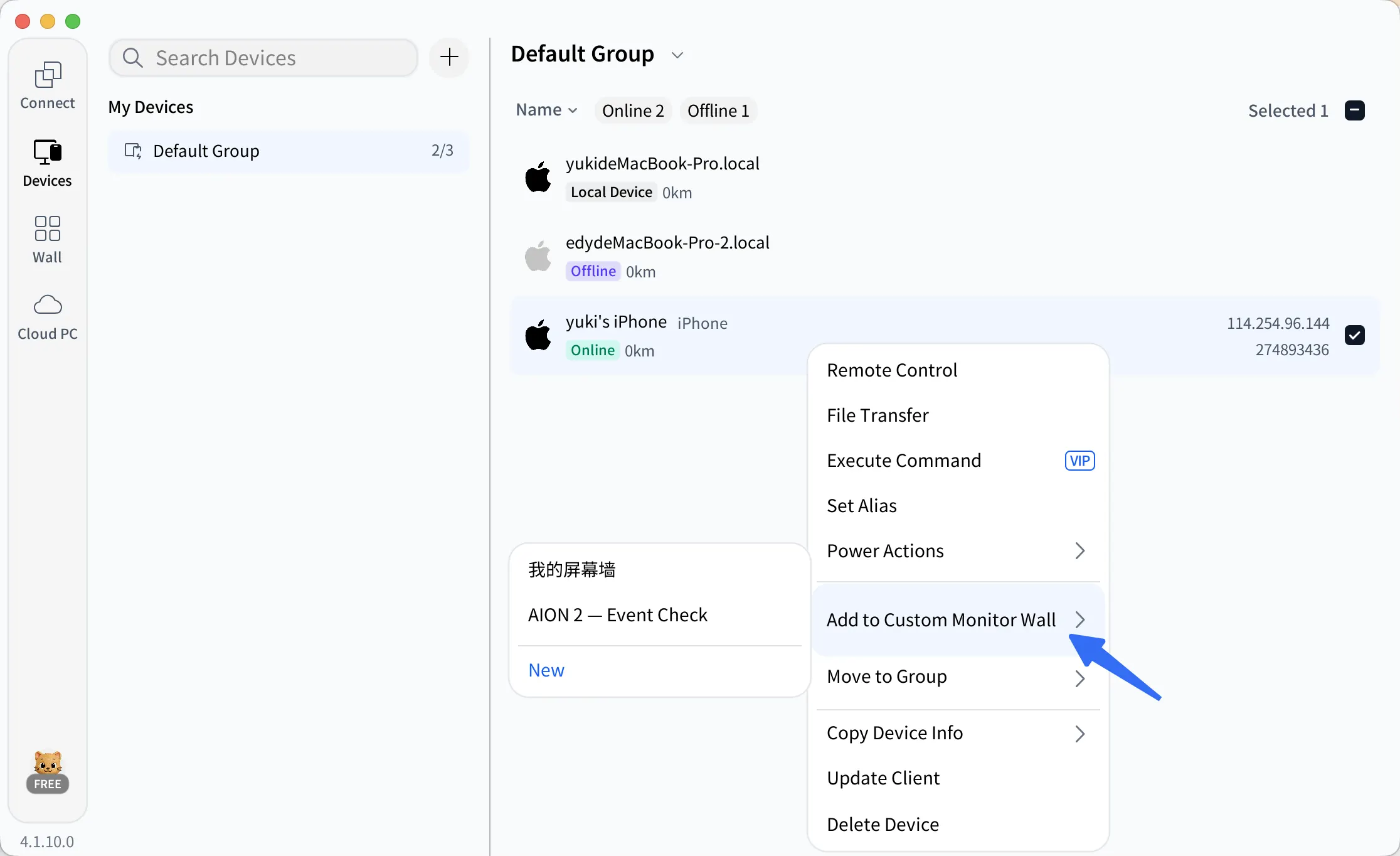
(2) Select the gaming PCs in your device list. Right-click the selection and choose Add to Custom Monitor Wall > AION 2 — Event Check. Open the group and click Connect to display their live screens.
Switch to View Mode and Arrange the Grid
Click View at the top to check the screens without sending keyboard or mouse input. Use + or − in the upper-right corner to adjust the number of screens per row. Choose a layout that lets you tell whether each PC is updating, waiting at login, or showing a message. Enlarge a screen when you need to read smaller text.
You now have the overview needed to monitor multiple PCs on one screen.
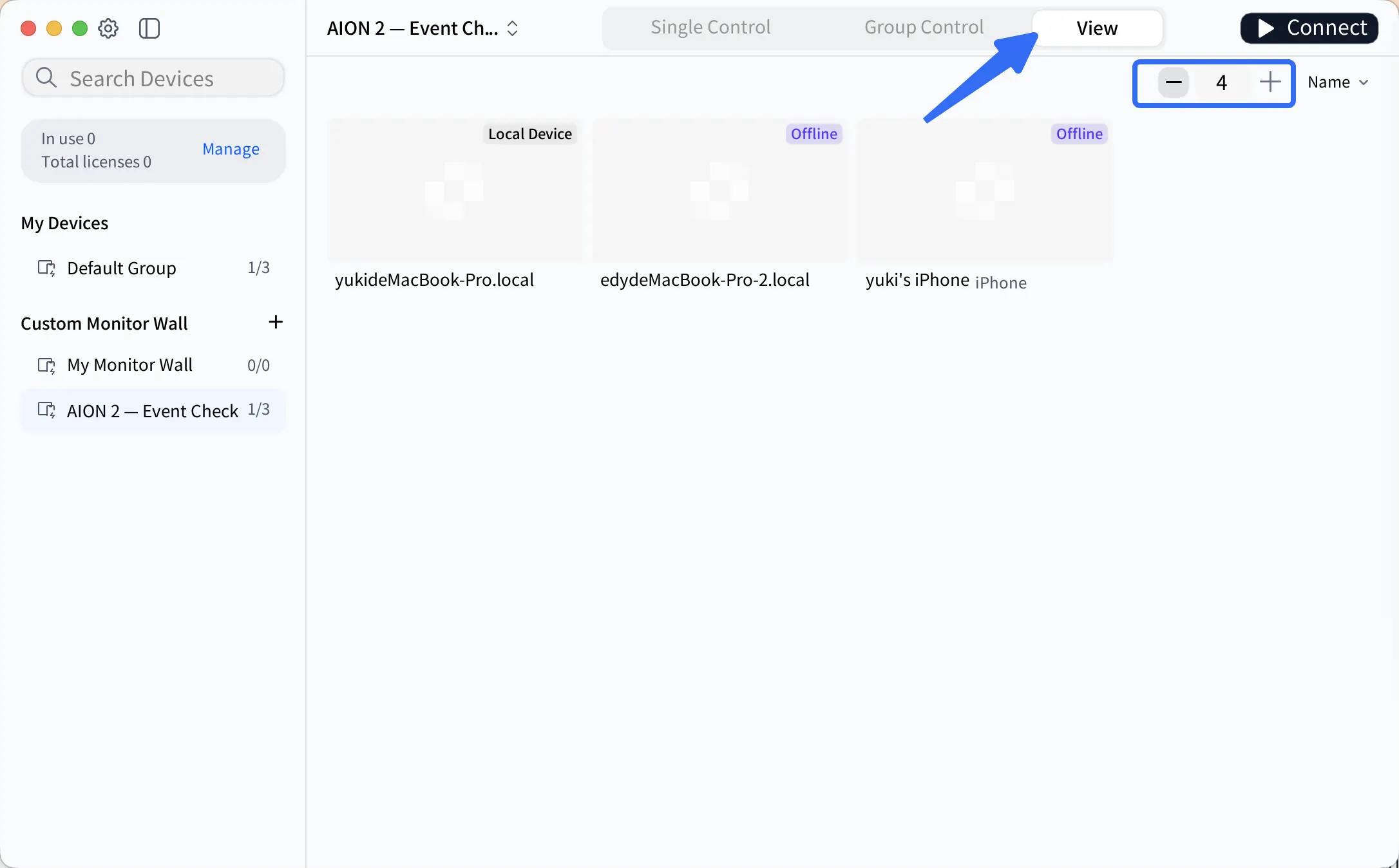
Open a Closer View When Needed
Use Enlarge Screen to read a launcher pop-up or error code. Click it below the affected PC's tile, then use the left and right arrows to inspect other PCs in the enlarged view.
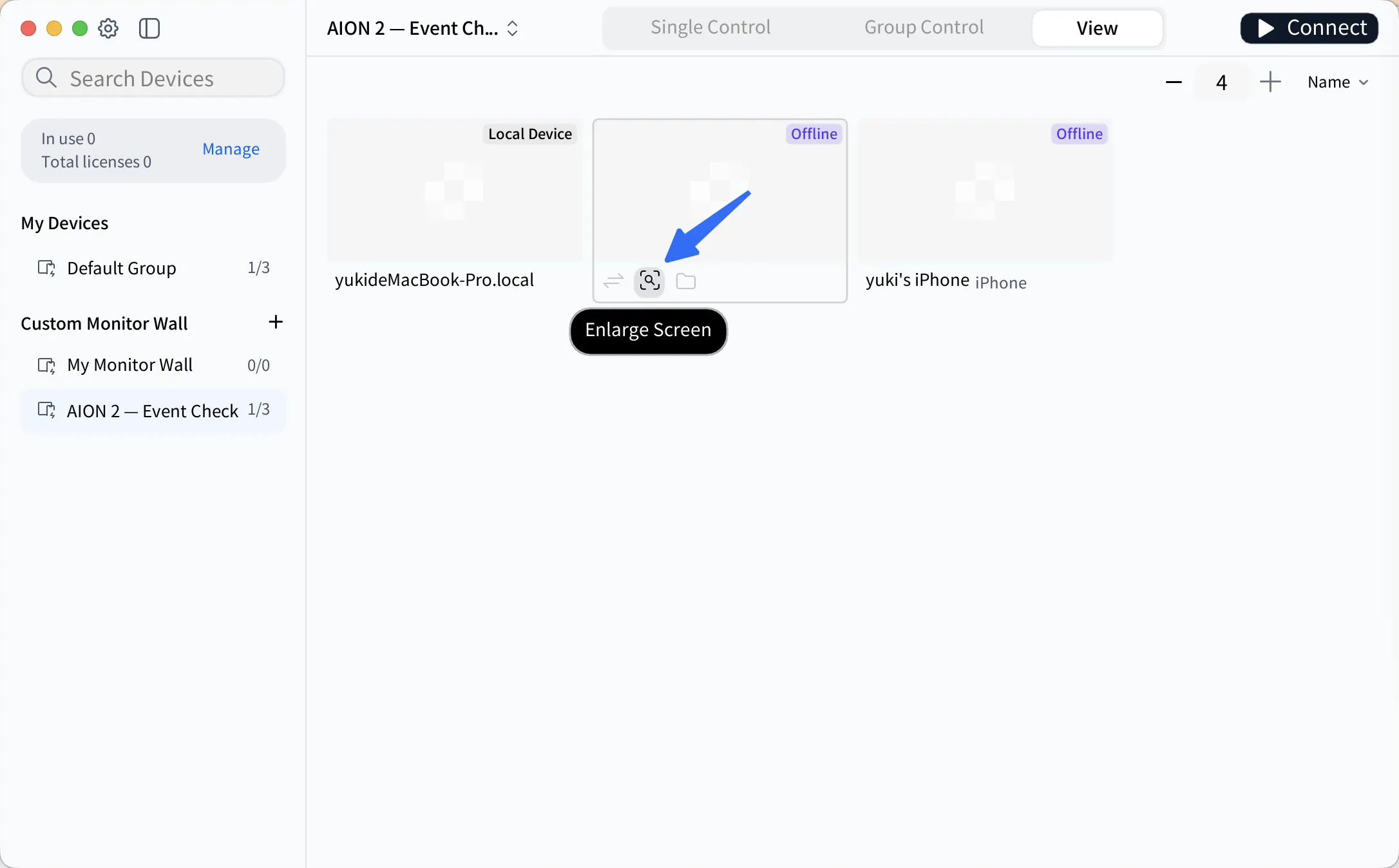
To change a Windows setting or investigate a launcher issue, click Start Remote Control below that PC's tile to open a separate session.
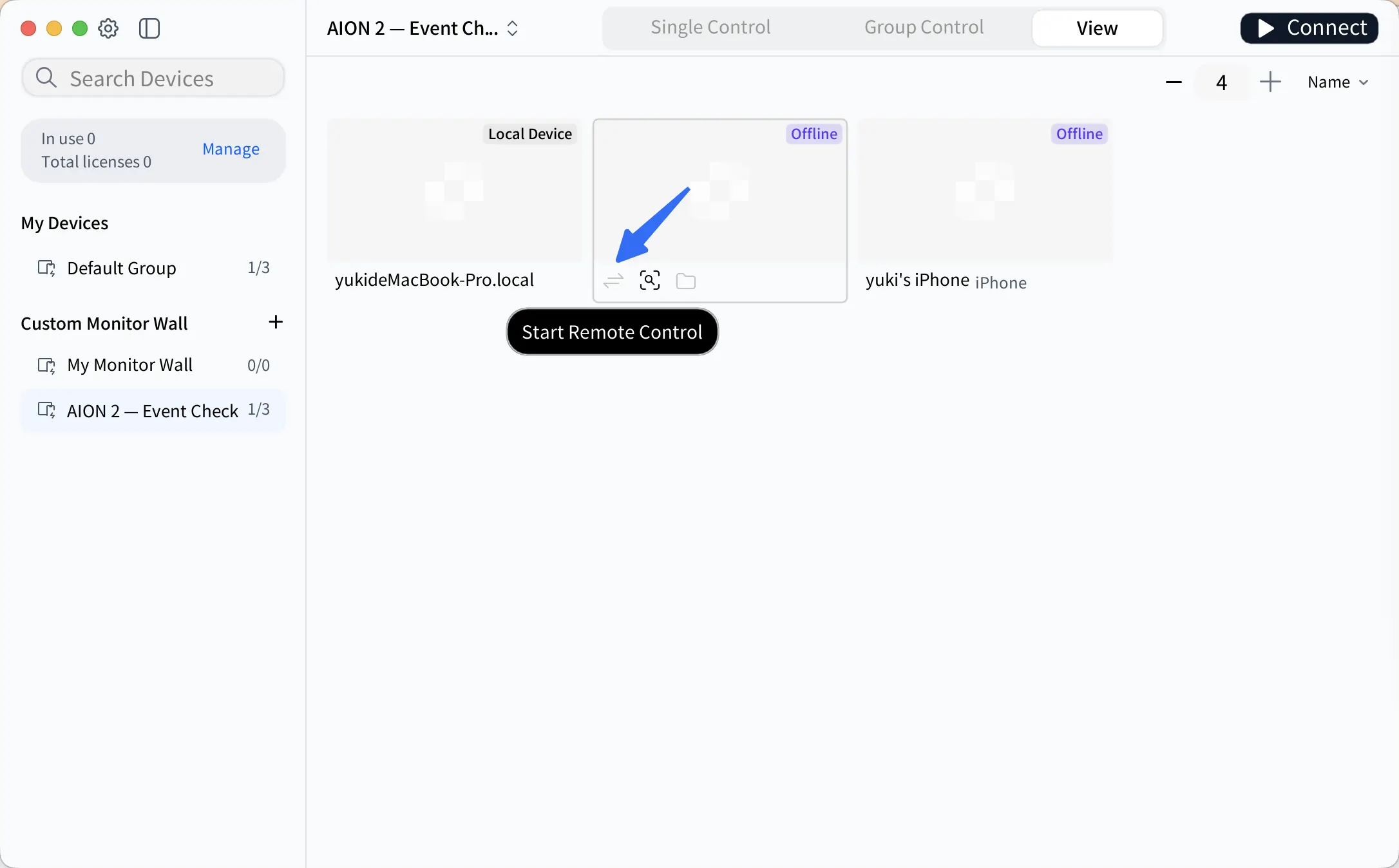
When you're done, return to Monitor Wall and check the PC again. For example, confirm that the error message has closed or the launcher has resumed updating. For more details, see the Monitor Wall quick start guide.
An AION 2 Event Check, Screen by Screen
AION 2's Trick or Treat! event gives players coins for daily attendance and event missions. The European schedule runs from October 14 to November 4, 2026, between scheduled maintenance periods. Check your region's official announcement for the exact schedule and rewards.
Before playing, check the following on each PC:
| Check | AskLink action | What to inspect |
|---|---|---|
| PURPLE patch progress | Compare each PC's update progress in View Mode. | Check download or installation progress. Look again later to see whether it has advanced. |
| Server and character selection | Enlarge each PC's screen to check the details. | Check the selected server and character, and read any connection or maintenance messages. |
| Game crashes on Windows | Click Enlarge Screen to read the error message, then Start Remote Control if you need to investigate. | Look for a crash message or an unexpected return to the desktop. Record the full error message and which launcher the PC uses. |
| Event attendance | Check the relevant PC individually. | For this Global event, open In-game menu > Attendance and inspect the Trick or Treat reward entry. |
Check PCs where the game will not launch or connect to the server first. Then check attendance progress on the remaining PCs.
Stop Repeating the Same Task on Every PC
After checking the screens, you may need to open the same folder on several PCs or send a configuration file to one machine. Use Group Control for the shared desktop task and File Transfer to send the file.
Handle the Selected PCs Together
Switch to Group Control and select only the PCs you want to work on. Before sending the same input, make sure the same window is open and the cursor is in the same field on each PC. For example, if all selected PCs have the same folder path, you can open it together after placing the cursor in each File Explorer address bar.
Monitor Wall includes Group Control, Single Control, and View Mode. You do not need a paid AskLink membership to use these modes.
Send a File Without Opening Another Desktop
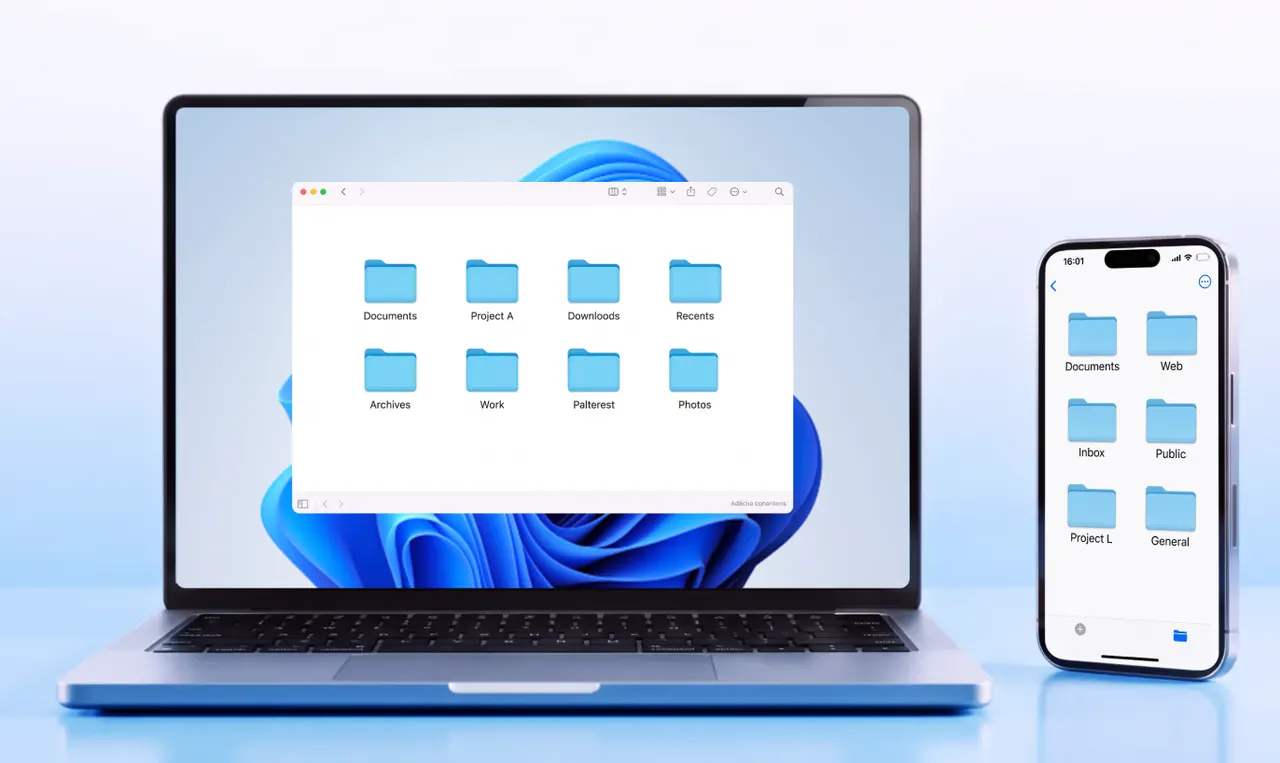
To send a configuration file, click File Transfer beneath the target PC's tile. You can do this in View Mode without opening a separate remote control session.
Send Diagnostic Commands to Multiple PCs
When several Windows PCs need a network check, batch remote commands let you send the same command to the selected machines. For example, run ipconfig to check each PC's network configuration without opening Command Prompt on every desktop.
Batch remote commands require a Pro membership, purchased separately from Monitor Wall. You do not need Pro to view screens or use Group Control. See the batch command tutorial for setup instructions.
Check the Game Before Relying on Remote Input
First, check that AION 2 appears correctly in Monitor Wall. If you need to control the game remotely, open a separate session on one PC and test the keyboard and mouse. Check again after game updates, which may affect screen capture or remote input.
Use View Mode to check AION 2 screens, and keep shared desktop maintenance separate from in-game actions. Check your region's game rules before using remote input. If the game blocks an input or shows a security warning, consult its official guidance. Global players can refer to the AION 2 Operation Policy.
Conclusion: Keep Every Gaming PC in View
AskLink Monitor Wall brings your gaming PCs into one view. Enlarge a screen to read a message, or start a separate remote control session when you need to investigate.
Download AskLink on your viewing computer and gaming PCs, add the devices, and create a Monitor Wall group. Purchase licenses for the number of PCs you want to view at once. No paid membership is required. Just give it a try!