'%3e%3cpath%20d='M7.48145%2024H3.74023C1.67456%2023.9999%204.09854e-05%2022.3467%200%2020.3076V16.6152H7.48145V24ZM15.8955%2024H8.41406V16.6152H15.8955V24ZM7.48145%2015.6924H0V8.30762H7.48145V15.6924ZM24%2015.6924H16.5195V8.30762H24V15.6924ZM15.5859%207.38477H8.10547V0H15.5859V7.38477ZM20.2598%200C22.3256%200%2024%201.65318%2024%203.69238V7.38477H16.5195V0H20.2598Z'%20fill='white'/%3e%3cpath%20d='M108.786%2019.0507L105.767%2014.2636H104.397L108.397%208.80874H111.915L108.119%2013.9483V12.3155L112.544%2019.0507H108.786ZM101.527%2019.0507V5.5061H104.897V19.0507H101.527Z'%20fill='white'/%3e%3cpath%20d='M88.8242%2019.0505V8.80858H91.4908V13.2059H91.3421C91.3421%2012.1422%2091.4779%2011.264%2091.7499%2010.5712C92.0214%209.86618%2092.4224%209.34052%2092.953%208.99418C93.4965%208.64778%2094.1506%208.47461%2094.9158%208.47461H95.0644C96.2245%208.47461%2097.1193%208.86427%2097.7488%209.64353C98.3911%2010.4104%2098.7117%2011.5917%2098.7117%2013.1874V19.0505H95.342V13.0946C95.342%2012.6246%2095.2001%2012.2411%2094.9158%2011.9443C94.6443%2011.635%2094.2679%2011.4804%2093.7864%2011.4804C93.3049%2011.4804%2092.9162%2011.635%2092.6202%2011.9443C92.3358%2012.2411%2092.194%2012.6369%2092.194%2013.1317V19.0505H88.8242Z'%20fill='white'/%3e%3cpath%20d='M82.4214%2019.0506V8.80875H85.7912V19.0506H82.4214ZM81.125%2011.2579V8.80875H85.7912V11.2579H81.125ZM83.81%207.99232C83.1928%207.99232%2082.7359%207.83773%2082.4398%207.5285C82.1561%207.2069%2082.0137%206.79872%2082.0137%206.30388C82.0137%205.80913%2082.1561%205.40713%2082.4398%205.09789C82.7359%204.77628%2083.1866%204.61548%2083.7916%204.61548C84.4088%204.61548%2084.8595%204.77628%2085.1433%205.09789C85.427%205.40713%2085.5688%205.80913%2085.5688%206.30388C85.5688%206.79872%2085.427%207.2069%2085.1433%207.5285C84.8595%207.83773%2084.4149%207.99232%2083.81%207.99232Z'%20fill='white'/%3e%3cpath%20d='M71.1328%2019.0507V5.5061H74.5769V19.0507H71.1328ZM74.2065%2019.0507V16.0449H79.6876V19.0507H74.2065Z'%20fill='white'/%3e%3cpath%20d='M65.4458%2019.0507L62.428%2014.2636H61.0576L65.0571%208.80874H68.5755L64.7795%2013.9483V12.3155L69.2049%2019.0507H65.4458ZM58.1875%2019.0507V5.5061H61.5578V19.0507H58.1875Z'%20fill='white'/%3e%3cpath%20d='M51.2917%2019.3845C49.8103%2019.3845%2048.6438%2019.0814%2047.7921%2018.4753C46.9403%2017.8568%2046.4836%2016.991%2046.4219%2015.8777H49.3844C49.4339%2016.1869%2049.6252%2016.4529%2049.9585%2016.6755C50.2918%2016.8982%2050.7608%2017.0095%2051.3657%2017.0095C51.7978%2017.0095%2052.1681%2016.9477%2052.4767%2016.824C52.7977%2016.6879%2052.9581%2016.4715%2052.9581%2016.1745C52.9581%2015.9148%2052.8347%2015.7045%2052.5878%2015.5437C52.3409%2015.3705%2051.8903%2015.2531%2051.2361%2015.1912L50.5325%2015.117C49.224%2014.9809%2048.2611%2014.6222%2047.6439%2014.0408C47.0267%2013.4595%2046.7181%2012.7297%2046.7181%2011.8515C46.7181%2011.0969%2046.9033%2010.4784%2047.2736%209.99603C47.6439%209.50126%2048.1562%209.13018%2048.8105%208.8828C49.4647%208.63541%2050.2115%208.51172%2051.0509%208.51172C52.4211%208.51172%2053.526%208.81473%2054.3653%209.42089C55.2048%2010.0146%2055.6492%2010.8743%2055.6986%2011.9999H52.7359C52.6866%2011.6907%2052.5199%2011.4309%2052.236%2011.2206C51.9521%2010.998%2051.5447%2010.8867%2051.0139%2010.8867C50.6312%2010.8867%2050.3164%2010.9547%2050.0696%2011.0907C49.835%2011.2268%2049.7178%2011.4185%2049.7178%2011.6659C49.7178%2011.9257%2049.8289%2012.1174%2050.0511%2012.2411C50.2856%2012.3648%2050.6559%2012.4576%2051.162%2012.5194L51.8657%2012.5936C53.1741%2012.7297%2054.1802%2013.0946%2054.8838%2013.6883C55.5998%2014.2697%2055.9578%2015.0366%2055.9578%2015.989C55.9578%2016.6941%2055.7664%2017.3002%2055.3838%2017.8073C55.0134%2018.3145%2054.4764%2018.7041%2053.7728%2018.9763C53.0816%2019.2484%2052.2545%2019.3845%2051.2917%2019.3845Z'%20fill='white'/%3e%3cpath%20d='M31.0117%2019.0507L35.3445%205.5061H40.8624L45.3434%2019.0507H41.7882L38.3072%207.91816L39.2885%208.28924H36.8444L37.8442%207.91816L34.4558%2019.0507H31.0117ZM34.5483%2015.915L35.5853%2013.0948H40.7143L41.7512%2015.915H34.5483Z'%20fill='white'/%3e%3c/g%3e%3cdefs%3e%3cclipPath%20id='clip0_5596_142775'%3e%3crect%20width='113'%20height='24'%20fill='white'/%3e%3c/clipPath%3e%3c/defs%3e%3c/svg%3e "AskLink")
 Maya Chen
AION 2 is finally here, but there's one problem for Mac players: the game doesn't have a native macOS version. Its Steam release officially supports Windows 10 and 11.
So, can you still play AION 2 on a MacBook or iMac? Yes, with a workaround. You can try CrossOver, connect to a Windows cloud PC, or stream the game from your own gaming PC using AskLink. Below, we'll compare these 3 methods and show you how to get started.
Can You Play AION 2 on Mac?
Yes. AION 2 launched globally on PC through Steam and PURPLE. Its Steam listing specifies Windows 10/11, DirectX 12, and 100 GB of storage; it doesn't list a macOS version. NC also described the Global release as a PC launch through Steam and PURPLE in its release announcement.
So you can't install a native Mac version, but you can try to play AION 2 on a Mac through a workaround.
3 Ways to Play AION 2 on Mac: Quick Comparison
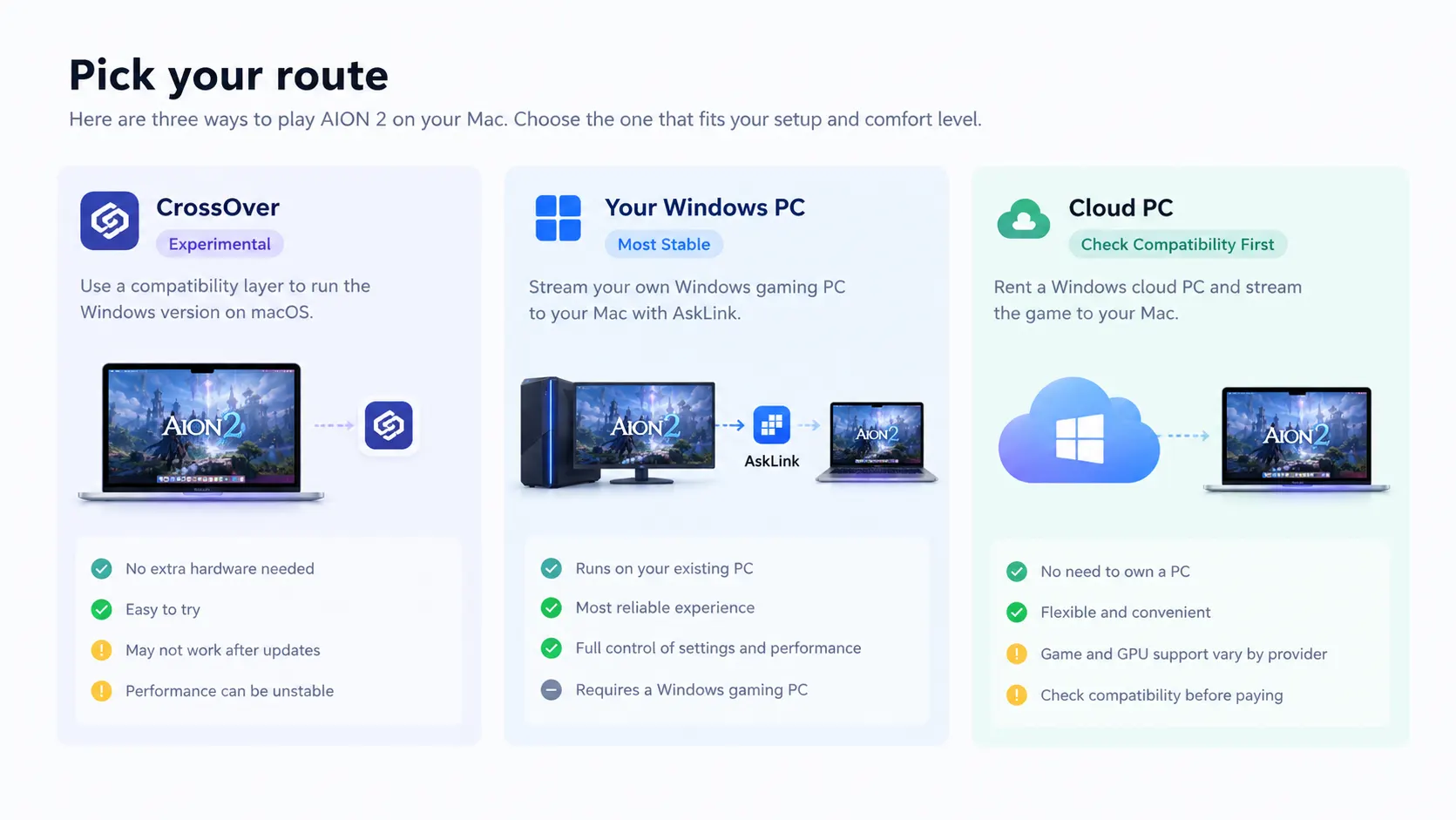
Here's the quick comparison:
| Method | Best for | Main limitation |
|---|---|---|
| CrossOver — experimental | Mac players willing to test compatibility and troubleshoot | AION 2 may fail to launch or stop working after a game update |
| AskLink + Windows gaming PC | Players who already own a PC that runs AION 2 | The PC must be capable, powered on, and connected |
| Windows cloud PC | Players without their own Windows gaming PC | Cost, performance, and game or anti-cheat compatibility depend on the provider |
If you already have a Windows gaming PC, start there. It avoids relying on an experimental Mac setup while keeping the game on a Windows system that meets its listed requirements.
Method 1: Play AION 2 on Mac with CrossOver (Experimental)
CrossOver can run some Windows software on macOS, but a working AION 2 setup has not been verified as a repeatable solution. Treat these as steps for an experiment, not a promise that the game will launch:
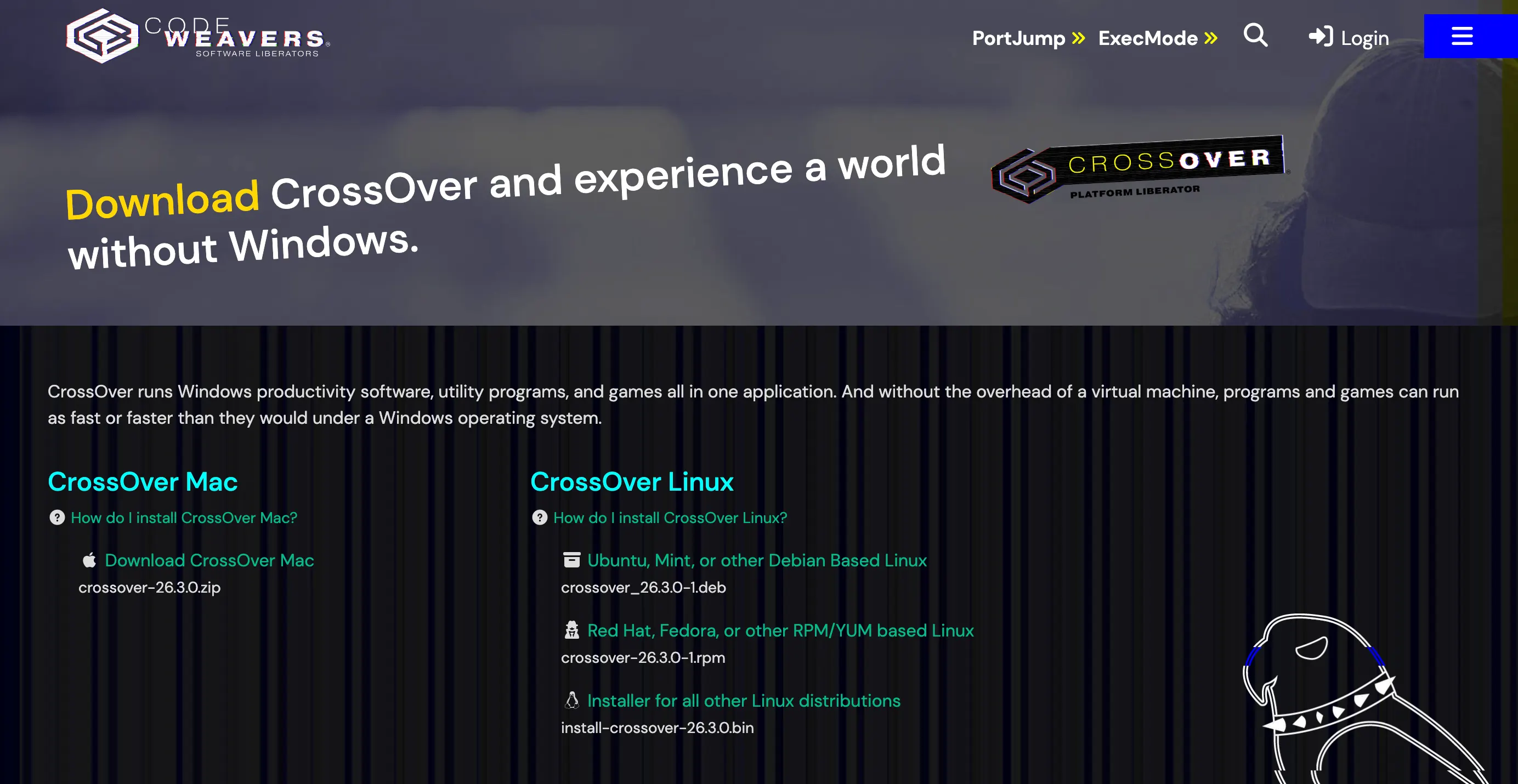
- Download CrossOver and check that its current macOS and hardware requirements match your Mac.
- Use CrossOver's installer to install Windows Steam in a bottle. A bottle is CrossOver's Windows compatibility environment; you do not need to install a full Windows copy for this step.
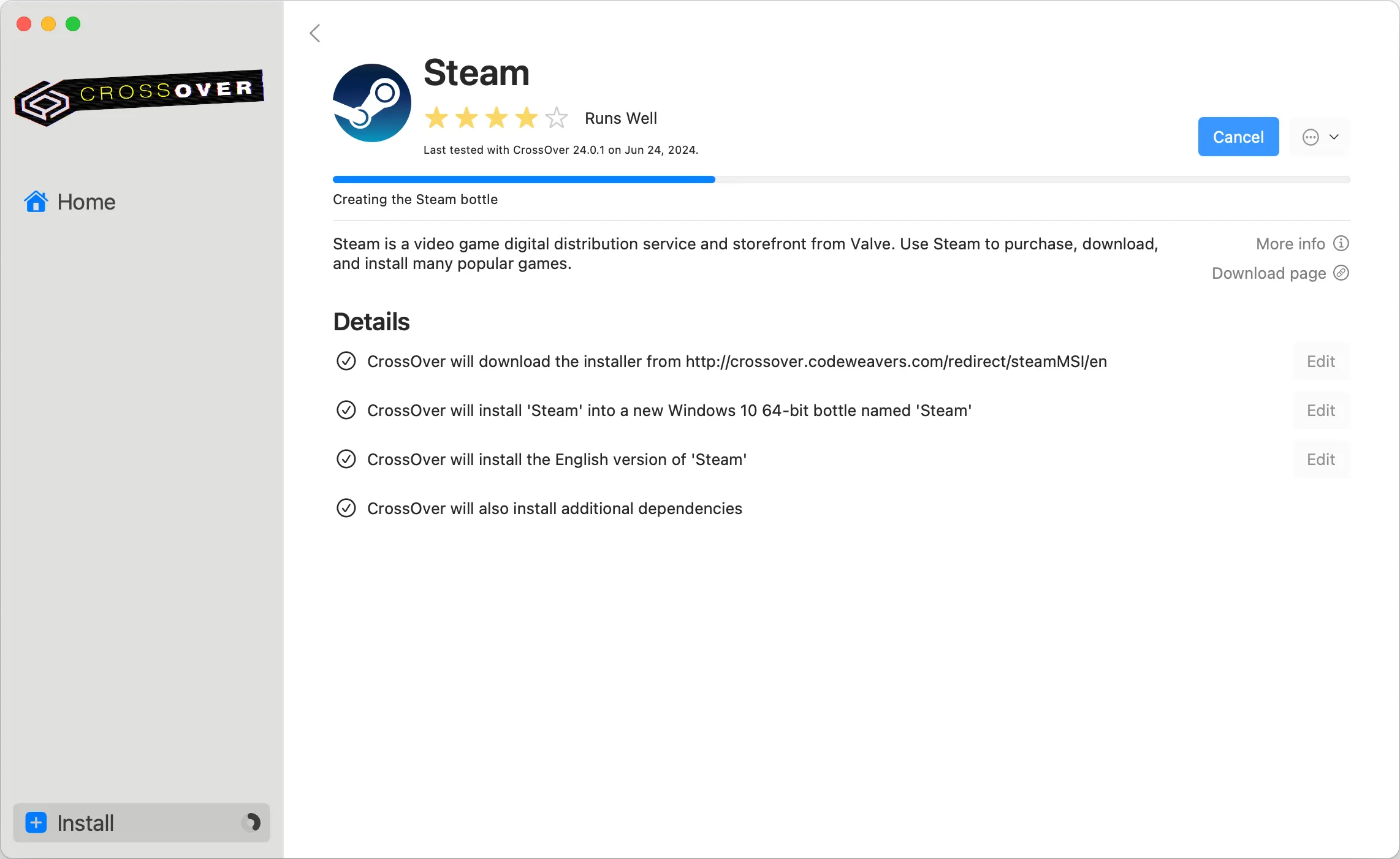
- In that Steam installation, download AION 2 and try launching it.
- If you encounter a startup or anti-cheat error, check current compatibility reports and NC's AION 2 Global support pages before changing settings. Official Windows troubleshooting does not establish that CrossOver is supported.
Claims that AION 2 itself runs come from individual players, and reports differ: this community discussion includes a successful setup alongside startup difficulties. A player's particular configuration—especially one involving launch or anti-cheat behavior—is not a universal fix. If you want a predictable route to play AION 2 on Mac, use a Windows machine that runs the game normally.
Method 2: Stream AION 2 from Windows PC to Mac with AskLink
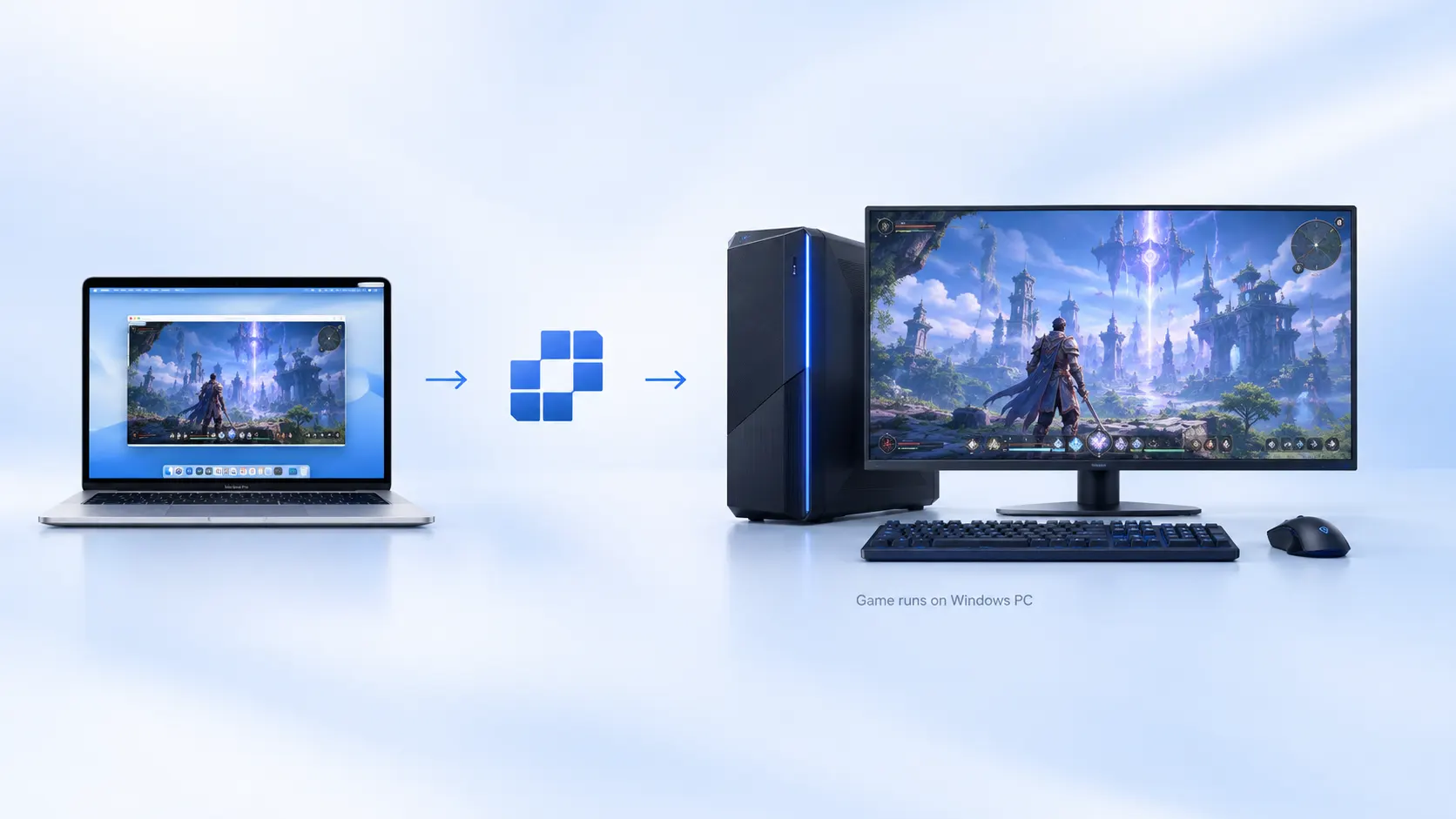
Here, your Windows gaming PC is the host: it installs and runs AION 2. Your Mac is the local device: it sends your keyboard and mouse input and displays the PC's screen and sound. In AskLink's interface, the Mac acts as the Controller and the Windows PC is the Controlled Device.
This is the practical advantage of the route. You do not have to solve AION 2's Windows compatibility on your Mac; you connect to a PC where the game already works. AskLink carries the remote session, but the Windows PC still needs to meet the game's requirements and run it successfully on its own.
Set it up with AskLink
- Prepare the host PC. Install AION 2 on the Windows gaming PC and confirm it launches and plays locally. Leave the PC powered on, awake, and connected while you play remotely.
- Install AskLink on both devices. Get the Windows and macOS apps from the AskLink download page.
- Connect from the Mac. Sign in with the same AskLink account on both devices. Give the Windows PC the Controlled role and the Mac the Controller role. On the Mac, open Devices, select your online gaming PC, and choose Remote Control.
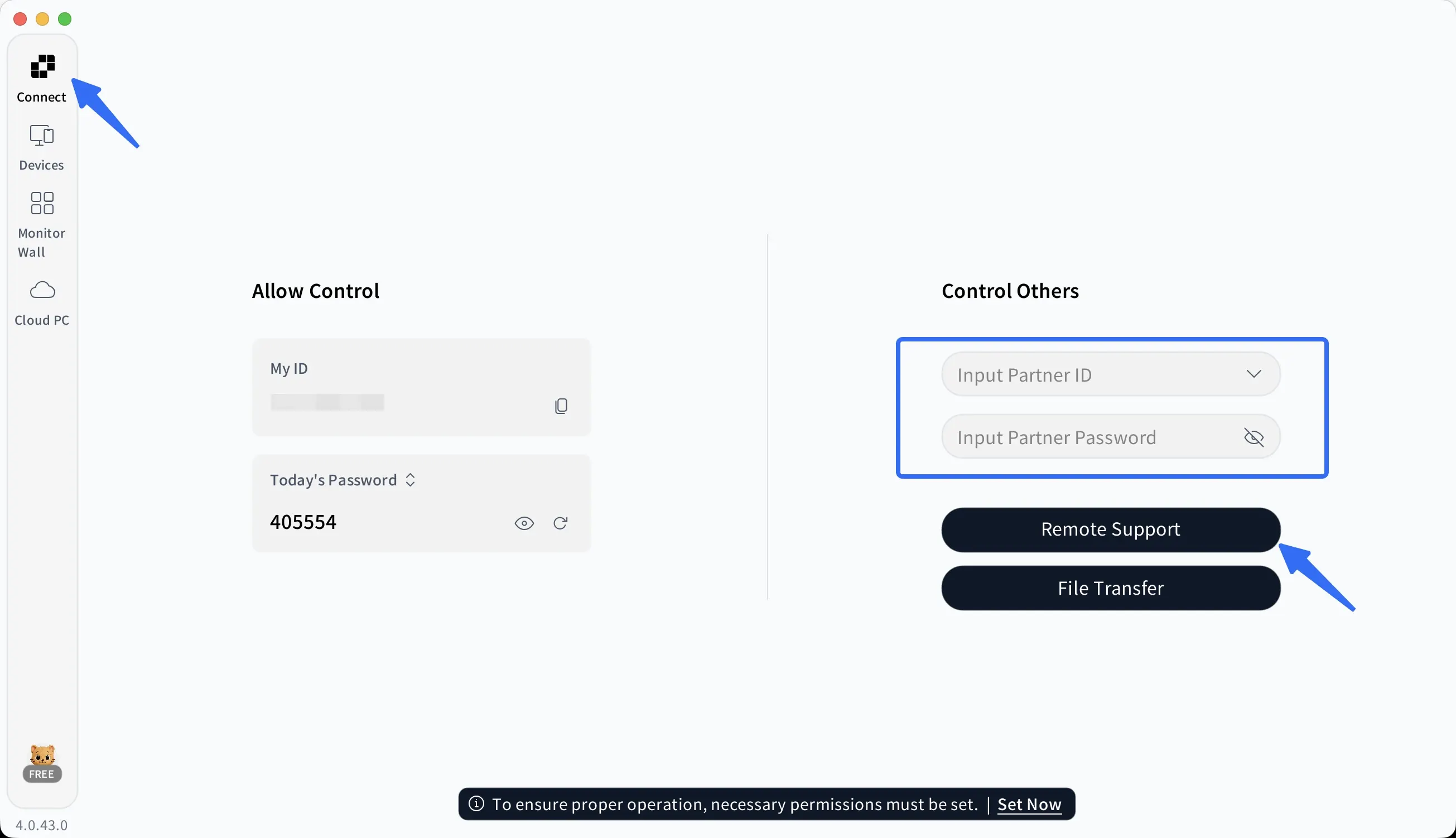
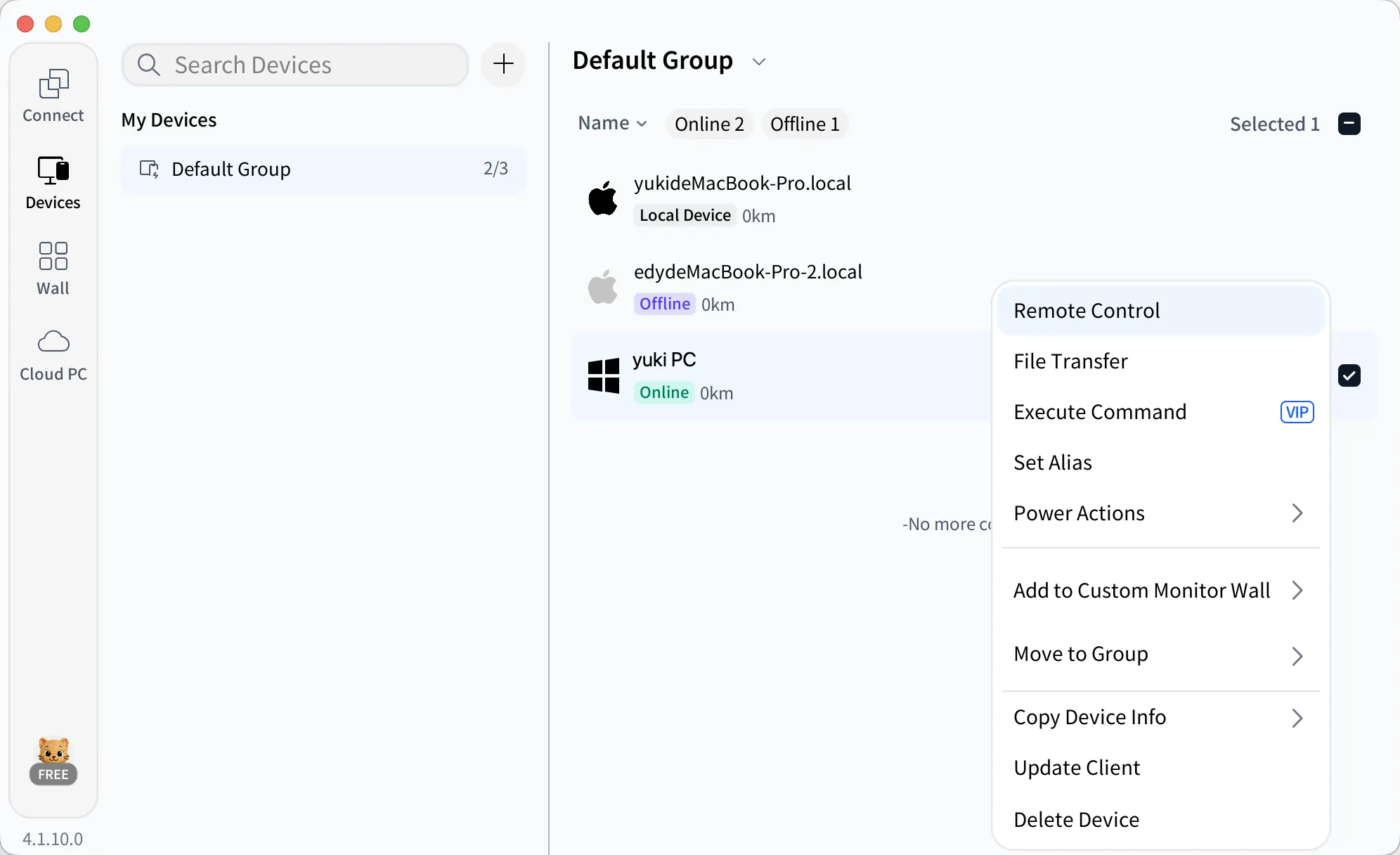
- Start AION 2 on Windows. Once you see the PC desktop on your Mac, launch the game there. The installation and game processing stay on Windows.
- Tune the session before a fight. Open the floating arrow at the top of the remote screen to reach AskLink's Control Panel:
- In Display, adjust image quality and refresh rate to suit your devices and connection if the stream feels uneven.
- In Audio, turn on Remote Audio to hear the Windows PC through your Mac.
- In Games, try Optimized for 3D Games if mouse movement makes the camera spin or behave unusually. Adjust mouse sensitivity there if needed.
- If you use a controller connected to your Mac, Game Controller Mapping sends its input to the Windows PC. It does not add controller support to AION 2; test whether the game recognizes your setup.
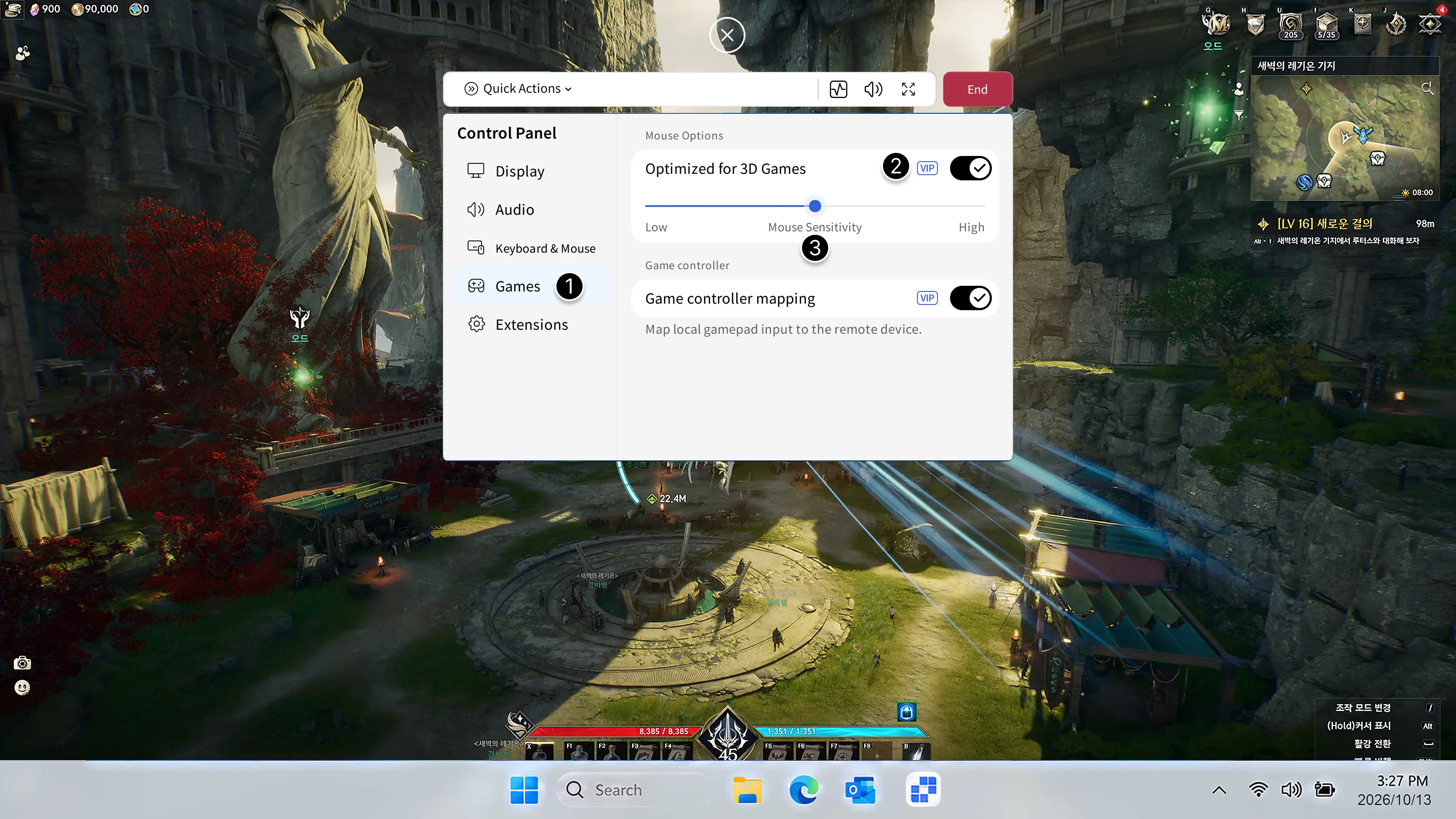
AskLink's mouse optimization and controller mapping are Gaming plan features; available quality and frame-rate options also vary by plan. Check the current plan comparison before relying on a particular setting.
Want to play away from your Mac, too? Check out our guide on how to play AION 2 on mobile.
Method 3: Play AION 2 on Mac Using a Cloud PC
No Windows gaming PC? A cloud PC rents you a Windows machine that you access from your Mac. It is another possible route, but a Windows desktop alone is not enough to guarantee that AION 2 will work.
Before paying, ask the provider whether its PC meets AION 2's GPU and storage requirements, permits the game's launcher and anti-cheat, and lets you install and keep the game. Check where the cloud PC is located, too: a distant server can make controls feel slow even when the game runs well on that machine.
Can your connection keep up with an MMO fight?
AION 2 gives you more to test than whether the picture looks sharp. Camera movement, flight, and chained skills can expose input delay quickly; crowded PvP adds pressure when you need to react immediately.
Start somewhere safe. Move, turn the camera, fly, and try a short skill sequence from your Mac. Then test a low-stakes fight before entering serious PvP or a demanding group encounter.
If the image stutters, lower the remote image quality and try again.
If the game stutters even when played directly on the Windows PC, fix the host's game performance first—stream settings cannot repair that.
Conclusion
You don't need a native macOS version to enjoy AION 2 on your Mac. CrossOver is worth exploring if you're comfortable troubleshooting, while cloud PCs may work if the provider supports the game.
Already have a Windows gaming PC? AskLink lets you connect to it from your Mac and play remotely without installing AION 2 on macOS. Set up your connection, test your keyboard and mouse, and adjust the stream quality to suit your network.
Ready to give it a try? Download AskLink for free and connect your Mac to your Windows PC.