'%3e%3cpath%20d='M7.48145%2024H3.74023C1.67456%2023.9999%204.09854e-05%2022.3467%200%2020.3076V16.6152H7.48145V24ZM15.8955%2024H8.41406V16.6152H15.8955V24ZM7.48145%2015.6924H0V8.30762H7.48145V15.6924ZM24%2015.6924H16.5195V8.30762H24V15.6924ZM15.5859%207.38477H8.10547V0H15.5859V7.38477ZM20.2598%200C22.3256%200%2024%201.65318%2024%203.69238V7.38477H16.5195V0H20.2598Z'%20fill='white'/%3e%3cpath%20d='M108.786%2019.0507L105.767%2014.2636H104.397L108.397%208.80874H111.915L108.119%2013.9483V12.3155L112.544%2019.0507H108.786ZM101.527%2019.0507V5.5061H104.897V19.0507H101.527Z'%20fill='white'/%3e%3cpath%20d='M88.8242%2019.0505V8.80858H91.4908V13.2059H91.3421C91.3421%2012.1422%2091.4779%2011.264%2091.7499%2010.5712C92.0214%209.86618%2092.4224%209.34052%2092.953%208.99418C93.4965%208.64778%2094.1506%208.47461%2094.9158%208.47461H95.0644C96.2245%208.47461%2097.1193%208.86427%2097.7488%209.64353C98.3911%2010.4104%2098.7117%2011.5917%2098.7117%2013.1874V19.0505H95.342V13.0946C95.342%2012.6246%2095.2001%2012.2411%2094.9158%2011.9443C94.6443%2011.635%2094.2679%2011.4804%2093.7864%2011.4804C93.3049%2011.4804%2092.9162%2011.635%2092.6202%2011.9443C92.3358%2012.2411%2092.194%2012.6369%2092.194%2013.1317V19.0505H88.8242Z'%20fill='white'/%3e%3cpath%20d='M82.4214%2019.0506V8.80875H85.7912V19.0506H82.4214ZM81.125%2011.2579V8.80875H85.7912V11.2579H81.125ZM83.81%207.99232C83.1928%207.99232%2082.7359%207.83773%2082.4398%207.5285C82.1561%207.2069%2082.0137%206.79872%2082.0137%206.30388C82.0137%205.80913%2082.1561%205.40713%2082.4398%205.09789C82.7359%204.77628%2083.1866%204.61548%2083.7916%204.61548C84.4088%204.61548%2084.8595%204.77628%2085.1433%205.09789C85.427%205.40713%2085.5688%205.80913%2085.5688%206.30388C85.5688%206.79872%2085.427%207.2069%2085.1433%207.5285C84.8595%207.83773%2084.4149%207.99232%2083.81%207.99232Z'%20fill='white'/%3e%3cpath%20d='M71.1328%2019.0507V5.5061H74.5769V19.0507H71.1328ZM74.2065%2019.0507V16.0449H79.6876V19.0507H74.2065Z'%20fill='white'/%3e%3cpath%20d='M65.4458%2019.0507L62.428%2014.2636H61.0576L65.0571%208.80874H68.5755L64.7795%2013.9483V12.3155L69.2049%2019.0507H65.4458ZM58.1875%2019.0507V5.5061H61.5578V19.0507H58.1875Z'%20fill='white'/%3e%3cpath%20d='M51.2917%2019.3845C49.8103%2019.3845%2048.6438%2019.0814%2047.7921%2018.4753C46.9403%2017.8568%2046.4836%2016.991%2046.4219%2015.8777H49.3844C49.4339%2016.1869%2049.6252%2016.4529%2049.9585%2016.6755C50.2918%2016.8982%2050.7608%2017.0095%2051.3657%2017.0095C51.7978%2017.0095%2052.1681%2016.9477%2052.4767%2016.824C52.7977%2016.6879%2052.9581%2016.4715%2052.9581%2016.1745C52.9581%2015.9148%2052.8347%2015.7045%2052.5878%2015.5437C52.3409%2015.3705%2051.8903%2015.2531%2051.2361%2015.1912L50.5325%2015.117C49.224%2014.9809%2048.2611%2014.6222%2047.6439%2014.0408C47.0267%2013.4595%2046.7181%2012.7297%2046.7181%2011.8515C46.7181%2011.0969%2046.9033%2010.4784%2047.2736%209.99603C47.6439%209.50126%2048.1562%209.13018%2048.8105%208.8828C49.4647%208.63541%2050.2115%208.51172%2051.0509%208.51172C52.4211%208.51172%2053.526%208.81473%2054.3653%209.42089C55.2048%2010.0146%2055.6492%2010.8743%2055.6986%2011.9999H52.7359C52.6866%2011.6907%2052.5199%2011.4309%2052.236%2011.2206C51.9521%2010.998%2051.5447%2010.8867%2051.0139%2010.8867C50.6312%2010.8867%2050.3164%2010.9547%2050.0696%2011.0907C49.835%2011.2268%2049.7178%2011.4185%2049.7178%2011.6659C49.7178%2011.9257%2049.8289%2012.1174%2050.0511%2012.2411C50.2856%2012.3648%2050.6559%2012.4576%2051.162%2012.5194L51.8657%2012.5936C53.1741%2012.7297%2054.1802%2013.0946%2054.8838%2013.6883C55.5998%2014.2697%2055.9578%2015.0366%2055.9578%2015.989C55.9578%2016.6941%2055.7664%2017.3002%2055.3838%2017.8073C55.0134%2018.3145%2054.4764%2018.7041%2053.7728%2018.9763C53.0816%2019.2484%2052.2545%2019.3845%2051.2917%2019.3845Z'%20fill='white'/%3e%3cpath%20d='M31.0117%2019.0507L35.3445%205.5061H40.8624L45.3434%2019.0507H41.7882L38.3072%207.91816L39.2885%208.28924H36.8444L37.8442%207.91816L34.4558%2019.0507H31.0117ZM34.5483%2015.915L35.5853%2013.0948H40.7143L41.7512%2015.915H34.5483Z'%20fill='white'/%3e%3c/g%3e%3cdefs%3e%3cclipPath%20id='clip0_5596_142775'%3e%3crect%20width='113'%20height='24'%20fill='white'/%3e%3c/clipPath%3e%3c/defs%3e%3c/svg%3e "AskLink")
 Ethan Miller
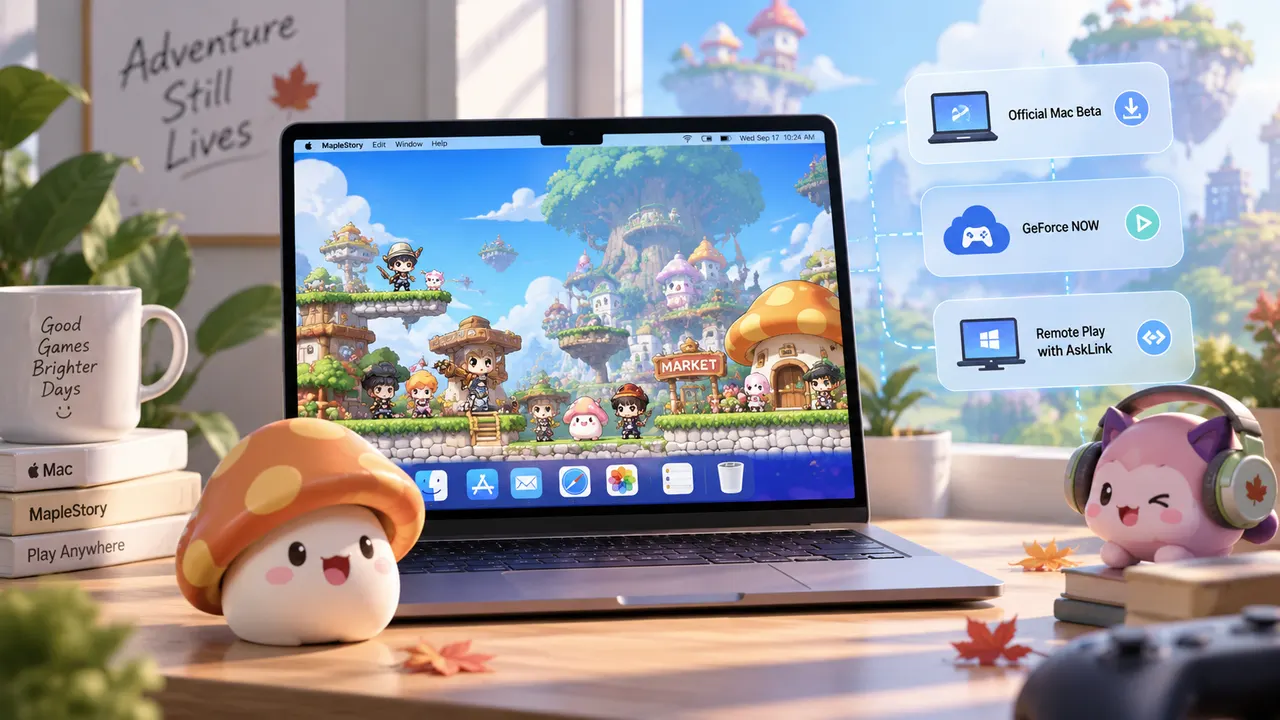
Can you play MapleStory on Mac? Yes—if you mean Global MapleStory. You can install its official Mac beta on a supported Apple silicon Mac, stream the game through GeForce NOW, or connect to a Windows PC you already use for MapleStory. The right starting point depends on your Mac's chip and whether you have that second PC.
This guide covers Global MapleStory. MapleStory M, MapleStory Worlds, and versions run by other regional publishers may have different apps and availability. Nexon's Mac support page is the starting point for the Global version.
Before You Download, Check Your Mac's Chip
Open Apple menu → About This Mac to see whether your Mac has an Intel processor or Apple silicon. Then find your starting point:
| Your setup | What you need | Start here |
|---|---|---|
| Apple silicon, M1 or newer, with macOS Sequoia 15 or later | About 60 GB of free storage and a Nexon or Steam account; the game installs on your Mac | Official Mac beta |
| Intel Mac, or an Apple silicon Mac where you cannot or do not want to install the beta | A Mac that meets NVIDIA's requirements, a Steam account, a GeForce NOW account, and a suitable internet connection; no local MapleStory download | GeForce NOW |
| You already have a Windows PC that runs MapleStory | AskLink on both computers, an available Windows PC, and a connection to it; the game stays on the PC | Remote play with AskLink |
There is no prize for choosing the most elaborate setup. If the Mac beta runs well for you, use it. The other routes become useful when you want to avoid a local download, your Mac is unsupported, or you prefer the Windows setup you have already configured.
Have an M1 or Newer Mac? Get Into the Official Beta
If your Mac meets the requirements, try the official local version first. Nexon offers the macOS beta through its launcher and Steam.
Nexon Launcher or Steam: Use the One You Know
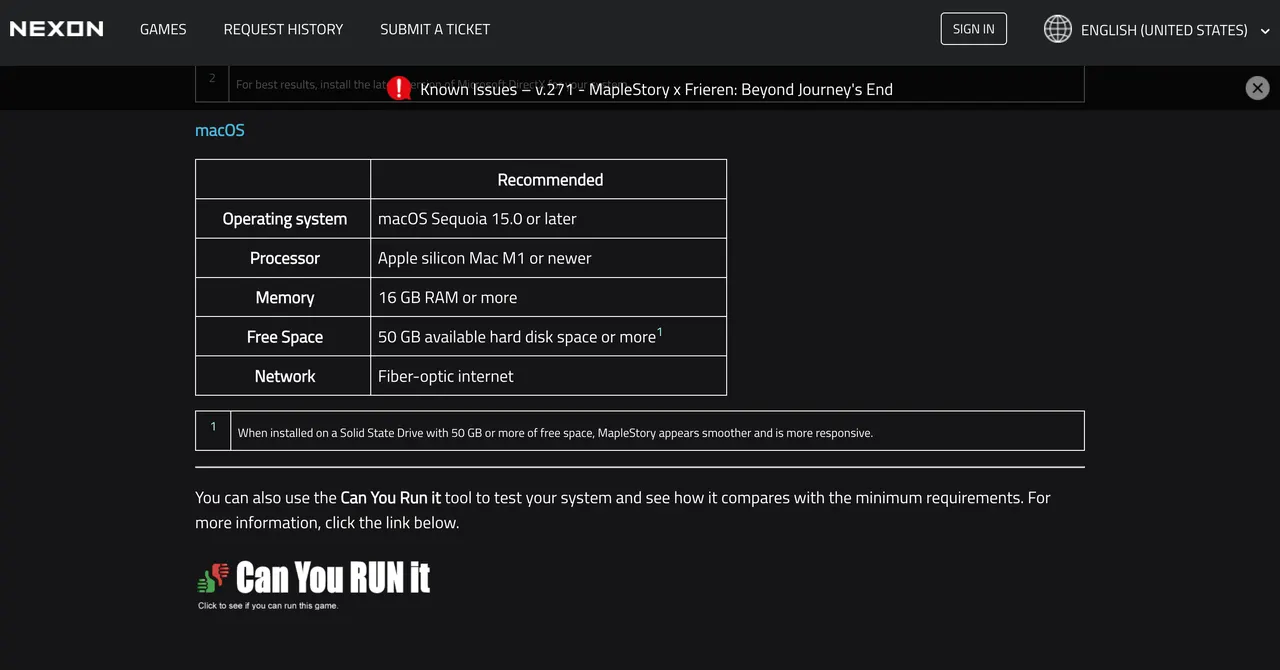
- Check your Mac and make space. Confirm the chip and macOS version in About This Mac. Steam lists M1, macOS Sequoia 15, 8 GB of memory, and 60 GB of free space as minimum requirements. Nexon recommends 16 GB of memory for its Mac beta.
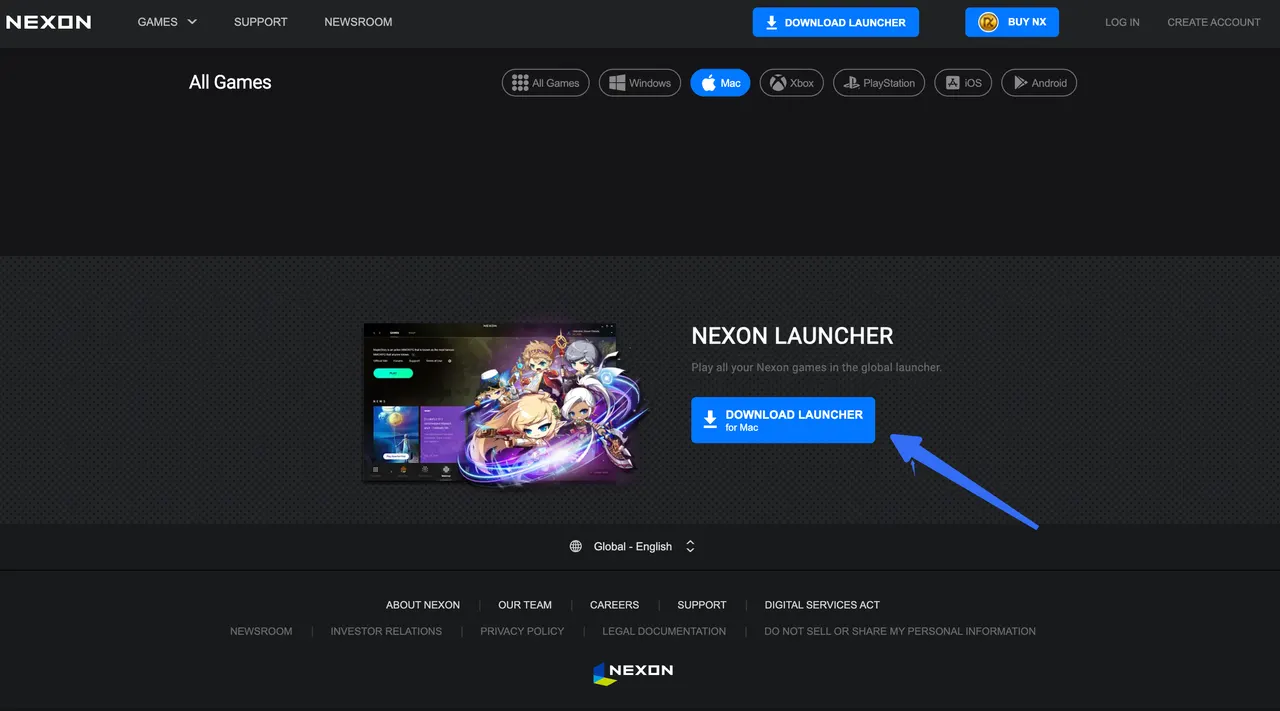
- Choose an official download. If you already use a Nexon account, get the Nexon Launcher.
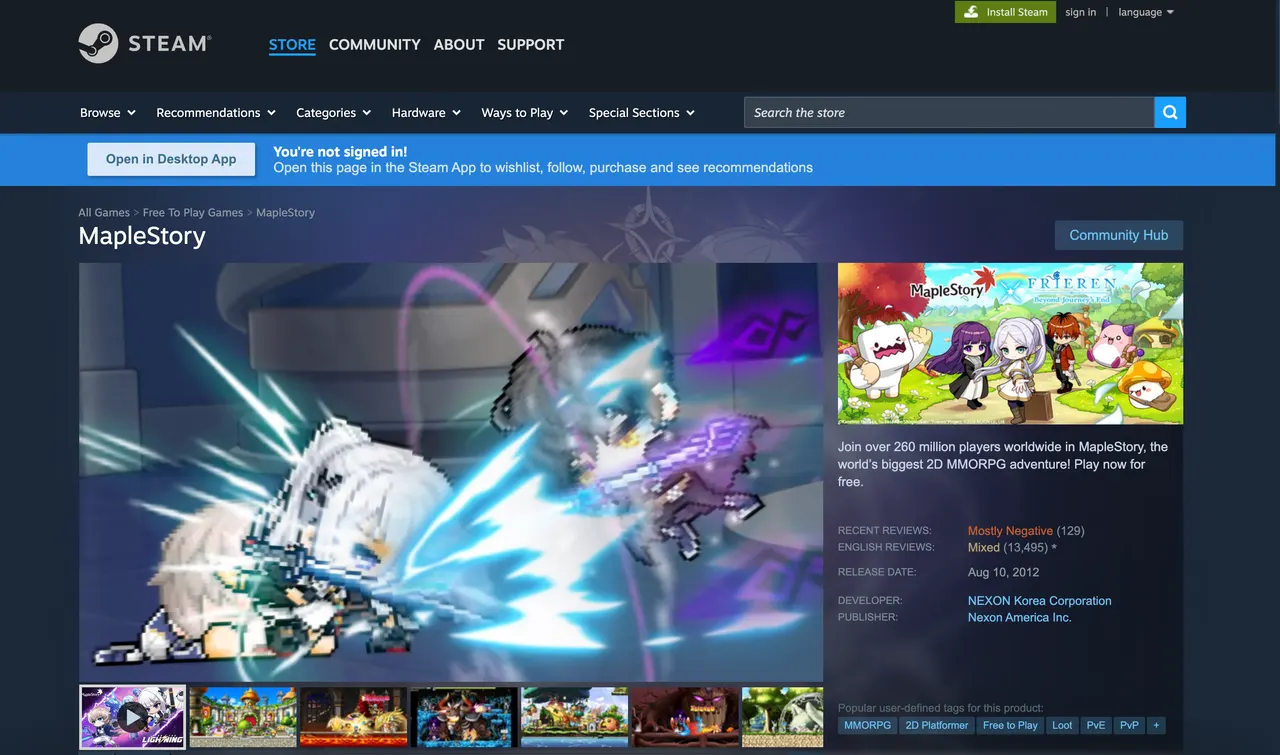
If you normally play through Steam, open MapleStory's Steam page and install it from your library. Use the sign-in route tied to the account you want to play.
- Install and launch the game.
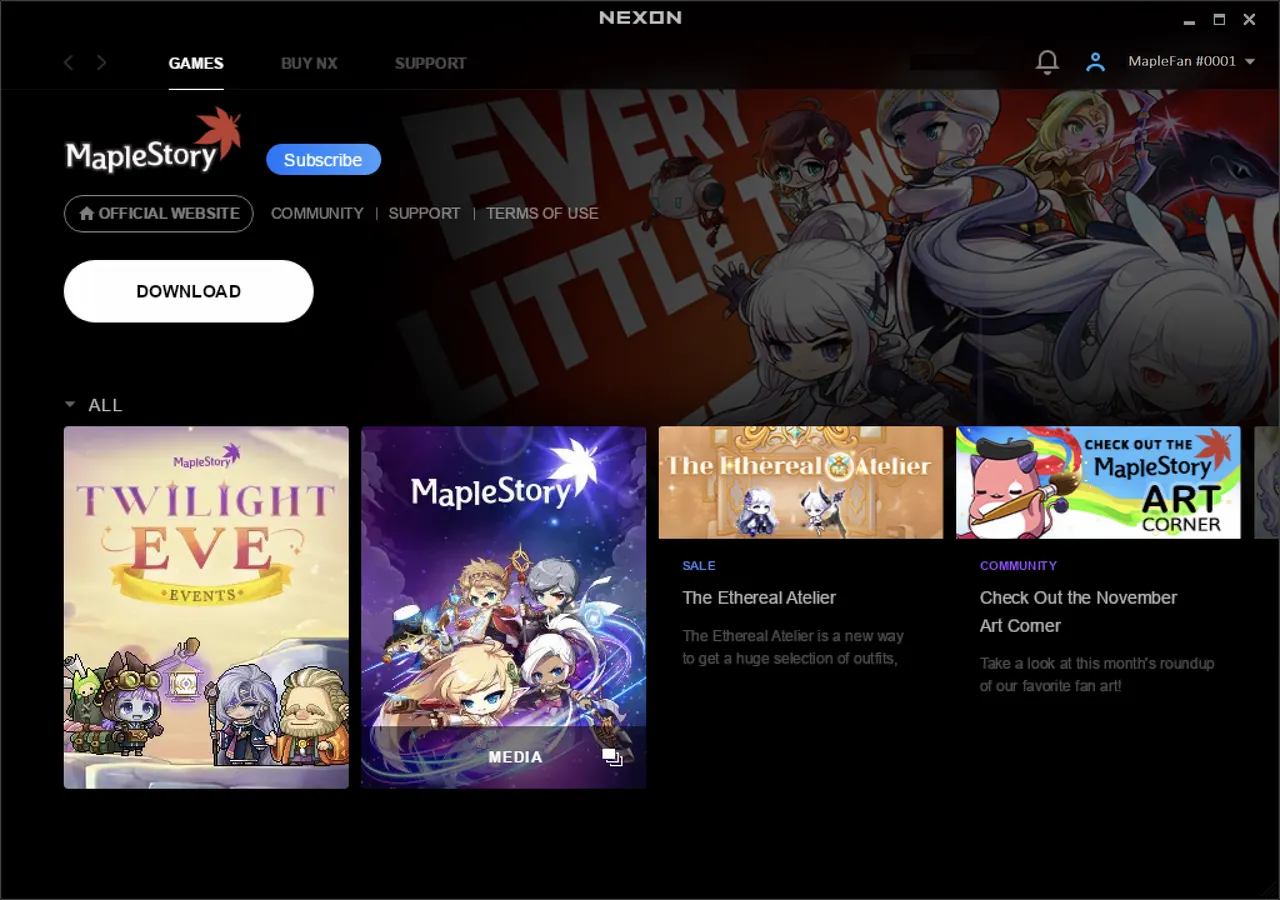
With Nexon Launcher, open the installer, sign in, choose MapleStory, and let the download and updates finish. The Download button changes to Play when the game is ready. Nexon has a Mac installation walkthrough if a screen looks unfamiliar.
- Run a quick test. Enter a safe area and check basic movement, sound, and controls before starting a longer session. If something feels wrong, use the checklist later in this guide.
What If You Have an Intel Mac?
Can you play MapleStory on a Mac with an Intel chip? Yes, but the official Mac beta is not the route to start with: its current listed chip requirement begins at M1. If you do not own another gaming PC, check GeForce NOW next. If MapleStory already runs on a Windows PC you own, you can reach that PC from your Intel Mac with AskLink.
Want to Skip the Game Download? Try GeForce NOW
GeForce NOW streams MapleStory from NVIDIA's computers, so the game files do not need to live on your Mac. This is a practical way to play MapleStory on Mac without Windows installed on it or a Windows PC of your own.
NVIDIA supports compatible Intel and Apple silicon Macs. Its listed Mac requirements begin at macOS 10.15, but your connection matters too: NVIDIA lists 15 Mbps for HD at up to 60 FPS and recommends Ethernet or 5 GHz Wi-Fi.
To get started:
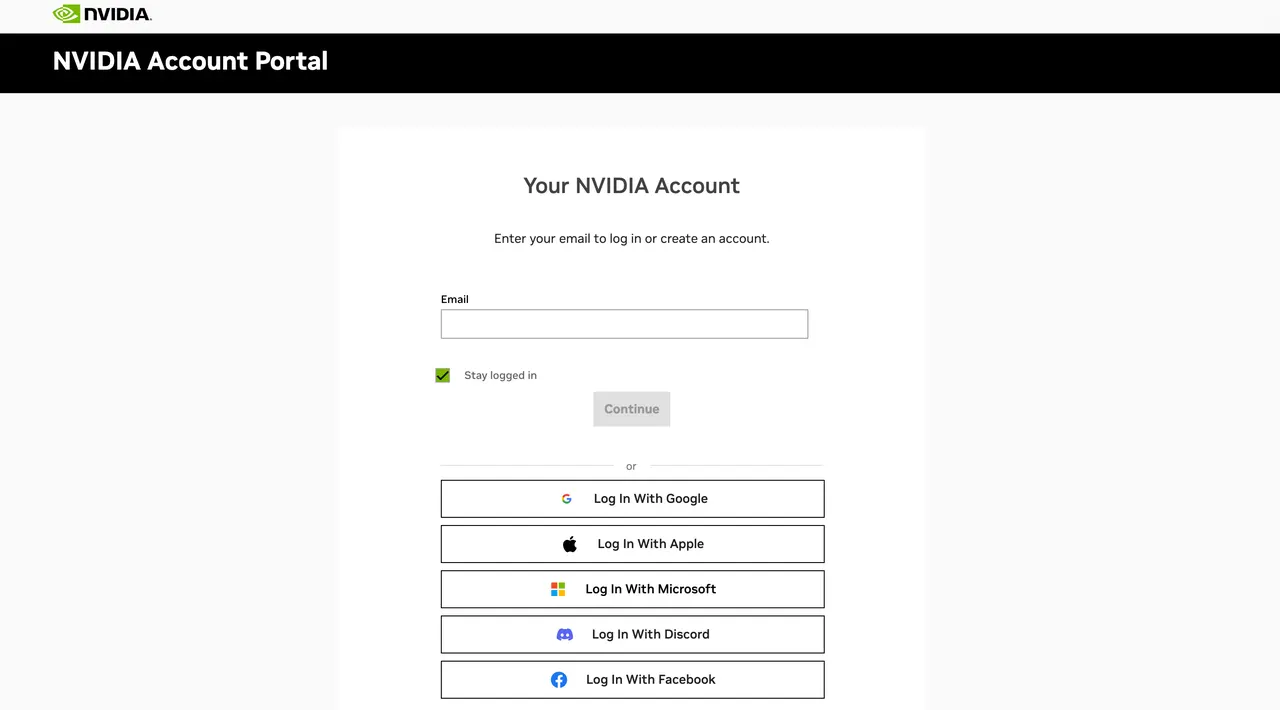
- Create or sign in to a GeForce NOW account.
- Have a Steam account ready and add MapleStory to your Steam library.
- Open the GeForce NOW Mac app or a supported web browser.
- Search for MapleStory, select Play, and sign in to Steam when prompted.
You may need to wait for an available machine. Nexon's guide says GeForce NOW's free tier has one-hour sessions, after which you must queue again. Check the current plan terms if you want to play for longer without that break.
If you would rather use the Windows PC where your game is already installed and configured, use the next route.
Already Play MapleStory on a Windows PC? Access It From Your Mac
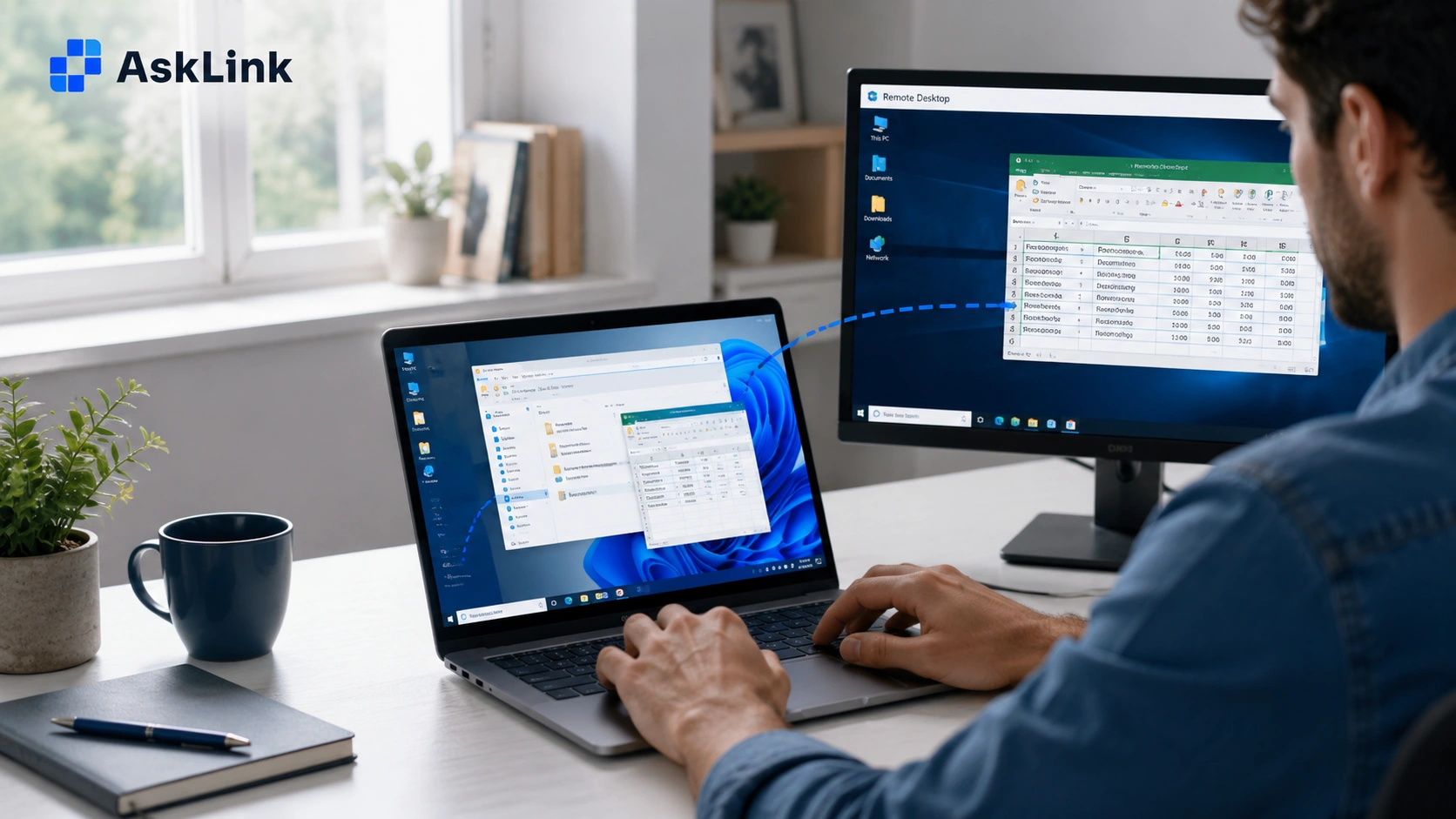
Maybe MapleStory already works well on your Windows desktop, with your usual settings and controls. AskLink lets your Mac connect to that PC: the game keeps running on Windows while you see and control it from your Mac. You do need to own or have access to a Windows PC that can run the game.
Connect with AskLink in Four Moves
- Prepare the Windows PC while you are beside it.
Update MapleStory and its launcher, then open the game once on the PC to confirm it works there. For your first remote test, leave the PC powered on, connected to the internet, and signed in.
A wired connection on the PC is helpful if you have one, but start with the network you already use.
- Install AskLink on both computers.
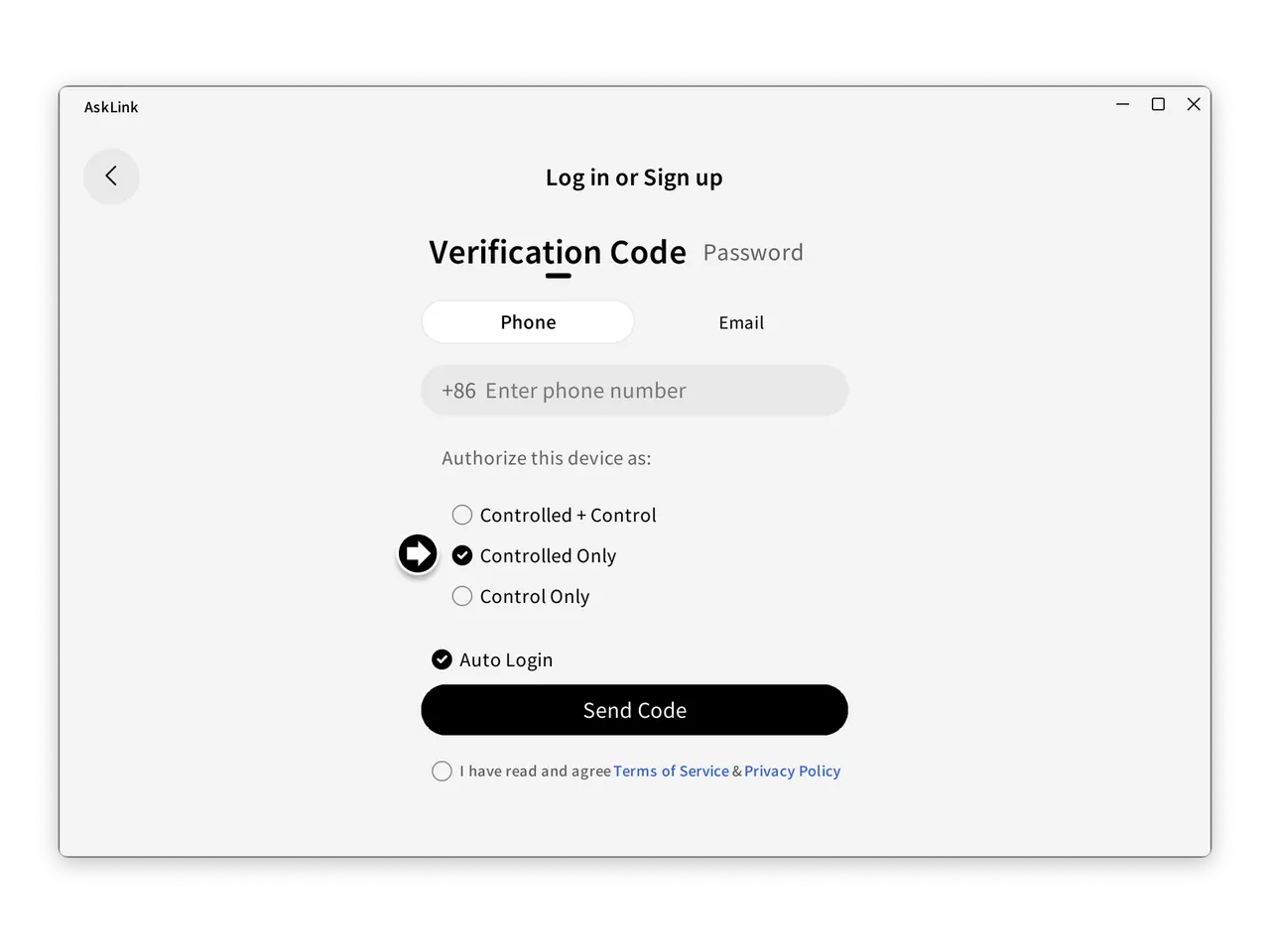
Get the Windows and Mac apps from the AskLink download page. Sign in with the same AskLink account. Set the Windows PC as Controlled and the Mac as Controller; the PC should then appear in your Devices list.
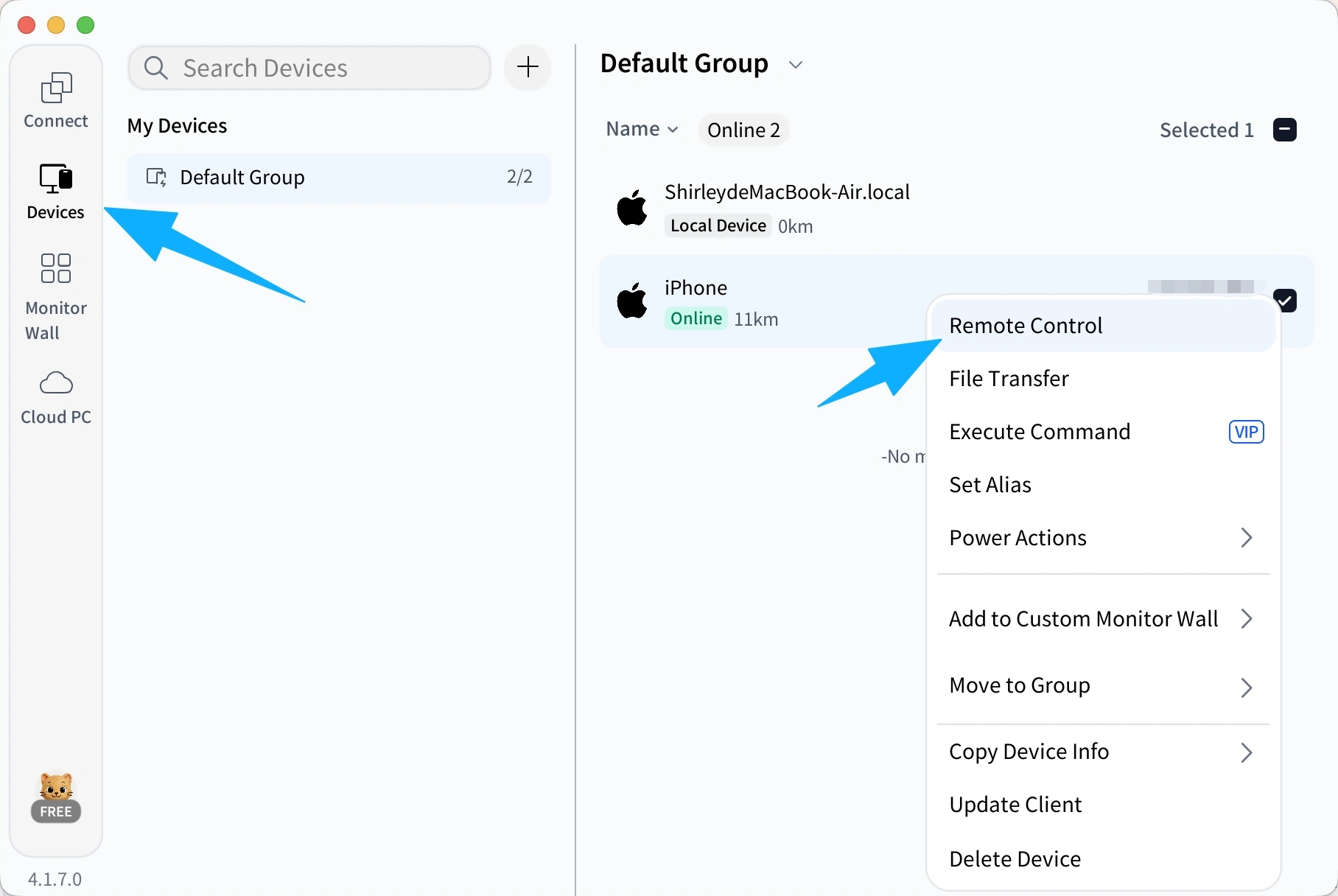
- Connect from your Mac. Open Devices, find the Windows PC, and choose Remote Control. Once you can see the Windows desktop, open MapleStory as you normally would on that PC. If the device is missing, confirm that AskLink is running on the PC, both devices use the intended account, and the PC is online.
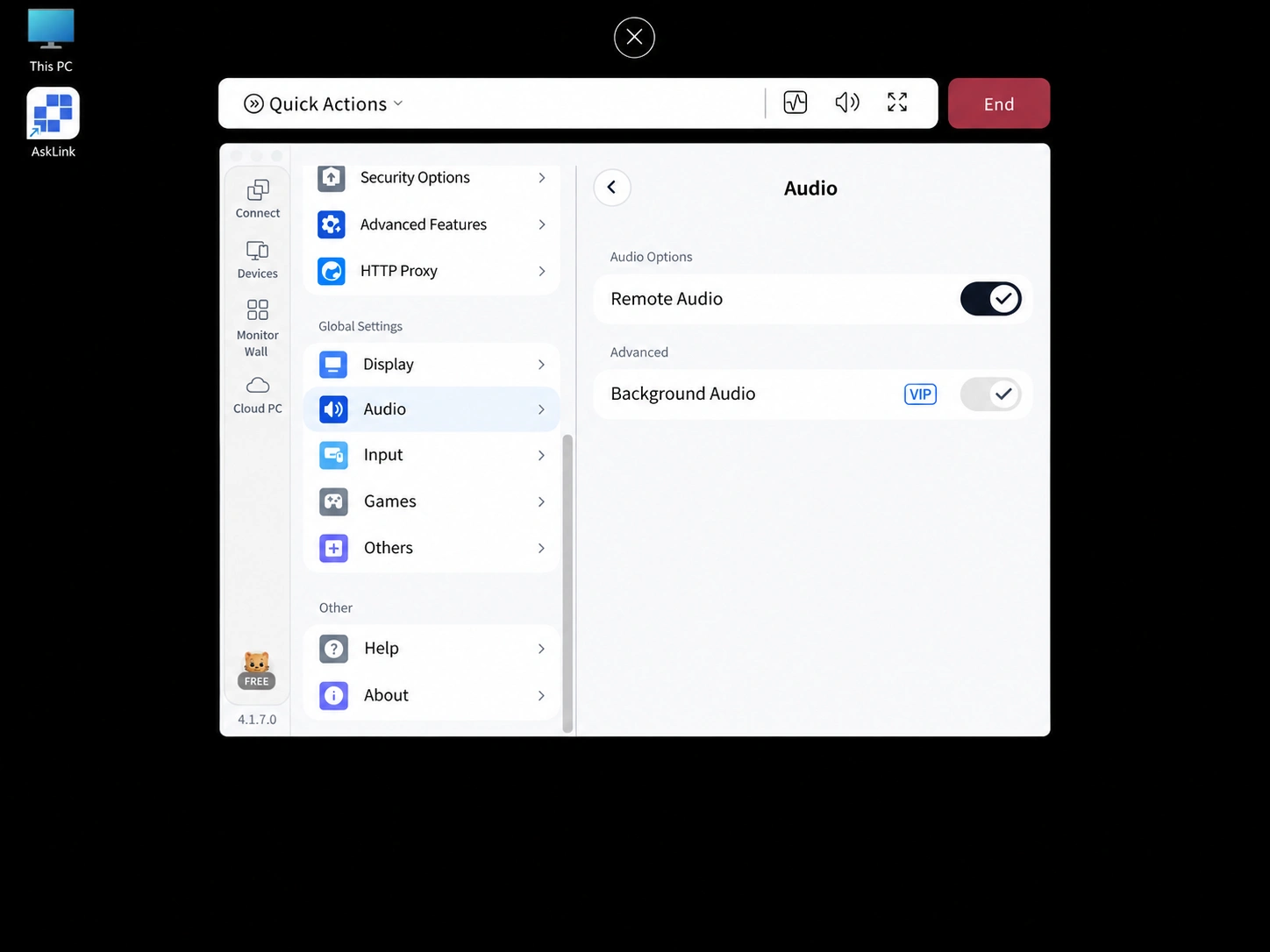
- Check the session. In AskLink's Control Panel, turn on Remote Audio if you want to hear the PC through your Mac. Try moving and using a few skills. If the picture or input feels slow, lower the remote picture quality and test again before changing your game settings.
You can try this route on AskLink's Free plan, which currently lists 30 FPS and 50 hours of high-speed connection each month. Other frame-rate and input options depend on the plan. For your first session, keeping the Windows PC awake is simplest. If you later want to wake it remotely, set up Wake-on-LAN before leaving home; it requires compatible PC settings and another signed-in AskLink device online on the PC's local network.
Before a Boss Fight, Run This One-Minute Reality Check
Whichever route you chose, test it in ordinary content before relying on it in a demanding fight:
- Test movement and skill keys. Hold movement keys, jump, and cast several skills.
- Test sound and input. Open chat, type, click menus, and listen for stutter or missing audio cues.
- Try easy content first. Run ordinary content before entering a boss fight.
The official Mac client has some macOS-specific key mappings. For example, Nexon lists Command in place of an in-game Alt binding and fn + F1–F12 for function keys. If you are controlling a Windows PC remotely, test your bindings in that Windows session instead.
If the Mac beta stutters when sound effects play, try lowering skill sound effects as a test and check Nexon's known issues page. For remote play, first check whether the game behaves normally on the Windows PC itself. If the delay appears only on your Mac, test the remote connection and picture quality next.
Game Won't Open? Check These Four Things First
Use the symptom to find your next step:
| What you notice | What to check |
|---|---|
| You cannot find the expected Mac download or game | First confirm that you are using Global MapleStory and that your Mac meets the current beta requirements. Intel Macs do not meet the Apple silicon requirement. Regional versions, MapleStory M, and MapleStory Worlds may also have different availability. |
| The installer stops or the game closes at launch | Recheck your Mac's requirements and free space using the links above, then make sure the download and patch have finished. Restart the launcher and check Nexon's Mac beta known issues. |
| The game opens, but keys, sound, or fights feel wrong | Use the one-minute test above. For AskLink, also confirm that the game works normally on the Windows PC before adjusting the remote session. |
| The Mac beta still will not launch after those checks | Follow Nexon's support guidance and send a ticket with a system report. |
Conclusion
Have an M1 or newer Mac that meets the game's requirements? Start with the official beta. On an Intel Mac, or when you want to skip the local install, check GeForce NOW. If MapleStory already runs the way you like on a Windows PC, AskLink lets you return to that setup from either kind of Mac. Choose the route that fits the devices you have, run the short control test, and then get back to the game.