'%3e%3cpath%20d='M7.48145%2024H3.74023C1.67456%2023.9999%204.09854e-05%2022.3467%200%2020.3076V16.6152H7.48145V24ZM15.8955%2024H8.41406V16.6152H15.8955V24ZM7.48145%2015.6924H0V8.30762H7.48145V15.6924ZM24%2015.6924H16.5195V8.30762H24V15.6924ZM15.5859%207.38477H8.10547V0H15.5859V7.38477ZM20.2598%200C22.3256%200%2024%201.65318%2024%203.69238V7.38477H16.5195V0H20.2598Z'%20fill='white'/%3e%3cpath%20d='M108.786%2019.0507L105.767%2014.2636H104.397L108.397%208.80874H111.915L108.119%2013.9483V12.3155L112.544%2019.0507H108.786ZM101.527%2019.0507V5.5061H104.897V19.0507H101.527Z'%20fill='white'/%3e%3cpath%20d='M88.8242%2019.0505V8.80858H91.4908V13.2059H91.3421C91.3421%2012.1422%2091.4779%2011.264%2091.7499%2010.5712C92.0214%209.86618%2092.4224%209.34052%2092.953%208.99418C93.4965%208.64778%2094.1506%208.47461%2094.9158%208.47461H95.0644C96.2245%208.47461%2097.1193%208.86427%2097.7488%209.64353C98.3911%2010.4104%2098.7117%2011.5917%2098.7117%2013.1874V19.0505H95.342V13.0946C95.342%2012.6246%2095.2001%2012.2411%2094.9158%2011.9443C94.6443%2011.635%2094.2679%2011.4804%2093.7864%2011.4804C93.3049%2011.4804%2092.9162%2011.635%2092.6202%2011.9443C92.3358%2012.2411%2092.194%2012.6369%2092.194%2013.1317V19.0505H88.8242Z'%20fill='white'/%3e%3cpath%20d='M82.4214%2019.0506V8.80875H85.7912V19.0506H82.4214ZM81.125%2011.2579V8.80875H85.7912V11.2579H81.125ZM83.81%207.99232C83.1928%207.99232%2082.7359%207.83773%2082.4398%207.5285C82.1561%207.2069%2082.0137%206.79872%2082.0137%206.30388C82.0137%205.80913%2082.1561%205.40713%2082.4398%205.09789C82.7359%204.77628%2083.1866%204.61548%2083.7916%204.61548C84.4088%204.61548%2084.8595%204.77628%2085.1433%205.09789C85.427%205.40713%2085.5688%205.80913%2085.5688%206.30388C85.5688%206.79872%2085.427%207.2069%2085.1433%207.5285C84.8595%207.83773%2084.4149%207.99232%2083.81%207.99232Z'%20fill='white'/%3e%3cpath%20d='M71.1328%2019.0507V5.5061H74.5769V19.0507H71.1328ZM74.2065%2019.0507V16.0449H79.6876V19.0507H74.2065Z'%20fill='white'/%3e%3cpath%20d='M65.4458%2019.0507L62.428%2014.2636H61.0576L65.0571%208.80874H68.5755L64.7795%2013.9483V12.3155L69.2049%2019.0507H65.4458ZM58.1875%2019.0507V5.5061H61.5578V19.0507H58.1875Z'%20fill='white'/%3e%3cpath%20d='M51.2917%2019.3845C49.8103%2019.3845%2048.6438%2019.0814%2047.7921%2018.4753C46.9403%2017.8568%2046.4836%2016.991%2046.4219%2015.8777H49.3844C49.4339%2016.1869%2049.6252%2016.4529%2049.9585%2016.6755C50.2918%2016.8982%2050.7608%2017.0095%2051.3657%2017.0095C51.7978%2017.0095%2052.1681%2016.9477%2052.4767%2016.824C52.7977%2016.6879%2052.9581%2016.4715%2052.9581%2016.1745C52.9581%2015.9148%2052.8347%2015.7045%2052.5878%2015.5437C52.3409%2015.3705%2051.8903%2015.2531%2051.2361%2015.1912L50.5325%2015.117C49.224%2014.9809%2048.2611%2014.6222%2047.6439%2014.0408C47.0267%2013.4595%2046.7181%2012.7297%2046.7181%2011.8515C46.7181%2011.0969%2046.9033%2010.4784%2047.2736%209.99603C47.6439%209.50126%2048.1562%209.13018%2048.8105%208.8828C49.4647%208.63541%2050.2115%208.51172%2051.0509%208.51172C52.4211%208.51172%2053.526%208.81473%2054.3653%209.42089C55.2048%2010.0146%2055.6492%2010.8743%2055.6986%2011.9999H52.7359C52.6866%2011.6907%2052.5199%2011.4309%2052.236%2011.2206C51.9521%2010.998%2051.5447%2010.8867%2051.0139%2010.8867C50.6312%2010.8867%2050.3164%2010.9547%2050.0696%2011.0907C49.835%2011.2268%2049.7178%2011.4185%2049.7178%2011.6659C49.7178%2011.9257%2049.8289%2012.1174%2050.0511%2012.2411C50.2856%2012.3648%2050.6559%2012.4576%2051.162%2012.5194L51.8657%2012.5936C53.1741%2012.7297%2054.1802%2013.0946%2054.8838%2013.6883C55.5998%2014.2697%2055.9578%2015.0366%2055.9578%2015.989C55.9578%2016.6941%2055.7664%2017.3002%2055.3838%2017.8073C55.0134%2018.3145%2054.4764%2018.7041%2053.7728%2018.9763C53.0816%2019.2484%2052.2545%2019.3845%2051.2917%2019.3845Z'%20fill='white'/%3e%3cpath%20d='M31.0117%2019.0507L35.3445%205.5061H40.8624L45.3434%2019.0507H41.7882L38.3072%207.91816L39.2885%208.28924H36.8444L37.8442%207.91816L34.4558%2019.0507H31.0117ZM34.5483%2015.915L35.5853%2013.0948H40.7143L41.7512%2015.915H34.5483Z'%20fill='white'/%3e%3c/g%3e%3cdefs%3e%3cclipPath%20id='clip0_5596_142775'%3e%3crect%20width='113'%20height='24'%20fill='white'/%3e%3c/clipPath%3e%3c/defs%3e%3c/svg%3e "AskLink")
 Maya Chen
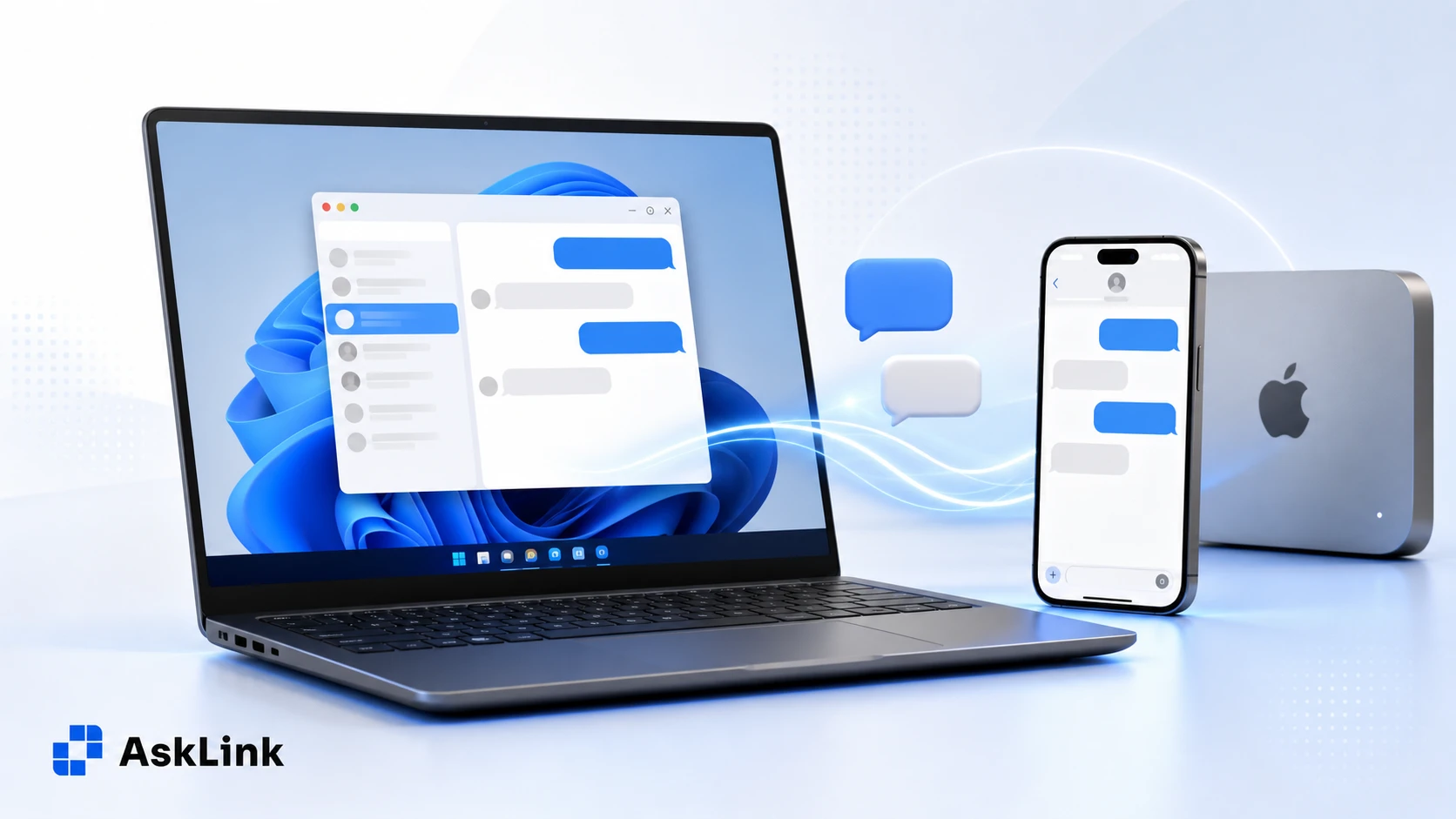
If you work mainly on a Windows PC but use an iPhone, switching back and forth just to answer messages gets old fast. So, can you use iMessage on Windows in 2026?
The short version is that Apple does not offer a native Messages app for Windows. But phone Link on a Windows PC may be enough for quick texts. If you use Messages on a Mac, you also have other choices.
We'll start with Phone Link, then look at two Mac-based setups: a message relay, or remote access to the Messages app already on your Mac with AskLink. The right one depends on what you want to do from your PC.
Quick Answer: Can You Use iMessage on Windows PC?
Not natively. Apple lists iMessage as available in Messages on iPhone, iPad, Mac, Apple Watch, and Apple Vision Pro. Windows is not included.
You can still handle some iPhone messages on a Windows PC through Microsoft Phone Link. For a paired iPhone, Phone Link can be useful for basic text messaging from your PC. It is a sensible answer when you are at your desk, your iPhone is nearby, and you only need short, individual replies.
If that is not enough, a Mac opens 2 additional paths. You can run a message relay on a Mac to create a separate Windows or web messaging client—though this may entail some setup and maintenance effort, or you can remotely access the Messages app already running on your Mac.
The second route is where AskLink fits: it is remote desktop software for people who want to open the Messages app already on their Mac from a Windows PC, without setting up a relay server.
What You Can and Can't Do from a Windows PC
This quick table shows where each option works best.
| What you need | Phone Link | Remotely use your own Mac with AskLink | Mac relay client |
|---|---|---|---|
| Do you need a Mac? | No | Yes | Yes |
| Does your iPhone need to be nearby? | Yes, it uses Bluetooth | No. Your Mac needs to be stay on online. | No. Your relay Mac needs to stay available. |
| One-to-one texts | Yes | Yes, in the Messages app on your Mac | Yes, usually |
| Group chats | No. You can see a notification, but reply on your iPhone | Yes, if the chat is available in Messages on your Mac | Usually, but it depends on the tool |
| Photos and videos | No for iPhone Phone Link | Yes, through Messages on your Mac | Usually, but it depends on the tool |
| Message history | Only the messages handled while Phone Link stays connected | Your existing Messages history on the Mac | Usually, based on the relay setup |
| Best for | Quick, one-to-one replies at your desk | Using the Messages app you already have on your Mac | A separate Windows or web inbox |
Option 1: Use Phone Link for Basic iPhone Messages
For many people, Phone Link should be the first thing to try. Pair your iPhone with your PC, open Messages in Phone Link, and start a new text conversation from your keyboard.
When Phone Link Starts to Feel Limiting
Microsoft states that Phone Link for iOS does not currently support sending or receiving images, GIFs, or Memojis. It also cannot create group messages or send media messages. If an iPhone receives a group message, Phone Link can show a notification, but you need to reply on the iPhone itself. Message continuity is another important consideration. Microsoft says: Phone Link only keeps the messages sent and received while your iPhone is connected over Bluetooth. Once the connection ends, that history disappears from Phone Link. That means Phone Link may not be enough if you need:
- Group conversations you can join from your PC.
- Photos and other media in your chats.
- Conversation history that stays on your computer.
- The Messages app on your Mac, with the chats you already use there. If one of these points matters to you, a Mac-based setup may be a better fit.
Option 2: Remotely Use the Messages App on Your Mac from Windows
This is a simple way to access iMessage on Windows without bluetooth or setting up a separate relay or web client. You can remotely open your Mac and use the Messages app that is already there. That is what AskLink does in this setup. It does not install iMessage on Windows 11 or copy your chats into a new inbox. It lets your Windows PC connect to your Mac, where Messages is already signed in. If your group chats, media, and message history are already available in Messages on your Mac, you can access them through the remote session. This is the ideal approach.
How to Connect to Your Mac from Windows with AskLink
For this setup, your Windows PC is the Controller. Your Mac is the Controlled device. Use the same AskLink account on both devices. After you sign in on your Mac as Controlled, AskLink adds it to your Devices list. From Windows, sign in as Controller, find the Mac in Devices, and connect. Before you start, make sure the conversations you need are already available in Messages on your Mac.
Step 1: Set Up Your Mac as the Controlled Device
Install AskLink on the Mac you want to use.
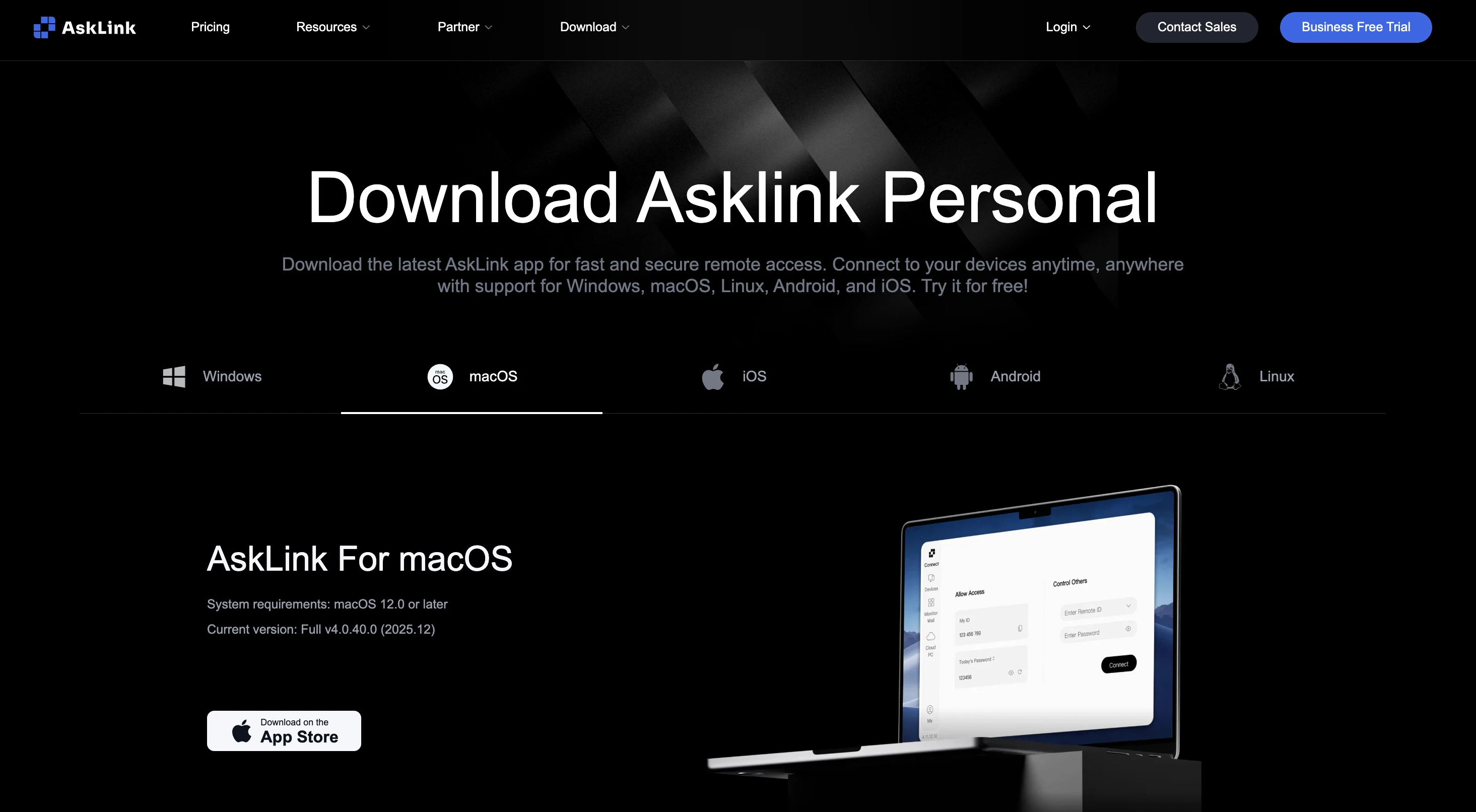
Sign in with your AskLink account and choose Controlled when asked for the device role.
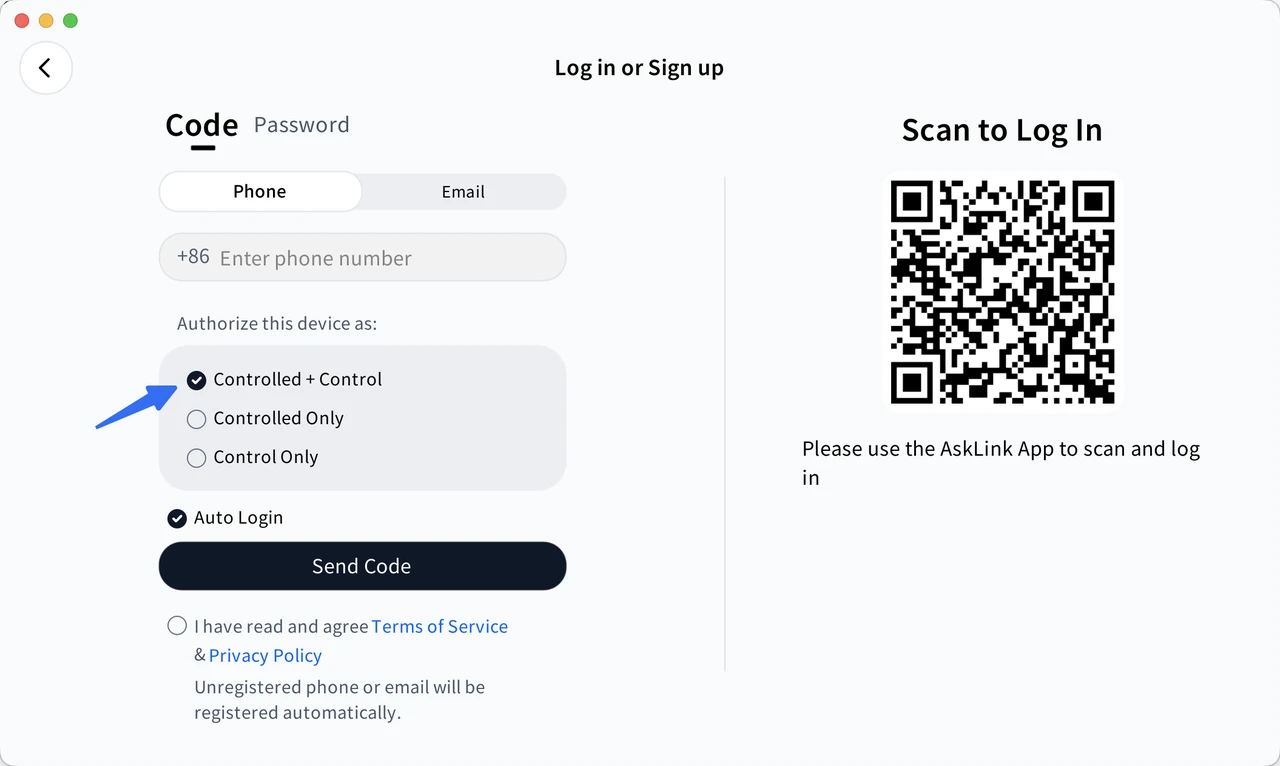
The Mac will then appear in your Devices list under the same account. Before you continue, check that Messages is signed in with the Apple Account you want to use.
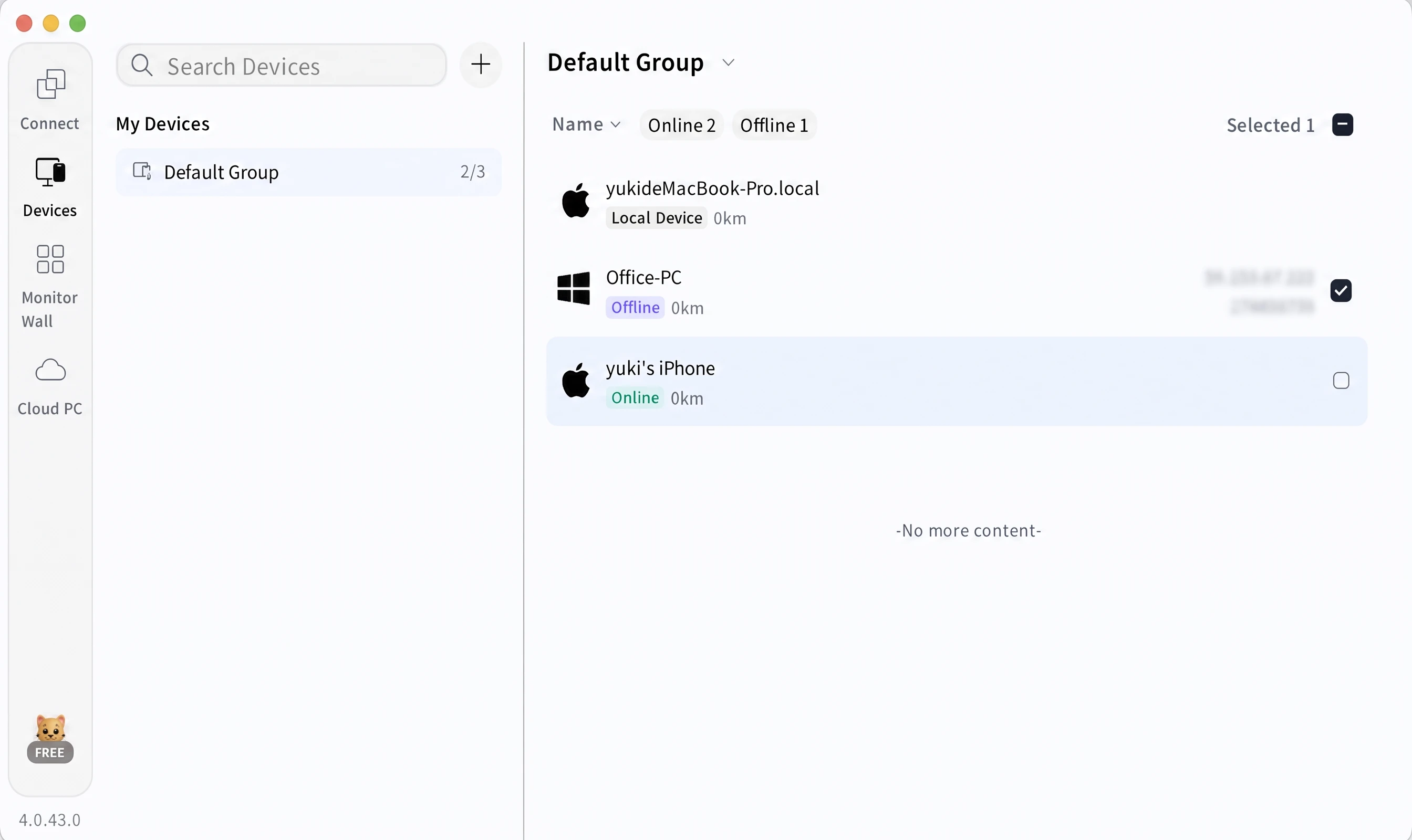
Step 2: Sign In on Windows as the Controller
Install AskLink on your Windows PC and sign in with the same account. Choose Controller so you can open the Devices list. You should now see your Mac in that list. This is the device you will connect to from Windows.
Step 3: Allow AskLink Permissions on Your Mac
macOS asks for permission before a remote-control app can show and control the desktop.
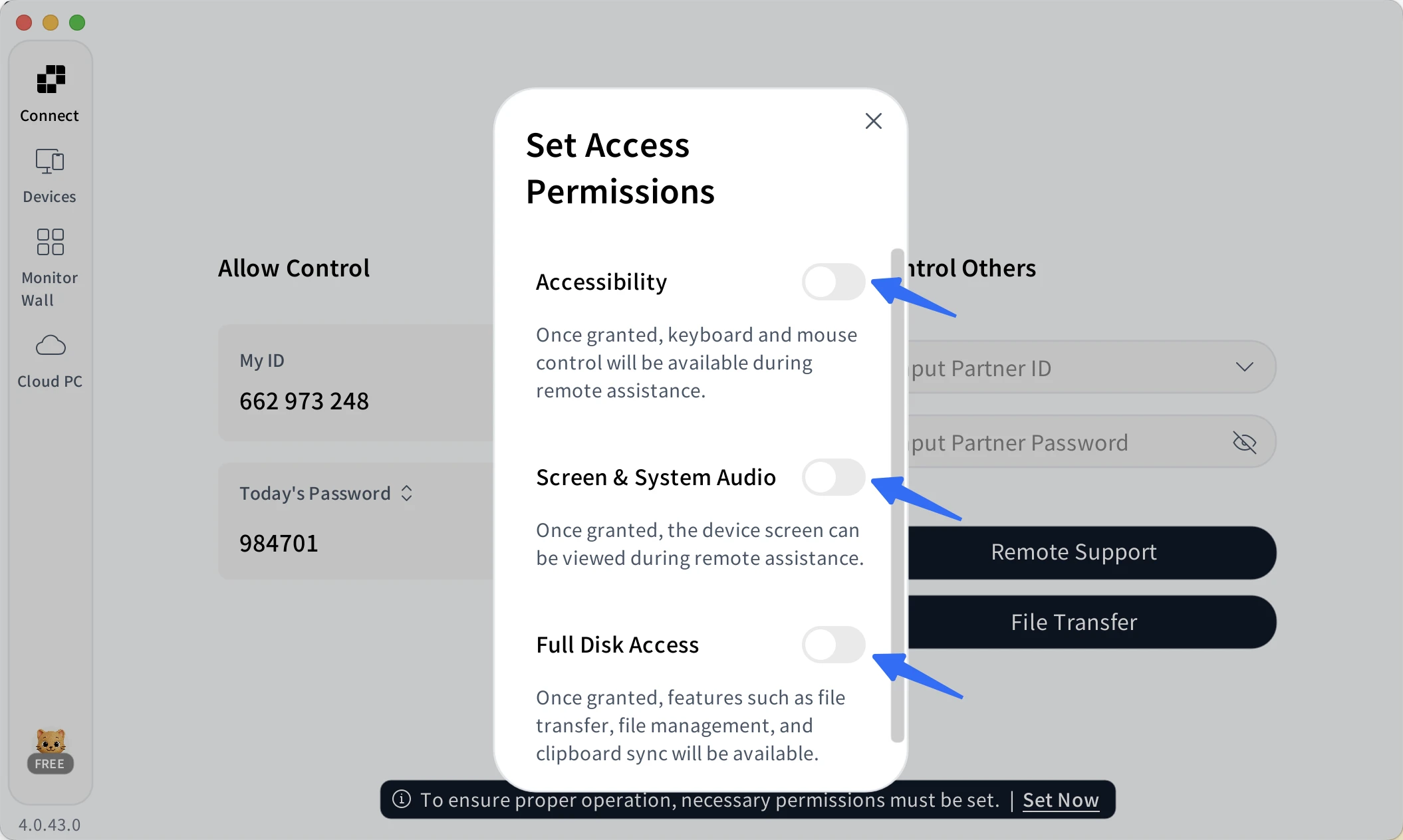
AskLink's macOS permission guide shows where to find each setting. You can also go to System Settings > Privacy & Security and turn on:
- Accessibility
- Screen Recording
- Full Disk Access
Step 4: Connect and Open Messages
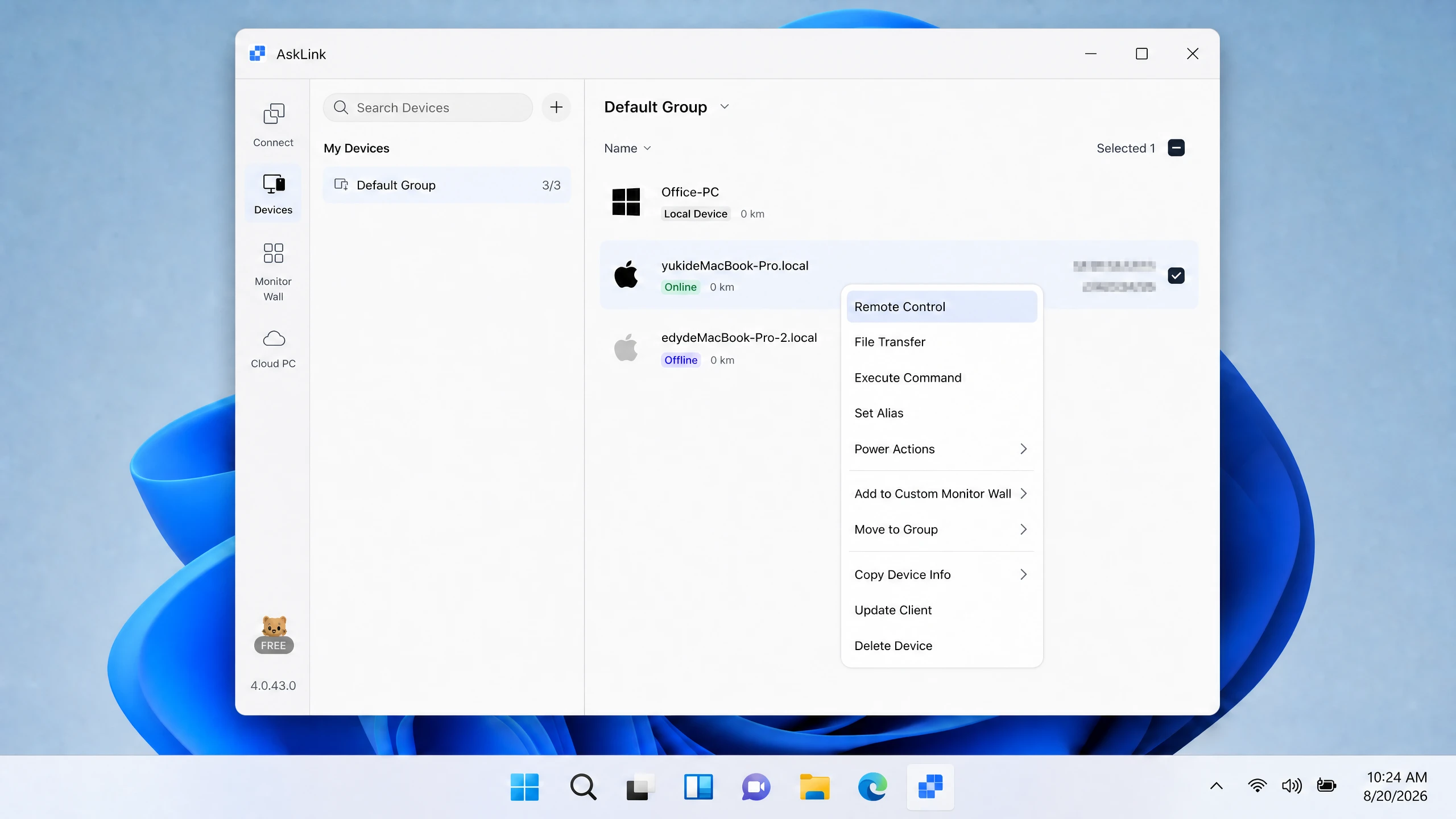
On Windows, open Devices in AskLink. Double-click your Mac, or right-click it and choose Remote Control.
When the Mac desktop appears, open Messages. You can now read and reply in the same app you use on the Mac itself.
Keep Remote Access to Your Mac Secure
This setup uses your AskLink account and Devices list. So take a minute to review the Controller devices that can access your Mac. Go to My > Permission Management and remove any device you no longer use or do not recognize.
For the Windows-to-Mac setup above, you do not need to save or remember a connection password. AskLink connects your devices through account verification.
You may use password-based access in other situations, such as one-time remote help. In that case, use a Temporary Password instead of sharing a Persistent Password. Refresh the Temporary Password after the session. If you use a Persistent Password for your own regular access, keep it private and change it from time to time.
What About BlueBubbles, AirMessage, or a Web Browser?
BlueBubbles and AirMessage take a different path to use iMessage on Windows without phone link. They use a Mac as a message relay. You set up the Mac to pass messages to a separate Windows or web client. This can be a good choice if you want a dedicated inbox in a Windows app or browser. It can also take more work. Some BlueBubbles features need extra system changes. Its official guide says Private API features require turning off macOS System Integrity Protection (SIP), and it warns users to do this at their own risk. That does not make BlueBubbles unsafe. It simply means some advanced features need more setup.
A web browser alone is not an official Apple solution for Messages on Windows. A browser-based option usually depends on a relay service running elsewhere, often on a Mac.
| If you want… | A message relay may suit you | AskLink may suit you |
|---|---|---|
| A separate Windows or web inbox | Yes | No. You use the Mac desktop. |
| The Messages app already on your Mac | Not directly | Yes |
| To avoid setting up a relay server | No | Yes |
| To use your Mac from Windows for more than messages | Not the main purpose | Yes |
AskLink is simpler in a different way. You do not set up a message relay or learn a new message client, just connect to your Mac and use its Messages app.
Which iMessage on Windows Setup Should You Use?
Start with Phone Link if you only need quick texts near your iPhone. Choose a message relay if a separate Windows or web inbox matters most to you. Choose AskLink if you already use Messages on a Mac and want to open that same app from Windows without setting up a relay.
Already use Messages on a Mac? AskLink lets you access that Mac from Windows without setting up a separate message relay. Try AskLink to get started.