'%3e%3cpath%20d='M7.48145%2024H3.74023C1.67456%2023.9999%204.09854e-05%2022.3467%200%2020.3076V16.6152H7.48145V24ZM15.8955%2024H8.41406V16.6152H15.8955V24ZM7.48145%2015.6924H0V8.30762H7.48145V15.6924ZM24%2015.6924H16.5195V8.30762H24V15.6924ZM15.5859%207.38477H8.10547V0H15.5859V7.38477ZM20.2598%200C22.3256%200%2024%201.65318%2024%203.69238V7.38477H16.5195V0H20.2598Z'%20fill='white'/%3e%3cpath%20d='M108.786%2019.0507L105.767%2014.2636H104.397L108.397%208.80874H111.915L108.119%2013.9483V12.3155L112.544%2019.0507H108.786ZM101.527%2019.0507V5.5061H104.897V19.0507H101.527Z'%20fill='white'/%3e%3cpath%20d='M88.8242%2019.0505V8.80858H91.4908V13.2059H91.3421C91.3421%2012.1422%2091.4779%2011.264%2091.7499%2010.5712C92.0214%209.86618%2092.4224%209.34052%2092.953%208.99418C93.4965%208.64778%2094.1506%208.47461%2094.9158%208.47461H95.0644C96.2245%208.47461%2097.1193%208.86427%2097.7488%209.64353C98.3911%2010.4104%2098.7117%2011.5917%2098.7117%2013.1874V19.0505H95.342V13.0946C95.342%2012.6246%2095.2001%2012.2411%2094.9158%2011.9443C94.6443%2011.635%2094.2679%2011.4804%2093.7864%2011.4804C93.3049%2011.4804%2092.9162%2011.635%2092.6202%2011.9443C92.3358%2012.2411%2092.194%2012.6369%2092.194%2013.1317V19.0505H88.8242Z'%20fill='white'/%3e%3cpath%20d='M82.4214%2019.0506V8.80875H85.7912V19.0506H82.4214ZM81.125%2011.2579V8.80875H85.7912V11.2579H81.125ZM83.81%207.99232C83.1928%207.99232%2082.7359%207.83773%2082.4398%207.5285C82.1561%207.2069%2082.0137%206.79872%2082.0137%206.30388C82.0137%205.80913%2082.1561%205.40713%2082.4398%205.09789C82.7359%204.77628%2083.1866%204.61548%2083.7916%204.61548C84.4088%204.61548%2084.8595%204.77628%2085.1433%205.09789C85.427%205.40713%2085.5688%205.80913%2085.5688%206.30388C85.5688%206.79872%2085.427%207.2069%2085.1433%207.5285C84.8595%207.83773%2084.4149%207.99232%2083.81%207.99232Z'%20fill='white'/%3e%3cpath%20d='M71.1328%2019.0507V5.5061H74.5769V19.0507H71.1328ZM74.2065%2019.0507V16.0449H79.6876V19.0507H74.2065Z'%20fill='white'/%3e%3cpath%20d='M65.4458%2019.0507L62.428%2014.2636H61.0576L65.0571%208.80874H68.5755L64.7795%2013.9483V12.3155L69.2049%2019.0507H65.4458ZM58.1875%2019.0507V5.5061H61.5578V19.0507H58.1875Z'%20fill='white'/%3e%3cpath%20d='M51.2917%2019.3845C49.8103%2019.3845%2048.6438%2019.0814%2047.7921%2018.4753C46.9403%2017.8568%2046.4836%2016.991%2046.4219%2015.8777H49.3844C49.4339%2016.1869%2049.6252%2016.4529%2049.9585%2016.6755C50.2918%2016.8982%2050.7608%2017.0095%2051.3657%2017.0095C51.7978%2017.0095%2052.1681%2016.9477%2052.4767%2016.824C52.7977%2016.6879%2052.9581%2016.4715%2052.9581%2016.1745C52.9581%2015.9148%2052.8347%2015.7045%2052.5878%2015.5437C52.3409%2015.3705%2051.8903%2015.2531%2051.2361%2015.1912L50.5325%2015.117C49.224%2014.9809%2048.2611%2014.6222%2047.6439%2014.0408C47.0267%2013.4595%2046.7181%2012.7297%2046.7181%2011.8515C46.7181%2011.0969%2046.9033%2010.4784%2047.2736%209.99603C47.6439%209.50126%2048.1562%209.13018%2048.8105%208.8828C49.4647%208.63541%2050.2115%208.51172%2051.0509%208.51172C52.4211%208.51172%2053.526%208.81473%2054.3653%209.42089C55.2048%2010.0146%2055.6492%2010.8743%2055.6986%2011.9999H52.7359C52.6866%2011.6907%2052.5199%2011.4309%2052.236%2011.2206C51.9521%2010.998%2051.5447%2010.8867%2051.0139%2010.8867C50.6312%2010.8867%2050.3164%2010.9547%2050.0696%2011.0907C49.835%2011.2268%2049.7178%2011.4185%2049.7178%2011.6659C49.7178%2011.9257%2049.8289%2012.1174%2050.0511%2012.2411C50.2856%2012.3648%2050.6559%2012.4576%2051.162%2012.5194L51.8657%2012.5936C53.1741%2012.7297%2054.1802%2013.0946%2054.8838%2013.6883C55.5998%2014.2697%2055.9578%2015.0366%2055.9578%2015.989C55.9578%2016.6941%2055.7664%2017.3002%2055.3838%2017.8073C55.0134%2018.3145%2054.4764%2018.7041%2053.7728%2018.9763C53.0816%2019.2484%2052.2545%2019.3845%2051.2917%2019.3845Z'%20fill='white'/%3e%3cpath%20d='M31.0117%2019.0507L35.3445%205.5061H40.8624L45.3434%2019.0507H41.7882L38.3072%207.91816L39.2885%208.28924H36.8444L37.8442%207.91816L34.4558%2019.0507H31.0117ZM34.5483%2015.915L35.5853%2013.0948H40.7143L41.7512%2015.915H34.5483Z'%20fill='white'/%3e%3c/g%3e%3cdefs%3e%3cclipPath%20id='clip0_5596_142775'%3e%3crect%20width='113'%20height='24'%20fill='white'/%3e%3c/clipPath%3e%3c/defs%3e%3c/svg%3e "AskLink")
 Daniel Brooks
If you think someone can access your phone, start with what is happening right now. End any active call, screen share, or remote support session. Then check how that person might get back in: through an app, your account, or a device you once linked.
You can make these first checks for free using your phone's built-in tools.
Before you change anything: If you think a partner or someone close to you may be monitoring your phone, those changes could alert them. Use a device they cannot access to plan your next steps and get help.
Stop the access first
Look for a screen-sharing notice, a remote-control label, or a support app showing an active connection. If you find one, end that session first.
- On supported iPhones: Tap Stop in the sharing window, or end the call. FaceTime remote control requires both participants to use iOS 18, iPadOS 18, or later. Remote control during a Phone call requires iOS 26 or later. Remote control is currently unavailable in the European Union, and availability can vary by region. If you cannot see the control, your software, device, or region may not support it.
- In a remote-support app: Open the active-session controls and choose End, Stop sharing, or Disconnect.
If you cannot find the session controls, temporarily turn off both Wi-Fi and cellular data for now. Check Wi-Fi separately, since it can remain on in airplane mode. This interrupts an internet session, but it does not remove an account login or an app's permission. The next steps deal with those.
If someone watched while you opened a banking app, entered a password, or received a verification code, contact that bank or service through its official app or a number on your card. Do not use a number the caller gave you.
Check 1: Identify what kind of access you're seeing
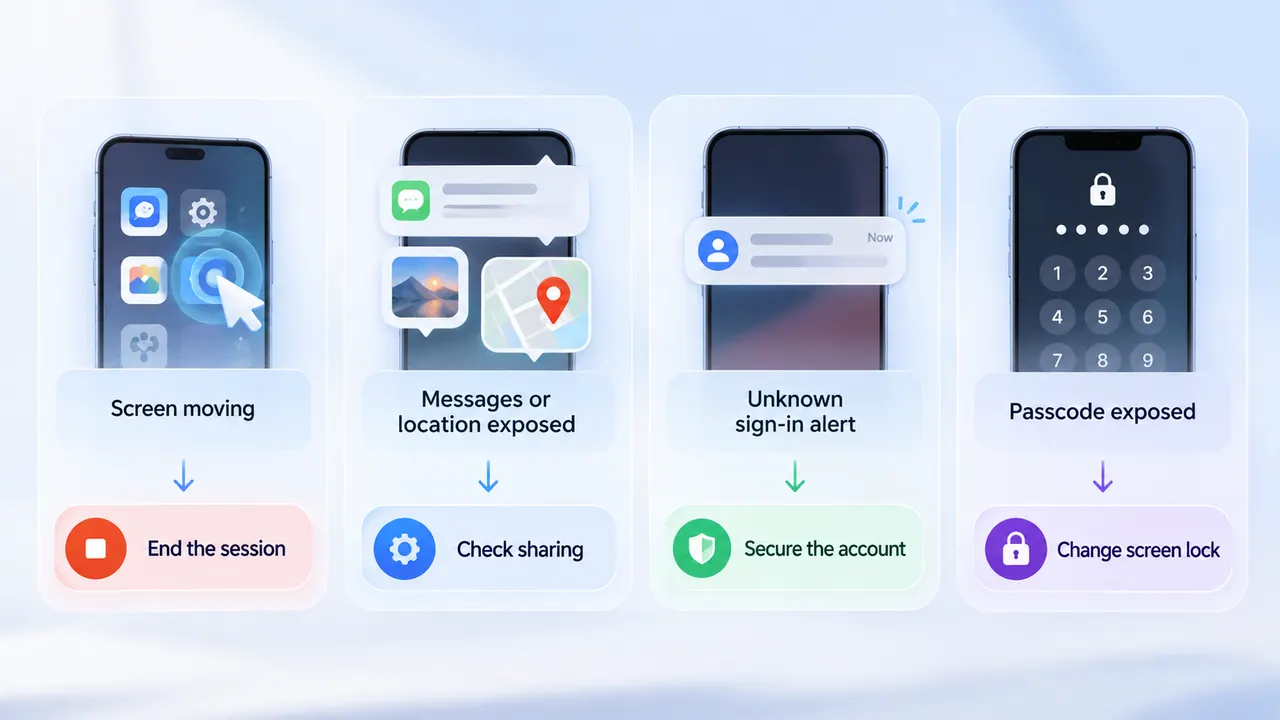
Start with the clearest thing you can see. You do not need to check every setting at once.
| What you noticed | What to do next |
|---|---|
| Your screen is being controlled, or you see a sharing notice | Stop the live session first. Then use Check 2 to inspect the phone and Check 4 to remove remote-support access. |
| Someone knows your messages, photos, or location, but your screen is not being controlled | Use Check 2 to review sharing and app access. Then secure the affected account in Check 3. |
| You receive a sign-in alert or a code you did not request | Go straight to Check 3 on a device you trust. Sign out unfamiliar devices and review recovery details. |
| Someone knows your passcode or has used your unlocked phone | Change the screen lock when it is safe. Then use Check 2 to find anything they may have set up. |
Only noticing heat or fast battery drain? Start with the iPhone or Android checks. Those signs alone do not show that someone has access, so do not reset your phone based on them.
Check 2: Check access on your phone
Follow the section for your phone. This check focuses on settings and apps stored on the device; account logins are handled in Check 3.
On iPhone, start with Safety Check
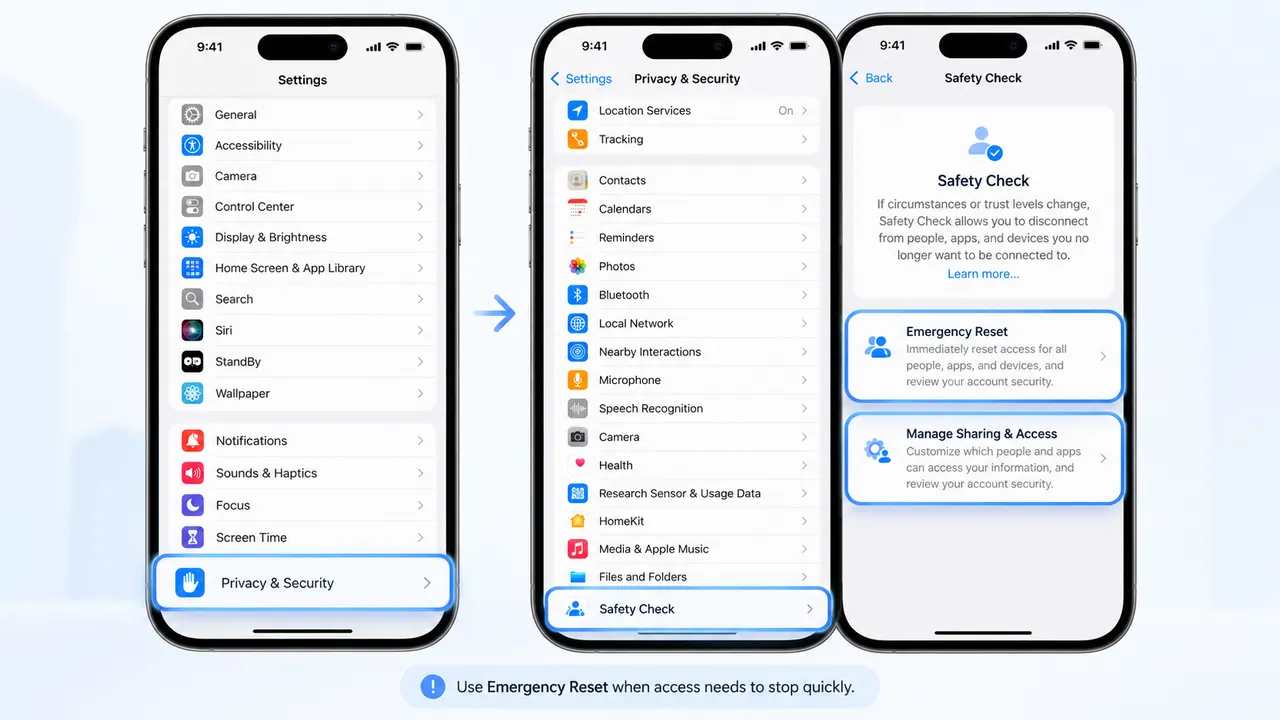
To stop someone from accessing your iPhone remotely, open Settings → Privacy & Security → Safety Check. On an iPhone with iOS 16 or later, you can choose:
- Manage Sharing & Access to review who and what has access, then remove sharing you do not want.
- Emergency Reset to stop supported sharing quickly and review account security afterward.
Follow the prompts through to the end. Safety Check can show people and apps you share information with, along with devices connected to your Apple Account. It can also help you review your passcode and account security. Apple's Safety Check guide shows what each option covers.
Next, check the setting that matches your concern:
- A Mac appears under iPhone Mirroring: Open Settings → General → AirPlay & Continuity → iPhone Mirroring. Review the Macs listed and remove one you do not recognize. You can also see recent mirroring activity there. iPhone Mirroring is not general internet-based remote access: it works with a nearby Mac signed in to the same Apple Account while the iPhone is locked. If an unfamiliar Mac appears, revoke it and review your Apple Account security in Check 3. Apple's iPhone Mirroring guide shows where to look.
- You see a management profile you do not recognize: Open Settings → General → VPN & Device Management. If this is a work or school phone, ask its administrator before removing a profile.
- Someone seems to receive your texts: Search Settings for Text Message Forwarding and review the devices shown. If the messages are from another app, check that app's linked devices instead.
Safety Check does not review every non-Apple account or social media session. If the clue came from one of those services, continue to Check 3.
On Android, check apps and powerful permissions
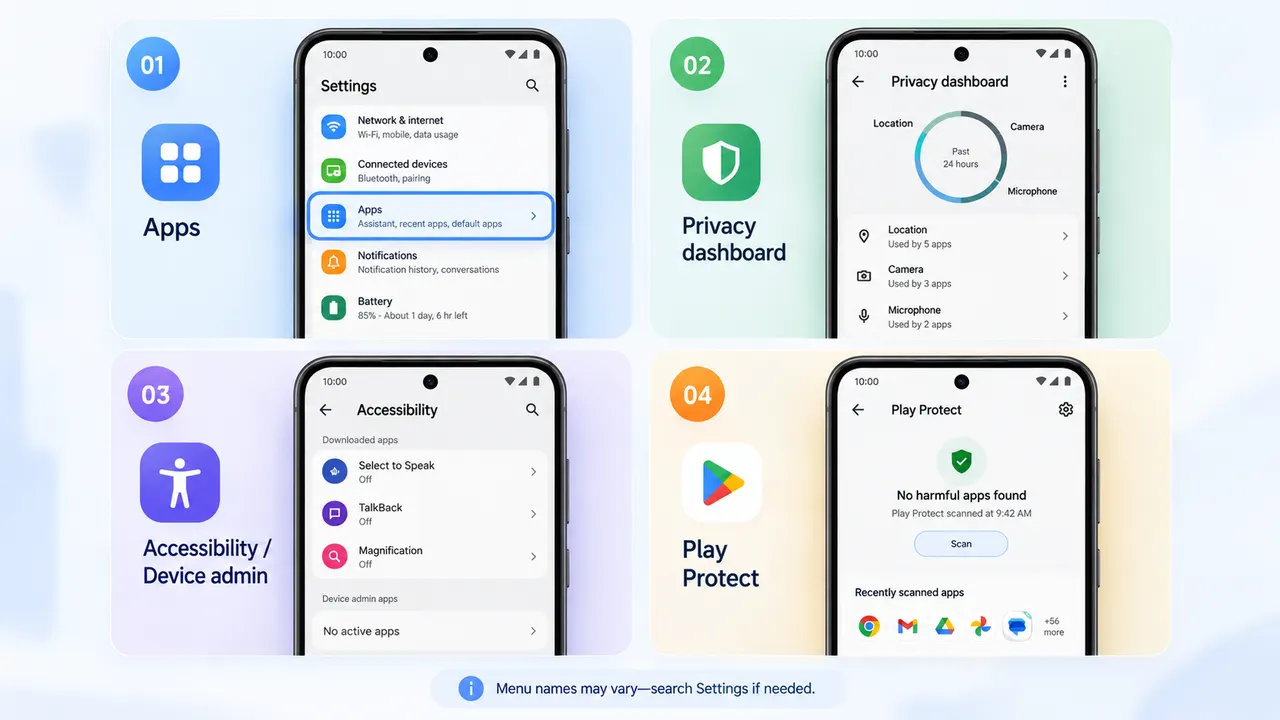
To stop someone from accessing your Android phone remotely, look for an app that can view information or act on your phone. Menu names vary by brand, so use the search bar in Settings when needed.
- Review your apps. Open Settings → Apps. Look for remote support apps you no longer use and apps you do not remember installing. Check what an app does before deleting it; an unfamiliar name alone does not mean it is harmful.
- Check recent permission use. Open Settings → Security & privacy or Privacy → Privacy dashboard. See which apps recently used your camera, microphone, or location. Tap an app to remove access it does not need. Google's Privacy dashboard guide explains the version differences.
- Review powerful permissions. Search Settings for Accessibility, Device admin apps, and Install unknown apps. If an app you do not trust has one of these permissions, turn off that access and remove the app. Leave permissions in place for accessibility tools you know and use.
- Run Play Protect. In the Google Play Store, tap your profile picture and open Play Protect. Make sure scanning is on and review any warnings.
These actions check the phone itself. If you also saw an unfamiliar Google sign-in, continue to Check 3.
Check 3: Secure your accounts and linked devices
Use a device you trust if you think someone may still be watching your phone.
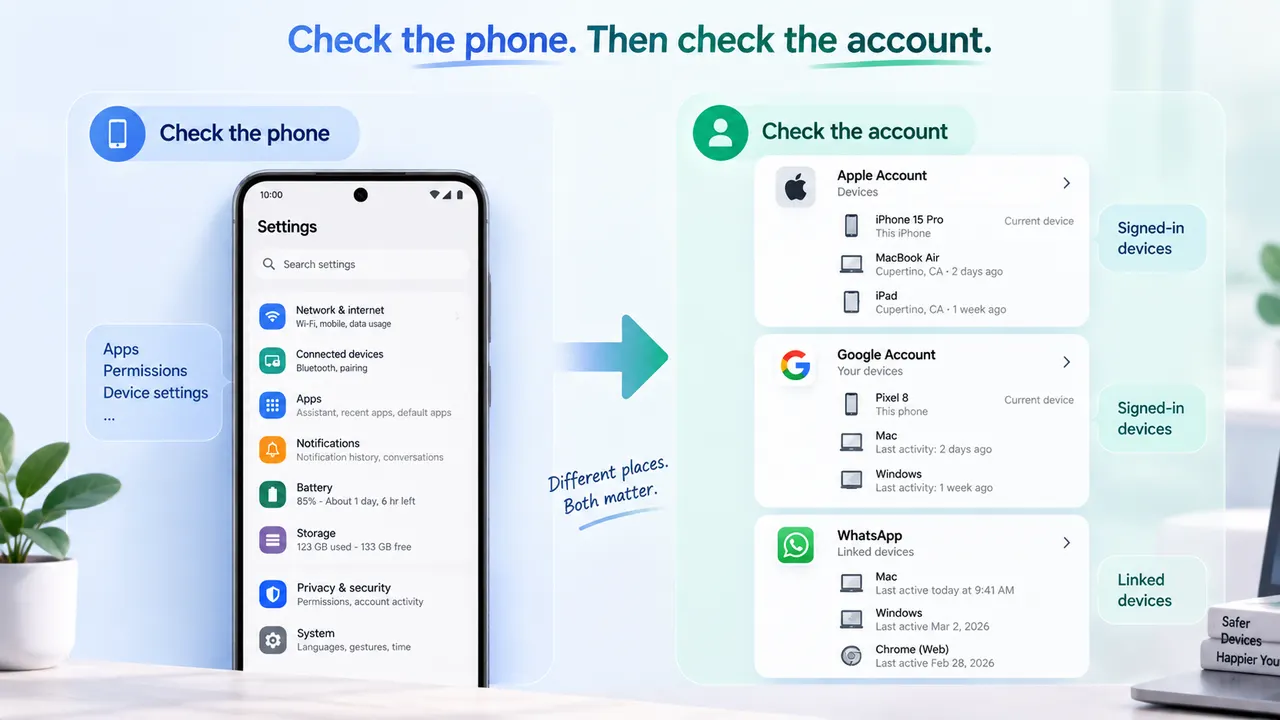
Open your Apple or Google Account security settings. Review signed-in devices, sign out of any that are not yours, and change a password someone else may know. Check the recovery email and phone number too, then make sure two-factor authentication is on. For Google, Security & sign-in → Manage all devices shows recent sessions; Google's guide explains how to review them.
Then open the service where you first noticed the problem. In WhatsApp, for example, open Linked devices and remove anything you do not recognize. For email, photos, or social media, review that service's own signed-in devices and sharing settings.
Securing your Apple or Google Account does not automatically close every separate app session. Check the affected service directly.
Check 4: Revoke remote-support access
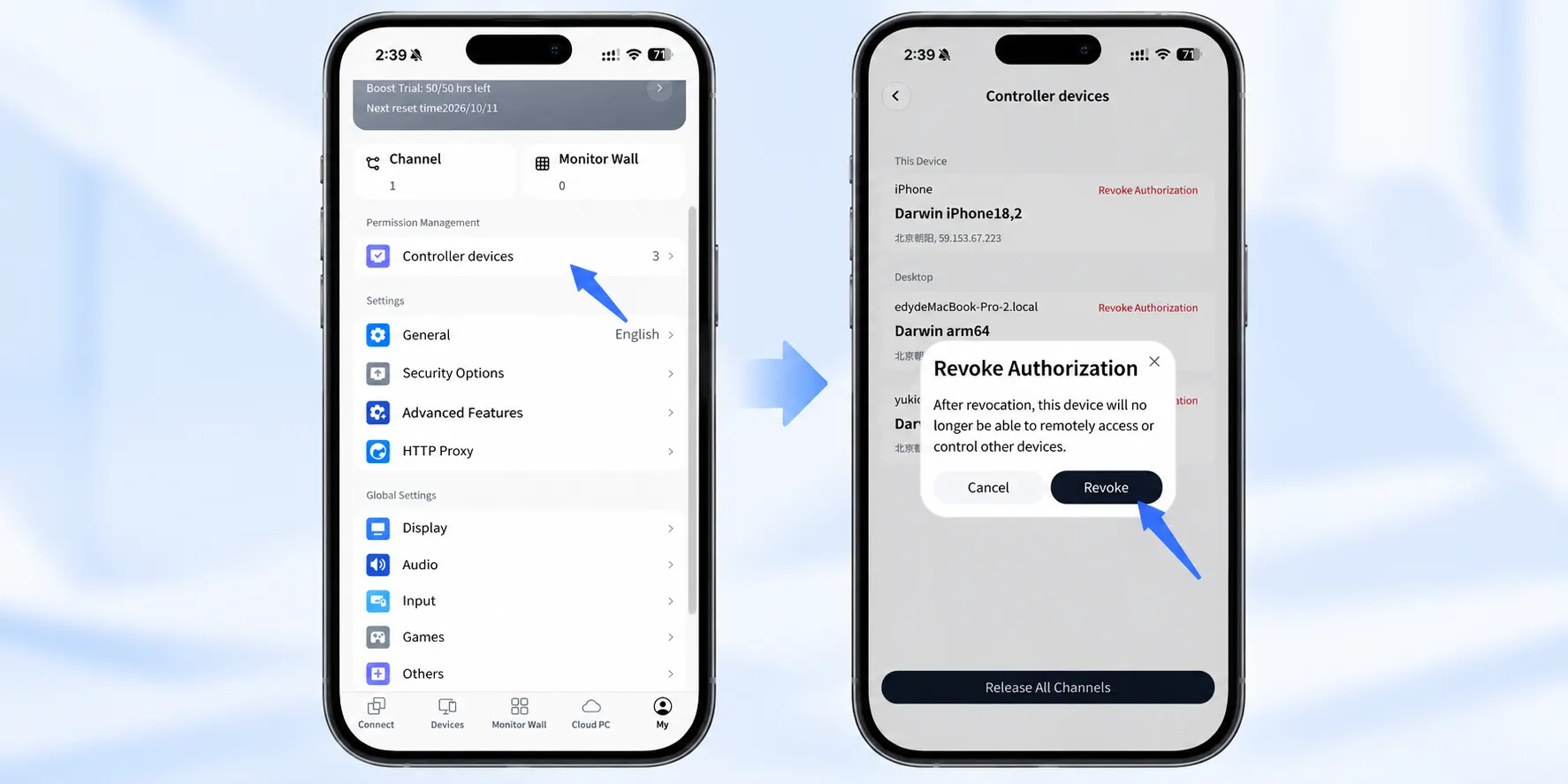
If you have used a remote-support app before, closing the current session may not remove every way to reconnect. Open the app and review its authorized or trusted devices. Remove devices you no longer use, then change or disable any connection password that may still be valid. In AskLink, device authorization and connection passwords are managed separately. If you previously used AskLink for remote support, review each of these access settings:
- Open My → Controller devices and revoke any authorized Controller you no longer trust. This blocks that device from connecting through your account's device list.
- Refresh any Temporary Password you shared. You can also disable it if you do not currently need a support session.
- If someone knows your Persistent Password, change it or disable it under My → Security Options when you no longer need ongoing access.
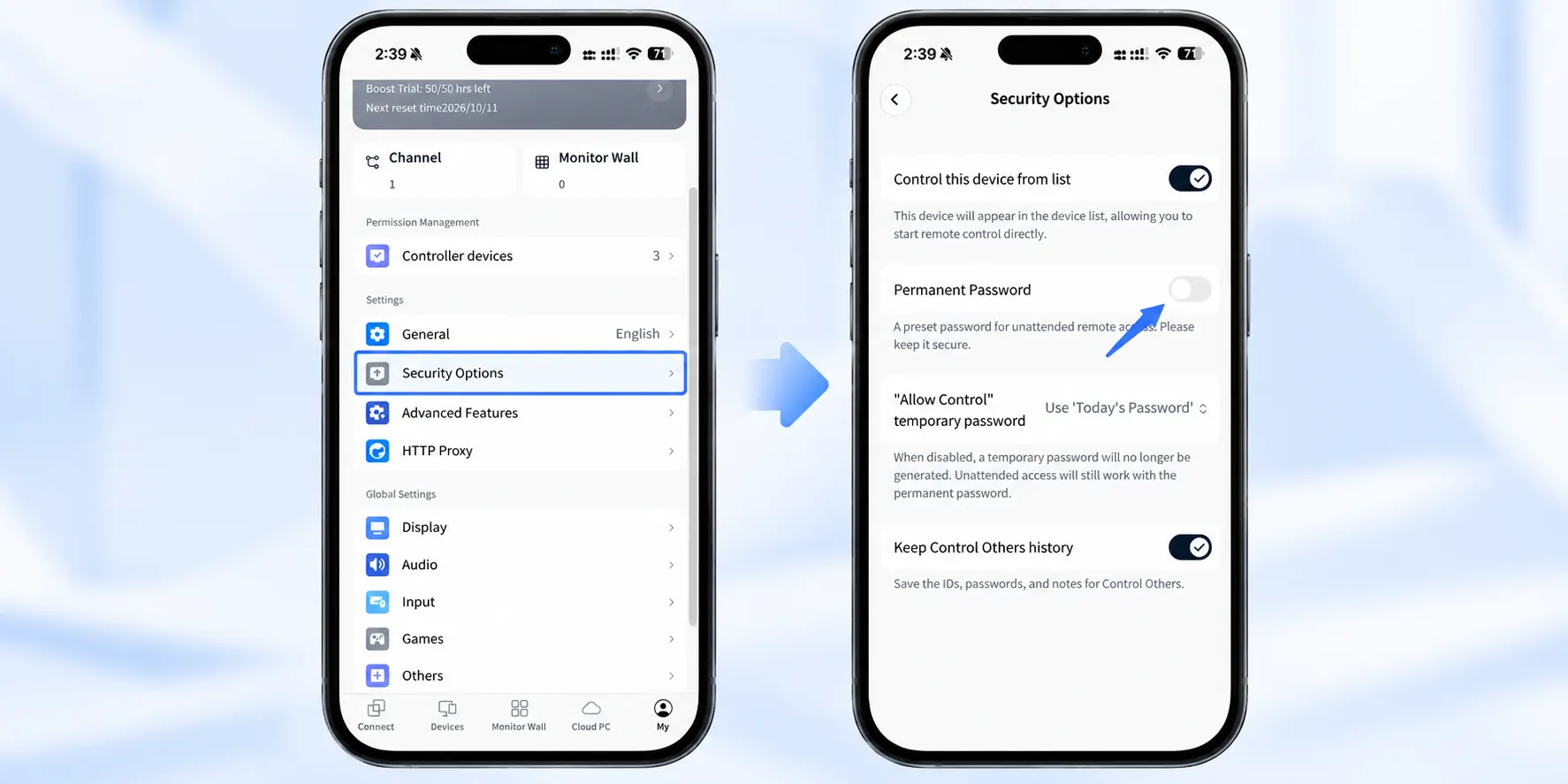
These access controls are managed separately, so review each one you have used. AskLink's guides explain how to manage Controller permissions and change connection-password options.
If suspicious activity continues
Make a short note of what happened and when: an unfamiliar session, a changed setting, a new app, or a message you did not send. Save screenshots or other evidence somewhere the other person cannot access. Also install available phone software updates.
If suspicious activity continues after you have checked sessions, permissions, and accounts, a factory reset may be appropriate. Back up important photos and files first. If you suspect stalkerware, the FTC advises against restoring all apps from an old backup, because that may put the unwanted app back. Set up the phone carefully and reinstall only apps you trust.
A reset addresses the phone. You must still secure accounts and linked services separately. If the device belongs to your employer or school, ask its administrator to help rather than removing a management profile or resetting it yourself.
Prevent unwanted access next time
Before accepting remote help, confirm the person's identity through a contact method you already trust. Ask what they will be able to see or control, and never share a banking code or account verification code. End the session as soon as the task is finished.
For future AskLink sessions, use a Temporary Password and select Refresh Password After Session when the same code should not work again. Keep a Persistent Password only when you deliberately need ongoing or unattended access.