'%3e%3cpath%20d='M7.48145%2024H3.74023C1.67456%2023.9999%204.09854e-05%2022.3467%200%2020.3076V16.6152H7.48145V24ZM15.8955%2024H8.41406V16.6152H15.8955V24ZM7.48145%2015.6924H0V8.30762H7.48145V15.6924ZM24%2015.6924H16.5195V8.30762H24V15.6924ZM15.5859%207.38477H8.10547V0H15.5859V7.38477ZM20.2598%200C22.3256%200%2024%201.65318%2024%203.69238V7.38477H16.5195V0H20.2598Z'%20fill='white'/%3e%3cpath%20d='M108.786%2019.0507L105.767%2014.2636H104.397L108.397%208.80874H111.915L108.119%2013.9483V12.3155L112.544%2019.0507H108.786ZM101.527%2019.0507V5.5061H104.897V19.0507H101.527Z'%20fill='white'/%3e%3cpath%20d='M88.8242%2019.0505V8.80858H91.4908V13.2059H91.3421C91.3421%2012.1422%2091.4779%2011.264%2091.7499%2010.5712C92.0214%209.86618%2092.4224%209.34052%2092.953%208.99418C93.4965%208.64778%2094.1506%208.47461%2094.9158%208.47461H95.0644C96.2245%208.47461%2097.1193%208.86427%2097.7488%209.64353C98.3911%2010.4104%2098.7117%2011.5917%2098.7117%2013.1874V19.0505H95.342V13.0946C95.342%2012.6246%2095.2001%2012.2411%2094.9158%2011.9443C94.6443%2011.635%2094.2679%2011.4804%2093.7864%2011.4804C93.3049%2011.4804%2092.9162%2011.635%2092.6202%2011.9443C92.3358%2012.2411%2092.194%2012.6369%2092.194%2013.1317V19.0505H88.8242Z'%20fill='white'/%3e%3cpath%20d='M82.4214%2019.0506V8.80875H85.7912V19.0506H82.4214ZM81.125%2011.2579V8.80875H85.7912V11.2579H81.125ZM83.81%207.99232C83.1928%207.99232%2082.7359%207.83773%2082.4398%207.5285C82.1561%207.2069%2082.0137%206.79872%2082.0137%206.30388C82.0137%205.80913%2082.1561%205.40713%2082.4398%205.09789C82.7359%204.77628%2083.1866%204.61548%2083.7916%204.61548C84.4088%204.61548%2084.8595%204.77628%2085.1433%205.09789C85.427%205.40713%2085.5688%205.80913%2085.5688%206.30388C85.5688%206.79872%2085.427%207.2069%2085.1433%207.5285C84.8595%207.83773%2084.4149%207.99232%2083.81%207.99232Z'%20fill='white'/%3e%3cpath%20d='M71.1328%2019.0507V5.5061H74.5769V19.0507H71.1328ZM74.2065%2019.0507V16.0449H79.6876V19.0507H74.2065Z'%20fill='white'/%3e%3cpath%20d='M65.4458%2019.0507L62.428%2014.2636H61.0576L65.0571%208.80874H68.5755L64.7795%2013.9483V12.3155L69.2049%2019.0507H65.4458ZM58.1875%2019.0507V5.5061H61.5578V19.0507H58.1875Z'%20fill='white'/%3e%3cpath%20d='M51.2917%2019.3845C49.8103%2019.3845%2048.6438%2019.0814%2047.7921%2018.4753C46.9403%2017.8568%2046.4836%2016.991%2046.4219%2015.8777H49.3844C49.4339%2016.1869%2049.6252%2016.4529%2049.9585%2016.6755C50.2918%2016.8982%2050.7608%2017.0095%2051.3657%2017.0095C51.7978%2017.0095%2052.1681%2016.9477%2052.4767%2016.824C52.7977%2016.6879%2052.9581%2016.4715%2052.9581%2016.1745C52.9581%2015.9148%2052.8347%2015.7045%2052.5878%2015.5437C52.3409%2015.3705%2051.8903%2015.2531%2051.2361%2015.1912L50.5325%2015.117C49.224%2014.9809%2048.2611%2014.6222%2047.6439%2014.0408C47.0267%2013.4595%2046.7181%2012.7297%2046.7181%2011.8515C46.7181%2011.0969%2046.9033%2010.4784%2047.2736%209.99603C47.6439%209.50126%2048.1562%209.13018%2048.8105%208.8828C49.4647%208.63541%2050.2115%208.51172%2051.0509%208.51172C52.4211%208.51172%2053.526%208.81473%2054.3653%209.42089C55.2048%2010.0146%2055.6492%2010.8743%2055.6986%2011.9999H52.7359C52.6866%2011.6907%2052.5199%2011.4309%2052.236%2011.2206C51.9521%2010.998%2051.5447%2010.8867%2051.0139%2010.8867C50.6312%2010.8867%2050.3164%2010.9547%2050.0696%2011.0907C49.835%2011.2268%2049.7178%2011.4185%2049.7178%2011.6659C49.7178%2011.9257%2049.8289%2012.1174%2050.0511%2012.2411C50.2856%2012.3648%2050.6559%2012.4576%2051.162%2012.5194L51.8657%2012.5936C53.1741%2012.7297%2054.1802%2013.0946%2054.8838%2013.6883C55.5998%2014.2697%2055.9578%2015.0366%2055.9578%2015.989C55.9578%2016.6941%2055.7664%2017.3002%2055.3838%2017.8073C55.0134%2018.3145%2054.4764%2018.7041%2053.7728%2018.9763C53.0816%2019.2484%2052.2545%2019.3845%2051.2917%2019.3845Z'%20fill='white'/%3e%3cpath%20d='M31.0117%2019.0507L35.3445%205.5061H40.8624L45.3434%2019.0507H41.7882L38.3072%207.91816L39.2885%208.28924H36.8444L37.8442%207.91816L34.4558%2019.0507H31.0117ZM34.5483%2015.915L35.5853%2013.0948H40.7143L41.7512%2015.915H34.5483Z'%20fill='white'/%3e%3c/g%3e%3cdefs%3e%3cclipPath%20id='clip0_5596_142775'%3e%3crect%20width='113'%20height='24'%20fill='white'/%3e%3c/clipPath%3e%3c/defs%3e%3c/svg%3e "AskLink")
 Sophie Carter
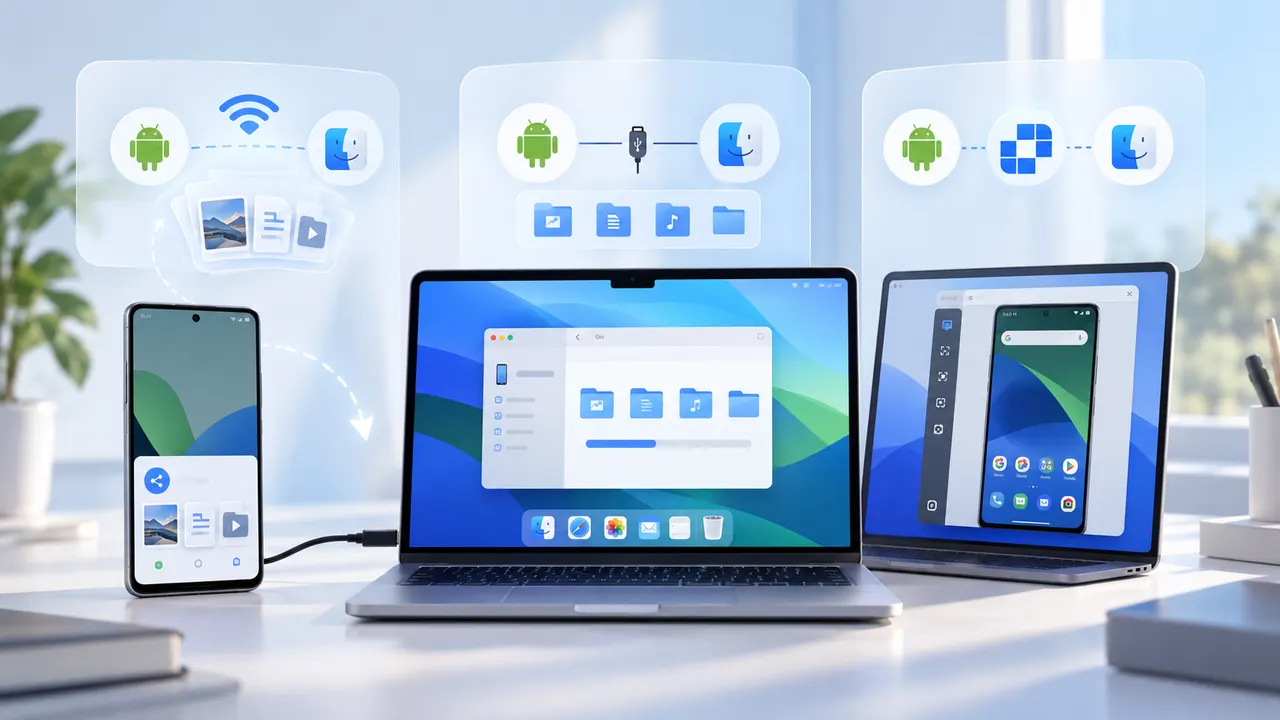
Trying to work out how to connect Android to Mac? Start with the job in front of you: sending a file, moving a large folder, or using the phone itself from your computer.
Each task calls for a different connection. The easiest method depends on what you actually need to do. This guide starts with that decision, then walks you through each option without unnecessary technical setup.
The 30-Second Choice: File, Folder, or Full Control?
Use this quick guide before installing anything:
| What you need | Best option |
|---|---|
| Send a photo, video, or document | Quick Share, either through AirDrop interoperability or a QR code |
| Copy many files or entire folders | USB cable with an MTP-compatible macOS app |
| Open apps, change settings, or help someone remotely | Control the Android phone from your Mac with AskLink |
The first two options move files. The third lets you work with the phone itself. Choose based on the task, and you can avoid installing tools that solve a different problem.
Send Files Wirelessly with Quick Share
If you want to connect Android to Mac wirelessly, Quick Share is now the simplest place to start. Some newer Android phones can send files directly to a Mac through Quick Share and AirDrop interoperability.
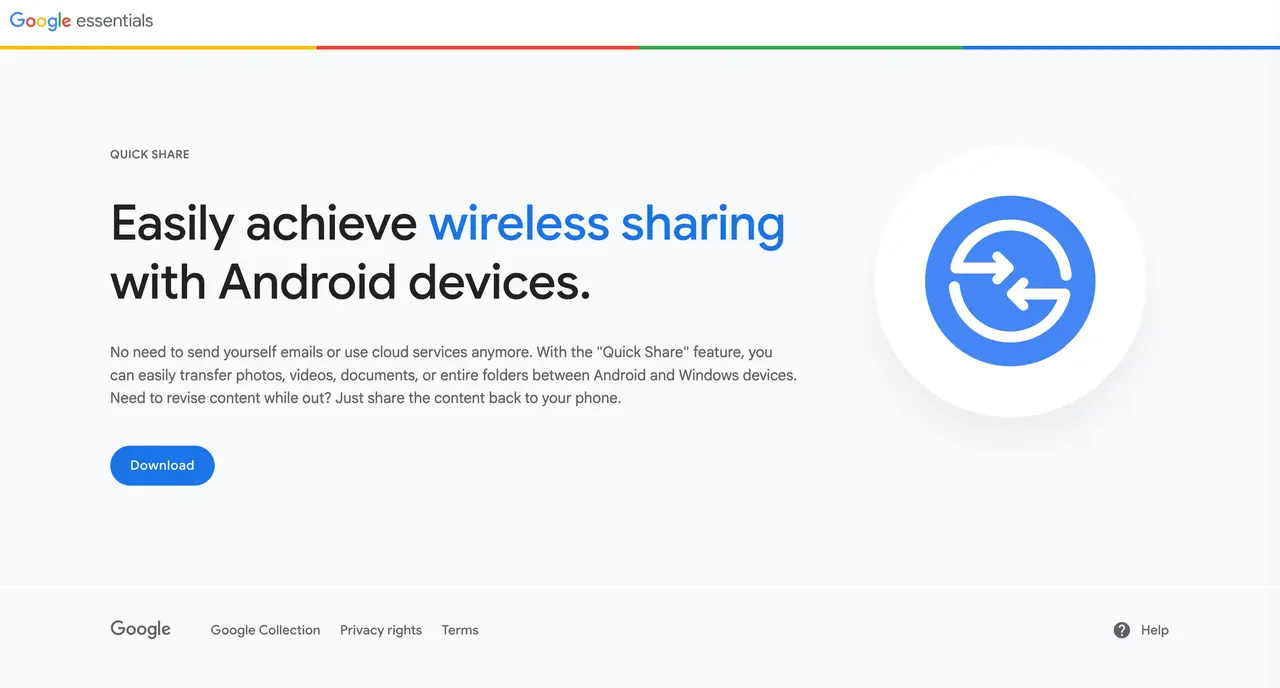
According to Google's current compatibility guidance, this direct connection is available on:
- Pixel 8a or newer Pixel phones
- Certain Samsung, Oppo, OnePlus, Vivo, Xiaomi, Honor, Transsion, and Motorola devices If you have a supported phone, the process is refreshingly short:
- On your Mac, open Control Center and select AirDrop.
- Set AirDrop to Everyone for 10 Minutes.
- On your Android phone, select the file and tap Share.
- Choose Quick Share, then select your Mac.
- Accept the incoming file on the Mac.
The transfer takes place directly between the two devices, so you can skip emailing files to yourself or uploading them to cloud storage.
If your phone does not support direct AirDrop interoperability, Quick Share can generate a QR code for browser-based transfer. Scan the QR code with your Mac to open the download page in a browser, then save the file.
The browser route works well for occasional files. For hundreds of photos, long videos, or complete folders, USB gives you more control over what is being copied.
Move Large Folders with USB
For large transfers, USB is usually the fastest way to connect Android phone to Mac.
Finder usually won't show Android storage the way it shows an iPhone or external drive. Android exposes its files through MTP, which macOS does not browse natively in Finder.
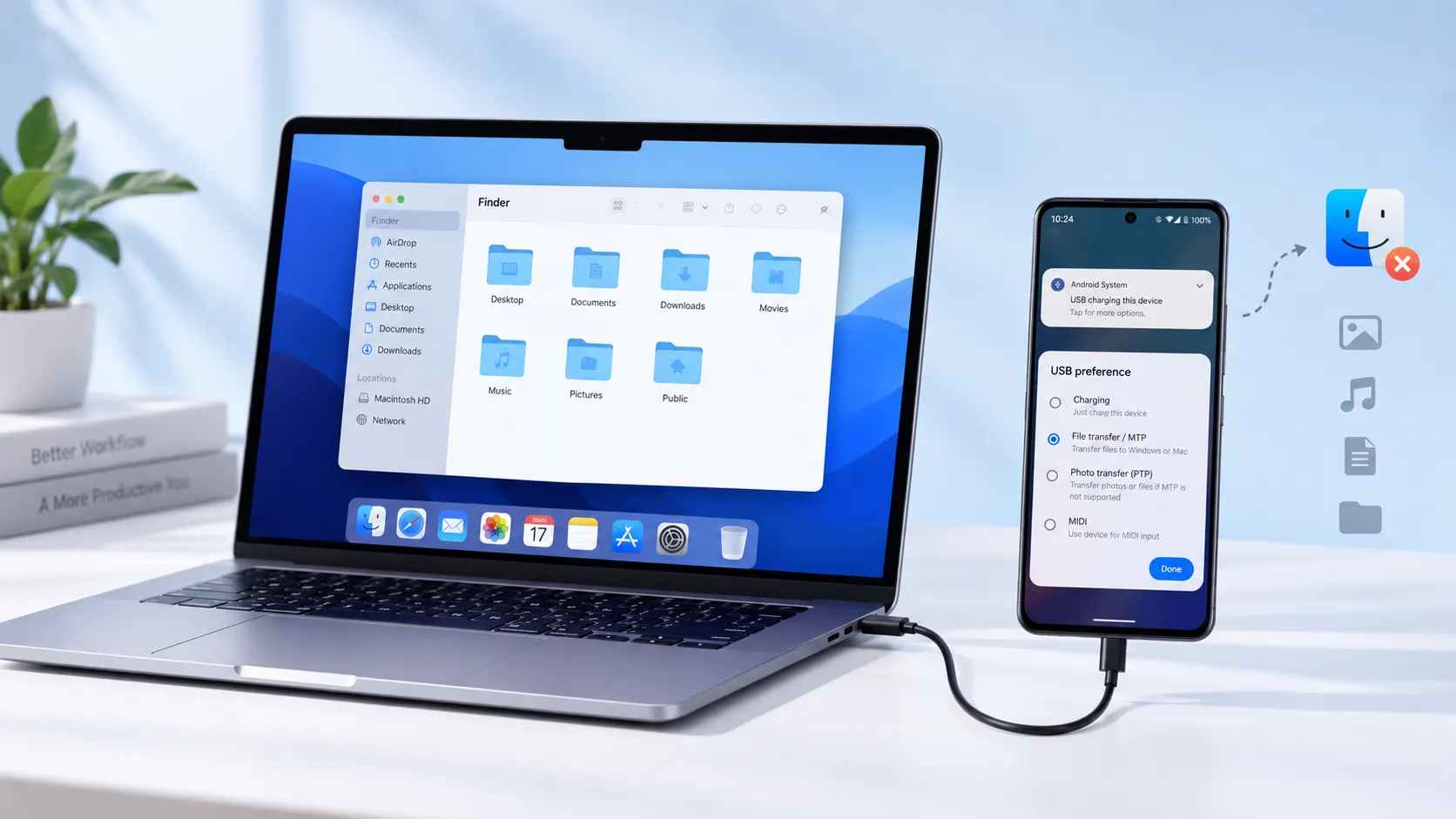
Here is the complete setup:
- Connect the Android phone using a cable that supports data transfer. Some inexpensive cables provide power only.
- Unlock the phone and leave its screen on.
- Tap the USB notification on Android.
- Change the USB mode from Charging to File Transfer or MTP.
- Open an MTP-compatible app such as OpenMTP or MacDroid.
Once the phone appears, open its internal storage and drag the folders you need to the Mac. For photos, start with DCIM and Pictures. Downloads are normally stored in Download, while recordings may appear in a folder created by the recording app.
Do not unplug the cable while files are still copying, especially when moving large videos.
Need the Whole Phone, Not Just a File? Control Android from Your Mac
Quick Share and USB stop once the file reaches your Mac. If you need to open an Android app, change a setting, guide someone through a problem, or operate a phone that is somewhere else, you need remote control—not another file transfer tool. AskLink lets you view the phone's screen and interact with Android from your Mac. The Mac acts as the Controller, while the Android phone becomes the Controlled Device. This is especially useful when:
- Helping a family member or customer fix a phone setting
- Managing an Android device without repeatedly picking it up
- Accessing an app that has no macOS version
- Working with a phone that is not beside the Mac
How to Control Android Phone from Mac with AskLink
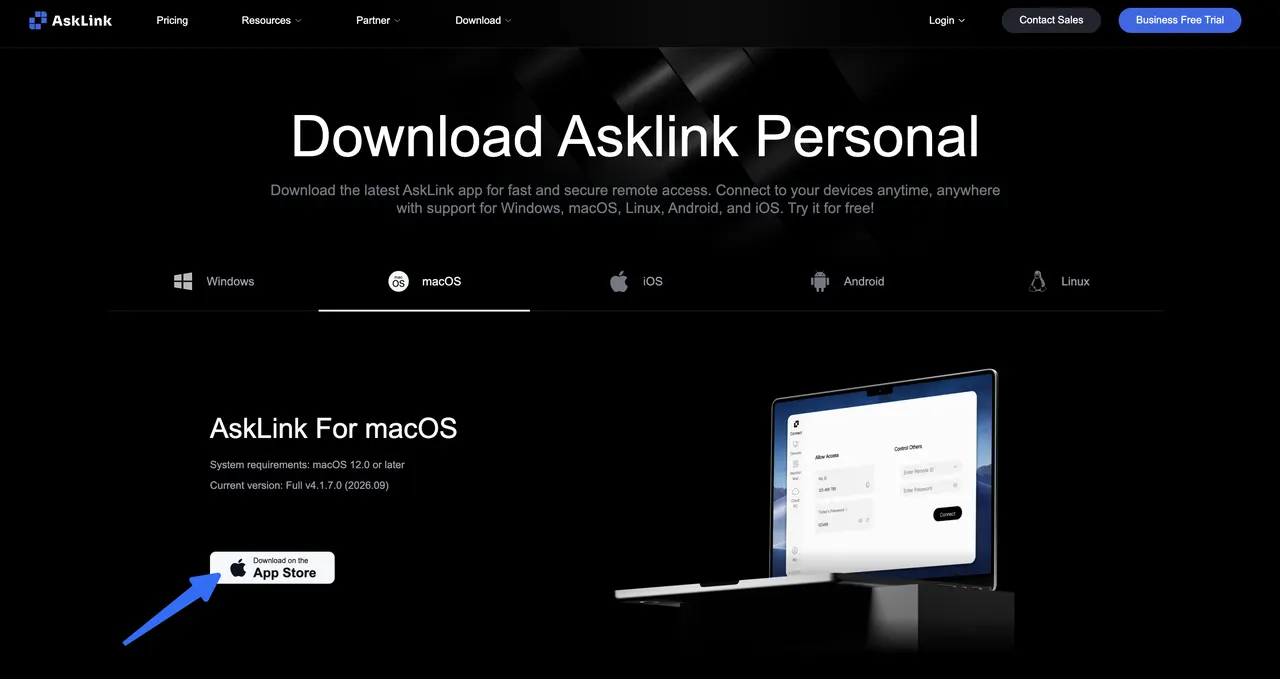
- Download AskLink on both the Mac and Android phone.
- Open AskLink on Android and set the phone as the Controlled Device.
- Follow the prompts to enable the Android permissions needed for remote viewing and control.
- Choose how you want to connect.
For one-time remote help, the Android user can share the phone's Device ID and Temporary Password. Enter them on the Mac to start the session. The password can be refreshed after the session, which makes this approach suitable when another person owns the phone.
For your own Android phone, sign in to the same AskLink account on both devices. The phone can then appear in the Mac's Device List, so you can reconnect without entering a Temporary Password each time.
AskLink's Android connection guide lists permission paths for Samsung, Xiaomi, Oppo, Vivo, and other Android brands, where the same control setting may appear under different menus.
Before you connect:
Android may request Accessibility and screen-capture permissions before remote control can begin. The exact wording and menu location depend on the phone brand and Android version. Some permissions may need to be enabled again after the phone restarts, and privacy-protected screens may remain hidden during a remote session.
Can't Connect Android to Mac? Check These First
Start with the symptom you can see:
USB
- Mac only charges the phone: Try a data-capable cable, unlock the phone, and switch the USB mode to File Transfer.
- The phone is missing from Finder: Open it through an MTP app instead.
- The transfer keeps disconnecting: Change the cable, USB port, hub, or adapter.
Quick Share
- The Mac does not appear: Confirm that the phone supports direct AirDrop interoperability and that the Mac is discoverable.
- The phone is not supported: Use Quick Share's QR-code and browser-download option.
- Nearby devices cannot find each other: Keep Wi-Fi and Bluetooth on, move the devices closer, and check Local Network permission.
AskLink
- You can see the screen but cannot control it: Re-enable Accessibility permission on Android.
- The screen is black or partly hidden: The app may contain privacy-protected content that blocks screen capture.
- The device does not appear: Check the signed-in account, current Device ID or Temporary Password, and Android permissions.
Conclusion
There is no single best way to connect Android to Mac because the right method depends on the task. Use Quick Share for a few wireless files, USB with an MTP-compatible app for large local transfers, and remote control when you need to interact with the Android phone itself.
AskLink brings the live Android screen to your Mac and lets you act on it directly. You can stop switching between devices or working from screenshots. The full context is already in front of you, ready to handle with your Mac's keyboard and mouse.
Just try AskLink now. That is the connection it was built for.