


'%3e%3cpath%20d='M11.0762%2022.1543H20.9223V32.0005H11.0762V22.1543Z'%20fill='%233F67E0'/%3e%3cpath%20d='M0%2022.1543H9.84615V32.0005H4.92308C2.20414%2032.0005%200%2029.7963%200%2027.0774V22.1543Z'%20fill='%233F67E0'/%3e%3cpath%20d='M0%2011.0762H9.84615V20.9223H0V11.0762Z'%20fill='%233F67E0'/%3e%3cpath%20d='M21.7441%200H26.6672C29.3862%200%2031.5903%202.20414%2031.5903%204.92308V9.84615H21.7441V0Z'%20fill='%233F67E0'/%3e%3cpath%20d='M21.7441%2011.0762H31.5903V20.9223H21.7441V11.0762Z'%20fill='%233F67E0'/%3e%3cpath%20d='M10.666%200H20.5122V9.84615H10.666V0Z'%20fill='%233F67E0'/%3e%3cpath%20d='M145.348%2025.4012L141.315%2019.0185H139.485L144.829%2011.7453H149.529L144.457%2018.598V16.4209L150.37%2025.4012H145.348ZM135.65%2025.4012V7.3418H140.153V25.4012H135.65Z'%20fill='white'/%3e%3cpath%20d='M118.672%2025.4V11.7441H122.235V17.6073H122.036C122.036%2016.1889%20122.217%2015.018%20122.581%2014.0943C122.943%2013.1543%20123.479%2012.4534%20124.188%2011.9916C124.914%2011.5297%20125.788%2011.2988%20126.811%2011.2988H127.009C128.559%2011.2988%20129.755%2011.8184%20130.596%2012.8574C131.454%2013.8799%20131.882%2015.455%20131.882%2017.5826V25.4H127.38V17.4588C127.38%2016.8321%20127.19%2016.3209%20126.811%2015.925C126.448%2015.5127%20125.945%2015.3065%20125.302%2015.3065C124.658%2015.3065%20124.139%2015.5127%20123.743%2015.925C123.364%2016.3209%20123.174%2016.8486%20123.174%2017.5083V25.4H118.672Z'%20fill='white'/%3e%3cpath%20d='M110.117%2025.4011V11.7453H114.619V25.4011H110.117ZM108.385%2015.0108V11.7453H114.619V15.0108H108.385ZM111.972%2010.6567C111.147%2010.6567%20110.537%2010.4506%20110.141%2010.0383C109.762%209.60953%20109.572%209.06528%20109.572%208.40551C109.572%207.74584%20109.762%207.20983%20110.141%206.79751C110.537%206.3687%20111.139%206.1543%20111.947%206.1543C112.772%206.1543%20113.374%206.3687%20113.753%206.79751C114.132%207.20983%20114.322%207.74584%20114.322%208.40551C114.322%209.06528%20114.132%209.60953%20113.753%2010.0383C113.374%2010.4506%20112.78%2010.6567%20111.972%2010.6567Z'%20fill='white'/%3e%3cpath%20d='M95.0391%2025.4012V7.3418H99.6405V25.4012H95.0391ZM99.1457%2025.4012V21.3935H106.469V25.4012H99.1457Z'%20fill='white'/%3e%3cpath%20d='M87.4397%2025.4012L83.4077%2019.0185H81.5768L86.9204%2011.7453H91.6211L86.5495%2018.598V16.4209L92.4621%2025.4012H87.4397ZM77.7422%2025.4012V7.3418H82.2451V25.4012H77.7422Z'%20fill='white'/%3e%3cpath%20d='M68.5278%2025.8466C66.5487%2025.8466%2064.9901%2025.4425%2063.8521%2024.6344C62.7142%2023.8098%2062.1039%2022.6553%2062.0215%2021.1709H65.9796C66.0457%2021.5832%2066.3013%2021.9378%2066.7466%2022.2347C67.1919%2022.5316%2067.8186%2022.68%2068.6268%2022.68C69.204%2022.68%2069.6988%2022.5975%2070.1111%2022.4326C70.5399%2022.2512%2070.7543%2021.9626%2070.7543%2021.5667C70.7543%2021.2204%2070.5894%2020.94%2070.2595%2020.7256C69.9297%2020.4947%2069.3277%2020.3381%2068.4536%2020.2556L67.5135%2020.1567C65.7652%2019.9752%2064.4788%2019.497%2063.6542%2018.7218C62.8296%2017.9466%2062.4173%2016.9736%2062.4173%2015.8026C62.4173%2014.7966%2062.6647%2013.9719%2063.1595%2013.3287C63.6542%2012.669%2064.3387%2012.1742%2065.2128%2011.8444C66.0869%2011.5145%2067.0847%2011.3496%2068.2062%2011.3496C70.0368%2011.3496%2071.5129%2011.7536%2072.6344%2012.5618C73.756%2013.3535%2074.3497%2014.4997%2074.4157%2016.0005H70.4574C70.3915%2015.5882%2070.1688%2015.2419%2069.7894%2014.9615C69.4101%2014.6646%2068.8659%2014.5162%2068.1567%2014.5162C67.6454%2014.5162%2067.2248%2014.6069%2066.895%2014.7883C66.5816%2014.9697%2066.425%2015.2254%2066.425%2015.5552C66.425%2015.9016%2066.5734%2016.1572%2066.8703%2016.3221C67.1837%2016.487%2067.6784%2016.6107%2068.3546%2016.6932L69.2947%2016.7922C71.0429%2016.9736%2072.387%2017.4601%2073.3271%2018.2518C74.2837%2019.0269%2074.762%2020.0494%2074.762%2021.3193C74.762%2022.2595%2074.5063%2023.0676%2073.9951%2023.7438C73.5003%2024.42%2072.7828%2024.9395%2071.8428%2025.3023C70.9192%2025.6652%2069.8142%2025.8466%2068.5278%2025.8466Z'%20fill='white'/%3e%3cpath%20d='M41.4355%2025.4012L47.2244%207.3418H54.5967L60.5834%2025.4012H55.8336L51.1827%2010.5579L52.4938%2011.0526H49.2283L50.5642%2010.5579L46.037%2025.4012H41.4355ZM46.1606%2021.2203L47.5461%2017.46H54.3987L55.7841%2021.2203H46.1606Z'%20fill='white'/%3e%3c/g%3e%3cdefs%3e%3cclipPath%20id='clip0_809_55652'%3e%3crect%20width='150.974'%20height='32'%20fill='white'/%3e%3c/clipPath%3e%3c/defs%3e%3c/svg%3e "AskLink")
Resolution, Refresh Rate, and Image Quality
To adjust resolution, refresh rate, or image quality during a remote session, click the floating arrow at the top of the screen to expand the Control Panel, go to Display , and configure as needed.
Resolution
Click Resolution and select a suitable option.
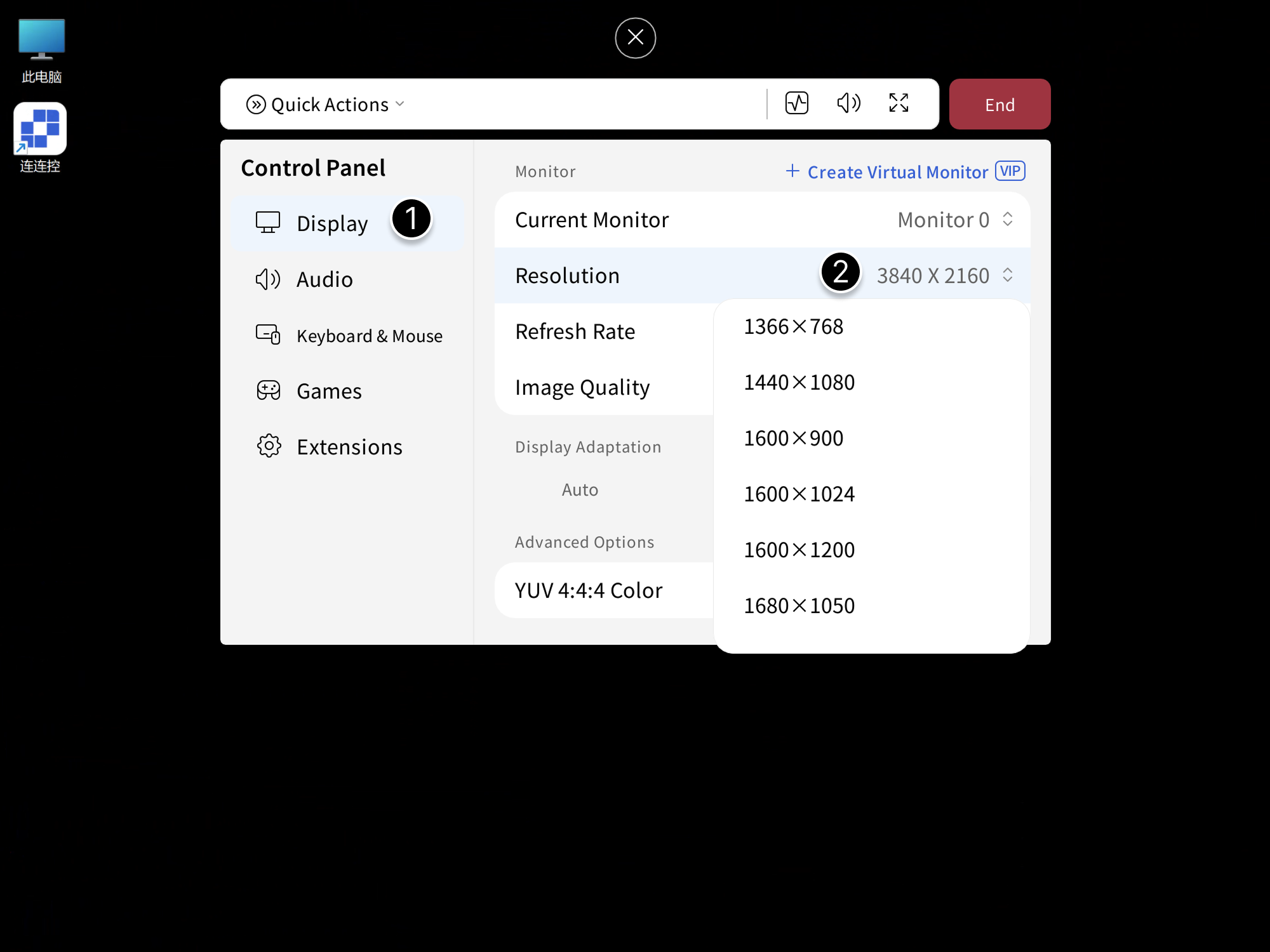
Up to 8K resolution supported
Refresh Rate
Click Refresh Rate and choose an appropriate value.
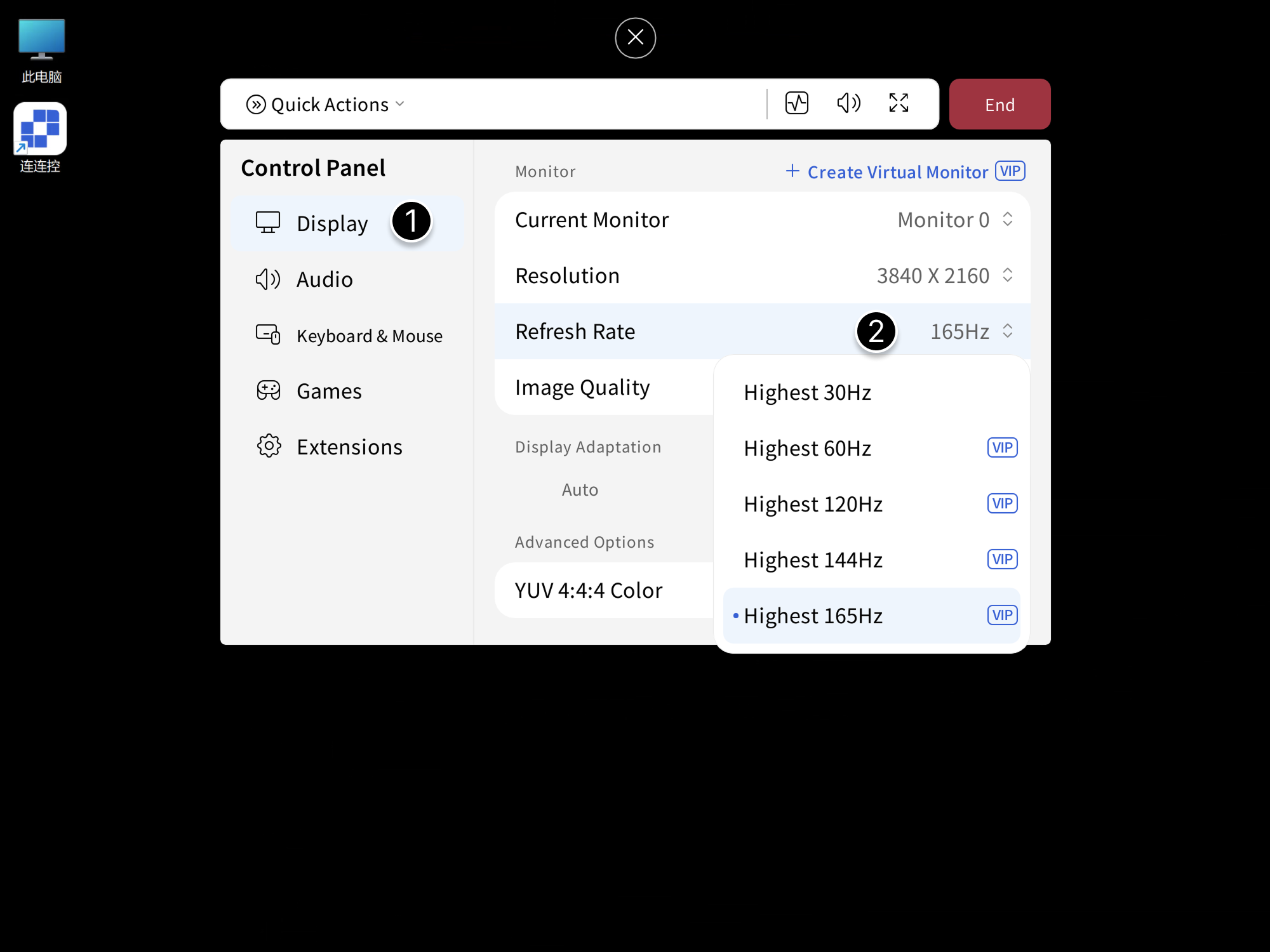
Supports up to 165 Hz
Image Quality
Click Image Quality and select the option that suits your needs.
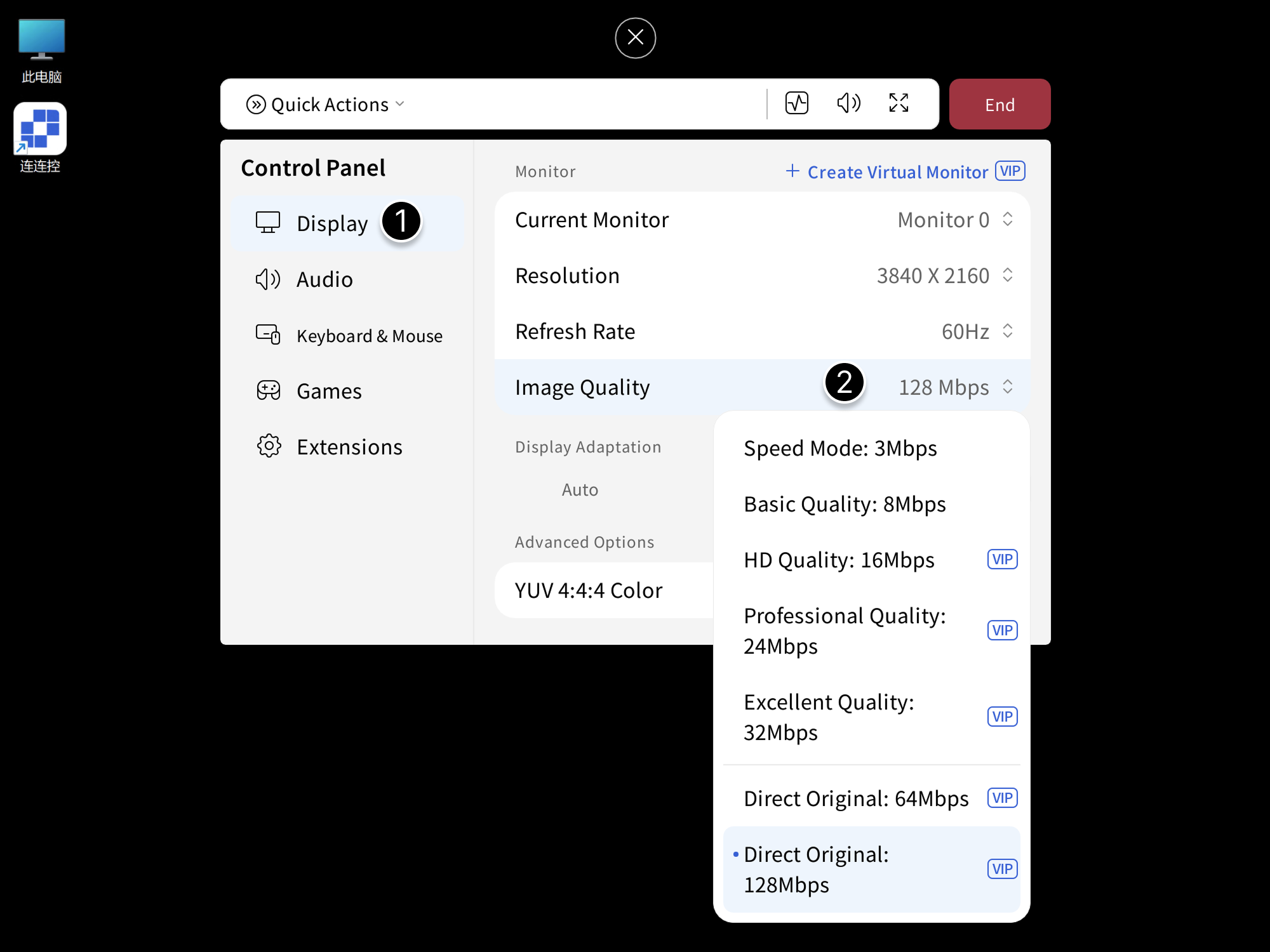
Note: Over LAN or P2P connections, Gaming Edition members can select up to 64 Mbps, while Professional Edition members can select up to 128 Mbps.
Advanced Option: Check YUV 4:4:4 Color to significantly enhance color rendering for a more detailed and realistic visual experience.