'%3e%3cpath%20d='M7.48145%2024H3.74023C1.67456%2023.9999%204.09854e-05%2022.3467%200%2020.3076V16.6152H7.48145V24ZM15.8955%2024H8.41406V16.6152H15.8955V24ZM7.48145%2015.6924H0V8.30762H7.48145V15.6924ZM24%2015.6924H16.5195V8.30762H24V15.6924ZM15.5859%207.38477H8.10547V0H15.5859V7.38477ZM20.2598%200C22.3256%200%2024%201.65318%2024%203.69238V7.38477H16.5195V0H20.2598Z'%20fill='white'/%3e%3cpath%20d='M108.786%2019.0507L105.767%2014.2636H104.397L108.397%208.80874H111.915L108.119%2013.9483V12.3155L112.544%2019.0507H108.786ZM101.527%2019.0507V5.5061H104.897V19.0507H101.527Z'%20fill='white'/%3e%3cpath%20d='M88.8242%2019.0505V8.80858H91.4908V13.2059H91.3421C91.3421%2012.1422%2091.4779%2011.264%2091.7499%2010.5712C92.0214%209.86618%2092.4224%209.34052%2092.953%208.99418C93.4965%208.64778%2094.1506%208.47461%2094.9158%208.47461H95.0644C96.2245%208.47461%2097.1193%208.86427%2097.7488%209.64353C98.3911%2010.4104%2098.7117%2011.5917%2098.7117%2013.1874V19.0505H95.342V13.0946C95.342%2012.6246%2095.2001%2012.2411%2094.9158%2011.9443C94.6443%2011.635%2094.2679%2011.4804%2093.7864%2011.4804C93.3049%2011.4804%2092.9162%2011.635%2092.6202%2011.9443C92.3358%2012.2411%2092.194%2012.6369%2092.194%2013.1317V19.0505H88.8242Z'%20fill='white'/%3e%3cpath%20d='M82.4214%2019.0506V8.80875H85.7912V19.0506H82.4214ZM81.125%2011.2579V8.80875H85.7912V11.2579H81.125ZM83.81%207.99232C83.1928%207.99232%2082.7359%207.83773%2082.4398%207.5285C82.1561%207.2069%2082.0137%206.79872%2082.0137%206.30388C82.0137%205.80913%2082.1561%205.40713%2082.4398%205.09789C82.7359%204.77628%2083.1866%204.61548%2083.7916%204.61548C84.4088%204.61548%2084.8595%204.77628%2085.1433%205.09789C85.427%205.40713%2085.5688%205.80913%2085.5688%206.30388C85.5688%206.79872%2085.427%207.2069%2085.1433%207.5285C84.8595%207.83773%2084.4149%207.99232%2083.81%207.99232Z'%20fill='white'/%3e%3cpath%20d='M71.1328%2019.0507V5.5061H74.5769V19.0507H71.1328ZM74.2065%2019.0507V16.0449H79.6876V19.0507H74.2065Z'%20fill='white'/%3e%3cpath%20d='M65.4458%2019.0507L62.428%2014.2636H61.0576L65.0571%208.80874H68.5755L64.7795%2013.9483V12.3155L69.2049%2019.0507H65.4458ZM58.1875%2019.0507V5.5061H61.5578V19.0507H58.1875Z'%20fill='white'/%3e%3cpath%20d='M51.2917%2019.3845C49.8103%2019.3845%2048.6438%2019.0814%2047.7921%2018.4753C46.9403%2017.8568%2046.4836%2016.991%2046.4219%2015.8777H49.3844C49.4339%2016.1869%2049.6252%2016.4529%2049.9585%2016.6755C50.2918%2016.8982%2050.7608%2017.0095%2051.3657%2017.0095C51.7978%2017.0095%2052.1681%2016.9477%2052.4767%2016.824C52.7977%2016.6879%2052.9581%2016.4715%2052.9581%2016.1745C52.9581%2015.9148%2052.8347%2015.7045%2052.5878%2015.5437C52.3409%2015.3705%2051.8903%2015.2531%2051.2361%2015.1912L50.5325%2015.117C49.224%2014.9809%2048.2611%2014.6222%2047.6439%2014.0408C47.0267%2013.4595%2046.7181%2012.7297%2046.7181%2011.8515C46.7181%2011.0969%2046.9033%2010.4784%2047.2736%209.99603C47.6439%209.50126%2048.1562%209.13018%2048.8105%208.8828C49.4647%208.63541%2050.2115%208.51172%2051.0509%208.51172C52.4211%208.51172%2053.526%208.81473%2054.3653%209.42089C55.2048%2010.0146%2055.6492%2010.8743%2055.6986%2011.9999H52.7359C52.6866%2011.6907%2052.5199%2011.4309%2052.236%2011.2206C51.9521%2010.998%2051.5447%2010.8867%2051.0139%2010.8867C50.6312%2010.8867%2050.3164%2010.9547%2050.0696%2011.0907C49.835%2011.2268%2049.7178%2011.4185%2049.7178%2011.6659C49.7178%2011.9257%2049.8289%2012.1174%2050.0511%2012.2411C50.2856%2012.3648%2050.6559%2012.4576%2051.162%2012.5194L51.8657%2012.5936C53.1741%2012.7297%2054.1802%2013.0946%2054.8838%2013.6883C55.5998%2014.2697%2055.9578%2015.0366%2055.9578%2015.989C55.9578%2016.6941%2055.7664%2017.3002%2055.3838%2017.8073C55.0134%2018.3145%2054.4764%2018.7041%2053.7728%2018.9763C53.0816%2019.2484%2052.2545%2019.3845%2051.2917%2019.3845Z'%20fill='white'/%3e%3cpath%20d='M31.0117%2019.0507L35.3445%205.5061H40.8624L45.3434%2019.0507H41.7882L38.3072%207.91816L39.2885%208.28924H36.8444L37.8442%207.91816L34.4558%2019.0507H31.0117ZM34.5483%2015.915L35.5853%2013.0948H40.7143L41.7512%2015.915H34.5483Z'%20fill='white'/%3e%3c/g%3e%3cdefs%3e%3cclipPath%20id='clip0_5596_142775'%3e%3crect%20width='113'%20height='24'%20fill='white'/%3e%3c/clipPath%3e%3c/defs%3e%3c/svg%3e "AskLink")
 Sophie Carter
If you search for a free screen mirroring app, the right choice depends on three things: the device sending the screen, the device receiving it, and whether you only want to view the screen or actually control it.
For Android to Chromecast or Google TV, Google Home is usually the easiest place to start. For iPhone to an Apple TV, AirPlay often does the job. For Android-to-PC control, scrcpy is hard to beat if you are comfortable with a technical setup. But if you need to access and control a computer from another device or network, AskLink is the better fit—not as a TV-casting receiver, but as a tool that goes beyond screen mirroring.
Quick Answer: The Best Free Screen Mirroring Tool for Each Job
| What you want to do | Best place to start | Important limitation |
|---|---|---|
| Android → Chromecast or Google TV | Google Home / Google Cast | Usually requires the same Wi-Fi network |
| iPhone or iPad → TV or Mac | AirPlay | Displays and streams content; does not control an iPhone from a TV |
| Cross-platform local mirroring | LetsView | Free local mirroring; remote mirroring is separately charged |
| Android → PC with control | scrcpy | Requires USB debugging or network setup |
| Computer access across networks | AskLink | Free access is available; high-speed usage has a monthly allowance |
| Browser-based or meeting sharing | AirDroid Cast | Remote-network sharing and some controls require Premium |
| TV receiver for mixed protocols | AirScreen | Free experience may include ads or feature limits |
| Windows PC → compatible display | Windows Cast / Miracast | Both devices must support Wireless Display or Miracast |
Important distinction: AskLink is not a Chromecast, AirPlay, Miracast, Roku, or Fire TV receiver. It is remote-access and remote-control software. Choose it when you need to open, operate, or manage a computer—not when you only want to put a phone video on a television.
Screen Mirroring, Casting, and Remote Control Are Different
These terms are often mixed together, but they describe different jobs.
- Screen mirroring duplicates most or all of one device's screen on another display, often for a meeting, presentation, or support session.
- Casting usually sends media or a screen to a nearby receiver such as a TV, Chromecast, or AirPlay-compatible display.
- Remote control adds interaction: you can click, type, open apps, transfer files, or manage the other device.
That is why AskLink becomes relevant at the moment the question changes from "How do I see this screen?" to "How do I use and control that computer?"
The 8 Best Free Screen Mirroring Apps and Built-In Tools in 2026
Google Home — Best for Android to Chromecast or Google TV
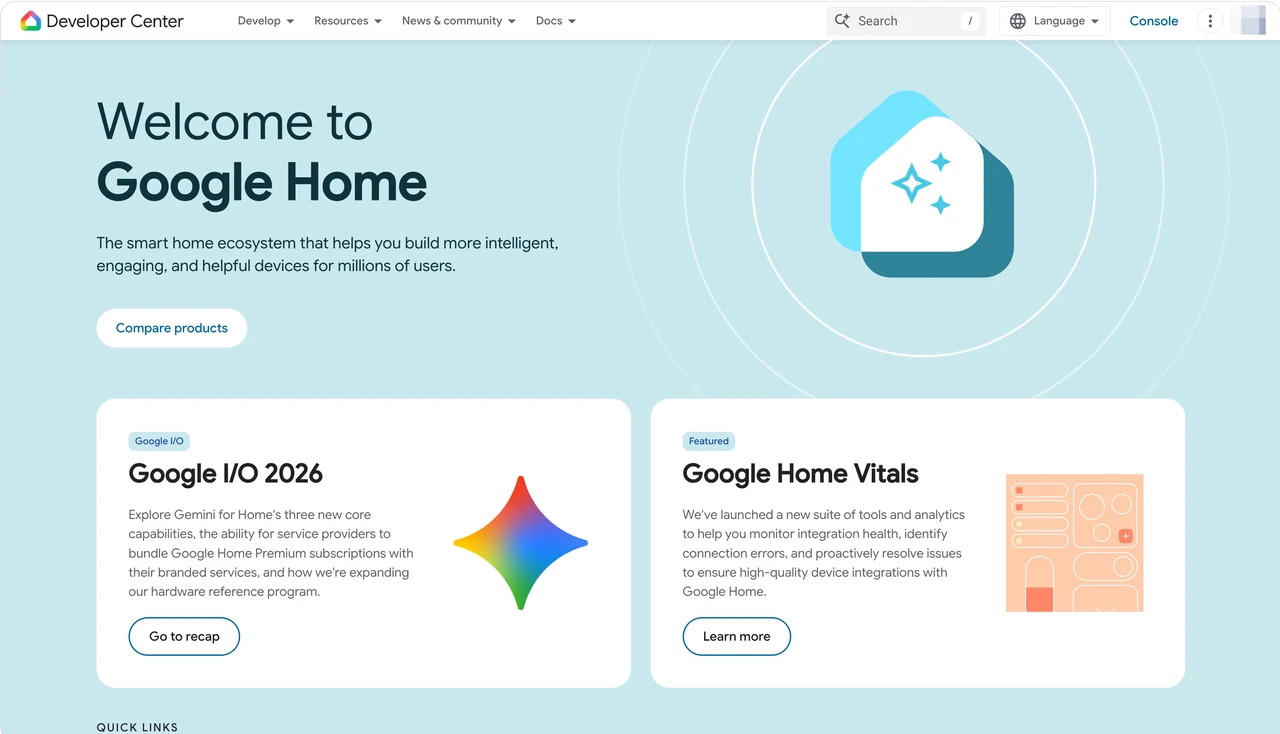
If your Android phone and TV both support Google Cast, start with Google Home or the Cast option already built into a supported app. Google's instructions generally require the phone and receiver to be on the same Wi-Fi network.
Google Cast works especially well for supported video, music, and other media, although app casting is not always full-screen mirroring. Choose it for Android-to-Chromecast or Google TV casting, not remote PC control.
AirPlay — Best Built-In Option for iPhone to TV or Mac
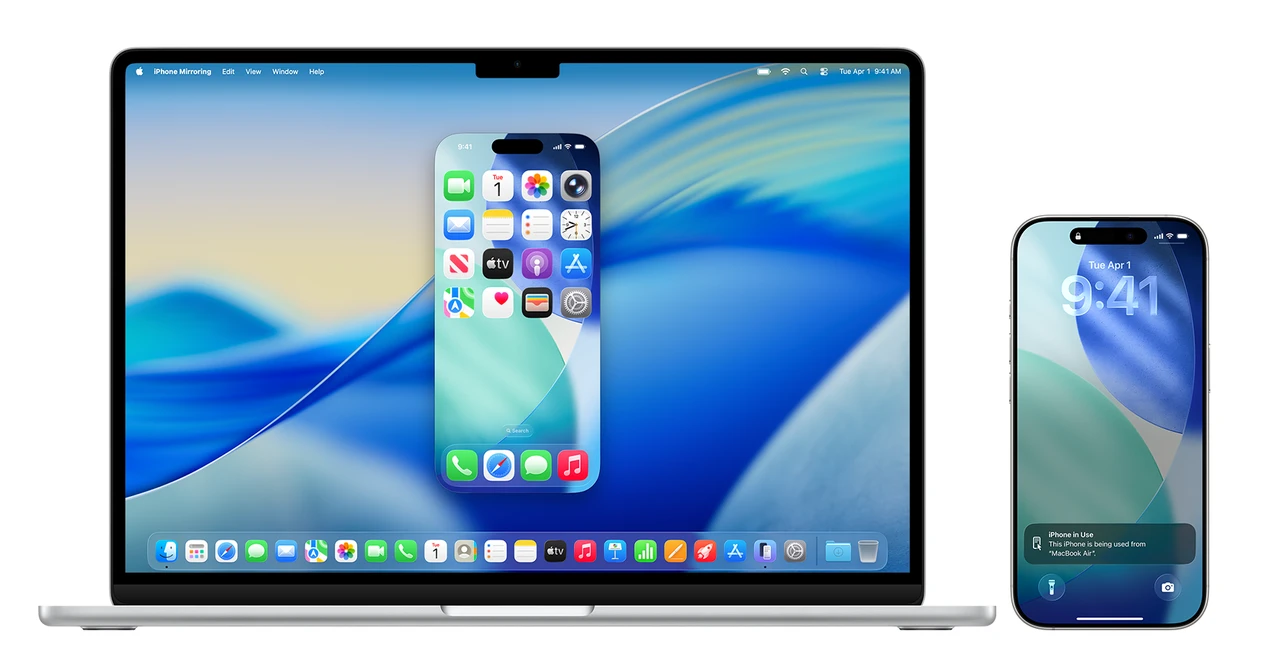
AirPlay is a convenient choice for streaming video, showing photos, or mirroring an iPhone or iPad to an Apple TV, AirPlay-compatible smart TV, or compatible Mac. It uses Screen Mirroring in Control Center and generally works when the devices share a Wi-Fi network.
AirPlay can display an iPhone screen, but it does not let you control the iPhone from a TV. For interaction from a nearby Mac, Apple offers a separate iPhone Mirroring feature; availability and requirements vary by device, OS version, and region.
LetsView — Best for Easy Cross-Platform Mirroring
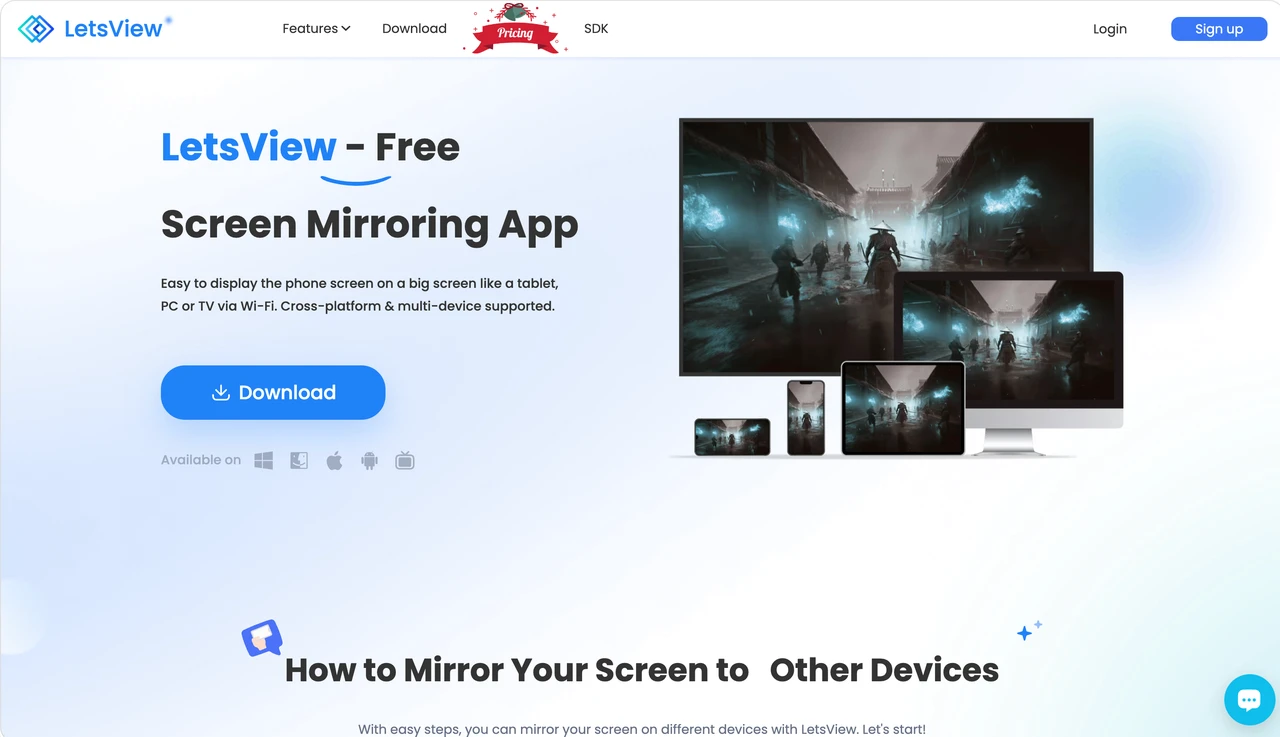
LetsView is a graphical, cross-platform mirroring app for Windows, Mac, iOS, Android, and TV. It supports local Wi-Fi connections, QR-code or passkey-style setup, and remote screen mirroring.
Is LetsView really free, or is it freemium? LetsView is genuinely free for basic local mirroring, and its current pricing page lists unlimited mirroring time. The catch is that the free Basic tier is limited to SD quality, 30 fps, and 4 Mbps, and it is not marked as watermark-free. Local mirroring and remote mirroring are separate services: Remote Cast works across networks but requires a separate purchase of cast time. Check the current plan and feature prompts before relying on remote mirroring or advanced control.
scrcpy — Best Truly Free Android-to-PC Mirroring and Control
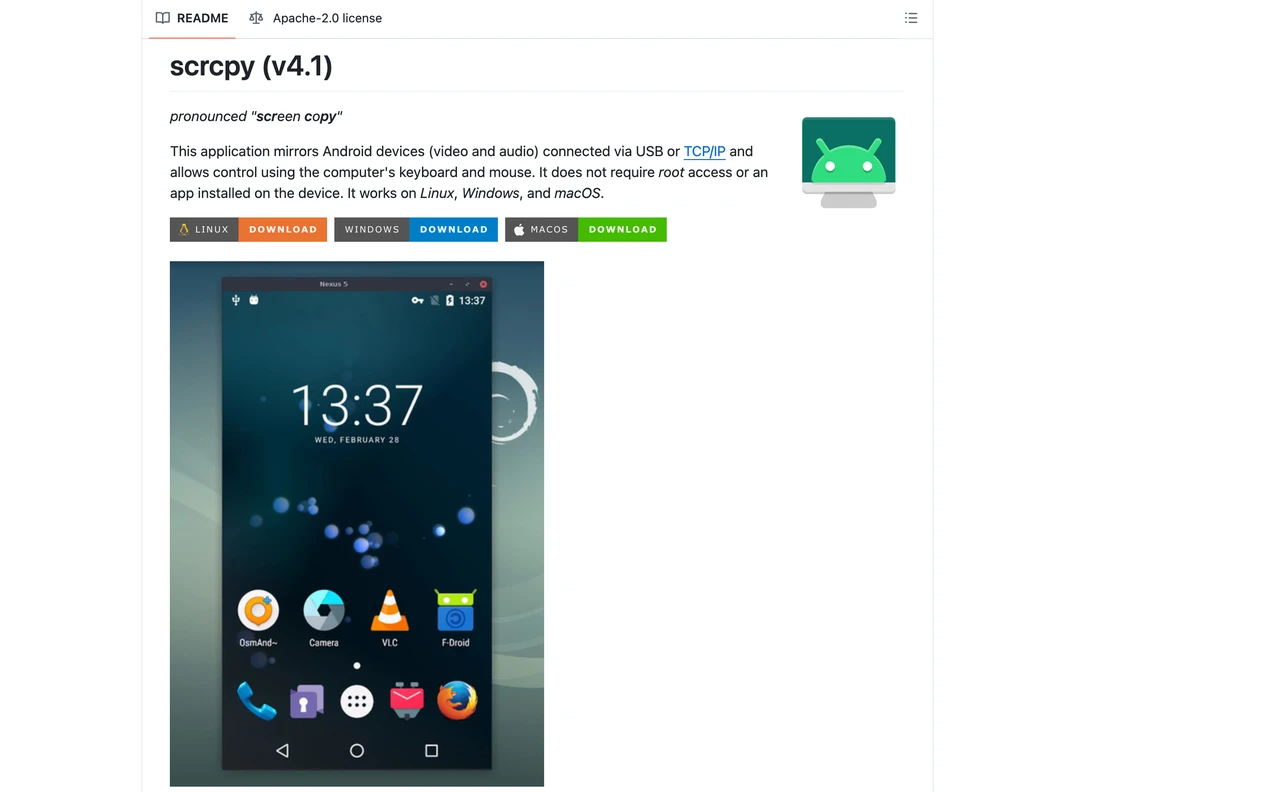
scrcpy is a lightweight, free, open-source tool that mirrors Android video and audio to Windows, macOS, or Linux and supports keyboard-and-mouse control. It needs no root access or permanent Android app installation.
Why do technical users like it, and why might ordinary users skip it? The trade-off is setup. You usually need USB debugging, a USB connection, or TCP/IP configuration, so Android developer settings are part of the process. scrcpy is excellent for developers, testers, and power users who want no ads or account. It is not a simple iPhone solution, TV receiver, or polished cross-network remote-access service.
AskLink — Best When You Need More Than Screen Mirroring
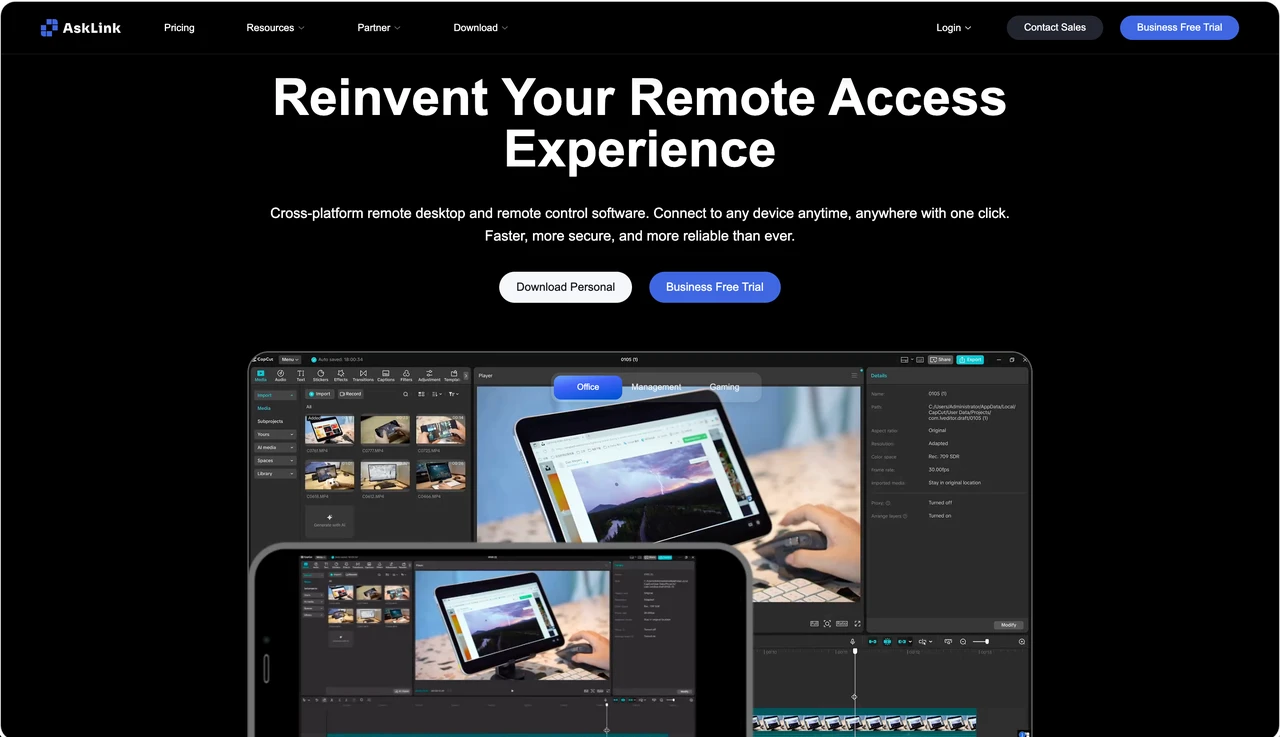
When is screen mirroring no longer the feature you really need? The turning point is simple: "I don't just want to mirror the screen. I need to actually control the computer." AskLink is built for free-to-pro remote access across computers and mobile devices. The three reasons to choose it are straightforward:
- Actual control: you can interact with the computer instead of only watching its screen.
- Cross-network access: the Controller and Controlled Device do not have to be on the same Wi-Fi network.
- Free remote access: the Personal Free plan is free to use with no time limit. It includes basic connection access and 50 hours of high-speed connection each month; the official pricing page lists up to 4K at 30 FPS and 8 Mbps for the Free plan.
Please note that the available features depend on the Controlled Device. For example, an iPhone used as the Controlled Device supports viewing only, while an Android phone can support remote control subject to device compatibility and permissions.
Choose AskLink if you want to view and control your own computer from another phone or computer, including across different networks.
AirDroid Cast — Best for Browser-Based Sharing and Remote Casting
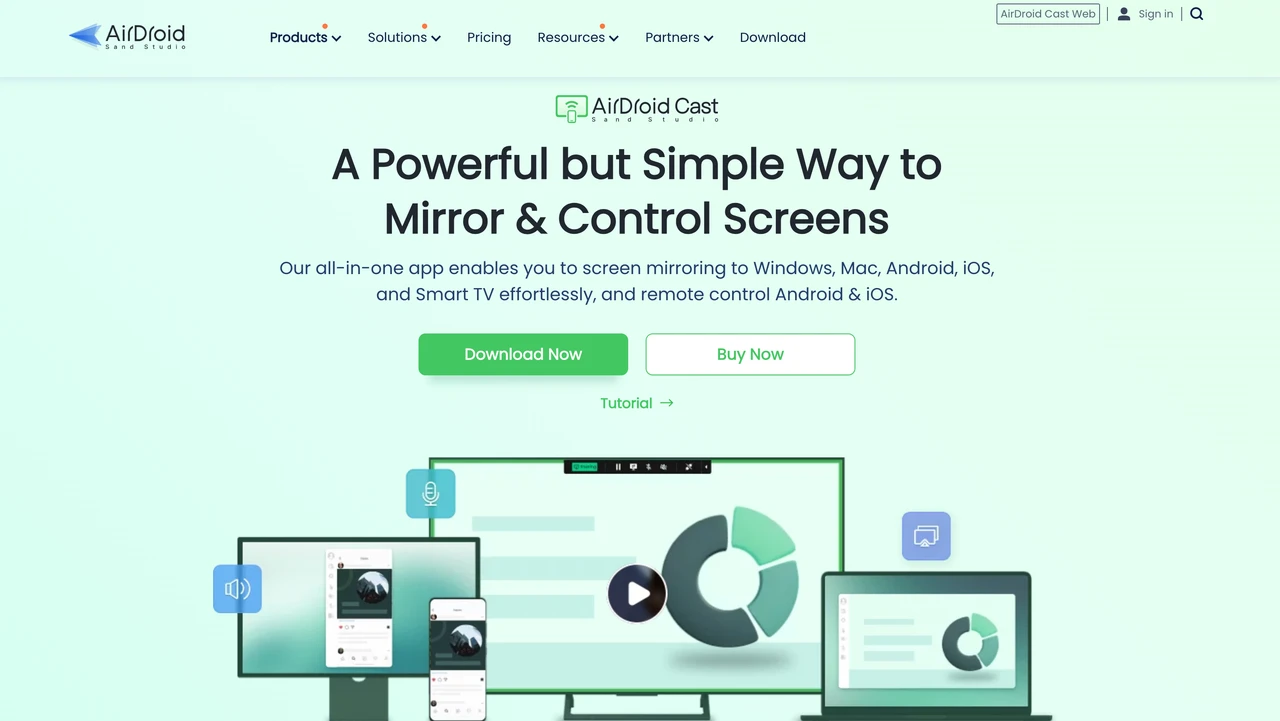
AirDroid Cast is a cross-platform screen-sharing tool for Windows, macOS, Android, iOS, browsers, and Android TV. It supports local mirroring, QR-code or cast-code connections, USB mirroring, and selected mobile-control features.
Basic mirroring is available for free, while remote-network sharing and some control features require Premium. It suits meetings and demonstrations, but check the current plan if remote casting is essential.
AirScreen — Best TV Receiver for Mixed Protocols
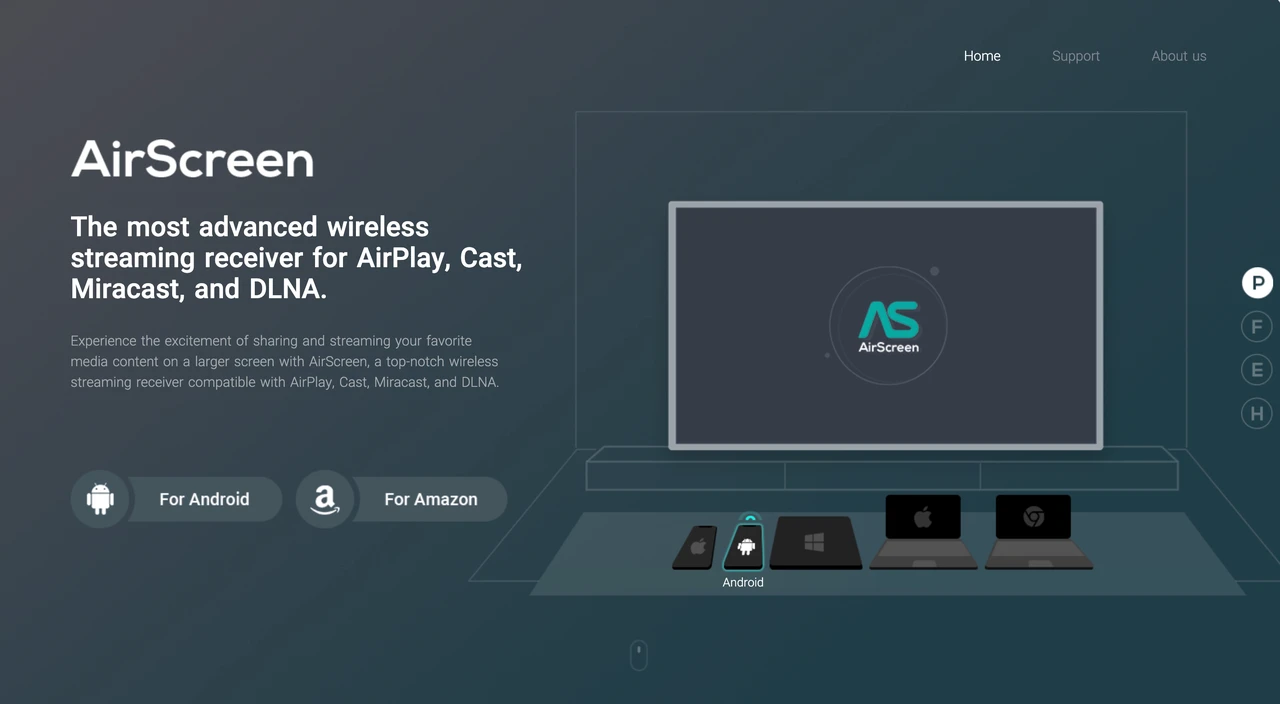
AirScreen turns a compatible TV or streaming device into a receiver for AirPlay, Google Cast, Miracast, and DLNA. It is useful when the phone and TV use different casting ecosystems and the TV needs a receiver app rather than a direct built-in connection.
AirScreen is for local entertainment and media playback, not remote desktop access. Check the current free experience for ads, resolution limits, and playback restrictions.
Windows Cast and Miracast — Best No-Download Option for Windows to TV
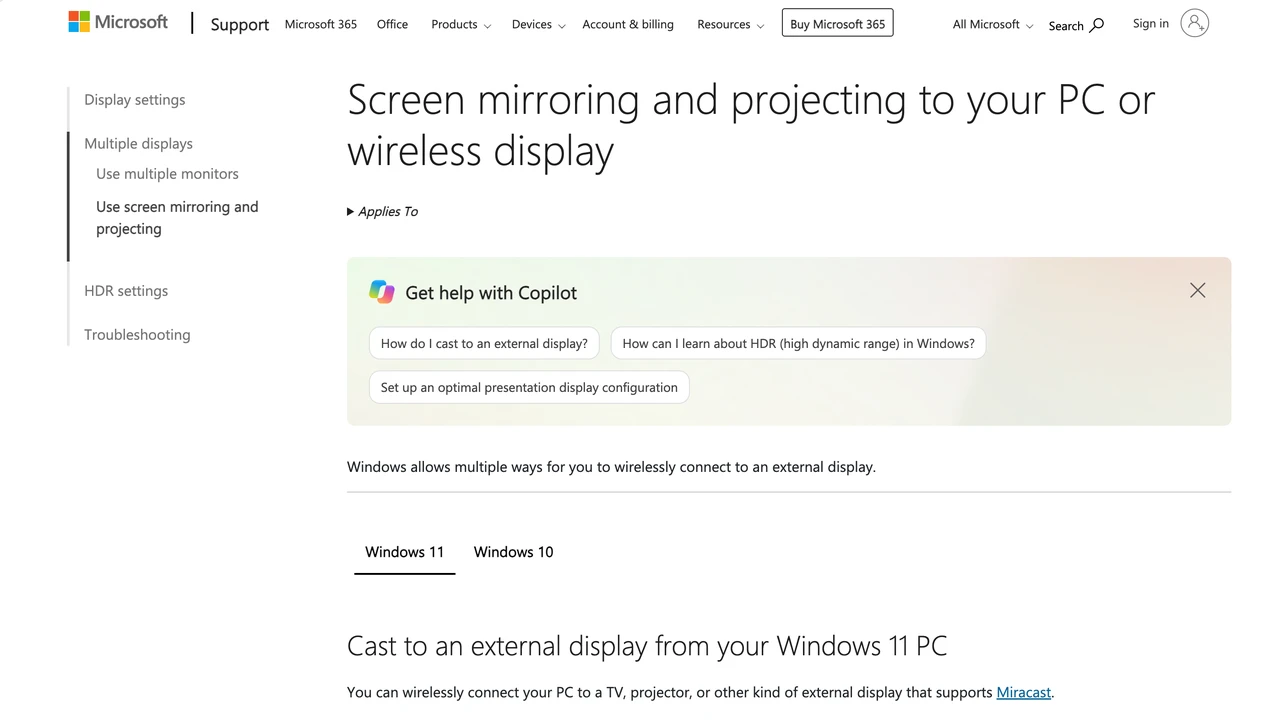
Windows already includes a wireless display option, so installing another app may be unnecessary. On supported Windows 10 and Windows 11 devices, Microsoft's built-in wireless display flow can connect a PC to a Miracast-compatible TV, projector, or monitor. In Windows 11, press Windows + K, choose the display, and use Windows + P to select Duplicate, Extend, or Second screen only.
Windows can also project to another Windows PC after the receiving PC has the Wireless Display feature installed and running. This is a good no-download starting point for Windows-to-TV or Windows-to-monitor mirroring. It is local projection, not remote computer control.
Which Free Screen Mirroring App Should You Choose?
Start with the destination, not the app. A TV-casting problem and a remote-computer problem may both be described as "screen mirroring," but they need different tools.
| What you want to do | Start with |
|---|---|
| Mirror Android to Chromecast or Google TV | Google Home |
| Mirror iPhone to Apple TV or an AirPlay-compatible TV or Mac | AirPlay |
| Use a Mac to interact with a nearby iPhone | iPhone Mirroring, if your devices meet Apple's requirements |
| Mirror a phone to a computer with a simple graphical setup | LetsView or AirDroid Cast |
| Mirror and control Android from a PC locally | scrcpy |
| Access and control a computer from another network | AskLink |
| Turn a compatible TV or streaming device into a multi-protocol receiver | AirScreen |
| Project a Windows PC to a compatible TV or display | Windows Cast / Miracast |
There is no single best free screen mirroring app for every device. Check the source device, destination, network requirement, and whether you need viewing or control before you install anything.
Screen Mirroring Not Working? Check These Three Things
Your Devices Cannot Find Each Other
For AirPlay, Google Cast, and many local mirroring tools, confirm that both devices are on the same Wi-Fi network and support the same protocol. Some guest Wi-Fi networks isolate devices from one another, sometimes called AP isolation, so the phone cannot discover the TV or computer.
The Video Shows a Black Screen
Protected services such as Netflix may block mirroring because of digital rights restrictions. Changing to another free screen mirroring app may not remove that limitation. Try the service's official TV app or supported casting method instead.
You Can See the Screen but Cannot Control It
Screen mirroring normally means display only. Clicking, typing, file transfer, and cross-network operation require remote-control features. For local Android control, try scrcpy. For cross-platform computer access across networks, AskLink is the more relevant type of tool.
Final Thought
Ultimately, choose a tool that fits your devices today without limiting what you can do tomorrow. AskLink offers a free starting point with room to grow into everyday remote work, personal access, and device support—so as your needs expand, you won't have to start over with another solution.