









'%3e%3cpath%20d='M7.48145%2024H3.74023C1.67456%2023.9999%204.09854e-05%2022.3467%200%2020.3076V16.6152H7.48145V24ZM15.8955%2024H8.41406V16.6152H15.8955V24ZM7.48145%2015.6924H0V8.30762H7.48145V15.6924ZM24%2015.6924H16.5195V8.30762H24V15.6924ZM15.5859%207.38477H8.10547V0H15.5859V7.38477ZM20.2598%200C22.3256%200%2024%201.65318%2024%203.69238V7.38477H16.5195V0H20.2598Z'%20fill='white'/%3e%3cpath%20d='M108.786%2019.0507L105.767%2014.2636H104.397L108.397%208.80874H111.915L108.119%2013.9483V12.3155L112.544%2019.0507H108.786ZM101.527%2019.0507V5.5061H104.897V19.0507H101.527Z'%20fill='white'/%3e%3cpath%20d='M88.8242%2019.0505V8.80858H91.4908V13.2059H91.3421C91.3421%2012.1422%2091.4779%2011.264%2091.7499%2010.5712C92.0214%209.86618%2092.4224%209.34052%2092.953%208.99418C93.4965%208.64778%2094.1506%208.47461%2094.9158%208.47461H95.0644C96.2245%208.47461%2097.1193%208.86427%2097.7488%209.64353C98.3911%2010.4104%2098.7117%2011.5917%2098.7117%2013.1874V19.0505H95.342V13.0946C95.342%2012.6246%2095.2001%2012.2411%2094.9158%2011.9443C94.6443%2011.635%2094.2679%2011.4804%2093.7864%2011.4804C93.3049%2011.4804%2092.9162%2011.635%2092.6202%2011.9443C92.3358%2012.2411%2092.194%2012.6369%2092.194%2013.1317V19.0505H88.8242Z'%20fill='white'/%3e%3cpath%20d='M82.4214%2019.0506V8.80875H85.7912V19.0506H82.4214ZM81.125%2011.2579V8.80875H85.7912V11.2579H81.125ZM83.81%207.99232C83.1928%207.99232%2082.7359%207.83773%2082.4398%207.5285C82.1561%207.2069%2082.0137%206.79872%2082.0137%206.30388C82.0137%205.80913%2082.1561%205.40713%2082.4398%205.09789C82.7359%204.77628%2083.1866%204.61548%2083.7916%204.61548C84.4088%204.61548%2084.8595%204.77628%2085.1433%205.09789C85.427%205.40713%2085.5688%205.80913%2085.5688%206.30388C85.5688%206.79872%2085.427%207.2069%2085.1433%207.5285C84.8595%207.83773%2084.4149%207.99232%2083.81%207.99232Z'%20fill='white'/%3e%3cpath%20d='M71.1328%2019.0507V5.5061H74.5769V19.0507H71.1328ZM74.2065%2019.0507V16.0449H79.6876V19.0507H74.2065Z'%20fill='white'/%3e%3cpath%20d='M65.4458%2019.0507L62.428%2014.2636H61.0576L65.0571%208.80874H68.5755L64.7795%2013.9483V12.3155L69.2049%2019.0507H65.4458ZM58.1875%2019.0507V5.5061H61.5578V19.0507H58.1875Z'%20fill='white'/%3e%3cpath%20d='M51.2917%2019.3845C49.8103%2019.3845%2048.6438%2019.0814%2047.7921%2018.4753C46.9403%2017.8568%2046.4836%2016.991%2046.4219%2015.8777H49.3844C49.4339%2016.1869%2049.6252%2016.4529%2049.9585%2016.6755C50.2918%2016.8982%2050.7608%2017.0095%2051.3657%2017.0095C51.7978%2017.0095%2052.1681%2016.9477%2052.4767%2016.824C52.7977%2016.6879%2052.9581%2016.4715%2052.9581%2016.1745C52.9581%2015.9148%2052.8347%2015.7045%2052.5878%2015.5437C52.3409%2015.3705%2051.8903%2015.2531%2051.2361%2015.1912L50.5325%2015.117C49.224%2014.9809%2048.2611%2014.6222%2047.6439%2014.0408C47.0267%2013.4595%2046.7181%2012.7297%2046.7181%2011.8515C46.7181%2011.0969%2046.9033%2010.4784%2047.2736%209.99603C47.6439%209.50126%2048.1562%209.13018%2048.8105%208.8828C49.4647%208.63541%2050.2115%208.51172%2051.0509%208.51172C52.4211%208.51172%2053.526%208.81473%2054.3653%209.42089C55.2048%2010.0146%2055.6492%2010.8743%2055.6986%2011.9999H52.7359C52.6866%2011.6907%2052.5199%2011.4309%2052.236%2011.2206C51.9521%2010.998%2051.5447%2010.8867%2051.0139%2010.8867C50.6312%2010.8867%2050.3164%2010.9547%2050.0696%2011.0907C49.835%2011.2268%2049.7178%2011.4185%2049.7178%2011.6659C49.7178%2011.9257%2049.8289%2012.1174%2050.0511%2012.2411C50.2856%2012.3648%2050.6559%2012.4576%2051.162%2012.5194L51.8657%2012.5936C53.1741%2012.7297%2054.1802%2013.0946%2054.8838%2013.6883C55.5998%2014.2697%2055.9578%2015.0366%2055.9578%2015.989C55.9578%2016.6941%2055.7664%2017.3002%2055.3838%2017.8073C55.0134%2018.3145%2054.4764%2018.7041%2053.7728%2018.9763C53.0816%2019.2484%2052.2545%2019.3845%2051.2917%2019.3845Z'%20fill='white'/%3e%3cpath%20d='M31.0117%2019.0507L35.3445%205.5061H40.8624L45.3434%2019.0507H41.7882L38.3072%207.91816L39.2885%208.28924H36.8444L37.8442%207.91816L34.4558%2019.0507H31.0117ZM34.5483%2015.915L35.5853%2013.0948H40.7143L41.7512%2015.915H34.5483Z'%20fill='white'/%3e%3c/g%3e%3cdefs%3e%3cclipPath%20id='clip0_5596_142775'%3e%3crect%20width='113'%20height='24'%20fill='white'/%3e%3c/clipPath%3e%3c/defs%3e%3c/svg%3e "AskLink")
Remote Control, File Transfer, and Commands
After members join the enterprise and obtain device permissions, they can use the device list in the AskLink Business Controller to perform operations on authorized devices, such as remote control, File Transfer, Execute Command, setting aliases, and power management.
Prerequisites
- The member has joined the enterprise;
- The administrator has authorized the target device for the member;
- The target device is online;
- The current member has the corresponding operation permissions.
If the target device is not in the device list, or an operation entry is not visible, contact the enterprise administrator to confirm device authorization and role permissions.
Initiate Remote Control from the Device List
Members can initiate remote control with one click from the device list in the AskLink Business Controller, without separately saving or remembering the connection password.
Initiate Connection
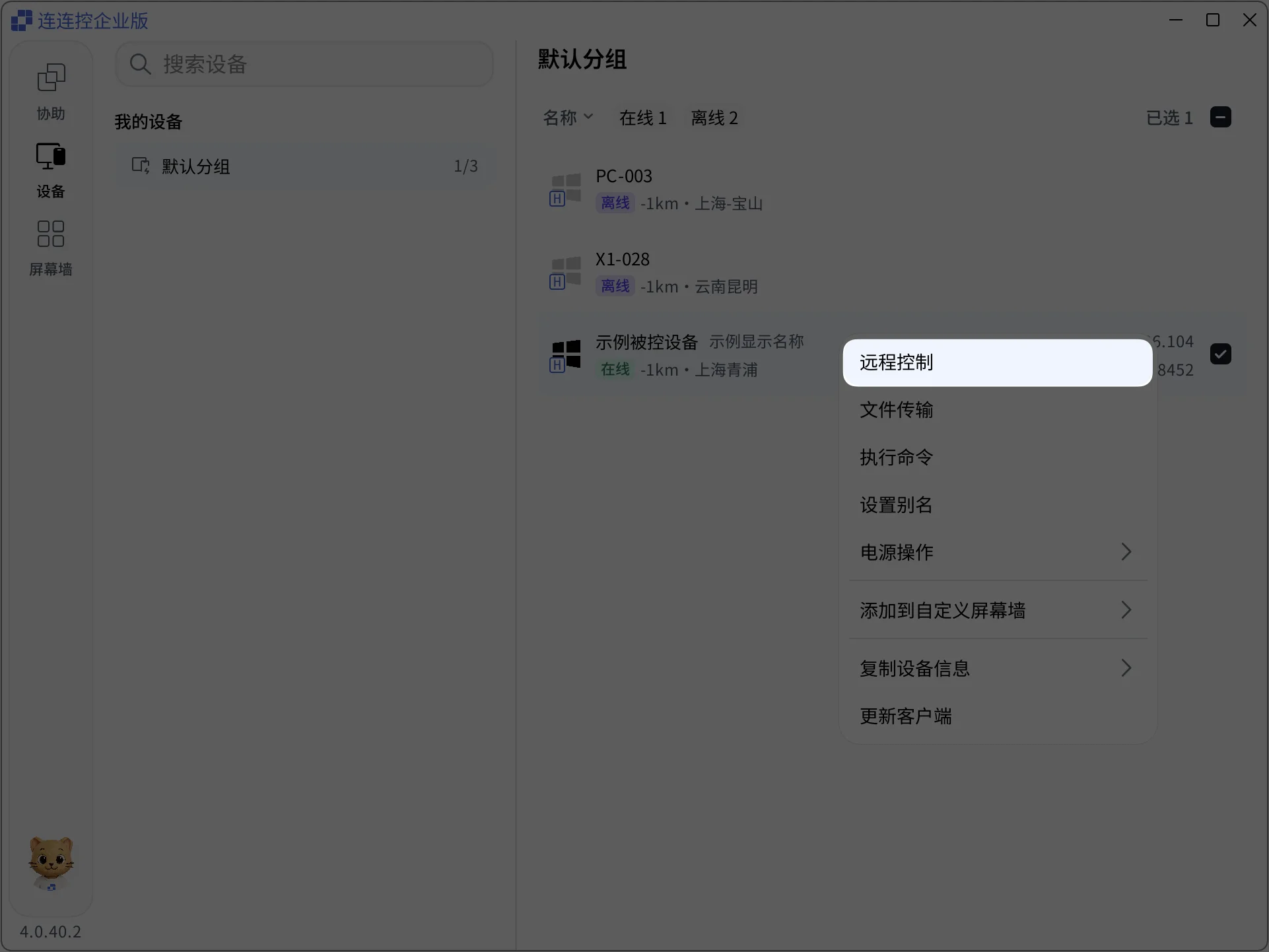
In the AskLink Business Controller, click Devices, find the target device, then double-click the device or right-click and select Remote Control to connect quickly.
How to End Remote Control
You can end a remote session in multiple ways.
Disconnect a Session on the Controlled Device
On the Controlled device, open the Connected Devices floating window in the lower-right corner of the screen and click the X button.
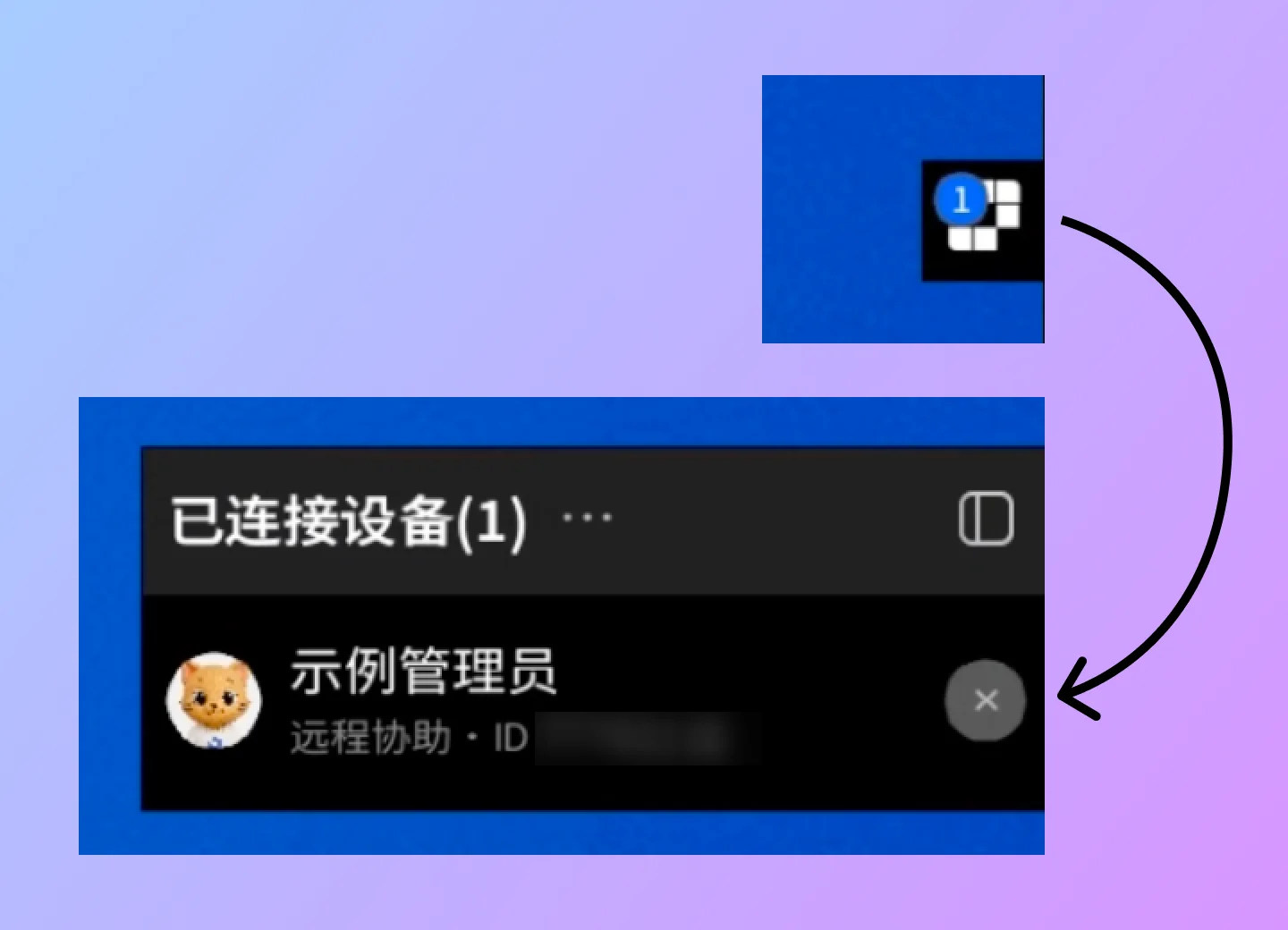
After completion, the connection between the corresponding Controller and the current Controlled device is disconnected.
Disconnect a Session as a Member on the Controller
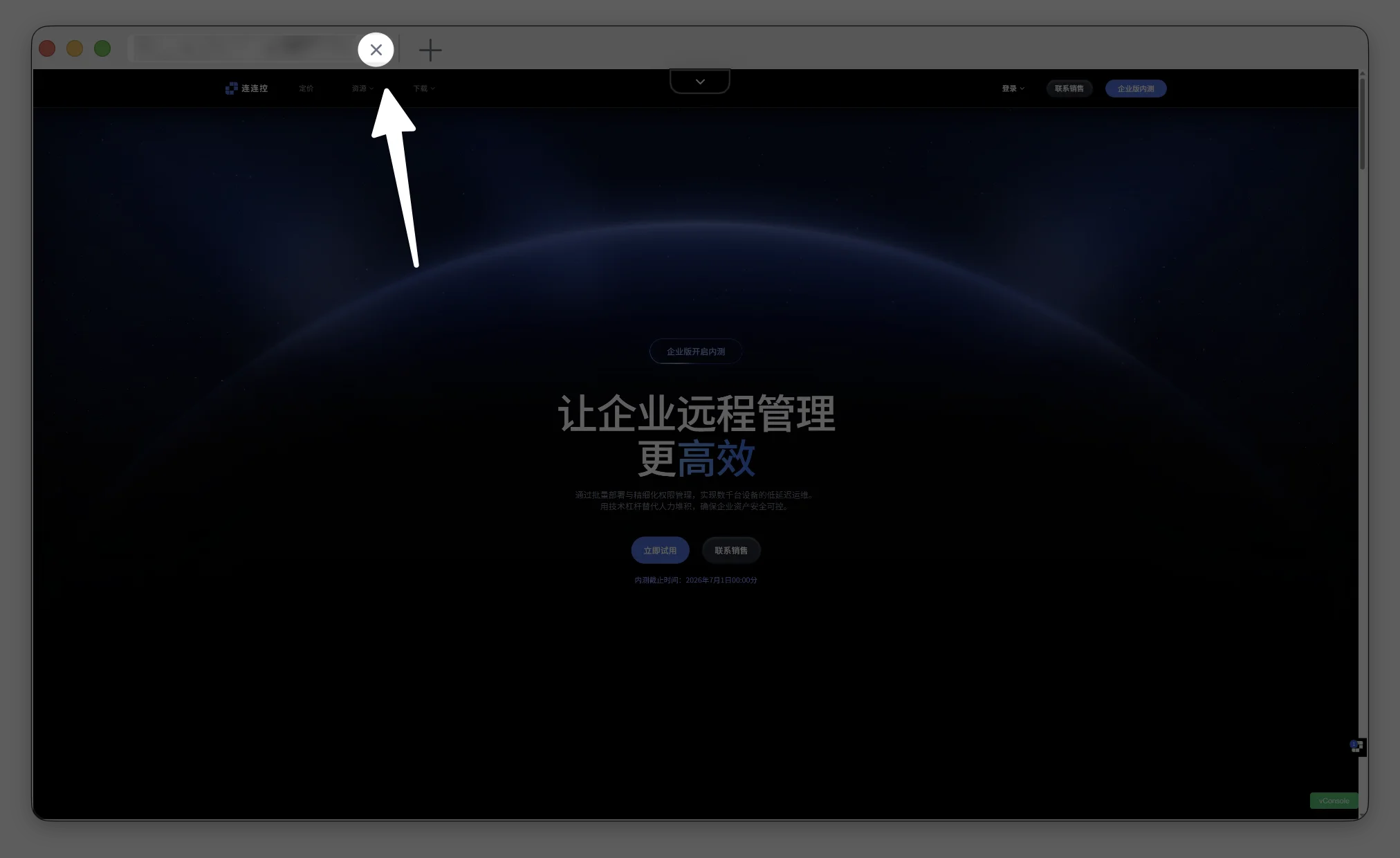
Directly close the session tab to disconnect the session.
Or, click the drop-down button above the remote control screen in the AskLink Business Controller, then click End in the expanded menu.
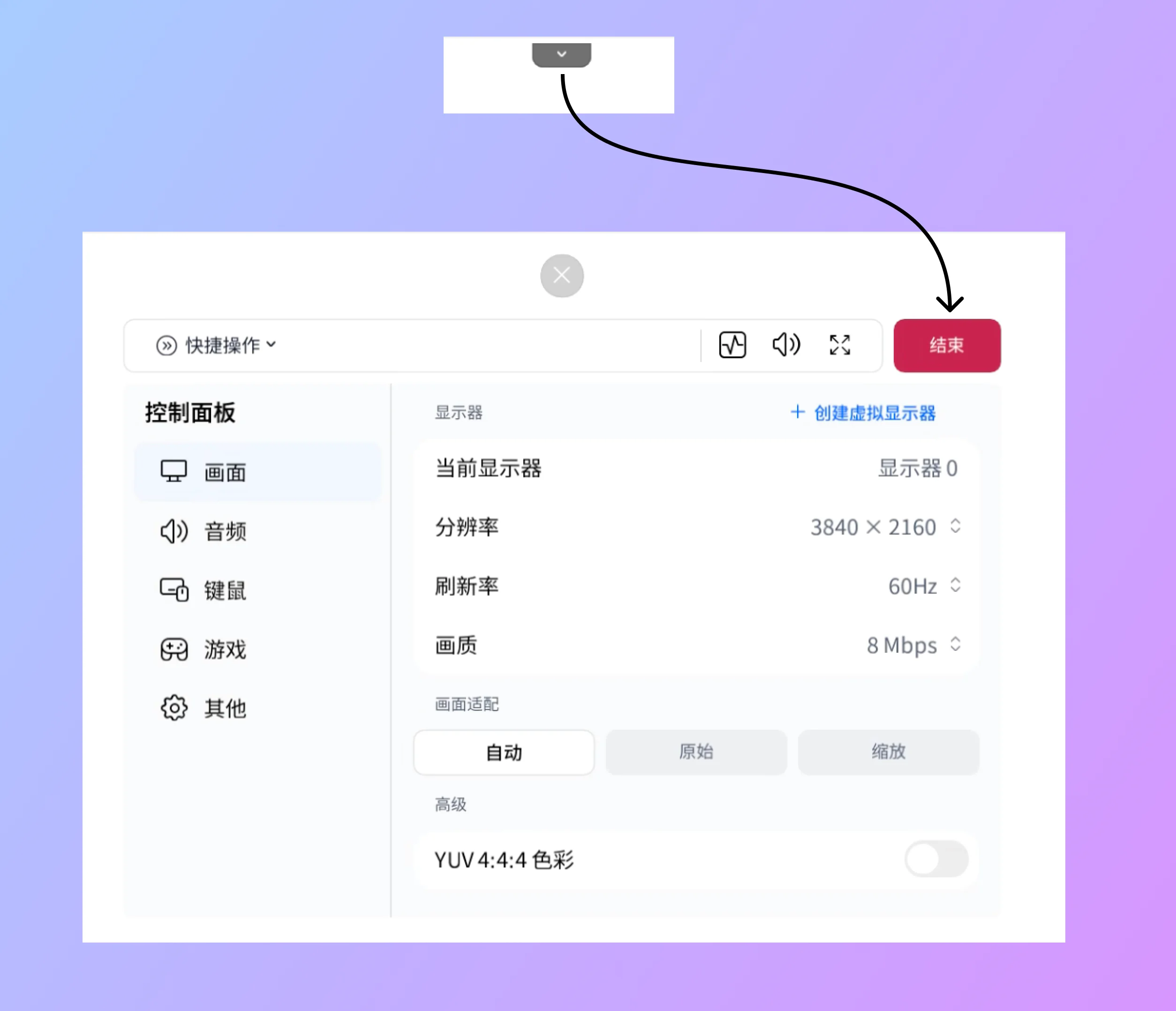
After completion, the current remote session ends.
File Transfer
AskLink supports batch file transfer between devices.
Permission Settings on macOS
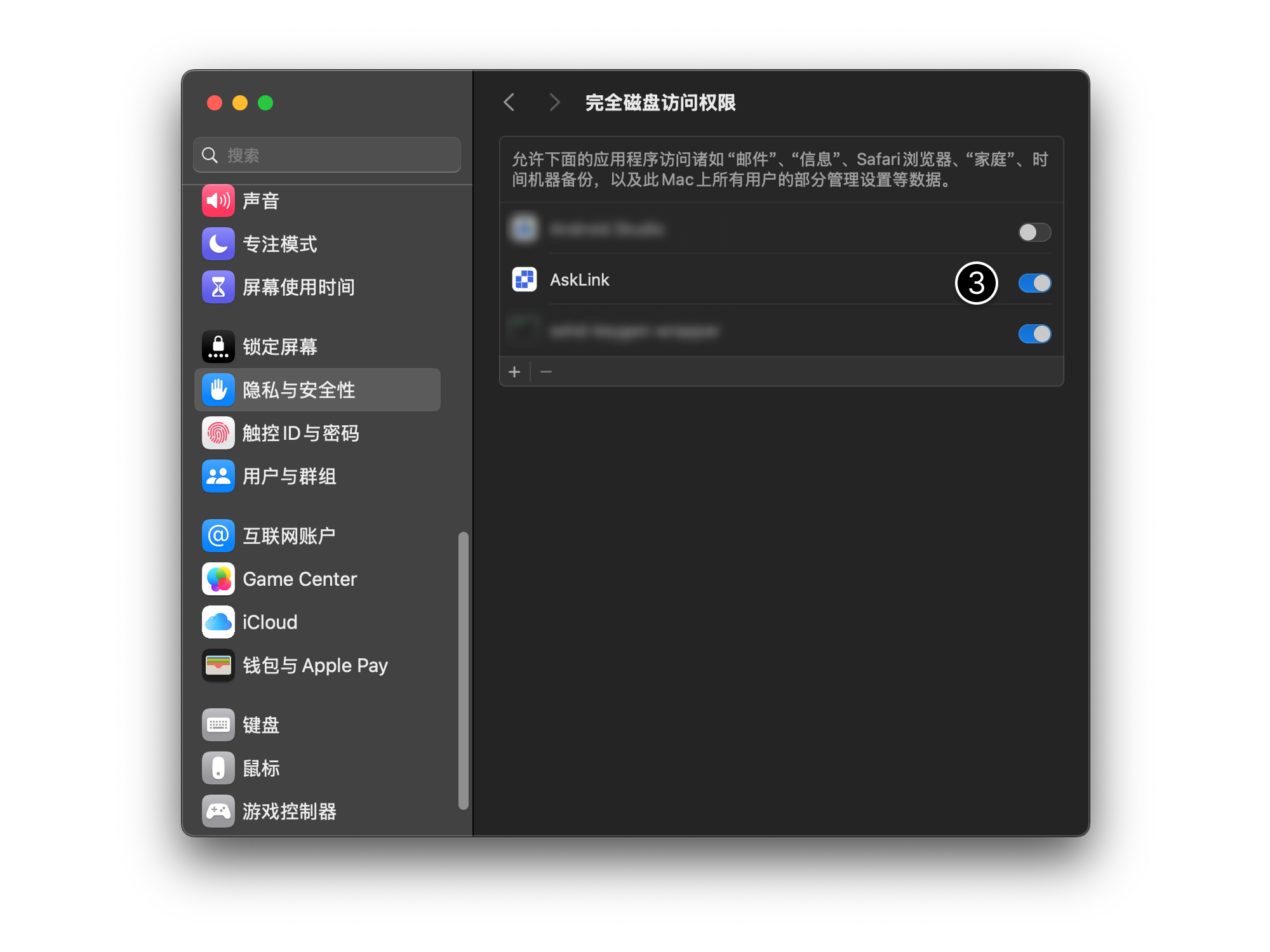
Before using File Transfer for the first time, grant the required permissions for AskLink Business in the system. Otherwise, disk read or write may fail.
- Open Privacy & Security in System Settings;
- Click Full Disk Access;
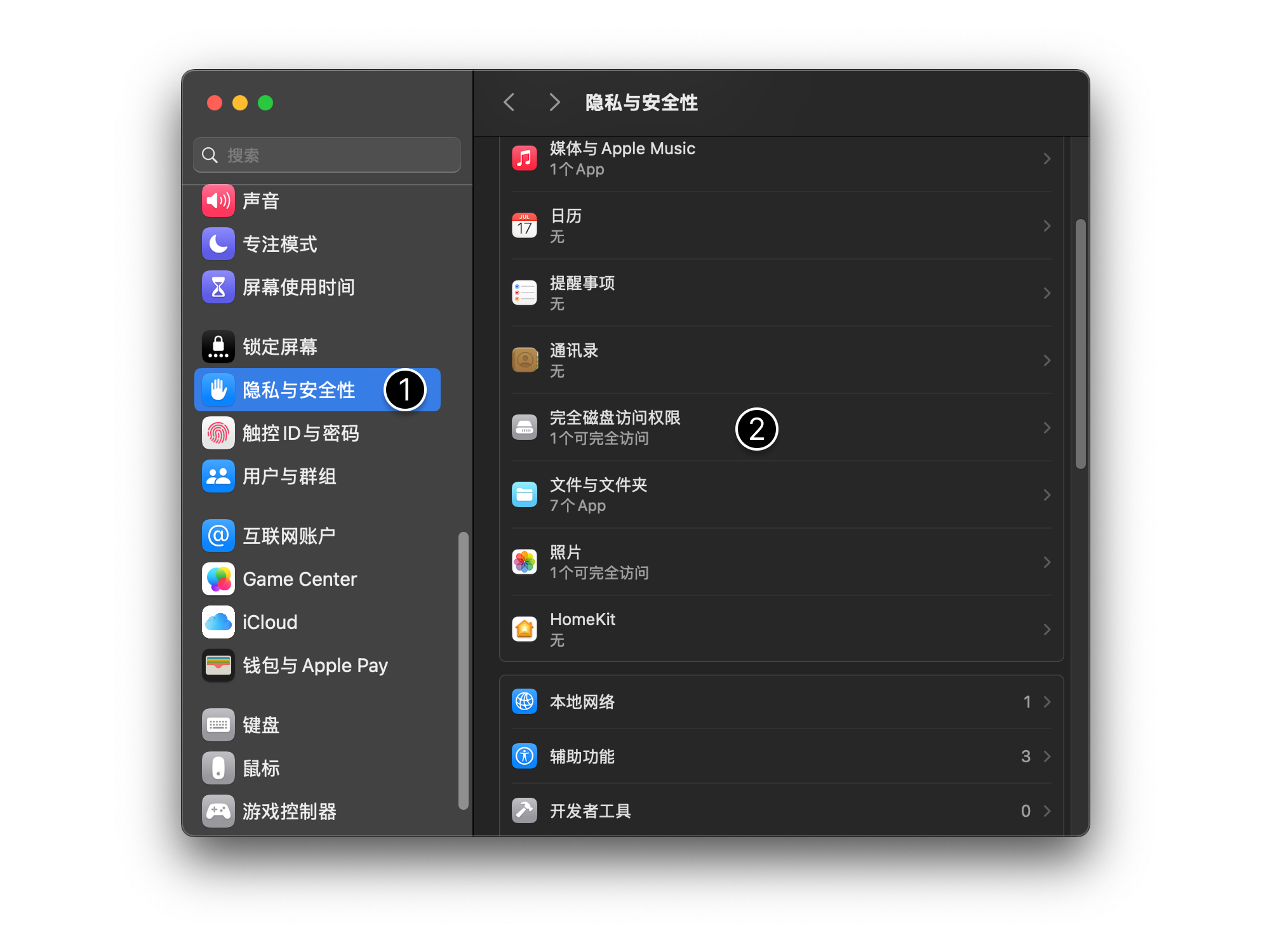
- Enable AskLink permissions.
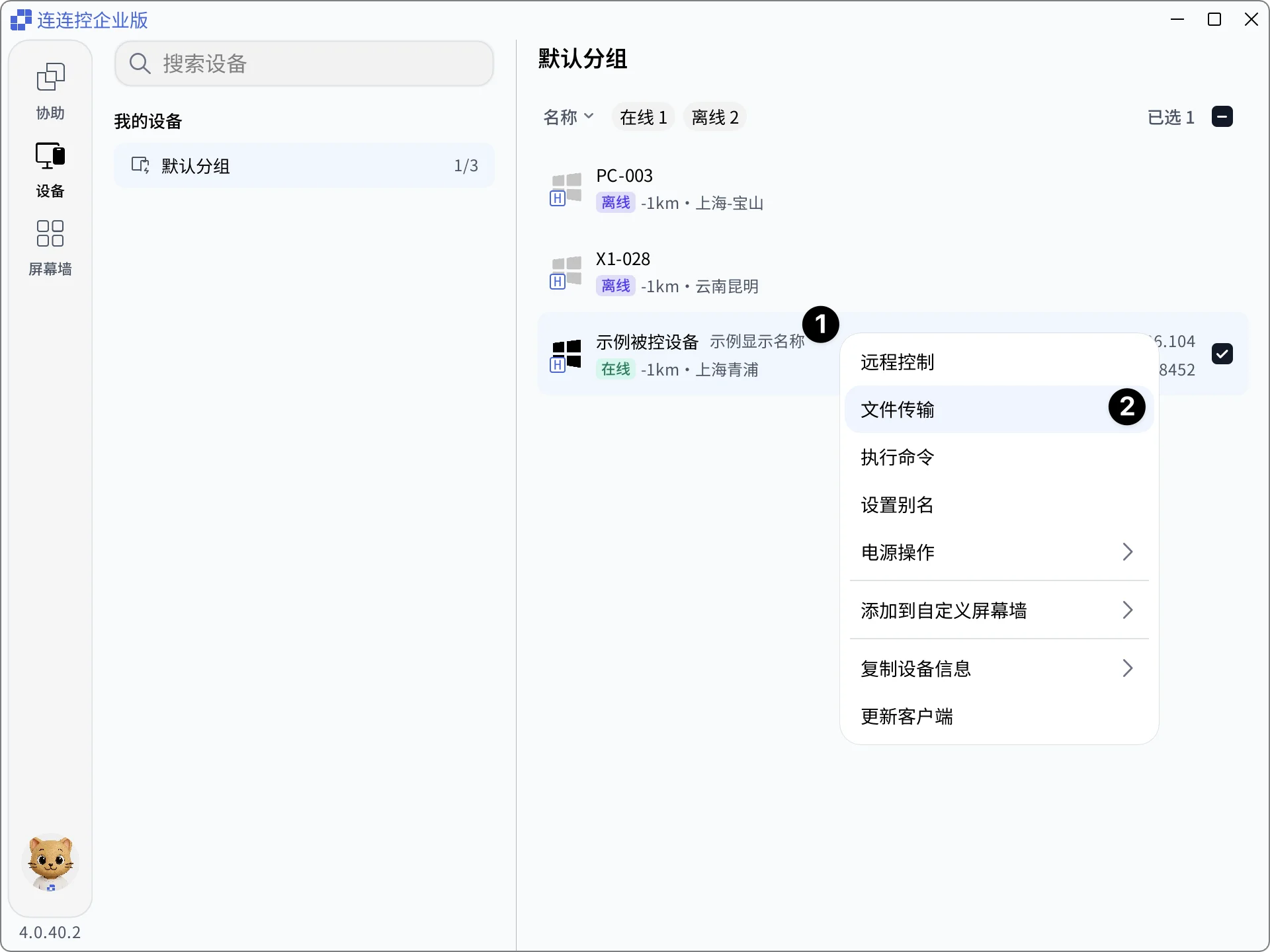
Transfer Files from the Device List
- Right-click the target device in the device list of the AskLink Business Controller;
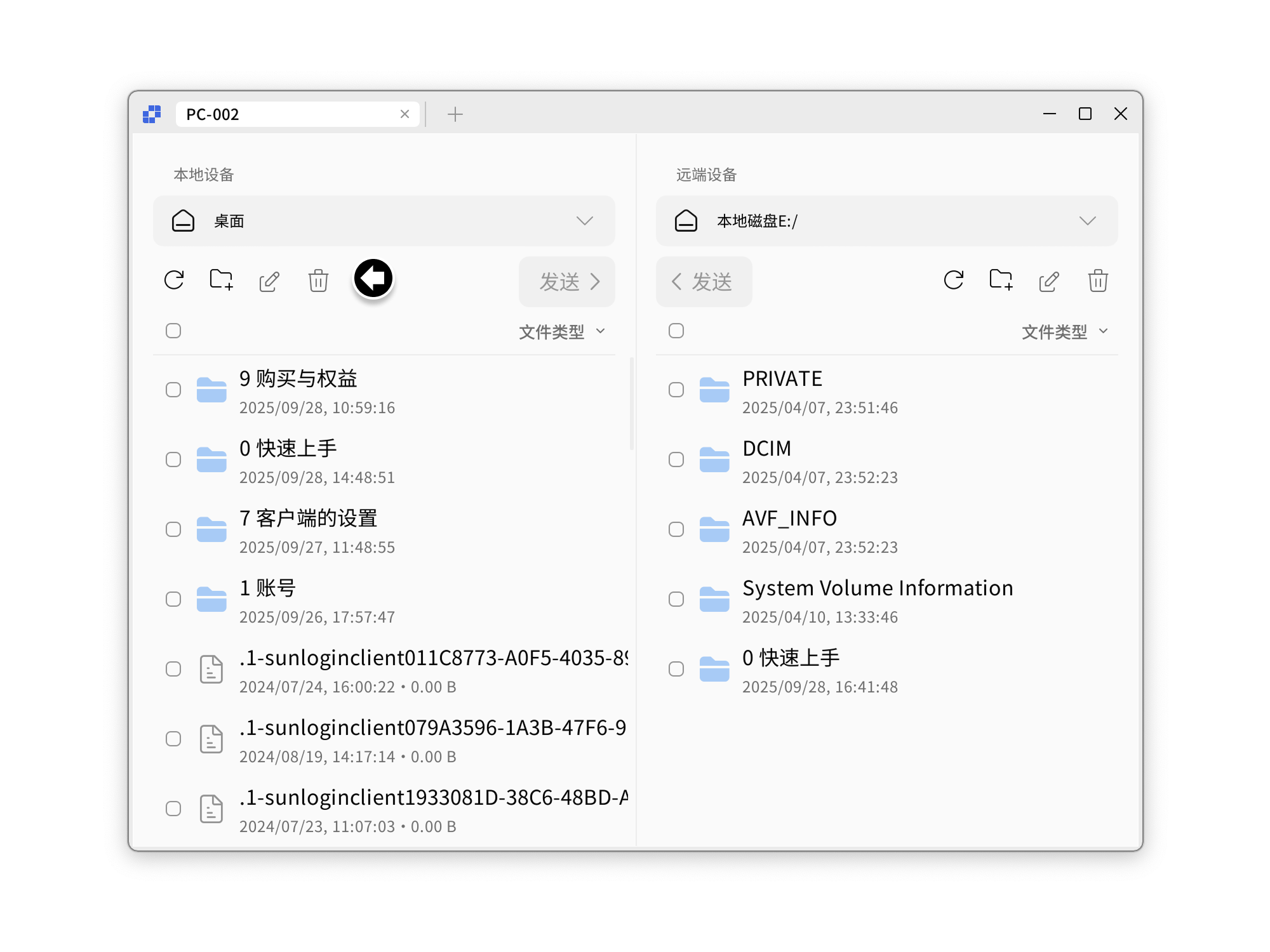
- In the expanded menu, select File Transfer to enter the transfer interface.
File Transfer Operations
- Select the file path and select the files to send, then click Send. When the progress bar reaches 100%, the transfer is complete;
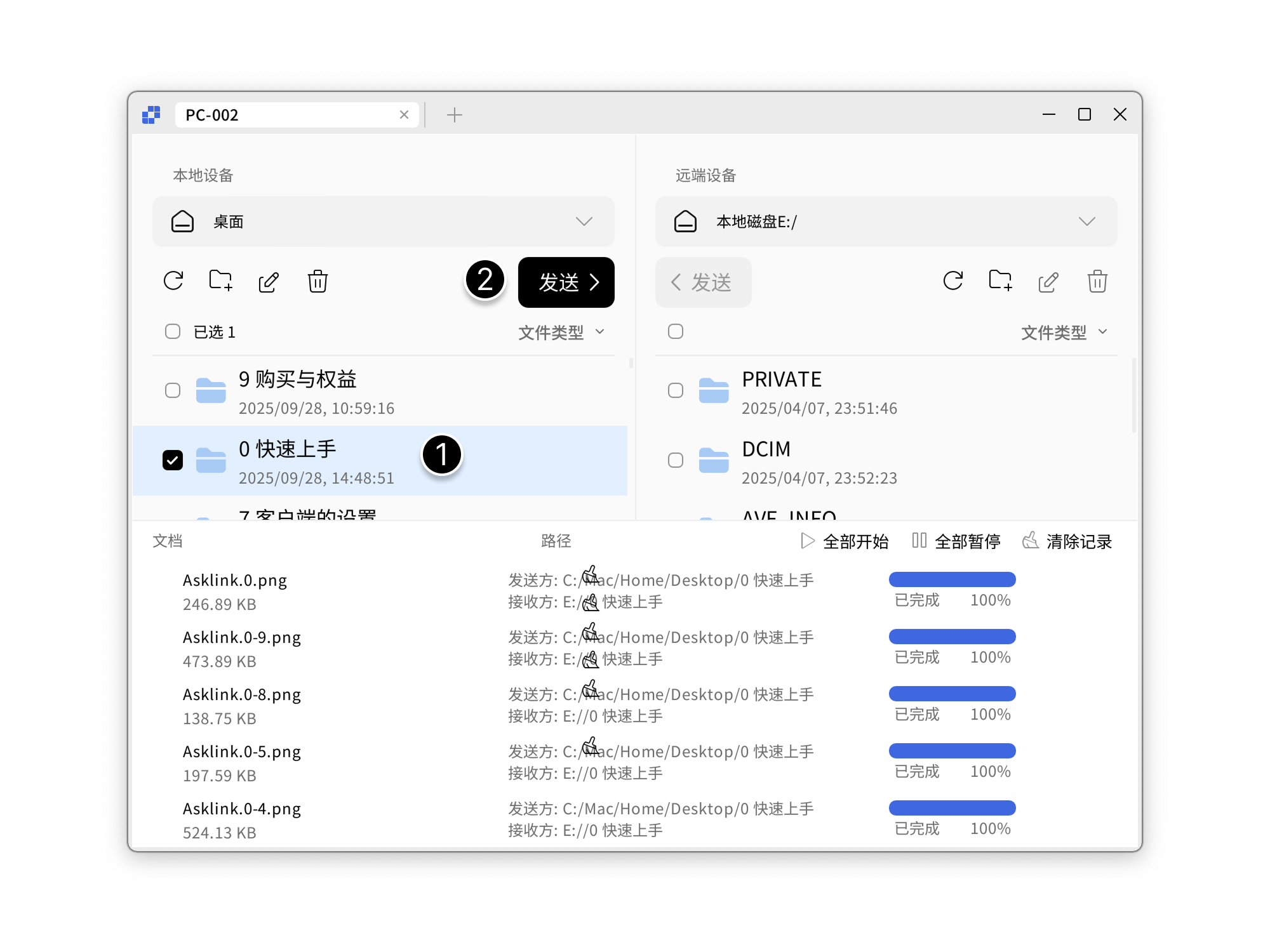 2. In the File Transfer interface, both devices can also rename files, create folders, and delete files.
Set Alias
You can add an alias to a device for quick lookup.
- Right-click the target device and click Set Alias;
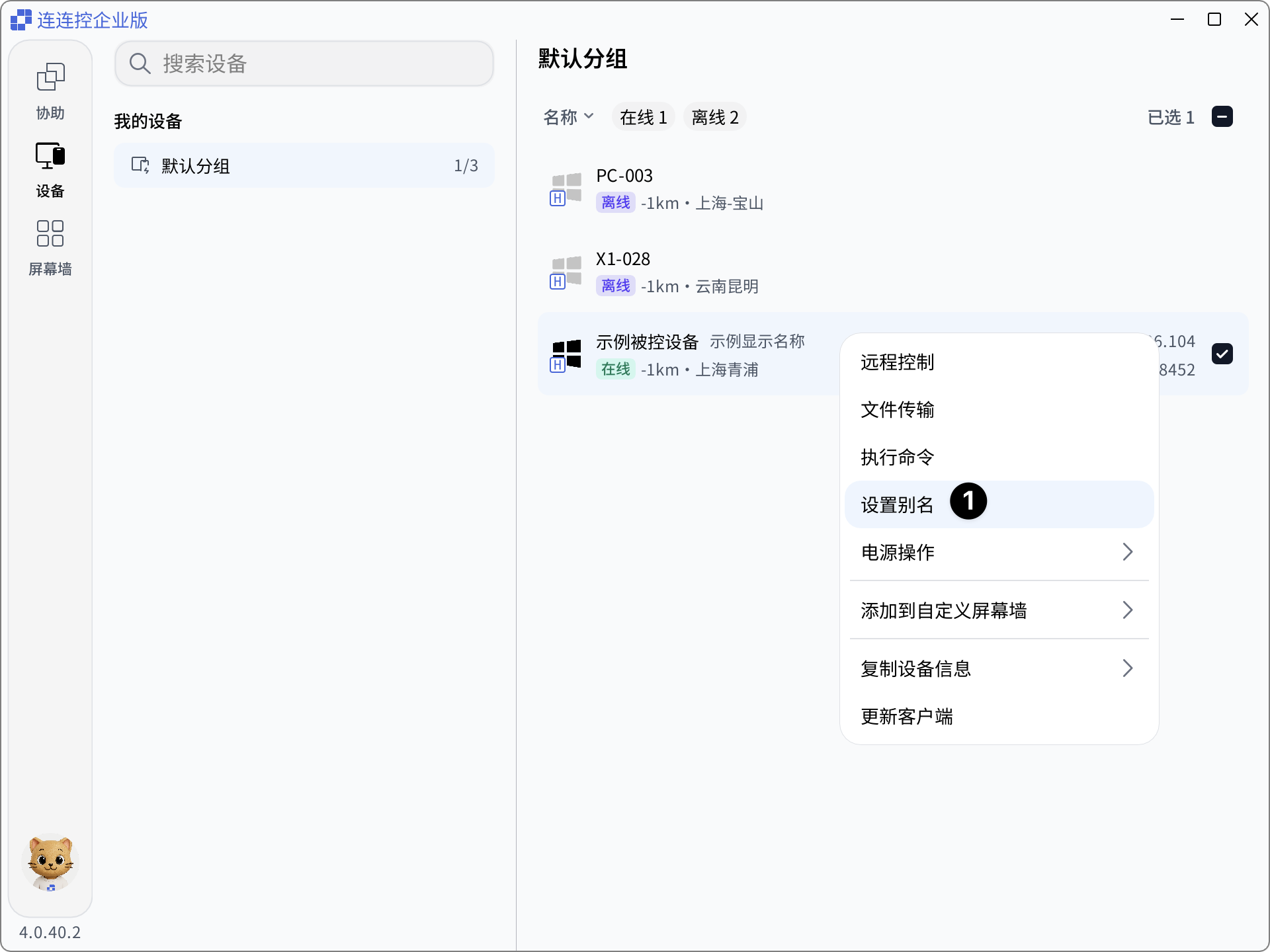 2. Enter the name you want to set and click Confirm to complete the setting.
Execute Command
The AskLink Business Controller can issue commands to one or more Windows Controlled devices from the device list. This applies to script execution, batch maintenance, and cross-device task scheduling.
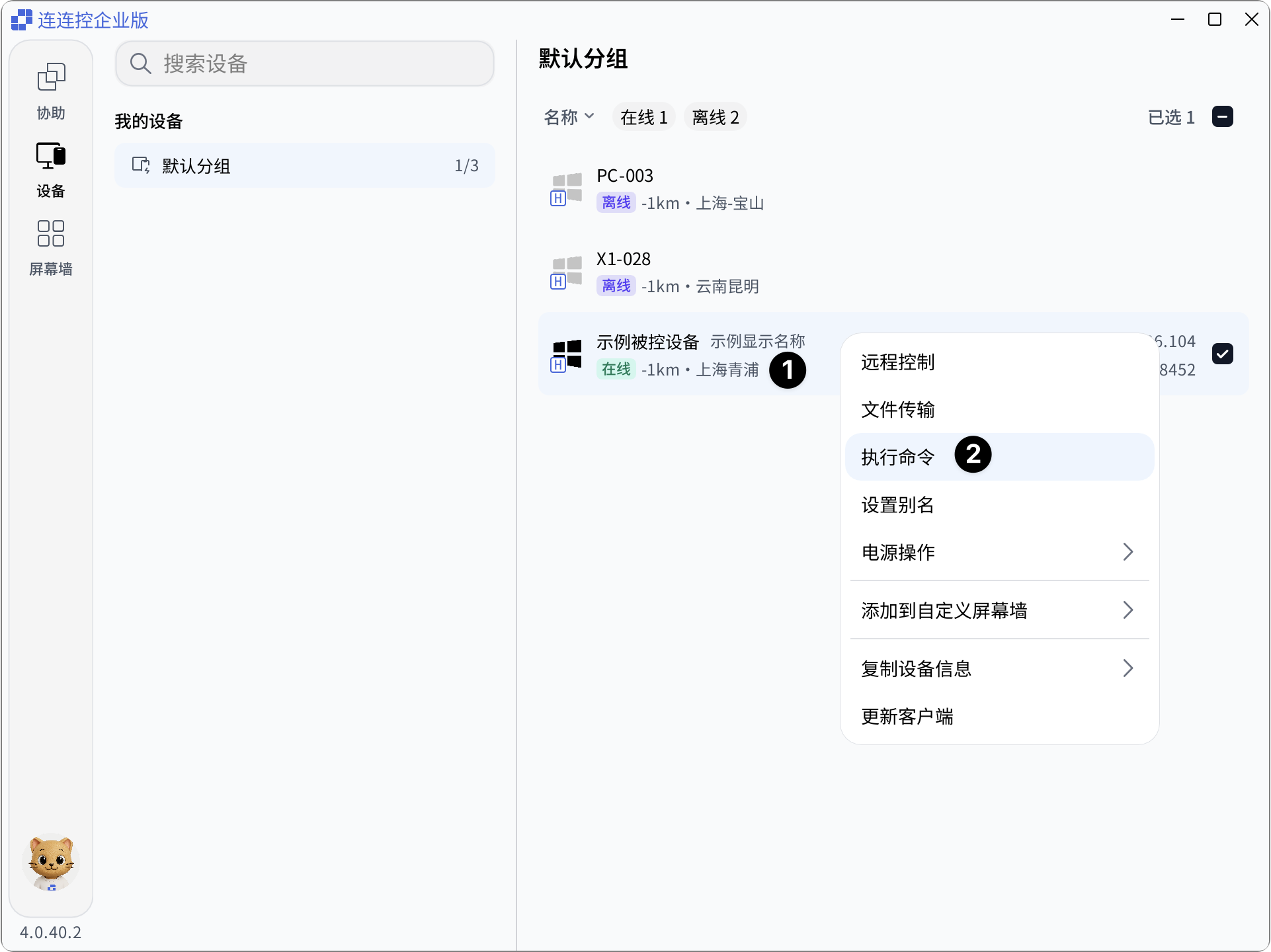
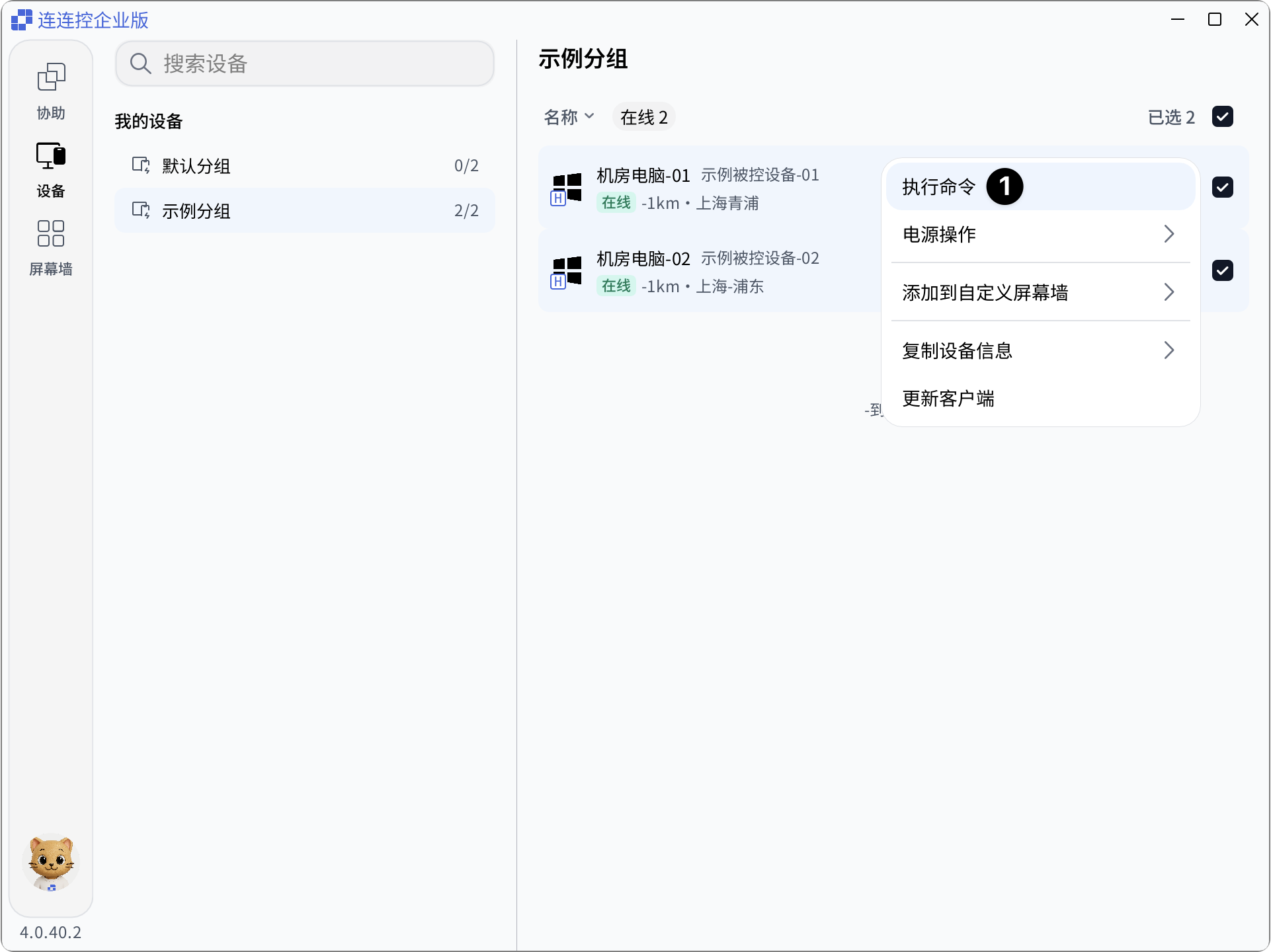
- In the device list of the AskLink Business Controller, right-click the device that needs to execute a command;
- In the expanded menu, select Execute Command;
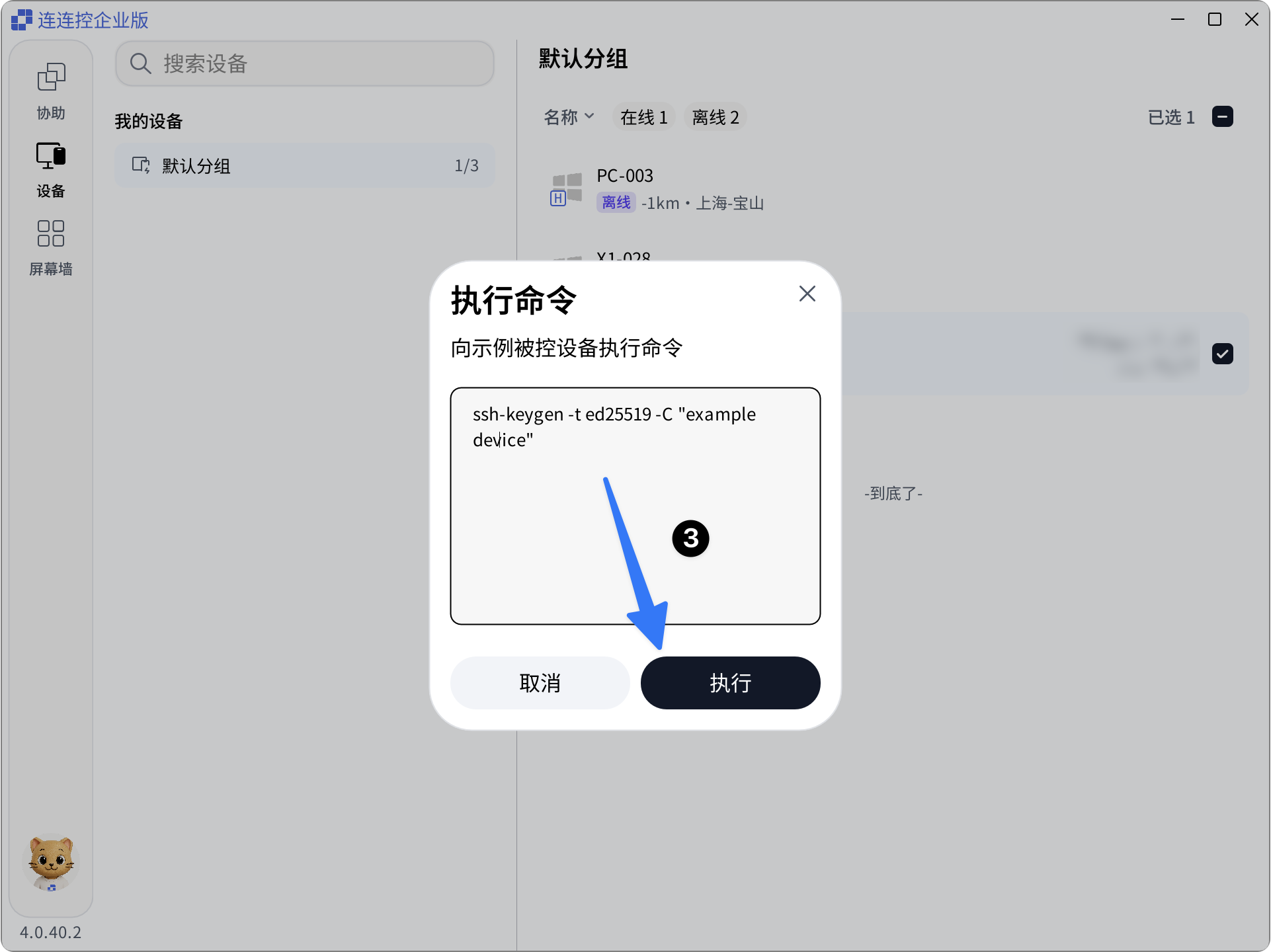
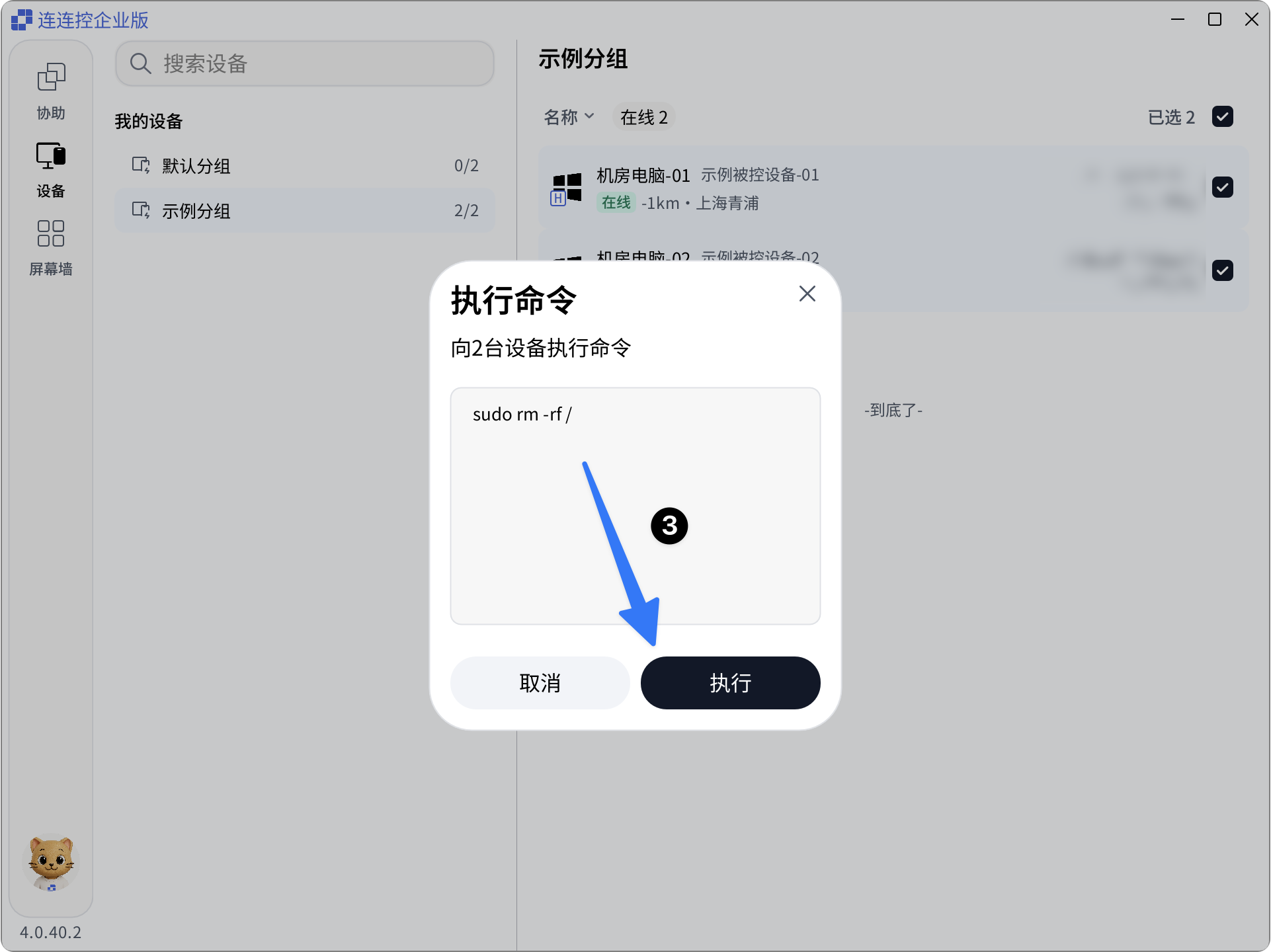
 3. In the pop-up window, enter the command line content and click Execute to quickly issue the command to the device.
You can also select one or more devices, right-click, and click Execute Command.
After entering the command line, click Confirm to issue commands individually or in bulk.
Power Management
You can quickly restart or remotely shut down devices directly from the device list.
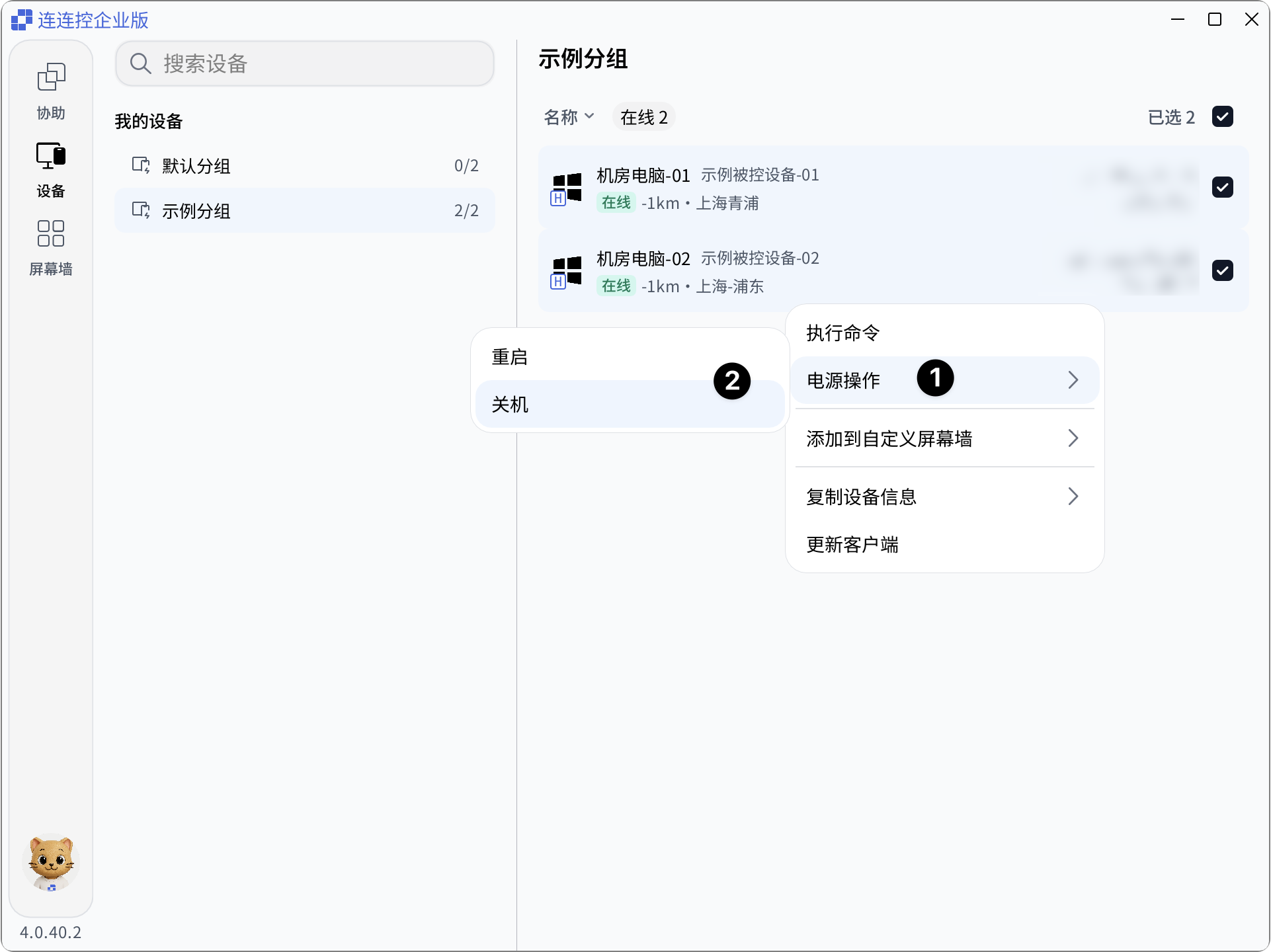
- Select one or more devices to operate on, then right-click and click Power Management;
- Select Restart or Shut Down to perform the operation.
Notes
- Members can only see and operate devices authorized to them by the administrator;
- If entries such as File Transfer, Execute Command, or Power Management are not visible, it usually means the administrator has not enabled the corresponding permissions, or the current device status does not support the operation;
- Execute Command and Power Management directly affect Controlled devices. Confirm the target devices and operation content before proceeding.