'%3e%3cpath%20d='M7.48145%2024H3.74023C1.67456%2023.9999%204.09854e-05%2022.3467%200%2020.3076V16.6152H7.48145V24ZM15.8955%2024H8.41406V16.6152H15.8955V24ZM7.48145%2015.6924H0V8.30762H7.48145V15.6924ZM24%2015.6924H16.5195V8.30762H24V15.6924ZM15.5859%207.38477H8.10547V0H15.5859V7.38477ZM20.2598%200C22.3256%200%2024%201.65318%2024%203.69238V7.38477H16.5195V0H20.2598Z'%20fill='white'/%3e%3cpath%20d='M108.786%2019.0507L105.767%2014.2636H104.397L108.397%208.80874H111.915L108.119%2013.9483V12.3155L112.544%2019.0507H108.786ZM101.527%2019.0507V5.5061H104.897V19.0507H101.527Z'%20fill='white'/%3e%3cpath%20d='M88.8242%2019.0505V8.80858H91.4908V13.2059H91.3421C91.3421%2012.1422%2091.4779%2011.264%2091.7499%2010.5712C92.0214%209.86618%2092.4224%209.34052%2092.953%208.99418C93.4965%208.64778%2094.1506%208.47461%2094.9158%208.47461H95.0644C96.2245%208.47461%2097.1193%208.86427%2097.7488%209.64353C98.3911%2010.4104%2098.7117%2011.5917%2098.7117%2013.1874V19.0505H95.342V13.0946C95.342%2012.6246%2095.2001%2012.2411%2094.9158%2011.9443C94.6443%2011.635%2094.2679%2011.4804%2093.7864%2011.4804C93.3049%2011.4804%2092.9162%2011.635%2092.6202%2011.9443C92.3358%2012.2411%2092.194%2012.6369%2092.194%2013.1317V19.0505H88.8242Z'%20fill='white'/%3e%3cpath%20d='M82.4214%2019.0506V8.80875H85.7912V19.0506H82.4214ZM81.125%2011.2579V8.80875H85.7912V11.2579H81.125ZM83.81%207.99232C83.1928%207.99232%2082.7359%207.83773%2082.4398%207.5285C82.1561%207.2069%2082.0137%206.79872%2082.0137%206.30388C82.0137%205.80913%2082.1561%205.40713%2082.4398%205.09789C82.7359%204.77628%2083.1866%204.61548%2083.7916%204.61548C84.4088%204.61548%2084.8595%204.77628%2085.1433%205.09789C85.427%205.40713%2085.5688%205.80913%2085.5688%206.30388C85.5688%206.79872%2085.427%207.2069%2085.1433%207.5285C84.8595%207.83773%2084.4149%207.99232%2083.81%207.99232Z'%20fill='white'/%3e%3cpath%20d='M71.1328%2019.0507V5.5061H74.5769V19.0507H71.1328ZM74.2065%2019.0507V16.0449H79.6876V19.0507H74.2065Z'%20fill='white'/%3e%3cpath%20d='M65.4458%2019.0507L62.428%2014.2636H61.0576L65.0571%208.80874H68.5755L64.7795%2013.9483V12.3155L69.2049%2019.0507H65.4458ZM58.1875%2019.0507V5.5061H61.5578V19.0507H58.1875Z'%20fill='white'/%3e%3cpath%20d='M51.2917%2019.3845C49.8103%2019.3845%2048.6438%2019.0814%2047.7921%2018.4753C46.9403%2017.8568%2046.4836%2016.991%2046.4219%2015.8777H49.3844C49.4339%2016.1869%2049.6252%2016.4529%2049.9585%2016.6755C50.2918%2016.8982%2050.7608%2017.0095%2051.3657%2017.0095C51.7978%2017.0095%2052.1681%2016.9477%2052.4767%2016.824C52.7977%2016.6879%2052.9581%2016.4715%2052.9581%2016.1745C52.9581%2015.9148%2052.8347%2015.7045%2052.5878%2015.5437C52.3409%2015.3705%2051.8903%2015.2531%2051.2361%2015.1912L50.5325%2015.117C49.224%2014.9809%2048.2611%2014.6222%2047.6439%2014.0408C47.0267%2013.4595%2046.7181%2012.7297%2046.7181%2011.8515C46.7181%2011.0969%2046.9033%2010.4784%2047.2736%209.99603C47.6439%209.50126%2048.1562%209.13018%2048.8105%208.8828C49.4647%208.63541%2050.2115%208.51172%2051.0509%208.51172C52.4211%208.51172%2053.526%208.81473%2054.3653%209.42089C55.2048%2010.0146%2055.6492%2010.8743%2055.6986%2011.9999H52.7359C52.6866%2011.6907%2052.5199%2011.4309%2052.236%2011.2206C51.9521%2010.998%2051.5447%2010.8867%2051.0139%2010.8867C50.6312%2010.8867%2050.3164%2010.9547%2050.0696%2011.0907C49.835%2011.2268%2049.7178%2011.4185%2049.7178%2011.6659C49.7178%2011.9257%2049.8289%2012.1174%2050.0511%2012.2411C50.2856%2012.3648%2050.6559%2012.4576%2051.162%2012.5194L51.8657%2012.5936C53.1741%2012.7297%2054.1802%2013.0946%2054.8838%2013.6883C55.5998%2014.2697%2055.9578%2015.0366%2055.9578%2015.989C55.9578%2016.6941%2055.7664%2017.3002%2055.3838%2017.8073C55.0134%2018.3145%2054.4764%2018.7041%2053.7728%2018.9763C53.0816%2019.2484%2052.2545%2019.3845%2051.2917%2019.3845Z'%20fill='white'/%3e%3cpath%20d='M31.0117%2019.0507L35.3445%205.5061H40.8624L45.3434%2019.0507H41.7882L38.3072%207.91816L39.2885%208.28924H36.8444L37.8442%207.91816L34.4558%2019.0507H31.0117ZM34.5483%2015.915L35.5853%2013.0948H40.7143L41.7512%2015.915H34.5483Z'%20fill='white'/%3e%3c/g%3e%3cdefs%3e%3cclipPath%20id='clip0_5596_142775'%3e%3crect%20width='113'%20height='24'%20fill='white'/%3e%3c/clipPath%3e%3c/defs%3e%3c/svg%3e "AskLink")
Performance monitor
The Performance monitor helps you quickly understand the current remote connection status and assess network conditions and device performance.
Basic information
View basic information about the current connection.
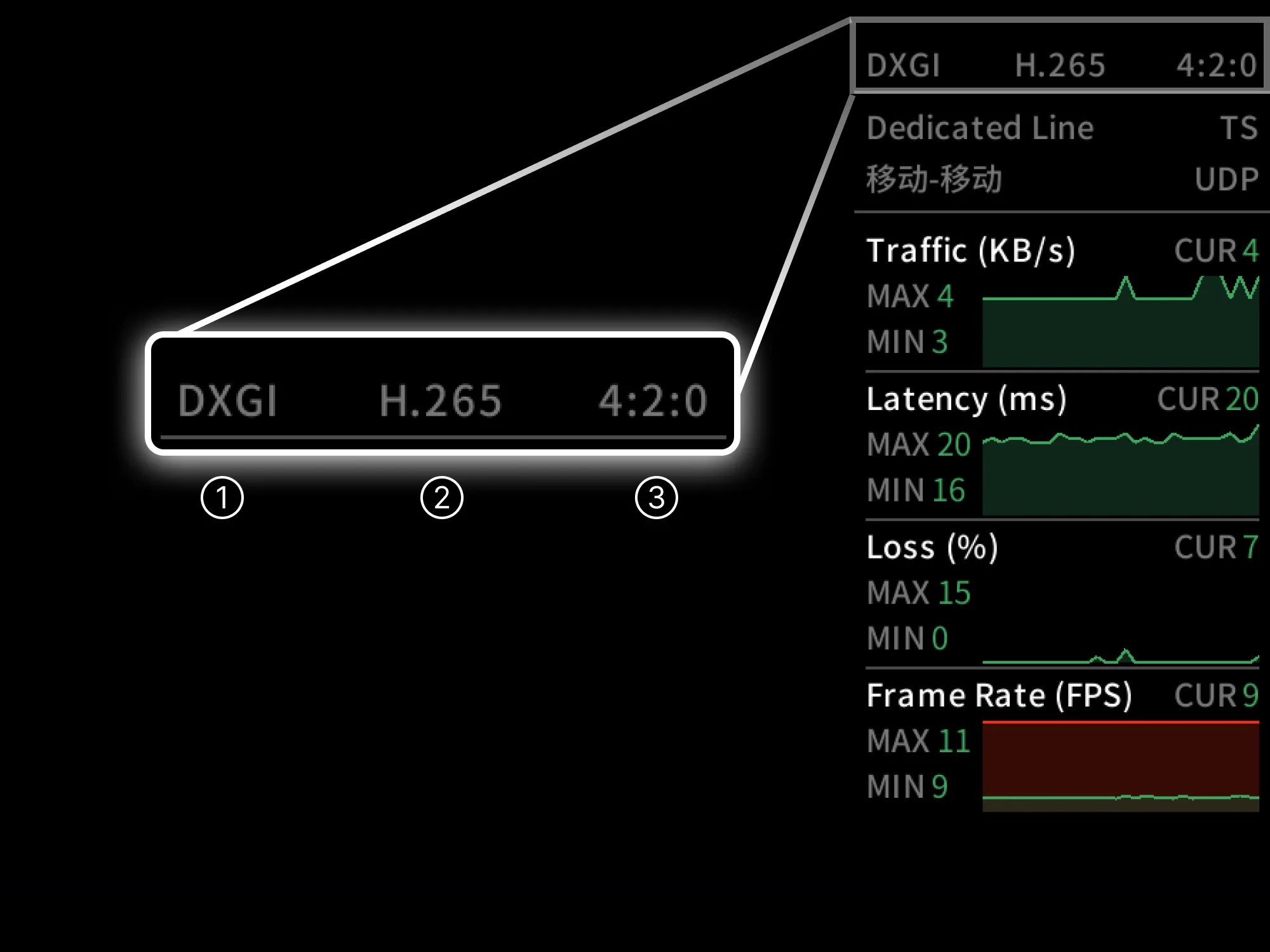
①. Screen capture method on the Controlled device
- Windows: DXGI (Windows 8 and later) / GDI (Windows 7)
- macOS: Metal
- Linux: X11
- Android: MediaProjection
- iOS: ReplayKit
②. Encoding method
- Example: H.264 / HEVC (H.265)
③. Color
- Example: 4:2:0 / 4:4:4
Network information
View the current connection’s service level and network information.
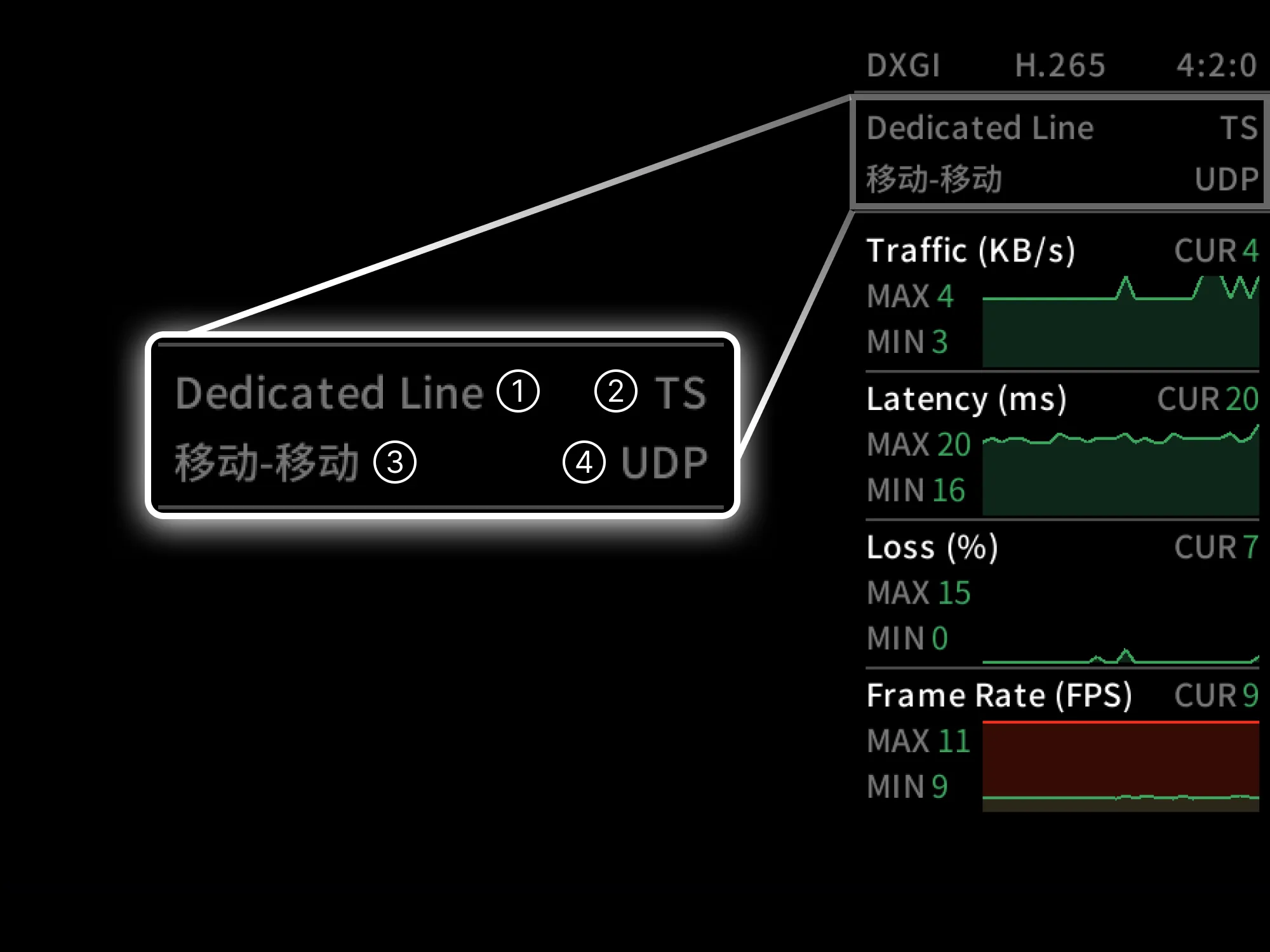
①. Line level
- Free line
- Image quality: up to 4K · 30 FPS · 8 Mbps
- File transfer: 2 Mbps
- Feature: no acceleration
- High-speed line
- Image quality: up to 4K · 60 FPS · 16 Mbps
- File transfer: 4 Mbps
- Feature: when the connection is unstable, AskLink acceleration nodes are used automatically
- Dedicated line
- Image quality: up to 4K · 165 FPS · 24 Mbps
- File transfer: 8 Mbps
- Feature: when the connection is unstable, AskLink acceleration nodes are used automatically
- Exclusive line
- Image quality: up to 4K · 165 FPS · 32 Mbps
- Feature: Optimized for most carriers and can use over 300 AskLink global acceleration access points.
②. Connection type
- LAN: Connect via the local area network
- P2P: Use P2P technology to connect
- Smart Acceleration: Connect via AskLink acceleration servers
- TS: Connect via AskLink free relay servers
③. Carriers
- Left: Controller carrier
- Right: Controlled carrier
④. Connection protocol
- Currently, AskLink remote connections only support the UDP protocol
Performance
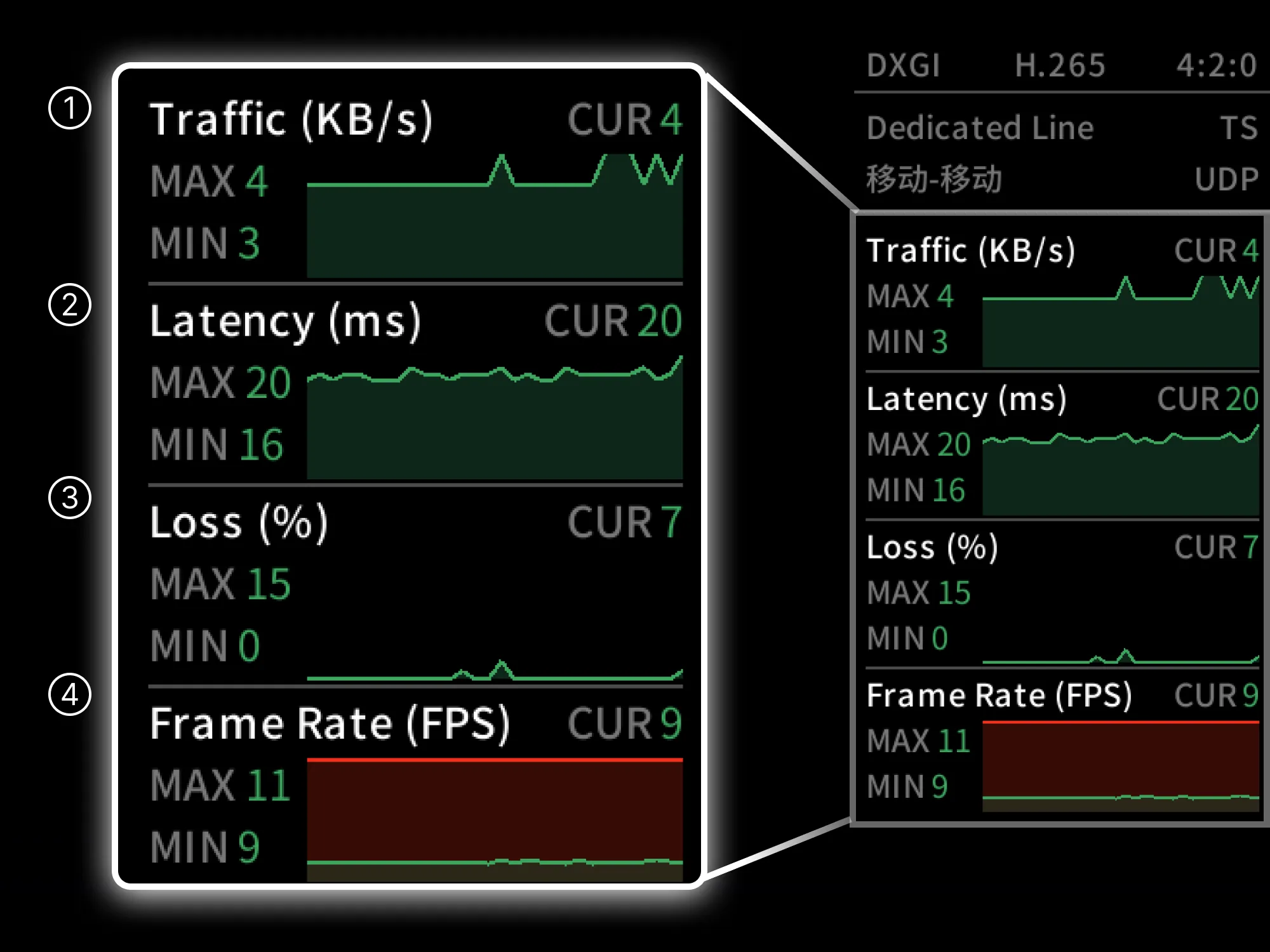
①. Traffic
Indicates the current data usage of the remote connection.
- Unit: KB/s (kilobytes per second)
- Meaning: amount of data successfully transmitted per second (in kilobytes)
②. Latency
The time between your action and the remote device’s response.
- Unit: ms (milliseconds)
③. Packet loss rate
The percentage of data packets that fail to arrive during transmission out of all packets sent.
Packet loss may cause lost input commands or stuttering / dropped frames; even with low latency, high packet loss will make the connection unreliable.
- Unit: % (percent)
④. Effective frame rate
AskLink uses a dynamic frame rate strategy, capturing and transmitting only when the image changes; therefore, the real-time frame rate on the Controlled device changes dynamically with the screen content.
- Unit: FPS (frames per second)
Glossary
HEVC / H.264
- H.264 (AVC): Highly versatile, best compatibility, with a good balance between image quality and file size.
- HEVC (H.265): Higher compression efficiency and more bandwidth-saving, but requires more powerful hardware.
4:2:0 / 4:4:4 (chroma subsampling)
- 4:2:0 (efficiency first): The default / most common choice for video, saves bandwidth with minimal perceived loss of quality.
- 4:4:4 (fidelity first): More precise color edges and clearer images, but requires more powerful hardware.
MAX / MIN / CUR
- Used to analyze statistics of a metric over the last 30 seconds:
- MAX: Maximum value in the last 30 seconds
- MIN: Minimum value in the last 30 seconds
- CUR: Current value
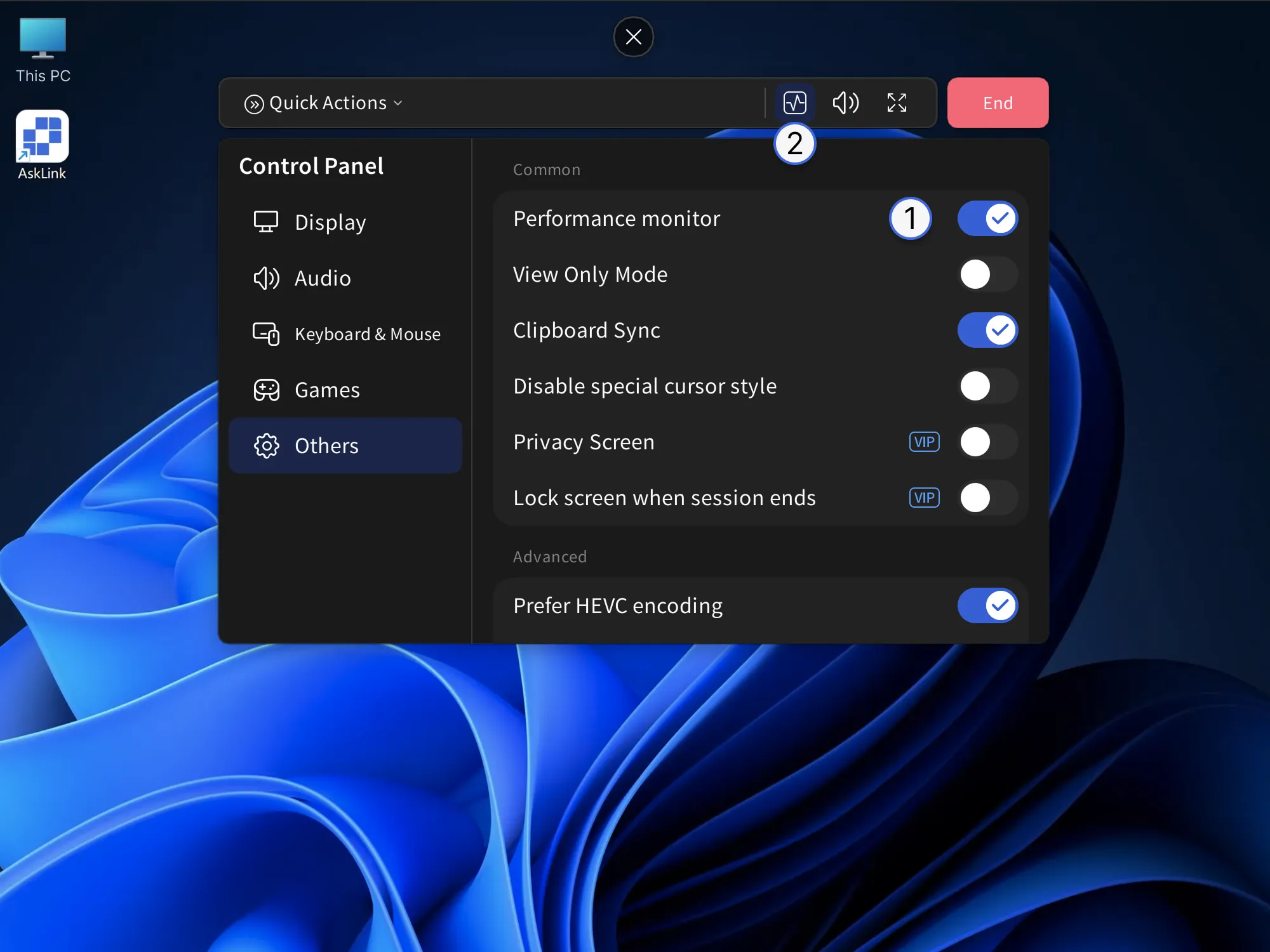
How to enable the Performance monitor
Set as enabled by default
- In the client, go to “My”
- Click “Others”
- Turn on the “Performance monitor” option
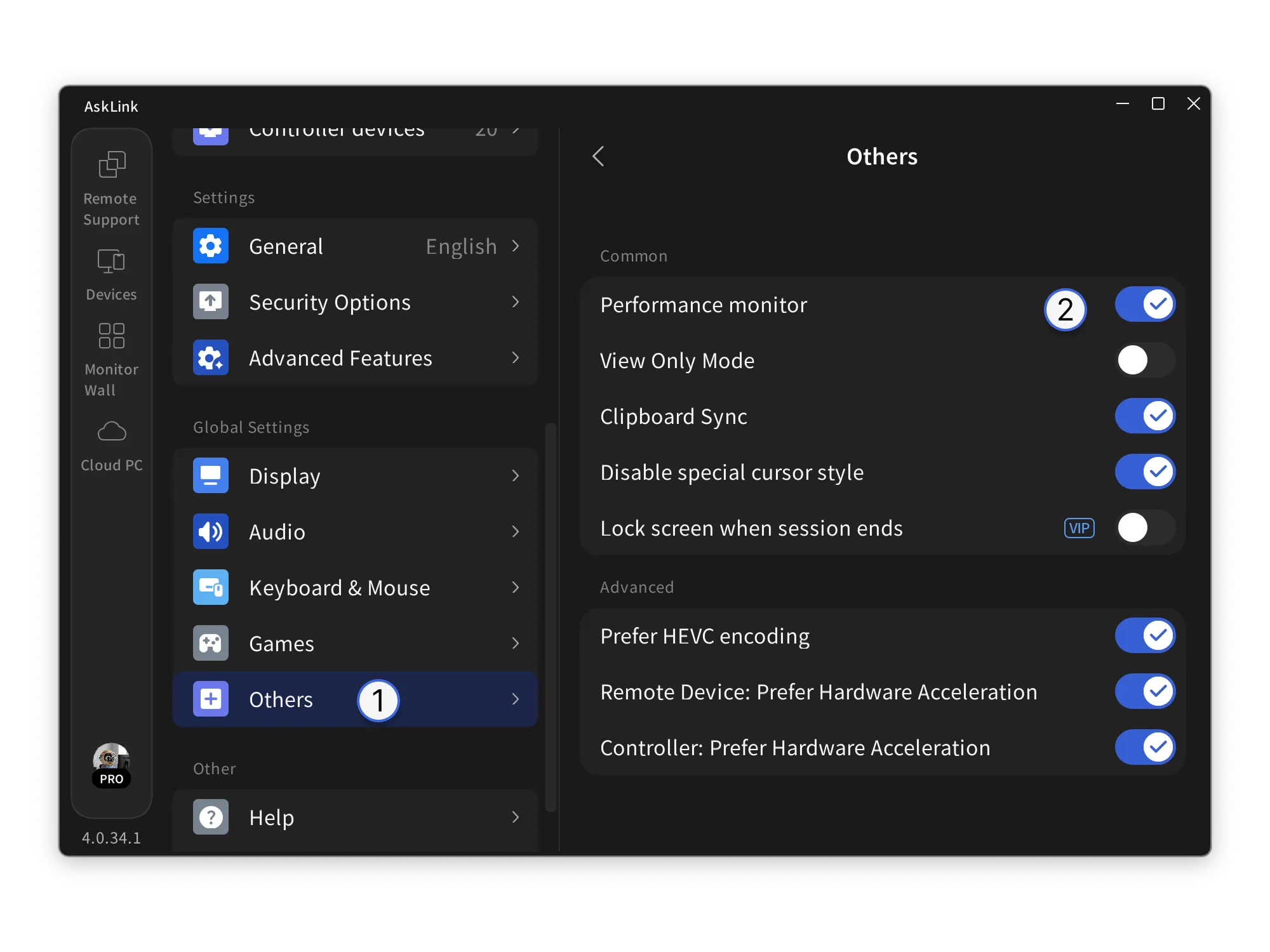
Enable only when needed
- In “Others”, enable “Performance monitor”
- You can also open it via the quick bar icon