









'%3e%3cpath%20d='M7.48145%2024H3.74023C1.67456%2023.9999%204.09854e-05%2022.3467%200%2020.3076V16.6152H7.48145V24ZM15.8955%2024H8.41406V16.6152H15.8955V24ZM7.48145%2015.6924H0V8.30762H7.48145V15.6924ZM24%2015.6924H16.5195V8.30762H24V15.6924ZM15.5859%207.38477H8.10547V0H15.5859V7.38477ZM20.2598%200C22.3256%200%2024%201.65318%2024%203.69238V7.38477H16.5195V0H20.2598Z'%20fill='white'/%3e%3cpath%20d='M108.786%2019.0507L105.767%2014.2636H104.397L108.397%208.80874H111.915L108.119%2013.9483V12.3155L112.544%2019.0507H108.786ZM101.527%2019.0507V5.5061H104.897V19.0507H101.527Z'%20fill='white'/%3e%3cpath%20d='M88.8242%2019.0505V8.80858H91.4908V13.2059H91.3421C91.3421%2012.1422%2091.4779%2011.264%2091.7499%2010.5712C92.0214%209.86618%2092.4224%209.34052%2092.953%208.99418C93.4965%208.64778%2094.1506%208.47461%2094.9158%208.47461H95.0644C96.2245%208.47461%2097.1193%208.86427%2097.7488%209.64353C98.3911%2010.4104%2098.7117%2011.5917%2098.7117%2013.1874V19.0505H95.342V13.0946C95.342%2012.6246%2095.2001%2012.2411%2094.9158%2011.9443C94.6443%2011.635%2094.2679%2011.4804%2093.7864%2011.4804C93.3049%2011.4804%2092.9162%2011.635%2092.6202%2011.9443C92.3358%2012.2411%2092.194%2012.6369%2092.194%2013.1317V19.0505H88.8242Z'%20fill='white'/%3e%3cpath%20d='M82.4214%2019.0506V8.80875H85.7912V19.0506H82.4214ZM81.125%2011.2579V8.80875H85.7912V11.2579H81.125ZM83.81%207.99232C83.1928%207.99232%2082.7359%207.83773%2082.4398%207.5285C82.1561%207.2069%2082.0137%206.79872%2082.0137%206.30388C82.0137%205.80913%2082.1561%205.40713%2082.4398%205.09789C82.7359%204.77628%2083.1866%204.61548%2083.7916%204.61548C84.4088%204.61548%2084.8595%204.77628%2085.1433%205.09789C85.427%205.40713%2085.5688%205.80913%2085.5688%206.30388C85.5688%206.79872%2085.427%207.2069%2085.1433%207.5285C84.8595%207.83773%2084.4149%207.99232%2083.81%207.99232Z'%20fill='white'/%3e%3cpath%20d='M71.1328%2019.0507V5.5061H74.5769V19.0507H71.1328ZM74.2065%2019.0507V16.0449H79.6876V19.0507H74.2065Z'%20fill='white'/%3e%3cpath%20d='M65.4458%2019.0507L62.428%2014.2636H61.0576L65.0571%208.80874H68.5755L64.7795%2013.9483V12.3155L69.2049%2019.0507H65.4458ZM58.1875%2019.0507V5.5061H61.5578V19.0507H58.1875Z'%20fill='white'/%3e%3cpath%20d='M51.2917%2019.3845C49.8103%2019.3845%2048.6438%2019.0814%2047.7921%2018.4753C46.9403%2017.8568%2046.4836%2016.991%2046.4219%2015.8777H49.3844C49.4339%2016.1869%2049.6252%2016.4529%2049.9585%2016.6755C50.2918%2016.8982%2050.7608%2017.0095%2051.3657%2017.0095C51.7978%2017.0095%2052.1681%2016.9477%2052.4767%2016.824C52.7977%2016.6879%2052.9581%2016.4715%2052.9581%2016.1745C52.9581%2015.9148%2052.8347%2015.7045%2052.5878%2015.5437C52.3409%2015.3705%2051.8903%2015.2531%2051.2361%2015.1912L50.5325%2015.117C49.224%2014.9809%2048.2611%2014.6222%2047.6439%2014.0408C47.0267%2013.4595%2046.7181%2012.7297%2046.7181%2011.8515C46.7181%2011.0969%2046.9033%2010.4784%2047.2736%209.99603C47.6439%209.50126%2048.1562%209.13018%2048.8105%208.8828C49.4647%208.63541%2050.2115%208.51172%2051.0509%208.51172C52.4211%208.51172%2053.526%208.81473%2054.3653%209.42089C55.2048%2010.0146%2055.6492%2010.8743%2055.6986%2011.9999H52.7359C52.6866%2011.6907%2052.5199%2011.4309%2052.236%2011.2206C51.9521%2010.998%2051.5447%2010.8867%2051.0139%2010.8867C50.6312%2010.8867%2050.3164%2010.9547%2050.0696%2011.0907C49.835%2011.2268%2049.7178%2011.4185%2049.7178%2011.6659C49.7178%2011.9257%2049.8289%2012.1174%2050.0511%2012.2411C50.2856%2012.3648%2050.6559%2012.4576%2051.162%2012.5194L51.8657%2012.5936C53.1741%2012.7297%2054.1802%2013.0946%2054.8838%2013.6883C55.5998%2014.2697%2055.9578%2015.0366%2055.9578%2015.989C55.9578%2016.6941%2055.7664%2017.3002%2055.3838%2017.8073C55.0134%2018.3145%2054.4764%2018.7041%2053.7728%2018.9763C53.0816%2019.2484%2052.2545%2019.3845%2051.2917%2019.3845Z'%20fill='white'/%3e%3cpath%20d='M31.0117%2019.0507L35.3445%205.5061H40.8624L45.3434%2019.0507H41.7882L38.3072%207.91816L39.2885%208.28924H36.8444L37.8442%207.91816L34.4558%2019.0507H31.0117ZM34.5483%2015.915L35.5853%2013.0948H40.7143L41.7512%2015.915H34.5483Z'%20fill='white'/%3e%3c/g%3e%3cdefs%3e%3cclipPath%20id='clip0_5596_142775'%3e%3crect%20width='113'%20height='24'%20fill='white'/%3e%3c/clipPath%3e%3c/defs%3e%3c/svg%3e "AskLink")
Controlled Device Management
Controlled devices are the objects that enterprises remotely connect to and manage. Administrators need to connect devices to the enterprise first, then manage them in groups according to business needs, and authorize devices for members to use.
Overview
What Is a Controlled Device?
A Controlled device is a device deployed with AskLink Business Host that can be remotely connected to and managed in the enterprise, such as an employee computer, server, industrial PC, or unattended terminal.
Administrators can view device status, assign usage permissions, and start or stop devices in the Management Console.
What Is a Group?
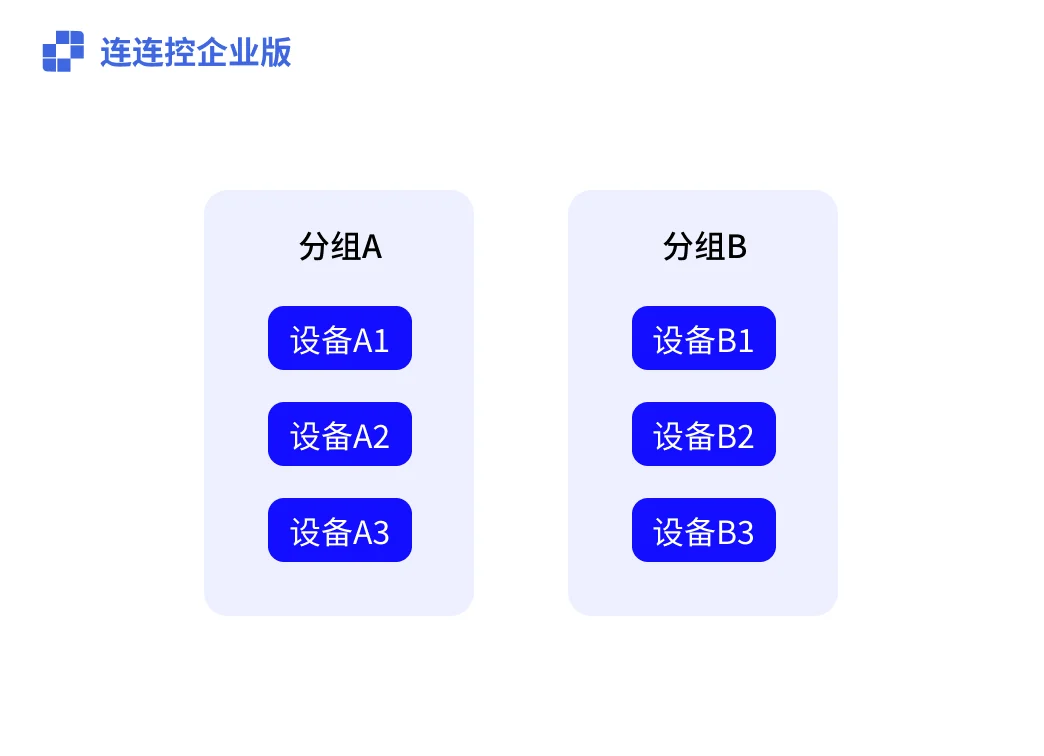
A group is a management unit used to organize Controlled devices. Administrators can create groups by department, purpose, region, project, or device type, such as finance devices, store terminals, servers, or R&D test machines.
What Is the Relationship Between Controlled Devices and Groups?
- One group can contain multiple devices;
- One device belongs to only one group;
- Adding, deleting, renaming groups, or moving devices takes effect across the enterprise.
What Is the Relationship Between Controlled Devices and Members?
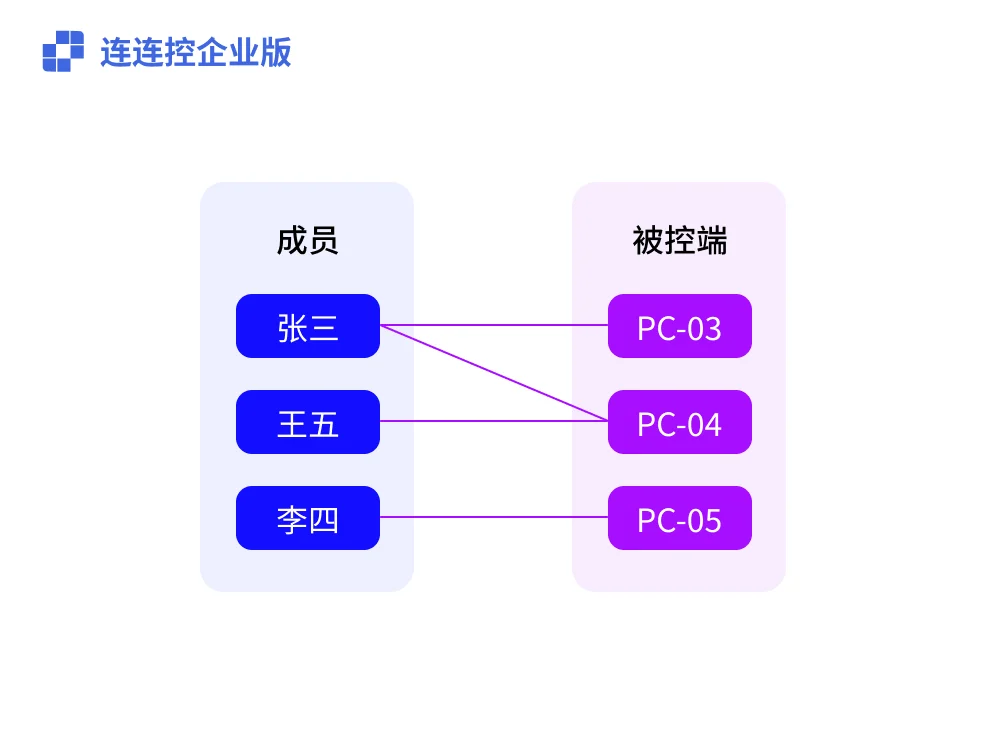
- One Controlled device can be authorized for multiple members;
- One member can obtain permissions for multiple Controlled devices;
- After a device is authorized for a member, the member can access the device through the AskLink Business Controller.
Deploy AskLink Business Host
- Select Controlled Devices in the left navigation bar of the Management Console;
- Click the More button above the group list;
- In the expanded menu, click Add Device;
- Record the enterprise deployment code;
- Click Download to go to the AskLink Business client download page;
- Download the AskLink Business Host installer for the corresponding operating system;
- Install AskLink Business Host on the target device, enter the enterprise deployment code, and connect it to the enterprise.
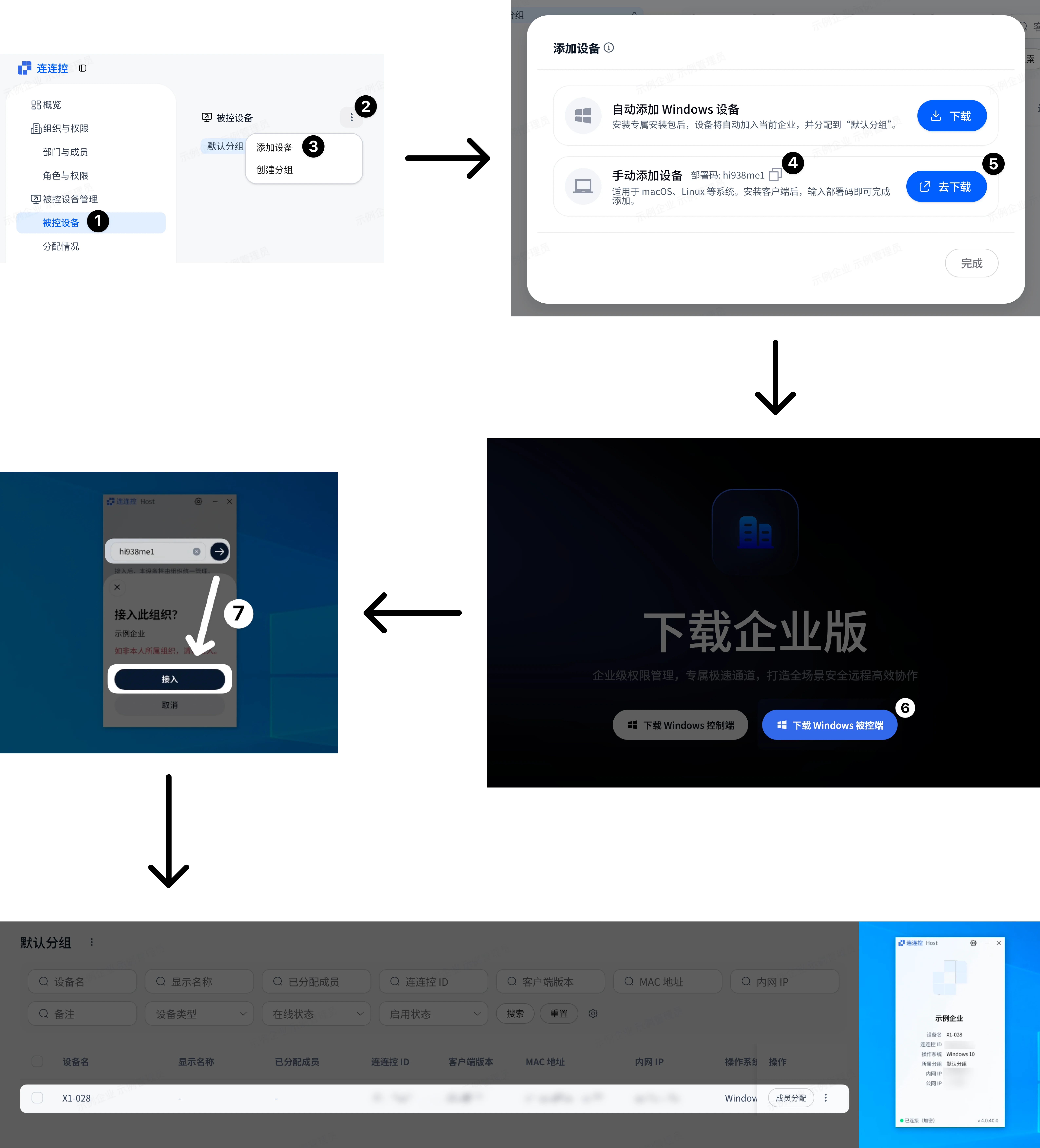
After completion, refresh the Management Console to see the newly connected device in the Controlled device list. New devices enter the Default Group by default.
Use the Windows Dedicated Installer for Fast Batch Deployment
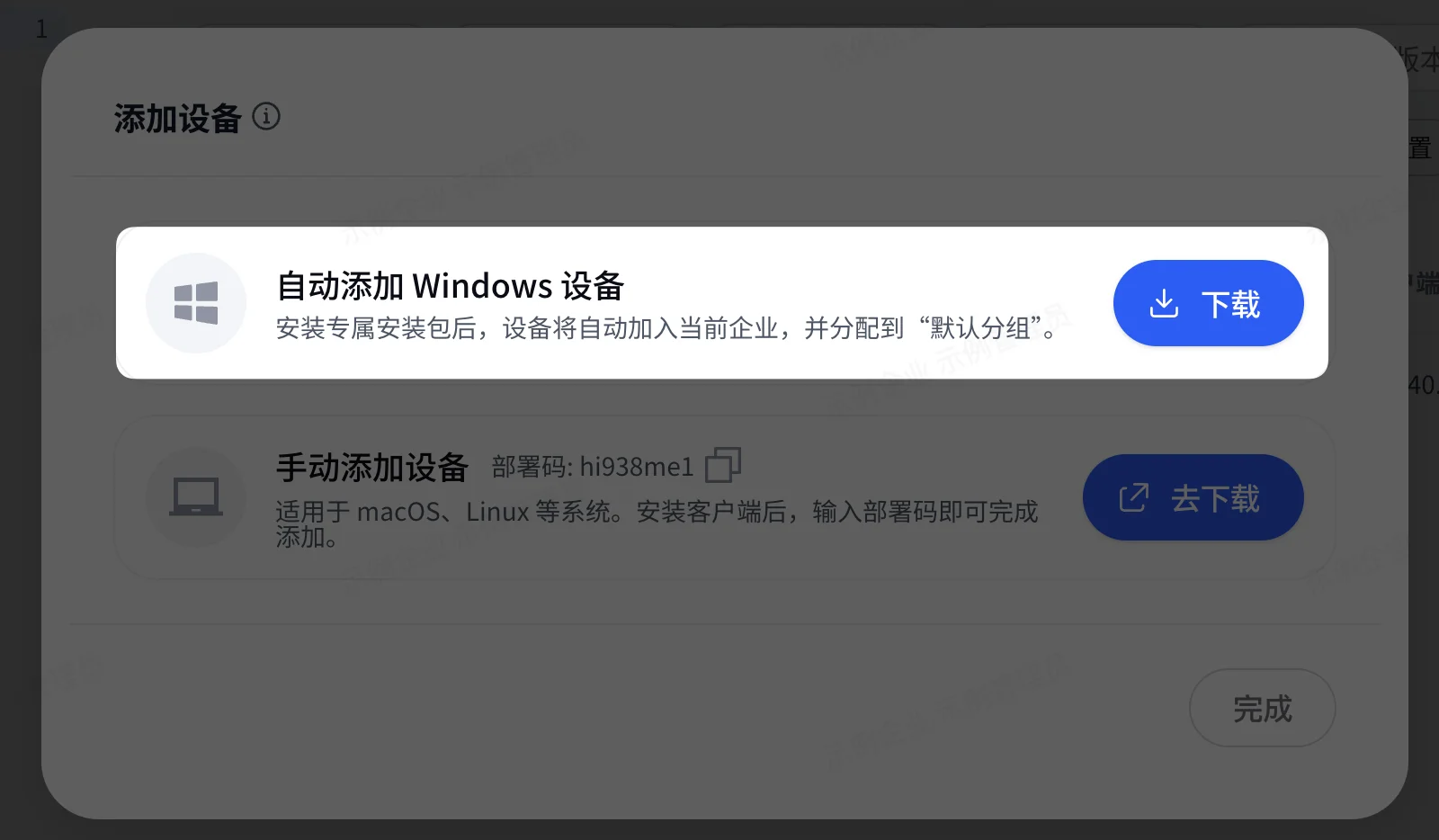
In the Add Device pop-up window, you can download the Windows dedicated AskLink Business Host installer. After the administrator distributes this installer to Windows Controlled devices and runs it, the devices automatically connect to the enterprise and enter the default group without manually entering the deployment code. This is suitable for batch deployment to multiple Windows devices.
Create a Group
- Select Controlled Devices in the left navigation bar of the Management Console;
- Click the More button above the group list;
- In the expanded menu, click Create Group;
- Enter the group name;
- Click Confirm.
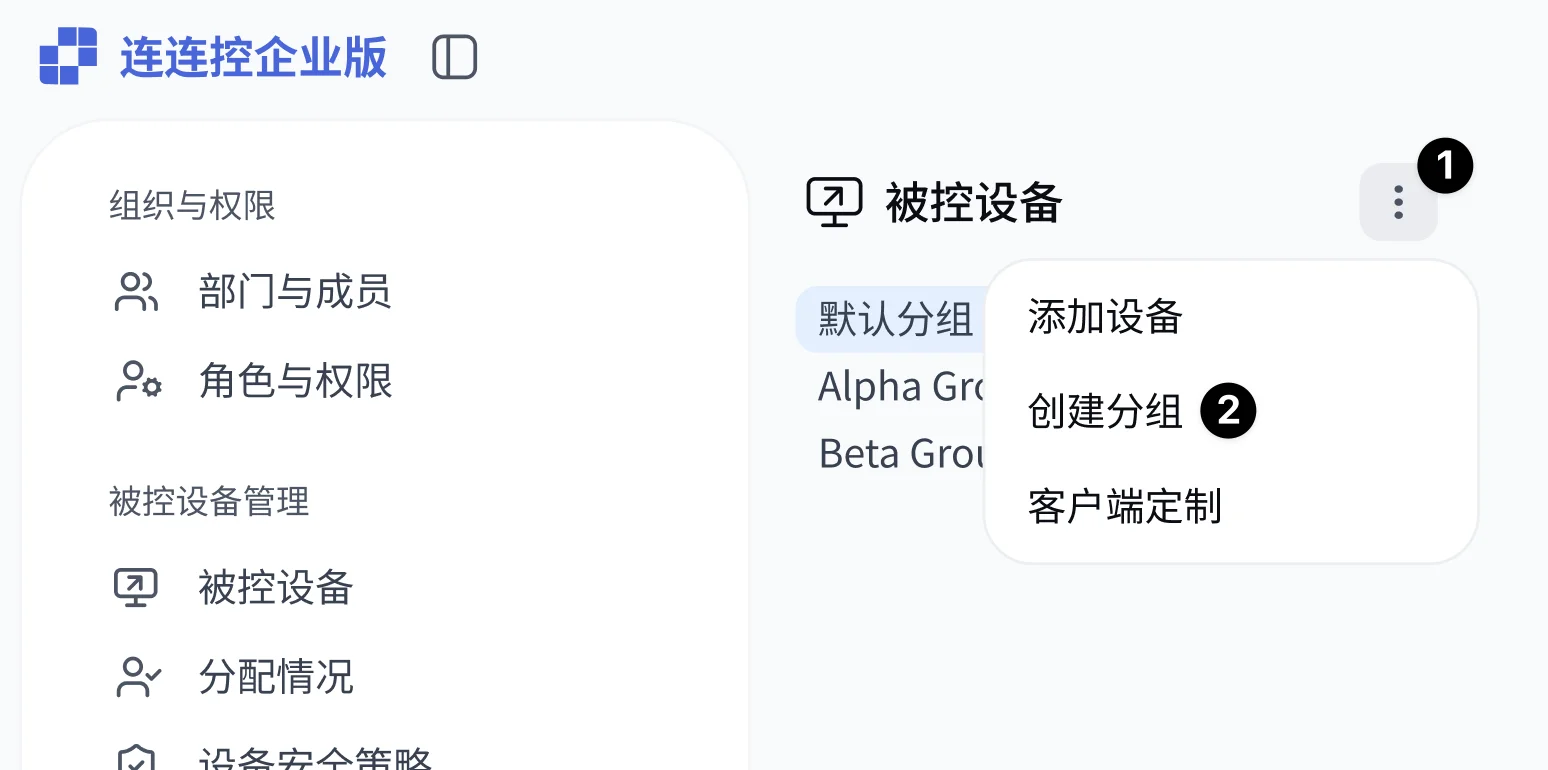
After completion, the new group appears in the group list.
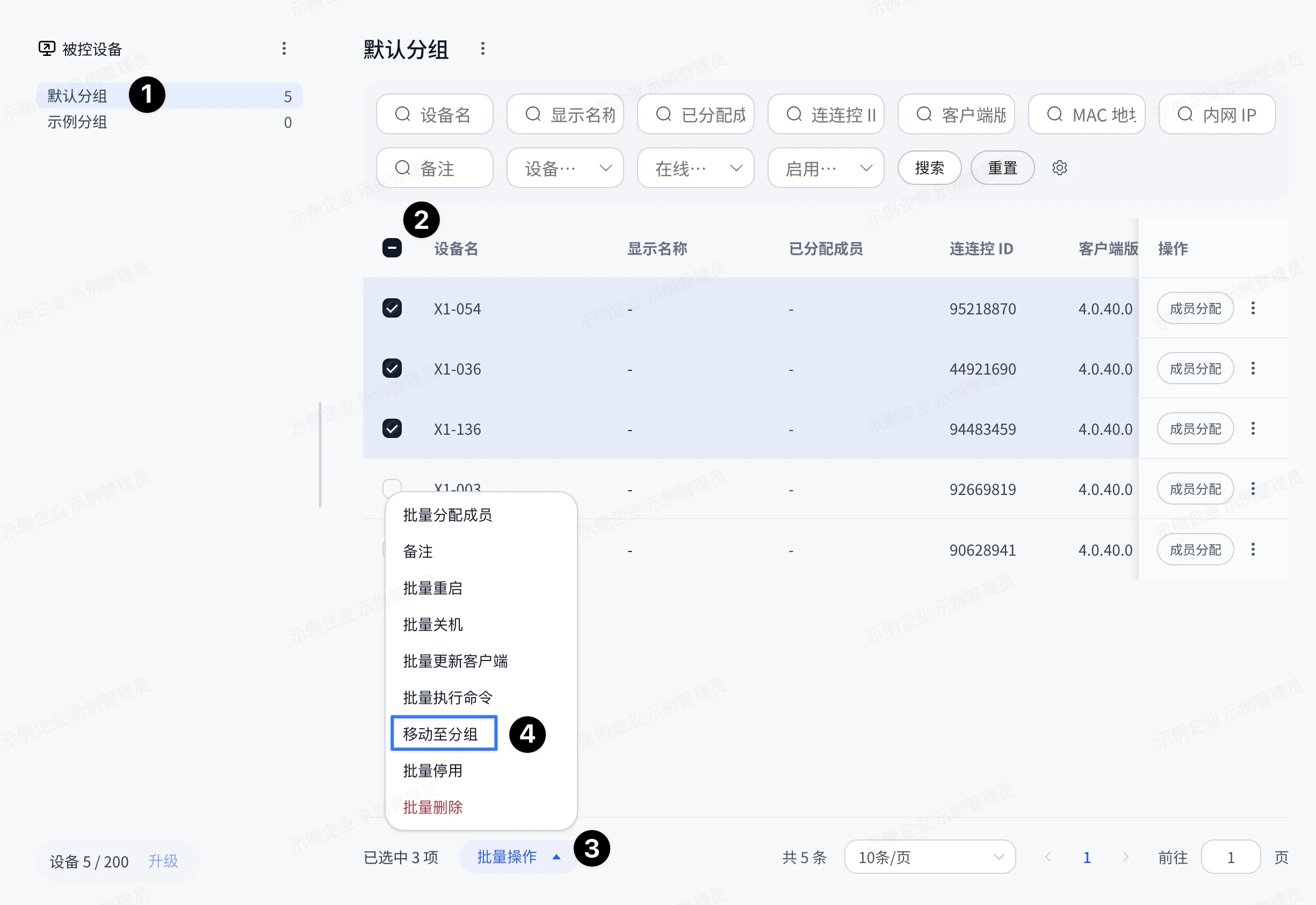
Move Devices to a Group
- In the group list, select the current group where the devices to move are located;
- In the device list, select the target devices;
- Click Batch Operations below the list;
- In the expanded menu, click Move to Group;
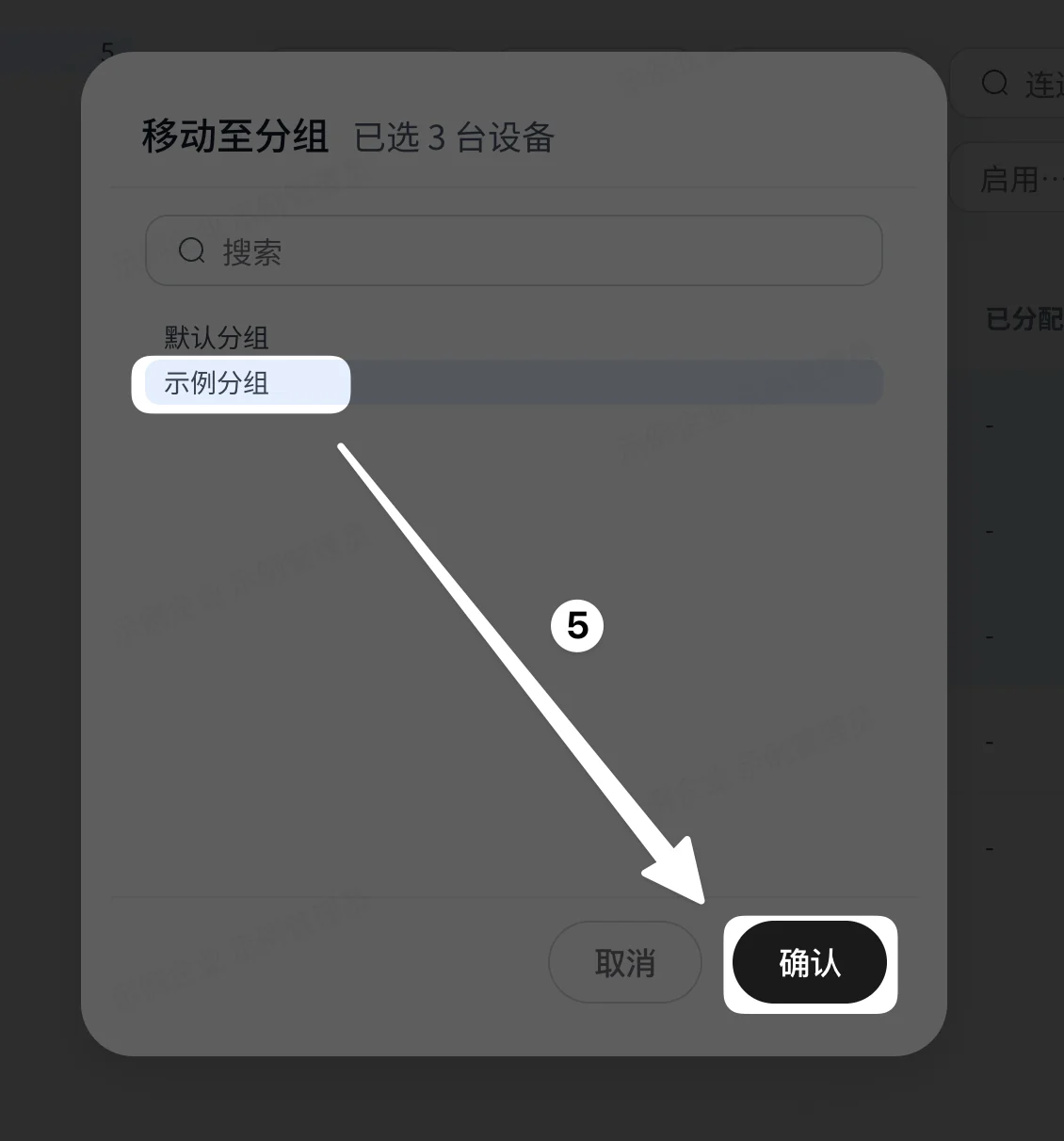
- Select the target group;
- Click Confirm.
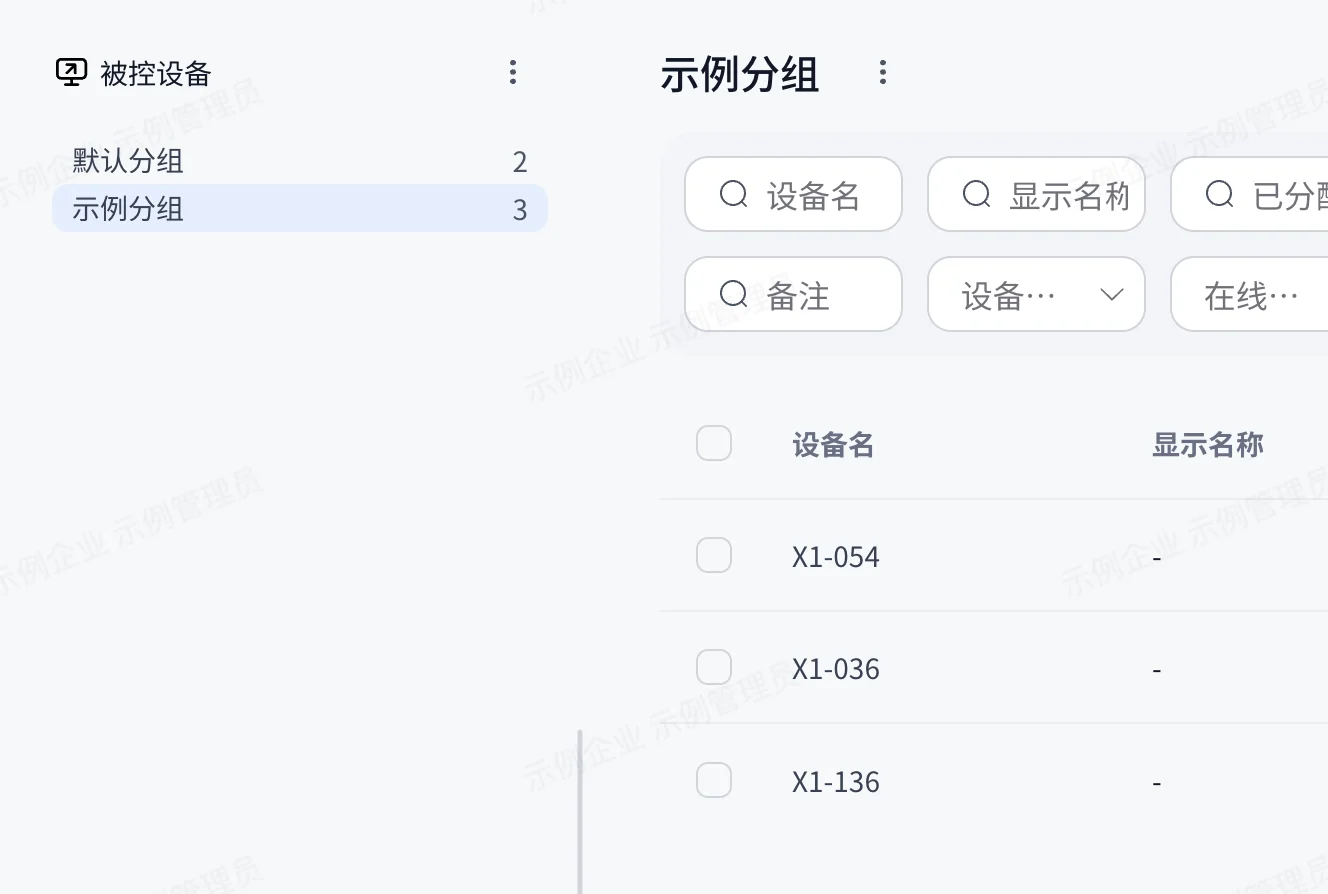
After completion, the selected devices are moved to the target group.
Authorize Devices for Members
After devices are connected to the enterprise, members do not automatically have access permissions. Administrators need to authorize devices for members before members can see and connect to the devices in the AskLink Business Controller.
Recommended flow:
- Select the target device in Controlled Devices;
- Find the device to assign and click Member Assignment in the actions column;
- Select the members who need to access this device;
- Click Save.
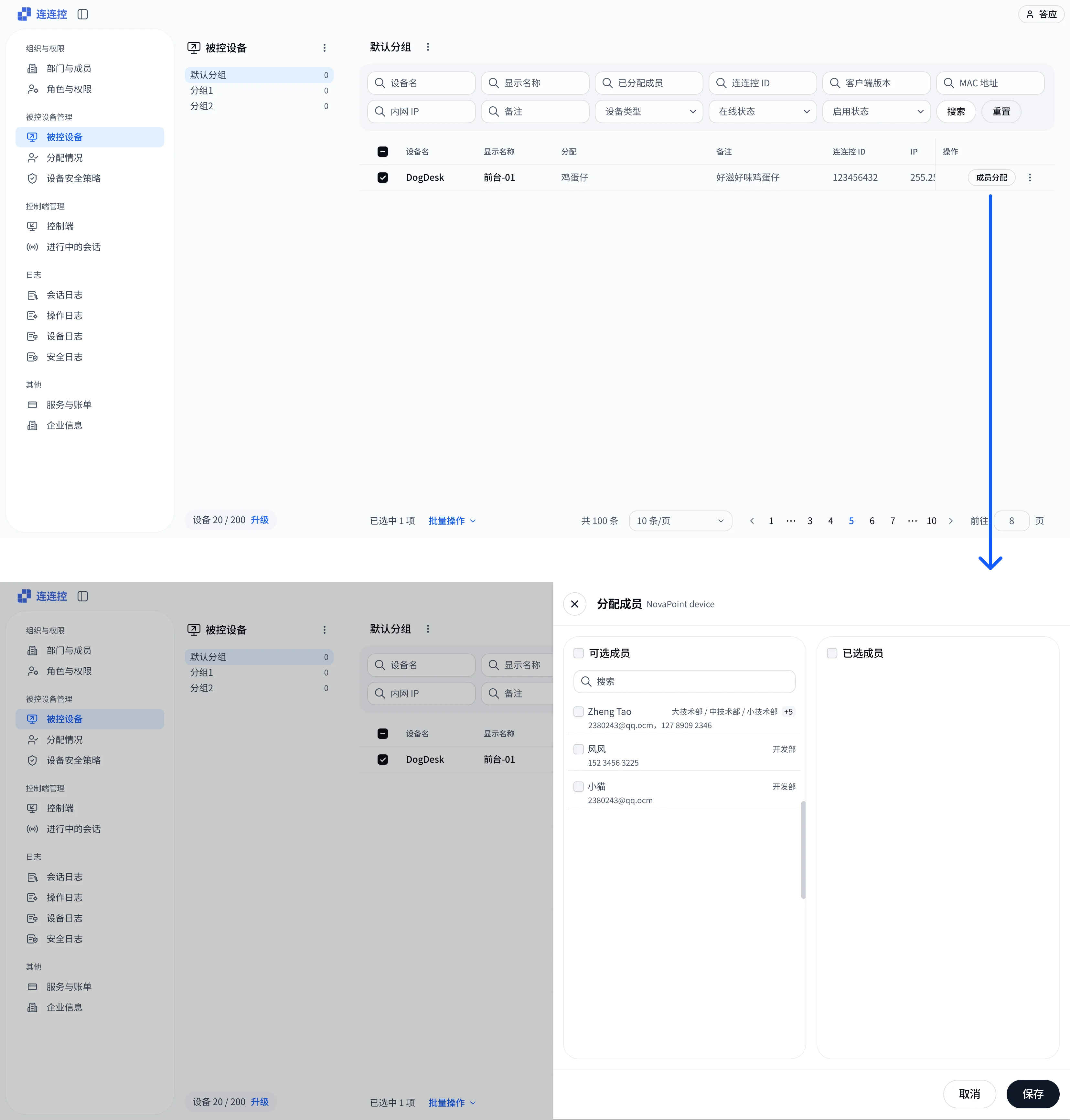
After completion, members can view authorized devices in the enterprise device list after logging in to the AskLink Business Controller.
Notes
- Deploying AskLink Business Host only connects devices to the enterprise; it does not mean all members can access the devices;
- Whether a member can see a device depends on whether the administrator has authorized the device for that member;
- Before deleting a device or removing it from the enterprise, confirm that the device no longer needs to be remotely accessed by enterprise members.