


'%3e%3cpath%20d='M11.0762%2022.1543H20.9223V32.0005H11.0762V22.1543Z'%20fill='%233F67E0'/%3e%3cpath%20d='M0%2022.1543H9.84615V32.0005H4.92308C2.20414%2032.0005%200%2029.7963%200%2027.0774V22.1543Z'%20fill='%233F67E0'/%3e%3cpath%20d='M0%2011.0762H9.84615V20.9223H0V11.0762Z'%20fill='%233F67E0'/%3e%3cpath%20d='M21.7441%200H26.6672C29.3862%200%2031.5903%202.20414%2031.5903%204.92308V9.84615H21.7441V0Z'%20fill='%233F67E0'/%3e%3cpath%20d='M21.7441%2011.0762H31.5903V20.9223H21.7441V11.0762Z'%20fill='%233F67E0'/%3e%3cpath%20d='M10.666%200H20.5122V9.84615H10.666V0Z'%20fill='%233F67E0'/%3e%3cpath%20d='M145.348%2025.4012L141.315%2019.0185H139.485L144.829%2011.7453H149.529L144.457%2018.598V16.4209L150.37%2025.4012H145.348ZM135.65%2025.4012V7.3418H140.153V25.4012H135.65Z'%20fill='white'/%3e%3cpath%20d='M118.672%2025.4V11.7441H122.235V17.6073H122.036C122.036%2016.1889%20122.217%2015.018%20122.581%2014.0943C122.943%2013.1543%20123.479%2012.4534%20124.188%2011.9916C124.914%2011.5297%20125.788%2011.2988%20126.811%2011.2988H127.009C128.559%2011.2988%20129.755%2011.8184%20130.596%2012.8574C131.454%2013.8799%20131.882%2015.455%20131.882%2017.5826V25.4H127.38V17.4588C127.38%2016.8321%20127.19%2016.3209%20126.811%2015.925C126.448%2015.5127%20125.945%2015.3065%20125.302%2015.3065C124.658%2015.3065%20124.139%2015.5127%20123.743%2015.925C123.364%2016.3209%20123.174%2016.8486%20123.174%2017.5083V25.4H118.672Z'%20fill='white'/%3e%3cpath%20d='M110.117%2025.4011V11.7453H114.619V25.4011H110.117ZM108.385%2015.0108V11.7453H114.619V15.0108H108.385ZM111.972%2010.6567C111.147%2010.6567%20110.537%2010.4506%20110.141%2010.0383C109.762%209.60953%20109.572%209.06528%20109.572%208.40551C109.572%207.74584%20109.762%207.20983%20110.141%206.79751C110.537%206.3687%20111.139%206.1543%20111.947%206.1543C112.772%206.1543%20113.374%206.3687%20113.753%206.79751C114.132%207.20983%20114.322%207.74584%20114.322%208.40551C114.322%209.06528%20114.132%209.60953%20113.753%2010.0383C113.374%2010.4506%20112.78%2010.6567%20111.972%2010.6567Z'%20fill='white'/%3e%3cpath%20d='M95.0391%2025.4012V7.3418H99.6405V25.4012H95.0391ZM99.1457%2025.4012V21.3935H106.469V25.4012H99.1457Z'%20fill='white'/%3e%3cpath%20d='M87.4397%2025.4012L83.4077%2019.0185H81.5768L86.9204%2011.7453H91.6211L86.5495%2018.598V16.4209L92.4621%2025.4012H87.4397ZM77.7422%2025.4012V7.3418H82.2451V25.4012H77.7422Z'%20fill='white'/%3e%3cpath%20d='M68.5278%2025.8466C66.5487%2025.8466%2064.9901%2025.4425%2063.8521%2024.6344C62.7142%2023.8098%2062.1039%2022.6553%2062.0215%2021.1709H65.9796C66.0457%2021.5832%2066.3013%2021.9378%2066.7466%2022.2347C67.1919%2022.5316%2067.8186%2022.68%2068.6268%2022.68C69.204%2022.68%2069.6988%2022.5975%2070.1111%2022.4326C70.5399%2022.2512%2070.7543%2021.9626%2070.7543%2021.5667C70.7543%2021.2204%2070.5894%2020.94%2070.2595%2020.7256C69.9297%2020.4947%2069.3277%2020.3381%2068.4536%2020.2556L67.5135%2020.1567C65.7652%2019.9752%2064.4788%2019.497%2063.6542%2018.7218C62.8296%2017.9466%2062.4173%2016.9736%2062.4173%2015.8026C62.4173%2014.7966%2062.6647%2013.9719%2063.1595%2013.3287C63.6542%2012.669%2064.3387%2012.1742%2065.2128%2011.8444C66.0869%2011.5145%2067.0847%2011.3496%2068.2062%2011.3496C70.0368%2011.3496%2071.5129%2011.7536%2072.6344%2012.5618C73.756%2013.3535%2074.3497%2014.4997%2074.4157%2016.0005H70.4574C70.3915%2015.5882%2070.1688%2015.2419%2069.7894%2014.9615C69.4101%2014.6646%2068.8659%2014.5162%2068.1567%2014.5162C67.6454%2014.5162%2067.2248%2014.6069%2066.895%2014.7883C66.5816%2014.9697%2066.425%2015.2254%2066.425%2015.5552C66.425%2015.9016%2066.5734%2016.1572%2066.8703%2016.3221C67.1837%2016.487%2067.6784%2016.6107%2068.3546%2016.6932L69.2947%2016.7922C71.0429%2016.9736%2072.387%2017.4601%2073.3271%2018.2518C74.2837%2019.0269%2074.762%2020.0494%2074.762%2021.3193C74.762%2022.2595%2074.5063%2023.0676%2073.9951%2023.7438C73.5003%2024.42%2072.7828%2024.9395%2071.8428%2025.3023C70.9192%2025.6652%2069.8142%2025.8466%2068.5278%2025.8466Z'%20fill='white'/%3e%3cpath%20d='M41.4355%2025.4012L47.2244%207.3418H54.5967L60.5834%2025.4012H55.8336L51.1827%2010.5579L52.4938%2011.0526H49.2283L50.5642%2010.5579L46.037%2025.4012H41.4355ZM46.1606%2021.2203L47.5461%2017.46H54.3987L55.7841%2021.2203H46.1606Z'%20fill='white'/%3e%3c/g%3e%3cdefs%3e%3cclipPath%20id='clip0_809_55652'%3e%3crect%20width='150.974'%20height='32'%20fill='white'/%3e%3c/clipPath%3e%3c/defs%3e%3c/svg%3e "AskLink")
リモート電源オン(Wake-on-LAN、WOL)
リモート起動機能を使うと、スリープ中、休止状態、または電源が切れている対象コンピューターをネットワーク経由で起動できます。AskLink なら、必要な設定を済ませるだけでワンクリックでリモート起動できます。本記事では、AskLink のリモート起動機能の使い方と、Windows および主要マザーボードメーカーの BIOS で Wake-on-LAN(WOL) を有効にする方法を説明します。
AskLink ワンクリック起動
- AskLink を開き、デバイスリストから起動したいオフラインデバイスを選択します。
- デバイスを右クリックし、リモート電源オン を選択して起動コマンドを送信します。
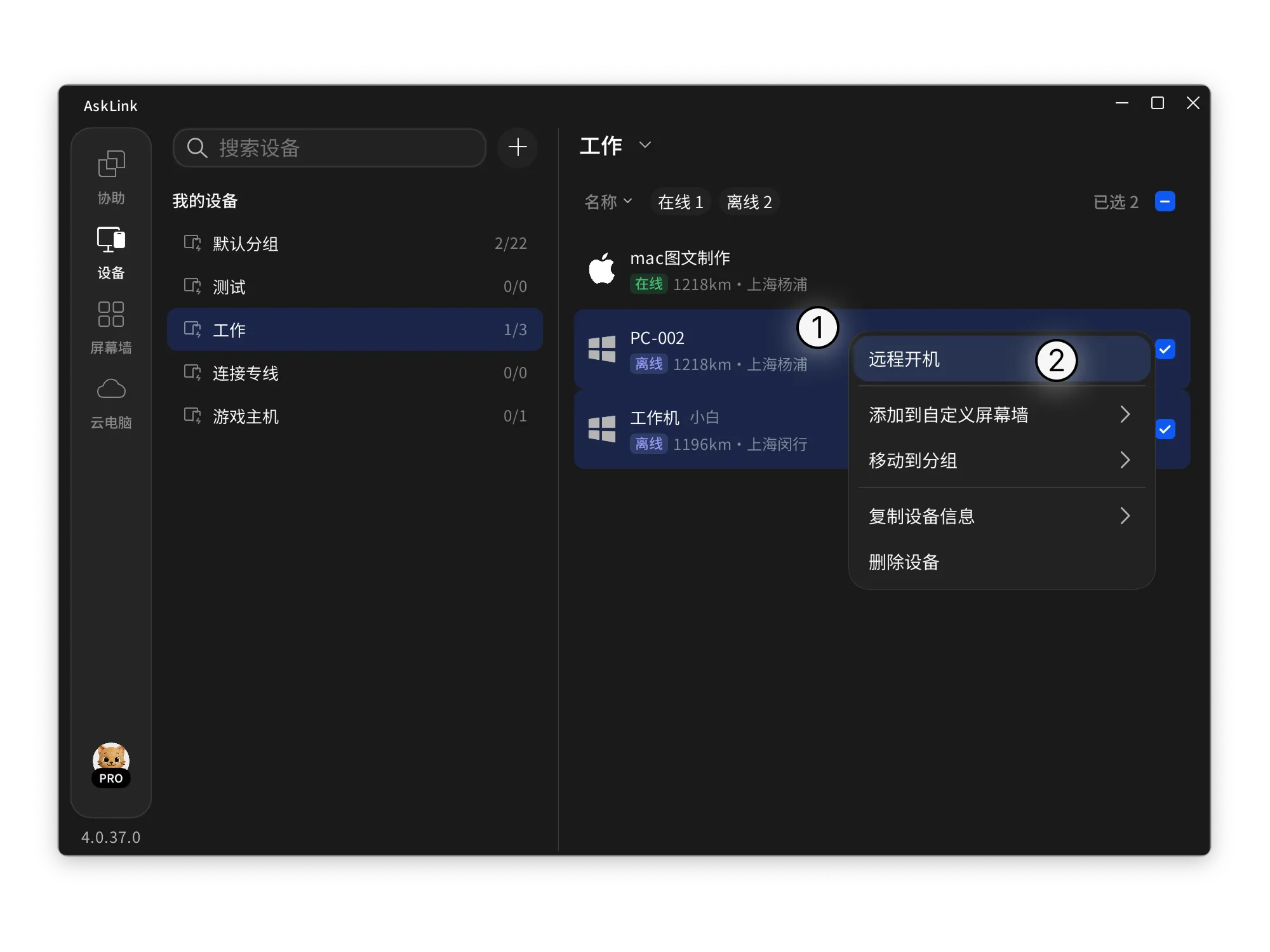
- 起動コマンドを送信した後、以下のいずれかの状況が表示される場合があります:
① 起動条件が満たされています
現在のデバイスは起動条件を満たしており、直接起動できます。
② 設定が起動条件を満たさない可能性があります
マザーボードの BIOS で Wake-on-LAN(WOL) が有効になっていないか、Windows のネットワークアダプターで「このデバイスでコンピューターのスタンバイ状態を解除できるようにする」などの項目が有効になっていない可能性があります。ただし、そのまま起動コマンドを送信して試すこともできます。
③ 起動アクションを実行できるデバイスがありません
対象デバイスと同じ LAN 内に、AskLink が起動してオンラインになっているデバイスが少なくとも 1 台あることを確認してください。
起動ルール
- 起動範囲:現在オフライン状態にあるデバイスのみ、デバイスリスト経由で起動できます。
- ネットワーク要件:ターゲットデバイスと同じLAN上に、サインイン済みでオンラインの AskLink デバイスが少なくとも1台存在し、起動コマンドを送信できる必要があります。
- 対応プラットフォーム:現在、Windows と Linux デバイスへのリモート起動コマンドの送信をサポートしています。
- 前提条件:ターゲットデバイスは、マザーボードBIOS と ネットワークアダプタの電源管理設定 の両方で関連する Wake-on-LAN(WOL) オプションが正しく有効になっている必要があります。そうでない場合、起動操作は失敗します。
設定ガイド
1. Windows設定
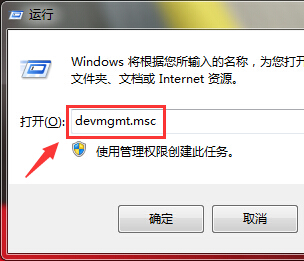
- Windows ロゴキー + R を押して「ファイル名を指定して実行」ダイアログボックスを開きます。
- 「devmgmt.msc」と入力し、Enter キーを押すか OK をクリックして「デバイスマネージャ」を開きます。
- 「デバイスマネージャ」で ネットワークアダプタ を展開します。異なるブランドやモデルのネットワークアダプタは、名前が異なる場合があります。
Intel アダプタ: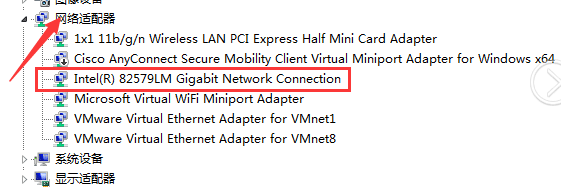
Atheros アダプタ:
Broadcom アダプタ:
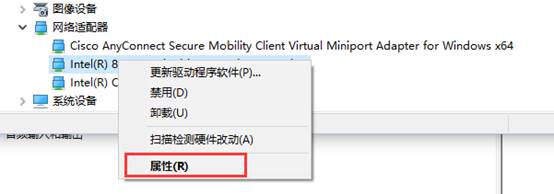
- ターゲットのネットワークアダプタを右クリックし、プロパティ を選択します。
- 詳細 タブを開き、「Wake on Magic Packet」を見つけて 有効化 に設定します。
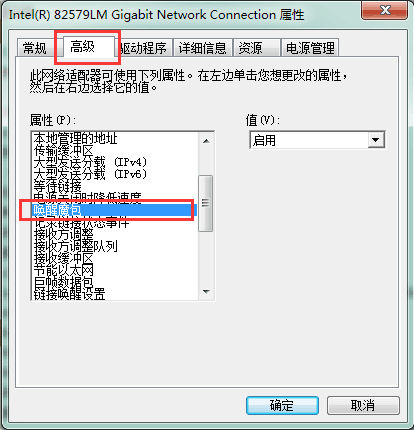
- 電源管理 タブを開き、以下のような起動関連オプションにチェックを入れます:
- このデバイスでコンピュータを起動できるようにする
- マジックパケットのみでコンピュータを起動できるようにする
表示される項目は、ネットワークアダプターのドライバーによって異なる場合があります。実際の画面をご確認ください。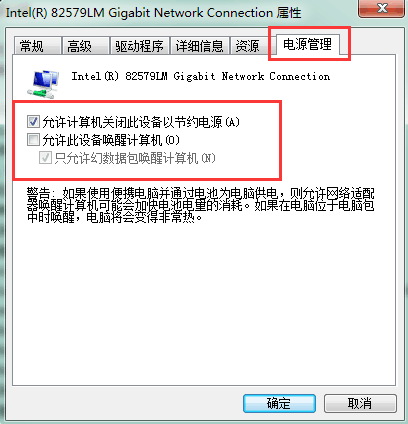
2. 主なブランドのBIOS設定
ASUS
1. マザーボードがネットワーク起動をサポートしているか確認する
- ASUS の公式サイトにアクセスし、マザーボードのモデル名で検索して該当製品ページを開きます。
- 「Tech Specs」ページへ移動します。

- 「Manageability」または同様のセクションで、WOL by PME などネットワーク起動機能がサポートされているか確認します。

2. BIOSでネットワーク起動を有効化(例:ROG MAXIMUS XII FORMULA)
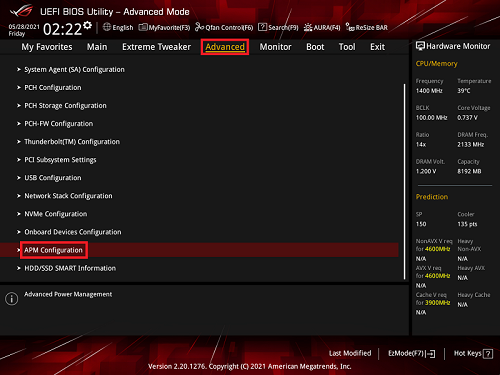
- コンピュータの電源投入直後に Delete キー を押し続けて、BIOS の Advanced Mode に入ります。
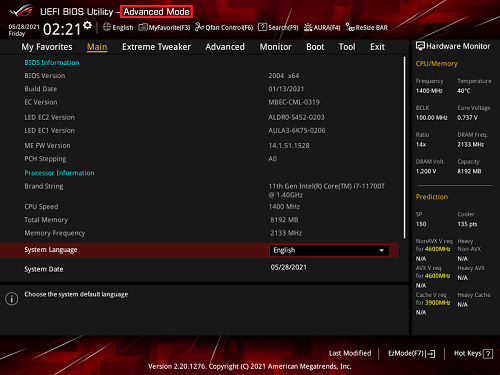
もし Delete キーを押すと直接 Advanced Mode が表示される場合は、再度 F7 を押す必要はありません。 - 「Advanced」ページへ移動し、「APM Configuration」を選択します。
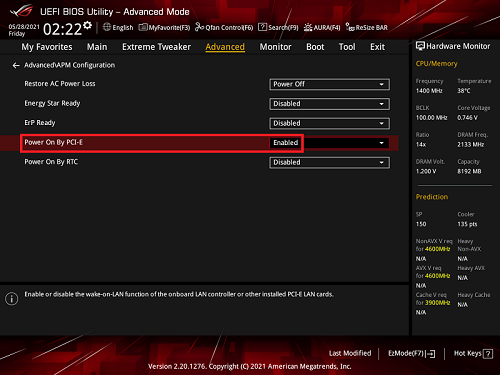
- 「Power On By PCI-E」を 有効化 に設定します。
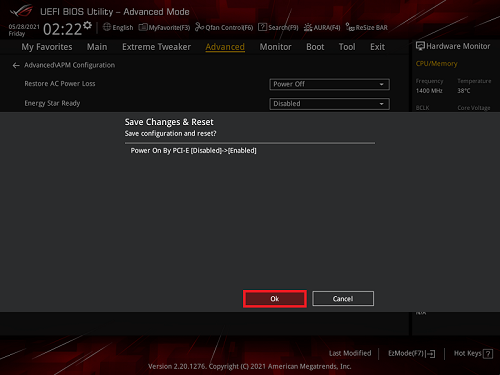
- F10 を押し、OK を選択して設定を保存し、コンピュータを再起動します。
MSI
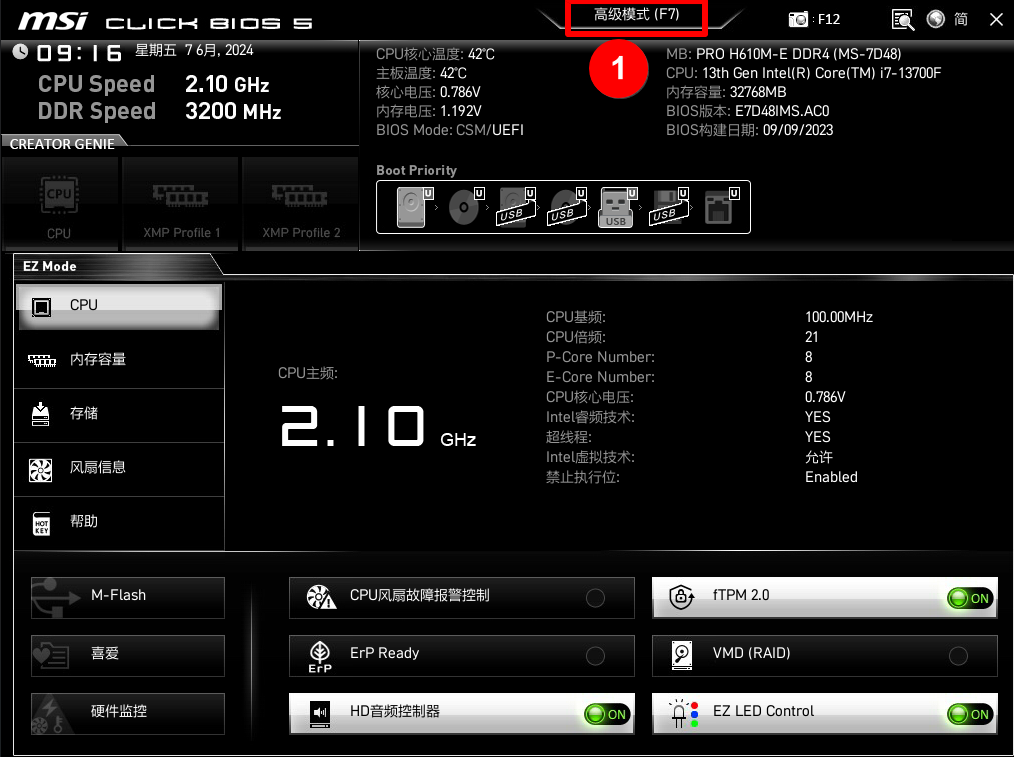
- コンピュータの電源投入後、Delete キー を連打して BIOS に入り、Advanced Mode へ切り替えます。
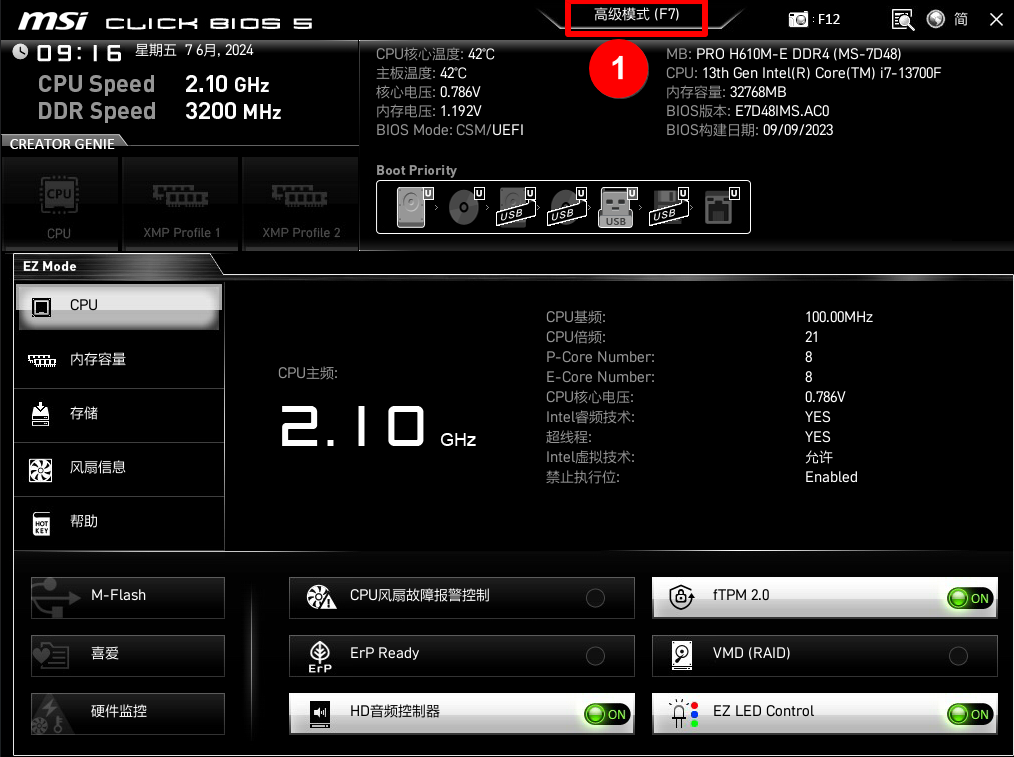
- 「SETTINGS > Advanced」へ移動します。
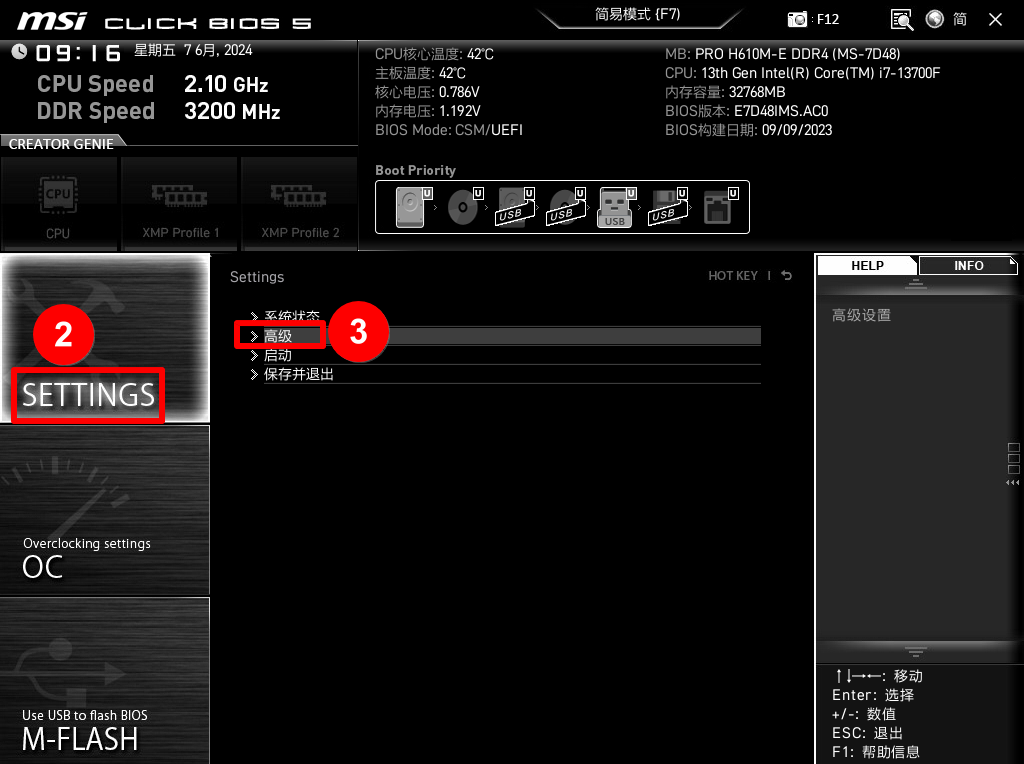
- 「Power Management Setup」を選択します。
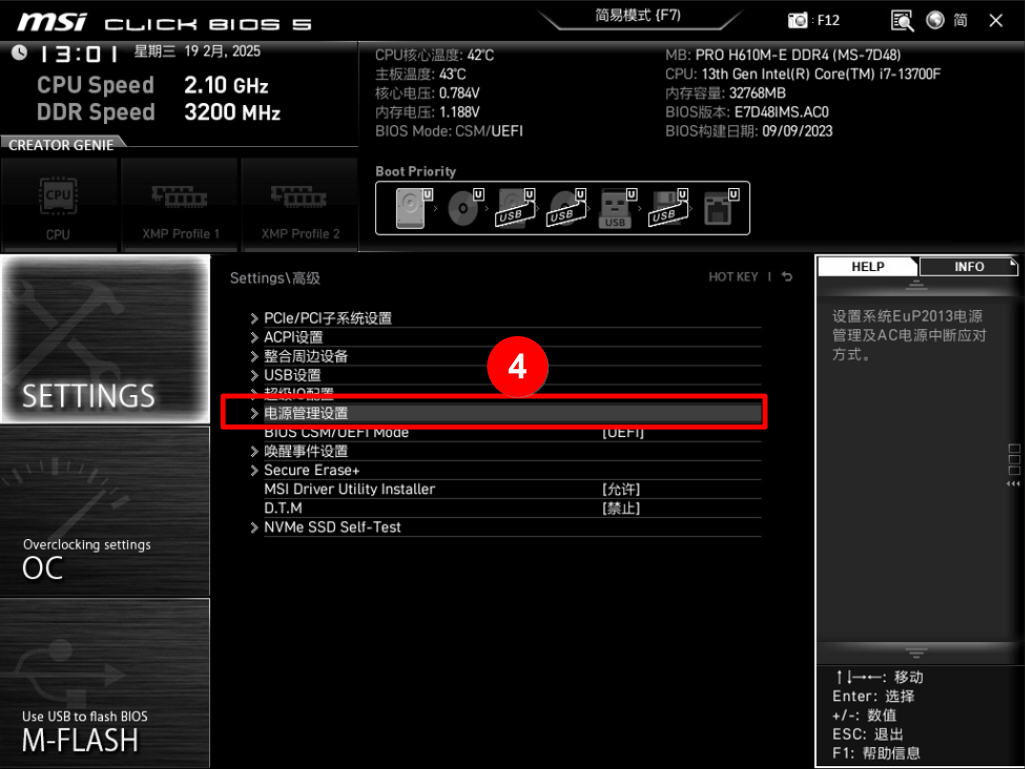
- 「ErP Ready」を 無効化 に設定します。
※ 一部のマザーボードでは、このオプションが「EuP 2013」と表示される場合があります。その際も同様に 無効化 にしてください。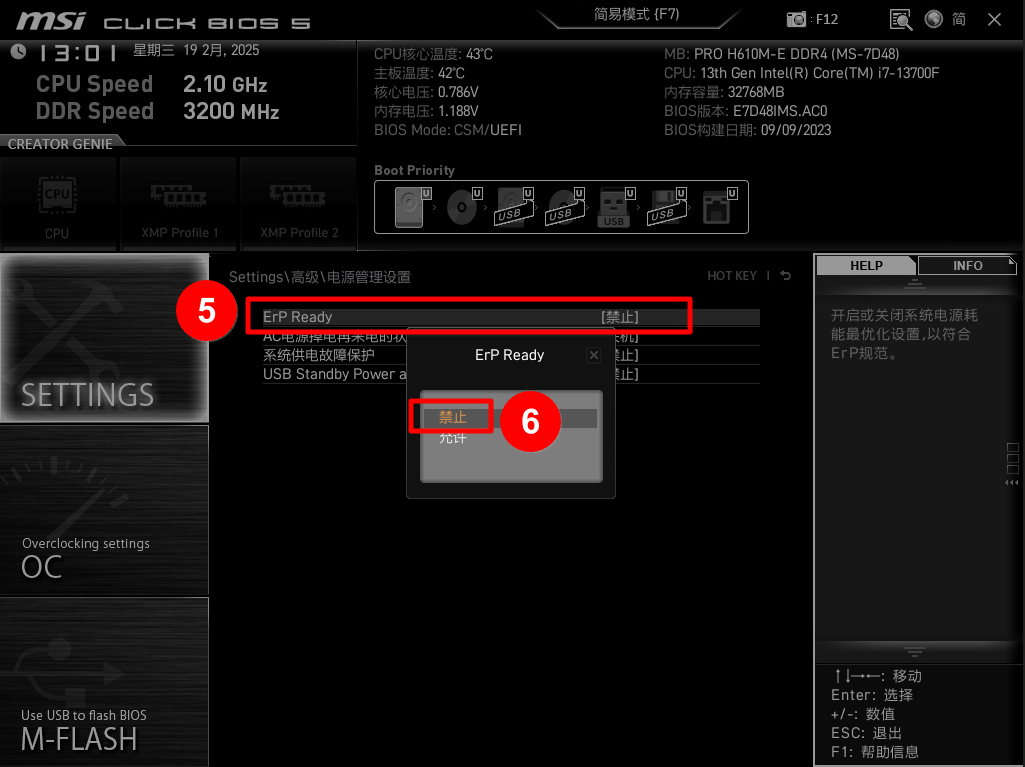
- 「SETTINGS > Advanced」に戻り、「Wake Up Event Setup」を開きます。
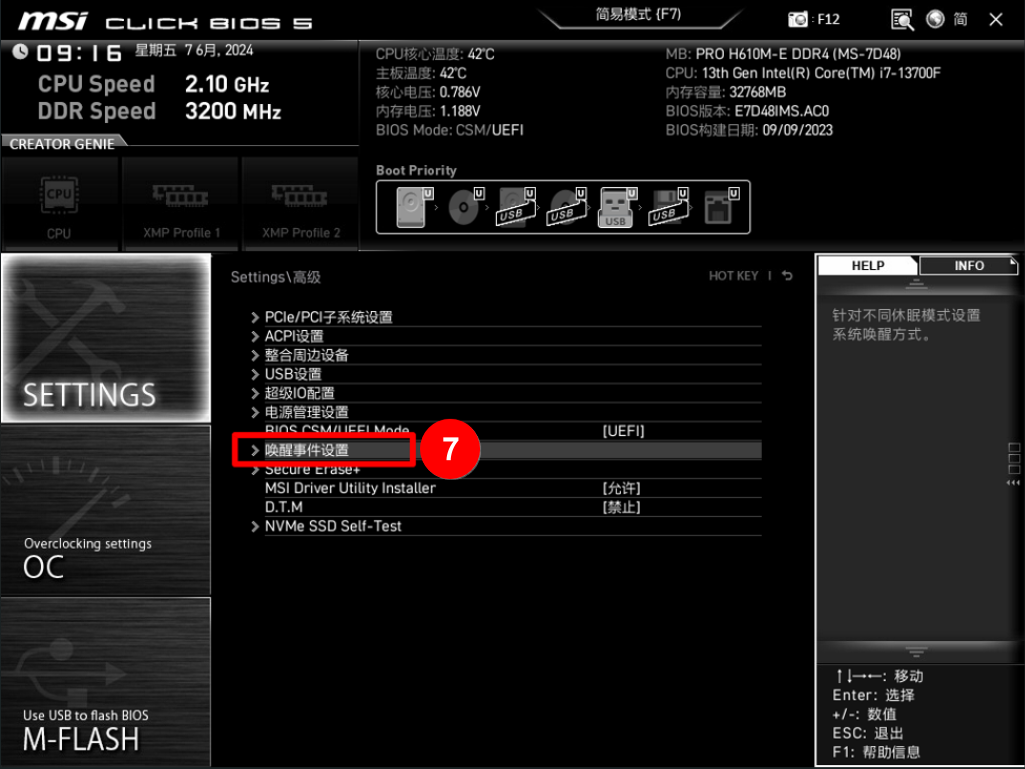
- 「PCIE/Networking Device Wake Up」または同等のオプションを探します。
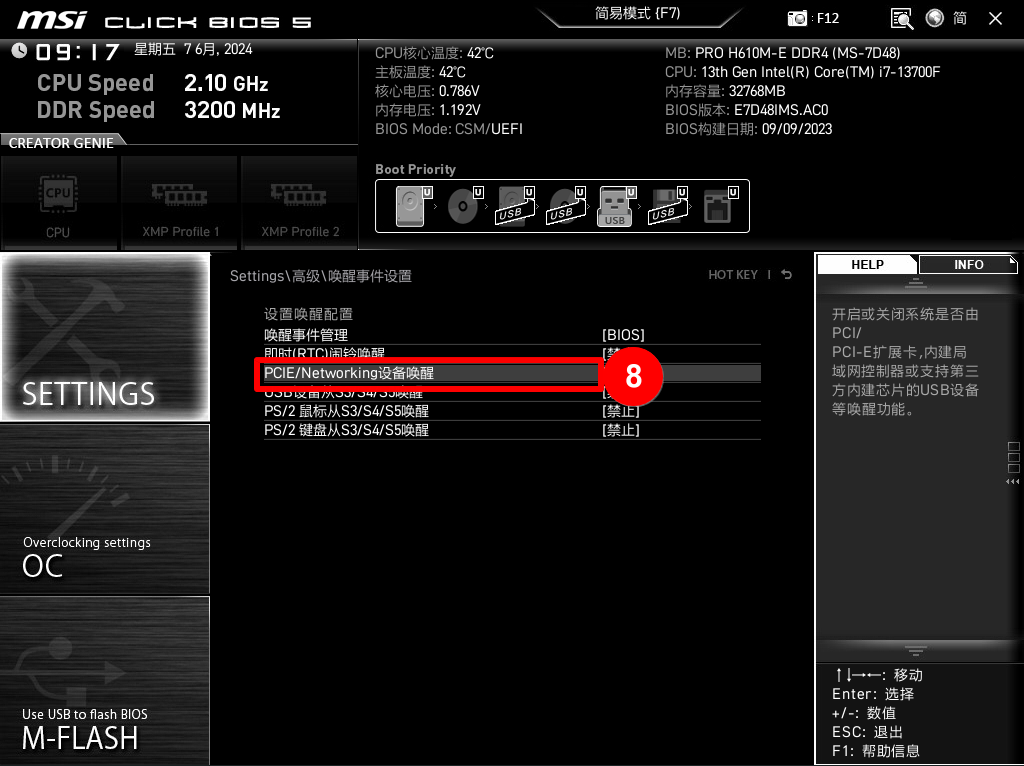
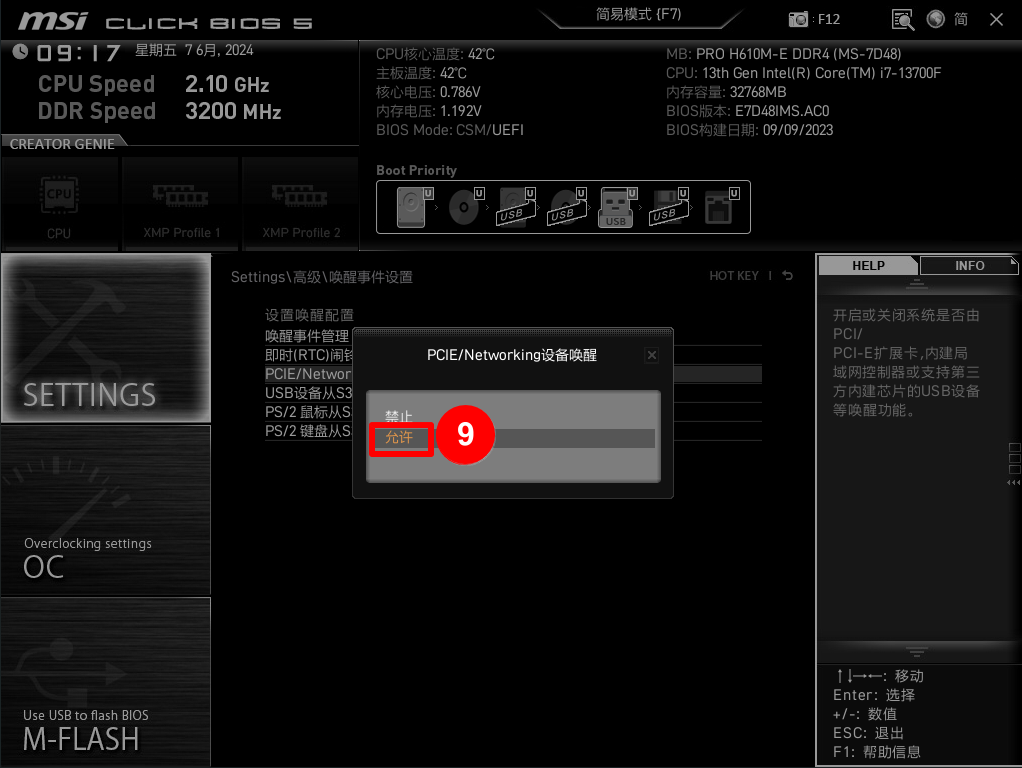
- それを 無効化 から 有効化 に変更します。
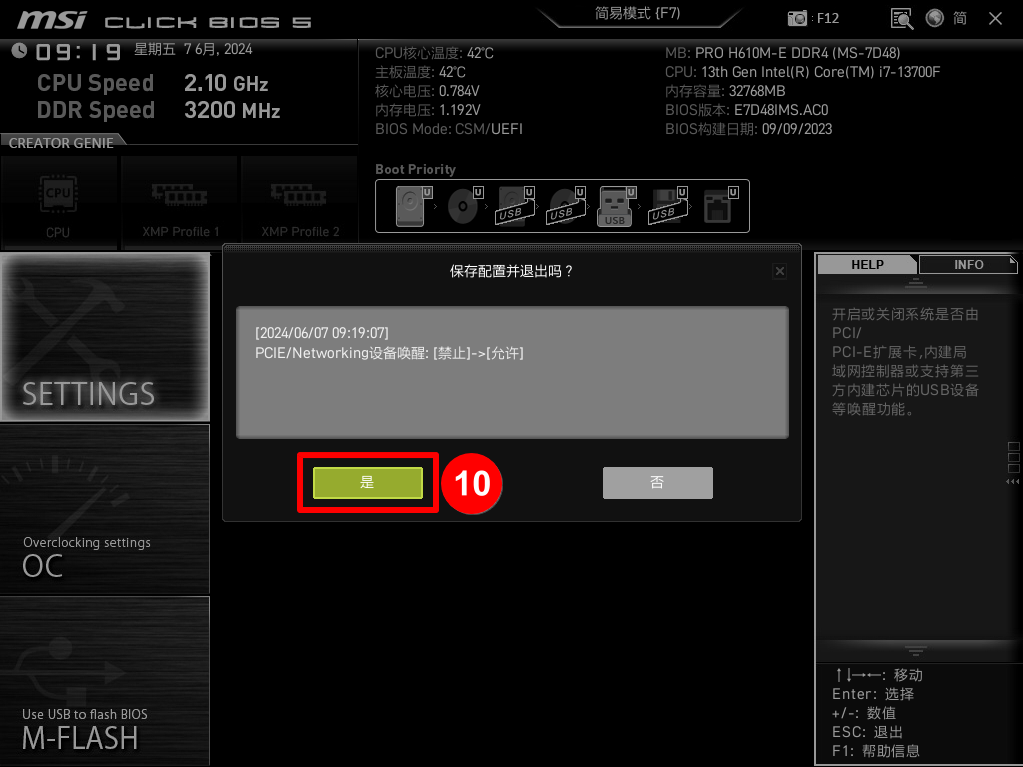
- F10 を押し、はい を選択して設定を保存し、コンピュータを再起動します。
Supermicro
- サーバーを再起動し、Delete または F2 を押して BIOS に入ります。
- 「Advanced」や「Power Management」、または同様のメニューで、Wake on LAN、Resume by LAN、PME Event Wake Up などのオプションを探します。
- オプションを 有効化 に設定します。
- 設定を保存して再起動します。
- OS 起動後、ネットワークアダプタドライバの Wake-on-LAN 関連設定も有効になっていることを確認します。
注意: 一部の Supermicro サーバーは IPMI リモート電源オン もサポートしています。IPMI は独立したアウトオブバンド管理機能であり、Wake-on-LAN(WOL) と同じメカニズムではありません。デバイスで IPMI が有効になっている場合は、WOL に頼らずに IPMI 経由で直接電源を入れることもできます。
Intel
- BIOS に入り、Wake on LAN、PME Wake Up、または PCIe Wake などに関連するオプションを探します。
- 関連オプションを 有効化 に設定します。
- BIOS が Wake from S5 や Wake on PCI-E などのオプションを提供している場合は、併せて有効化することを推奨します。
- Windows 起動後、Intel ネットワークアダプタドライバで Wake-on-LAN と 電源管理 設定が有効になっているか確認します。
注意:
- 複数ポートのネットワークアダプタは、特定のポートでのみ WOL をサポートする場合があります。デバイス仕様を参照してください。
- オプション名はマザーボード、ネットワークアダプタ、およびドライババージョンによって異なる場合があります。実際のインターフェースをご確認ください。
Lenovo
デスクトップ/オールインワン
- BIOS に入り、矢印キーで Power > Automatic Power On へ移動します。
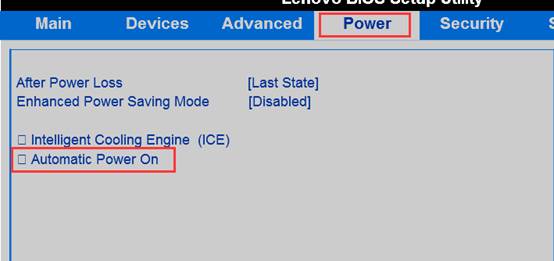
- 「Wake On LAN」を Automatic(自動) に設定します。
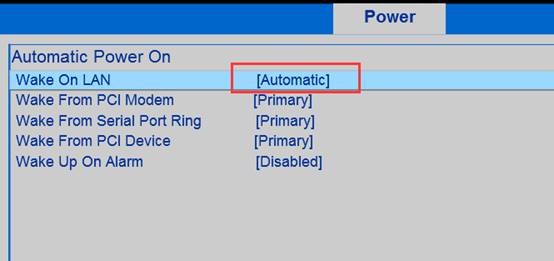
- 自分で PCI ネットワークアダプタを取り付けた場合は、WOL ケーブル がマザーボードの WOL ヘッダー(通常は 3ピンコネクタ)に正しく接続されていることを確認してください。さもなければ、起動信号が正しく送信されません。
ThinkPad ラップトップ
- BIOS に入り、矢印キーで Config へ移動します。
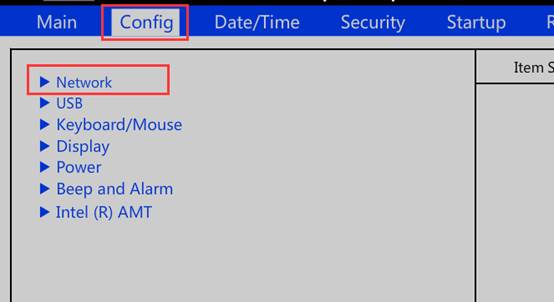
- 「Wake On LAN」で AC Only(AC 電源のみ) または AC and Battery(AC 電源とバッテリー) を選択します。
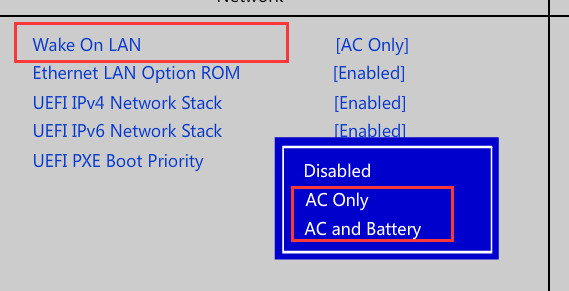
注意: Wake-on-LAN(WOL) のサポートはモデルによって異なります。特に、いくつかのラップトップは電源アダプタ接続時のみネットワーク起動をサポートします。デバイスモデルのドキュメントをご確認ください。
Dell
1. 前提条件
Wake-on-LAN(WOL) を使用するには、デバイスは通常以下の条件を満たす必要があります:
- マザーボードとネットワークアダプタが WOL に対応している。
- BIOS で関連オプションが有効になっている。
- OS のネットワークアダプタドライバで起動機能が有効化されている。
- BIOS が Deep Sleep や Energy Efficient Ethernet などのオプションを含む場合は、デバイスモデルに応じて調整する必要があります。
- デバイスは、モデルによっては起動をサポートする電源状態になっている必要があります。
2. BIOS設定
- コンピュータを再起動し、起動時に F2 を連打して BIOS に入ります。

- BIOS で System Management に移動し、Wake-on-LAN 関連オプションを探します。
- 必要に応じて適切な起動モードを選択します。
- Apply(適用) をクリックして終了します。システムは自動的に再起動します。
3. デバイスの起動方法
設定完了後、まずコンピュータをシャットダウンし、ネットワークポートのインジケータライトが点灯したままであるか確認します。インジケータがまだ点灯している場合は、通常ネットワークアダプタがスタンバイ電源を受けていることを意味し、起動テストを継続できます。
同じネットワーク上の別デバイスで、起動をサポートする任意の WOL ツールを使用し、対象デバイスのネットワークアダプタの 物理アドレス(MAC アドレス) を入力して起動コマンドを送信します。上記設定が正しければ、対象デバイスは起動し、ブートします。
HP
- BIOS に入り、Boot Options で Network(PXE) が有効になっていることを確認し、必要に応じて Fast Boot を無効化します。
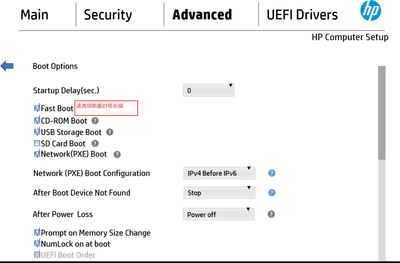
- 「Built-in Device Options」または同様のメニューで Wake on LAN を探します。複数モードが利用可能です:
- Disabled(無効):オフ
- Boot to Hard Drive(ハードドライブ起動):起動後にローカルハードドライブからブート
- Boot to Network(ネットワーク起動):起動後にネットワークからブート
ほとんどの場合、Boot to Hard Drive が推奨されます。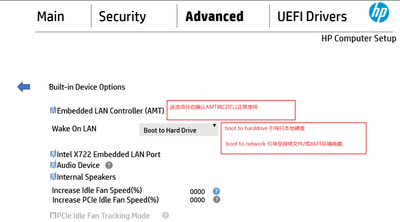
- 一部のモデルでは AMT 関連オプションも提供されます。BIOS とシステムネットワークアダプタ設定が既に構成済みであっても、デバイスが起動できない場合は、このオプションがネットワーク起動に影響するかどうかをさらに確認できます。
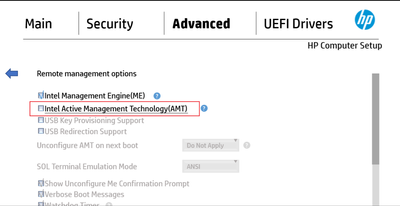
注意: 多くの場合、項目 1 と 2 が主要設定です。項目 3 を調整する必要があるかどうかは、デバイスモデルと実際の状況によります。