
User Guide
- Quick Start
- Download & Installation
- Requesting Help from Others
- How to Uninstall AskLink
- How to Update AskLink
- Account
- Registration & Login
- Password Reset
- Modify Account Information
- Account Cancellation
- Remote Control
- Using ID to Initiate Remote Control
- Using Device List to Initiate Remote Control
- Remote Control Android Devices
- How to End Remote Control
- Resolution, Refresh Rate & Image Quality
- Full Screen, Maximize & Screen Adaptation
- Virtual Display
- Performance monitor
- File Transfer
- Clipboard Synchronization
- Remote Audio
- Keyboard & Mouse Input
- Games & Peripherals
- Remote Command Execution
- Preference Options
- Device Management
- Add Device to Device List
- Create, Delete & Rename Groups
- Device Search, Filter & Sort
- Using Remote Devices via Device List
- Managing Remote Devices via Device List
- Remote Power-On (Wake-on-LAN, WOL)
- macOS Permission Settings
- Monitor Wall Usage
- Quick Start
- Single Control Mode
- Group Control Mode
- View Only Mode
- Managing the Monitor Wall
- Monitor Wall Settings
- Monitor Wall Video Tutorial(Desktop)
- Monitor Wall Video Tutorial(Mobile)
- Security
- Selecting Permissions When Client Logs into Account
- Permission Management of Control Device
- Privacy Screen
- Lock Screen When Ending Remote Control
- Long-term Password & Temporary Password
- Retention of Assistance History
- Security Recommendations
- Client Function Settings
- General
- Security Options
- Advanced Functions
- HTTP Proxy
- Batch Deployment
- Command Line
- Global Settings
- FAQ
- Linux Xorg Settings
- Purchase & Benefits
- Channels
- AskLink Membership
- Monitor Wall Purchase
- Membership & Channel Line Allocation
- Redemption Code
- Support
- Contact Us
- Quick Start
- Download & Installation
- Requesting Help from Others
- How to Uninstall AskLink
- How to Update AskLink
- Account
- Registration & Login
- Password Reset
- Modify Account Information
- Account Cancellation
- Remote Control
- Using ID to Initiate Remote Control
- Using Device List to Initiate Remote Control
- Remote Control Android Devices
- How to End Remote Control
- Resolution, Refresh Rate & Image Quality
- Full Screen, Maximize & Screen Adaptation
- Virtual Display
- Performance monitor
- File Transfer
- Clipboard Synchronization
- Remote Audio
- Keyboard & Mouse Input
- Games & Peripherals
- Remote Command Execution
- Preference Options
- Device Management
- Add Device to Device List
- Create, Delete & Rename Groups
- Device Search, Filter & Sort
- Using Remote Devices via Device List
- Managing Remote Devices via Device List
- Remote Power-On (Wake-on-LAN, WOL)
- macOS Permission Settings
- Monitor Wall Usage
- Quick Start
- Single Control Mode
- Group Control Mode
- View Only Mode
- Managing the Monitor Wall
- Monitor Wall Settings
- Monitor Wall Video Tutorial(Desktop)
- Monitor Wall Video Tutorial(Mobile)
- Security
- Selecting Permissions When Client Logs into Account
- Permission Management of Control Device
- Privacy Screen
- Lock Screen When Ending Remote Control
- Long-term Password & Temporary Password
- Retention of Assistance History
- Security Recommendations
- Client Function Settings
- General
- Security Options
- Advanced Functions
- HTTP Proxy
- Batch Deployment
- Command Line
- Global Settings
- FAQ
- Linux Xorg Settings
- Purchase & Benefits
- Channels
- AskLink Membership
- Monitor Wall Purchase
- Membership & Channel Line Allocation
- Redemption Code
- Support
- Contact Us
Performance monitor
The Performance monitor helps you quickly understand the current remote connection status and assess network conditions and device performance.
Basic information
View basic information about the current connection.
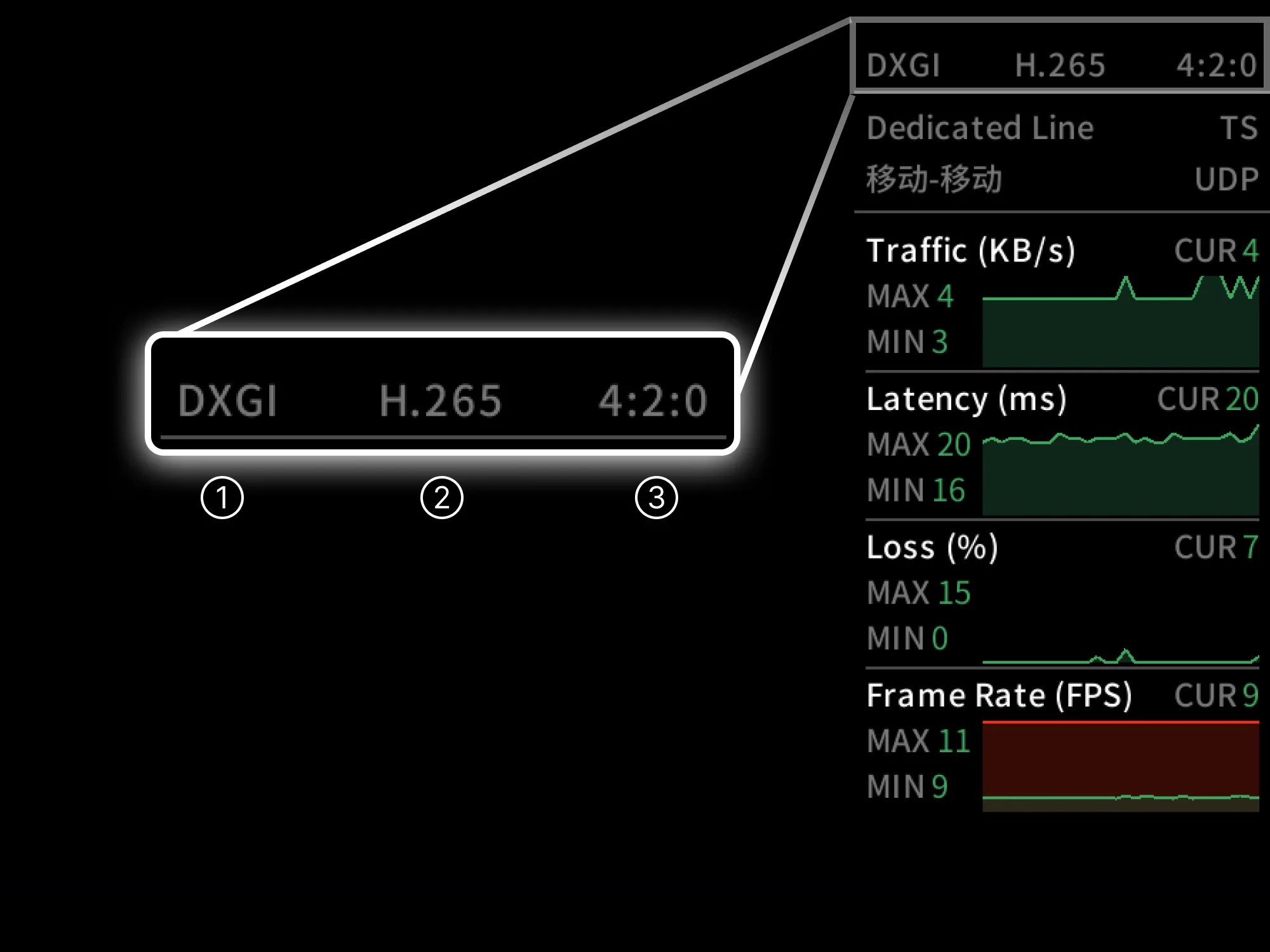
①. Screen capture method on the Controlled device
- Windows: DXGI (Windows 8 and later) / GDI (Windows 7)
- macOS: Metal
- Linux: X11
- Android: MediaProjection
- iOS: ReplayKit
②. Encoding method
- Example: H.264 / HEVC (H.265)
③. Color
- Example: 4:2:0 / 4:4:4
Network information
View the current connection’s service level and network information.
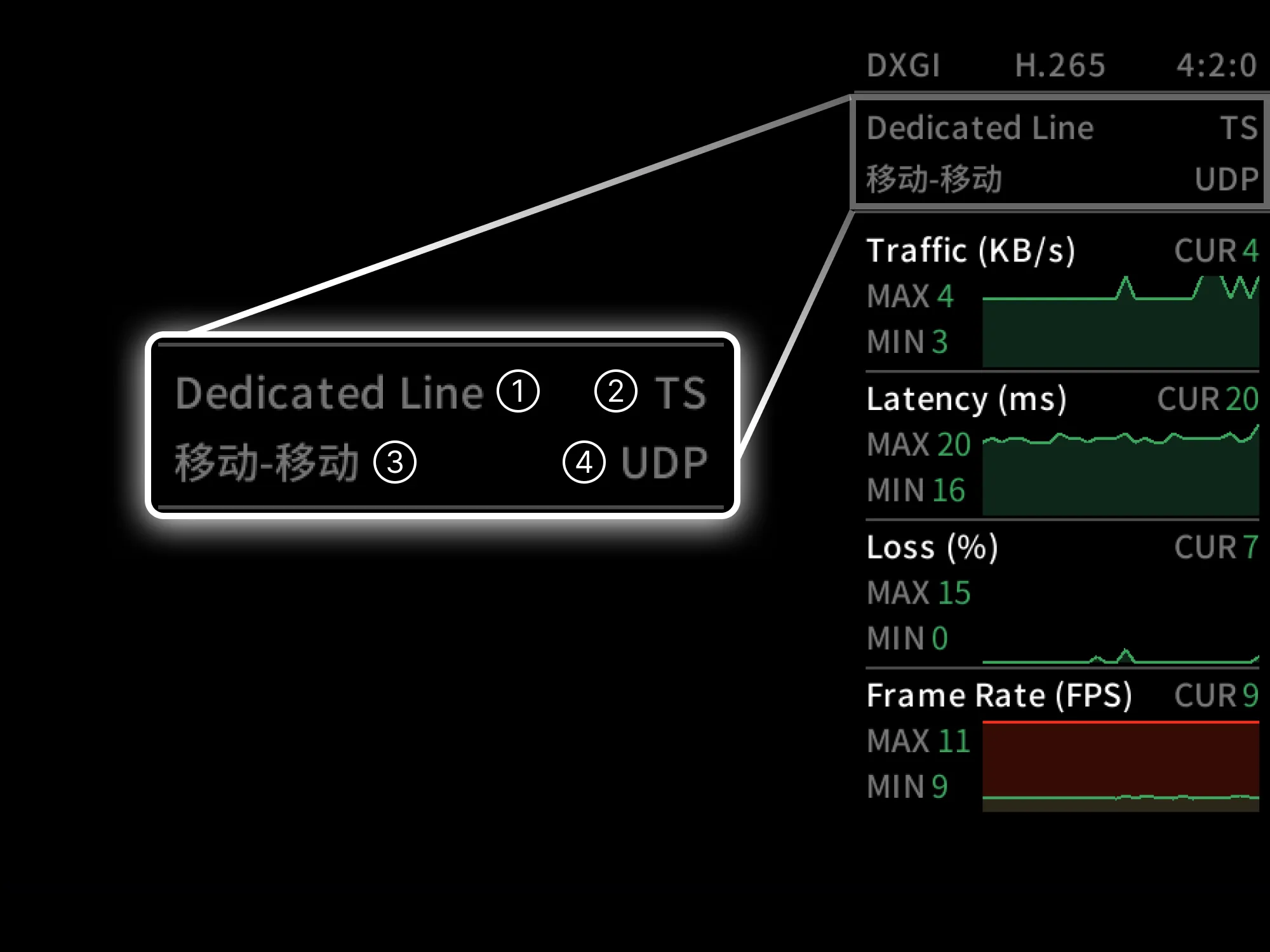
①. Line level
- Free line
- Image quality: up to 4K · 30 FPS · 8 Mbps
- File transfer: 2 Mbps
- Feature: no acceleration
- High-speed line
- Image quality: up to 4K · 60 FPS · 16 Mbps
- File transfer: 4 Mbps
- Feature: when the connection is unstable, AskLink acceleration nodes are used automatically
- Dedicated line
- Image quality: up to 4K · 165 FPS · 24 Mbps
- File transfer: 8 Mbps
- Feature: when the connection is unstable, AskLink acceleration nodes are used automatically
- Exclusive line
- Image quality: up to 4K · 165 FPS · 32 Mbps
- Feature: Optimized for most carriers and can use over 300 AskLink global acceleration access points.
②. Connection type
- LAN: Connect via the local area network
- P2P: Use P2P technology to connect
- Smart Acceleration: Connect via AskLink acceleration servers
- TS: Connect via AskLink free relay servers
③. Carriers
- Left: Controller carrier
- Right: Controlled carrier
④. Connection protocol
- Currently, AskLink remote connections only support the UDP protocol
Performance
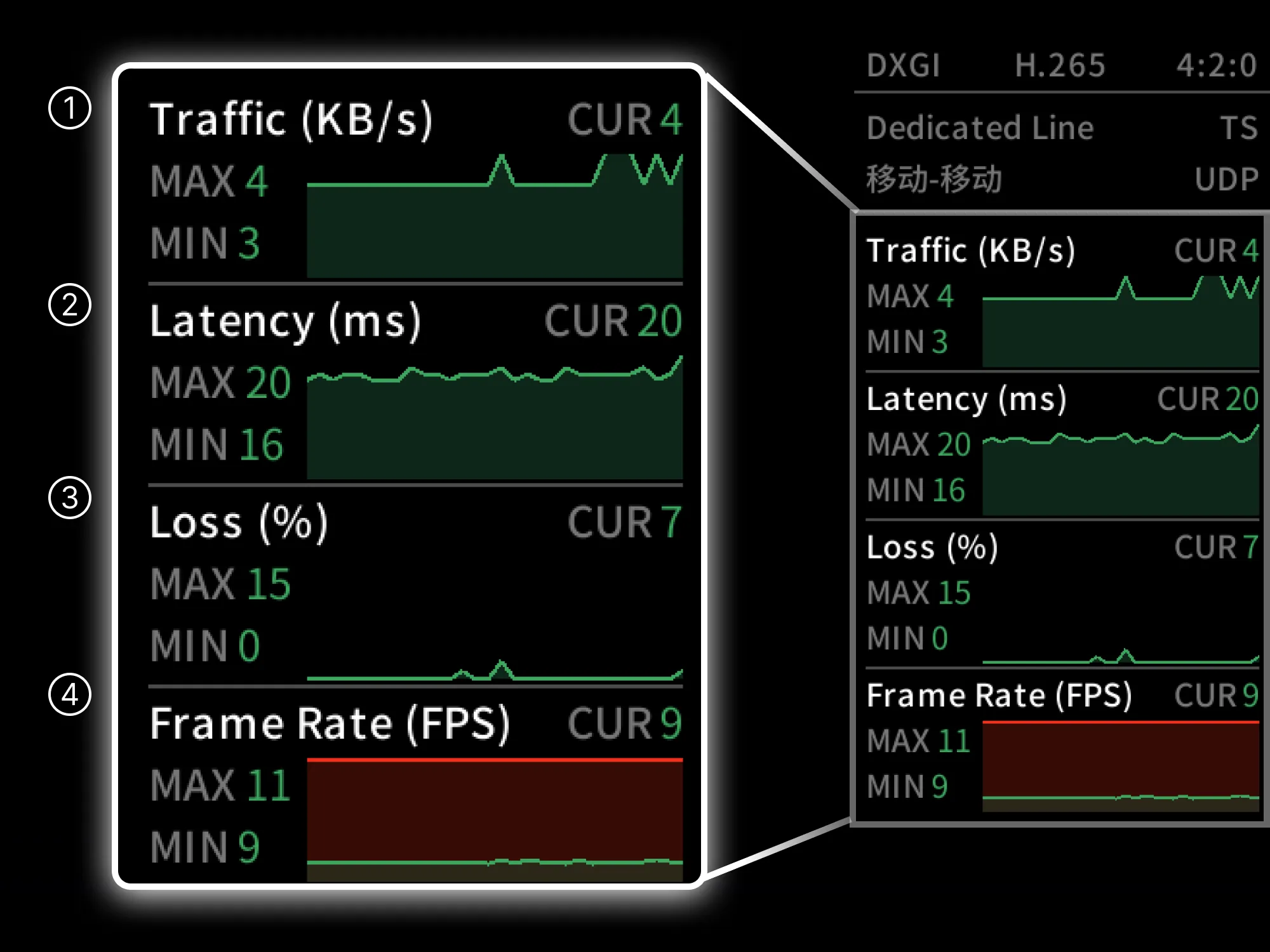
①. Traffic
Indicates the current data usage of the remote connection.
- Unit: KB/s (kilobytes per second)
- Meaning: amount of data successfully transmitted per second (in kilobytes)
②. Latency
The time between your action and the remote device’s response.
- Unit: ms (milliseconds)
③. Packet loss rate
The percentage of data packets that fail to arrive during transmission out of all packets sent.
Packet loss may cause lost input commands or stuttering / dropped frames; even with low latency, high packet loss will make the connection unreliable.
- Unit: % (percent)
④. Effective frame rate
AskLink uses a dynamic frame rate strategy, capturing and transmitting only when the image changes; therefore, the real-time frame rate on the Controlled device changes dynamically with the screen content.
- Unit: FPS (frames per second)
Glossary
HEVC / H.264
- H.264 (AVC): Highly versatile, best compatibility, with a good balance between image quality and file size.
- HEVC (H.265): Higher compression efficiency and more bandwidth-saving, but requires more powerful hardware.
4:2:0 / 4:4:4 (chroma subsampling)
- 4:2:0 (efficiency first): The default / most common choice for video, saves bandwidth with minimal perceived loss of quality.
- 4:4:4 (fidelity first): More precise color edges and clearer images, but requires more powerful hardware.
MAX / MIN / CUR
- Used to analyze statistics of a metric over the last 30 seconds:
- MAX: Maximum value in the last 30 seconds
- MIN: Minimum value in the last 30 seconds
- CUR: Current value
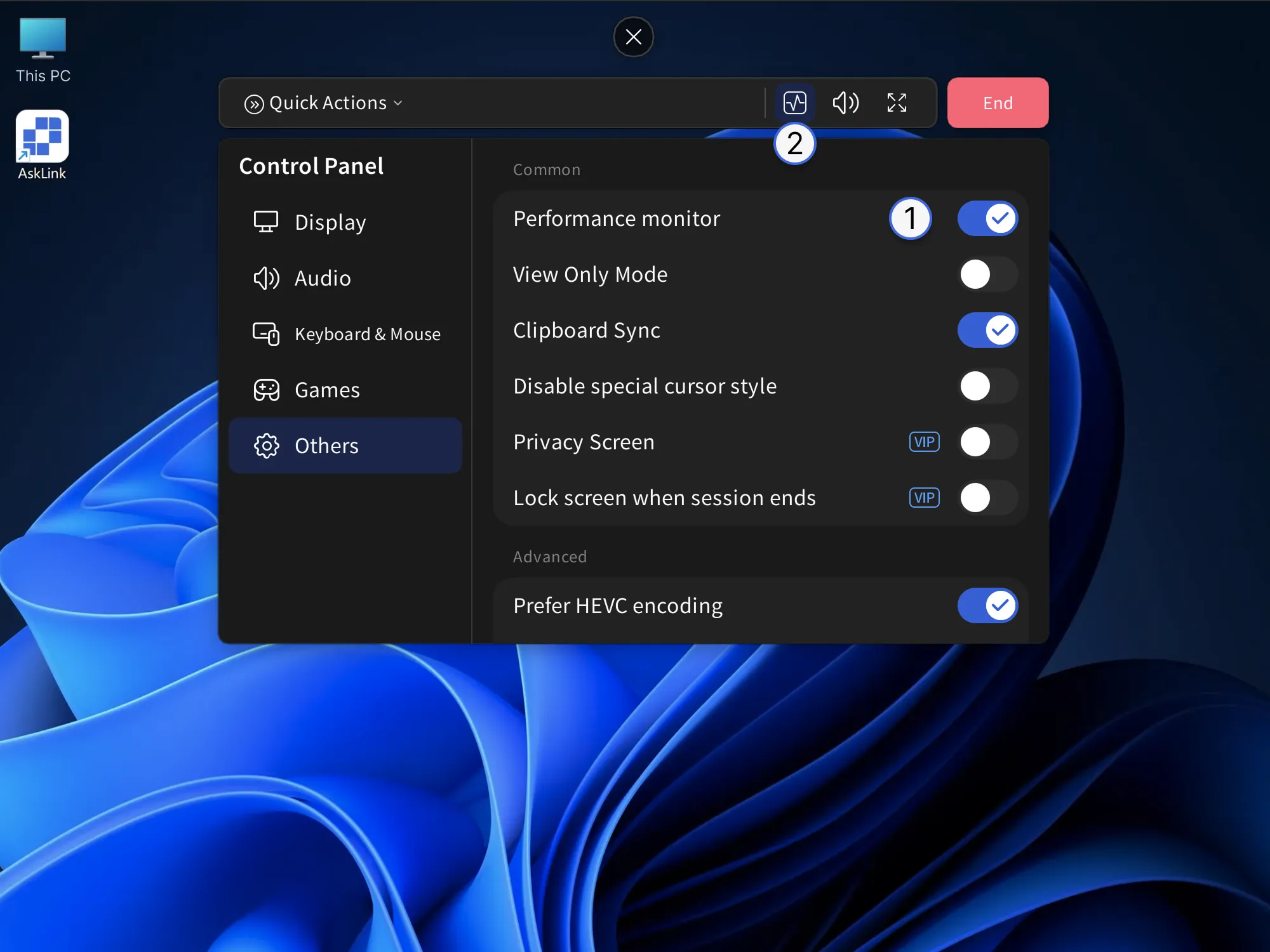
How to enable the Performance monitor
Set as enabled by default
- In the client, go to “My”
- Click “Others”
- Turn on the “Performance monitor” option
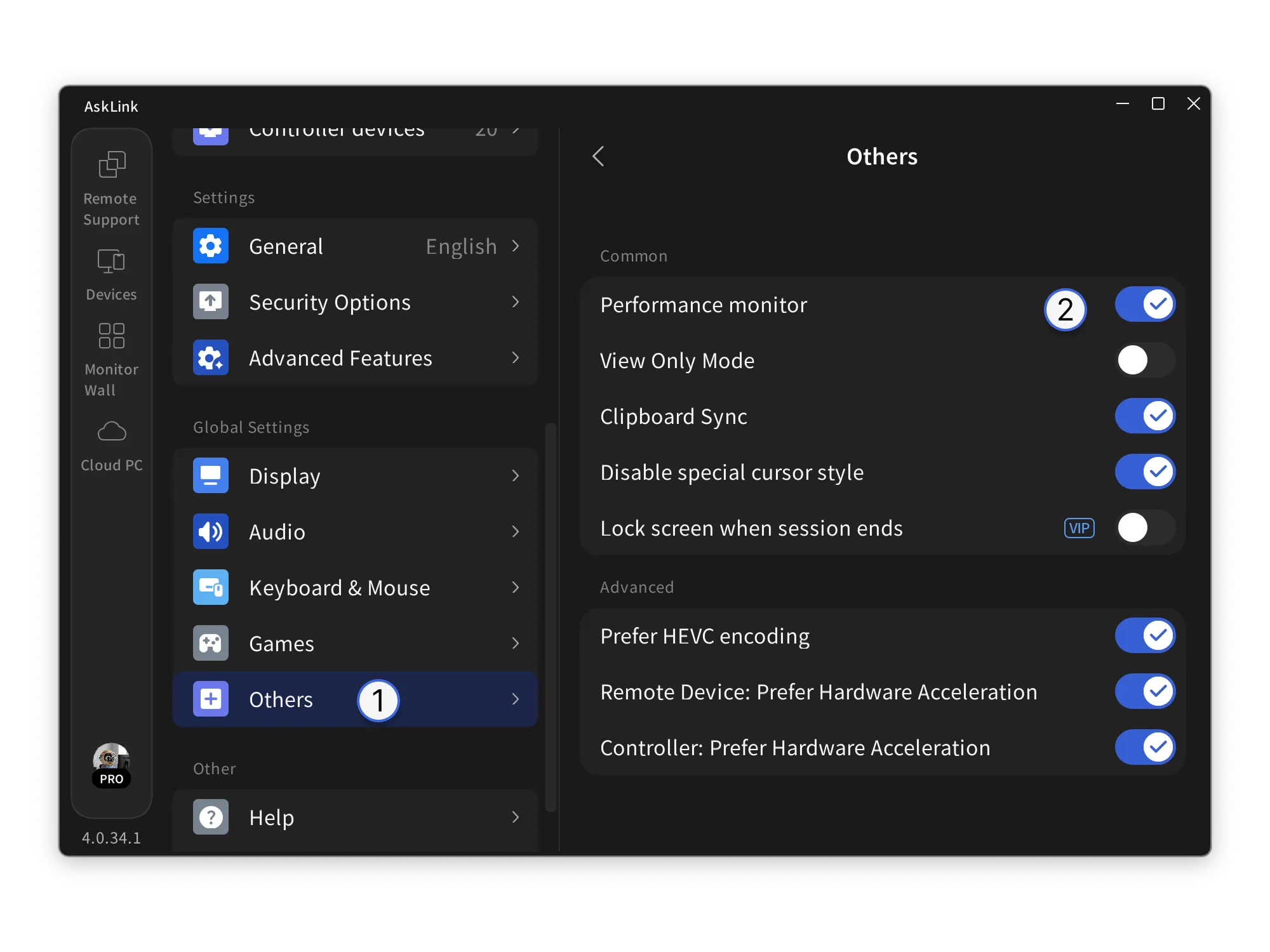
Enable only when needed
- In “Others”, enable “Performance monitor”
- You can also open it via the quick bar icon

Official WeChat Account
© Shanghai KongKong Technology Co., Ltd.
|Privacy Policy|Terms of Service|Value-Added Service Agreement|